Migrating from Pipedrive to CrocoClick
Guide to migrating from Pipedrive to CrocoClick and centralizing CRM, sales and automation efficiently.
Written By CrocoTeam
Last updated 8 months ago
This comprehensive guide provides the steps to migrate data and operations from Pipedrive to CrocoClick, ensuring a smooth transition of CRM data, automation workflows, and marketing activities. The goal is to take full advantage of CrocoClick's features while maintaining the integrity and continuity of existing processes.
Preparing for migration
Step 1: Review your current Pipedrive configuration
Identify key elements: Document all sales pipelines, deals, contacts, and automation sequences currently used in Pipedrive.
Assess the volume of data: Calculate the size and complexity of the data (number of contacts, deals, custom fields) to be migrated.
Step 2: Define migration objectives
Define clear objectives: Determine the main reasons for migrating to CrocoClick, such as advanced automation, integrated CRM, or cost savings.
Prioritize features: Focus on migrating critical elements such as CRM data, sales pipelines, and essential automations first.
Step 3: Prepare a backup
Export data from Pipedrive: Ensure that all CRM data (contacts, deals, custom fields, etc.) is exported from Pipedrive as CSV or Excel files.
Back up documentation: Securely store all exported data files and relevant documents before beginning the migration.
Data migration
Step 1: Export data from Pipedrive
Export contacts:
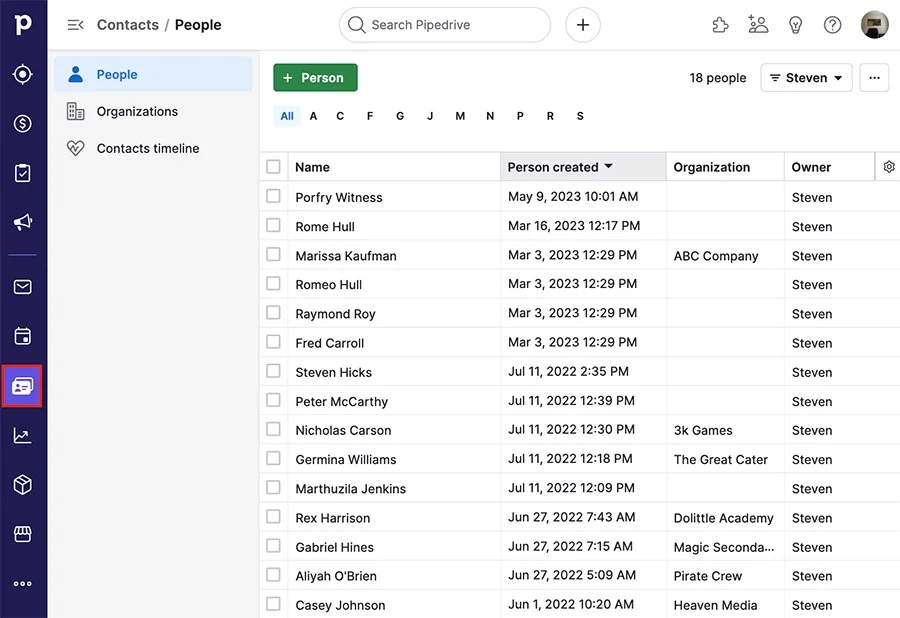
In Pipedrive, go to Contacts > People.
Use the export function to download contacts in CSV or Excel format, including all relevant fields (name, email, phone number, custom fields).
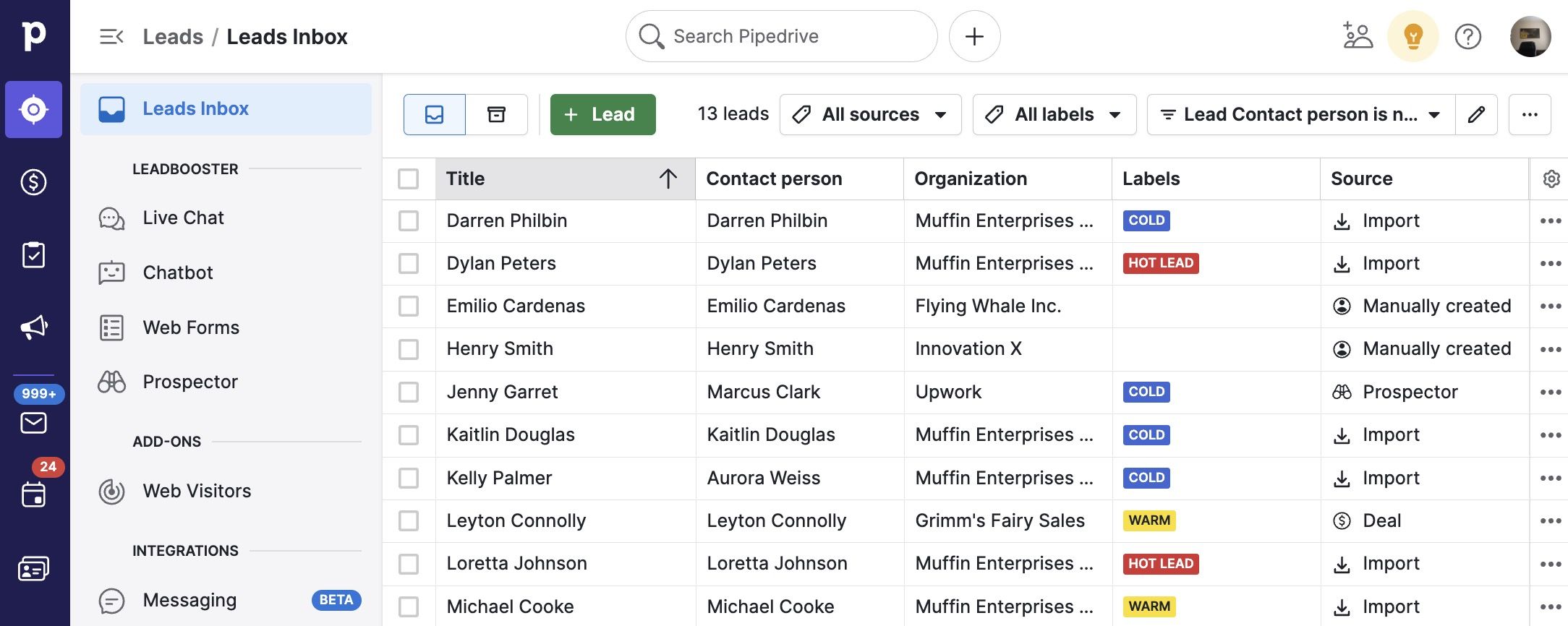
Export deals: Go to the Deals section and export all active and closed deals, making sure to include deal stages, values, and associated contacts.
Export activities and notes: Export all scheduled activities, notes, and files associated with contacts and deals.
Step 2: Import data into CrocoClick
Import contacts:
In CrocoClick, go to Contacts > Import Contacts and upload the CSV files exported from Pipedrive.
Map the fields correctly to ensure accurate data import.
Import deals (opportunities):
Recreate your sales pipelines in CrocoClick by going to Opportunities > Pipelines.
Import deals from the CSV file by associating stages and values with the new pipeline structures.
Recreate activities: Manually recreate or import planned activities, ensuring that all tasks, meetings, and follow-ups are transferred.
Migrate sales pipelines and automations
Step 1: Recreate sales pipelines in CrocoClick
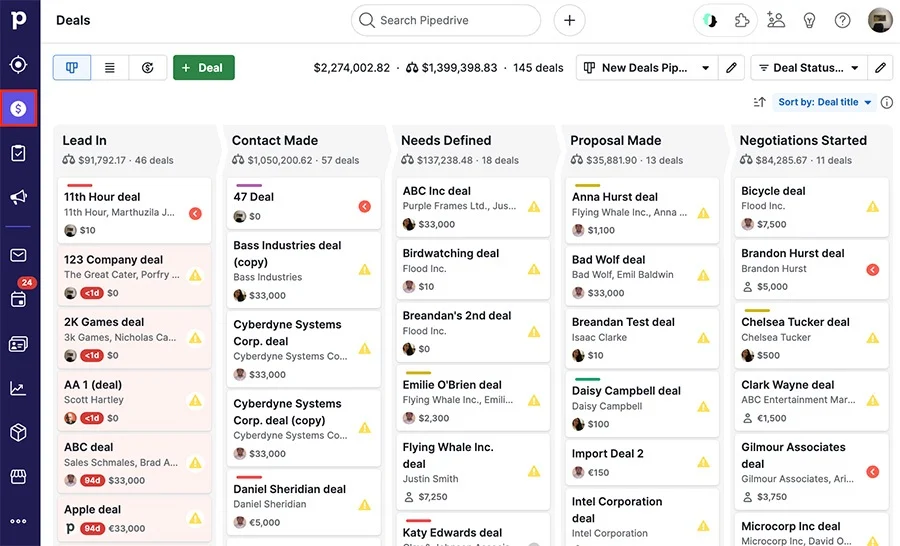
Configure pipelines: In CrocoClick, create sales pipelines that reflect the stages used in Pipedrive, ensuring that all stages are accurately represented.
Transfer deals: Assign deals to the appropriate stages in the new CrocoClick pipelines, ensuring continuity in sales tracking.
Step 2: Recreate automations in CrocoClick
Set up triggers and actions:
Recreate automation workflows in CrocoClick by navigating to Automations > + New Workflow.
Set up triggers (new deal creation, stage change) and actions (email sending, status update) similar to those used in Pipedrive.
Integrate communication channels: Ensure that email and SMS automations are correctly configured in CrocoClick by taking advantage of the integrated communication tools.
Migrate documents and contracts
Step 1: Transfer document templates
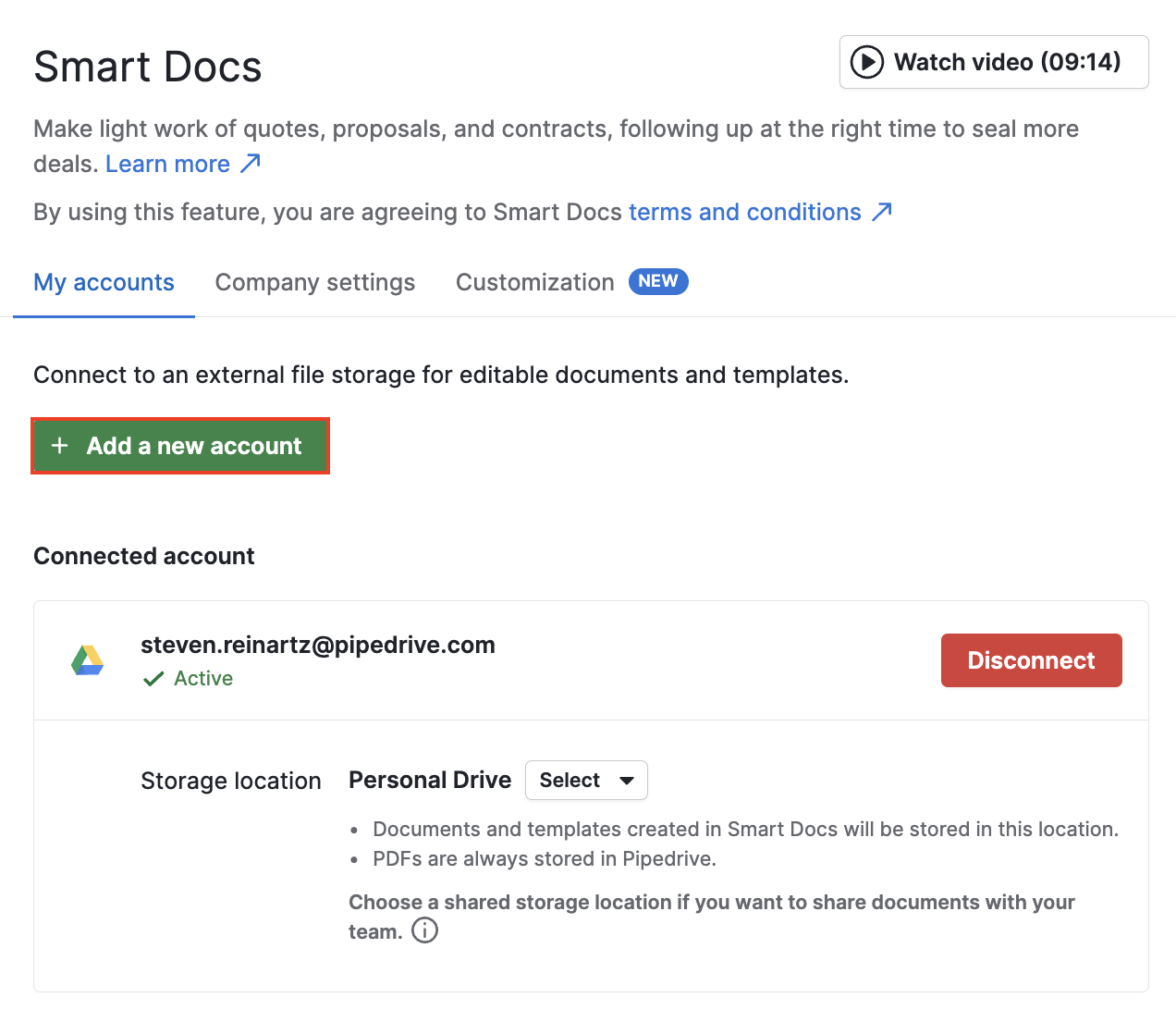
Export templates from Pipedrive: Download all document or contract templates used in Pipedrive's SmartDocs feature.
Import and recreate in CrocoClick: Recreate document templates in CrocoClick using the template editor to configure contracts, proposals, and quotes.
Step 2: Set up electronic signatures and document tracking
Enable e-signature: Configure CrocoClick's document features to include e-signature for contracts and agreements.
Track engagement with documents: Configure tracking options to monitor when documents are opened, viewed, or signed, similar to Pipedrive's SmartDocs.
Testing and validation
Step 1: Test sales pipelines
Perform end-to-end testing: Simulate sales processes in CrocoClick by moving deals through the stages to verify that everything is working as expected.
Verify data integrity: Compare imported data to ensure that contacts, deals, and activities are accurately represented.
Step 2: Validate automation workflows
Run test scenarios: Test each automation workflow in CrocoClick to verify that triggers and actions are working as expected.
Verify communication channels: Ensure that communication actions, such as emails and SMS messages, are executed correctly in the workflows.
Team training and transition
Step 1: Train team members
CrocoClick training: Organize training sessions to familiarize team members with the CrocoClick interface and features.
Provide documentation: Distribute user guides and SOPs tailored to CrocoClick's features to support members during the transition.
Step 2: Monitoring and optimization
Monitor system performance: Regularly check the performance of sales pipelines and automations after migration.
Optimize workflows: Make the necessary adjustments to optimize workflows and improve efficiency based on team feedback.
Deactivation of Pipedrive
Step 1: Transition period
Parallel operation: Consider running Pipedrive and CrocoClick in parallel for a short period to ensure a smooth transition.
Gradually reduce Pipedrive usage: Decrease Pipedrive usage as confidence in CrocoClick increases.
Step 2: Cancel Pipedrive subscription
Final backup: Ensure that all necessary data is backed up before canceling your Pipedrive subscription.
Official cancellation: Follow Pipedrive's procedures to cancel your subscription and terminate the associated services.
Step 3: Post-migration review
Evaluate success: Assess the success of the migration, documenting any challenges encountered and solutions implemented.
Continuous monitoring: Continue to monitor CrocoClick's performance and adjust settings as necessary.
Conclusion
Migrating from Pipedrive to CrocoClick allows you to centralize your CRM, workflows, and marketing activities for more efficient management. By following this guide, you can ensure a smooth transition while optimizing CrocoClick's automation and CRM capabilities.