Migrating from Typeform to CrocoClick
Migrate your forms and automations from Typeform to CrocoClick for seamless CRM integration.
Written By CrocoTeam
Last updated 8 months ago
This comprehensive guide outlines the steps to effectively migrate forms, surveys, and associated data from Typeform to CrocoClick. The goal is to ensure a smooth transition while maximizing the use of CrocoClick features, such as CRM integration, marketing automation, and advanced analytics.
IMPORTANT: Be sure to migrate all of the following elements when transitioning from Typeform to CrocoClick.
Forms
Contacts
Automations
Domains & QR codes
Reports
Migrate forms
Typeform helps collect information via forms, surveys, and polls, all of which can be downloaded in CSV format.
Step 1: View TypeForms
Log in to TypeForm: Go to your workspace to manage all your forms and surveys.
View form questions: Click on each form to view the questions on the left side of the form preview.
Collect existing automations: Review all automation sequences in Typeform, including form logic, calculations, email validation, and notifications.
Step 2: Recreate the questions in CrocoClick
Log in to CrocoClick: Go to Contacts > Settings > Custom Fields.
Recreate the form questions: Add custom value fields for each form question. Add them manually as custom fields by matching the data types.
Step 3: Recreate the forms and surveys in CrocoClick
Recreate the forms and surveys: Create individual forms and surveys by adding the corresponding questions. Click here to read our article on "How to create, modify, and use forms?"
Recreate the form design: Use CrocoClick's customization options to match the design and branding of the original TypeForm.
Add automations to the form builder: Reproduce existing Typeform automation sequences, including logic, calculations, email/phone validation, and notifications. Some configurations are done directly in the form builder, others in the Automation step.
Test forms: Verify that the forms are working correctly.
Migrate contacts
Unlike CrocoClick, Typeform does not require an email or phone number for each form submission. You must export only the form responses that include these fields in order to import them into CrocoClick contacts.
Step 1: Export form responses from Typeform
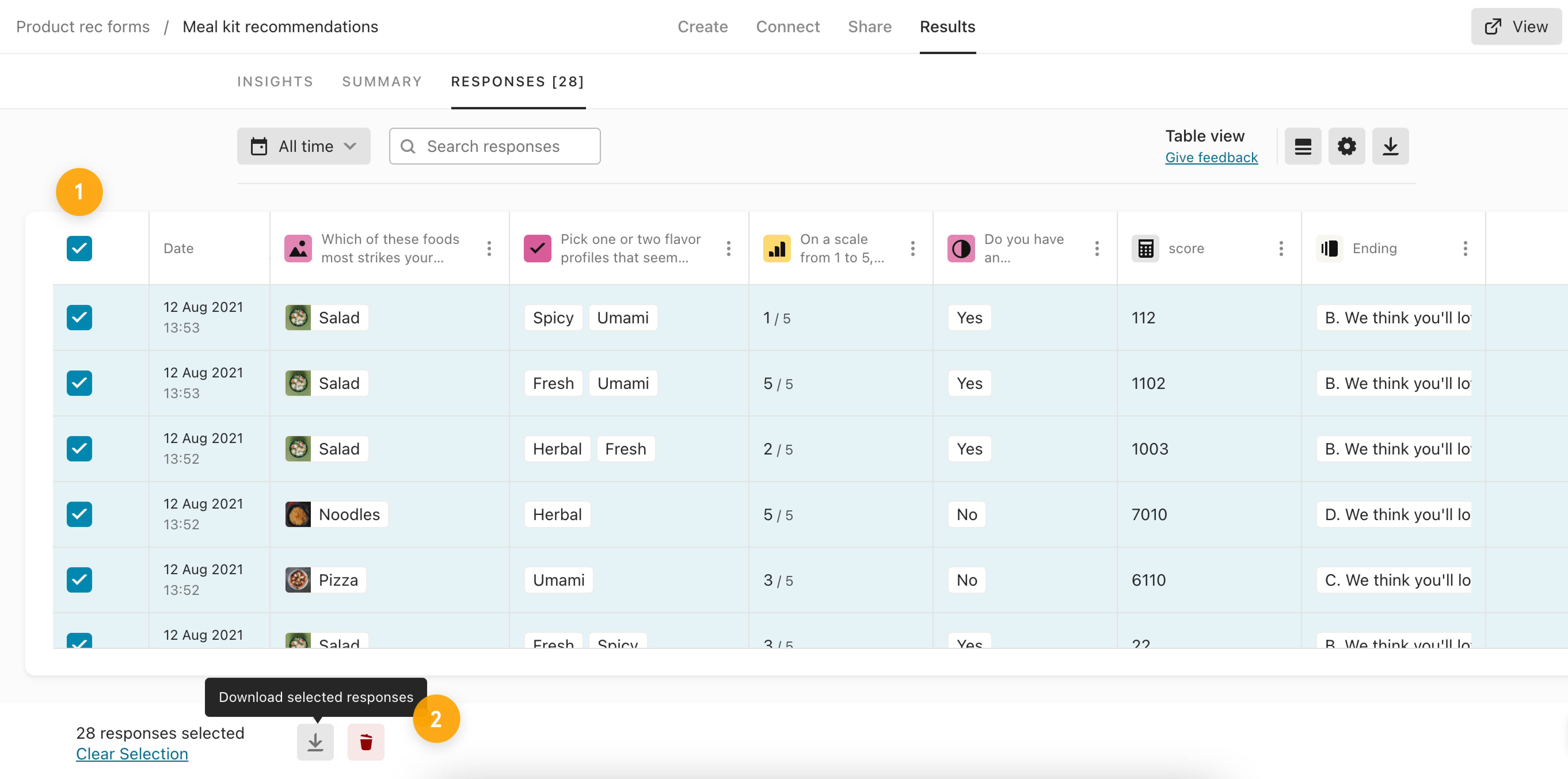
Export Typeform data: Access their form in My Workspace, go to Results, and select Responses.
Download the data: Select all responses and click on the download icon in the top right corner to save all form responses in CSV format.
Step 2: Prepare the CSV for import into CrocoClick
Check date formats: Make sure all date fields in the CSV are in YYYY-MM-DD format.
Encode special characters: Ensure that the CSV file uses UTF-8 character encoding to correctly process special and accented characters.
Clean up the data: Remove unnecessary line breaks, emojis, and special characters.
Recreate custom fields: Log in to CrocoClick, then go to Contacts > Settings > Custom Fields. Add fields to organize contact data as in Typeform.
Step 3: Import contacts into CrocoClick
Log in to CrocoClick: Go to the Contacts section via the left-hand menu.
Start the import process: Click the Import Contacts button.
Upload the CSV file: Select and upload the prepared CSV file.
Map the fields: CrocoClick will ask you to map the fields in the CSV file to the corresponding fields. For example, map "First Name" in the CSV to "First Name" in CrocoClick.
💡 TIP: Make sure all required fields are correctly mapped. If a field in the CSV does not correspond to a field in CrocoClick, create a custom field before continuing.
Assign tags and lists: During import, you can assign contacts to specific lists and apply tags, such as "Imported from Typeform."
Finalize the import: After configuring the field mapping and tags/lists, click Import.
Step 4: Verify imported data
Review: Ensure that all data imported into CrocoClick, including contacts and form submissions, is accurate.
Compare with Typeform data: Check the data in CrocoClick against the original Typeform data to avoid any discrepancies.
Migrate automations and follow-ups
Automations in Typeform can be created in the app or via Slack, Zapier, or webhooks.
Step 1: Check existing automations in Typeform
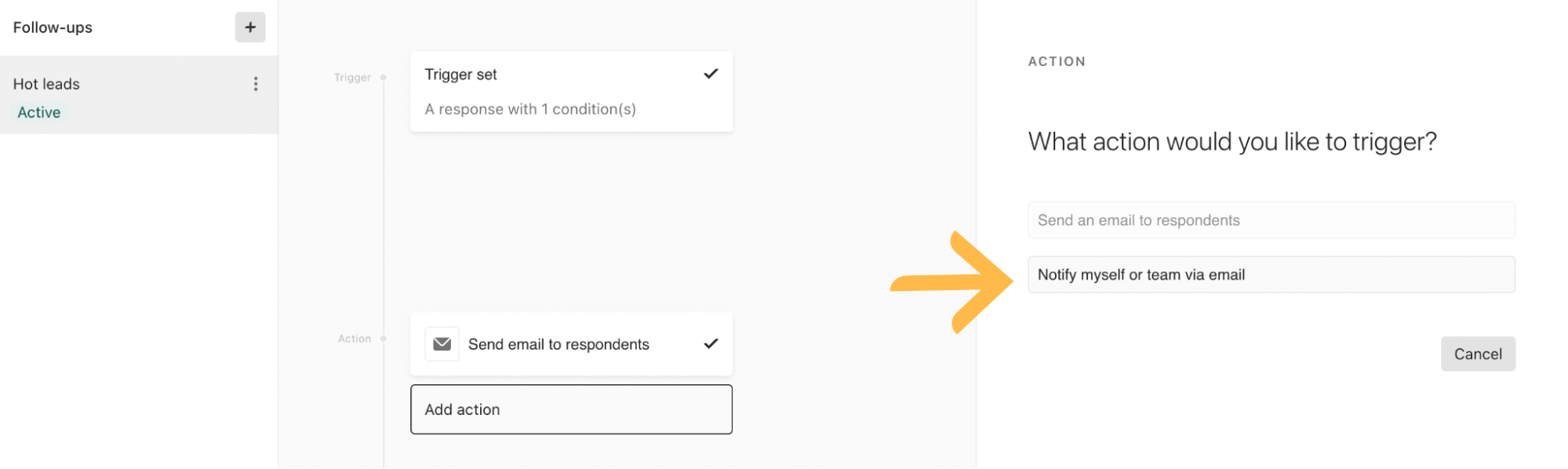
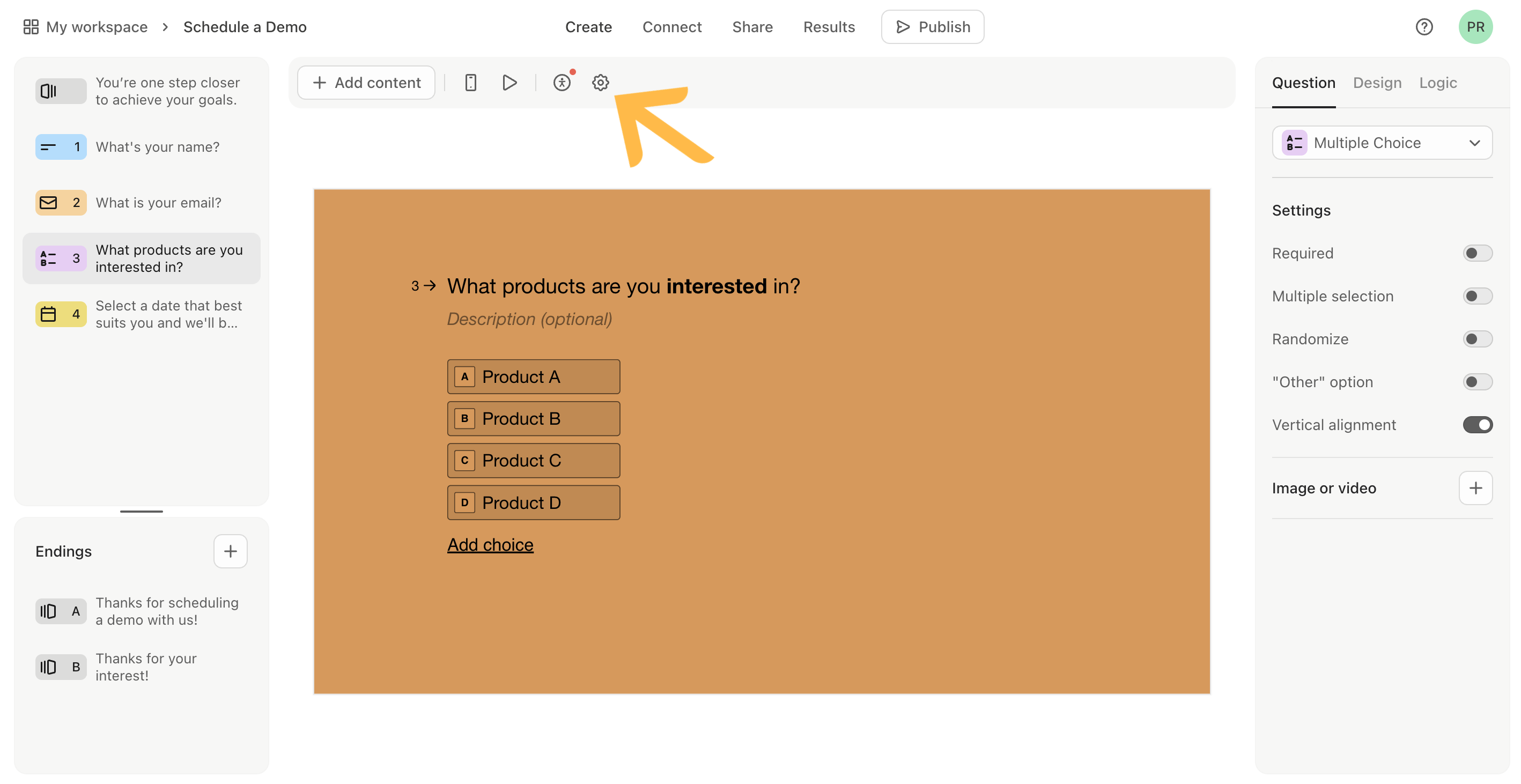
Review the remaining automation sequences in Typeform: Access the settings by clicking on the gear icon. If they cannot be created in the form builder, create them in CrocoClick workflows, such as follow-up messages, integrations, and webhooks.
Step 2: Recreate automations in CrocoClick
Configure triggers and actions: Use CrocoClick automation workflows to set up similar sequences, such as sending follow-up emails or triggering CRM actions based on form responses.
Test the automations: Make sure each automation triggers correctly.
Migrate domains and form QR codes
You must migrate the domain so that the customer can continue to use this link for CrocoClick forms and allow prospects to access existing custom links. Recreate the QR codes for forms in CrocoClick.
Step 1: Retrieve and delete the TypeForm domain
Collect the TypeForm custom domain: Click on the organization avatar in the top left corner and go to the administration settings.
Delete the TypeForm custom domain: On the admin settings page, click on Edit URL. Select the Custom Domain radio button and click Confirm.
Step 2: Add a 301 redirect in CrocoClick
Configure a redirect: Go to Sites > URL Redirects.
Test sharing and accessibility: Ensure that each form is accessible on different platforms and devices.
Step 3: Add the API domain in CrocoClick
Reconfigure forms with domains: Go to Settings > Company Profile.
Step 4: Collect forms with QR codes in Typeform
Connect to Typeform: Go to the Share panel by opening a form and clicking Share. The final icon allows you to obtain a QR code to share the form.
Step 5: Add QR codes in CrocoClick
Create a QR Code: Go to Sites > QR Codes > Create a QR code. Add a name and select QR Type as Website, then click Next.
Link CrocoClick form URLs: Add your CrocoClick form URLs. You can change this URL later if you want to redirect your users.
Test and share: For QR code analytics, go to QR Codes > Analytics.
Export and generate new data
Users who cancel their paid Typeform subscription will no longer be able to view or create reports after cancellation. This report only supports aggregated form responses. Contact Info and Address question types are not supported.
Step 1: Export reports from Typeform
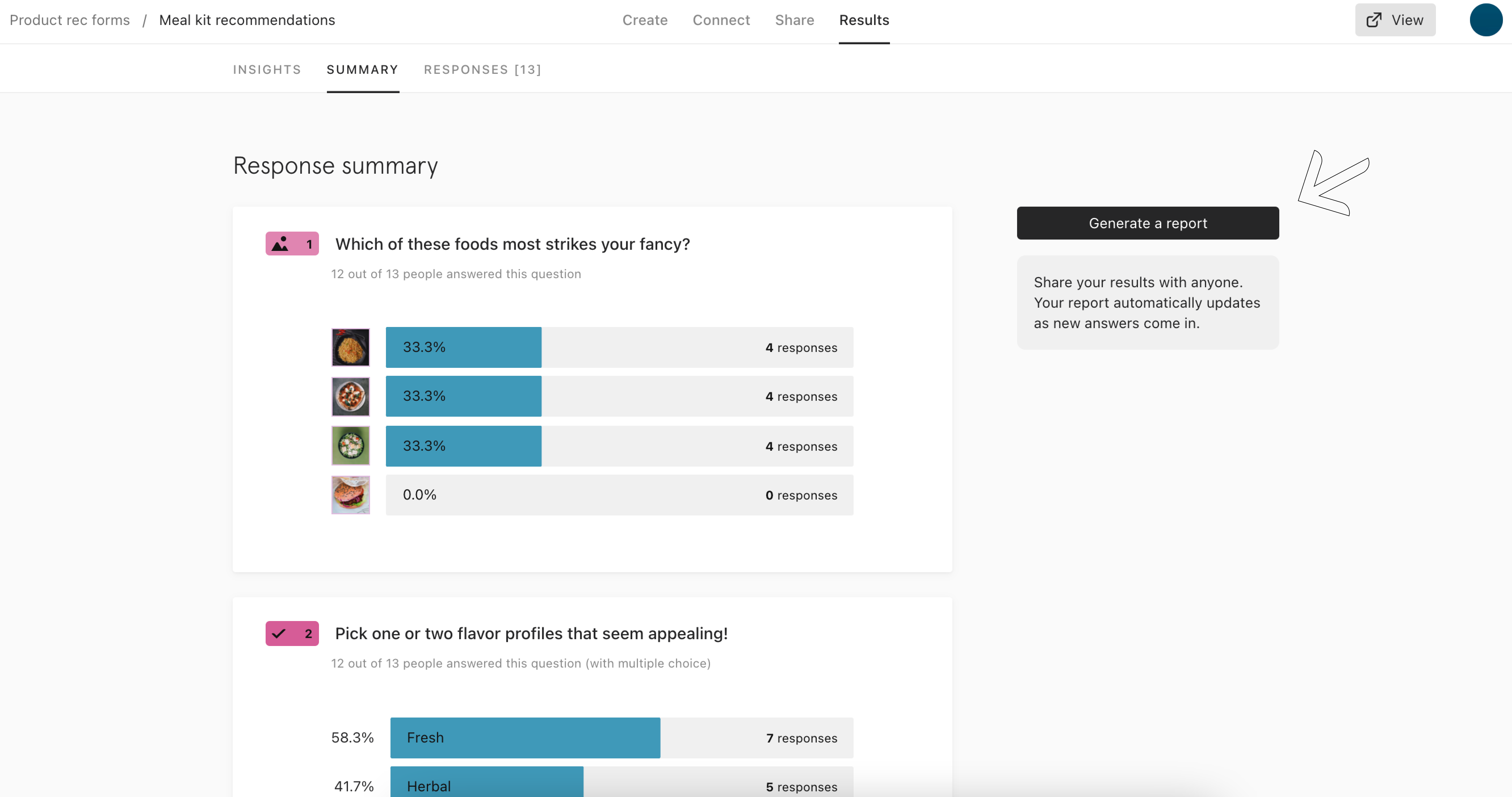
Generate a report: Open your form from your workspace, click Results, then Summary. Click Generate Report.
A new window will open where you can view and share the report.
View responses to open-ended questions by enabling the option on the left.
View all open-ended questions to include them in the report.
Step 2: Save the report as a PDF
Click Print to save the report: A new window will open with the Save as PDF option. Download it to a storage space for added security.
Conclusion
Migrating your forms, contacts, and automations from Typeform to CrocoClick allows you to centralize your data and optimize your processes. By following this guide, you can ensure a complete and seamless transition while taking full advantage of CrocoClick's features to improve your CRM and marketing campaigns.