Migrating from Mailchimp to CrocoClick
Practical guide to transferring your contacts, e-mail campaigns and automations from Mailchimp to CrocoClick.
Written By CrocoTeam
Last updated 8 months ago
This comprehensive guide describes the process of migrating from Mailchimp to CrocoClick, focusing on transferring email campaigns, contact lists, forms, and automation workflows. The goal is to ensure a smooth transition while taking advantage of CrocoClick's CRM and marketing automation capabilities.
Preparing for Migration
Step 1: Review your current Mailchimp configuration
Identify key elements: Make a list of audiences, email campaigns, automation workflows, and forms to migrate.
Collect design and content: Take screenshots or note the design, content, and settings of each email and form to recreate them in CrocoClick.
Assess the volume of data: Calculate the number of contacts and campaigns to migrate.
Step 2: Define migration objectives
Set clear objectives: Identify the reasons for migrating to CrocoClick, such as CRM integration, better automation, or cost efficiency.
Prioritize critical features: Focus first on the most essential features to minimize disruption.
Step 3: Prepare a backup
Export Mailchimp data: Export all relevant data, including contact lists, email campaigns, and automation workflows.
Back up data: Ensure all exported data is securely backed up before beginning the migration.
Migrate contacts, campaigns, and automations
Step 1: Export Mailchimp data
Export contacts: In Mailchimp, go to Audience > All Contacts. Export the data by selecting the relevant contacts and downloading them in CSV format.
Export email campaigns: Go to Campaigns > All Campaigns and export any reusable content or HTML templates.
Export automations: Note the settings of existing automation workflows, including triggers, actions, and segments.
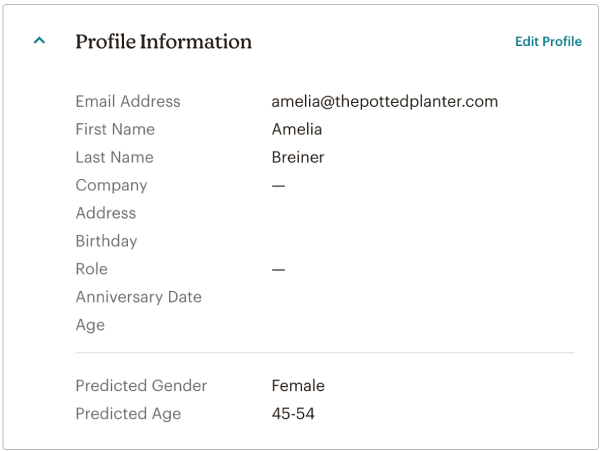
Step 2: Import contacts into CrocoClick
Import contacts: In CrocoClick, go to Contacts > Import Contacts and upload the CSV files exported from Mailchimp. Be sure to map the custom fields so that all data is imported correctly.
See our article "How to import contacts into CrocoClick" to learn all the steps.
Migrate forms and landing pages
Step 1: Recreate forms in CrocoClick
Recreate forms: Use the Sites > Forms section of CrocoClick to recreate Mailchimp forms. Make sure the fields, validation rules, and submission actions match those in Mailchimp.
Integrate the forms: Integrate the recreated forms into your website or landing pages using the integration code provided.
Step 2: Recreate landing pages in CrocoClick
Recreate landing pages: In CrocoClick, go to Sites > Funnels to recreate existing Mailchimp landing pages. Use CrocoClick templates or create them from scratch so that the design matches the original pages.
Publish the landing pages: Connect a custom domain if necessary, and publish the pages to make them active.
Migrating email campaigns and automations
Step 3: Recreate email campaigns in CrocoClick
Choose a template: In CrocoClick, go to Marketing > Emails > Templates to choose a suitable template or start from scratch.
Recreate the content: Copy the text, images, and links from your Mailchimp emails into the CrocoClick email editor, ensuring that the layout and design elements match the original Mailchimp campaigns.
Set up unsubscribe links: Use CrocoClick's built-in unsubscribe tags to comply with email regulations.
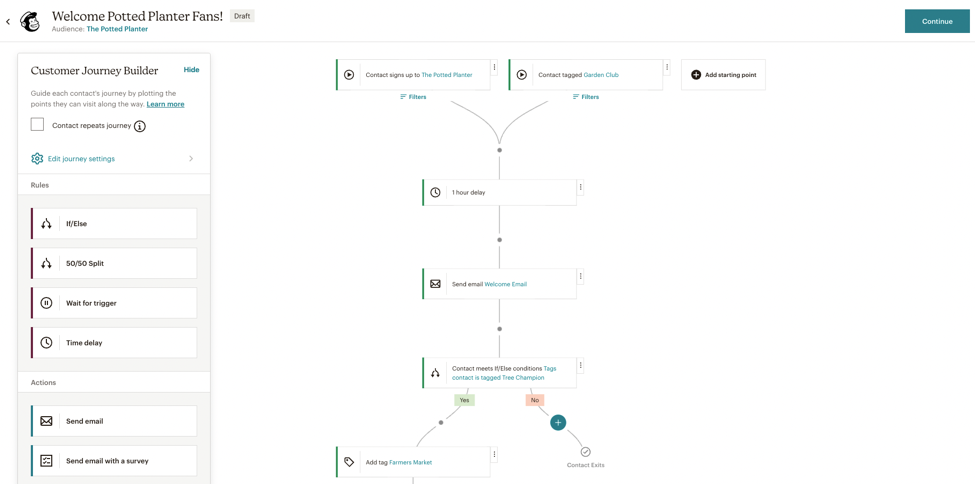
Step 4: Recreate automations in CrocoClick
Recreate automation workflows: Go to Automations > Workflows in CrocoClick to recreate Mailchimp automations. Configure triggers, actions, and conditions to match the original workflows.
Use pre-built recipes: Take advantage of CrocoClick's workflow recipes if they match some of your Mailchimp automations to save time.
Configure integrations
Step 1: Reconnect integrations in CrocoClick
Restore email integrations: Go to Settings > Integrations in CrocoClick and reconnect the necessary third-party services (e.g., Zapier, social media platforms).
Set up payment processing (if necessary): If you were using e-commerce features in Mailchimp, set up payment gateways in CrocoClick under Settings > Payments.
Step 2: Set up analytics
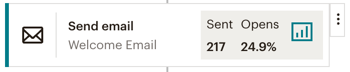
Enable tracking: Use CrocoClick's built-in analytics to track the performance of your email campaigns and landing pages.
Implement third-party analytics (if needed): Reimplement tracking codes (e.g., Google Analytics) by going to Settings > Tracking.
Final checks and team training
Step 1: Validate final data
Data verification: Ensure that all contacts, email campaigns, and automation workflows have been migrated and are functioning correctly in CrocoClick.
Test email campaigns: Verify that emails are sent correctly, including all personalization tags and unsubscribe links.
Step 2: Train team members
CrocoClick training: Provide your team with training on CrocoClick's email editor, workflows, and CRM features.
Use support resources: Encourage your team to use CrocoClick's support and documentation for ongoing learning and troubleshooting.
Step 3: Monitor and optimize
Monitor performance: Regularly check the performance of your campaigns and workflows in CrocoClick and make any necessary adjustments.
Continuous improvement: Stay informed about new CrocoClick features to continuously optimize your setup.
Deactivating Mailchimp
Step 1: Transition period
Parallel operation: Consider running Mailchimp and CrocoClick in parallel for a short period to ensure a smooth transition.
Phased withdrawal: Gradually reduce your use of Mailchimp as you gain confidence in CrocoClick's features.
Step 2: Cancel your Mailchimp subscription
Final data backup: Ensure all necessary data is backed up before canceling your Mailchimp subscription.
Official cancellation: Follow Mailchimp's procedure to cancel your subscription and terminate the associated services.
Step 3: Post-migration review
Evaluate success: Assess the success of the migration by documenting the challenges encountered and the solutions found.
Continuous monitoring: Closely monitor your CrocoClick configuration after migration to quickly identify and resolve any issues that may arise.
Conclusion
Migrating from Mailchimp to CrocoClick allows you to centralize your marketing and CRM efforts for optimized management of your campaigns and automations. By following this step-by-step guide, you can ensure a smooth transition and take advantage of CrocoClick's advanced features to develop your marketing strategy.