Migrating from ClickFunnels to CrocoClick
Find out how to easily migrate your funnels, sites, products and other resources from ClickFunnels to CrocoClick.
Written By CrocoTeam
Last updated 8 months ago
This detailed guide helps you migrate your sales funnels, websites, courses, and other digital assets from ClickFunnels to CrocoClick. The goal is to ensure a smooth transition, retain all functionality, and take advantage of CrocoClick's advanced features.
IMPORTANT: When migrating from ClickFunnels to CrocoClick, be sure to include the following:
Training
and products
Payment integrations
Forms
Websites and sales funnels
Store funnels
Email marketing
Contacts
Migrate training courses
The ClickFunnels 2.0 interface allows you to access your courses and all related information. We will recreate these courses in CrocoClick.
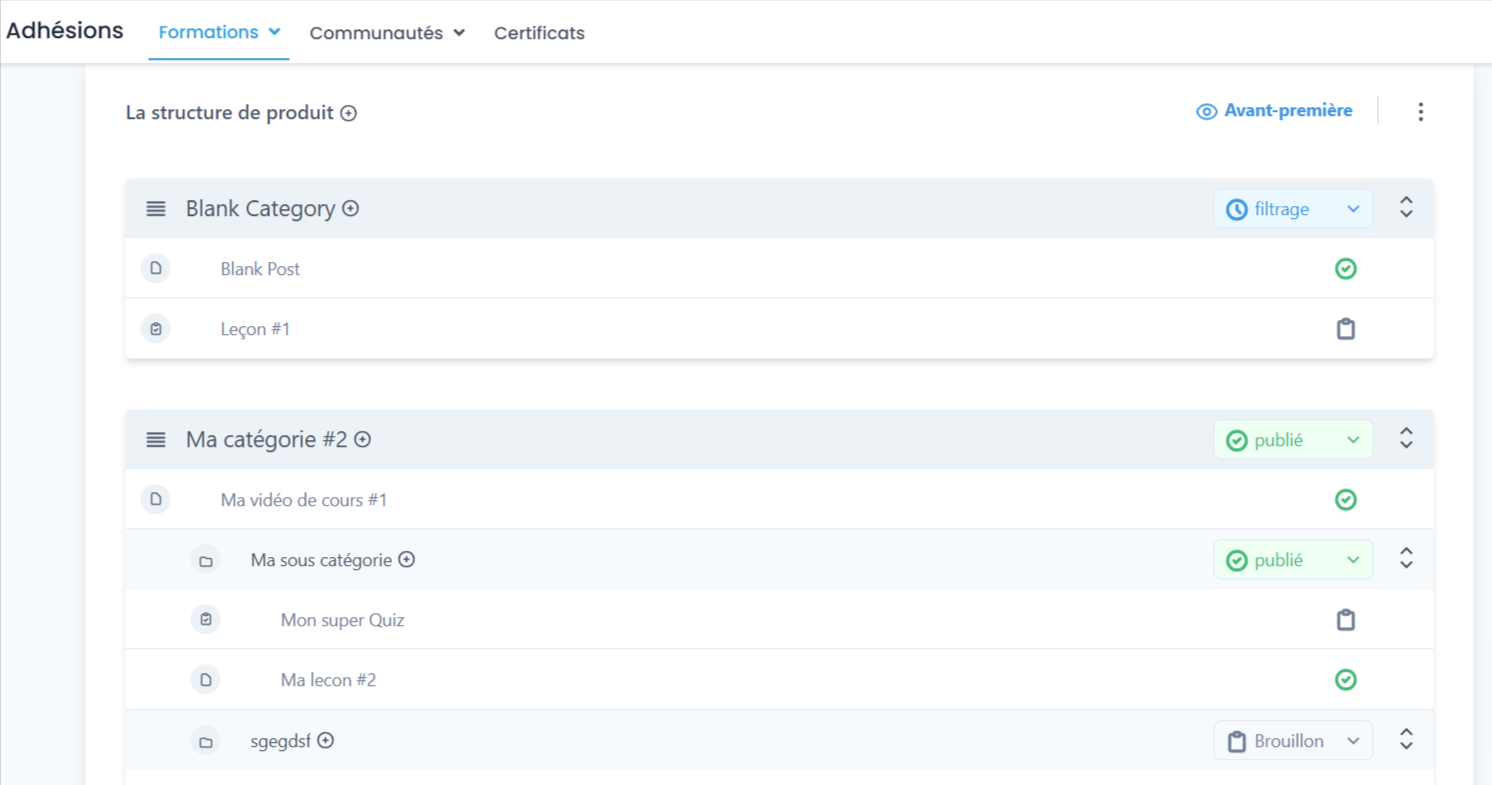
Step 1: List the course structure
Log in to ClickFunnels 2.0 and list each training course, including modules, lessons, and related content (quizzes, downloadable files). Note settings such as the status of the training course (published, draft), member access, and customization options.
Step 2: Recreate the courses in CrocoClick
Read this article to find out how to create a training course on CrocoClick.
Step 3: Post-migration verification
Test access to the courses to verify that everything is working correctly, that the content is displayed as expected, and that progress tracking is active.
Migrate products
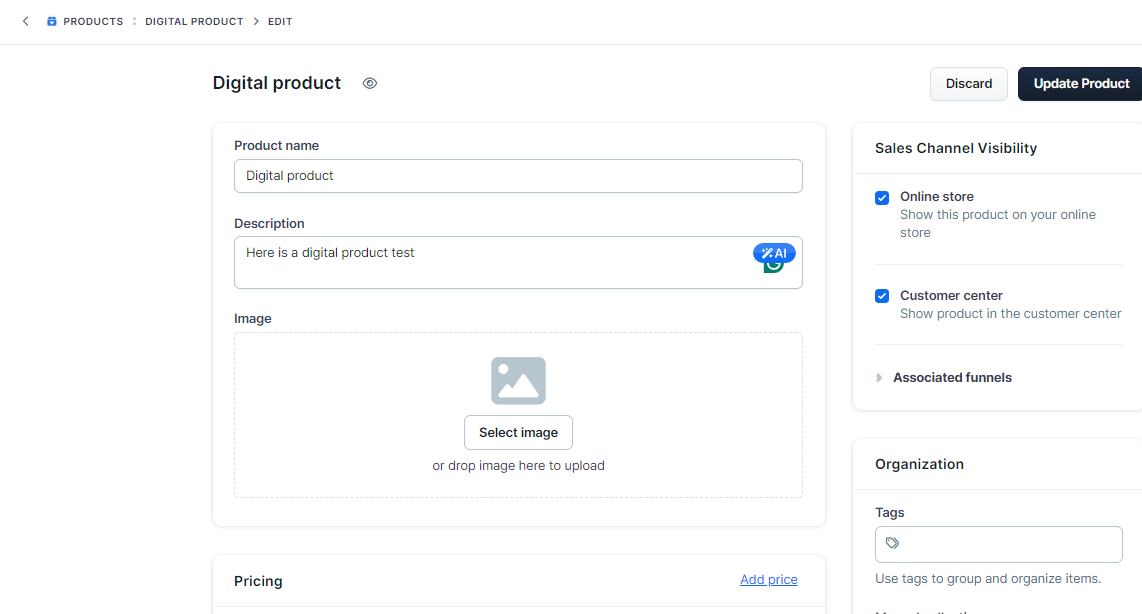
Step 1: Export products from ClickFunnels in CSV format
In ClickFunnels 2.0, go to "Products" and select the ones you want to export. Use the actions menu to schedule the export, then store the CSV file in a safe place.
Step 2: Import products into CrocoClick
In CrocoClick, go to Payments > Products > Import CSV to transfer your products.
Migrate payment integrations
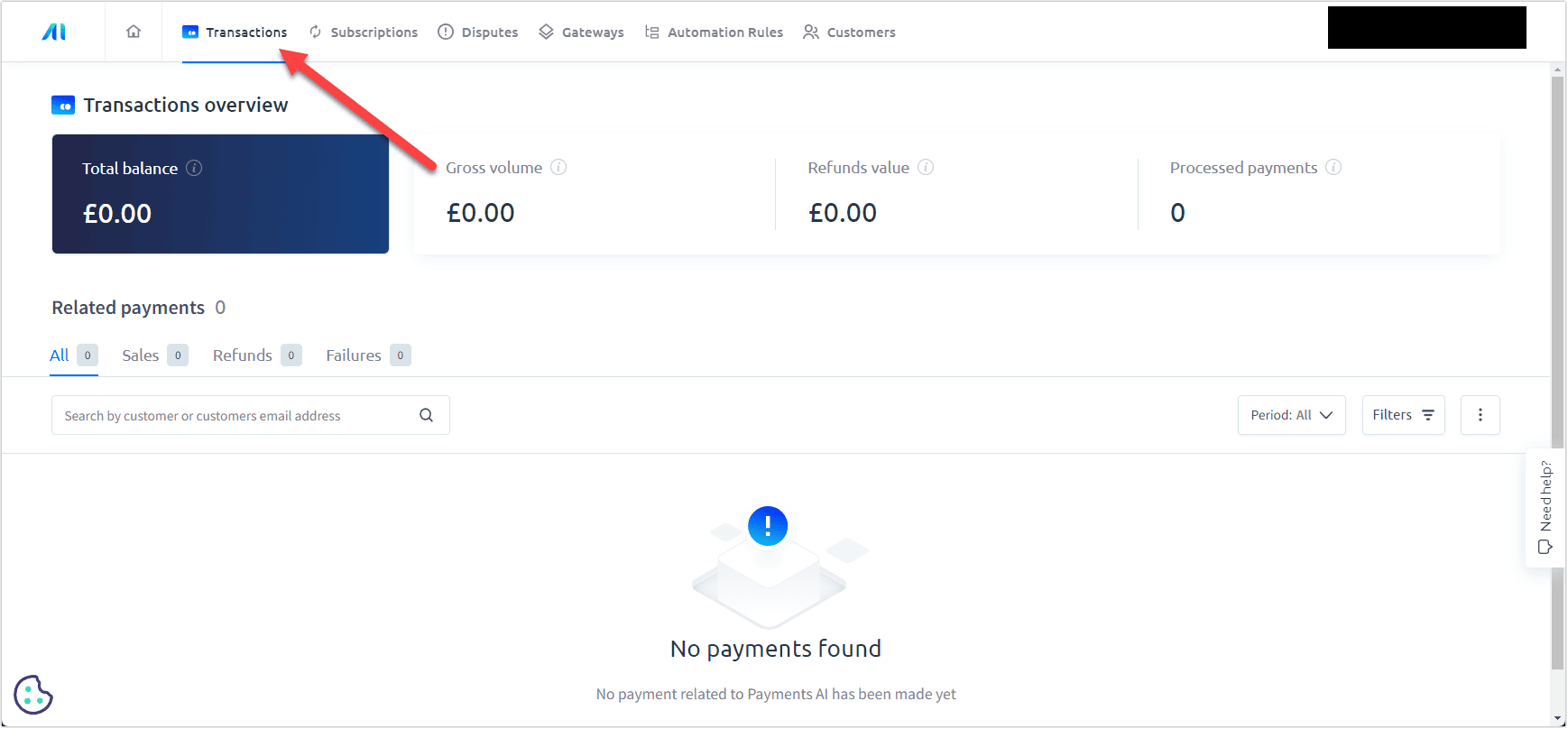
ClickFunnels 2.0 uses Payments AI to manage payments with gateways such as Stripe, PayPal, and Klarna. You will need to recreate these integrations in CrocoClick.
Step 1: Access Payments AI
List the payment methods by accessing payment gateway management in ClickFunnels.
Step 2: Connect CrocoClick to your preferred payment method
Example: Stripe
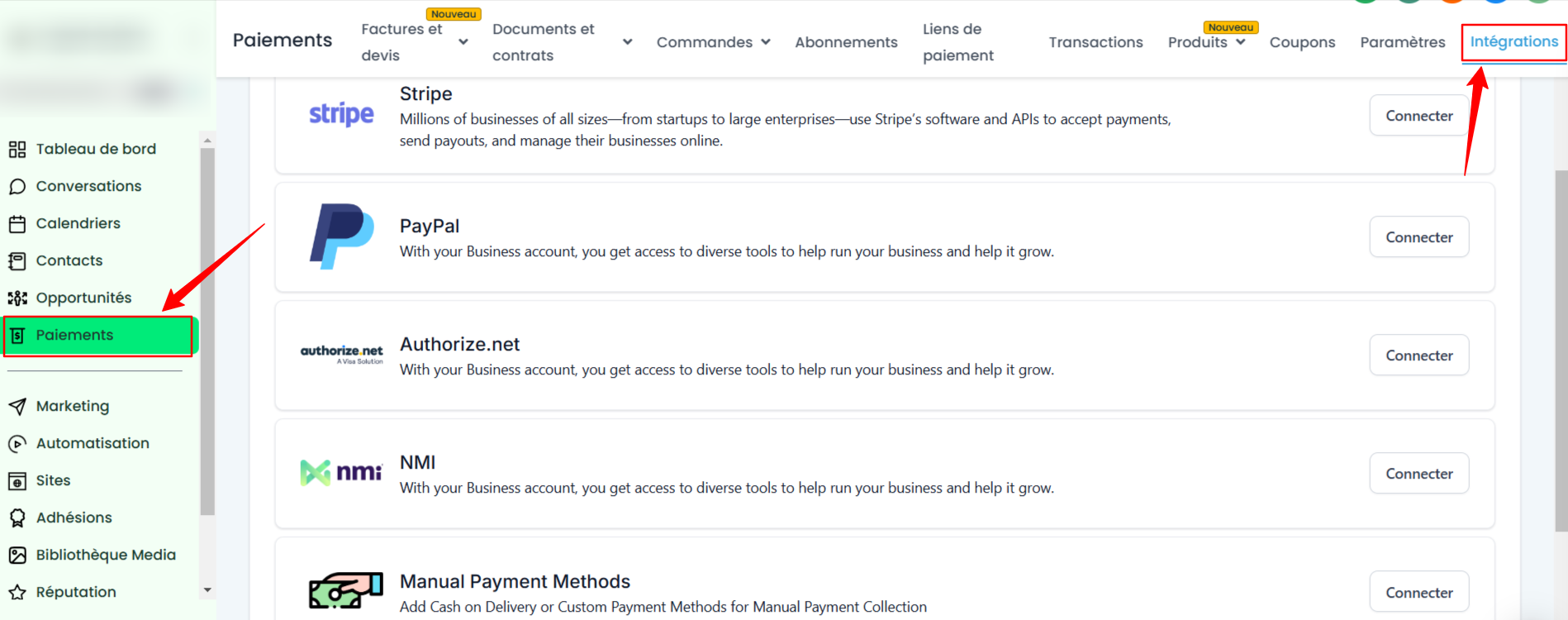
Log in to your CrocoClick sub-account, go to Payments > Integrations to set up Stripe, and follow the authorization process.
💡 TIP: CrocoClick offers a wide range of payment gateways. Check out the integrations section to discover all the available options.
Migrate websites and sales funnels
In ClickFunnels, sales funnels and websites are managed in the page editor and site preview. These funnels and sites can be recreated in CrocoClick.
Step 1: Collect details of sales funnels and sites
List each funnel and page, including the URL, structure, content, tracking codes, and integrated forms or payment gateways. Also note specific settings such as custom themes and CSS.
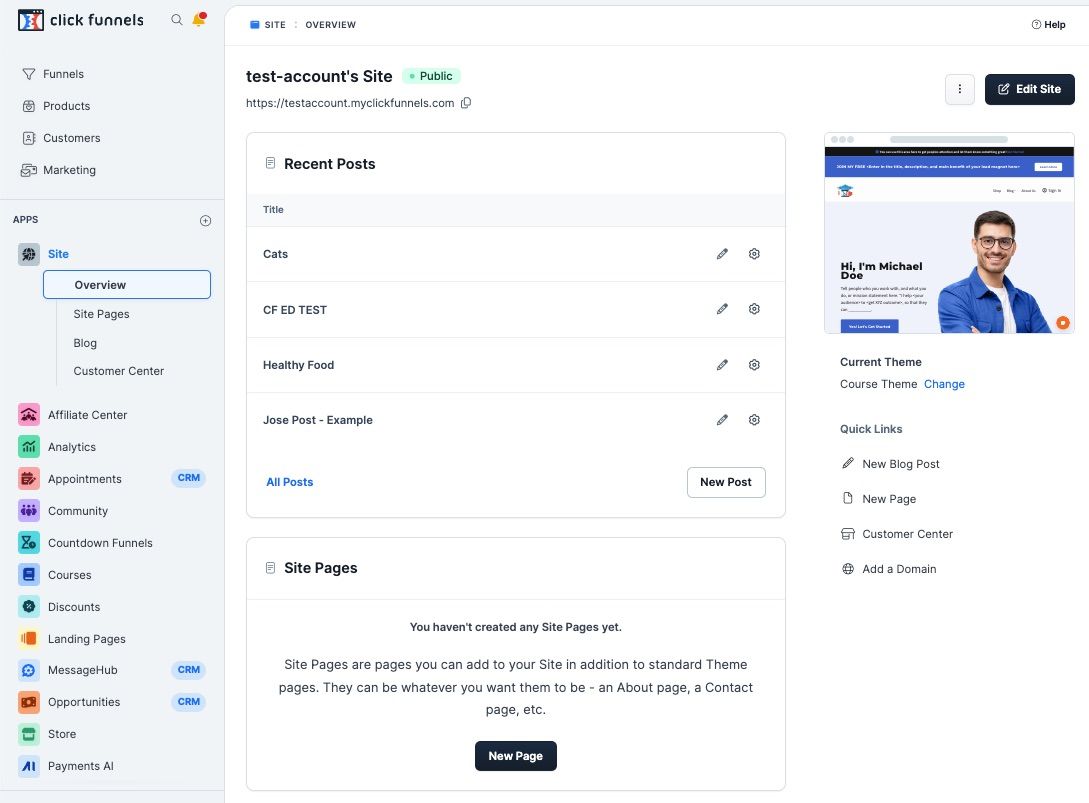
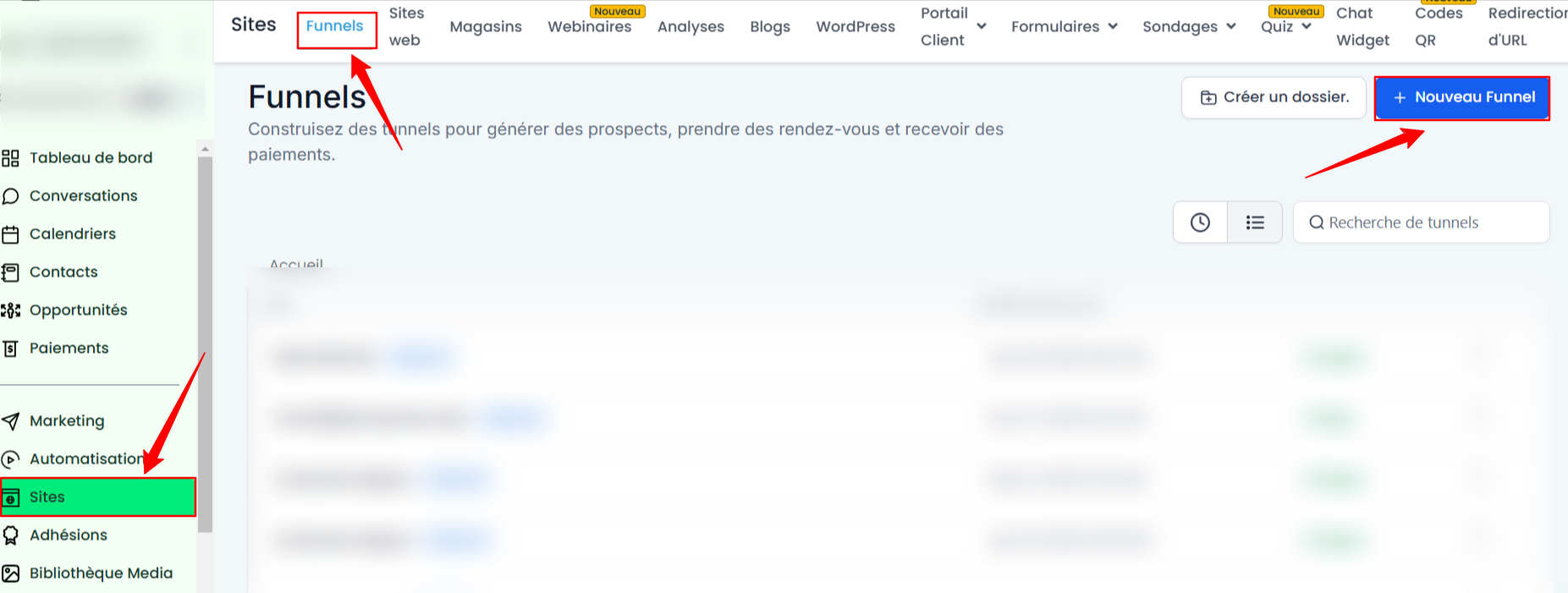
Step 2: Import sales funnels into CrocoClick
In Site > go to funnel > then create a new funnel.
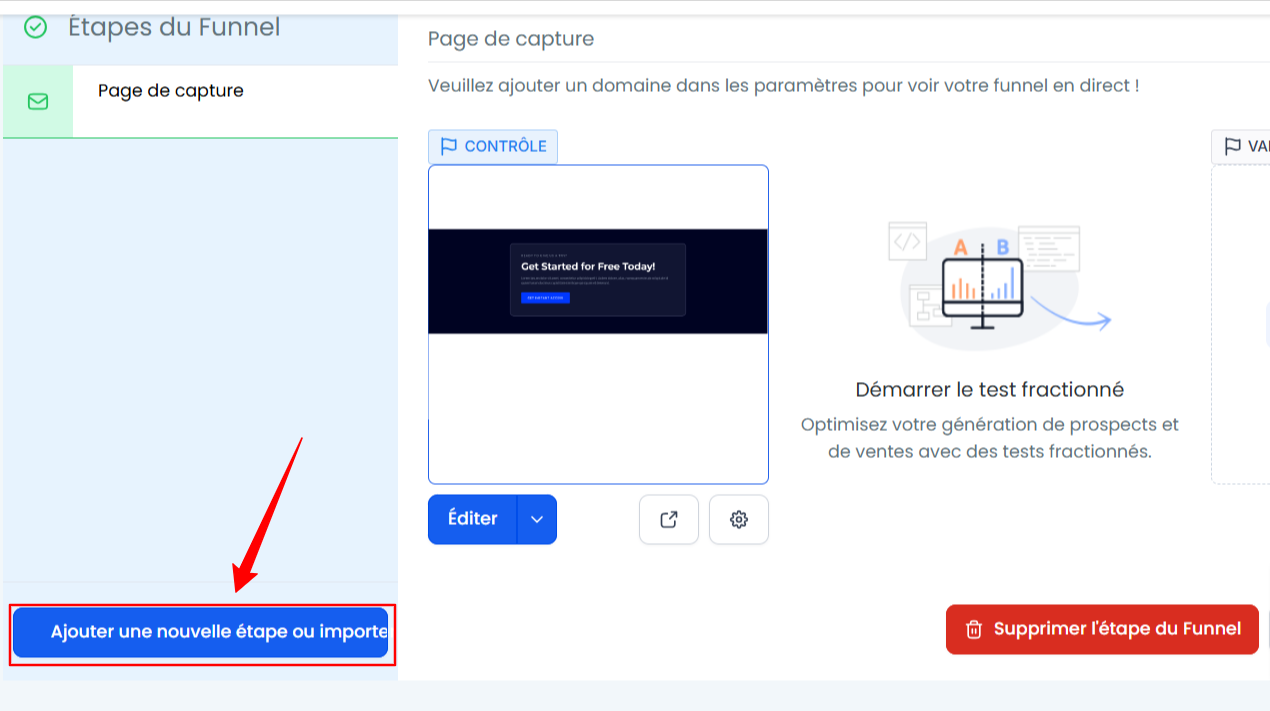
Click Add New Step or Import.
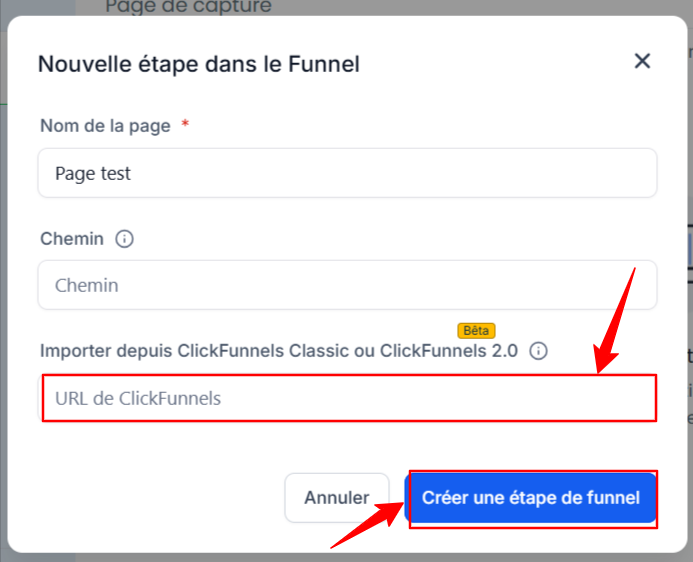
Add the page name, path, and Clickfunnels link, check the confirmation box, then click on create funnel step.
Rebuilding online stores (e-commerce)
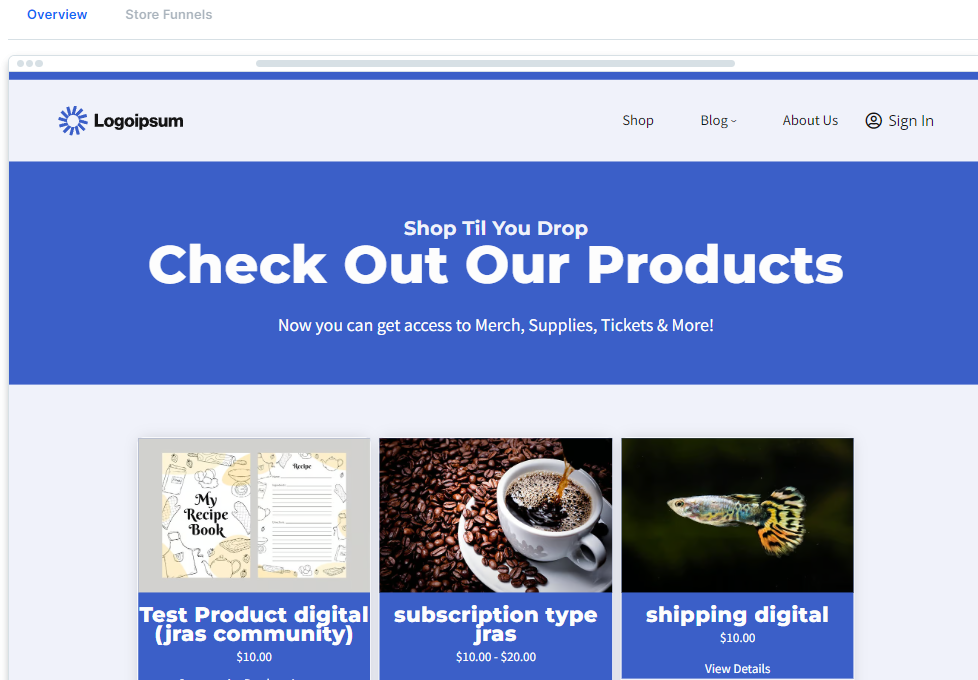
ClickFunnels store funnels manage product sales and the payment process. You will need to recreate these funnels in CrocoClick to maintain e-commerce functionality.
Step 1: List the details of the store funnels
List each store funnel, including product details, payment pages, upsells/downsells, and payment integrations.
Step 2: Recreate the shop funnels in CrocoClick
Recreate every detail of your online store that you collected from ClickFunnels in CrocoClick.
Step 3: Post-migration verification
Make a test purchase to verify that the payment process is working properly and that upsells/downsells are displaying correctly.
Migrate email marketing
ClickFunnels offers basic email marketing features with workflows and broadcasts. In CrocoClick, you can recreate these campaigns with more advanced automation options.
Step 1: List workflows and broadcasts
List all email workflows and broadcasts in ClickFunnels, including triggers, email content, and timing.
Step 2: Recreate email sequences in CrocoClick
Check out our articles on creating email sequences and automations in CrocoClick.
Migrate contacts
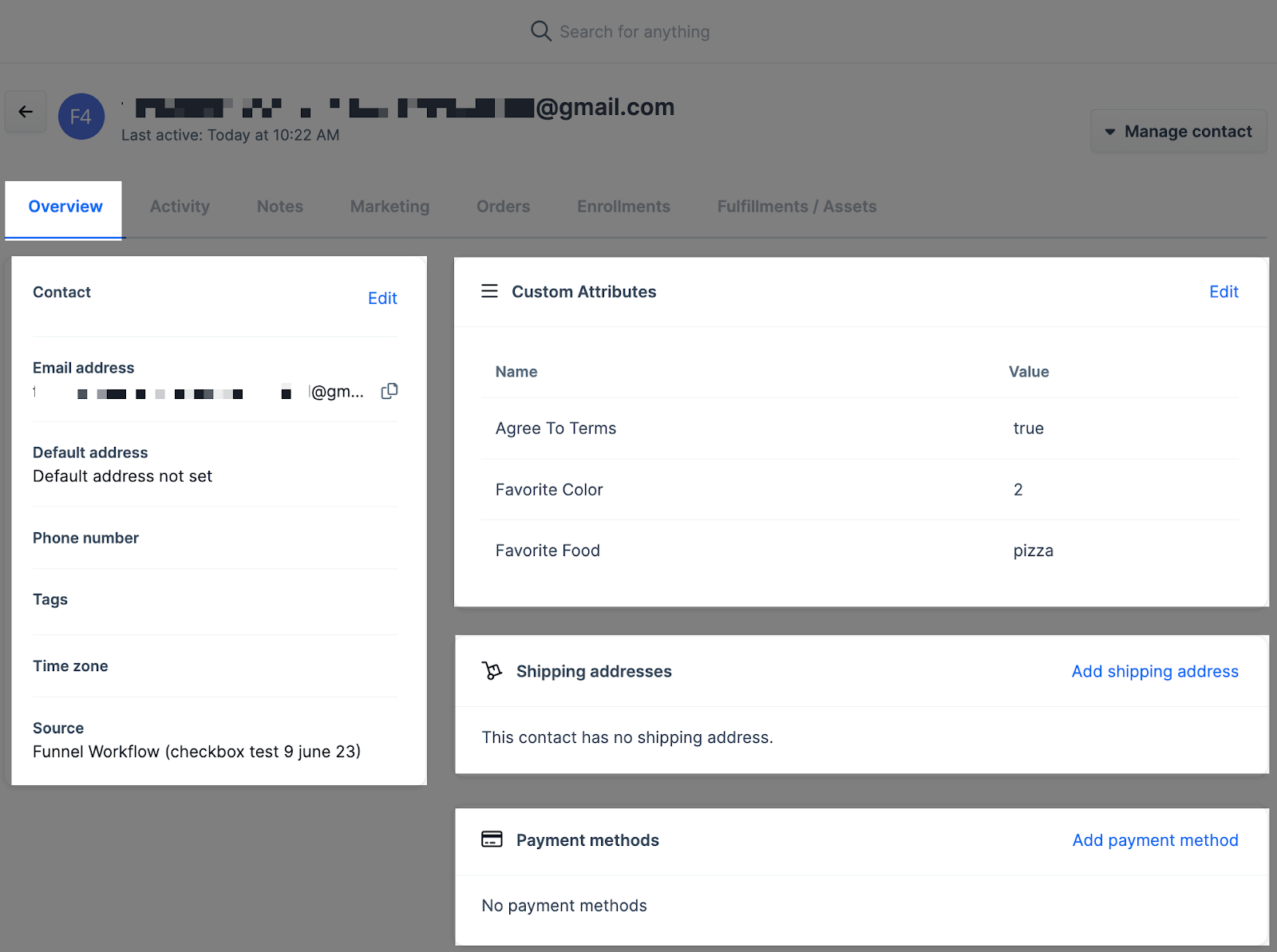
Contact profiles in ClickFunnels provide information about each lead, including email address, tags, custom attributes, and actions in sales funnels.
Step 1: Export contacts
In ClickFunnels 2.0, go to "Customers" and export contacts to CSV. Be sure to include key fields: email, phone number, name, and time zone.
Step 2: Verify exported data
Open the CSV file to verify that all necessary information has been captured.
Step 3: Bulk import contacts into CrocoClick
Learn how to import bulk contacts into CrocoClick.
Conclusion
Migrating from ClickFunnels to CrocoClick allows you to strengthen your sales and marketing strategies with more advanced tools. Follow each step to ensure a smooth transition, retain your assets, and optimize your integrations. With CrocoClick, take advantage of new features to interact effectively with your customers and maximize your results.