Migrating from Wix to CrocoClick
Complete guide to migrating your contacts, sites, automations and more from Wix to CrocoClick for efficient, centralized management.
Written By CrocoTeam
Last updated 8 months ago
This detailed guide helps you migrate from Wix to CrocoClick, ensuring a smooth and efficient transition. By following the steps in this document, you will be able to transfer your website content, e-commerce data, contacts, forms, automations, and social planning elements from Wix to CrocoClick.
IMPORTANT: Be sure to address each of the following components when migrating from Wix to CrocoClick.
Contacts
Pipelines
Products
Forms
Websites and Pages
Social Publications
AI tools and custom integrations
Migrate Contacts
When a lead submits a contact form, signs up for a newsletter, makes a purchase, or interacts with the site in any way, Wix automatically adds this information to the user's contact list.
Step 1: Export contacts from Wix
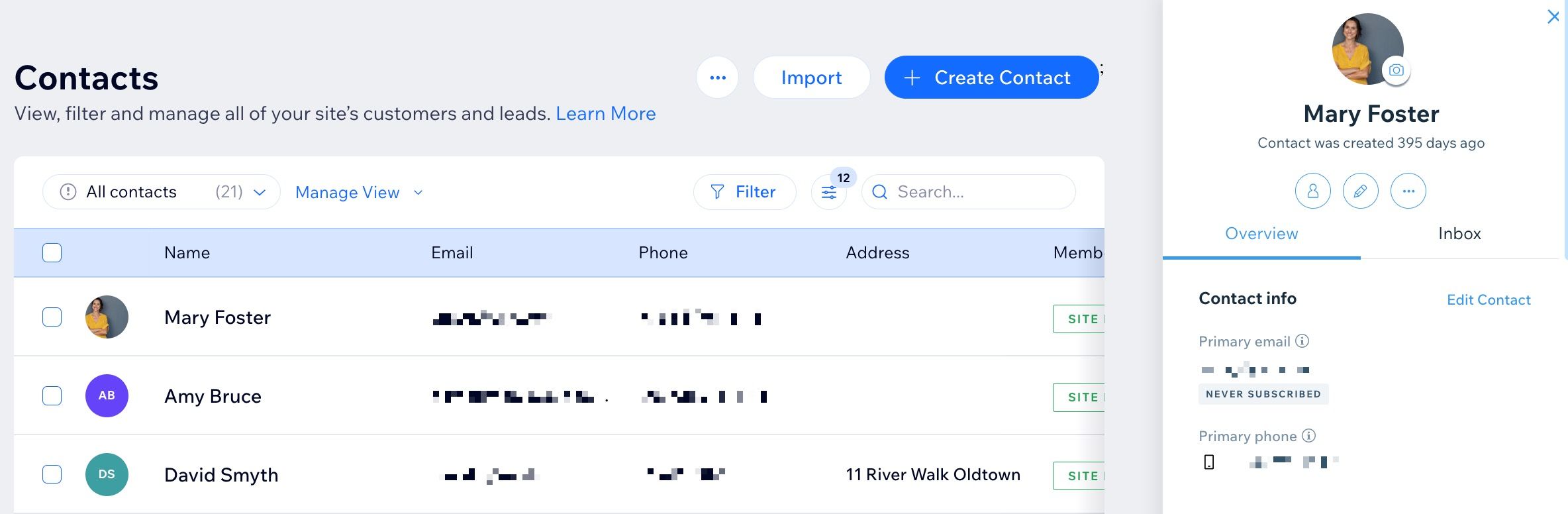
Log in to Wix: Access the contacts dashboard by logging in to your Wix account.
Export contacts: Click on the More Actions icon and select Export Contacts. Choose the By Tag option to select a group of contacts, or select All Contacts.
Save the CSV file: Save the CSV file for future import into CrocoClick.
Step 2: Prepare the CSV file for import into CrocoClick
Check date formats: Ensure that all date fields in the CSV are in YYYY-MM-DD format, which is essential for compatibility with CrocoClick.
Encode special characters: Ensure that the CSV file uses UTF-8 encoding to correctly handle special and accented characters.
Clean up the data: Remove line breaks, emojis, and unnecessary special characters from the file to avoid import errors.
Recreate custom fields: Log in to CrocoClick and go to Contacts > Settings > Custom Fields. Add custom fields to store contact data in a similar way to Wix.
Step 3: Import contacts into CrocoClick
See our article "How to import contacts into CrocoClick" to follow the steps in detail.
Recreate pipelines (Wix Workflows)
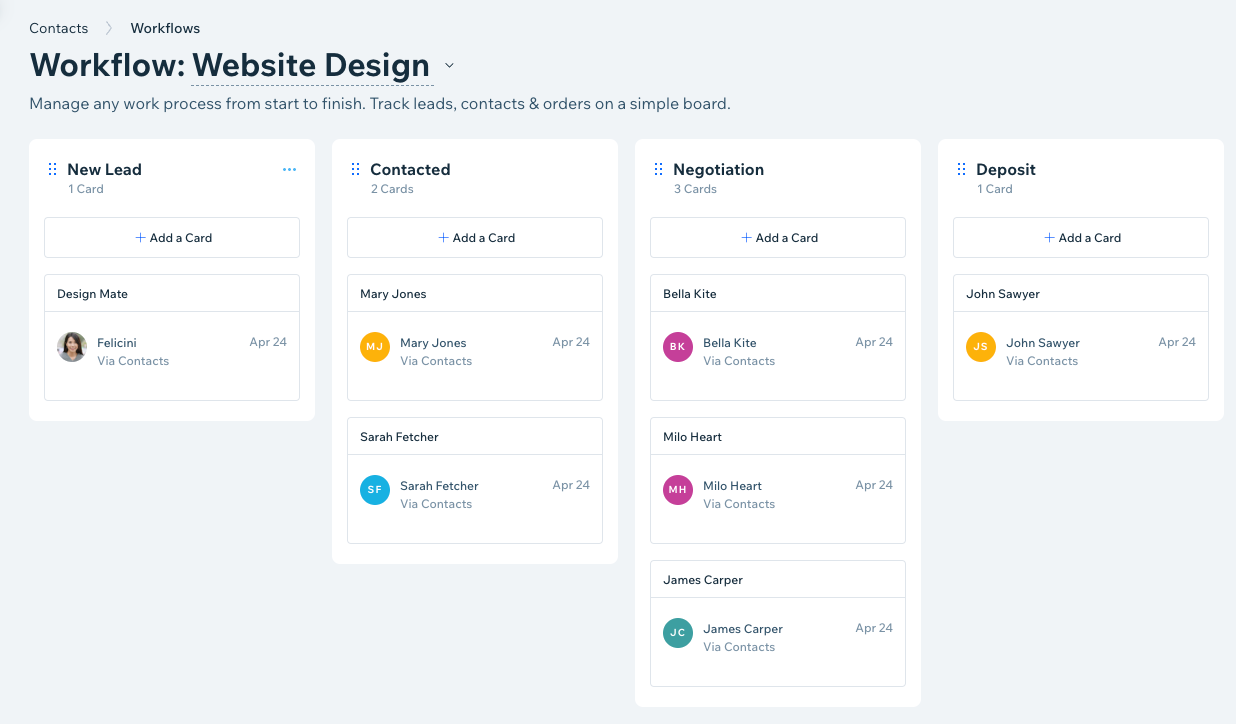
A Wix Workflow is a table displaying all the stages of a project so you can easily track contact records in each column. Wix workflows cannot be exported and must be recreated in CrocoClick's Pipelines and Opportunities.
💡 TIP: When migrating pipelines, the terms are slightly different.
Workflow (Wix) ➡️ Pipeline (CrocoClick)
Column (Wix) ➡️ Pipeline stage (CrocoClick)
Records (Wix) ➡️ Opportunity records (CrocoClick)
Step 1: View Wix workflows (Pipelines)
Log in to Wix: Go to Workflows in your site dashboard to see all pipelines and their columns.
Step 2: Recreate pipelines in CrocoClick
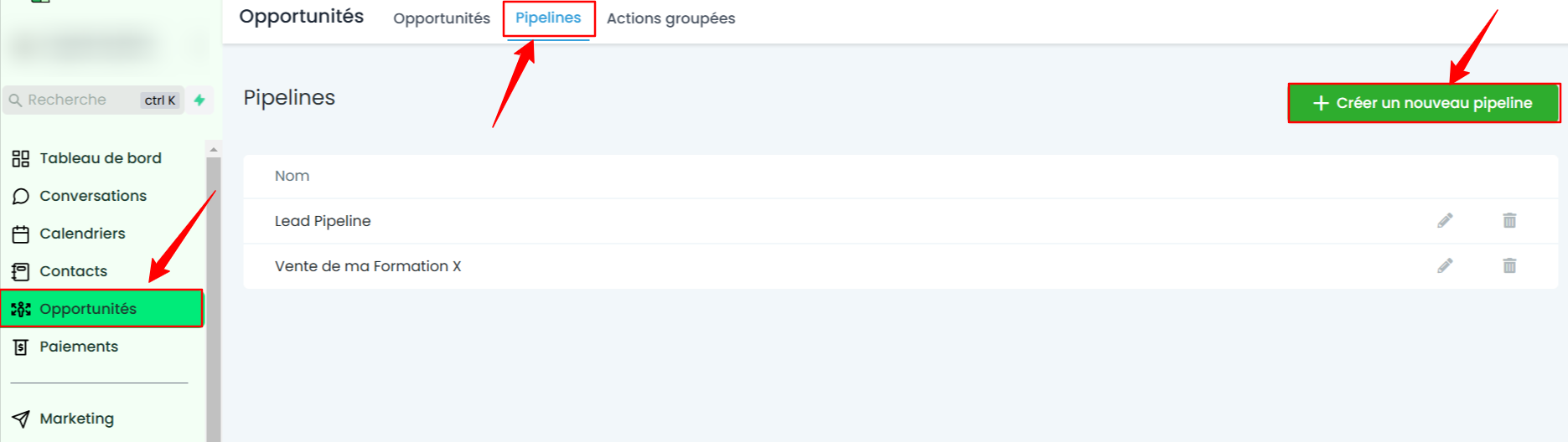
Log in to CrocoClick: Go to Opportunities in the sidebar and select Pipelines.
Add pipelines: Click Add Pipeline and recreate the pipeline stages to match the stages in Wix.
Migrate products (Wix Stores)
Users can export up to 5,000 physical products to a CSV file. Each product has media files available in the Wix Media Manager.
Step 1: Export product data from Wix
Log in to Wix: Go to your Wix Stores dashboard.
Export products: Go to the Products section, click More Actions, then select Export.
Step 2: Download product media from Wix
Log in to Wix Media Manager and download the necessary files to ensure you have all product visuals.
Step 3: Prepare the Wix product CSV file for import
Clean up the data: Make sure the Wix product CSV is organized in the same way as the CrocoClick template CSV file.
Step 4: Add a payment gateway in CrocoClick
Configure payment gateways: Integrate your preferred gateways into CrocoClick and configure prices, taxes, and shipping options.
Step 5: Import products into CrocoClick
Log in to CrocoClick and navigate to Payments > Products, then select Import as CSV.
Migrate forms and submission data
Users can embed customizable Wix forms directly on their site for visitors to fill out (e.g., contact forms or quote request forms) or share standalone forms with a unique URL. By default, when a form is submitted, an email is automatically sent to the site owner to notify them.
Step 1: Export form data from Wix
Log in to Wix: Access the Forms & Submissions dashboard by logging in to your Wix account.
Export submissions: Navigate to Forms & Submissions, click More Actions, then select Export. Save the form submissions as a CSV file for future use.
Step 2: Recreate the forms in CrocoClick
Create forms in CrocoClick: Log in to CrocoClick, navigate to Sites > Forms, and create a new form. Recreate the form by adding custom fields that match those in your Wix forms.
Configure form actions: Set up automatic actions in CrocoClick, such as form notifications or conditional logic, to replicate Wix functionality.
Recreate websites and connect domains
Wix does not offer direct export options for the entire website content. For Wix sites to function properly, they must be hosted and operated on Wix servers. It is therefore necessary to manually copy text, images, and other multimedia files to rebuild the sites and online stores in CrocoClick.
Step 1: Export content from Wix
Log in to Wix: Start by logging in to your Wix account and accessing your Wix dashboard.
Export site content: Download images, videos, and documents from the Wix media manager to ensure you have all the content you need for the migration.
Save the HTML/CSS code: If you used custom code on your Wix site, copy the HTML, CSS, and custom scripts to preserve your site's design and functionality.

Step 2: Recreate your website in CrocoClick
Log in to CrocoClick: Access your CrocoClick account and navigate to Sites > Funnels or Sites > Websites, depending on your site structure.
Recreate the pages: Manually recreate each page by pasting the copied content and re-importing the media files into CrocoClick. Use CrocoClick's drag-and-drop editor to design your pages and add forms, similar to your Wix site.
Add custom code: If you used custom HTML/CSS code in Wix, you can add this code to the appropriate sections in CrocoClick to preserve the original functionality and design.
Step 3: Disconnect your domain from Wix
Log in to Wix
Go to the domains page.
Click the Plus icon next to the domain in question and select Unassign from this site.
Step 4: Connect your domain to CrocoClick
Log in to CrocoClick: Go to Settings > Domains > Add Domain. Enter the domain you want for your new site.
Log in to Wix: Go to the domains page. Click on the domain actions icon next to the domain in question. Select Manage DNS Records.
Add DNS records to Wix: Scroll down to the type of record you want to add (e.g., CNAME, TXT) and click + Add Record.
Recreate Wix automations
Wix does not offer direct export options for automations. Wix automations simplify website tasks such as sending emails, reminders, and assigning users.
Step 1: Review Wix automations
Log in to Wix: Access automations in your site's dashboard.
View active automations: Scroll down to the Your Automations section to see all your automations divided into two tabs. Filter for active automations in each tab.
Created by you: Active automations created manually or via an app.
Installed for you: Active automations created automatically when installing Wix apps.
Step 2: Recreate triggers and actions in CrocoClick
Log in to CrocoClick: Go to Automation > Workflows.
Configure triggers and actions: Configure similar triggers and actions in CrocoClick using the Workflow feature, ensuring that all essential automations, such as email sequences and task assignments, are replicated.
Recreate social posts and marketing
Wix does not allow social posts to be exported. You must connect social accounts to CrocoClick's Social Planner tool and download the posts.
Step 1: Download social posts from Wix
Log in to Wix: Access the Social Media Marketing dashboard by logging in to your Wix account. Click on Your Social Posts.
Download social posts: Manually download your post content, including the scheduled post date and time, captions, images, and links, to recreate them in CrocoClick.
Step 2: Recreate social posts in CrocoClick
Create social posts: Log in to CrocoClick and go to Marketing > Social Planner. Recreate your posts using the content copied from Wix.
Schedule or publish: Depending on your marketing calendar, schedule posts for a future date or publish them immediately.
Recreate AI tools and content
Review Wix AI tools: Identify the AI-generated content you used in Wix, such as text, images, and SEO tags.
Familiarize yourself with the AI content tools in CrocoClick: Use CrocoClick's AI tools to generate text and images. Manually copy the content generated from Wix or recreate custom AI prompts using CrocoClick's AI.
Export and recreate other data
Export other data: Manually export or copy any additional data or configurations from Wix, such as blog posts or analytics data, that are not covered in the previous sections.
Recreate in CrocoClick: Manually enter or upload this data to the relevant sections of CrocoClick, ensuring that all important information is transferred.
Conclusion
Migrating your site from Wix to CrocoClick may seem complex, but with this guide, each step is clarified to ensure a smooth transition. By carefully recreating each element and configuring your tools, you'll benefit from CrocoClick's advanced features to boost your marketing.