Migrating from SquareSpace to CrocoClick
Migrate from Squarespace to CrocoClick to centralize your website, CRM and marketing and optimize your processes seamlessly.
Written By CrocoTeam
Last updated 8 months ago
This comprehensive guide describes the process of migrating websites, content, and customer data from Squarespace to CrocoClick. The goal is to ensure a smooth transition while optimizing CrocoClick's CRM, marketing automation, and website creation capabilities.
Preparing for Migration
Step 1: Review your current Squarespace setup
Catalog existing content: Make an inventory of all content on your Squarespace site, including pages, blog posts, images, videos, products, and forms.
Analyze features: Identify the features used on Squarespace (e-commerce, appointment scheduling, SEO settings) and plan for their equivalents in CrocoClick.
Step 2: Define migration objectives
Set clear goals: Define why you are migrating to CrocoClick, such as improved marketing automation, advanced CRM capabilities, or unified customer management.
Prioritize features: Identify the essential features to replicate or improve in CrocoClick, such as website features, email campaigns, and customer segmentation.
Step 3: Back up and export data
Export Squarespace content: Use Squarespace's export features to back up all relevant data, including site content, pages, articles, and images.
E-commerce data: Export product details, orders, and customer information.
Contacts and subscribers: Export contact lists and email subscribers.
Back up documentation: Store all exported files securely to prevent data loss.
Migrate website content
Step 1: Export and import website content
Export Squarespace site data: Use the export tool in Squarespace to download the site content.
Recreate the site in CrocoClick: Use CrocoClick's site builder to create a new site by importing and uploading your content. Use the drag-and-drop feature to position text, images, and videos according to your desired layout.
Choose a template: Choose or customize a template that closely resembles the Squarespace design.
Content blocks: Recreate pages and articles using CrocoClick's content blocks to integrate text, images, and embedded videos.
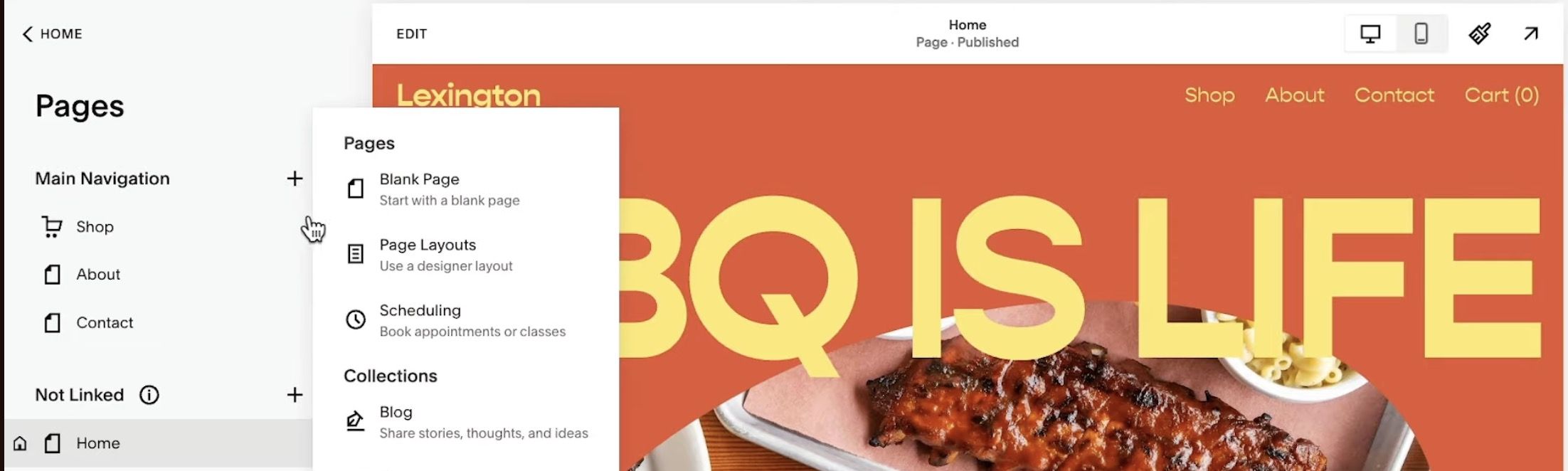
Step 2: Reconfigure e-commerce
Export product data and orders from Squarespace: Download product catalogs and order histories in CSV format.
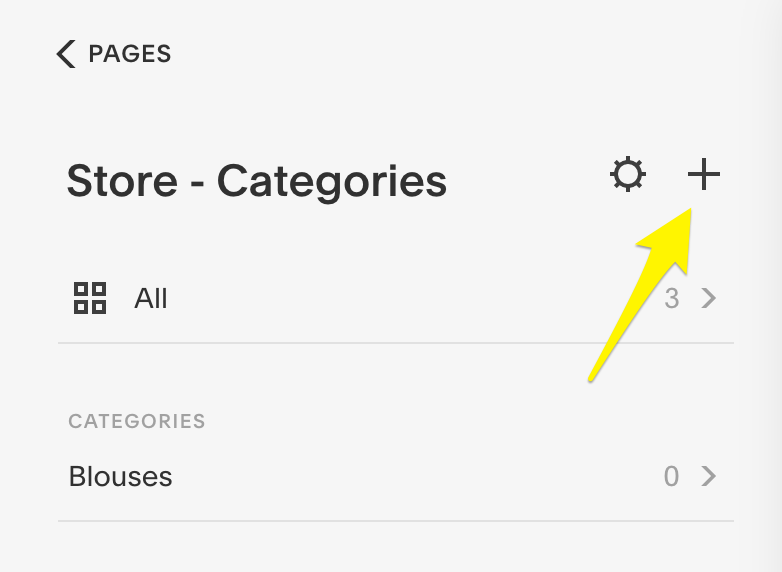
Set up e-commerce in CrocoClick: Go to the e-commerce section of CrocoClick and manually enter or import your product data, including images, descriptions, and prices.
Payment integration: Connect payment gateways such as Stripe or PayPal, similar to those used on Squarespace.
Shipping and tax settings: Configure shipping and tax calculation options based on your previous setup on Squarespace.
Step 3: Import contacts and subscriber lists
Export contacts from Squarespace: Use the Contacts panel in Squarespace to export all contacts and subscribers as a CSV file.
Import contacts into CrocoClick: Go to Contacts > Import Contacts in CrocoClick and upload your CSV file. Make sure fields such as names, emails, and tags are mapped correctly.
Rebuilding and improving features
Step 1: Website design and customization
Recreate pages: In CrocoClick, recreate each page by adding the necessary sections, content blocks, and forms. Use CrocoClick's design options to customize the appearance, ensuring that it matches or improves upon the original Squarespace design.
SEO optimization: Add SEO metadata, including titles and descriptions from Squarespace pages, to CrocoClick. Use CrocoClick's SEO tools to optimize content for search engines.
Step 2: Recreate and automate email campaigns
Export email campaign data from Squarespace: Download all available campaign templates, lists, and reports from Squarespace.
Create email campaigns in CrocoClick: In CrocoClick, go to Marketing > Emails > Campaigns and create new campaigns. Import templates and set up automation workflows including email triggers and follow-ups.
Step 3: Set up appointment scheduling and calendar integration
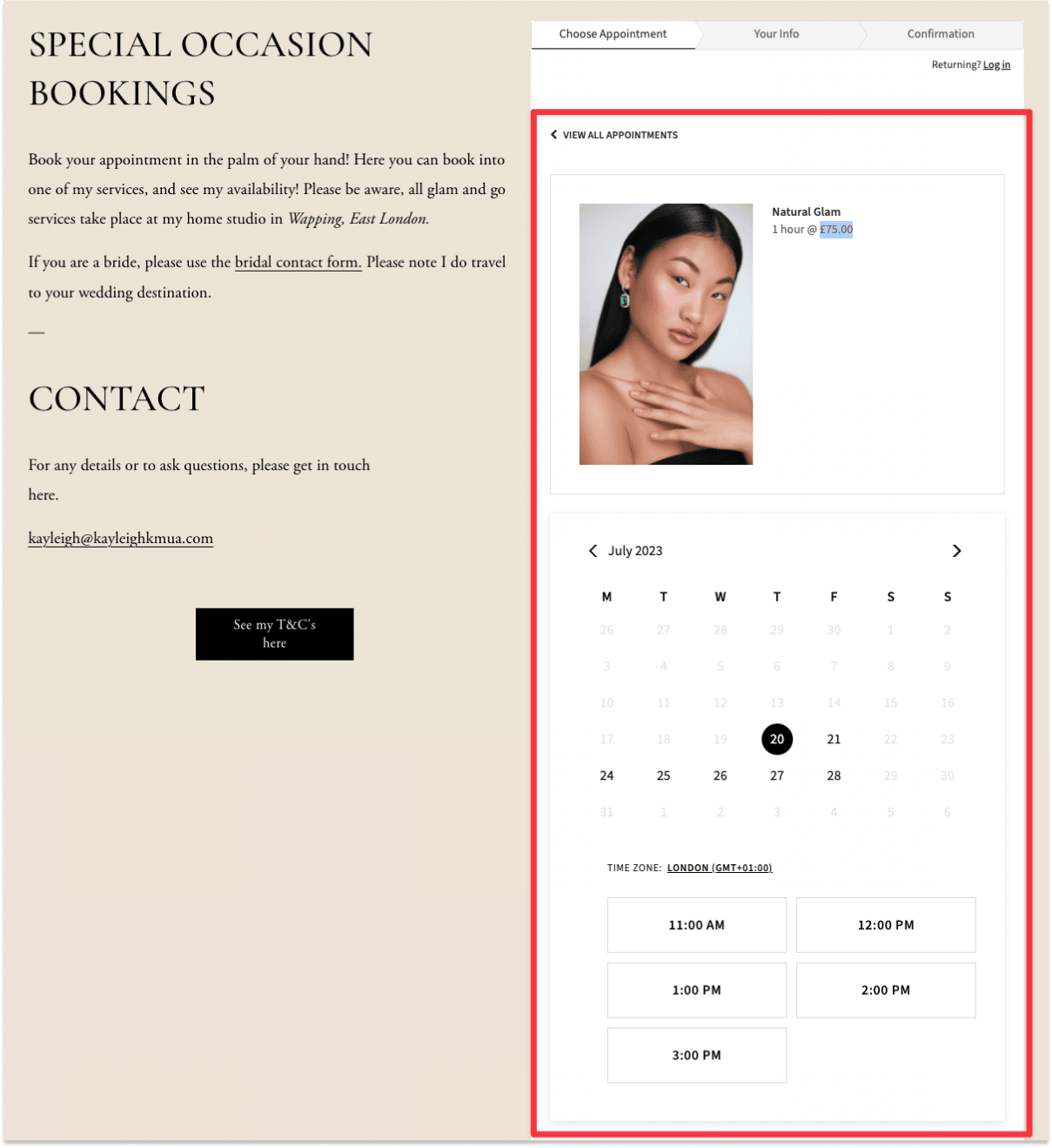
Transfer appointment scheduling data: If you were using Squarespace's appointment scheduling feature, be sure to export appointment data and customer schedules.
Set up appointment scheduling in CrocoClick: Use CrocoClick's calendar integration to set up appointment types and booking pages. Automate follow-up communications and reminders using CrocoClick workflows.
Testing and validation
Step 1: Validate website functionality
Test the site pages: Navigate through your new CrocoClick site, checking each page for content accuracy, links, and responsive design.
Check SEO settings: Use tools such as Google Search Console to ensure your new site is properly indexed and that all SEO metadata has been transferred correctly.
Step 2: Validate e-commerce and payment processing
Test products and purchases: Make test purchases to verify that products are displayed correctly and that the payment process works smoothly.
Check payment gateways: Ensure that payment processors are configured correctly and that test transactions are successfully validated.
Step 3: Test email campaigns and automations
Send test emails: Launch test campaigns to verify that emails are delivered with the correct formatting and content.
Check automation triggers: Validate that automated workflows, such as welcome emails and cart abandonment reminders, are working as expected.
Team training and transition
Step 1: Train your team
CrocoClick training sessions: Organize training sessions for your team members on the CrocoClick interface, focusing on aspects such as site management, email campaigns, and CRM features.
Distribute documentation: Provide user guides and SOPs tailored to your company's processes in CrocoClick.
Step 2: Monitor and optimize
Continuous monitoring: Regularly monitor the performance of the new system, especially during the first few weeks after migration, to detect and resolve any issues quickly.
Optimize workflows: Adjust workflows and site settings based on feedback and operational needs.
Deactivation of Squarespace
Step 1: Transition period
Maintain both systems in parallel: Consider keeping Squarespace and CrocoClick active for a short period to ensure that all data is transferred and users are comfortable with the new platform.
Phased withdrawal: Gradually reduce the use of Squarespace, ensuring that all users and customers are transferred smoothly to CrocoClick.
Step 2: Final backup and cancellation
Final backup: Ensure that all necessary data is backed up and stored securely before canceling your Squarespace account.
Cancel Squarespace subscription: Follow Squarespace's procedures to cancel your account and terminate services.
Step 3: Post-migration review
Evaluate the migration: Assess the success of the migration, documenting any challenges encountered and solutions implemented for future reference.
Ongoing monitoring: Continue to monitor the CrocoClick platform and make any necessary adjustments to optimize it.
Conclusion
Migrating from Squarespace to CrocoClick allows you to centralize your site management, CRM, and marketing. By following this step-by-step guide, you can ensure a smooth transition while maximizing CrocoClick's advanced capabilities to manage your customers and campaigns more effectively.