Migrating from ActiveCampaign to CrocoClick
A complete guide to easily migrate your contacts, transactions, e-mails, forms and automations from ActiveCampaign to CrocoClick.
Written By CrocoTeam
Last updated 8 months ago
This guide aims to ensure a smooth transition, minimize data loss, and maintain the integrity of your marketing and sales processes.
IMPORTANT: Be sure to migrate all of the following components when switching from ActiveCampaign to CrocoClick:
Transactions (Opportunities)
Email templates
Landing Pages
Forms
Automations
Contacts
Migration of Offers (Opportunities)
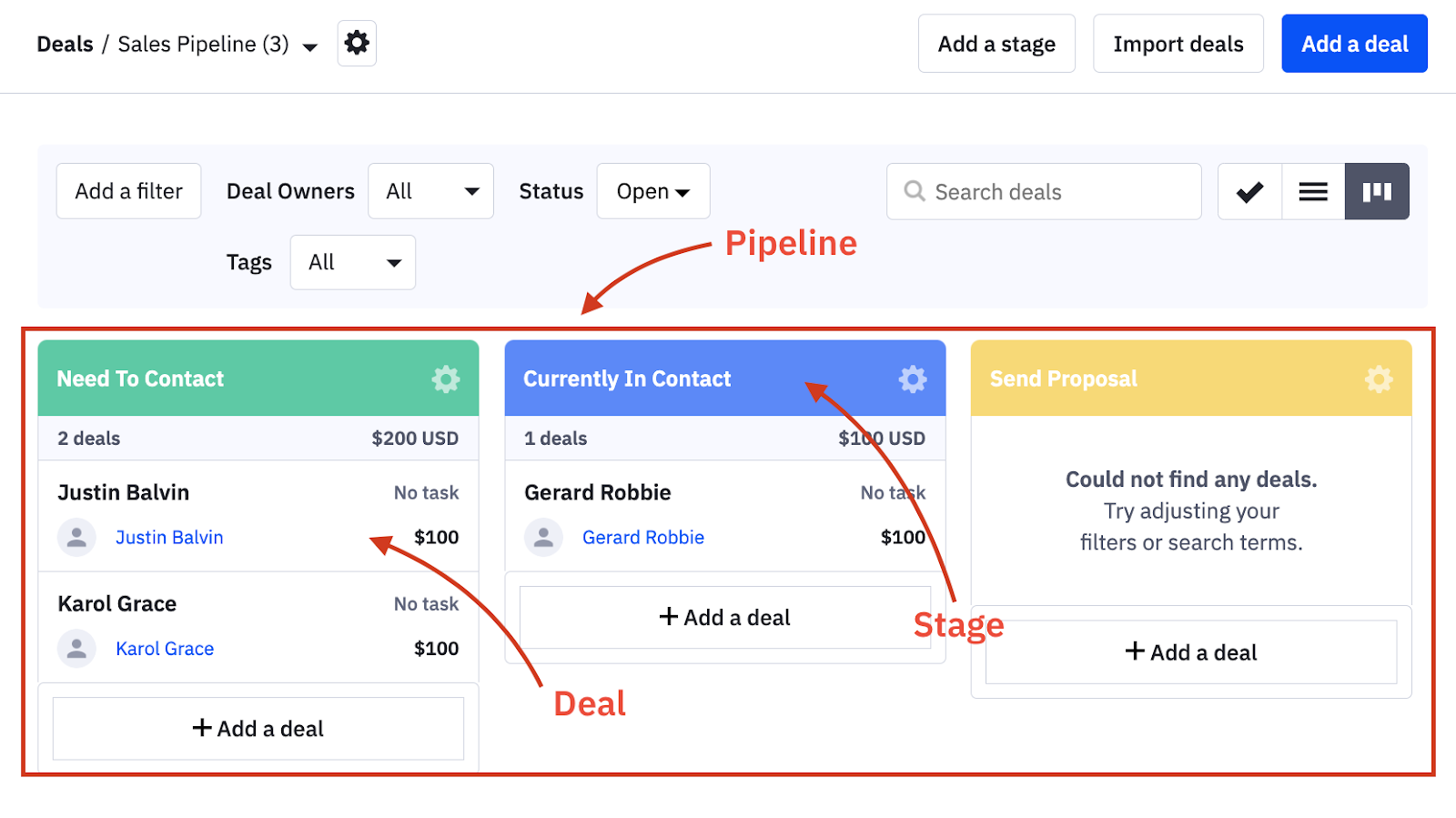
Deals (called Opportunities in CrocoClick) represent potential sales or transactions. Migration involves exporting transaction data from ActiveCampaign and importing it into the appropriate CrocoClick pipeline.
Step 1: Export Offers from ActiveCampaign
Access Deals: In ActiveCampaign, go to the Deals section.
Filter Deals: Use the filters at the top of the page to select the transactions you want to export.
Start Export: Click Export.
Download CSV: Download the generated CSV file containing the transaction data.
Step 2: Prepare the CSV for CrocoClick
Check Fields: Ensure that each transaction has a corresponding contact.
Confirm Data Consistency: Verify that the Pipeline and Stage fields match those in CrocoClick.
Step 3: Import Transactions (Opportunities) into CrocoClick
Access Opportunities: In CrocoClick, go to the Opportunities section.
Start Importing: Click on the three dots on the right, then select Import.
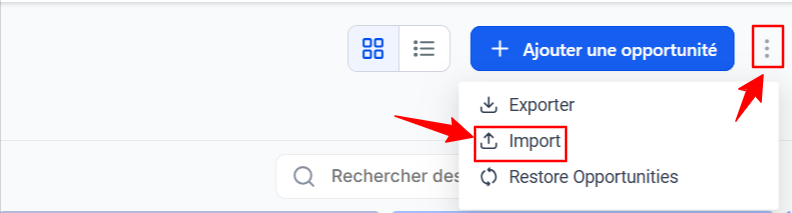
Upload the CSV: Upload the CSV file and map the fields.
Assign to Pipeline and Stage: Assign each transaction to the correct stage and pipeline.
Finalize Import: Click Import to finalize.
Step 4: Post-Import Verification
Review the opportunities in CrocoClick to verify the accuracy of all imported information.
Email Template Migration
Email templates can be transferred from ActiveCampaign to CrocoClick via a share link.
Step 1: Share a Template from ActiveCampaign
Access Templates: Go to the Campaigns > Templates section in ActiveCampaign.
Generate a Share Link: Click the gear icon and select Share to obtain a share link.
Step 2: Import the Template into CrocoClick
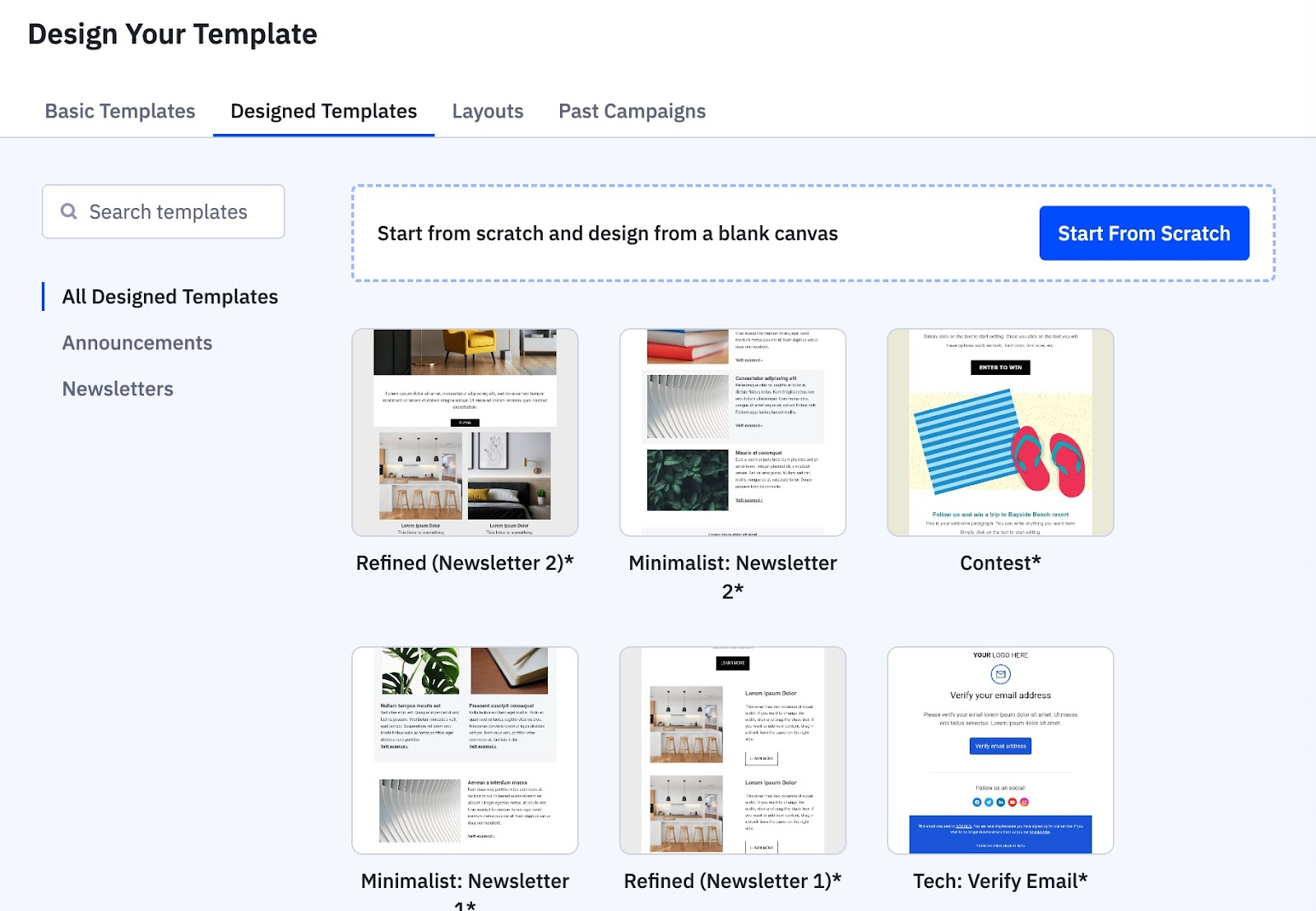
Access Templates in CrocoClick: Go to Marketing > Emails > Templates.
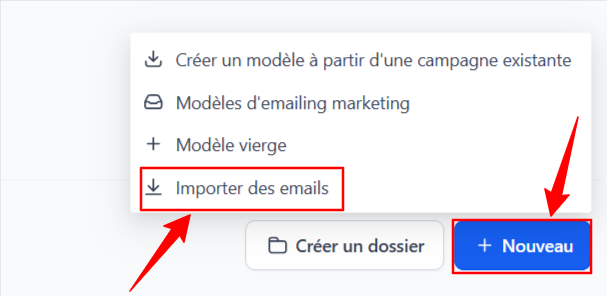
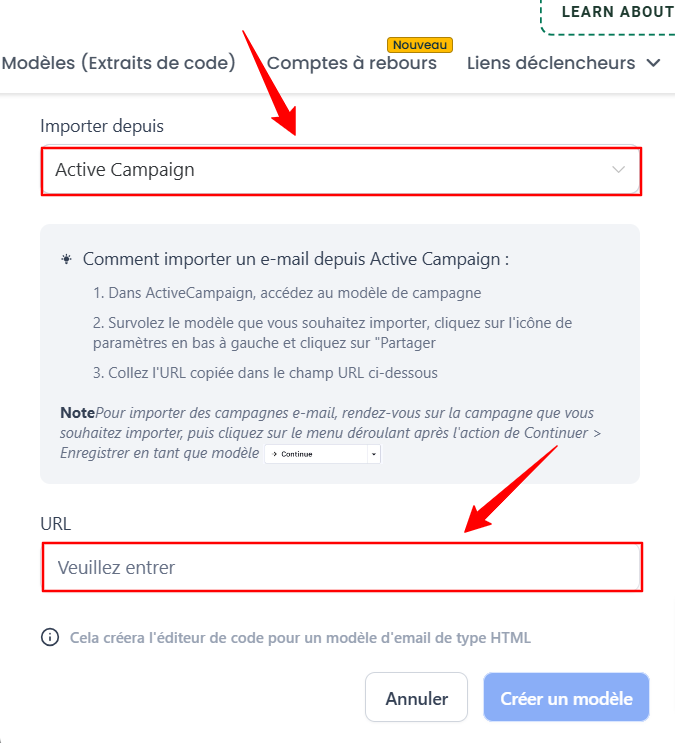
Start Importing: Select + New > Import Emails. Select ActiveCampaign and paste the share link.
Tracking codes on the published page.
Step 3: Post-Import Verification
Check the imported template to ensure it meets your campaign and branding needs.
Recreating Landing Pages
Landing pages must be recreated manually in CrocoClick using its page builder.
Step 1: Gather Details
Export Content: Note the structure and content of the landing page for complete reference.
Screenshots: Take screenshots to guide you during the recreation process.
Step 2: Recreate the Page in CrocoClick
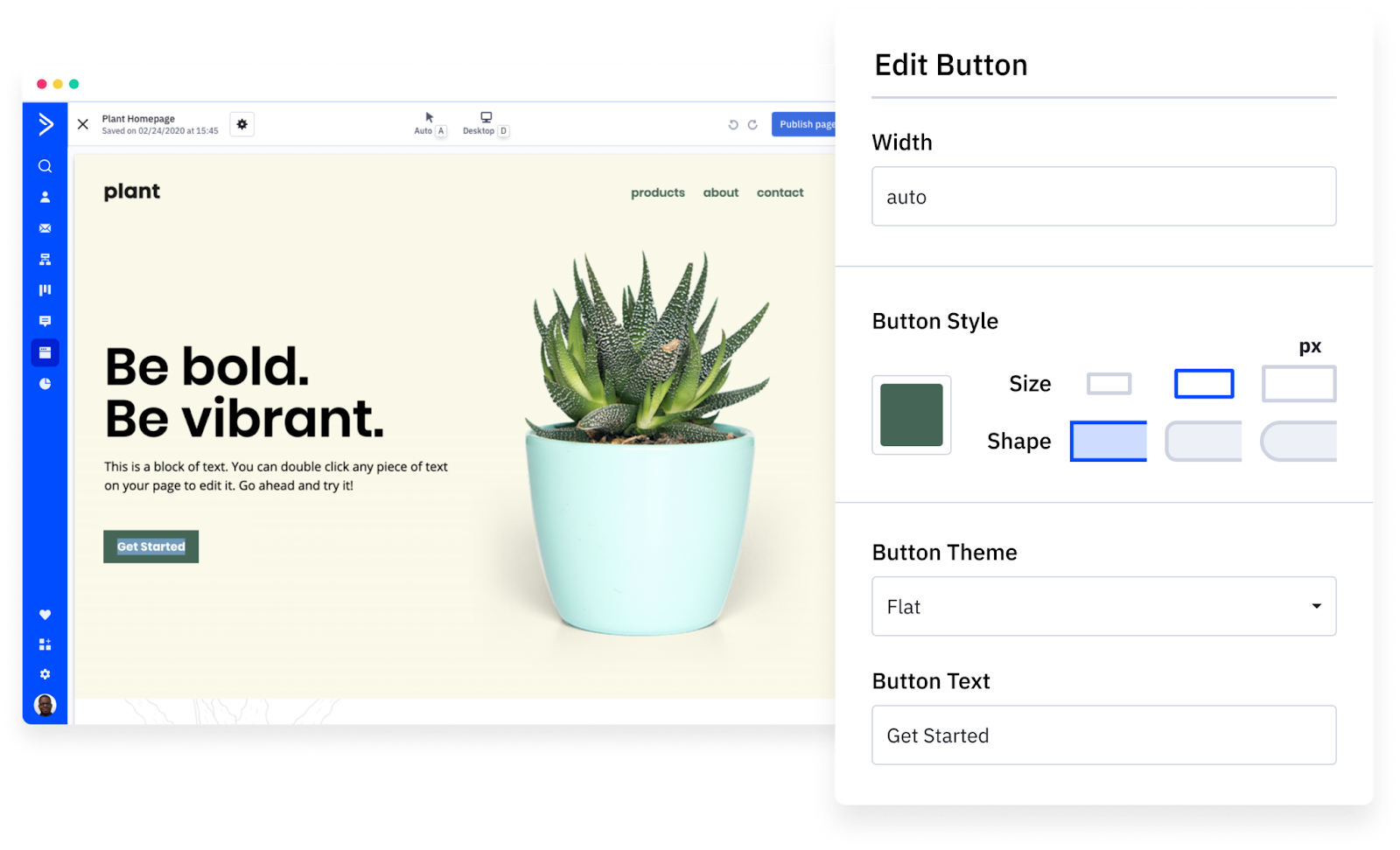
Access the Page Builder: Go to Sites > Pages.
Recreate the Structure: Add content and images using the builder.
Add Tracking Codes: Go to Settings > Tracking Codes and add the necessary tracking codes (e.g., Google Analytics ID, Facebook Pixel).
Customize and Publish: Customize the page's theme, layout, and SEO settings. Once you are satisfied, click Publish.
Step 3: Post-Publishing Verification
Test the links, forms, and tracking codes on the published page.
Form Migration
Forms must be recreated in the CrocoClick form builder.
Step 1: Collect Form Details
Form Fields: Note the form fields and associated actions (e.g., adding to a list, applying tags).
Form Settings: Note any special options, such as custom CSS and conditional logic.
Step 2: Recreate Forms in CrocoClick
Access the Form Builder: Go to Sites > Forms.
Add Fields: Create a form by adding the fields from the old form.
Configure Actions: Configure actions (adding tags, triggering workflows).
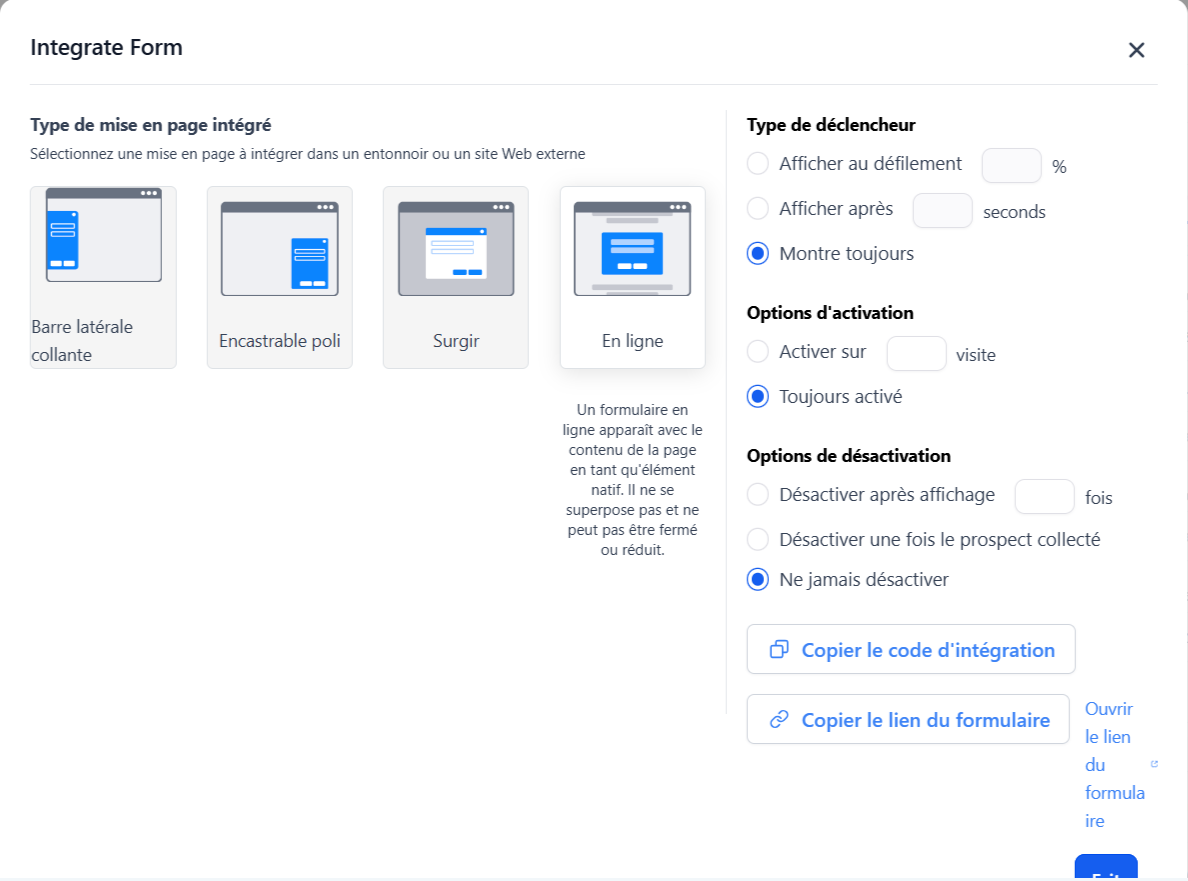
Integrate the Form: Once the form has been created, you can integrate it into a CrocoClick funnel or website by copying the integration code.
Step 3: Post-Implementation Verification
Test Form Submission: Perform a test entry via the form to verify that all actions (adding to lists, applying tags, etc.) are working correctly.
Verify Data Capture: Ensure that form data is accurately captured in CrocoClick, including custom fields and tags.
Check the display of integrated forms: If the form is integrated into a landing page or website, check that it displays correctly on different devices (computer, tablet, mobile).
Recreating Automations
Automations must be recreated manually in CrocoClick using its Workflows.
Step 1: Collect Automations from ActiveCampaign
Export Automation Details: If possible, export a visual representation or detailed analysis of each automation from ActiveCampaign. If this is not available, manually note the triggers, actions, conditions, and end goals of each automation.
Identify Key Elements: For each automation, identify essential components such as entry triggers (e.g., adding a contact to a list), actions (e.g., sending an email, adding a tag), and any conditional logic (e.g., if/then branches).
Step 2: Recreate in CrocoClick
Access Workflows in CrocoClick: In CrocoClick, go to Automation > Workflows.
Create a New Workflow: Click Create Workflow and start by defining the input trigger that corresponds to the one used in ActiveCampaign (e.g., form submission, adding a tag).
Add Actions and Conditions: Recreate the sequence of actions from the ActiveCampaign automation. This may include sending emails, adding or removing tags, updating contact records, or moving opportunities in a pipeline.
Use Conditional Logic: CrocoClick allows you to add conditional logic similar to ActiveCampaign's if/then branches. Make sure these conditions are set up correctly to guide contacts down different paths based on their behavior or characteristics.
Configure Timing: If the automation includes time delays (e.g., wait 1 day), make sure they are correctly configured in CrocoClick.
Step 3: Test and validate
Test Contacts: Create a test contact or use a segment of existing contacts to walk through the newly created workflow. Monitor the process to ensure that all actions are executing correctly.
Check Workflow Reports: After testing, review the workflow reports in CrocoClick to verify that the automation is working as expected.
Adjust if Necessary: If any part of the workflow is not behaving as expected, make the necessary adjustments and retest until the automation is smooth and error-free.
Contact Migration
Contacts are at the heart of your marketing and CRM efforts. Migrating contacts involves exporting data from ActiveCampaign and importing it into CrocoClick, ensuring format compatibility, correct field mapping, and handling any errors.
Step 1: Export Contacts from ActiveCampaign
Access Contacts: Log in to ActiveCampaign and go to the Contacts section.
Start Exporting: Click the Export button at the top right of the contacts page.
Select Fields: In the export options, select the fields to include in the CSV file (Email, First Name, Last Name, Phone, Tags, and any relevant custom fields).
Name the Export: Enter a name for the file, without any special characters.
Download the Export: ActiveCampaign will generate a downloadable CSV file containing all the selected information.
Step 2: Prepare the CSV for Import into CrocoClick
Check date formats: Ensure all date fields are in YYYY-MM-DD format.
Encode special characters: Use UTF-8 encoding to correctly handle special and accented characters.
Clean up the data: Remove line breaks, emojis, and special characters to avoid import errors.
Check email addresses: Confirm that each contact has a valid email address, which is a required field for import.
Step 3: Import Contacts into CrocoClick
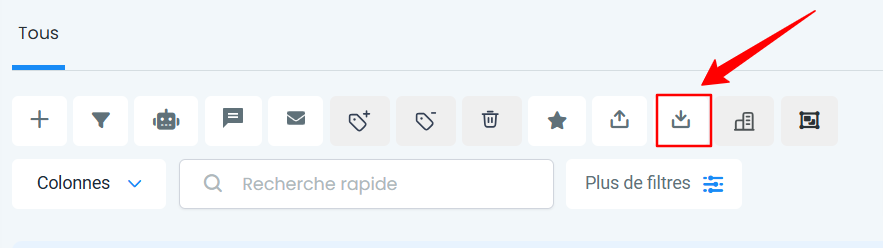
Start the Import: In CrocoClick, go to the Contacts section and click on the Import Contacts icon.
Upload the CSV File: Select and upload the prepared CSV file.
Map Fields (Field Matching): CrocoClick will prompt you to match the fields in the CSV file with those on the platform.
Assign Tags and Lists: During the import, assign tags (e.g., "Imported from ActiveCampaign") to contacts.
Finalize Import: Once the fields are mapped and the tags/lists are defined, click Import to finalize. CrocoClick will process the import, and the contacts will be added to your account.
Step 4: Verify Imported Data
Review the data in CrocoClick to verify that all contacts and associated fields have been imported correctly.

💡 Tip: For Field Mapping, ensure that all required fields are correctly mapped. If a field in the CSV does not have an equivalent, create a custom field in CrocoClick before continuing.
Additional Considerations for Migration
Training and Documentation
Internal Training: Provide training to your team on how to use CrocoClick, with a particular focus on the differences from ActiveCampaign.
Create Internal SOPs: Update and document all internal processes that have changed as a result of the migration to CrocoClick.
Data Integrity
Data Verification: After migrating all items, verify that all data (contacts, opportunities, email templates, etc.) has been transferred and is complete.
Data Backup: Ensure you have backups of all original data from ActiveCampaign before deleting or archiving it.
Communicating with Customers
Notify Contacts: If the migration impacts customer-facing processes (e.g., changes to email templates or forms), consider notifying your contacts about the transition to avoid confusion.
Continuous Monitoring
Monitor Performance: Regularly monitor the performance of workflows, email campaigns, and other automated processes in CrocoClick to ensure they are functioning properly.
Optimization: Use CrocoClick's analytics and reporting tools to identify areas for optimization after migration.