How to create, modify & use Quizzes
Use CrocoClick's Quiz Builder to create interactive quizzes for your site.
Written By CrocoTeam
Last updated 6 months ago
CrocoClick's Quiz Builder is a powerful tool for creating interactive and customized quizzes.
With its intuitive interface and numerous customization options, you can design engaging quizzes, create categories or profiles to segment your prospects, and analyze results in detail.
Quiz Builder Features
Multiple question formats:
Choose from various question types, such as multiple-choice, true/false, short answer, and open-ended questions.Customizable scoring system and quiz logic:
Each answer can award points in a specific category. If you use categories, the results page can display the percentage of points earned in each category, providing a detailed performance analysis for the user.Conditional Logic (Branching Logic):
Create quizzes that dynamically adapt to users’ answers for a personalized experience.Easy sharing:
Share your quizzes via direct links or embed them on your websites and sales funnels to maximize their reach.
How to Use the Quiz Builder
1. Access the Quiz Builder
Log in to your CrocoClick account.
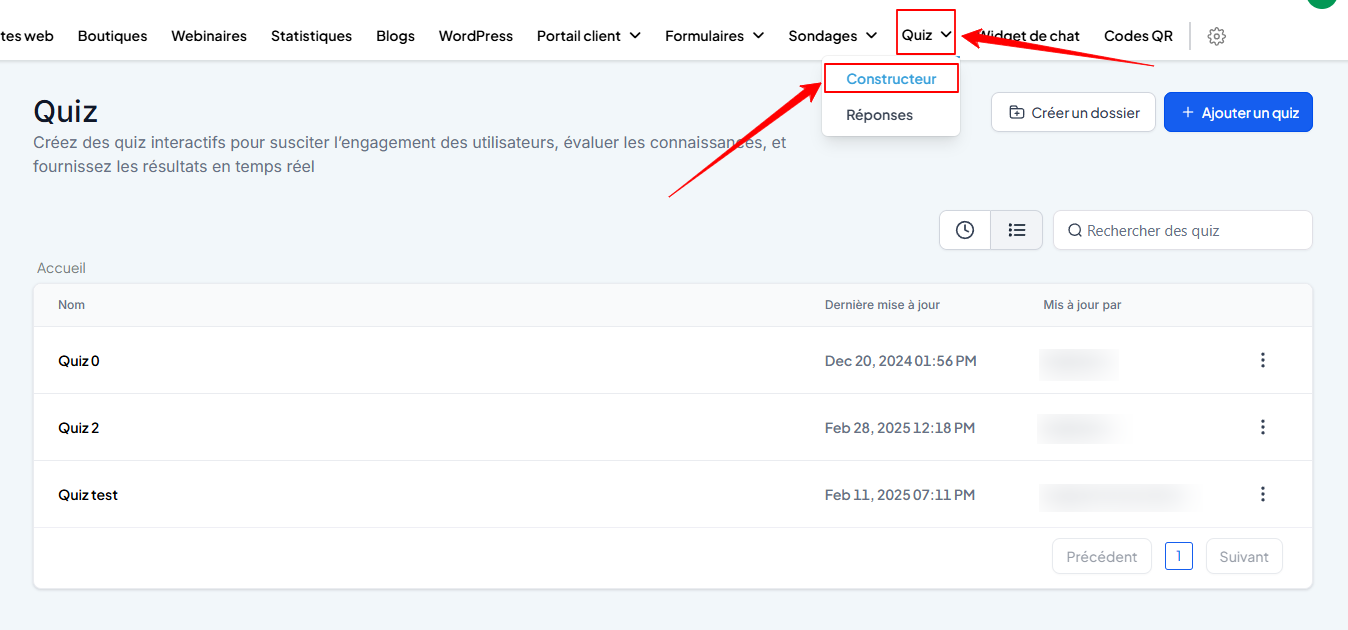
In the Sites tab, click Quiz > Builder.
2. Create a new quiz
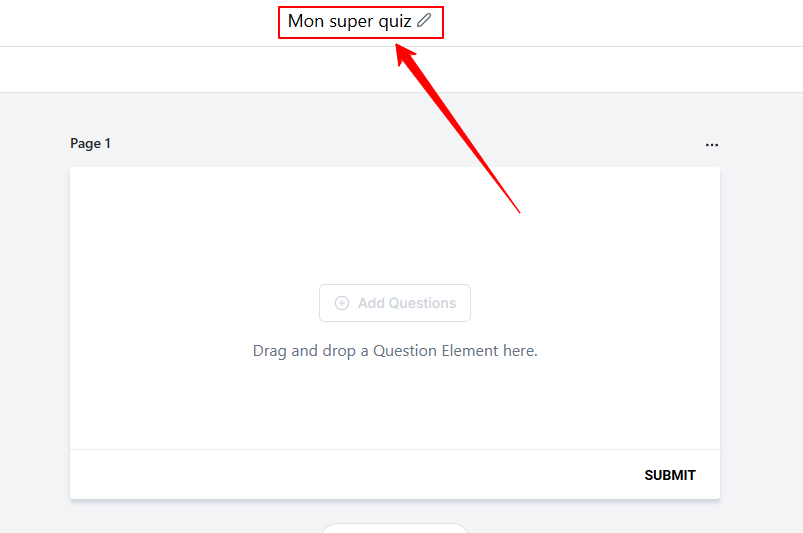
Click the + Create a Quiz button.
Give your quiz a unique name to make it easier to identify.
3. Add questions
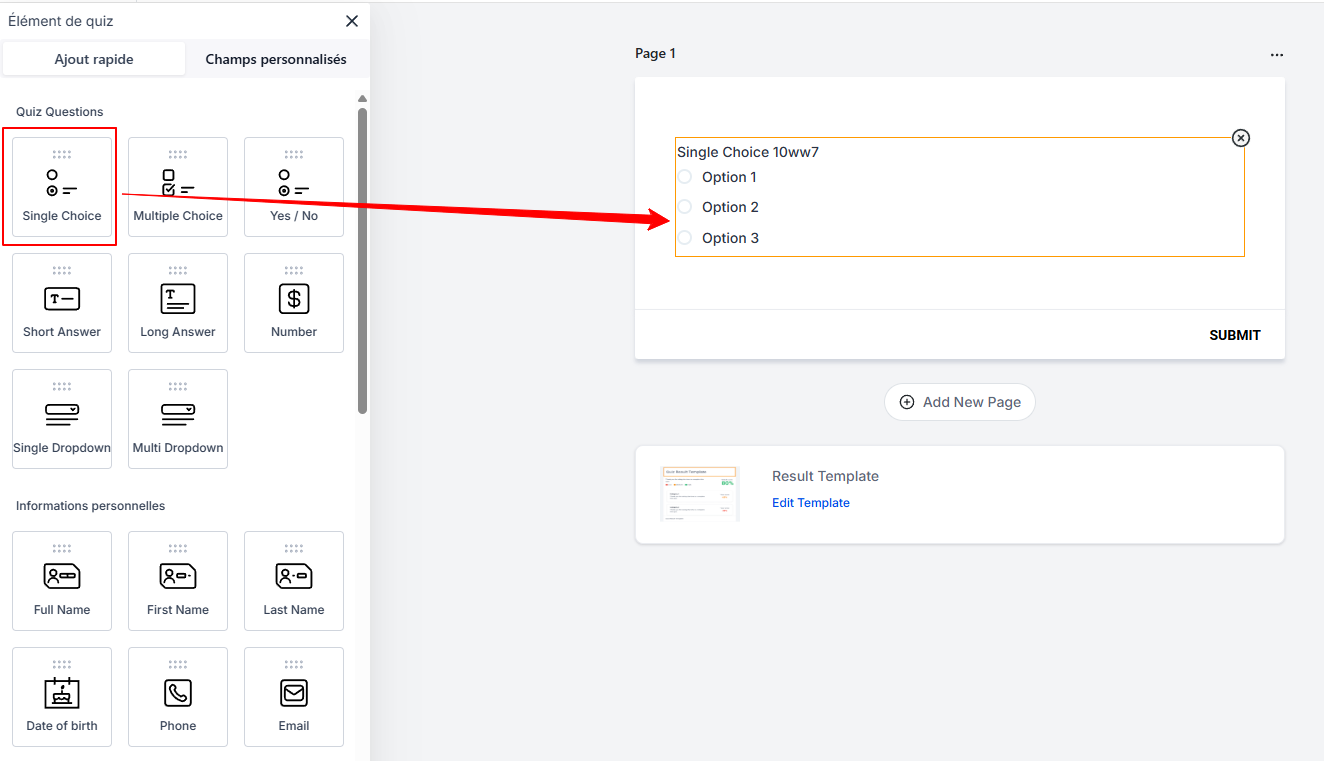
Use the sidebar to drag and drop question types (multiple choice, true/false, short answer, etc.) onto the quiz slides.
4. Assign categories, grade, and set the quiz logic
Scoring and point allocation:
Configure the scoring settings for each question. Each answer can award points in one or more categories. If you do not want to use multiple categories, or if you want to assign a question’s points to all categories, select the “overall only” option.
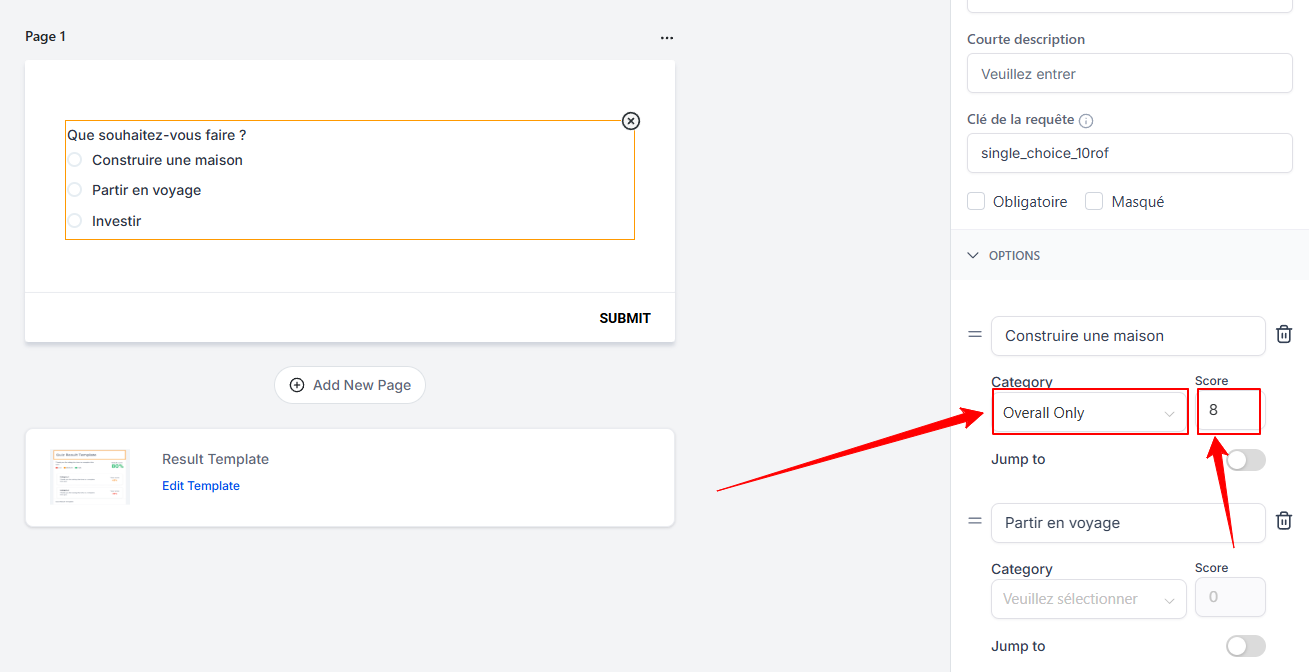
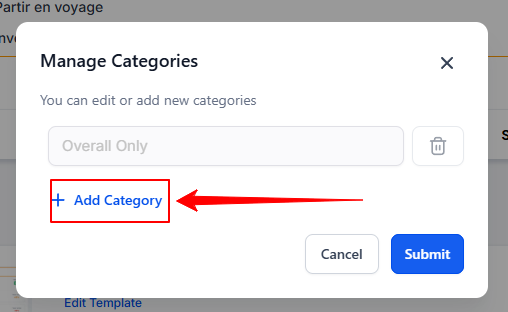
You can add as many categories as needed by clicking "Add/Manage" and then "+ Add Category." Using categories allows you to differentiate between the skills or areas being assessed and obtain a more detailed performance analysis.
Conditional Logic (Jump To):
Enable the Jump To feature to redirect the user to another page based on their response, offering a more personalized and interactive experience.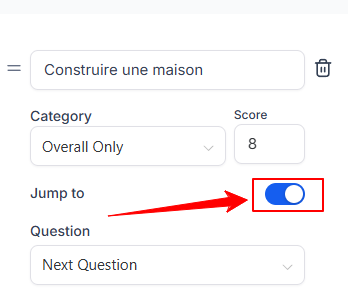
5. Customize the results page
Scroll to the bottom to customize the results page.
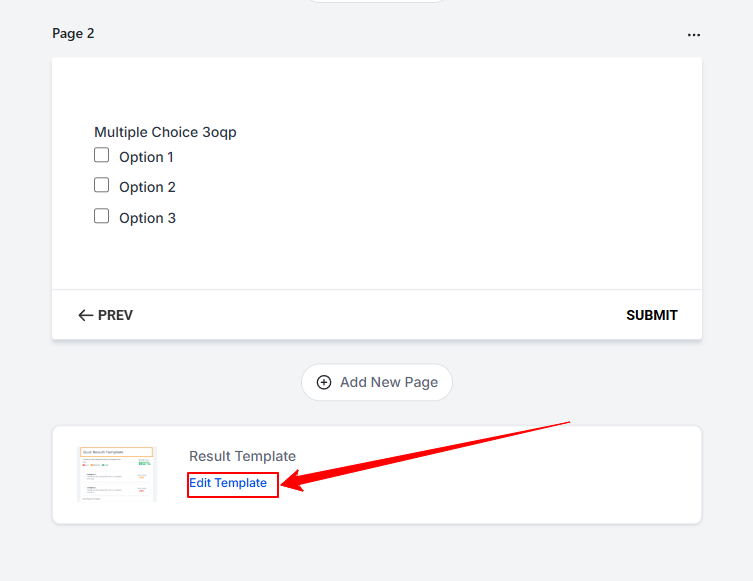
Modify the content, margins, padding, and background color to reflect your brand identity.
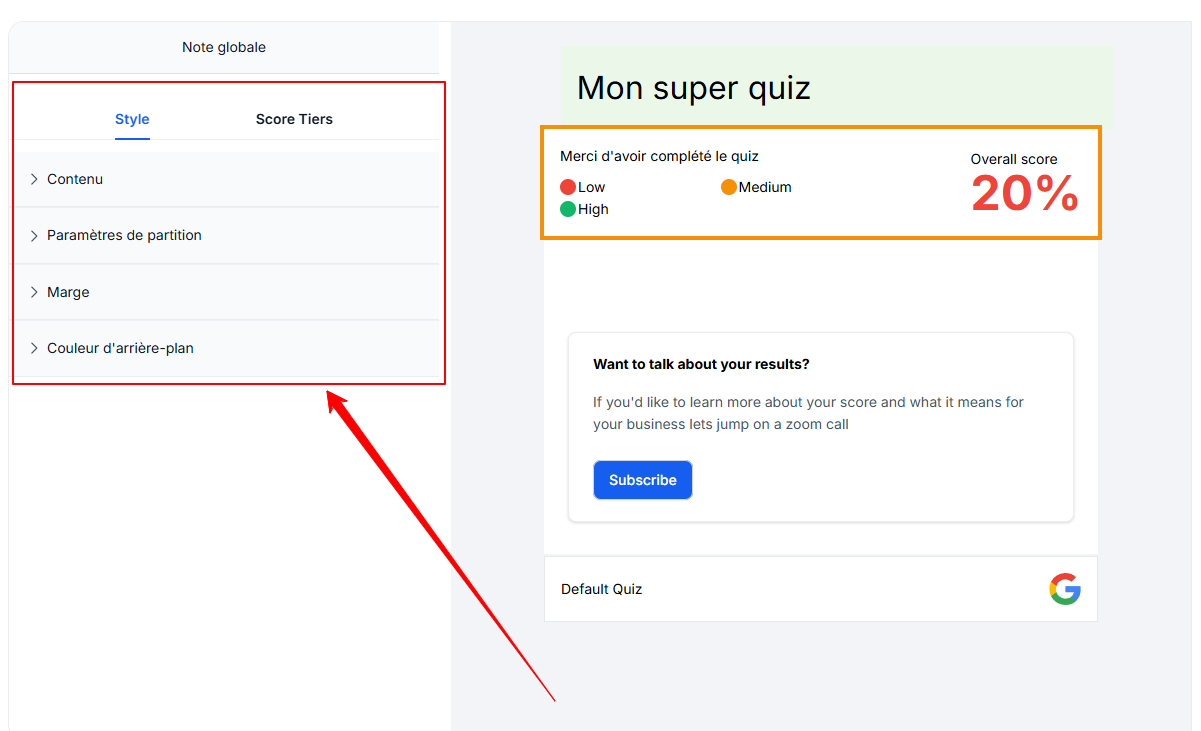
Display results by category: On the results page, display the percentage of points earned in each category to provide detailed and accurate feedback on the user’s performance.
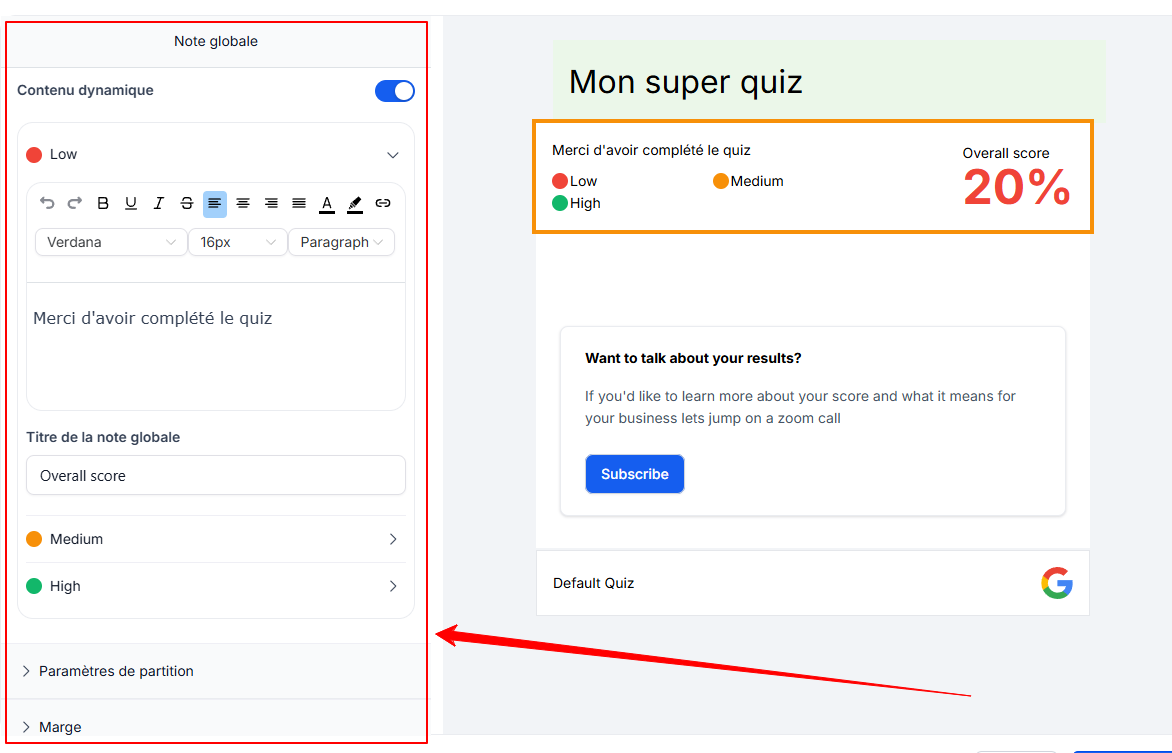
Click Save to save your changes.
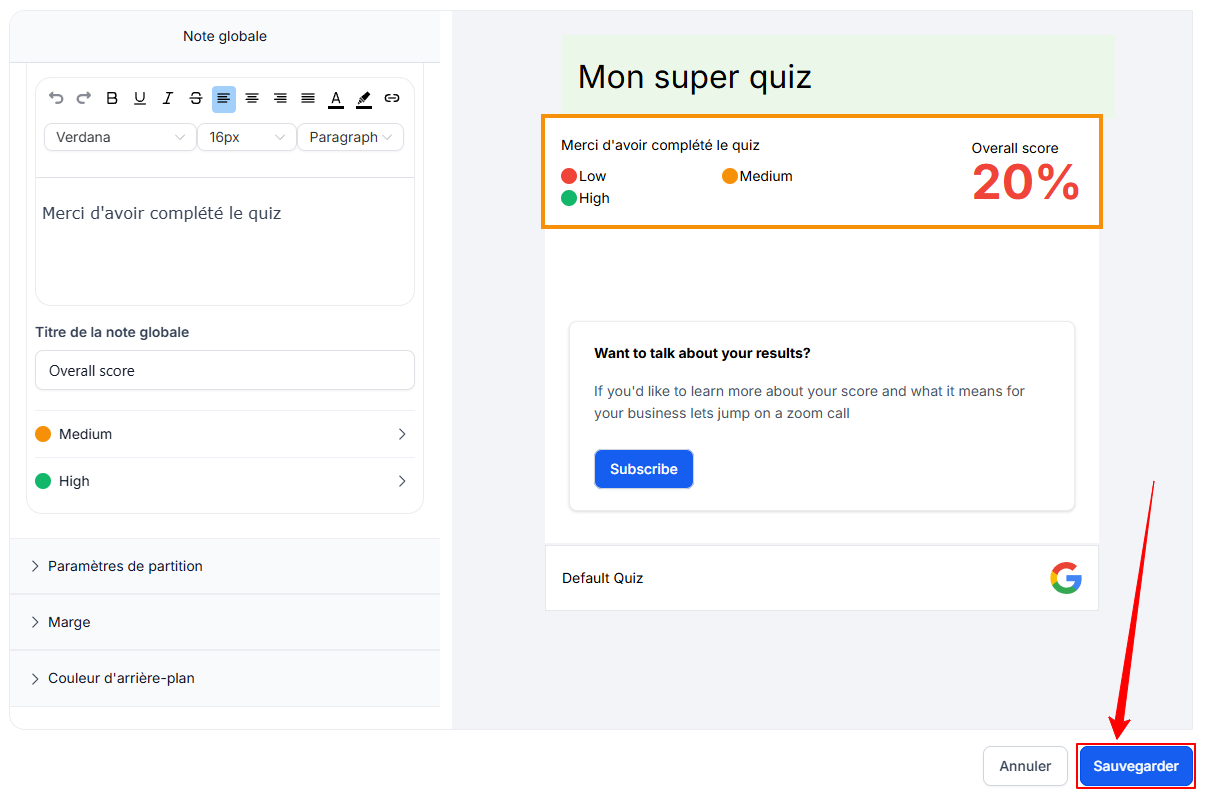
6. Save and preview
Save your quiz by clicking Save.
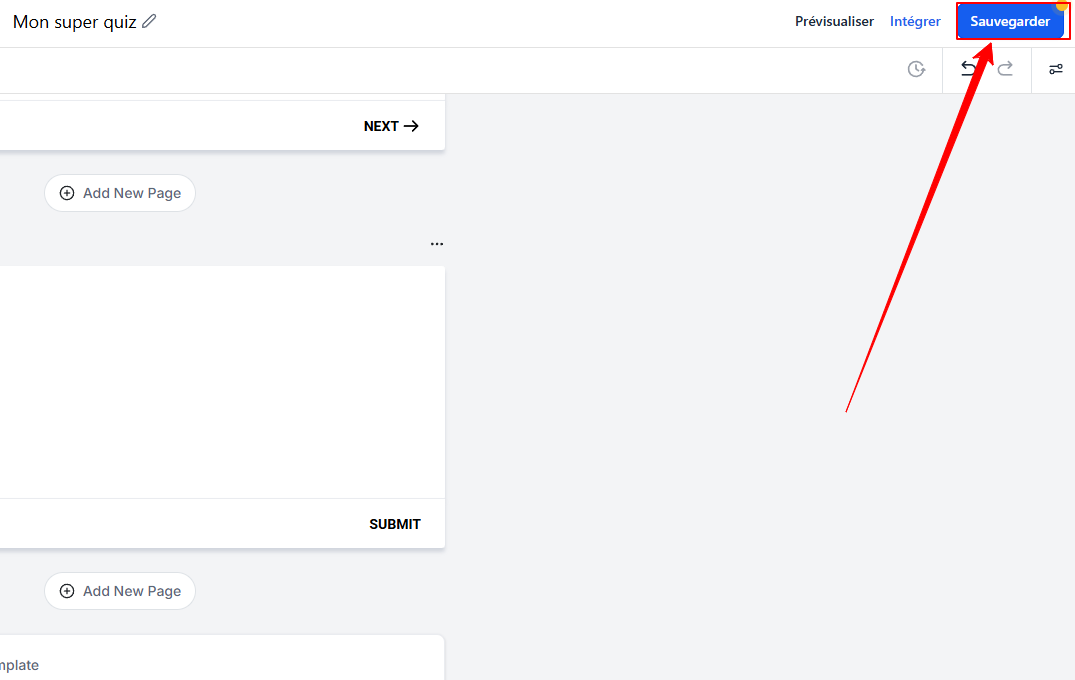
Test it before publishing to ensure everything works correctly.
Distribute your quiz by sharing direct links or embedding it on your websites.

💡TIP: To learn more about customizing the results page, visit you can read this article
Practical Use Cases
Education & Training:
Assess learners’ knowledge, reinforce learning, and offer personalized educational experiences with interactive quizzes.Product or Training Recommendations:
Use quiz results to recommend relevant products, training courses, or services, thereby improving conversion rates and customer satisfaction.Certification & Compliance:
Create quizzes to validate compliance with training programs and issue certificates based on performance.Engagement and Interactivity:
Create adaptive quizzes that adjust their content based on users’ responses, fostering deeper interaction.
FAQ - Quiz Builder
Q: Does the Quiz Builder support conditional logic?
A: Yes, you can create dynamic quizzes that adapt based on user responses to deliver a personalized experience.
Q: How do I analyze quiz results?
A: Detailed analytics are available in the quiz submissions section, allowing you to track performance and engagement rates.
Q: Can I automate follow-ups based on scores?
A: Yes, by using the "Quiz Submitted" trigger in your automations, you can set up automatic follow-ups via email or SMS.
Q: Is the Quiz Builder suitable for certification exams?
A: Absolutely. The tool supports the creation of quizzes for certifications, with defined passing criteria and the ability to generate certificates based on performance.