Frequently asked questions about CrocoClick forms, surveys and quizzes
Discover the differences between CrocoClick forms, surveys and quizzes, and learn how to use them effectively to collect data, qualify your prospects and engage your audience.
Written By CrocoTeam
Last updated 5 months ago
Forms, surveys, and quizzes are at the heart of CrocoClick. They allow you to collect information, qualify your prospects, and engage your audience in a fun way. Here are the answers to the most common questions.
What is the difference between a form, a survey, and a quiz?
Form: a classic tool for collecting information (name, email, phone number, etc.). Simple and straightforward, ideal for registrations or making contact.
Survey: similar to a form, but with the option of having multiple slides/pages. Very useful for collecting more information than with a simple form, without overwhelming the user all at once.
Quiz: works like a survey, but with the added ability to assign scores to answers, create result categories, and display a customized results page at the end (e.g., profile, score, or recommendation).
👉 In summary:
Form = simple collection of information.
Survey = more in-depth collection with several steps.
Quiz = collection + gamification + dynamic results.
How do I integrate a form or quiz into my website/funnel?
Via a block integrated directly into your CrocoClick page editor.
In an iframe (embed code).
As a shareable direct link (unique URL generated automatically).
Can I automate responses after submission?
Yes. Each submission can trigger automation using the "Form Submitted" or "Survey Submitted" triggers:
a tag or an email/SMS campaign,
an internal notification for your team,
an automated workflow (example: send a personalized email based on the responses).
How can I customize the design?
You can modify:
Colors, fonts, buttons,
Add your logo,
Choose a minimalist or advanced style.
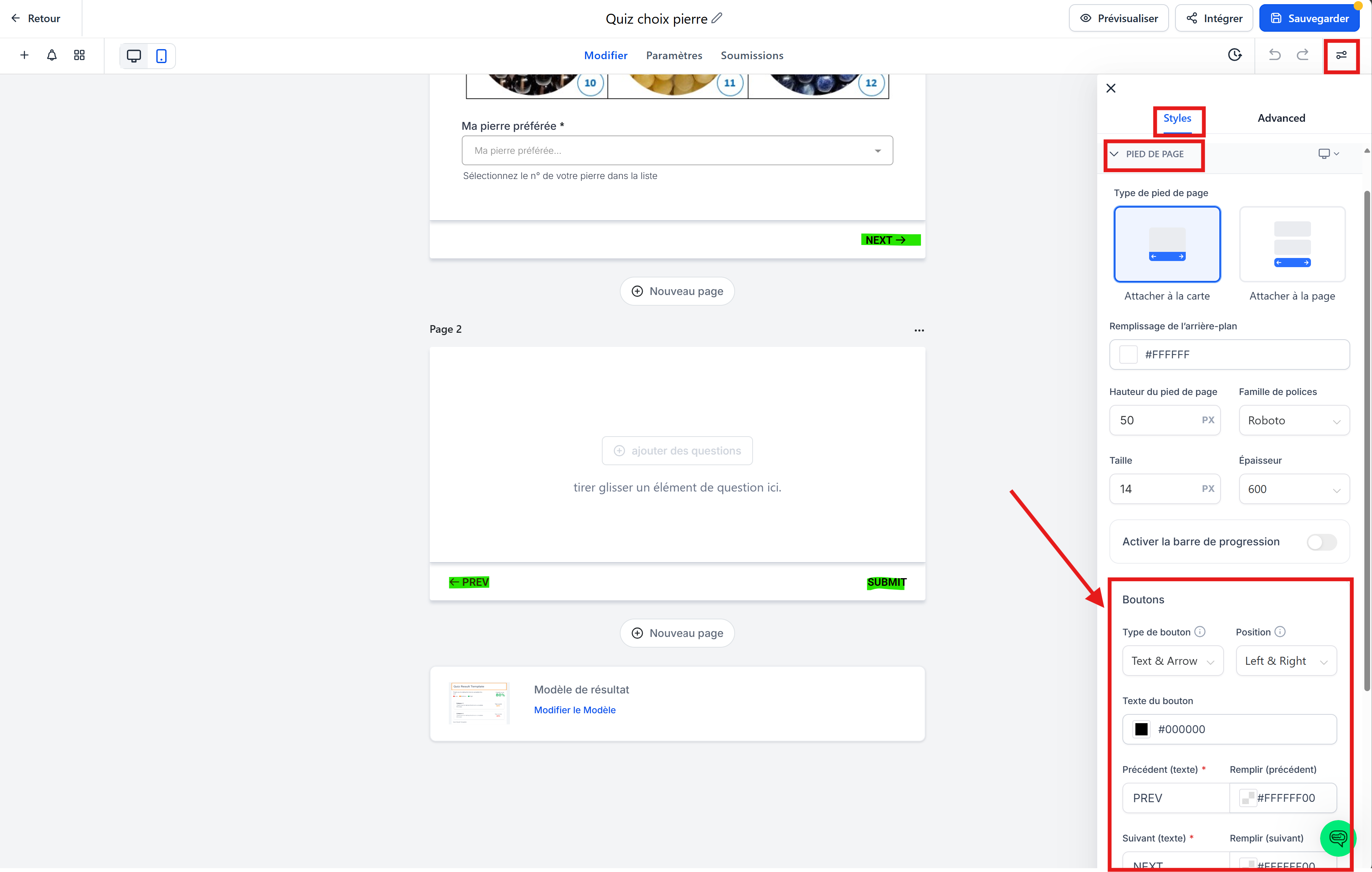
Change the names of the "PREV," "NEXT," and "SUBMIT" buttons
To change the names of the "PREV," "NEXT," and "SUBMIT" buttons at the bottom of your quiz or survey, go to the style settings by clicking on the icon at the top right (just below "Save").
Then go to Style > Footer > Buttons and you will find the information you want to change.
Can I use conditional logic in my forms and surveys?
Yes. CrocoClick forms and quizzes incorporate conditional logic.
Conditional logic allows you to modify the course of a survey based on the answers.
Example: Question "What is your budget?"
If the user answers "More than $10,000" → Display advanced questions and redirect to a demo page.
If the user answers "Less than €1,000" → Skip unnecessary questions.
To access this feature, click on the "Conditional Logic" icon at the top left of the editor (the middle icon shaped like a path).
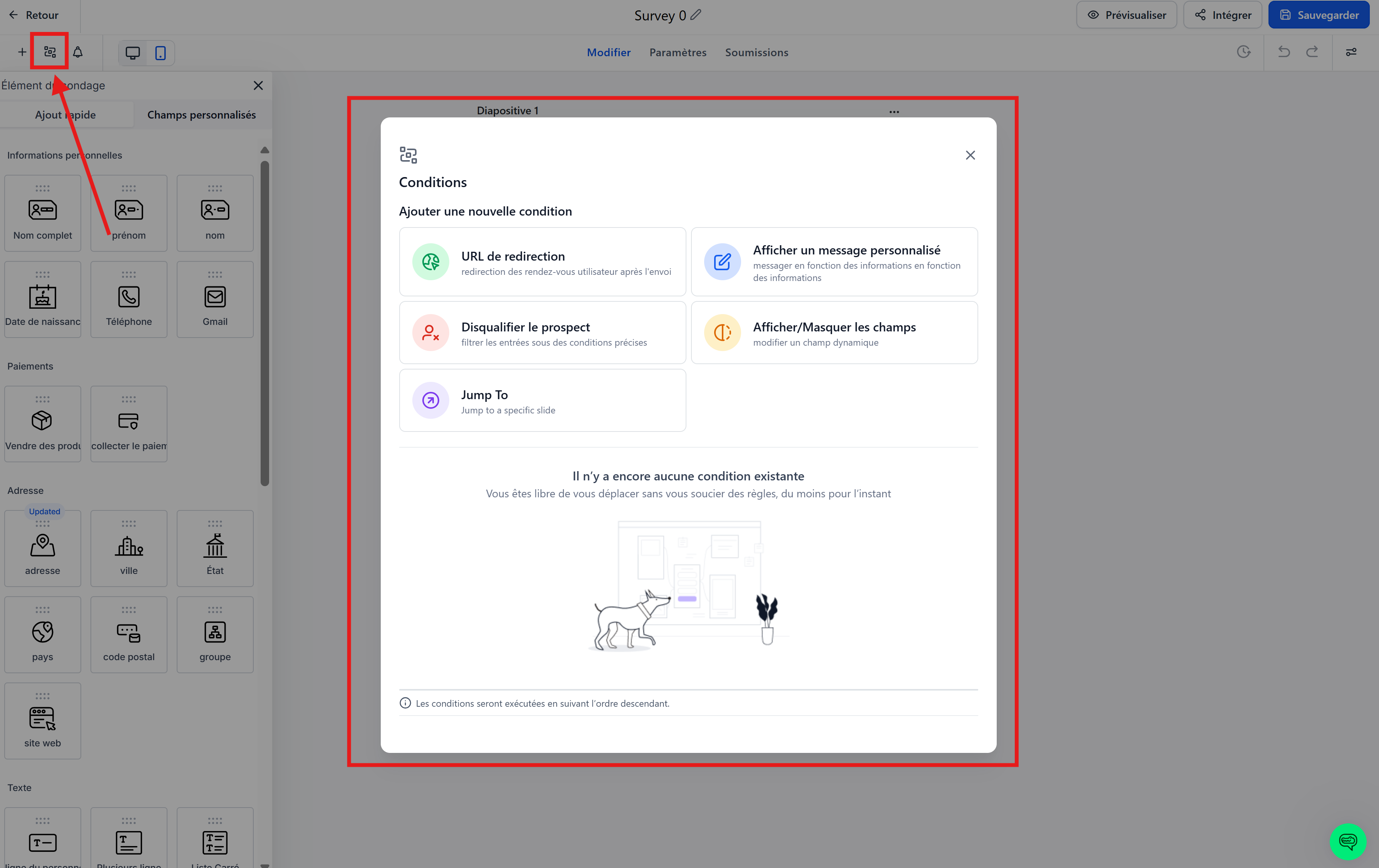
You will then have 5 options:
💡TIP: If your fields do not appear in the IF menu, save your survey or form and then reload the page. This will save the fields and make them usable for conditional logic
Where can I see the results collected?
All responses are displayed in the Results tab of the form/quiz.
They are also accessible in your CrocoClick CRM ("Contact" module) for centralized tracking within your contact records.
I exported my results, but the Excel file is unreadable/incorrectly formatted
When you export your form, survey, or quiz results in CSV format, the file may appear unreadable (all responses in a single column, strange characters, etc.).
👉 Don't worry: the problem is only due to the way the file is opened.
Here's a solution to make your results clear and usable:
Open Excel.
Go to Data > Get Data > From Text/CSV File.
Select your CSV file.
In the import window, choose:
Delimiter: Comma
Encoding: UTF-8 (if available)
Check that your columns are displayed correctly.
Click Load.
If everything is then displayed in a single column → use Data > Convert > Delimited > Comma to force the separation.
💡TIP: Read our article on "how to export answers to a form, survey or quiz" for more information on this topic.