Using advanced conditional logic in CrocoClick forms & surveys
Learn how to use advanced conditional logic in CrocoClick forms and surveys: dynamic display, redirects, personalized paths and automatic qualification.
Written By Baptiste Lorreyte
Last updated 7 months ago
Conditional logic allows you to make your forms, surveys, and quizzes intelligent: conditional
questions, messages, and redirects automatically adapt based on the user's responses.
With conditional logic, you can, for example:
Display only relevant questions,
Create multiple paths within the same survey,
Display personalized messages,
Redirect to different URLs after submission,
Automatically disqualify irrelevant leads.
1. Where can you find conditional logic?
You can use conditional logic in:
Forms
Surveys
Quizzes
To access it:
Open your form/poll in the CrocoClick editor.
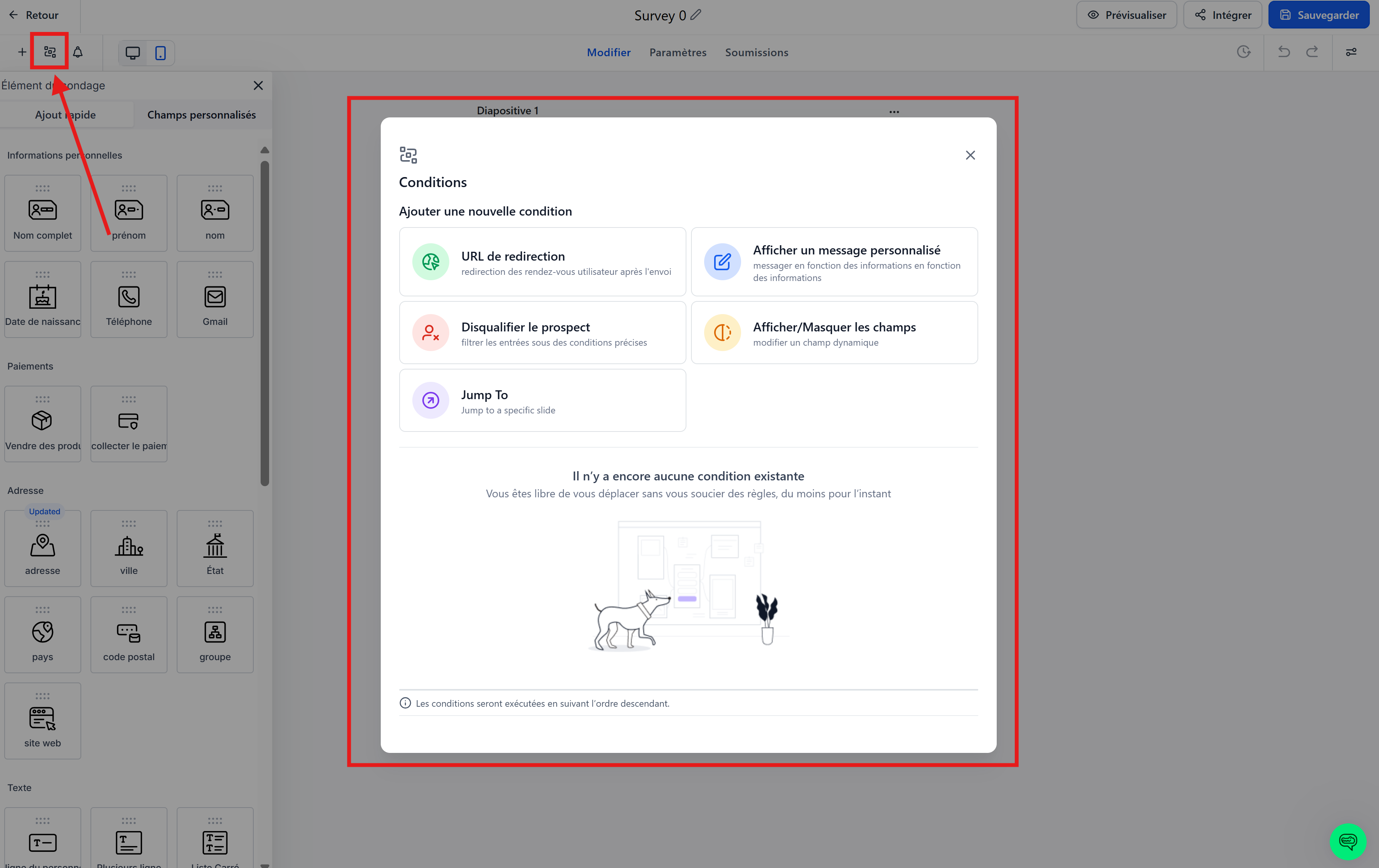
At the top left, click on the "Conditional Logic" icon (the central icon shaped like a path).
From this panel, you can create, modify, and organize all your rules.
2. What conditional logic allows you to do
Conditional logic always works on the principle:
IF a condition is true → THEN apply an action.
The possible actions are:
Show/hide fields
Jump to a page/slide (Jump To)
Display a custom message
Redirect to a URL (including after submission)
Disqualify a lead
You can create as many rules as necessary.
3. Types of actions in detail
3.1 Show/hide fields
Purpose:
Show only questions that are relevant based on previous answers.
Examples:
If "Interest = Premium Offer" → display an "Advanced Questions" section.
If "Customer type = B2B" → display "Company name" and "Team size."
If "Answer = No" → hide questions that are no longer relevant.
You can target:
individual fields (text, dropdown, radio, checkbox, etc.),
static elements (text, image, HTML block, payment, T&C),
groups of fields according to your design.
3.2 Jump to a page/slide (Jump To – surveys)
Purpose:
Create different paths in a survey or a long multi-page form.
Examples:
If "Are you already a customer? = Yes" → jump directly to the "Existing customer questions" page.
If "Score < 5" → send to a "Detailed Feedback" page.
The jump is evaluated when the user clicks on "Next."
3.3 Display a personalized message
Purpose:
Display a conditional message without changing pages.
Examples:
If "Satisfaction < 3" → display: "
Thank you for your honesty, an advisor will analyze your response."If "Budget < $1,000" → display an educational message rather than a premium offer.
If "No" to a mandatory qualification question → warning or explanatory message.
Useful for:
reassuring,
inform,
realign expectations.
3.4 Redirect to a URL (including after submission)
Purpose:
Adapt the landing page based on the user's responses.
You can:
redirect immediately from a survey,
or redirect conditionally after the form is submitted.
💡 This allows you, for example, to send the user to page A or page B based on their responses as soon as they validate the form.
Examples:
If "Budget > $10,000" → redirect to a demo/appointment booking page.
If "Profile = Beginner" → onboarding page.
If "Profile = Advanced" → case study page.
If "Choice = Option A" →
/merci-option-aIf "Choice = Option B" →
/merci-option-b
You can create multiple redirection rules. CrocoClick will then apply the first rule that matches.
3.5 Disqualify a lead
Purpose:
Automatically filter responses that do not meet your criteria.
Examples:
If “Budget < $5,000” → mark the lead as disqualified.
If "Country" is not part of your service area → disqualify.
If certain mandatory questions are not filled in → reject the submission.
You can combine this with tags or workflows to adapt the rest of the journey.
4. Create a conditional logic rule step by step
The builder always follows the same 3-step principle.
Step 1 — Choose the action
In the editor, click on "Conditional Logic."
Click on "Add a rule."
Choose the action:
Show/hide fields
Jump to a page
Display a message
Redirect to a URL
Disqualify a lead
Step 2 — Define the condition (IF...)
A condition is always based on:
a field (or a slide for polls),
a status (e.g., is equal to, contains, is greater than, is empty, etc.),
a value (text, number, date, option).
Examples of conditions:
If "Budget" is greater than 10,000
If "Level" is equal to "Beginner"
If "Satisfaction" is less than 3
If "Email" is empty
If "Country" contains "France"
You can add multiple conditions in the same rule with:
AND → all conditions must be true
OR → at least one condition must be true
Step 3 — Define the result (THEN...)
Depending on the action chosen:
Show/hide fields → select the fields/elements to show or hide.
Jump to a page/slide → choose the target page or slide.
Display a message → write the message text.
Redirect to a URL → enter the full URL (internal or external).
Disqualify a lead → the form/survey is blocked or the contact is marked as unqualified.
Don't forget to save the rule at the end.
5. Examples of common scenarios
5.1 Path based on budget
Question: "What is your monthly budget?"
Rules:
If Budget < $1,000 →
Skip advanced questions
Display an educational message
If Budget > $10,000 →
Display advanced questions
Redirect to a demo page after submission
5.2 Existing vs. new customers
Question: "Are you already a customer?" (Yes/No)
Rules:
If Yes → skip to the "Existing customer questions" page.
If No → stay on the standard path (discovery questions).
5.3 Satisfaction & follow-up
Question: "On a scale of 1 to 10, how satisfied are you?"
Rules:
If Satisfaction ≤ 3 →
Display “Thank you for your honesty, we will analyze your feedback.”
(Optional) Tag for manual follow-up later.
If Satisfaction ≥ 8 →
Display a message inviting the user to leave a testimonial.
5.4 Conditional redirection after submission
Objective: send the user to a different page once they have validated the form.
Question: "What type of support are you interested in?" (Option A / Option B)
Rules:
If Option A → redirect to
/merci-accompagnement-aIf Option B → redirect to
/merci-accompagnement-b
CrocoClick automatically applies the redirection corresponding to the answer given.
6. Supported fields and operators
Compatible field types
Text (single line, paragraph)
Number, score, amount
Date
Dropdown (single or multiple)
Radio buttons
Checkboxes
Terms & Conditions (T&C)
File upload
Signature
Static elements: text, HTML, image, payment
ℹ️ Fields of the "Calendar" type are not taken into account in conditional logic.
Main operators available
Depending on the field type, you can use, for example:
Text: equals, contains, starts with, ends with, is empty, is filled
Number/Score/Amount: equal to, greater than, less than, between, is empty, is filled
Date: before, after, between, is empty, is filled
Dropdown/radio: equals, does not equal, is empty, is filled
Checkbox/multi-dropdown: contains {option}, does not contain {option}, is empty, is filled
T&C: checked / unchecked
Upload/Signature: empty/filled
7. Rule behavior (order & priorities)
Some important points to know:
Rules are read from top to bottom.
For Redirection / Message / Disqualification actions:
→ only the first matching rule is executed.For Show/Hide fields:
→ rules can overlap, and the last ones take precedence.For surveys, Jump To rules are evaluated when the user clicks Next.
Text comparisons ignore case (upper/lower case) and extra spaces.
8. Best practices & troubleshooting
If a field does not appear in the list of conditions (IF)
Check that the field has been created.
Click Save in the editor.
Refresh the page, then reopen the conditional logic panel.
To keep forms readable
Avoid putting everything on a single page: use several steps instead.
Use conditional logic to shorten the journey for less qualified leads.
Always test your form/survey in preview mode before publishing it.
To avoid unexpected behavior
Place the most "general" rules at the bottom of the list.
Group similar actions (e.g., all redirects) in the same place.
Document complex logic (e.g., screenshot + text in your internal SOPs).
9. FAQ
Can I apply multiple rules to the same field?
Yes. Each rule is independent. CrocoClick evaluates them in order.
What happens if several redirection conditions are true?
The first matching rule (in the order of the list) is applied.
Can I combine disqualification and redirection?
Yes, by combining conditional logic + tags + workflows.
For example: mark the contact as "Disqualified" and redirect them to a suitable page.
Does conditional logic also work on mobile?
Yes, the behavior is identical on desktop and mobile.