Adding Custom Fields to a Survey/Form/Quiz
Custom fields are used to capture specific data, create dynamic content, and optimize forms and surveys
Written By CrocoTeam
Last updated 8 months ago
Custom fields allow you to capture specific information about each user in your forms, surveys, or quizzes. They are useful for:
Collecting targeted data: such as personal preferences, quiz scores, or additional information needed for customer follow-up.
Optimizing field reuse: All fields created outside of the quick add basic elements are automatically stored in the "Custom Fields" section. This makes it easy to reuse them in your future forms, quizzes, or surveys without having to recreate them, simplifying user data management.
Create dynamic content: Just like standard fields (first name, last name, email, phone number, etc.), custom fields can be used to create dynamic content that you can display on a page or in an email, for example.
How to use custom fields in forms
OPTION #1: Add custom fields with the quick add option
To create custom fields, go to the form, survey, or quiz generator:
Access the form/survey/quiz generator:
Go to Sites > Forms, Sites > Surveys, or Sites > Quizzes and choose the creation option to create a new form, quiz, or survey.
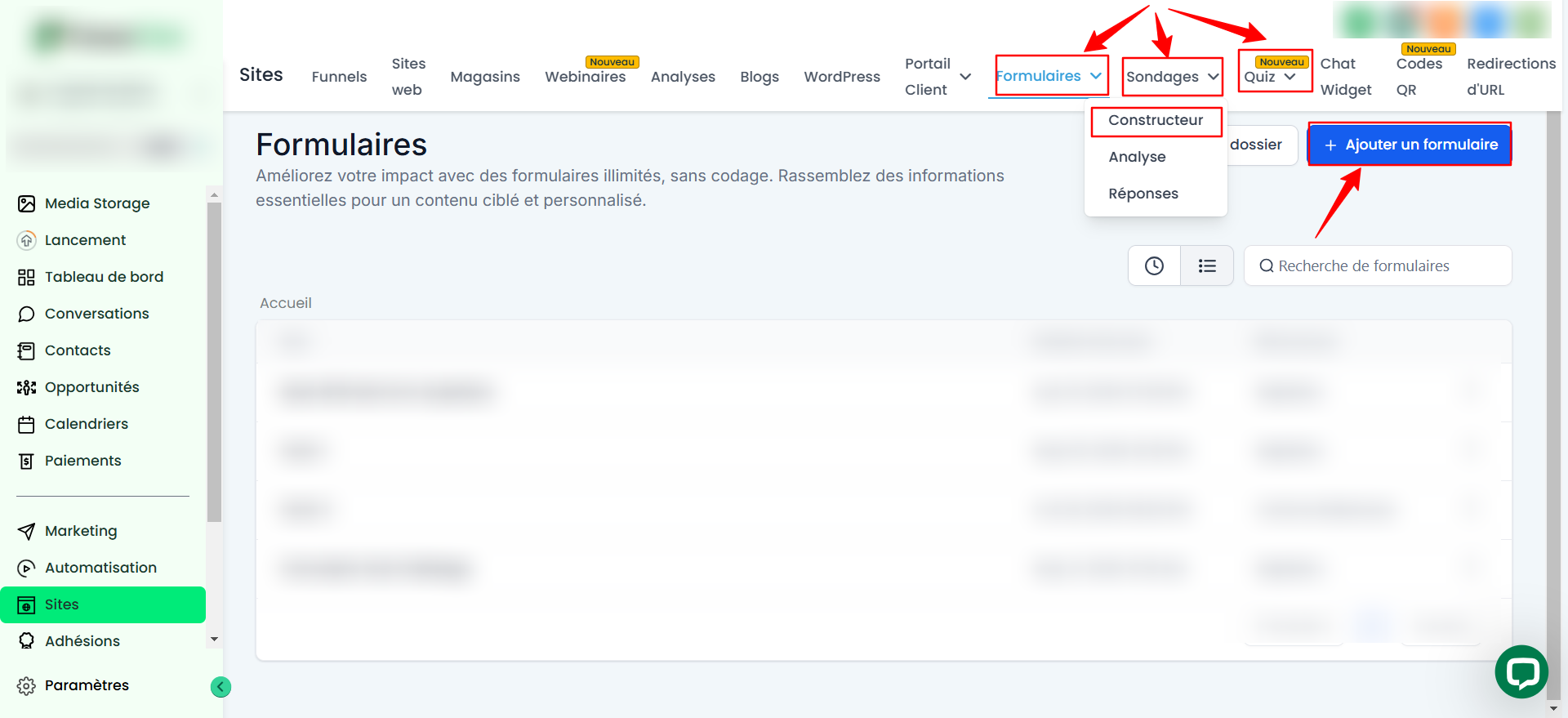
Drag and drop the selected elements:
Select the desired element (such as Radio Button, Plain Text, Checkbox, etc.).
Drag it to the desired location in your form, survey, or quiz.
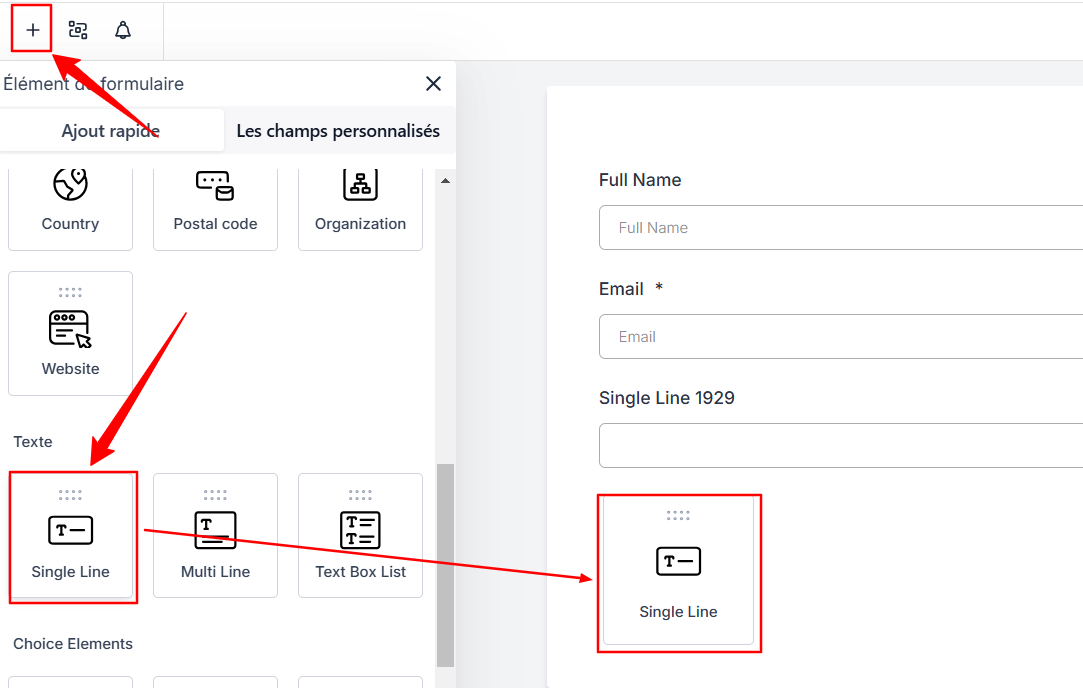
Save your changes by clicking Save.
💡TIP: After saving your changes to a custom element, it will automatically be added to the custom fields section so that it can be easily reused in your future forms or surveys.
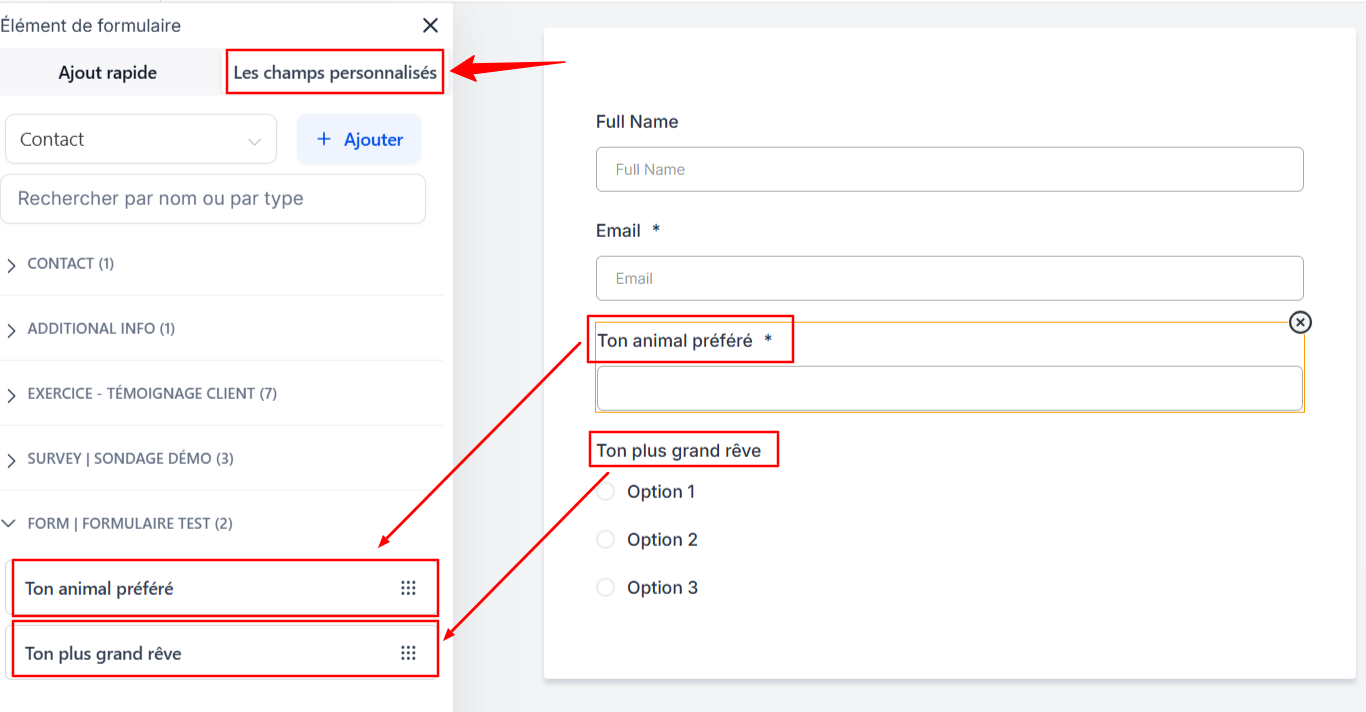
OPTION #2: Add custom fields directly in the custom fields section
Go to the Custom Fields section.
Click on + Add and select the element you want to create and customize.
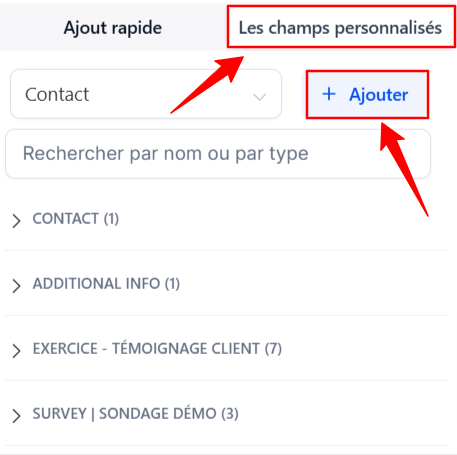
Save your changes so that they are applied to all forms using this field.
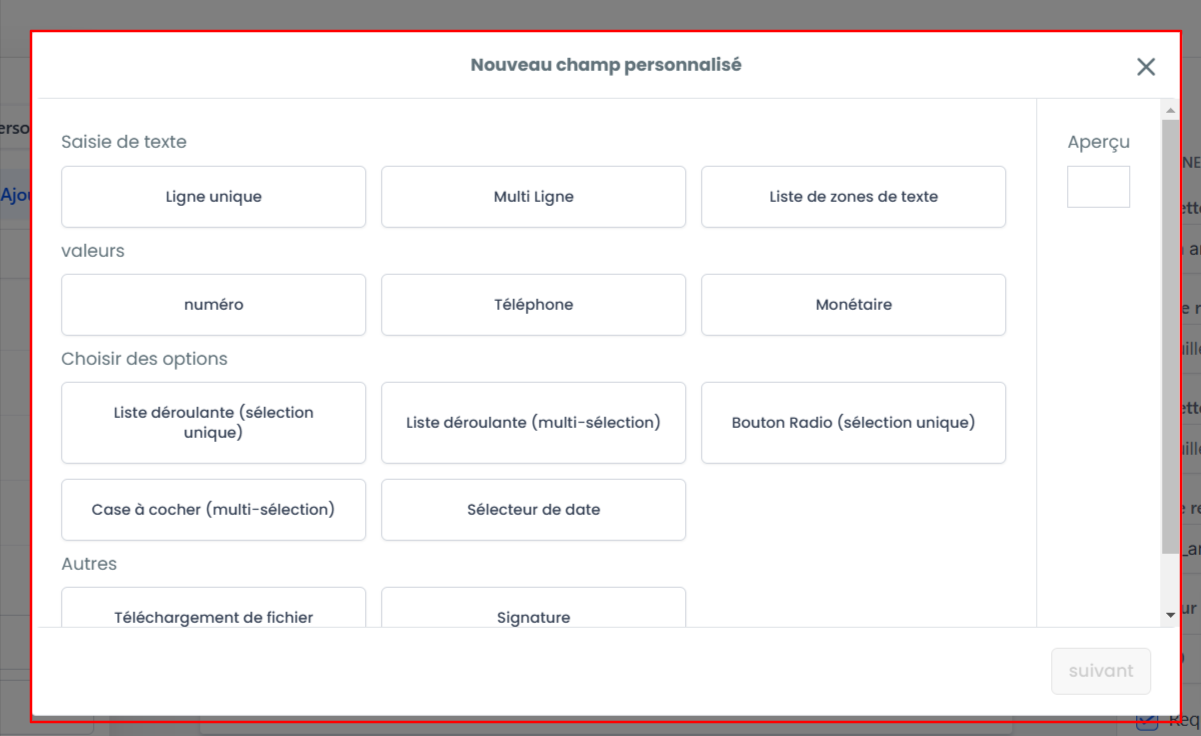
💡TIP: Use descriptive names for your fields so you can easily find them when adding them to new forms.
Mathematical calculations in forms/surveys
The mathematical calculation feature in forms and surveys allows you to add custom fields configured to perform calculations based on user responses. This feature is ideal for advanced scoring needs.
Examples:
Assessments and knowledge tests: Calculate a score based on responses to indicate skill level.
Budget calculations or financial simulators: Helps users estimate their financial capabilities in real time.
Personality or self-assessment quizzes: Provides a personalized profile based on responses for interactive results.
Product selection tools: Recommends the ideal product based on user preferences and responses.
Fitness or health assessment tests: Calculate an overall score to offer advice tailored to the user's fitness or well-being.
Supported field types
The mathematical calculation feature is compatible with several field types to offer great flexibility in forms/surveys:
Numeric fields (for specific values)
Monetary fields (for financial calculations)
Radio buttons (for single choices with specific values)
Checkbox (for multiple options with configurable values)
Single dropdown menu (for a single selection with a predefined value)
Multiple drop-down menu (for multiple selections, each with a value)
How to use the mathematical calculation feature
Add a "Score" field:
In the custom section, add a "Score" field to your form or survey.
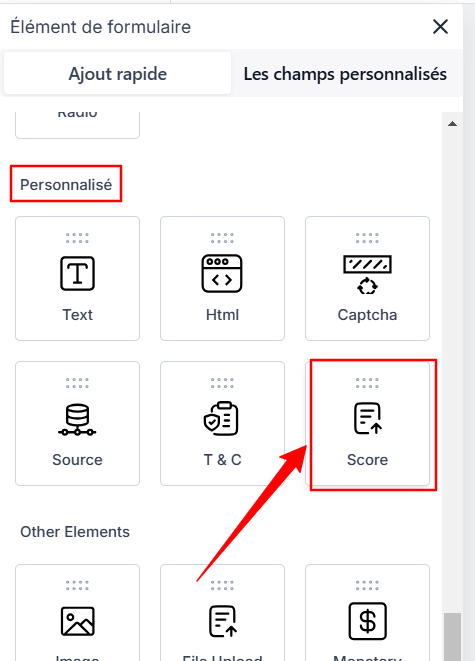
Define the Calculation Logic:
Configure a calculation logic for the field by assigning values to the answers.
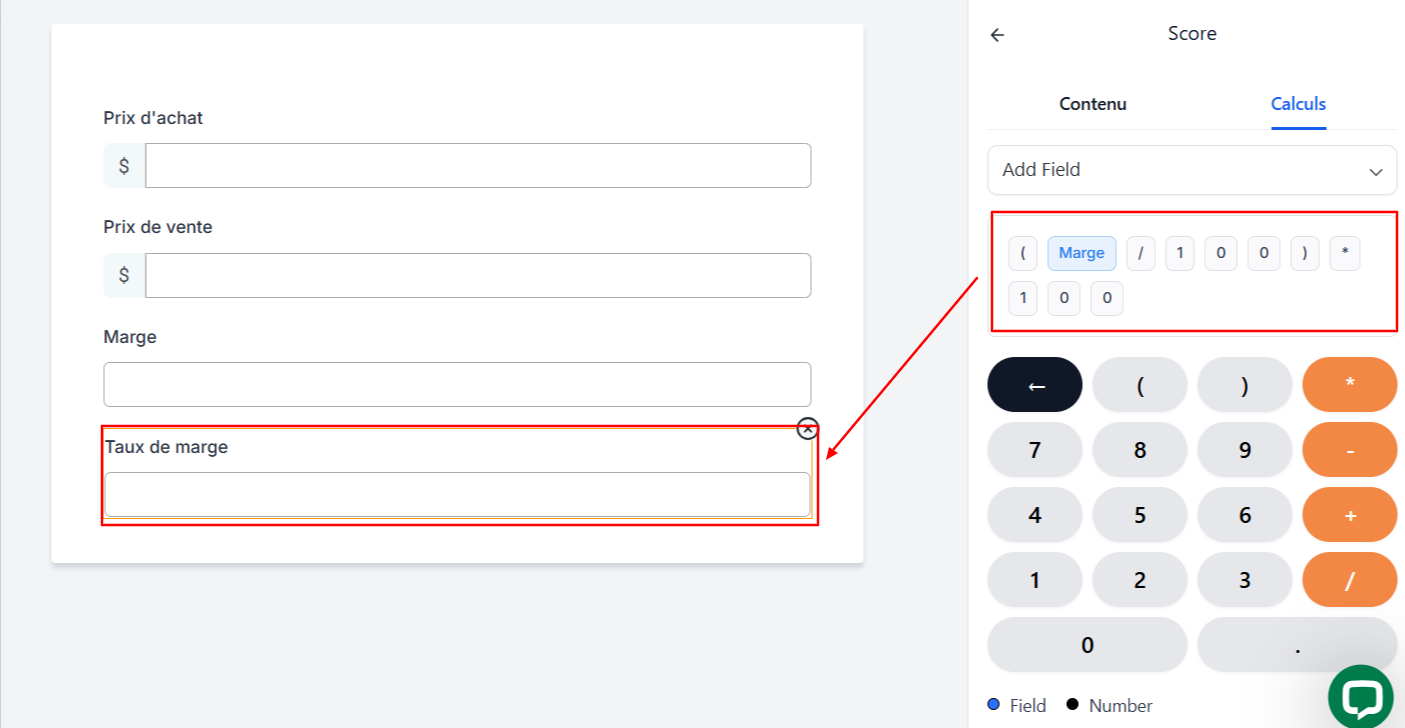
Preview the results in real time:
Use the preview to see the scores adjust in real time, ensuring that the calculations are correct before publishing your form or survey.

By integrating this feature, you can transform your forms and surveys into interactive tools, providing users with instant feedback and accurate results based on their responses.
Notes
Field locking: After saving the form, the name and key of the custom fields are locked and can only be modified in the Custom Fields section.
Simplified workflow: Managing custom fields is simplified, allowing you to create them once and reuse them without having to recreate them in each form.
Pro tips
Organize your fields: Use descriptive names to make them easier to identify.
Preview Changes: Always preview your form, survey, or quiz to validate the configuration.
Take Advantage of Field Types: Choose fields (text, date, multiple selection) based on the information you want to collect.
FAQ
Q: Can I modify a custom field after saving?
A: Yes, you can adjust the options for your custom fields. However, the field name and key are locked after saving and can only be modified in the Custom Fields section.
Q: What types of custom fields can I add?
A: Custom field types include Radio buttons, Single text, Multiple text, Checkboxes, Dropdown lists, File uploads, etc.
Q: How does calculation work in forms/quizzes?
A: The calculation feature allows you to configure mathematical logic based on the fields you add, such as checkboxes or dropdown menus. Add a "Score" field and preview the results to ensure correct configuration.
Q: Can I preview before finalizing?
A: Yes, previewing is recommended to ensure that all fields are configured as expected.