Customize a Quiz Results Page
Customize your quiz results model to offer an engaging experience with detailed analysis by category.
Written By CrocoTeam
Last updated 6 months ago
The quiz results page is the final page displayed to users after they submit a quiz.
It allows you to present results in a clear and engaging way, for example by displaying a congratulatory message and detailed metrics, such as the percentage of points earned by category.
This template is fully customizable to reflect your brand image and provide a tailored experience for your contacts.
Access the results template
Log in to your CrocoClick account.
In the Sites tab, open the Quiz Builder.
Select an existing quiz from the list, or click + Add Quiz to create a new quiz.
Scroll to the bottom of the editor to find the Result Template editing option and click on it.
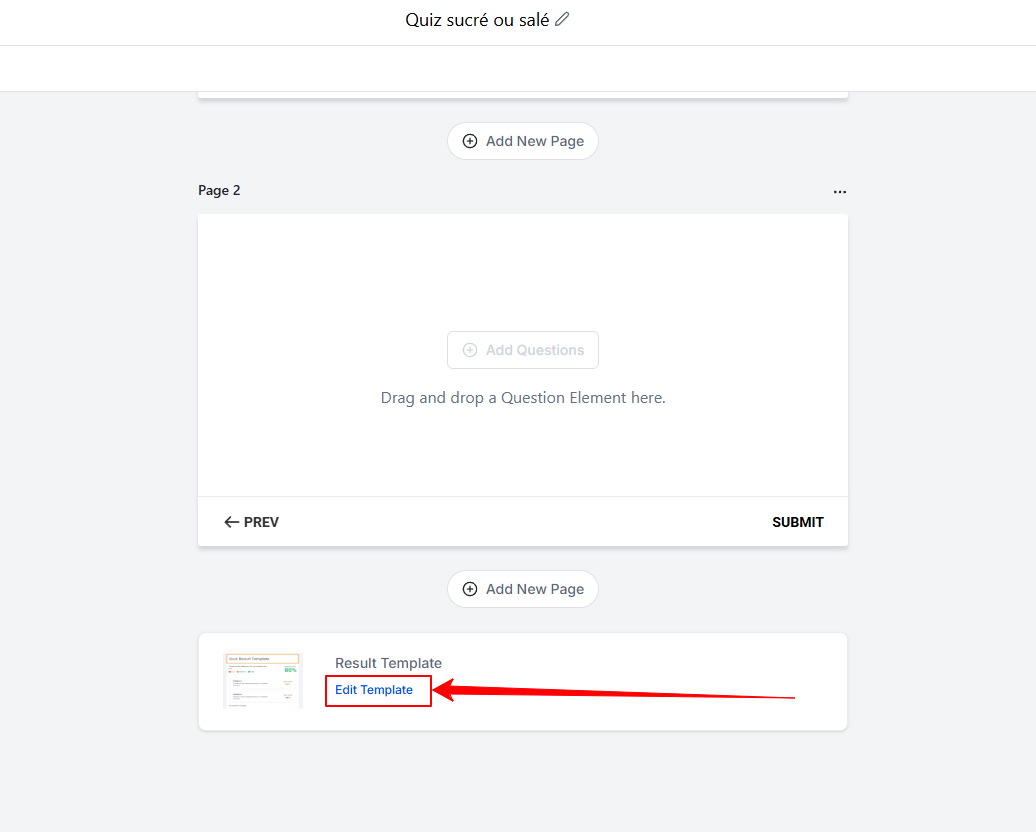
Customize the results template
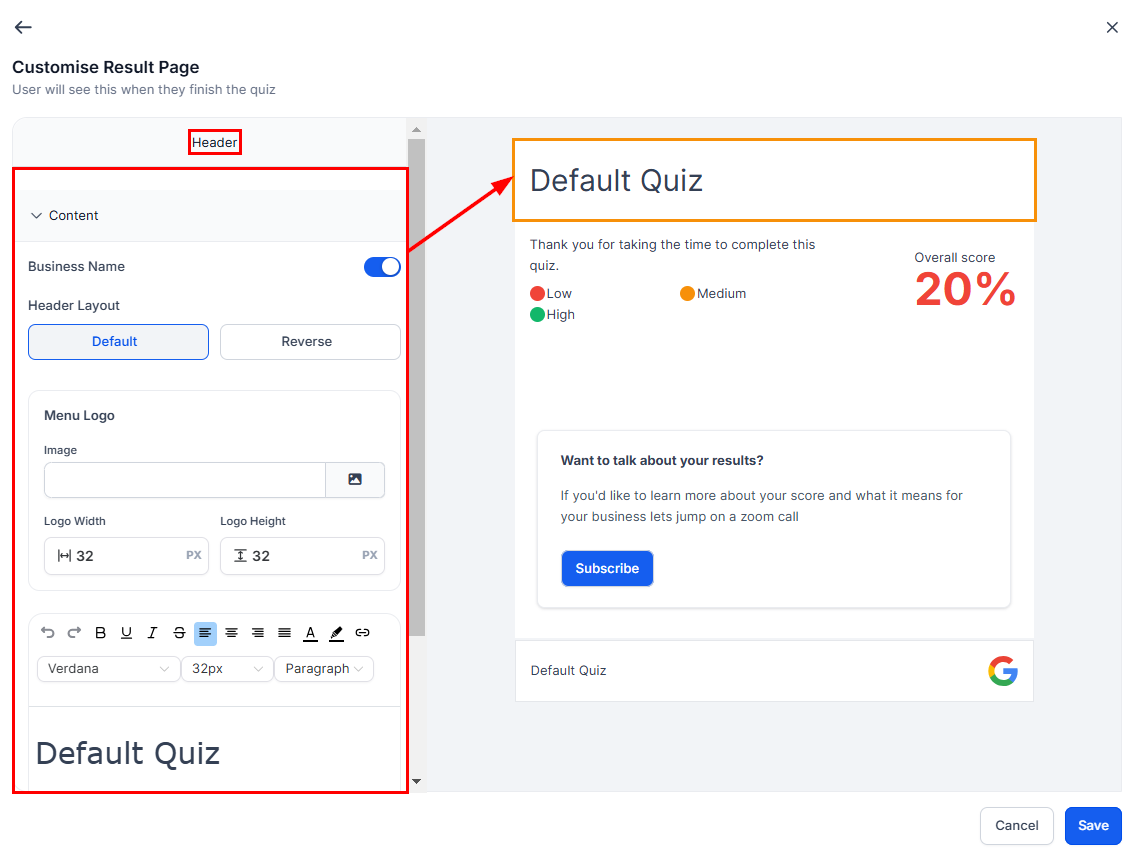
The template is divided into four main sections: Header, Categories, CTA, and Footer. Click on each section to edit it as needed.
1. Header
Content
Configure the visibility of the company name.
Choose the default layout for the header (left-aligned or right-aligned).
Upload your logo from the media library.
Adjust the typography of the company name.
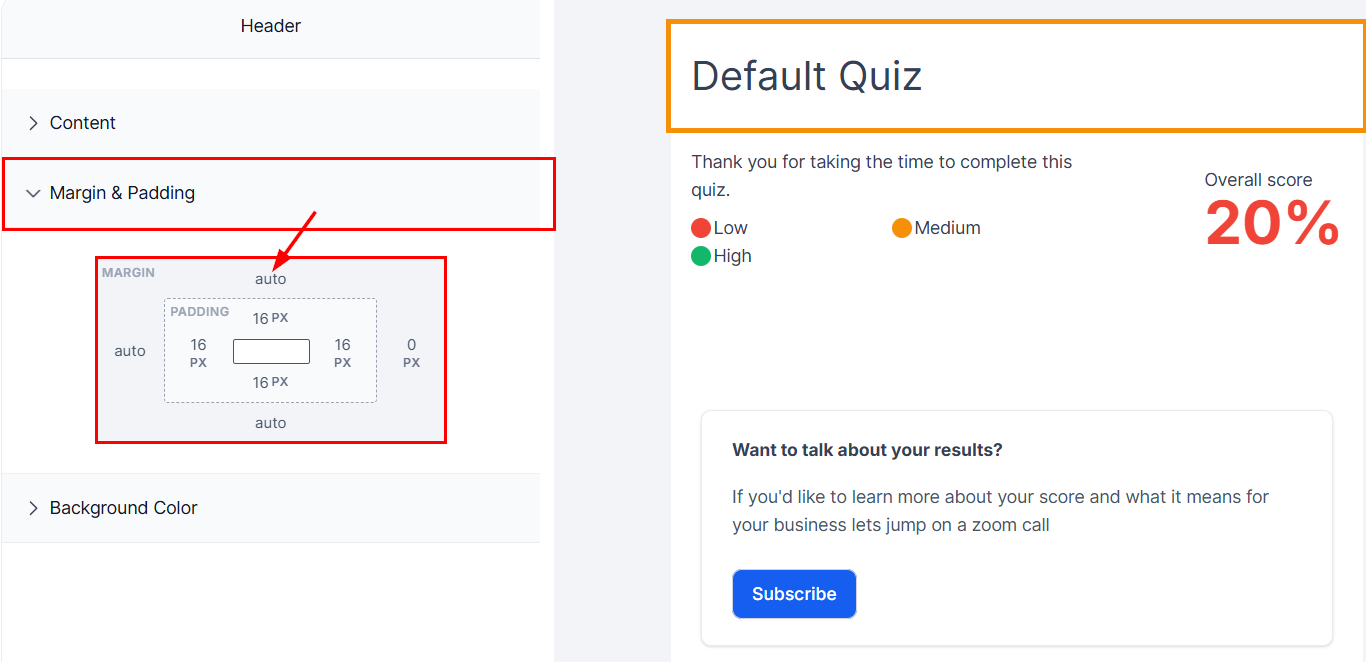
Margins & Padding
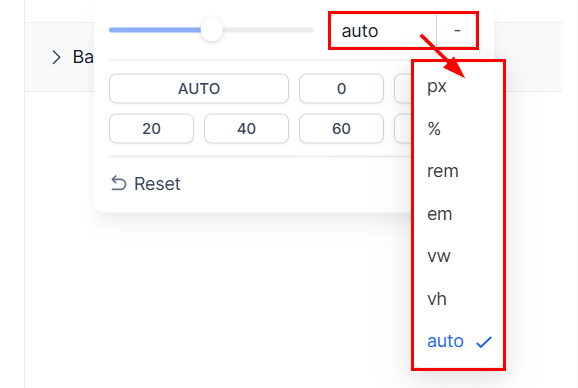
Enter the appropriate values to adjust the margins and padding.
Use the slider or choose from the available options.
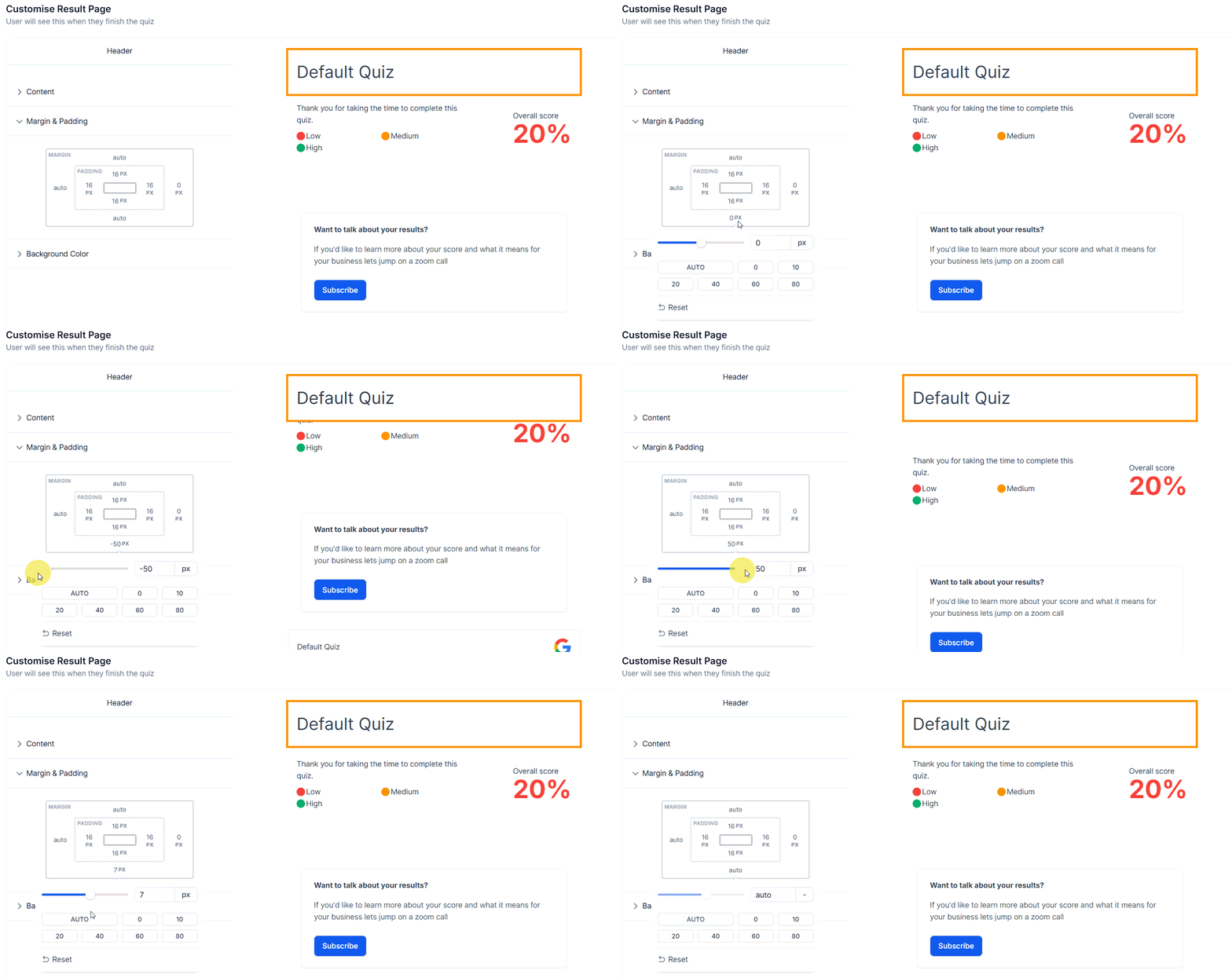
Update the unit of measurement if necessary.
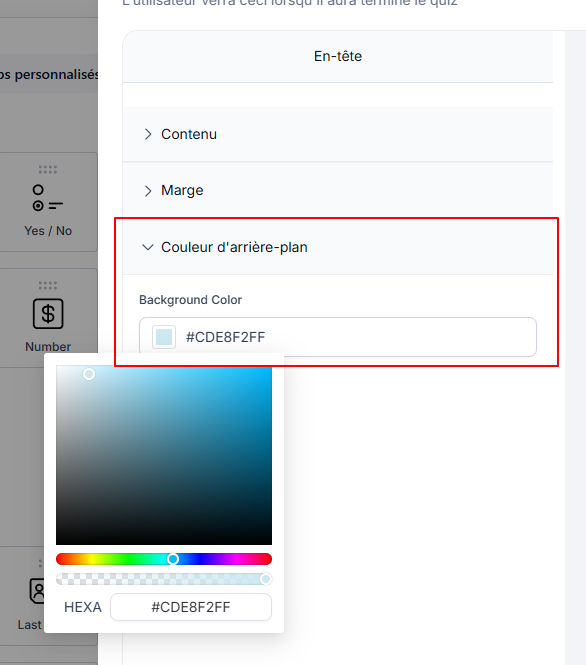
Background Color
Enter a hex code or select a color from the picker to match the background to your branding.
2. Categories, Style, and Score Levels (Score Tiers)
Style
Click on the scorecard to open the Categories section.
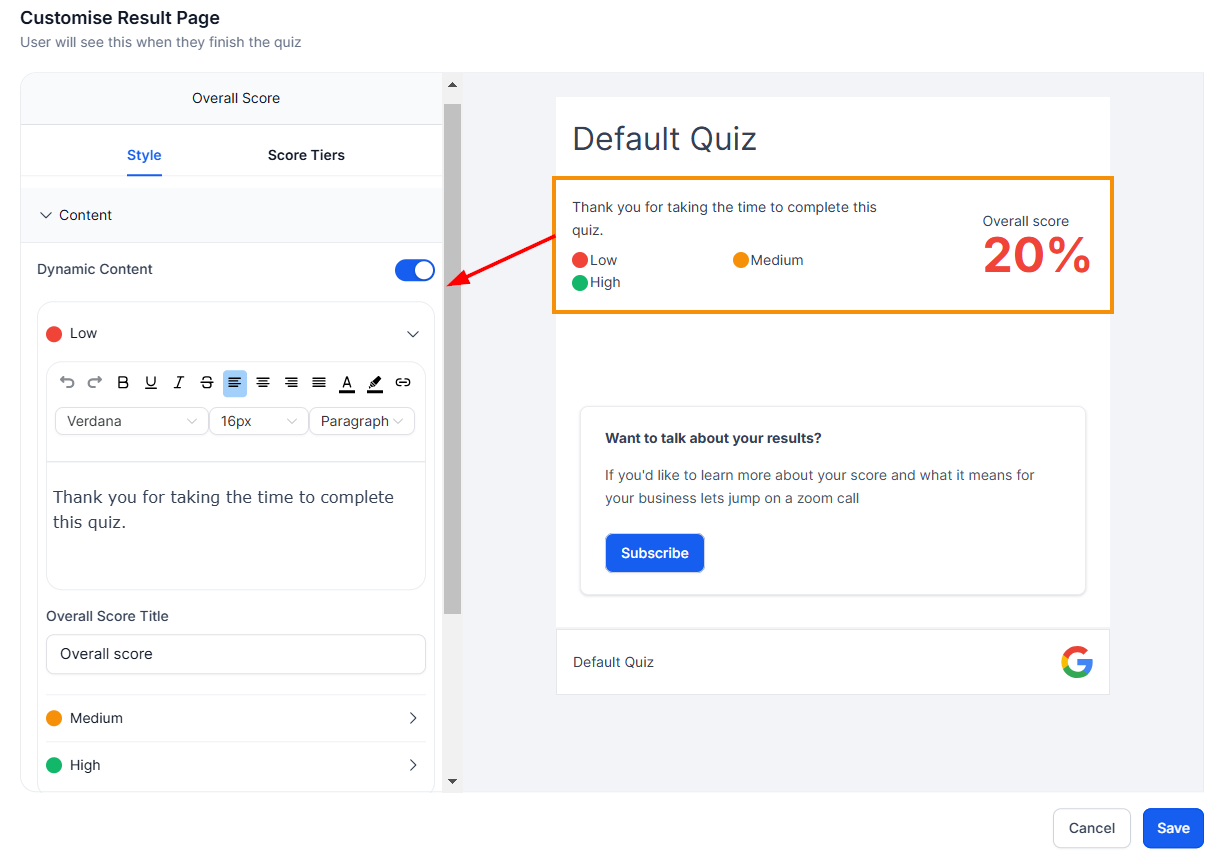
In the Style tab, customize the dynamic content to be displayed based on the score obtained. Enable or disable each level and enter the corresponding message.
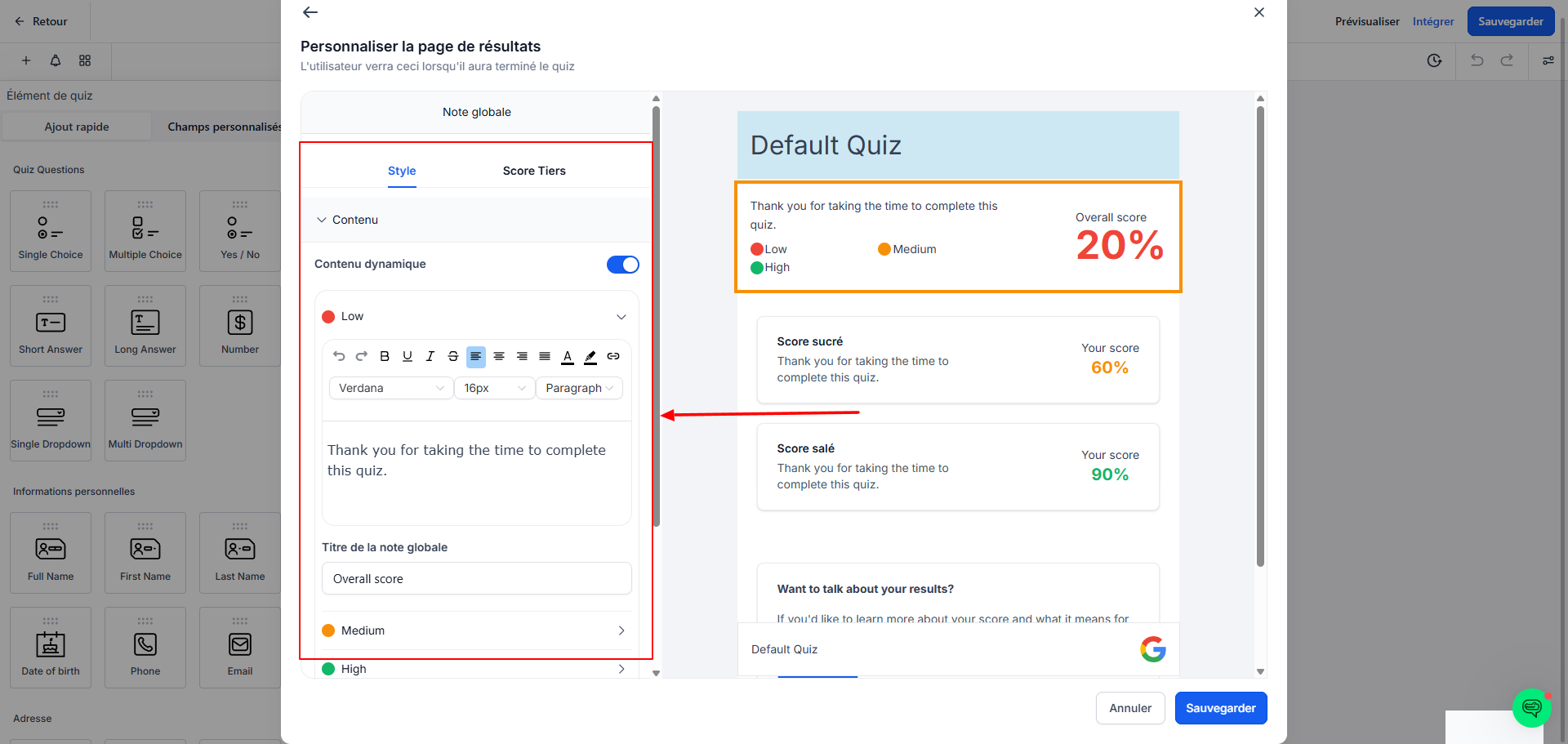
Configure the score display: choose to show the overall score and/or the tier scores, and specify their position.
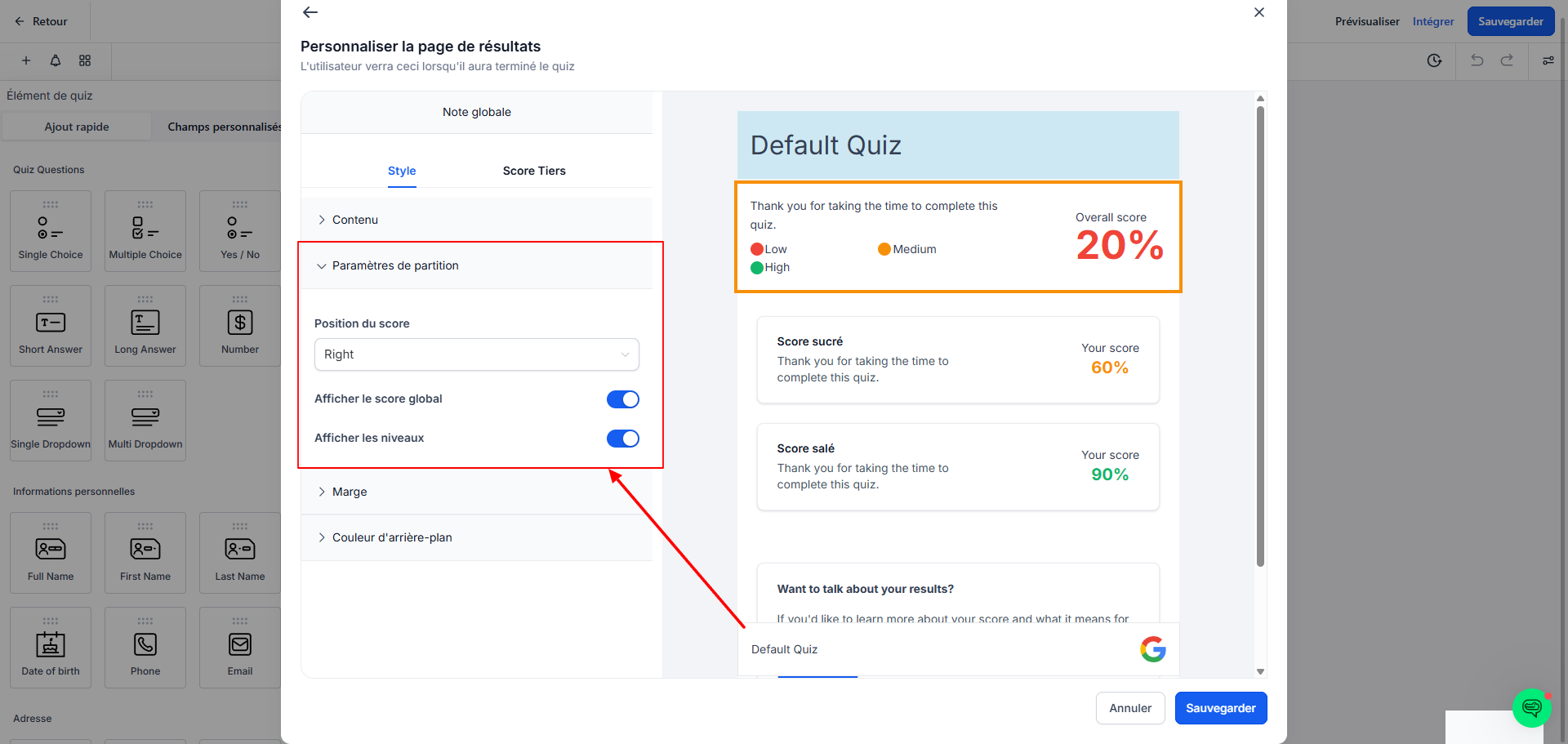
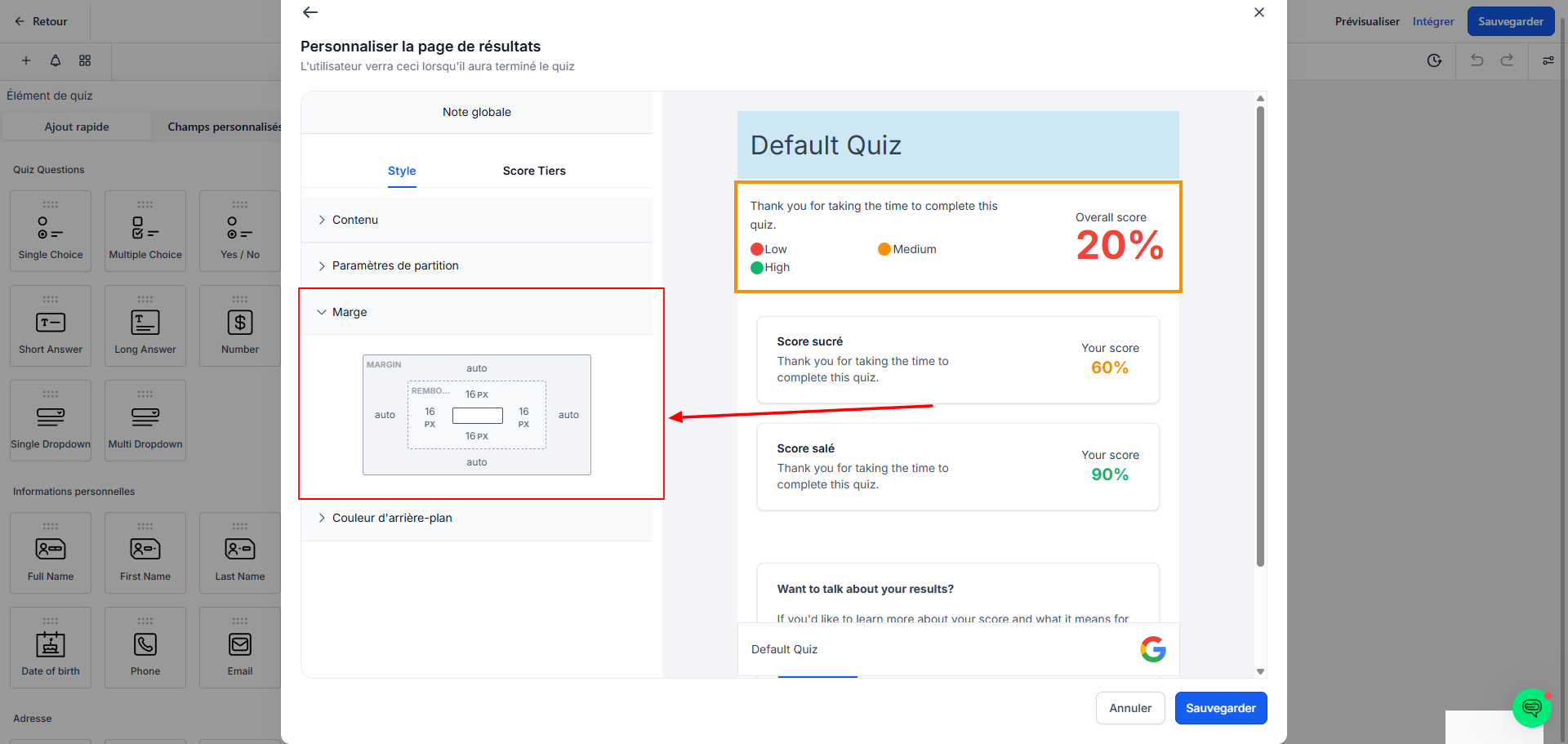
Adjust the margins, padding, and background color according to your preferences.
Third-Party Score
Go to the Tier Scores menu to customize the colors and labels associated with the different performance levels.

To add a level, click + Add Tier; to remove one, click the trash can icon.
3. Call to Action
Content
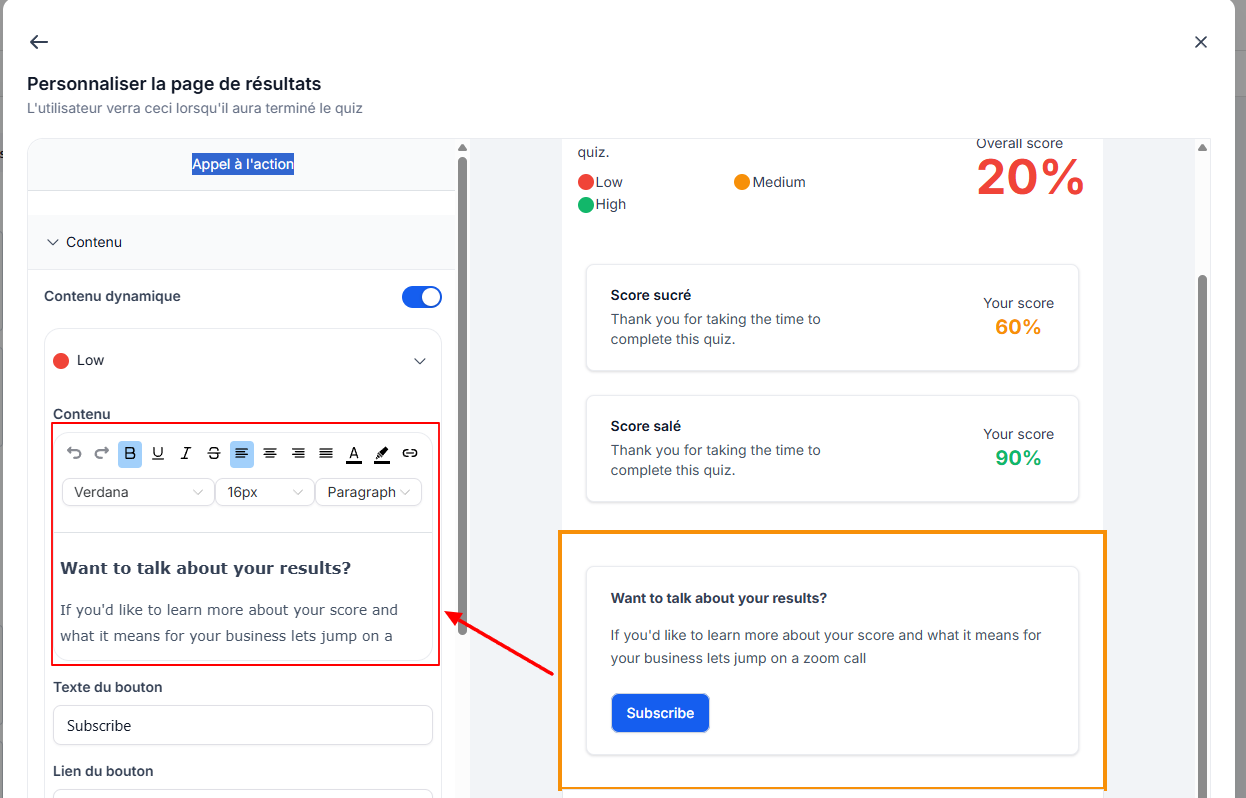
Customize the dynamic content displayed based on the score obtained.
Enter the text to display on the CTA button and specify the corresponding redirect URL.
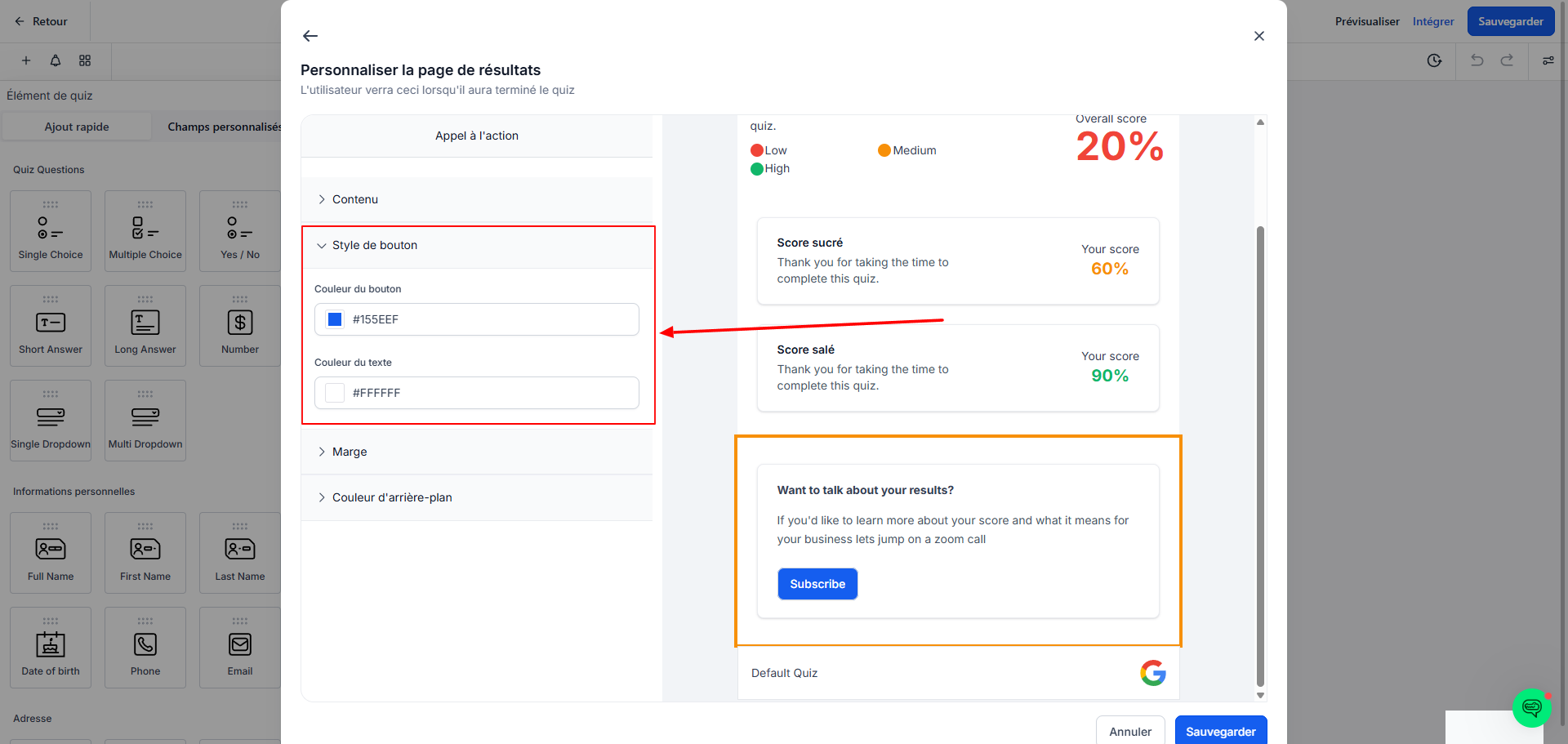
Button Style
Customize the button style by updating the text and button colors. You can enter a hex code or select a color using the color picker.
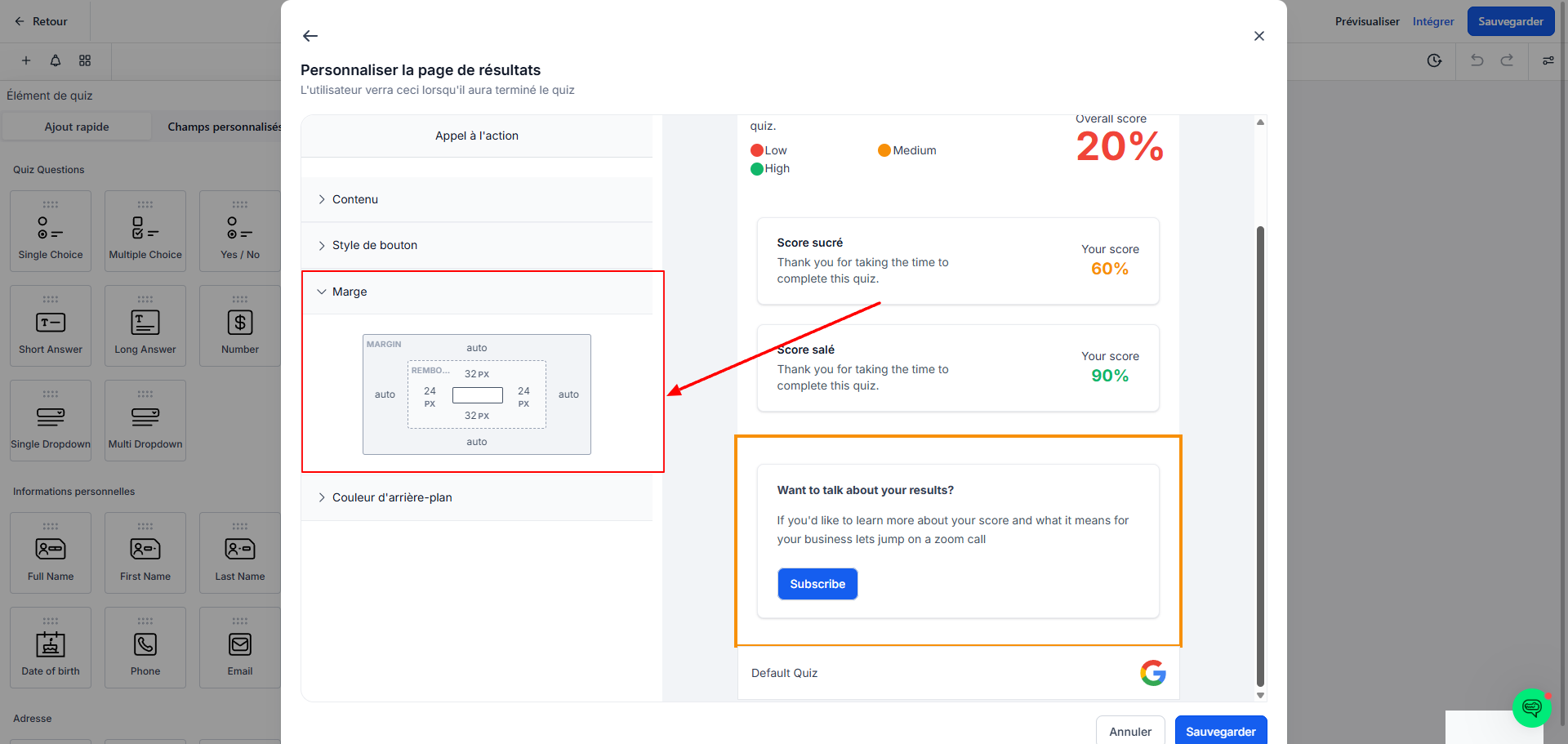
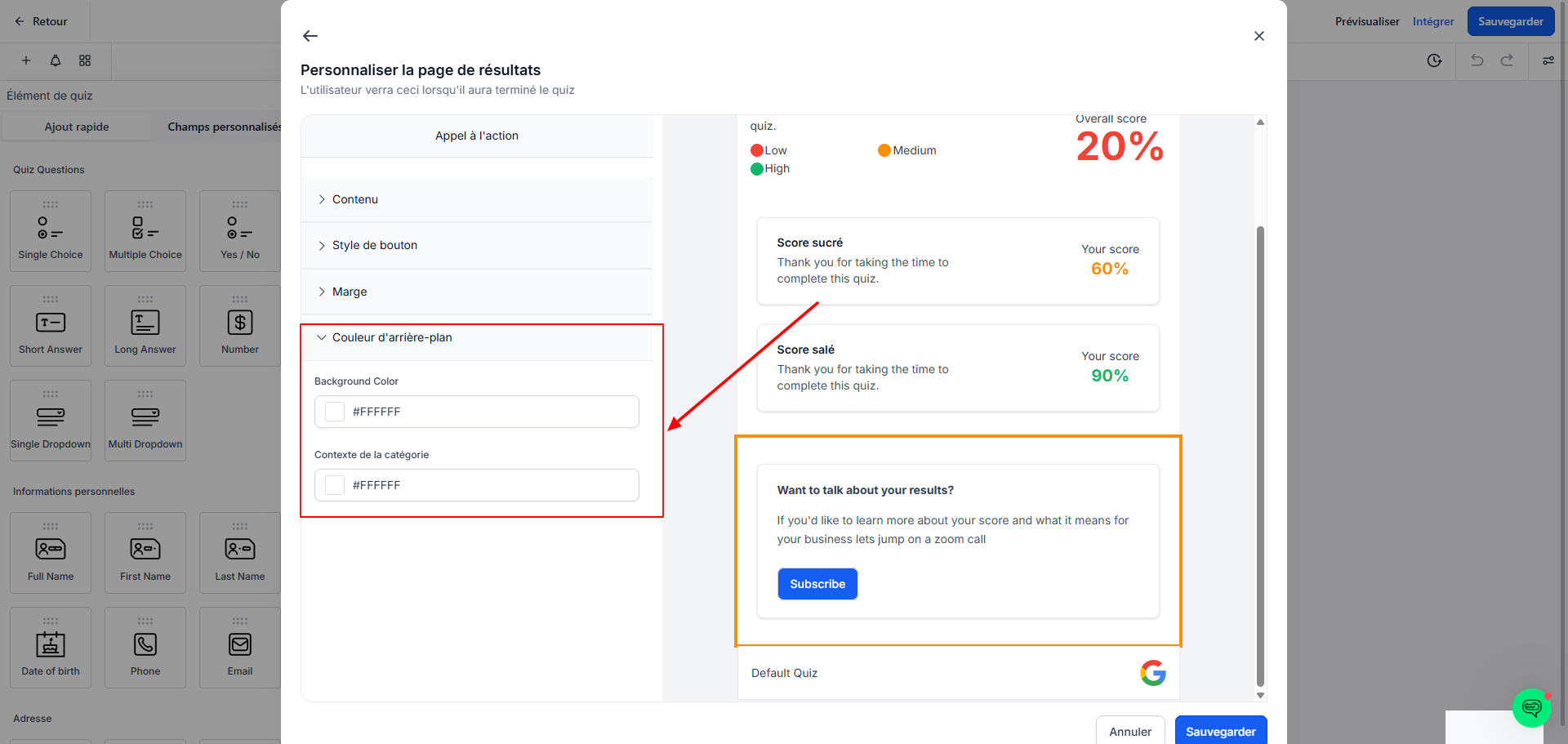
Margins & Padding and Background
Adjust the margins, padding, and background color to align the design with your brand.
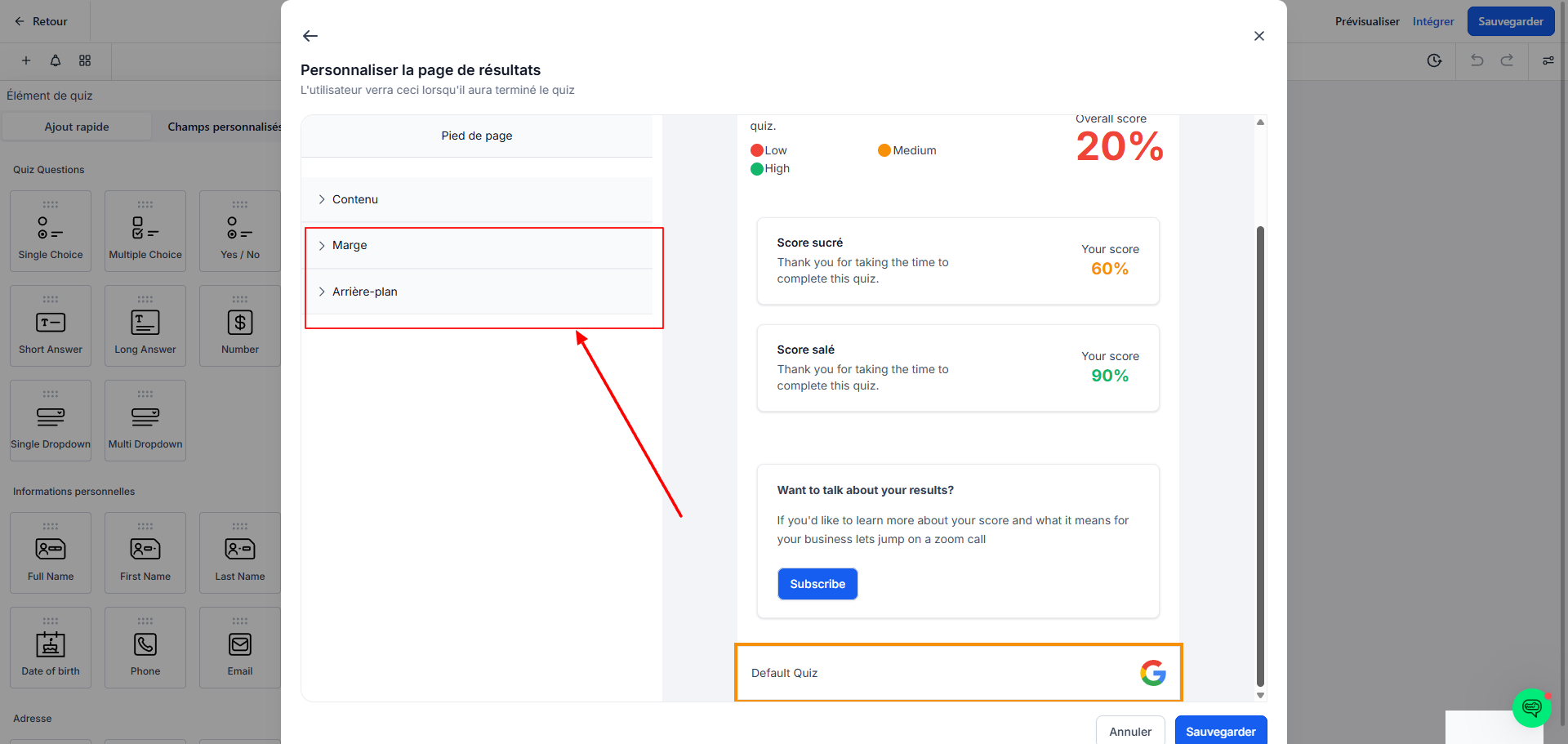
4. Footer
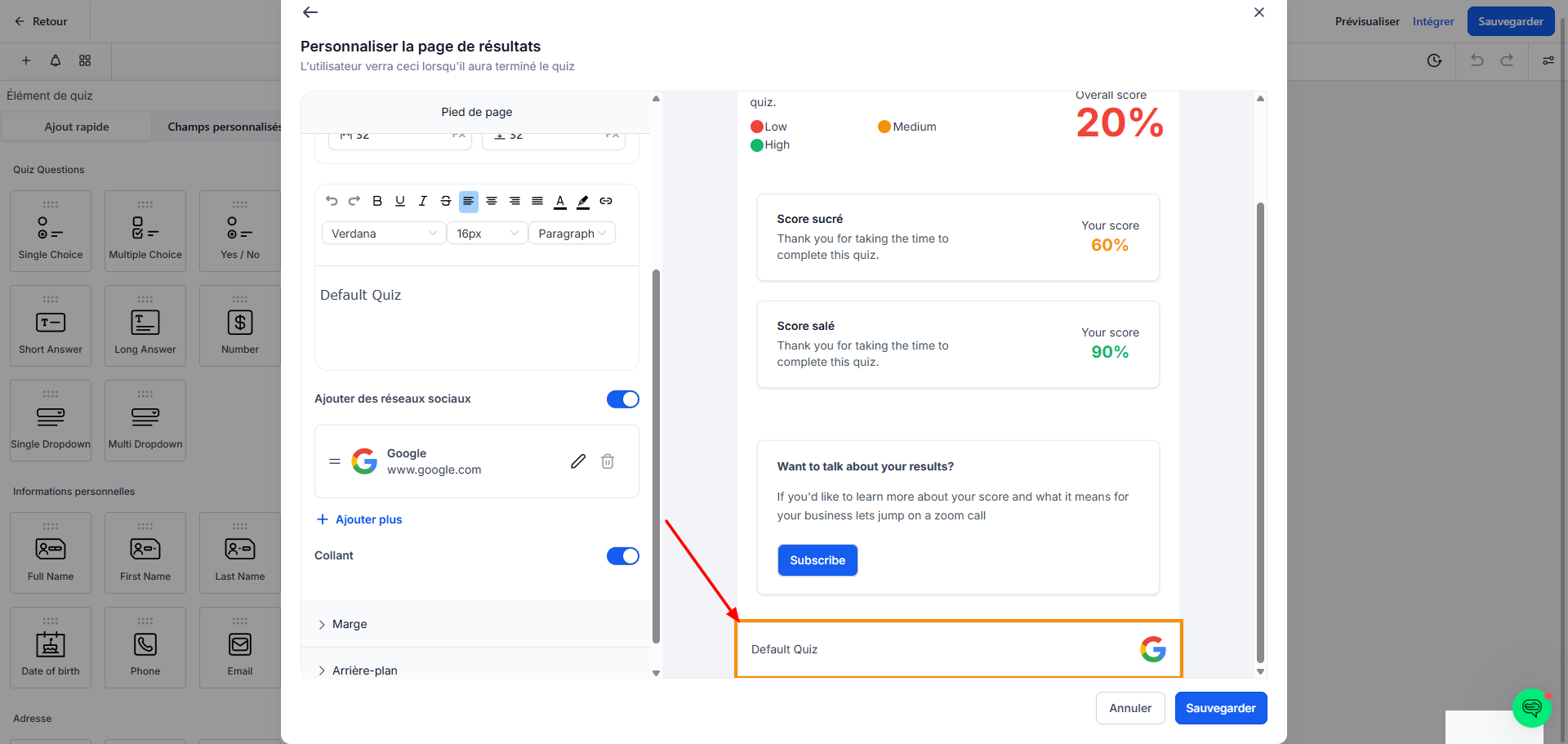
Content
Customize the visibility of the company name.
Upload your logo from the media library.
Adjust the typography of the company name.
Add your social media links to encourage engagement.
Enable or disable the Sticky option to control the footer display.
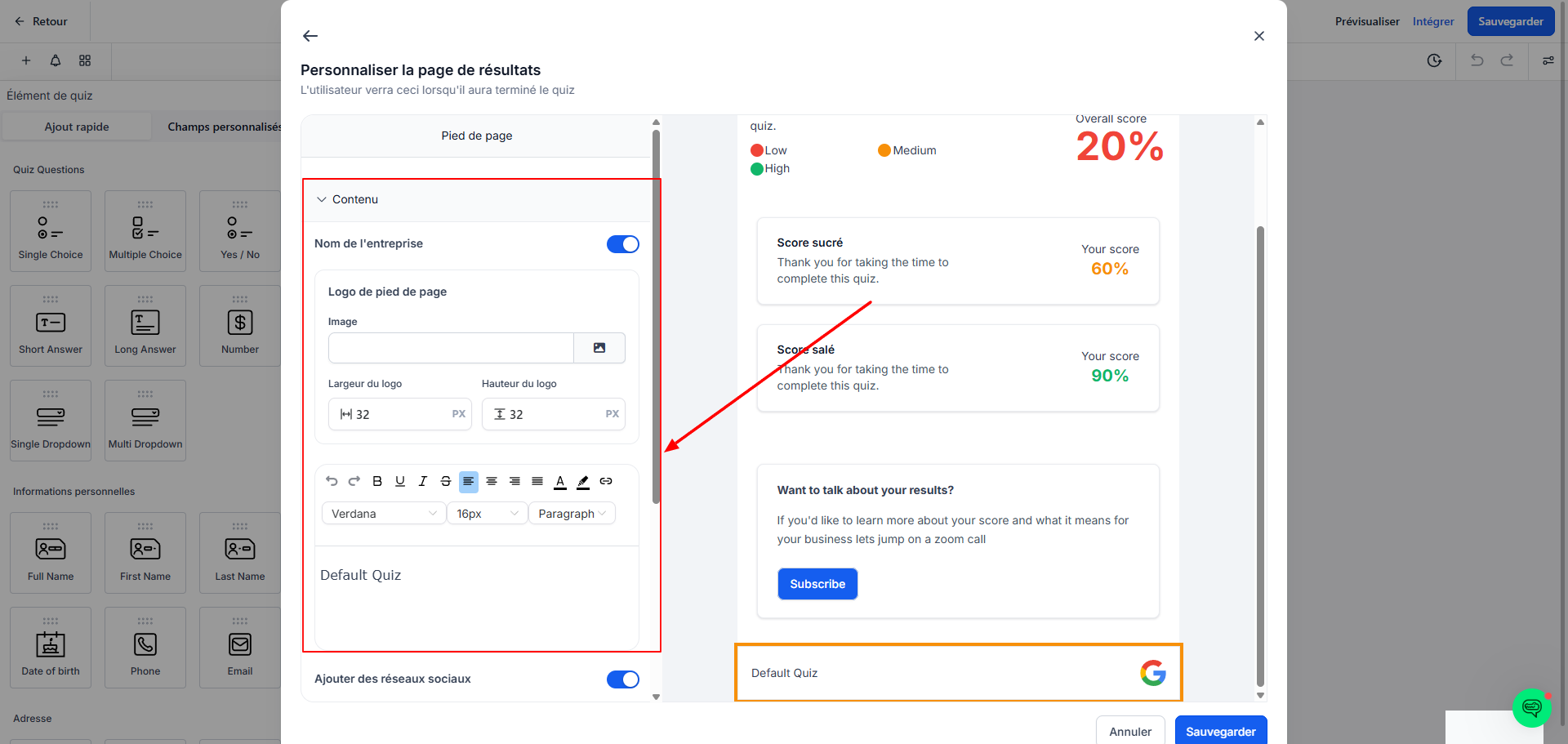
Margins & Padding and Background
Configure the margins and padding.
Select a background image or color to maintain consistency with your brand identity.
Save and Test
Once all sections are customized, click Save to save your changes.
BONUS: How to send personalized emails based on the contact’s profile/score?
With the quiz results template, you can take it a step further by personalizing your follow-up with contacts. For example, you can configure the call-to-action button to redirect to a specific form.
And in this form, you can request essential information such as:
The contact’s first name
Their email address
Their category or dominant score
Once this data is collected, simply create an automation using "if/then" logic. For example:
If the contact selected "Category A," then send them a personalized email tailored to their results.
If the contact selected "Category B," then trigger another specific email sequence.
And so on for each category.
This approach allows you to send tailored messages and boost your contacts’ engagement by offering them relevant, personalized follow-ups based on their profile and performance.
💡TIP: You can now automate this process without needing to create a second form. See our article on automating post-submission quiz actions to learn more about this
Conclusion
Your quiz results template is now fully customized to deliver an engaging experience that aligns with your brand image.
With this template, your learners will receive detailed feedback on their performance, thereby boosting their engagement and motivation.