Migrating from Convertkit to CrocoClick
Migrate from ConvertKit to CrocoClick to centralize subscribers, automations, forms and digital sales.
Written By CrocoTeam
Last updated 8 months ago
This comprehensive guide is designed to help you migrate your email marketing, subscriber management, and automation workflows from ConvertKit to CrocoClick. The goal is to ensure a smooth transition while leveraging CrocoClick's built-in CRM features and advanced automation capabilities.
IMPORTANT: Be sure to migrate all of the following when transitioning from ConvertKit to CrocoClick.
Visual automations
Subscribers (Contacts)
Forms
Landing pages
Email broadcasts
Commerce
Additional data
Migrate visual automations
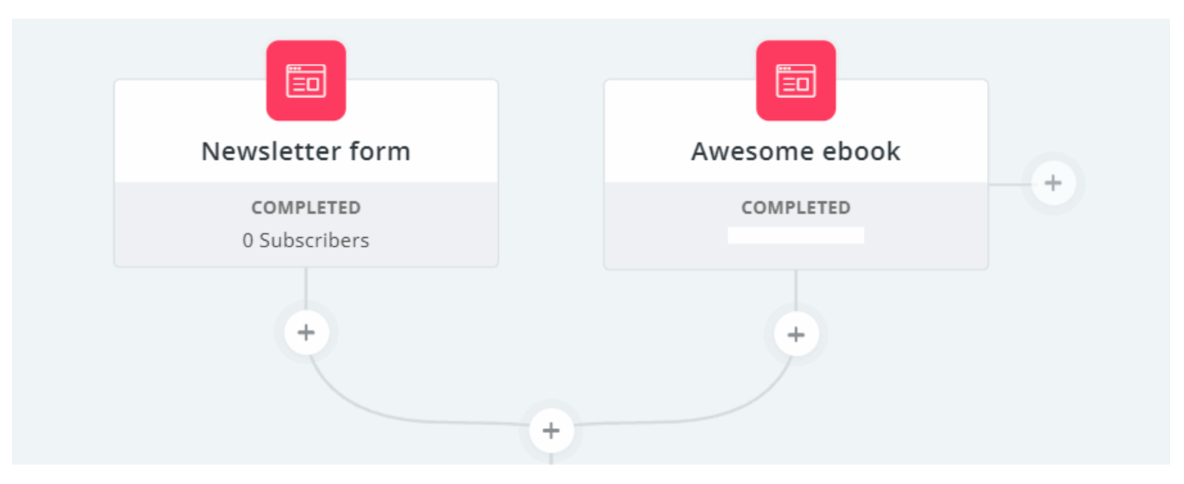
ConvertKit uses visual automations to create email funnels and automated workflows. In CrocoClick, these are managed via Workflows, offering similar or even more advanced features.
Step 1: Document visual automations
List automations: In ConvertKit, make a note of each visual automation, including entry points (triggers), actions, events, and conditions.
Capture the automation flow: Take screenshots or notes of the specific flow of each automation to ensure accuracy when recreating it in CrocoClick.
Step 2: Recreate automations in CrocoClick
Access Workflows: In CrocoClick, go to Automation > + Workflow.
Create a new workflow: Click Create New Workflow and begin configuring the workflow to replicate the ConvertKit automation.
Set triggers: Use CrocoClick's trigger options to match ConvertKit's entry points (e.g., form submission, tag addition, purchase made).
Add actions and conditions: Recreate the actions and conditions (e.g., send an email, wait steps, if/then branches) to replicate the original automation flow.
Test the workflow: Once created, test the workflow in CrocoClick to verify that all triggers, actions, and conditions are working as expected.
Step 3: Post-migration verification
Perform a test: Set up a test contact to validate that all steps are working correctly, including sending emails, adding tags, and conditional branches.
Migrate subscribers (contacts)
Subscribers in ConvertKit are equivalent to contacts in CrocoClick. Migrating subscribers involves exporting them from ConvertKit and importing them into CrocoClick, including their tags and segments.
Step 1: Export subscribers from ConvertKit
Access subscribers: In ConvertKit, go to Subscribers > Growth.
Select all subscribers: Check the box at the top to select all subscribers. If you have more than 30, confirm by clicking on the link in the blue bar.
Export subscribers: Choose Bulk Actions > Export to start the export. The file will be emailed to the account owner or can be downloaded directly.
Step 2: Import subscribers into CrocoClick
Access contacts: In CrocoClick, go to Contacts > Import Contacts.
Upload CSV file: Import the CSV file exported from ConvertKit.
Map fields: Associate the CSV fields with the corresponding fields in CrocoClick (e.g., First Name, Last Name, Email, Tags).
Segment and tag contacts: Use the tag and segmentation information from ConvertKit to recreate similar segments and tags in CrocoClick.
Step 3: Post-migration verification
Verify the import: Review the contacts imported into CrocoClick to ensure that all data is correctly mapped and segmented.
Migrate forms
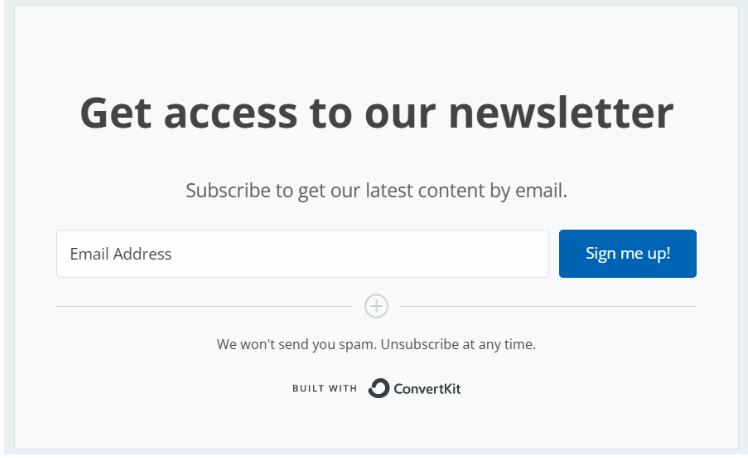
Forms in ConvertKit are used for lead capture and subscriber management. CrocoClick's form builder allows you to recreate these forms with CRM integration and advanced automation.
Step 1: Document form details
List forms: In ConvertKit, list the forms you have created, including their fields, design, and settings such as redirect URLs, opt-in emails, and reCAPTCHA.
Capture custom fields: Note the custom fields used for data collection.
Step 2: Recreate the forms in CrocoClick
Access the form builder: In CrocoClick, go to Sites > Forms.
Create a new form: Click Create New Form and start by adding the fields from your ConvertKit forms.
Customize the design: Adjust design elements such as background colors, fonts, and button styles to match the original forms.
Configure form actions: Set up actions such as redirection after submission, sending a confirmation email, and applying tags.
Integrate with workflows: If the form triggers a workflow, make sure it is integrated with the corresponding workflow in CrocoClick.
For more information, see our article on "Create, modify and use forms".
Step 3: Post-migration verification
Test form submissions: Submit a test entry for each form to verify that the data is captured correctly and triggers the appropriate workflows.
Migrate landing pages
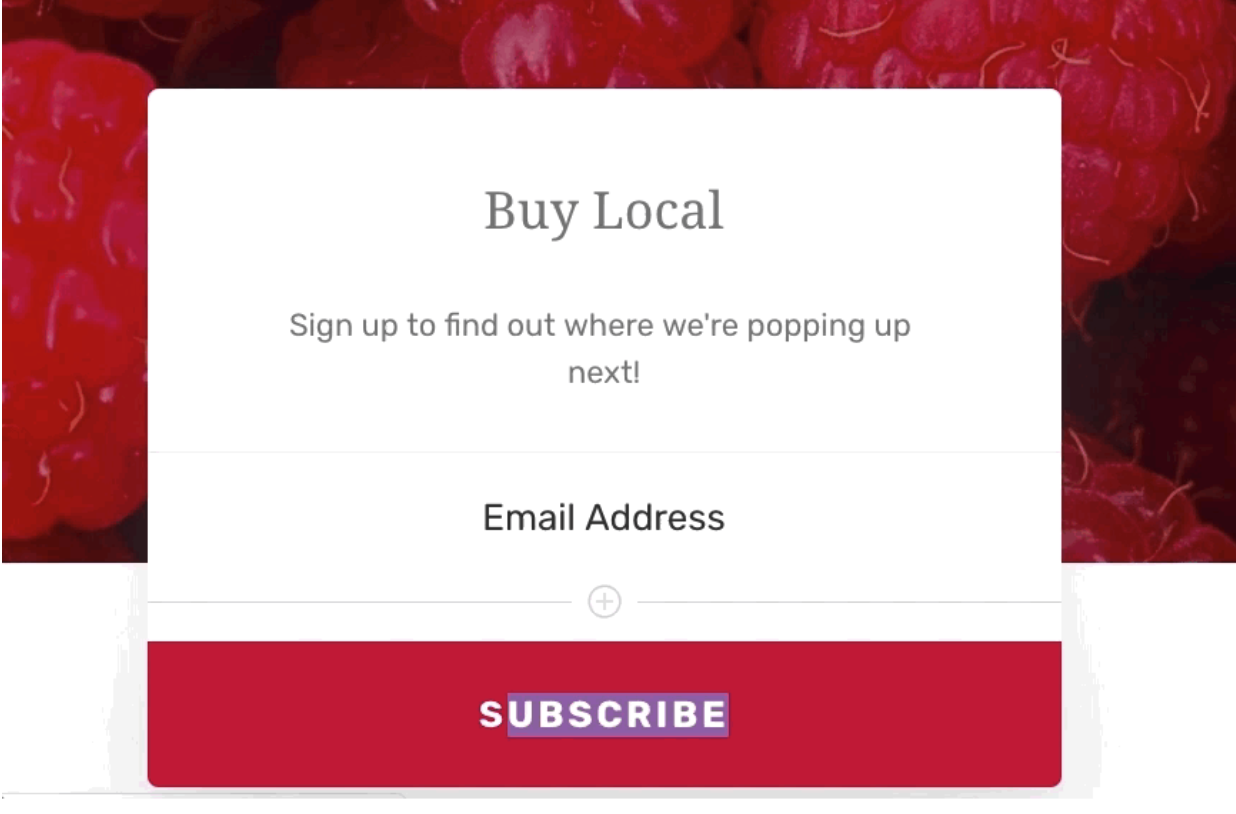
ConvertKit landing pages are standalone pages for lead generation. CrocoClick allows you to recreate these pages with optimized integration into your overall marketing strategy.
Step 1: Document landing page details
List landing pages: In ConvertKit, list each landing page, including the template used, content, custom images, and any integration with forms or automations.
Capture custom domain settings: Note whether pages use a custom domain or subdomain.
Step 2: Recreate landing pages in CrocoClick
Access the landing page builder: In CrocoClick, go to Sites > Funnels/Websites and choose Create a new landing page.
Choose a template: Select a template that matches the layout and style of your ConvertKit page.
Recreate the content: Reproduce the content, images, and design elements on the CrocoClick landing page.
Configure forms: Integrate the forms created in CrocoClick onto the page and ensure they are properly linked to workflows and contact lists.
Configure domain settings: If a custom domain was used in ConvertKit, configure the same domain or subdomain in CrocoClick.
Step 3: Post-migration verification
Preview and test: Preview the landing page and test to verify that everything is working as expected, including form submissions and redirects.
Migrate email broadcasts
Email broadcasts in ConvertKit are similar to CrocoClick email campaigns. You can recreate these broadcasts to continue your email marketing efforts.
Step 1: Document email broadcasts
List mailings: Make a note of the email mailings sent in ConvertKit, including subject lines, email content, and recipient segments.
Capture email templates: Save the email templates used in ConvertKit mailings.
Step 2: Recreate email campaigns in CrocoClick
Access email campaigns: In CrocoClick, go to Marketing > Emails > Campaign.
Create a new campaign: Click + New and set up the email broadcast by replicating the content and design from ConvertKit.
Segment recipients: Use the imported tags and segments to define the recipient list.
Schedule or send: Choose to send the broadcast immediately or schedule it for later.
Step 3: Post-migration verification
Send a test email: Send a test email to verify the design and content, ensuring that it displays correctly in different email clients.
Migrate commerce features
ConvertKit offers tools to manage digital products and subscription payments. CrocoClick's payment integration features provide similar functionality, integrated into its broader marketing and CRM capabilities.
Step 1: List commerce products
List products: Make a note of all digital products or subscriptions configured in ConvertKit, including prices, distribution methods, and any associated automation.
Capture product details: Note the URLs, custom domains, and settings for each product.
Step 2: Recreate commerce products in CrocoClick
Access payments and order forms: In CrocoClick, go to Funnels > + New Funnel and add a page with an order form to set up new product pages or order forms.
Set product prices: Recreate the pricing models used in ConvertKit, including one-time payments, subscriptions, and payment plans.
Set up distribution: Set up digital product delivery or subscription management, ensuring that customers receive their products automatically after purchase.
Integrate with workflows: Link product purchases to workflows for follow-up emails, upsells, or customer segmentation.
Step 3: Post-migration verification
Test the purchase flow: Make a test purchase to verify that payment is processed correctly and that the product is delivered.
Export data from ConvertKit
Before the full transition, it is essential to export critical data from ConvertKit, such as subscriber lists and engagement metrics, for use as a reference or for importing into CrocoClick.
Step 1: Export the subscriber list
Access the export: In ConvertKit, go to Subscribers > Growth and select Export from the Bulk Actions menu.
Receive the export file: The file will be sent by email or can be downloaded directly from your ConvertKit account.
Step 2: Review the exported data
Verify data integrity: Open the exported CSV file to ensure that all necessary information has been accurately captured, including subscriber details, tags, engagement metrics, and custom fields. This data can be used to guide your strategy in CrocoClick or for backups.
Step 3: Import the data into CrocoClick
Import additional data: If necessary, you can import additional data (beyond subscribers) into CrocoClick, such as tags, engagement scores, or custom field data exported from ConvertKit.
Configure additional data fields: Ensure that ConvertKit's custom fields or unique data types are correctly mapped and recreated in CrocoClick.
Step 4: Post-migration verification
Verify data: After importing, verify the data in CrocoClick to ensure that all subscriber and tag information has been imported accurately and that there are no discrepancies.
Backup and data retention
Keep backups: Keep a backup of your ConvertKit data even after the migration is complete. This ensures access to historical data in case of discrepancies or for future reference.
Data retention policies: Review your data retention policies in CrocoClick to ensure they meet your business needs and compliance requirements.
Conclusion
Migrating from ConvertKit to CrocoClick allows you to centralize your marketing and CRM tools for more efficient management of your subscribers, automations, and digital products. By following this guide, you can ensure a complete and smooth transition while taking advantage of CrocoClick's advanced features.