CrocoClick overview
Find out how to navigate CrocoClick easily using the side menu
Written By CrocoTeam
Last updated 7 months ago
Navigating CrocoClick effectively is essential to fully exploit its potential and maximize your company's productivity.
This guide provides an in-depth overview of the dashboard and the various features available through CrocoClick's intuitive interface.
Whether you're managing your contacts, tracking your opportunities, or automating your processes, understanding the structure of each section will help you optimize your operations. Please note that the availability of certain features may vary depending on your plan.
Navigation Bar
The sidebar on the left is the platform's navigation center. It groups together all the available menus and sections, allowing you to quickly access the various features.
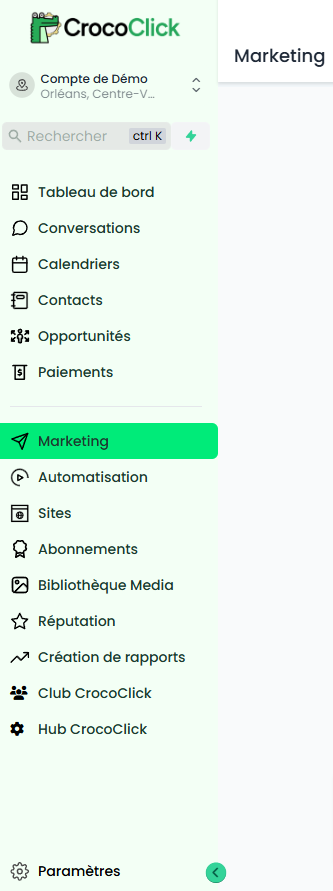
💡 TIP: If you manage multiple accounts, use the drop-down menu at the top of this bar to switch between accounts seamlessly.
Search Bar
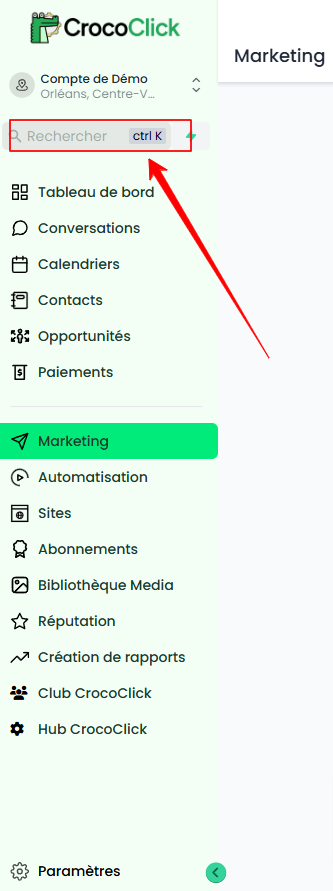
Located just below the drop-down menu, the search bar helps you quickly find specific contacts by entering their name. You can also use it to add opportunities or view payment information related to a contact.
Dashboard
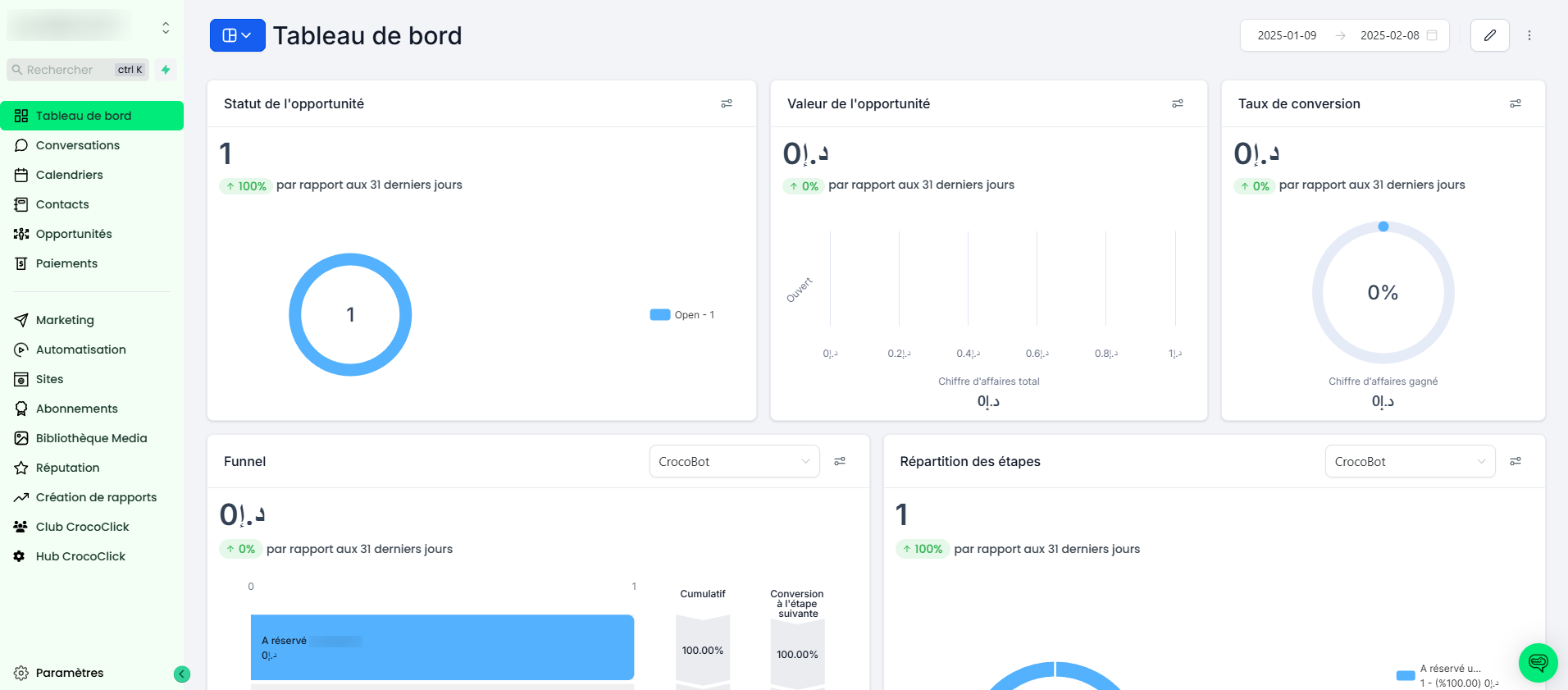
Clicking on the Dashboard option in the sidebar takes you to your dashboard, which displays general reports on your contacts, pipelines, and other key metrics.
This central hub provides valuable information about your business activity and is displayed by default when you log in.
You can fully customize this dashboard and the widgets on it.
In addition, you can create as many dashboards as you want to easily organize the tracking of your KPIs.
Conversations
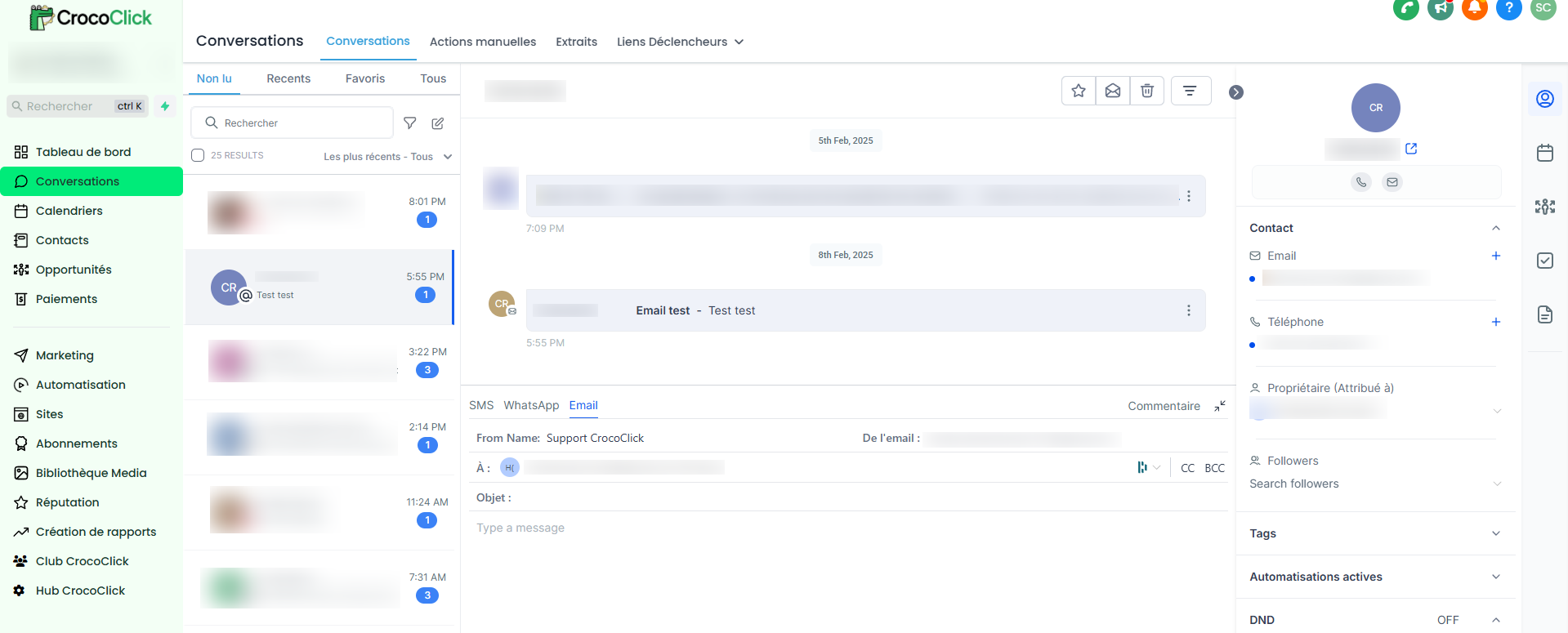
The Conversations section centralizes all your interactions with your contacts, including emails, text messages, and other communication channels.
This unified view allows you to track and manage your exchanges efficiently.
The Conversations tabs include:
Conversations: To access the unified inbox and respond to all conversations.
Manual Actions: To manage tasks.
Templates: To create reusable email and text message templates.
Trigger Links: To automatically trigger actions when clicking on custom links.
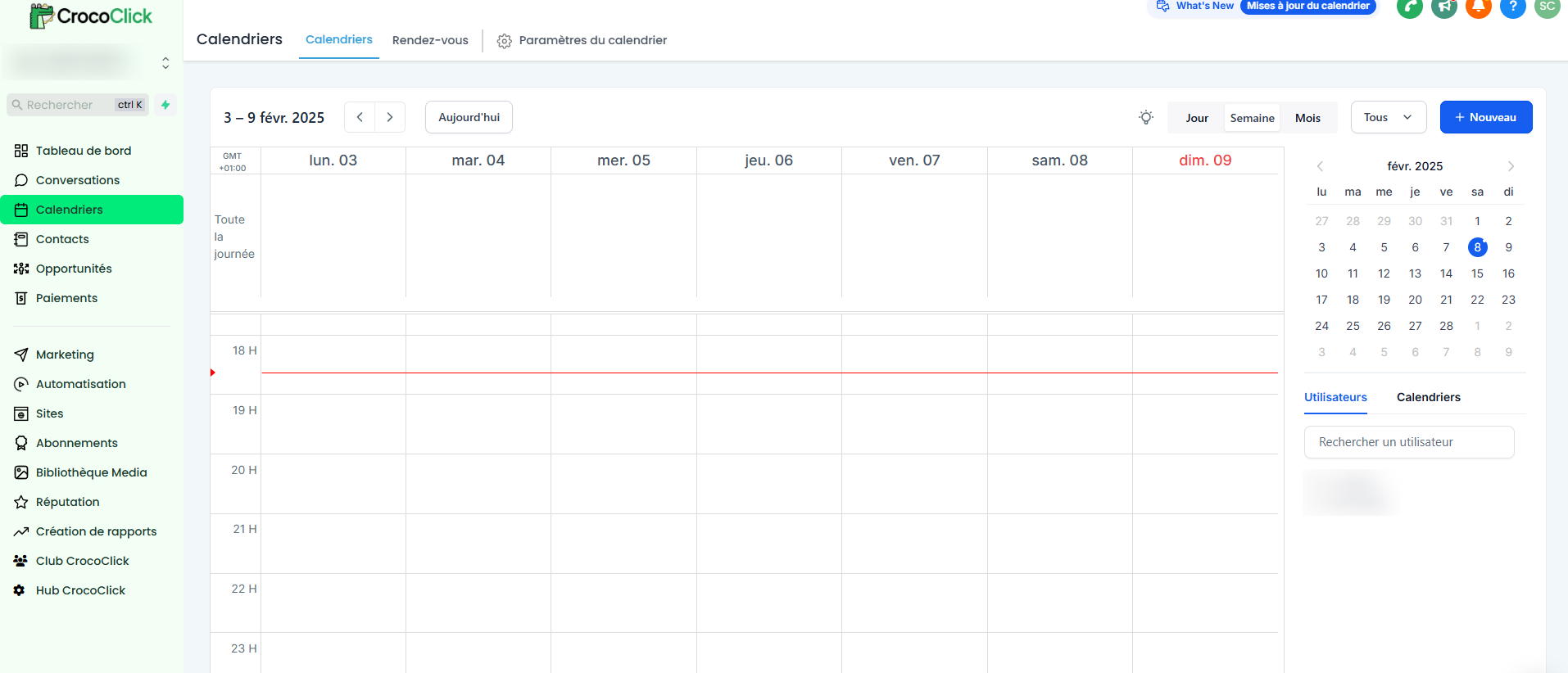
Calendar
The Calendar provides an overview of all scheduled events and appointments. The Appointments tab groups all appointments together, helping you keep track of your schedule in one place.
You can select a specific user in the bottom right corner to view their calendar.
Contacts
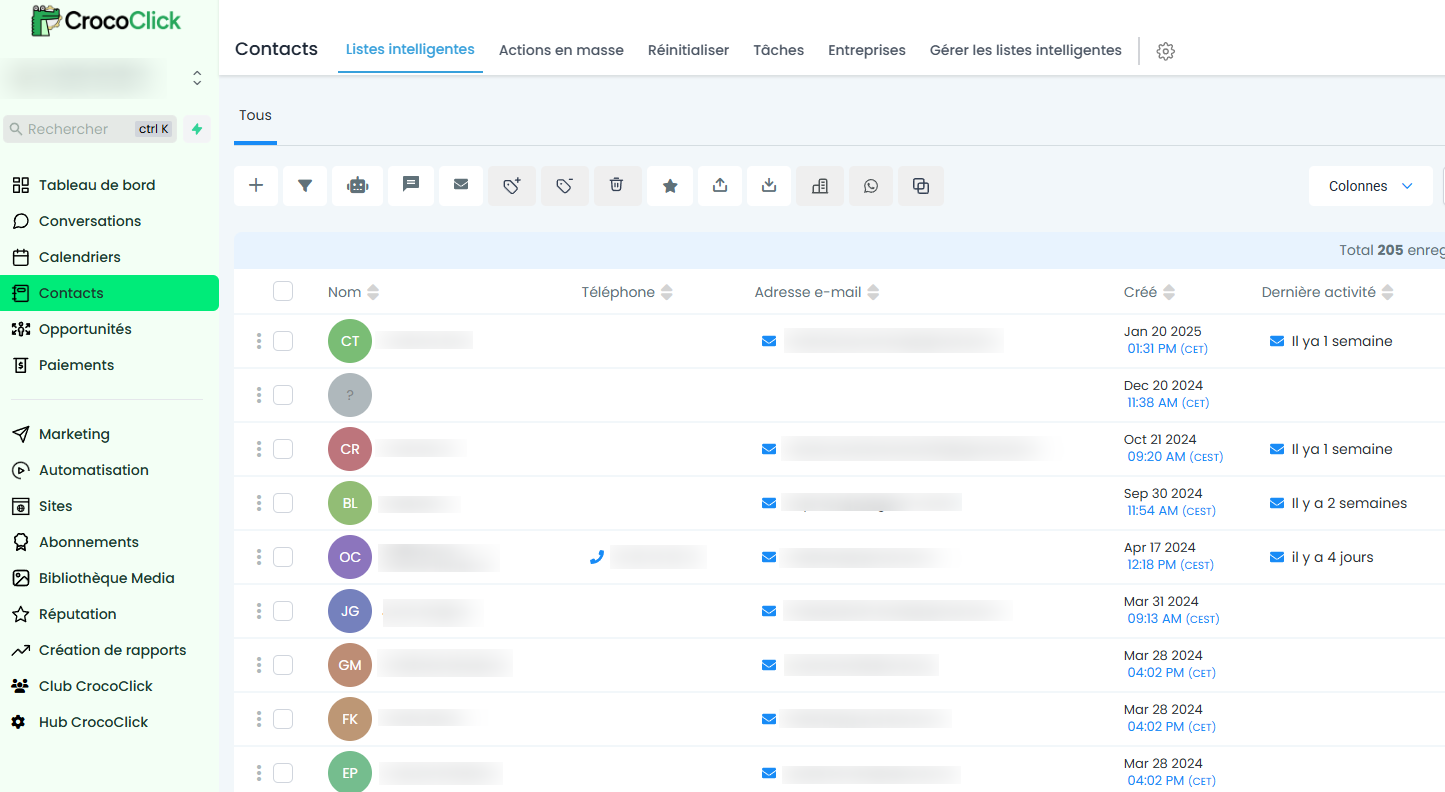
The Contacts section allows you to store and manage all your contacts.
(This is your CRM)
You can add contacts individually, import them in bulk, or use marketing forms to automatically add them to your contact list.
In addition, as soon as a contact sends you an email or a message on your connected networks, they are added to the CRM.
The available tabs include:
Bulk Actions: To apply campaigns to a large number of contacts.
Tasks: To create, assign, and track important tasks.
Company: To manage information about companies associated with your contacts (perfect if you sell to companies and have multiple "contacts" linked to that company).
Smart List: To create dynamic lists based on custom filters.
Opportunities
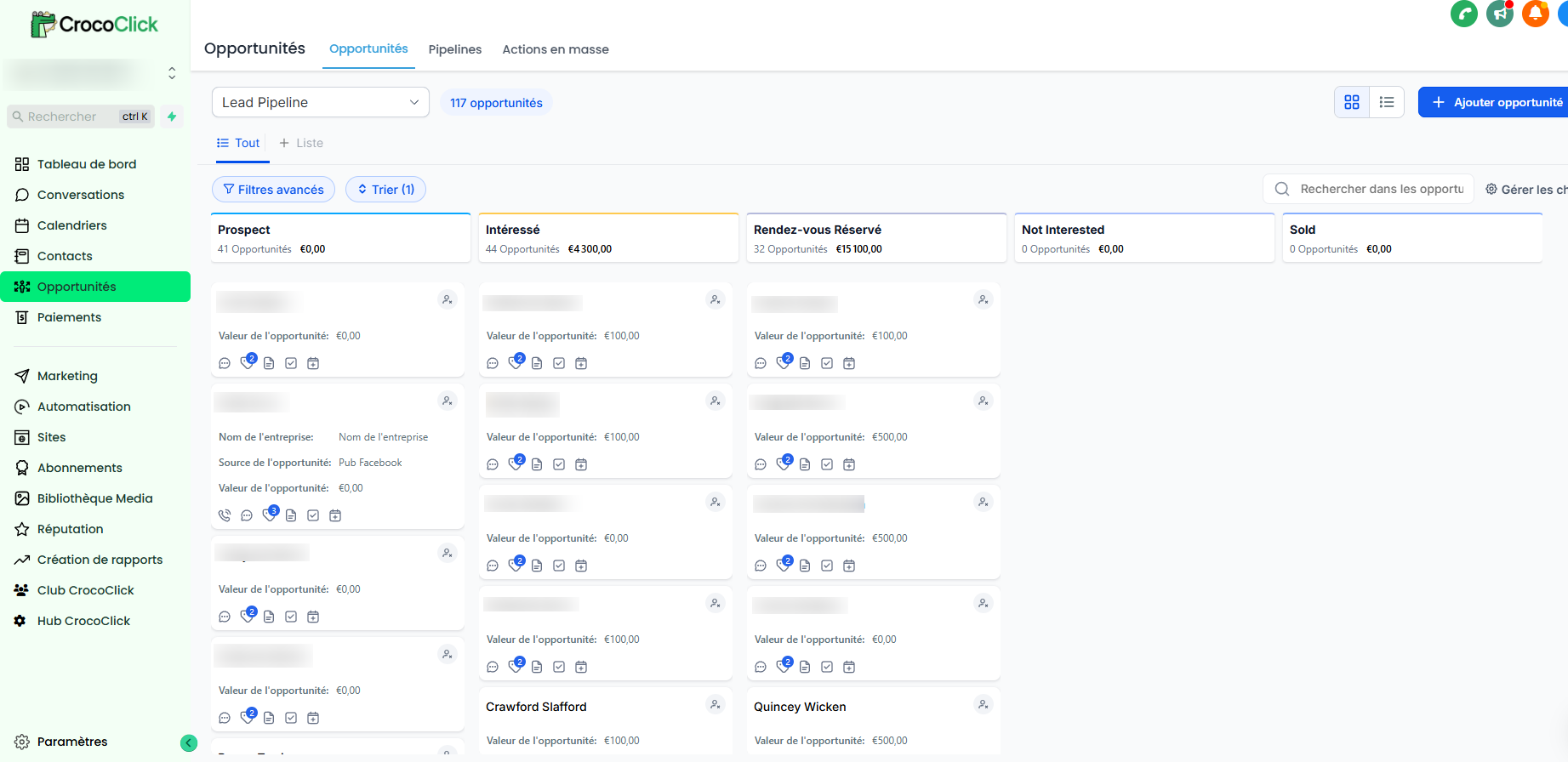
In the Opportunities tab, you can track the progress of your prospects through different stages by creating pipelines.
This gives you a comprehensive view of your opportunities and allows you to manage their progress effectively.
Payments
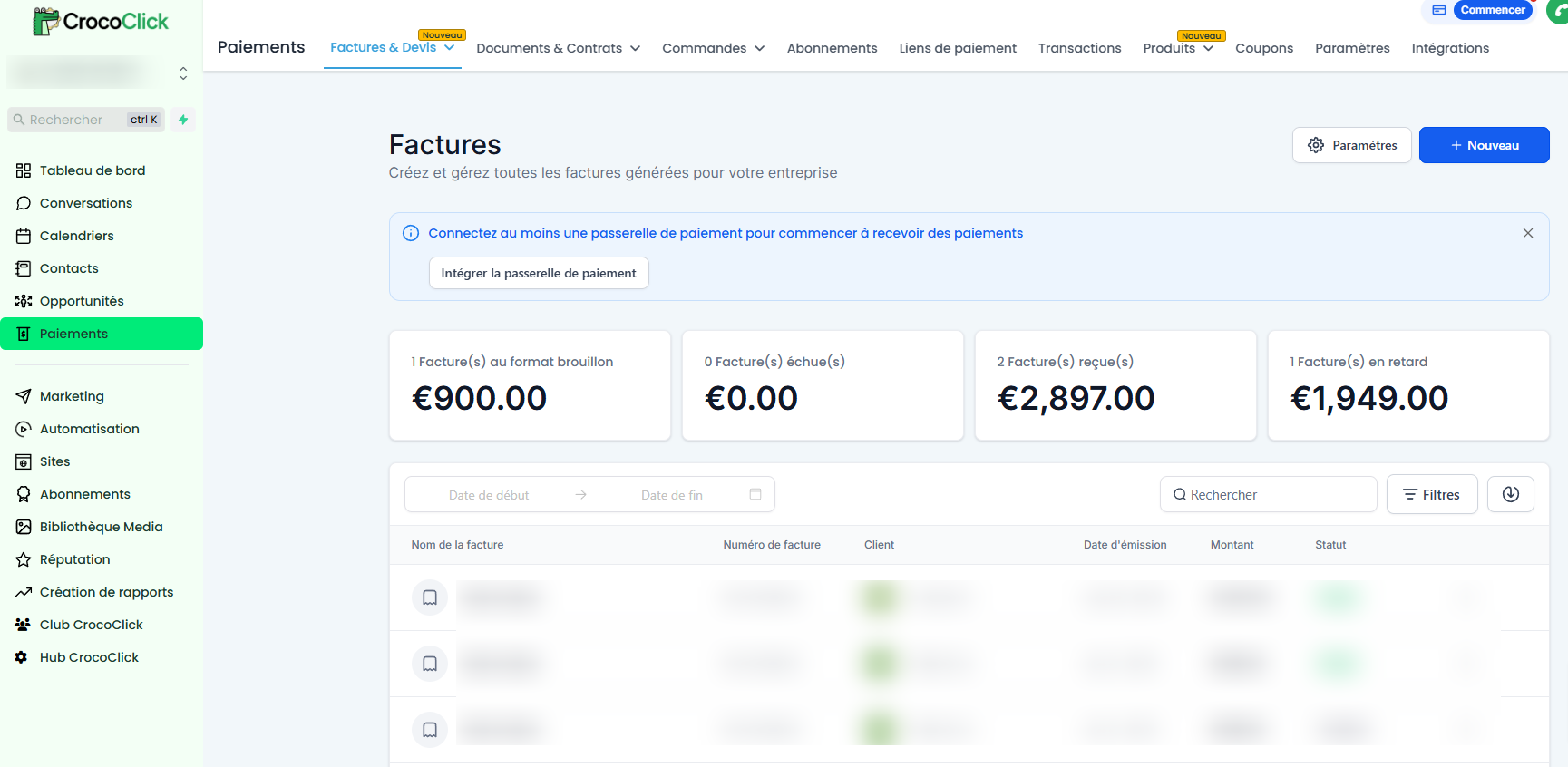
The Payments section brings together the management of your products, transactions, and integrations with payment processors such as Stripe or PayPal.
Here you will find tabs such as Invoices and Quotes, Documents & Contracts, Orders, Subscriptions, Payment Links, Transactions, Products, Coupons, Settings, and Integrations.
Marketing
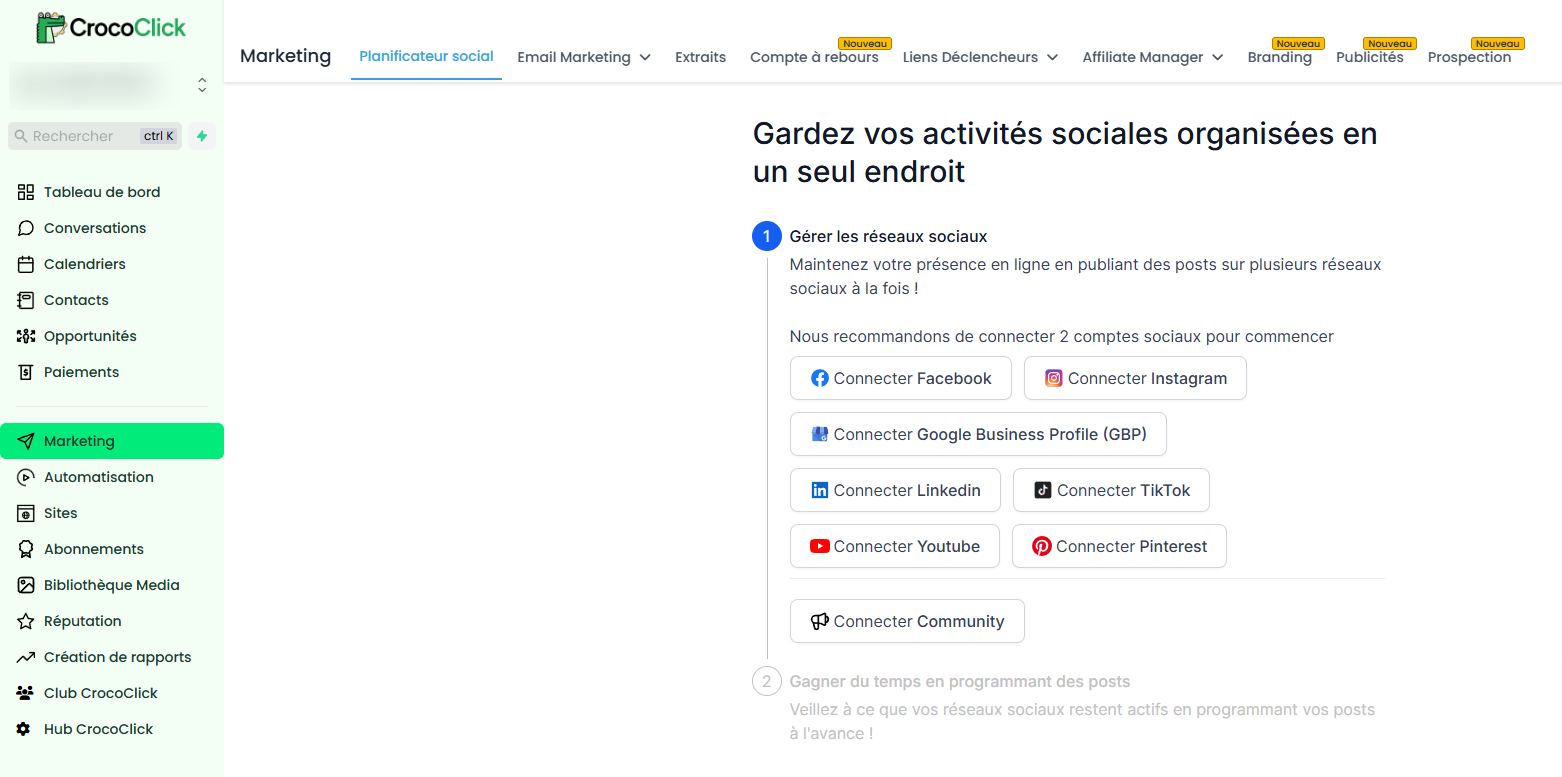
The Marketing section offers tools to plan and manage your marketing activities, such as:
Social Planner: To schedule your social media posts.
Emails: To design and send your email campaigns.
Countdown Timer: To add interactive counters to your funnels or campaigns.
Trigger Links: To automate actions via custom links.
Affiliate Manager: To track and manage affiliations and commissions.
Advertising: To launch and manage your advertising campaigns.
Branding: To define your text templates, colors, and other branding elements that you can easily reuse in the email builder or funnel builder.
Prospecting: To create local SEO reports in one click so you can quickly prospect if you sell marketing services.
Automation
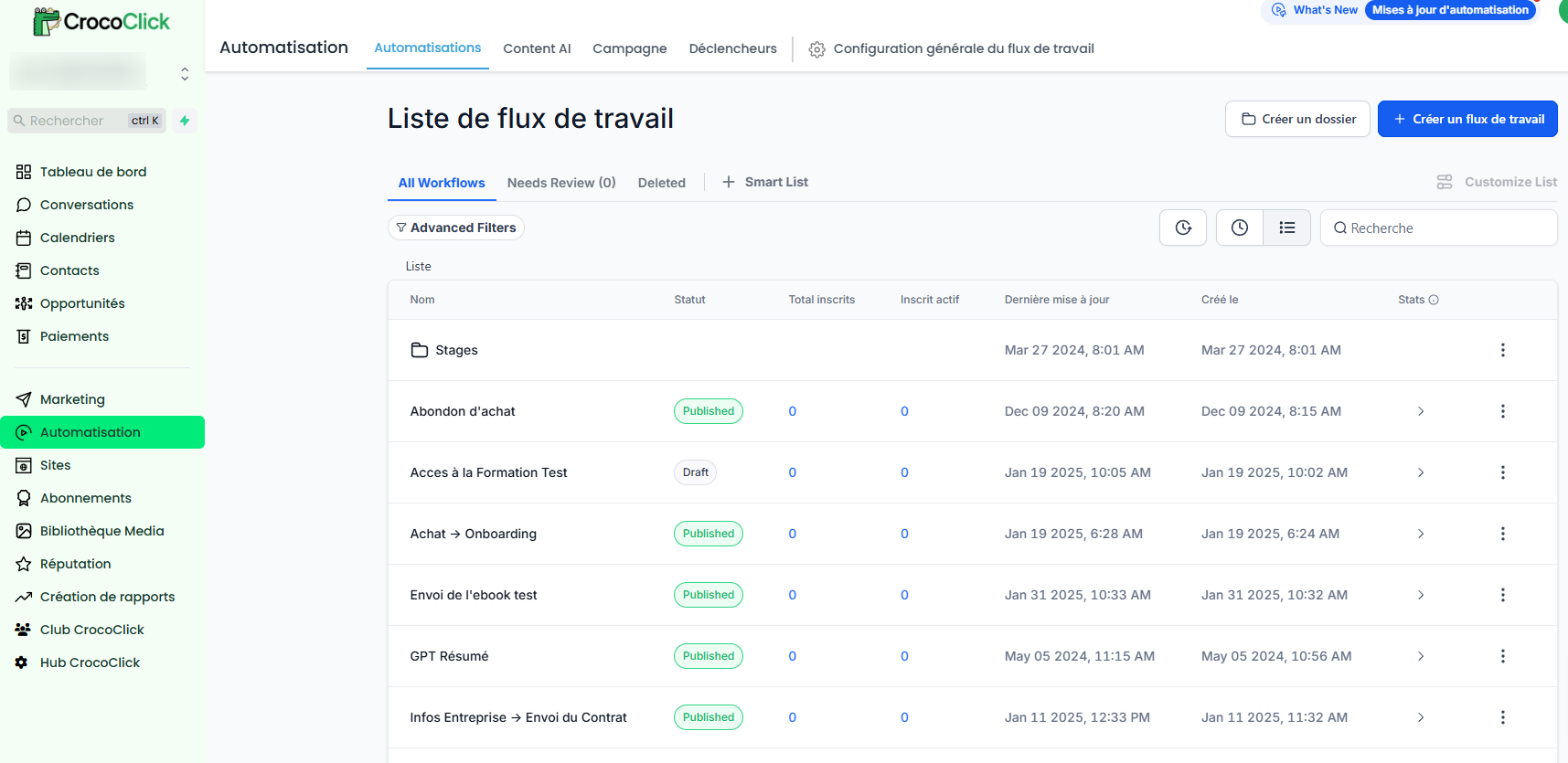
The Automation section allows you to design and implement workflows to automate your manual processes.
This is one of the most powerful parts of CrocoClick because it perfectly illustrates the systemic nature of the platform.
In fact, any CrocoClick feature can be linked to another part of CrocoClick.
Example: IF a prospect fills out the "Request for information" form THEN Send an email containing a scheduling link to your calendar
Sites
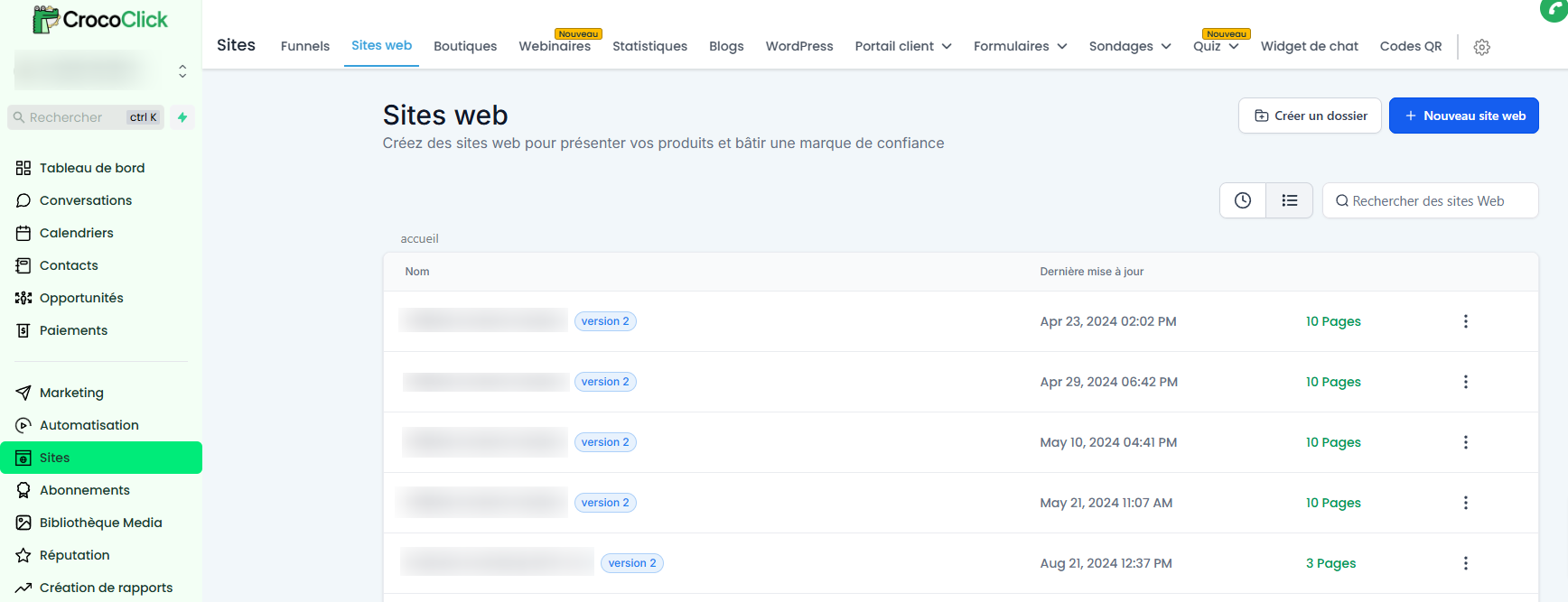
The Sites section brings together tools for creating and managing your funnels, websites, and other digital assets.
Here you can create pages, manage online stores, track your site analytics, publish blog posts, integrate WordPress, set up customer portals, use forms and surveys, activate a chat widget, and even create your own dynamic QR codes.
Subscriptions
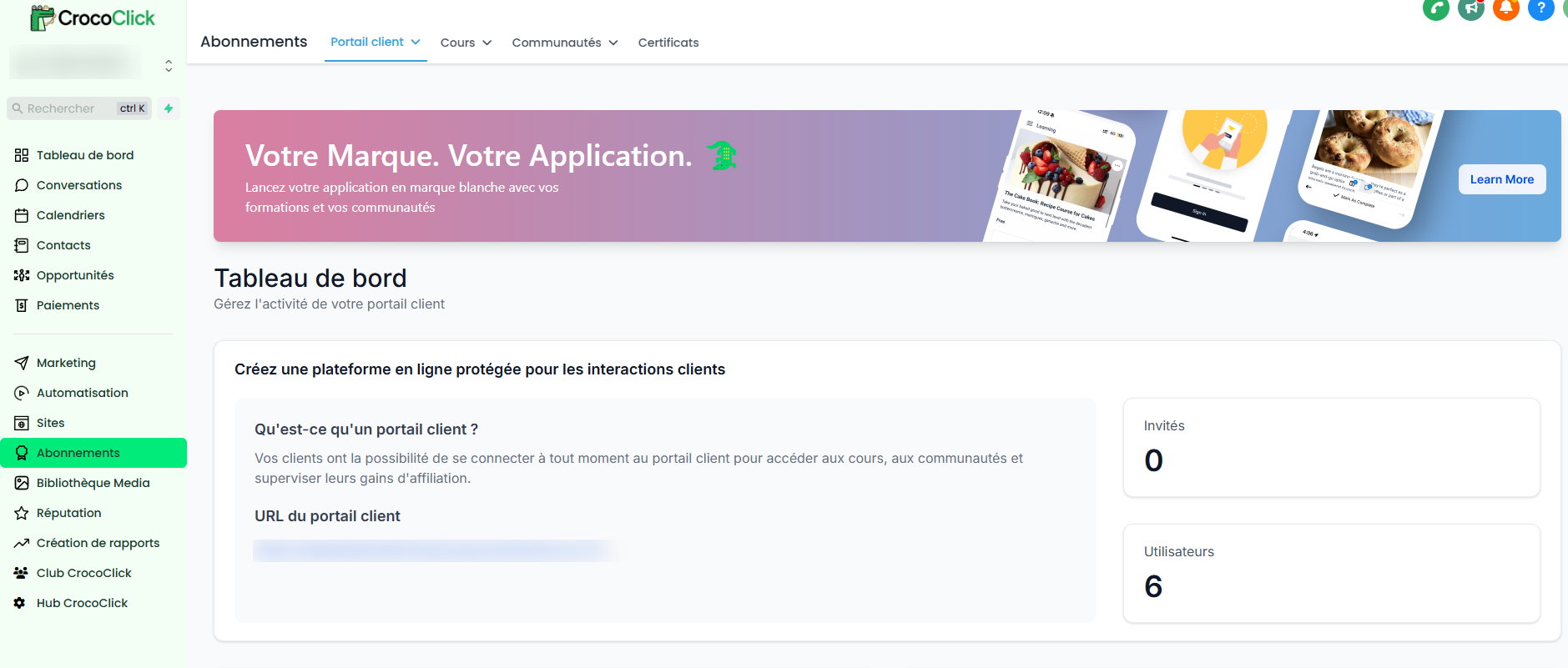
The Subscriptions section allows you to create and manage online courses and communities that offer a structured learning experience for your audience.
Here you can build courses, manage groups, organize content, track performance, issue certificates, and organize events across communities.
Media Library
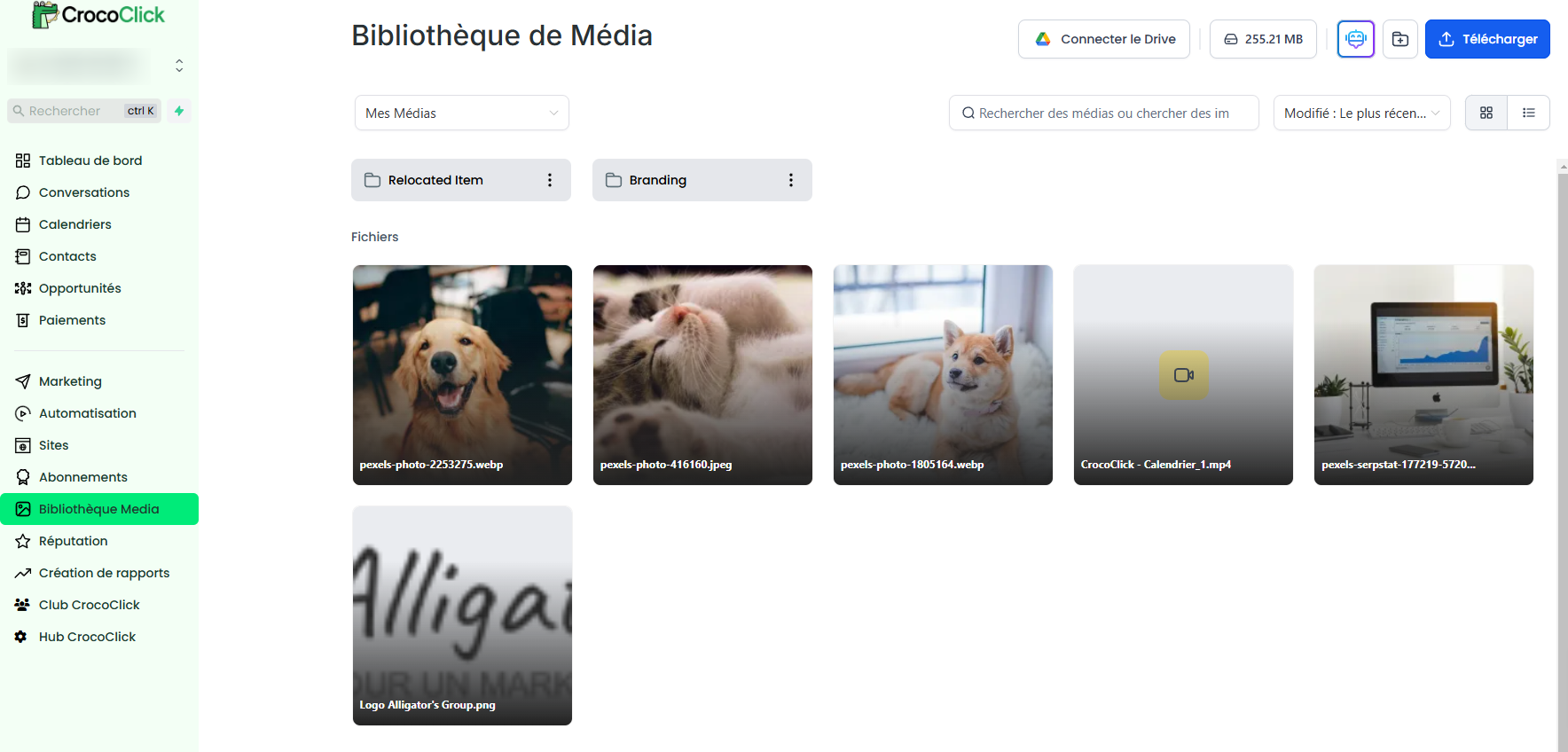
In the Media Library, you can organize and access your digital documents (images, videos, PDFs, etc.) from a centralized location, making it easy to reuse them in different sections of the platform.
You can even connect Google Drive to avoid having to re-import your files.
Reputation
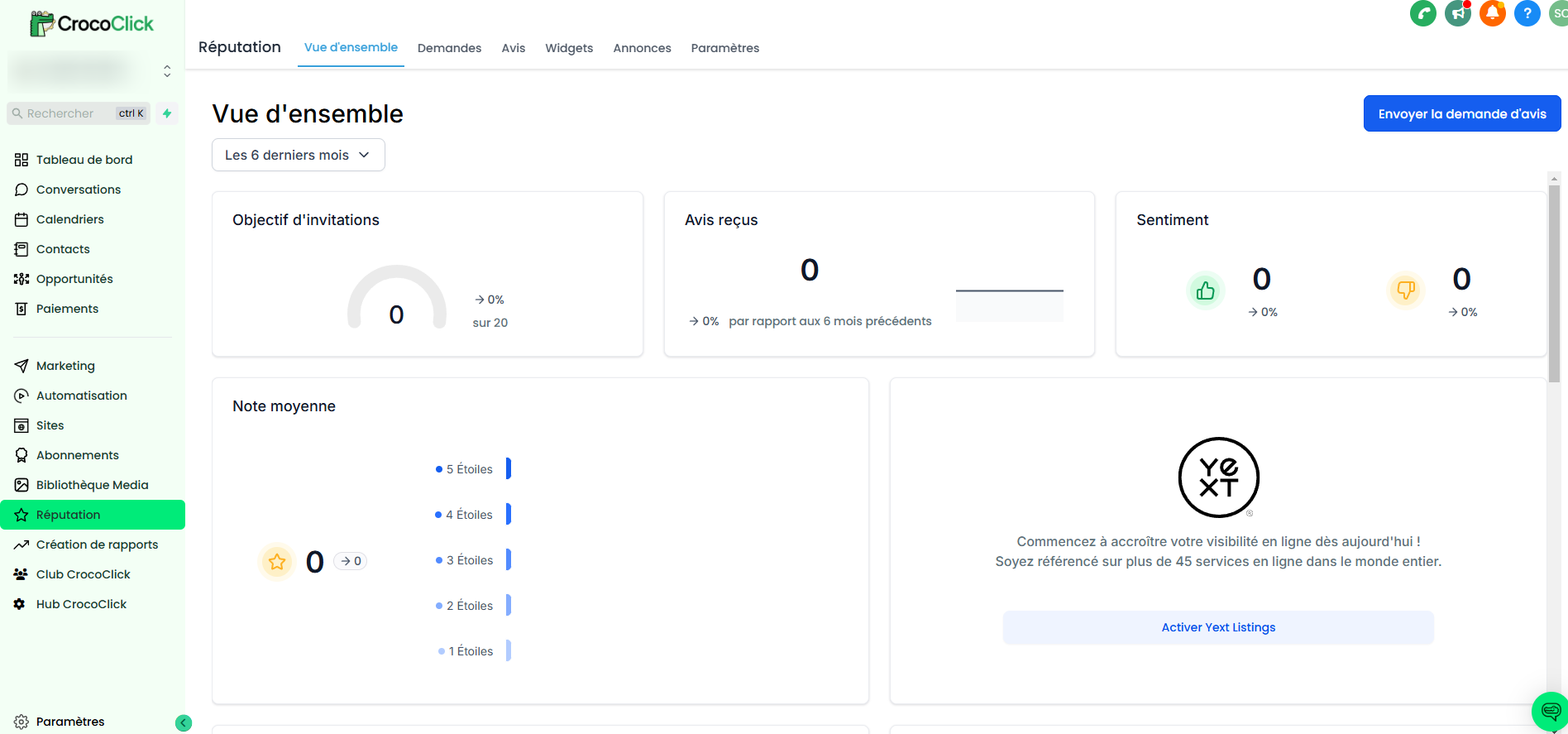
The Reputation section helps you manage your online image by tracking reviews and review requests.
You can send review requests, respond to comments, and manage widgets and professional listings.
Reporting
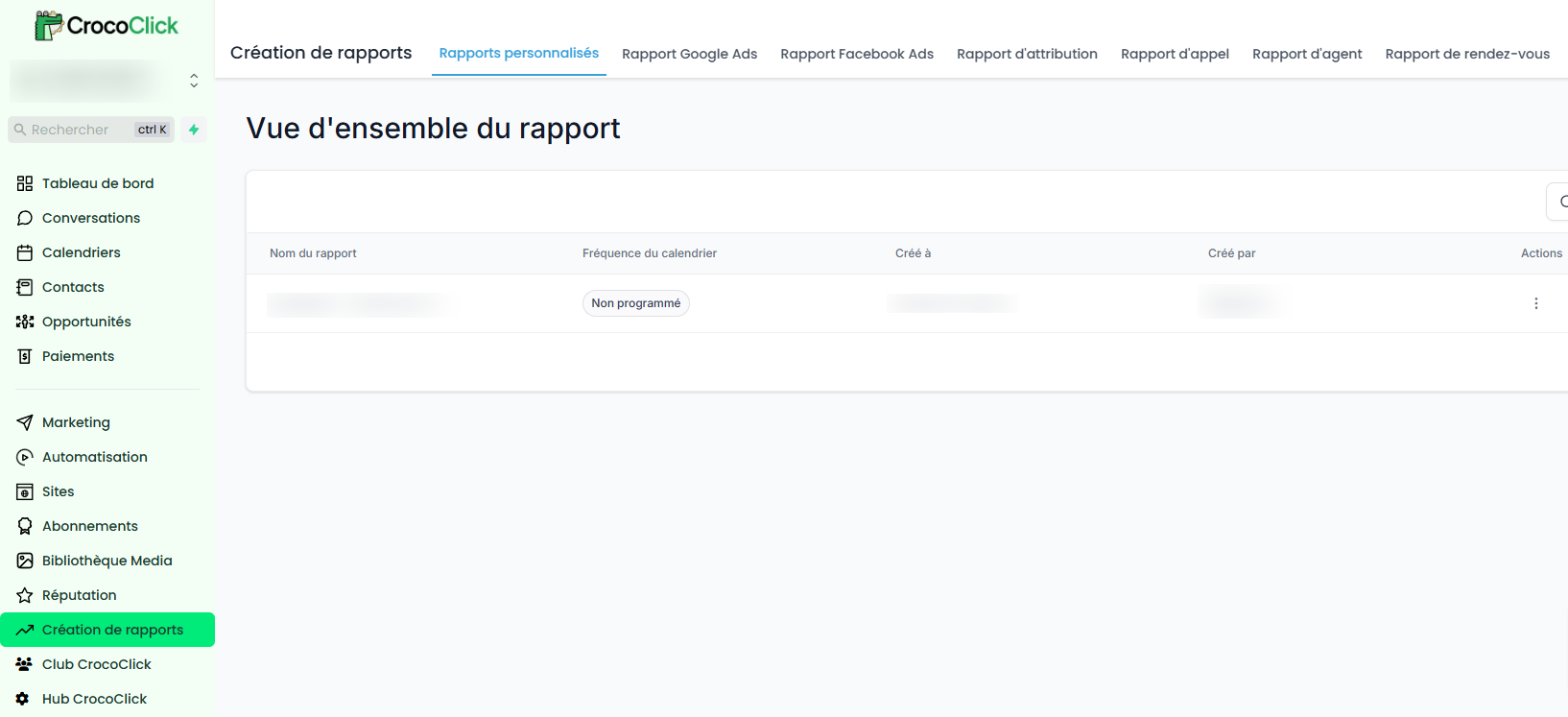
The Reporting section provides detailed analysis of your marketing campaigns and commercial activities. You can track the performance of your advertising campaigns (Google Ads, Facebook Ads), analyze conversion rates, view call and appointment reports, and gain insights into your users' performance.
The CrocoClick Club
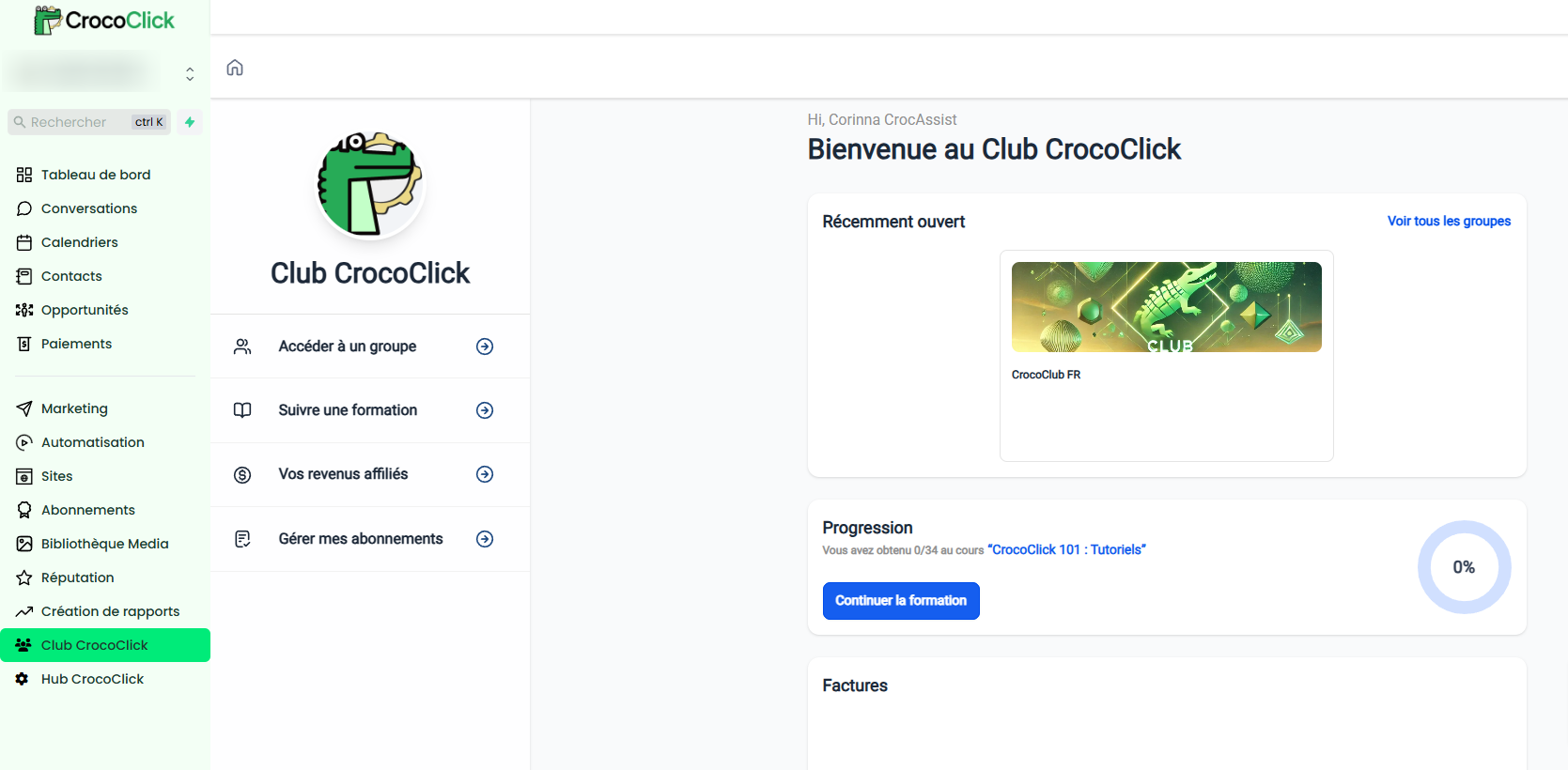
The CrocoClick Club is an exclusive space dedicated to members of the CrocoClick community. In this space, you can:
Access the CrocoClick community to interact with other users.
Follow training courses and video tutorials to deepen your knowledge of the platform.
View your affiliate dashboard, which allows you to earn 30% of your affiliates' lifetime subscription fees.
This club is designed to help you maximize your skills and income while benefiting from a network of professionals who share the same interests.
The CrocoLab
The CrocoLab is your comprehensive information center on the platform. Here you will find:
All available sources of help: Support, CrocoLives, help articles, etc.
News and updates on the platform, including new features, tips, and affiliate information
Roadmap and Feedback, to participate in the evolution of the platform.
The CrocoLab is the ideal place to stay informed and get the most out of all the features offered by CrocoClick.
Settings
The Settings section, accessible at the bottom of the side menu, allows you to configure and customize your entire platform.
It centralizes all settings, feature activation, and platform alignment with your business needs.
Enjoy exploring! 🐊