Migrating from Keap to CrocoClick
A complete guide to migrating from Keap to CrocoClick: transfer your contacts, automations, pipelines and more.
Written By CrocoTeam
Last updated 8 months ago
This guide provides detailed instructions for migrating from Keap to CrocoClick, covering the transfer of contacts, custom fields, automations, capture pages, and other essential elements. The goal is to ensure a smooth transition while taking full advantage of the features offered by CrocoClick.
Preparing for Migration
Step 1: Review Your Current Keap Configuration
Identify Key Elements: List all critical elements in Keap, including contacts, custom fields, pipelines, automations, and capture pages.
List Workflows: Note all automation sequences, campaigns, and other workflows essential for continued operation.
Assess Data Volume: Evaluate the amount of data (contacts, custom fields, automations) to be migrated.
Step 2: Define Migration Goals
Set Clear Goals: Identify the main reasons for migrating to CrocoClick, such as improved automation capabilities, integrated CRM, or better pricing.
Prioritize Critical Features: Focus on migrating the most critical features first to ensure business continuity.
Step 3: Prepare the Backup
Export Keap Data: Export all necessary data, including contact lists, custom fields, and automation sequences.
Back Up Data: Ensure all exported data is securely backed up before beginning the migration.
Migrate Contacts and Custom Fields
Step 1: Export Data from Keap
Export Contacts:
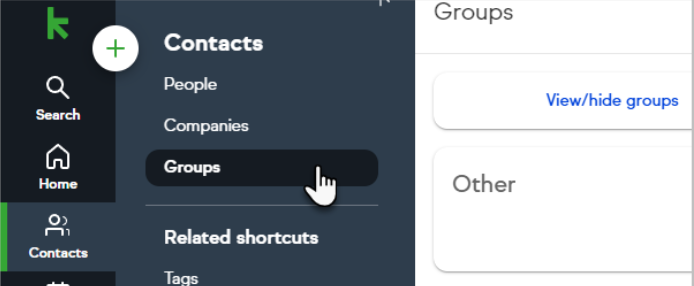
Go to Contacts > People in Keap.
Select the contacts you want to export or use the Select All option.
Click Export and choose to download the contact data in CSV format.
For large exports (more than 1,000 contacts), enter your email address to receive a download link from Keap.
Export Custom Fields: Note or export any custom fields associated with contacts and companies. Custom fields must be recreated manually in CrocoClick.
List Automation Rules: Record all automation sequences, triggers, and actions by taking screenshots or documenting them manually.
Step 2: Import Data into CrocoClick
Import Contacts:
In CrocoClick, go to Contacts > Import Contacts and upload the CSV file exported from Keap.
Map Keap's custom fields to CrocoClick during the import process.
Recreate Custom Fields:
Go to Settings > Custom Fields in CrocoClick.
Recreate each custom field from Keap, ensuring that the field types match.
Recreate Tags: In CrocoClick, manually create all tags used in Keap to ensure accurate contact segmentation.
Migrate Pipelines and Opportunities
Step 1: Review Existing Pipelines in Keap
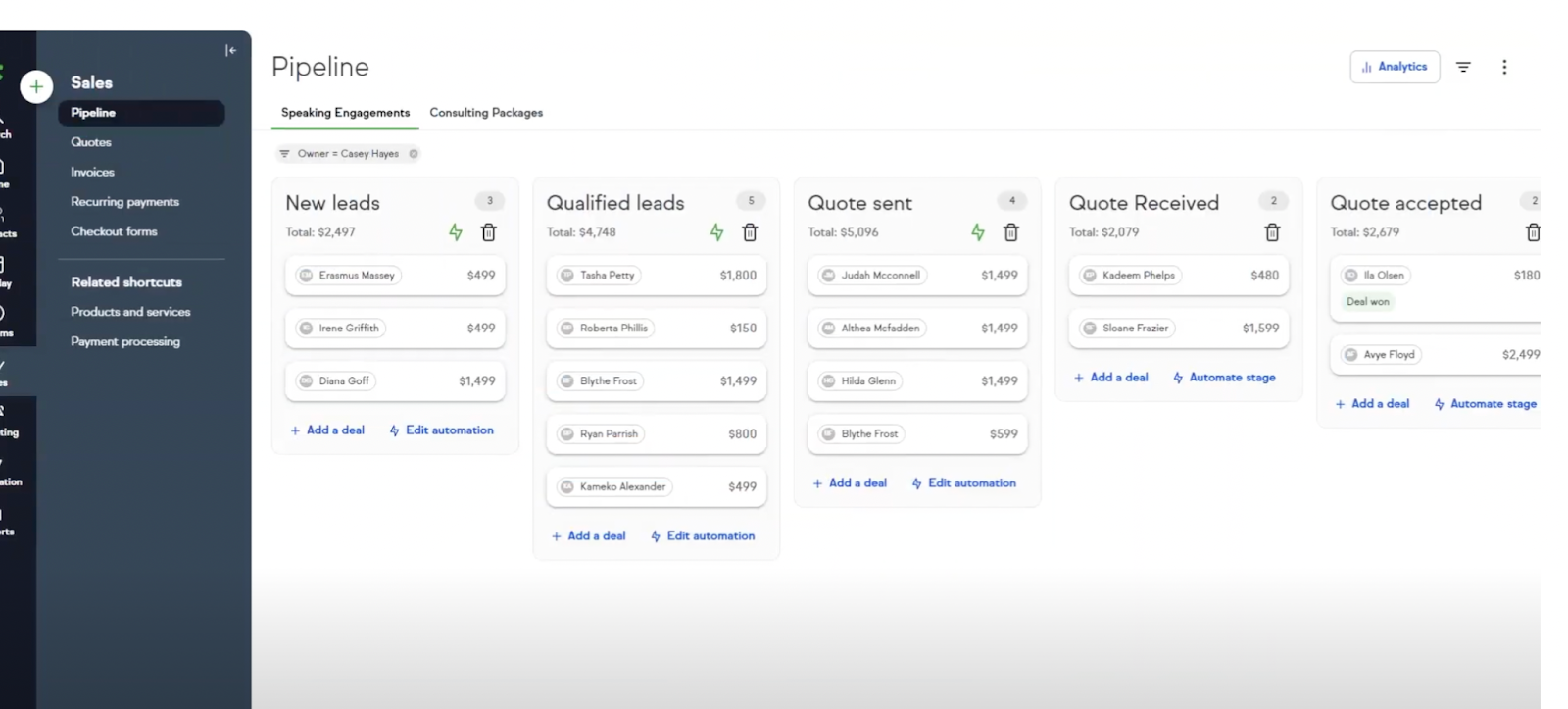
List Active Pipelines: Identify all active pipelines in Keap, including stages and associated opportunities.
Document Opportunity Information: Note all key details associated with each opportunity, such as opportunity value, stage, and associated contacts.
Step 2: Recreate Pipelines in CrocoClick
Set Up Pipelines:
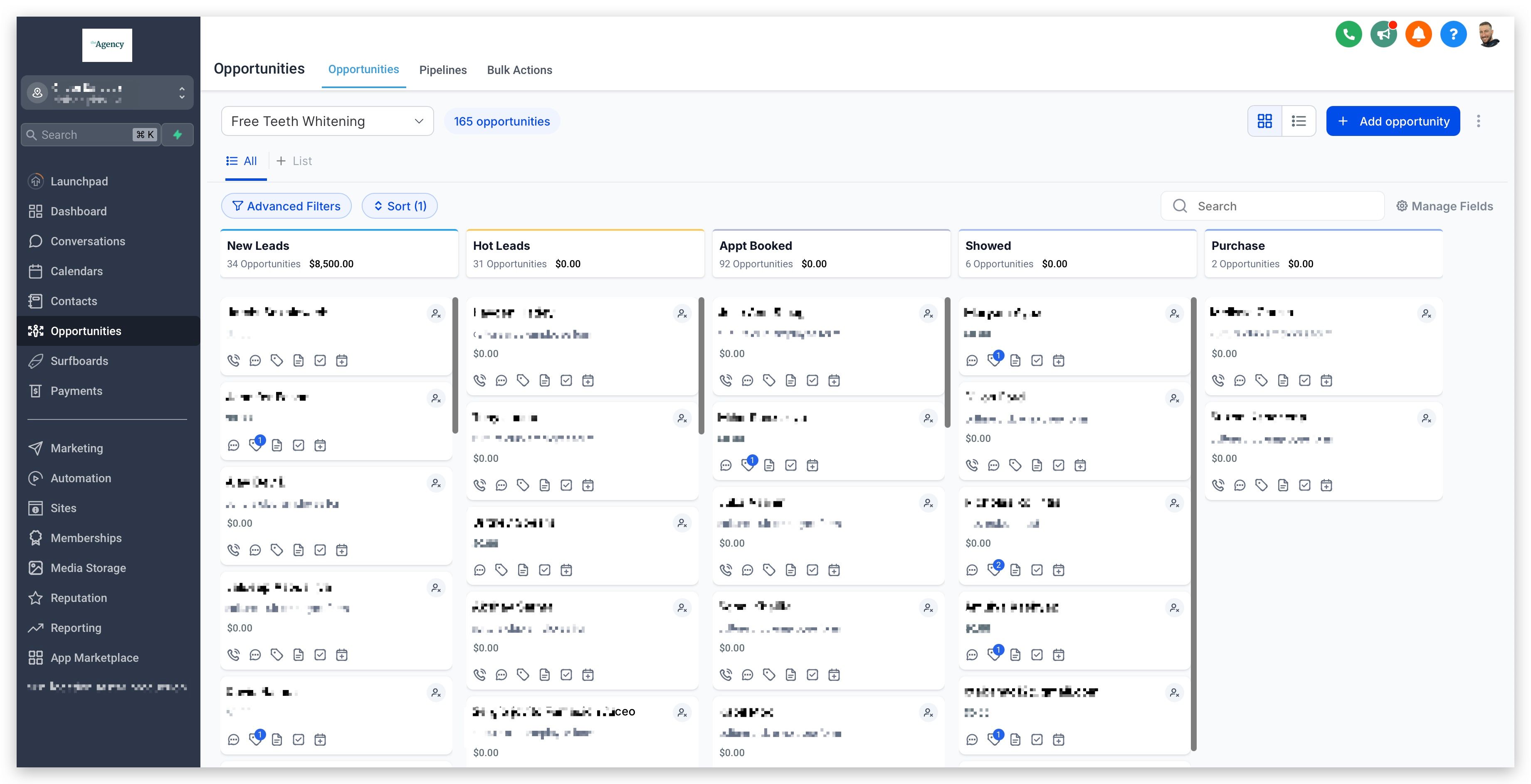
Go to Opportunities > Pipelines in CrocoClick.
Create pipelines that match those in Keap, adding the same stages and settings.
Manually Transfer Opportunities:
Recreate each opportunity in CrocoClick by manually entering the opportunity information, ensuring that it matches the stage and contact association.
Migrate Automations and Campaigns
Step 1: Review Existing Automations in Keap
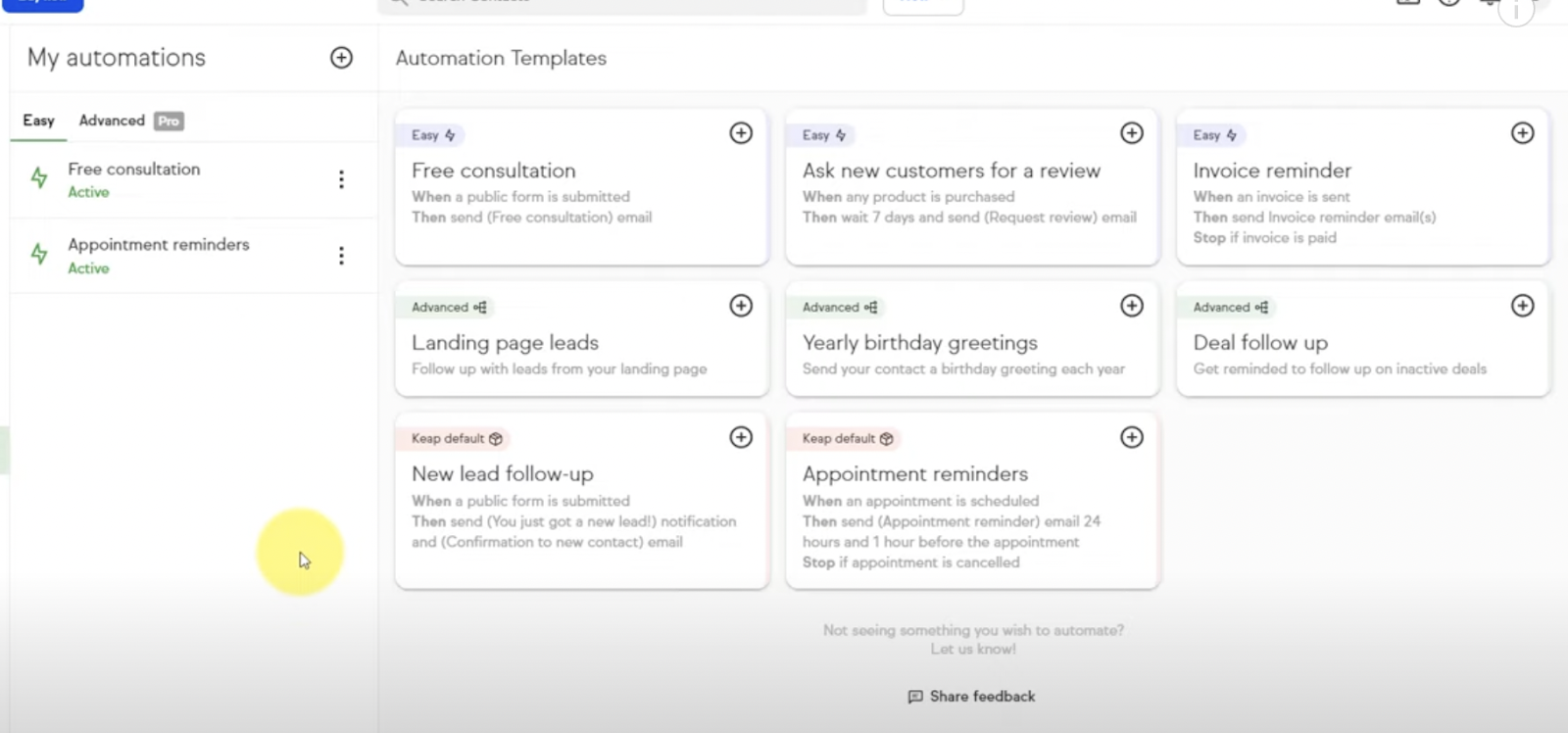
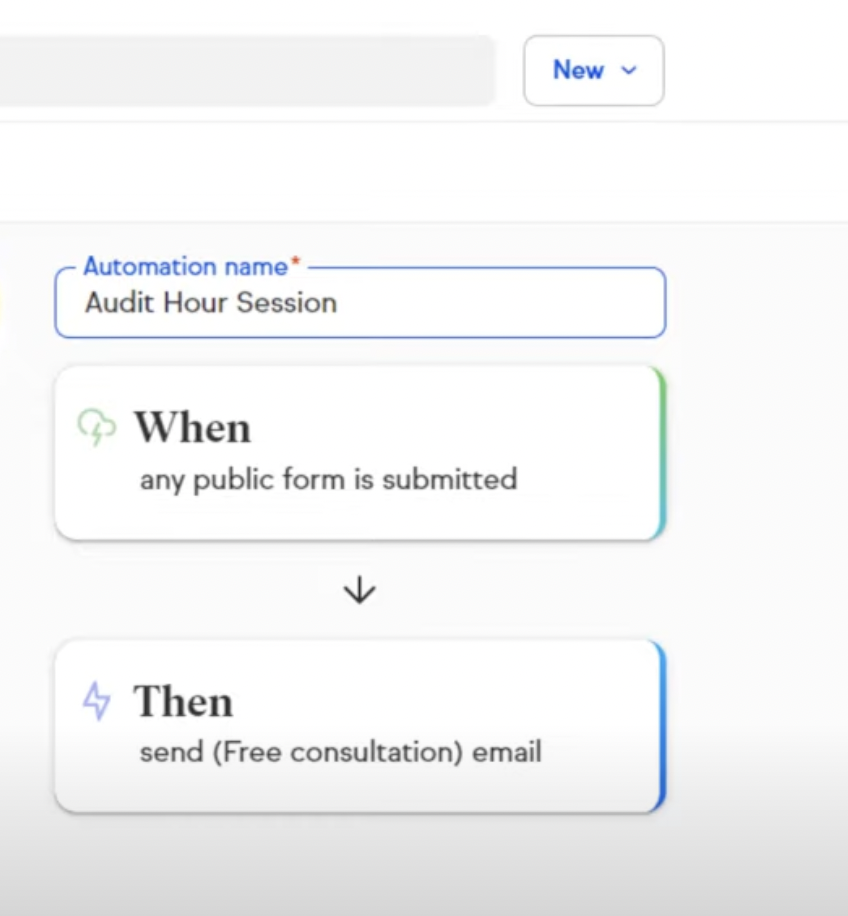
List Active Automations: Identify all active automations, including email sequences, tags, and triggers.
List Automation Flows: Take detailed notes or screenshots of each automation flow to facilitate recreation in CrocoClick.
Step 2: Recreate Automations in CrocoClick
Create New Workflows:
Go to Automation > Workflows in CrocoClick.
Recreate Keap automations using CrocoClick triggers, conditions, and actions to achieve similar results.
Test Workflows: Thoroughly test all recreated workflows to ensure they are functioning properly and make any necessary adjustments.
Migrate Landing Pages and Forms
Step 1: Recreate Landing Pages in CrocoClick
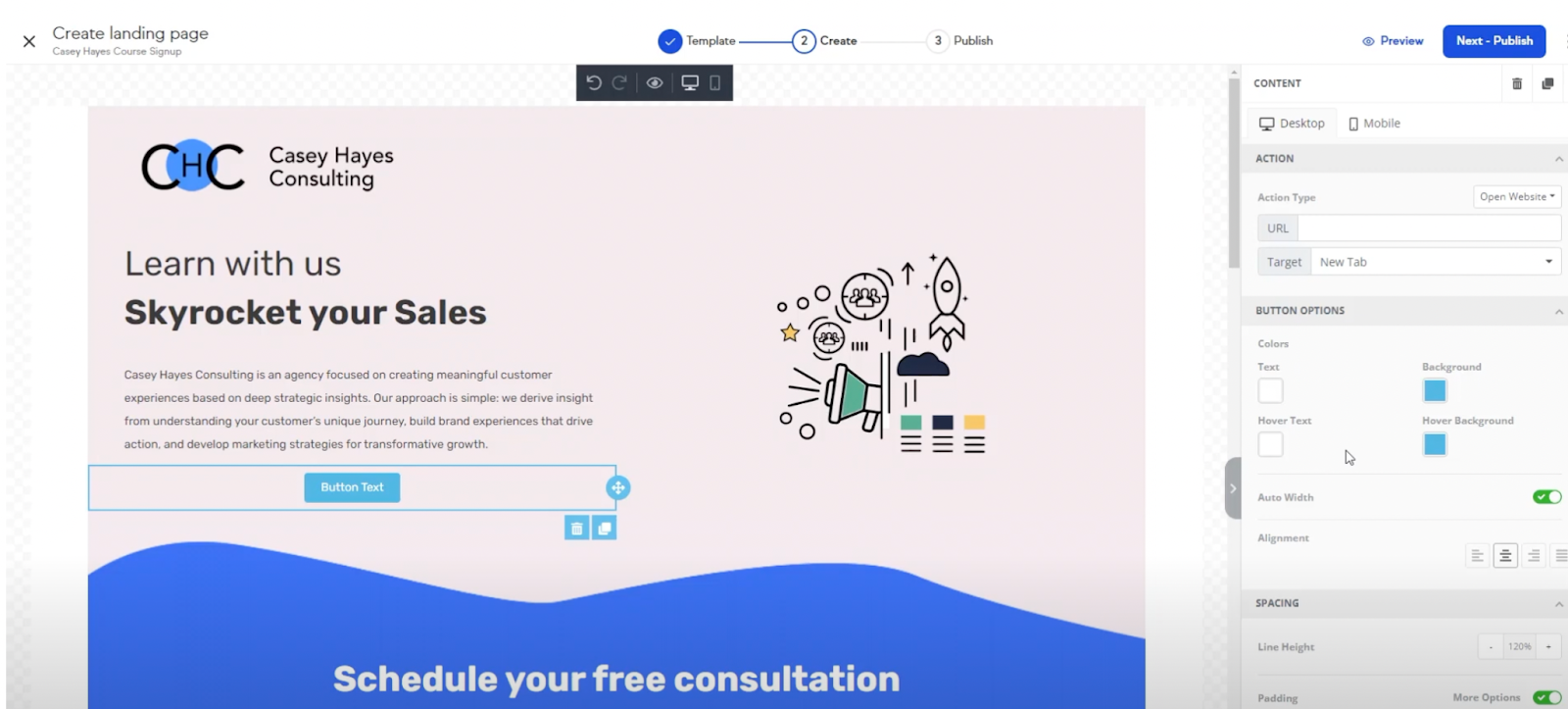
Rebuild Landing Pages: Use CrocoClick's Funnel and Website Builder to recreate Keap landing pages. Ensure that the design and content match the original Keap pages.
Add Forms: Integrate forms into landing pages as needed, ensuring they capture essential information and trigger the appropriate tags or automations.
Step 2: Customize Forms
Recreate Public Forms:
In CrocoClick, go to Funnels & Websites > Forms and recreate Keap's public forms.
Customize the fields and settings to match those used in Keap.
Configure Form Actions: Ensure that form submissions in CrocoClick trigger the correct tags and workflows, similar to the configuration in Keap.
Migrate Appointments and Calendars
Step 1: Review Current Appointments in Keap
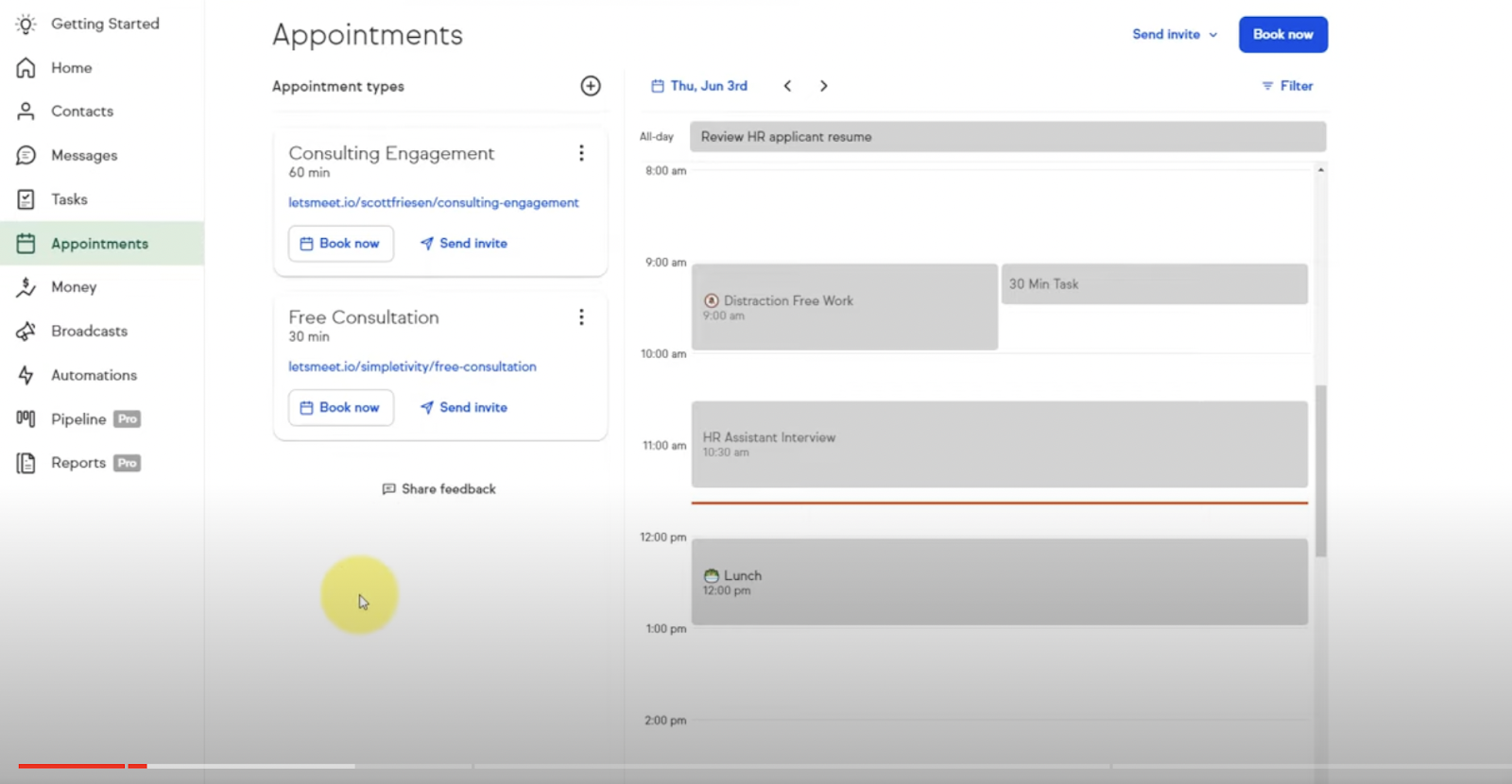
List Active Appointment Types: Identify all existing appointment types and their associated settings, including reminders and integrations.
Collect Appointment Settings: Note all key settings for each appointment type, such as duration, availability, and reminders.
Step 2: Recreate Appointment Types in CrocoClick
Configure Appointment Types:
Go to Calendars > Appointment Types in CrocoClick.
Recreate each appointment type from Keap, including all relevant settings such as duration, location (Zoom integration), and availability.
Integrate External Calendars: Integrate Google or Outlook calendars with CrocoClick to synchronize all appointments and avoid conflicts.
Final Checks and Training
Step 1: Perform Final Data Validation
Cross-Check Data: Ensure that all data has been successfully migrated, including contacts, pipelines, automations, and landing pages.
Workflow Validation: Verify that all workflows and automations are functioning properly in CrocoClick.
Step 2: Train Team Members
CrocoClick Training: Provide your team with the necessary training to use CrocoClick's CRM, automation, and appointment management tools.
Use Support Resources: Encourage your team to use CrocoClick's support resources for ongoing learning and troubleshooting.
Step 3: Monitor and Optimize
Track Performance: Continuously monitor the performance of your CrocoClick configuration and adjust as necessary to optimize operations.
Continuous Improvement: Regularly review your configuration to ensure it meets your business's evolving needs.
Keap Decommissioning
Step 1: Transition Period
Parallel Use: Consider keeping Keap and CrocoClick running in parallel during the transition to avoid any downtime.
Gradual Reduction: Gradually reduce your use of Keap as you become more comfortable with CrocoClick.
Step 2: Cancel Your Keap Subscription
Final Data Backup: Ensure that all necessary data is securely backed up before canceling your Keap subscription.
Official Cancellation: Follow Keap's procedure to cancel your subscription and terminate associated services.
Step 3: Post-Migration Review
Evaluate Success: Assess the success of the migration, documenting any challenges encountered and lessons learned.
Continuous Monitoring: Monitor your CrocoClick configuration after migration to quickly identify and resolve any issues.
Conclusion
Migrating from Keap to CrocoClick opens up new possibilities for CRM, automation, and community management. By following this approach, you will ensure a smooth transition, optimizing your business efficiency. Be sure to inform your team and monitor performance to get the most out of CrocoClick.