Migrating from Skool to CrocoClick
Easily migrate your communities, training courses and automations from Skool to CrocoClick to optimize engagement and management.
Written By CrocoTeam
Last updated 8 months ago
This article is a comprehensive guide to migrating your online communities, courses, and related content from Skool to CrocoClick. The goal is to achieve a smooth transition while leveraging CrocoClick's advanced CRM, marketing automation, and community building tools to improve member engagement and optimize your operations.
Good news! CrocoClick now has a skool importer in 1 click that greatly simplifies the migration of your community, members, and content. This guide will explain how to take advantage of this tool while configuring advanced elements such as training, automation, and offers.
1. Preparing for Migration
Step 1: Review Your Current Skool Configuration
Identify Key Assets: Catalog all the essential elements of your Skool ecosystem:
Community: Members, discussion channels, posts, pinned content
Training: Courses, modules, lessons, videos, downloadable resources
Events: Calendar, recurring events, webinars
Automations: Existing workflows, automated emails, notifications
Offers and products: Subscriptions, paid products, sales funnels
Assess Data Volume: Determine the size and complexity of the data to be migrated:
Number of active members and their level of engagement
Number of courses and volume of content (videos, PDFs, etc.)
Volume of posts in the community
Complexity of existing automations
Step 2: Define Migration Objectives
Set Clear Goals: Define the main reasons for migrating to CrocoClick:
Better CRM integration and contact management
Advanced marketing automation (workflows, email/SMS campaigns)
Unified platform combining community, training, and CRM
More powerful sales and lead generation tools
Complete customization and branding (white label)
Prioritize Features: Identify the elements that are crucial to your business:
Community engagement and member retention
Quality of the learning experience (LMS)
Automations to reduce manual tasks
Integrations with your existing tools (Stripe, Zapier, etc.)
Step 3: Prepare a Backup
Export Data from Skool: Even though the 1-click importer automates much of the process, it is recommended that you create a complete backup:
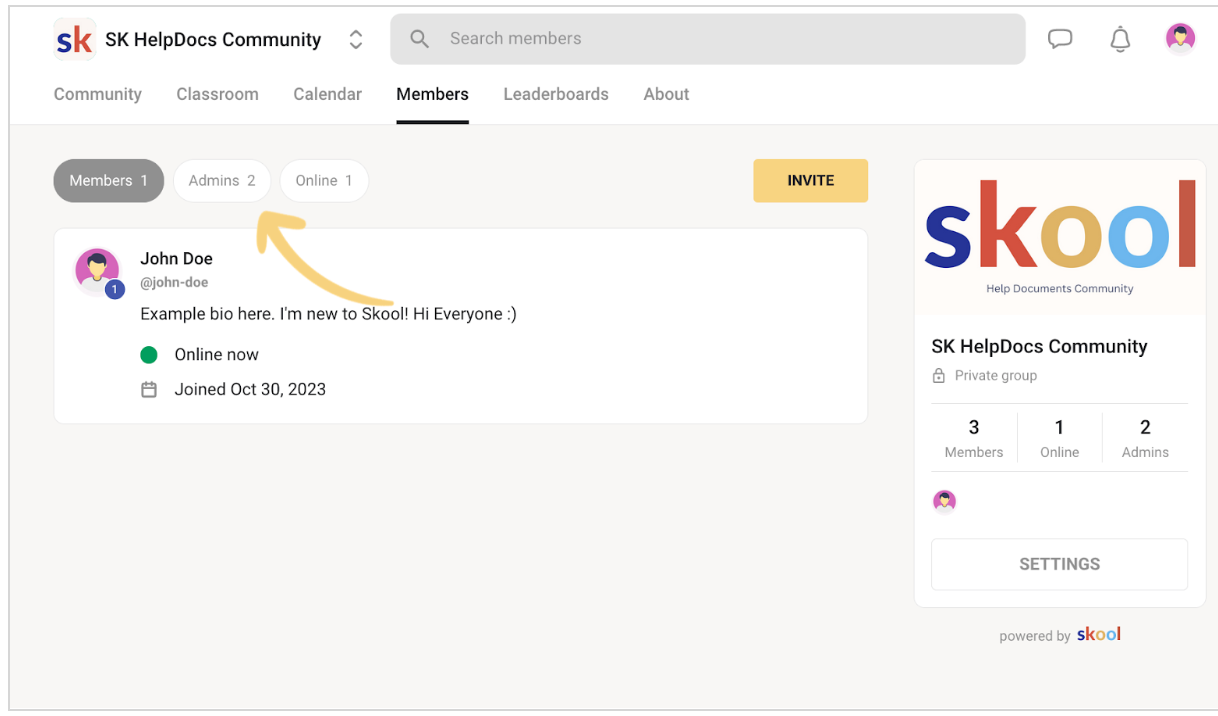
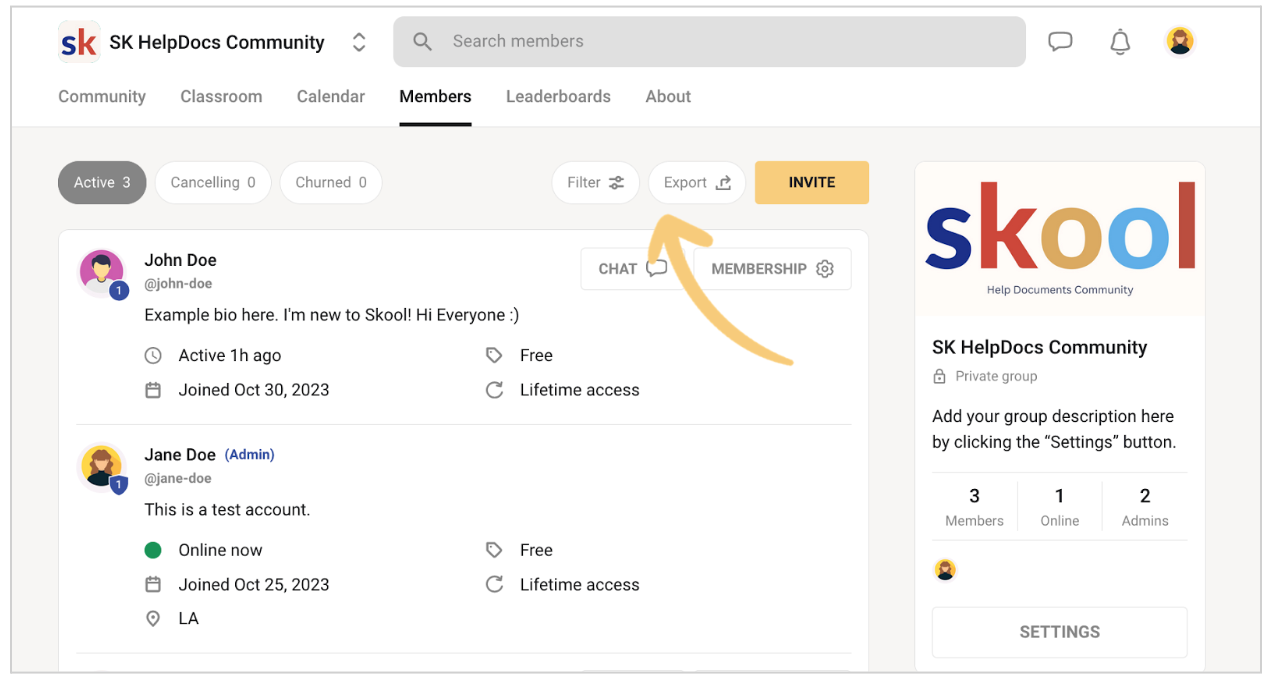
Member list: Export to CSV format from the Members section
Course content: Download all video files, PDFs, and resources
Important publications: Capture or archive key discussions and announcements
Event configuration: Note dates, recurrences, and settings
Backup documentation: Securely store all exported files and related documentation on an external hard drive or cloud service to ensure data security before beginning the migration process.
2. Migrate the Community in 1 Click
🎉 Use the CrocoClick Importer
CrocoClick now has an automatic import tool that radically simplifies the migration of your Skool community. This tool automatically manages:
✅ Automatic import of members with their complete information
✅ Recreation of discussion channels with the same structure
✅ Migration of community posts
and content ✅ Assignment of roles and permissions according to your Skool configuration
How to proceed?
To migrate your Skool community in just a few clicks, follow our detailed guide:
👉 Migrate your Skool group to a CrocoClick community in one click
This guide will explain step by step how to:
Connect your Skool group to CrocoClick
Generate and complete the member file (.CSV)
Automatically import all your members
Check and finalize your community settings
⏱ Estimated time: 10-15 minutes for a complete community migration.
3. Training migration
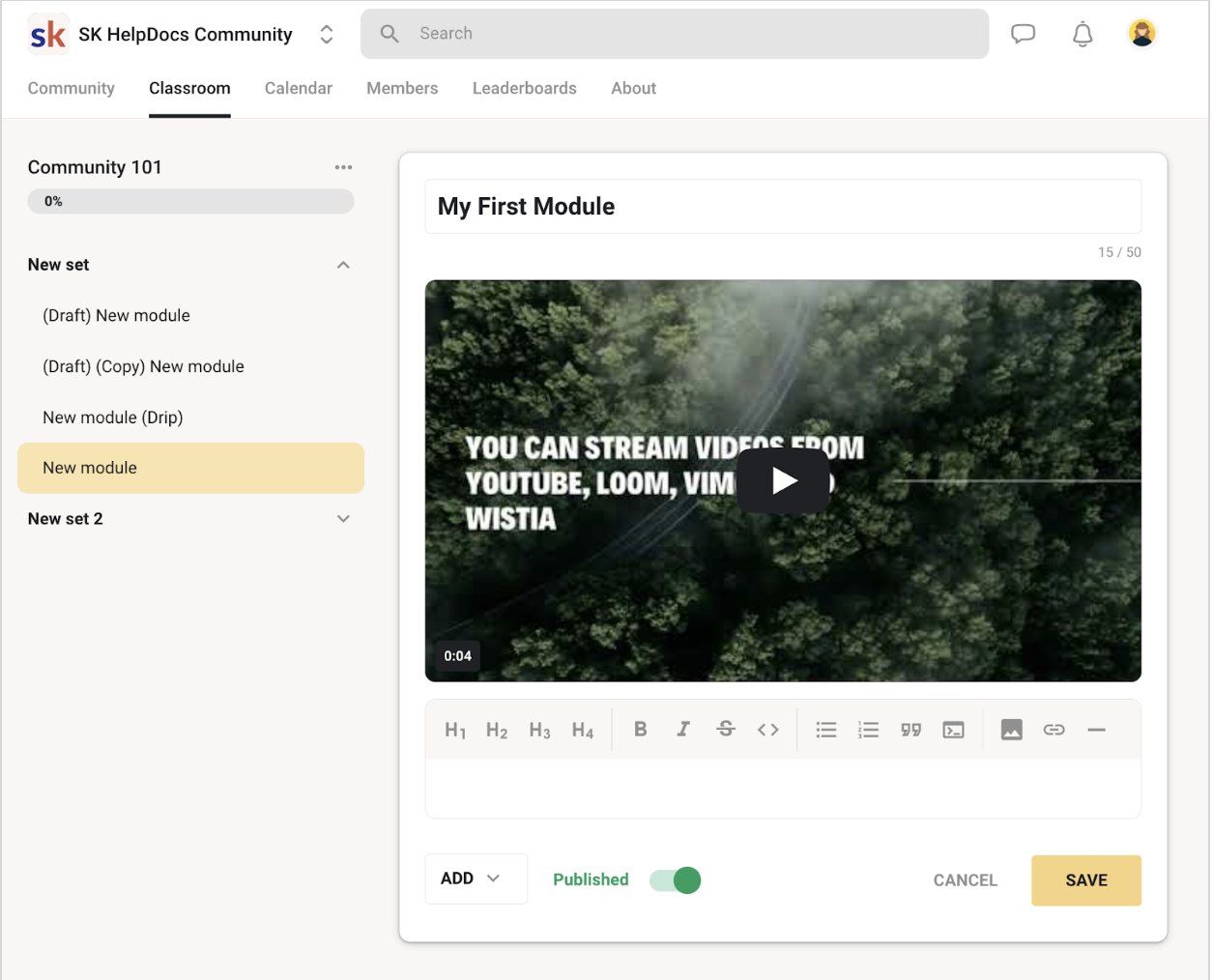
Migrating training courses requires special attention because it involves structured content (videos, resources, quizzes) that must be organized optimally in CrocoClick.
Step 1: Export Training Content from Skool
Download videos:
If your videos are hosted on Skool: download them locally
If they are hosted elsewhere (Vimeo, YouTube, Wistia): note all integration links
Organize videos by course and module in clearly named folders
Export Teaching Resources:
PDFs, documents, templates, workbooks
Links to external resources
Images and infographics used in lessons
Document the structure:
Order of modules and lessons
Descriptions of each course and module
Access conditions (free, paid, by level)
Drip content settings (progressive content)
Step 2: Recreate the Training Courses in CrocoClick
Access the Training section:
In CrocoClick, go to Training > Create a Training Course
Create a new course for each Skool training course
Configure the Training Structure:
Create the modules: Organize your content into logical sections
Add lessons: In each module, create individual lessons
Upload content:
Videos: Upload directly to CrocoClick or embed from Vimeo/YouTube
Resources: Add PDFs and downloadable documents
Descriptions: Write or paste descriptions for each lesson
Advanced settings:
Drip Content: Configure the gradual release of content (e.g., one module per week)
Prerequisites: Define the mandatory order of lessons if necessary
Quizzes and assessments: Recreate quizzes with questions and answers
Certificates: Configure completion certificates if you use them
Step 3: Assign Access to Training Courses
Define Access Permissions:
Configure who can access each training course (free members, premium subscribers, etc.)
Use tags and contact segments to manage access
Link courses to corresponding products/offers (see section 5)
Migrate Progress: If some members have already made progress in your Skool courses, you can:
Export their progress from Skool (manually or via CSV export)
Manually mark lessons as completed in CrocoClick for advanced members
Or clearly communicate that progressions start from scratch (simpler option)
💡TIP: To learn more, read our article [GUIDE] Create and sell a training course on Crococlick
4. Rebuilding Events and Automations
Step 1: Recreate Events in CrocoClick
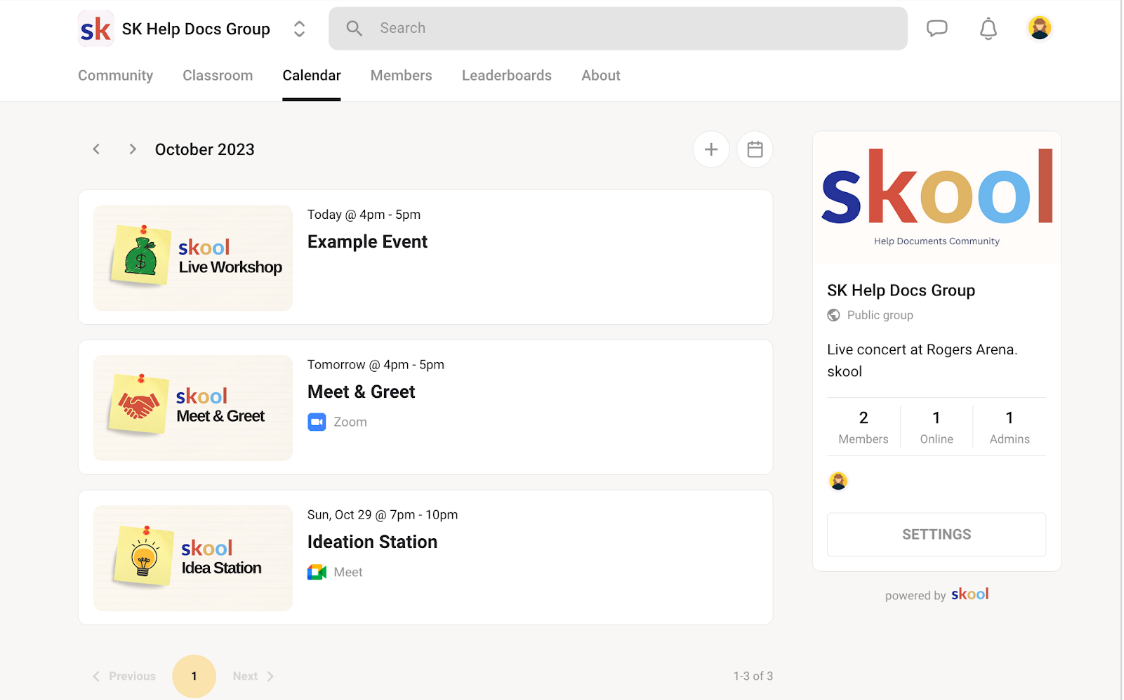
Set up the Event Calendar:
Go to Calendar > Create an Event
Recreate each recurring or one-time event from Skool:
Weekly webinars
Q&A sessions
Group coaching
Themed workshops
Event settings:
Date and time: Set up one-time or recurring events
Video conference link: Add Zoom, Google Meet, etc. links
Registration: Define whether registration is required and create the form
Participants: Select who can view and register (all members, specific segment, etc.)
Configure Event Notifications:
Automatic reminders: Set up reminder emails/SMS 24 hours and 1 hour before the event
Confirmation email: Customize the email sent upon registration
Follow-up email: Create a workflow to send the replay or resources after the event
💡TIP: To learn more, read our articleHow to create an event within a community?
Step 2: Recreate Automation Workflows
Automations are crucial for maintaining engagement and reducing manual workload.
Access Automations:
In CrocoClick, go to Automations > Workflows
Click on Create a Workflow
Essential Automations to Recreate:
A. Welcome Sequence
Trigger: New member joins the community
Actions:
Welcome email introducing the community
Assign the "New Member" tag
Day 1 email: Quick start guide
Email on day 3: Introduction to key resources
Day 7 email: Invitation to participate in an event or ask a question
B. New Content Notifications
Trigger: New post in the community or new lesson available
Actions:
Email to relevant members
Push notification (if enabled)
SMS for important announcements (optional)
C. Engagement and Retention
Trigger: Member inactive for X days
Actions:
Re-engagement email with popular content
Offer of help or coaching
Satisfaction survey
D. Training completion
Trigger: Member completes a course
Actions:
Congratulatory email
Certificate sent (if applicable)
Proposal for next training course
Request for testimonial or review
E. Event reminders
Trigger: Member registered for an event
Actions:
Immediate confirmation email
Reminder 24 hours before (email)
Reminder 1 hour before (text message or email)
Post-event follow-up email with replay
Test Automations:
Test each newly created workflow
Use a test contact to simulate the entire journey
Check that deadlines, conditions, and actions are working correctly
Adjust texts, timings, and conditions based on test results
💡TIP: To learn more, read our article Introduction to the "Automation" tab in CrocoClick
5. Configuring Offers and Products
If you monetize your Skool community or training courses, you will need to recreate your offers in CrocoClick.
Step 1: Identify Your Skool Offers
List all your current products and offers:
Monthly/annual community subscriptions
Access to premium training courses
Individual or group coaching
Digital products (templates, resources)
Upsells and cross-sells
Step 2: Recreate the Products in CrocoClick
Go to the Payments section:
Go to Payments > Products
Click on Create a Product
Configure Each Product:
Name and description: Write a catchy title and a detailed description
Price: Set the price (one-time payment, recurring payment, payment plan)
Access type: Link the product to the corresponding training courses, communities, or content
Stripe Integration: Connect your Stripe account to manage payments
Types of Offers to Configure:
A. Recurring Subscriptions
Configure monthly/annual subscriptions
Set discounts for annual payments
Set up cancellation options
B. One-Time Payments
For lifetime access to training
For digital products
For paid events
C. Payment Plans
Split a large payment into several monthly installments
Example: Training course costing $997 payable in 3 installments of $349
D. Upsells and Order Bumps
Create complementary offers to propose after the main purchase
Set up order bumps (checkbox options) on your order pages
Step 3: Create Sales Funnels
Create Sales Pages:
Go to Sites > Funnels
Create a funnel for each main offer:
Sales page
Checkout page
Confirmation/Thank You Page
Upsell page (optional)
Post-purchase automations:
Confirmation email with access to training/community
Automatic assignment of tags and permissions
Addition to specific onboarding sequences
Notifications to your team (new customer, new revenue)
💡TIP: To learn more, read our article Understanding the differences and links between Training, Offers, and Payment Products
6. Testing and Validation
Step 1: Test the Community and Training
Full User Test:
Create a test account (or use your own account)
Simulate the journey of a new member:
Registration and login
Access to the community
Navigate channels
Creating a post
Accessing training courses
Progressing through a lesson
Registering for an event
Validate Data Integrity:
Verify that all members have been imported correctly
Confirm that email addresses and profile information are accurate
Ensure that roles and permissions are assigned correctly
Test access to training courses for different member levels
Step 2: Validate Events and Automations
Test Each Workflow:
Manually trigger each automation
Verify that emails are sent at the right time
Test the conditions (tags, training steps, etc.)
Ensure that links are working correctly
Test Events:
Sign up for a test event
Check that confirmation and reminder emails are received
Test the videoconferencing links
Confirm that the right members are receiving notifications
Step 3: Test Payments and Offers
Full Transaction Test:
Use Stripe's test mode
Complete a full purchase of each offer
Verify that access is automatically granted
Confirm receipt of confirmation emails
Test upsells and order bumps
Check access:
Confirm that paying members have access to the correct courses
Test access restrictions for premium content
Verify that drip content is working correctly
7. Team Training and Transition
Step 1: Train Team Members
CrocoClick Training Sessions:
Organize training sessions for your team
Cover the essential features:
Community management (moderation, posts)
Member and contact management
Creating and updating training courses
Automation management
Customer support via integrated messaging
Statistics analysis and reports
Documentation and Resources:
Create an internal guide for your team
Document processes specific to your organization
Share links to official CrocoClick documentation
Create tutorial videos for recurring tasks
Step 2: Communicate with Your Members
Announce the Migration: Send a series of communications to your Skool members:
Email 1 (7-10 days before): Migration announcement
Explain why you are migrating to CrocoClick
List the benefits for members (better experience, new features)
Provide the migration date
Reassure them that their data and progress will be preserved
Email 2 (2-3 days before): Reminder and preparation
Remind them of the migration date and time
Explain what will happen (short interruption or not)
Provide preparatory instructions if necessary
Email 3 (D-Day): Access instructions
Send the access links to CrocoClick
Provide a quick start guide
Offer a "Guided Tour" event of the new platform
Include support contacts in case of problems
Email 4 (1 week later): Follow-up and support
Ask for feedback on the new platform
Answer frequently asked questions
Offer individual support if needed
Step 3: Monitor and Optimize
Track key metrics:
Member connection rate on CrocoClick
Community engagement (posts, comments)
Progress rate in training courses
Email open rate
Event participation
Adjust and optimize:
Collect feedback from members
Adjust workflows based on feedback
Optimize the community structure if necessary
Improve training content based on completion data
8. Decommissioning Skool
Step 1: Transition Period
Maintain Skool in Parallel:
Keep your Skool account active for 2-4 weeks after migration
Gradually redirect members to CrocoClick
Post regular reminders in Skool to encourage latecomers to migrate
Keep an eye on the last members active only on Skool
Step 2: Final Backup and Cancellation
Create a Final Backup:
Export all Skool data one last time
Download any content that has not yet been migrated
Archive important discussions
Store this backup securely (external hard drive, cloud)
Announce the closure of Skool:
Send a final email to members still on Skool
Set an access deadline
Remind them of the instructions for migrating to CrocoClick
Offer assistance to the last remaining members
Cancel the Skool subscription:
Once all members have migrated and the transition period is over
Follow the Skool cancellation process
Confirm account closure
Keep proof of cancellation
Step 3: Post-Migration Review
Evaluate the Success of the Migration:
Compare before/after metrics (engagement, course completion, sales)
Identify challenges encountered and solutions implemented
Document lessons learned for future migrations or updates
Celebrate the success with your team! 🎉
Continuous Monitoring:
Continue to monitor CrocoClick's performance
Explore advanced features that have not yet been used
Regularly optimize your automations
Stay informed about new CrocoClick features
Conclusion
By following this guide, you can efficiently migrate your community, training courses, and automations from Skool to CrocoClick. Thanks to the one-click importer, migrating your community and members is now quick and easy, allowing you to focus on the elements that require custom configuration: training courses, automations, and commercial offers.
CrocoClick offers you an all-in-one platform that combines:
🏘️ An engaging community with channels, posts, and events
🎓 Powerful LMS to create and sell your training courses
🤖 Advanced marketing automations to reduce manual work
💰 Sales tools and CRM to grow your business
🎨 Complete white-label customization
Need help? Our support team is available to assist you with your migration. Feel free to contact us via chat or visit our help center.