Migrating from HubSpot to CrocoClick
Complete guide to migrating from HubSpot to CrocoClick, including CRM, workflows and marketing campaigns.
Written By CrocoTeam
Last updated 8 months ago
This comprehensive guide outlines the steps to migrate your business processes, data, and workflows from HubSpot to CrocoClick. The goal is to ensure a smooth transition by minimizing disruptions and maximizing the benefits of CrocoClick's features.
Preparing for migration
Step 1: Review your current HubSpot configuration
Identify key features: Make a list of the features you use in HubSpot, such as CRM, automation workflows, marketing campaigns, calls, SMS, and e-commerce tools.
List existing workflows: Note the details of workflows, pipelines, and campaigns that need to be recreated in CrocoClick.
Assess the volume of data: Evaluate the amount of data (contacts, transactions, emails) to be migrated, and make sure you have enough storage space in CrocoClick.
Step 2: Define migration objectives
Set clear objectives: Define what you want to achieve with the migration, such as improved automation, better CRM integration, or cost savings.
Prioritize features: Identify the most critical features and data sets to migrate first.
Step 3: Prepare a backup
Export data from HubSpot: Export all necessary data from HubSpot, including contacts, companies, deals, tickets, workflows, and other essential records.
Back up data: Ensure you have a secure backup of all data before beginning the migration.
Migrate CRM data
Step 1: Export data from HubSpot
Contacts and companies: Go to Contacts > Contacts and CRM > Companies. Export the data to CSV files.
Deals and pipelines: Go to Sales > Deals. Export your pipelines and associated deals.
Marketing resources: Export emails, landing pages, forms, and workflows.
Products and invoices: Export your product catalog and all invoices generated via HubSpot's payment tool.
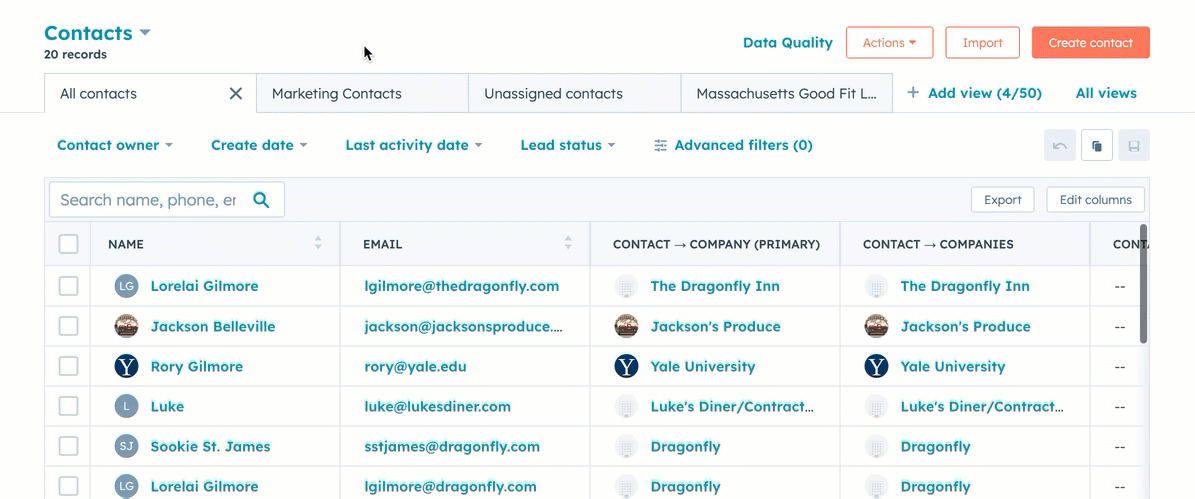
Step 2: Import data into CrocoClick
Import contacts and companies:
In CrocoClick, go to Contacts > Import contacts.
Upload the CSV files exported from HubSpot, mapping the fields correctly (e.g., first name, last name, email).
Recreate transactions and pipelines:
Set up new pipelines in CrocoClick under Opportunities > Pipelines.
Manually recreate transactions or import them if necessary.
Migrate products and invoices:
Recreate products in CrocoClick under Payments > Products.
Set up invoices and payment links using CrocoClick's invoicing tool.
Migrate workflows and automations
Step 1: Review existing workflows in HubSpot
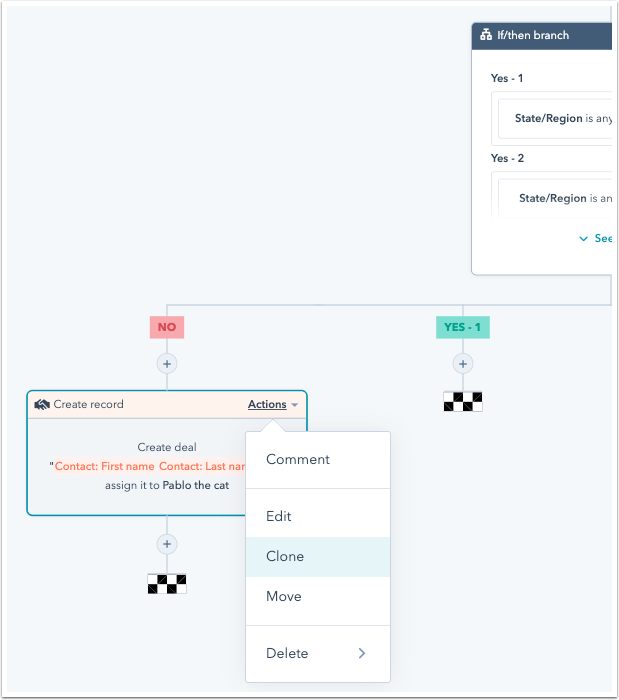
List active workflows: Identify and list all active workflows in HubSpot, including triggers, actions, and delays.
Assess workflow complexity: Analyze the complexity of each workflow to determine the best approach for recreating them in CrocoClick.
Step 2: Recreate workflows in CrocoClick
Create automation triggers:
In CrocoClick, go to Automation > + Workflow.
Configure triggers equivalent to those in HubSpot (e.g., form submissions, contact updates).
Recreate actions and delays: Recreate actions such as sending emails, text messages, adding tags, or updating deal stages. Configure the necessary delays and conditional logic in the workflows.
Step 3: Test the workflows
Perform tests: Before activating workflows, perform tests to verify that they are working properly.
Adjust settings: Make any necessary adjustments based on the test results to ensure smooth operation.
Migrate marketing campaigns
Step 1: Export and recreate email campaigns
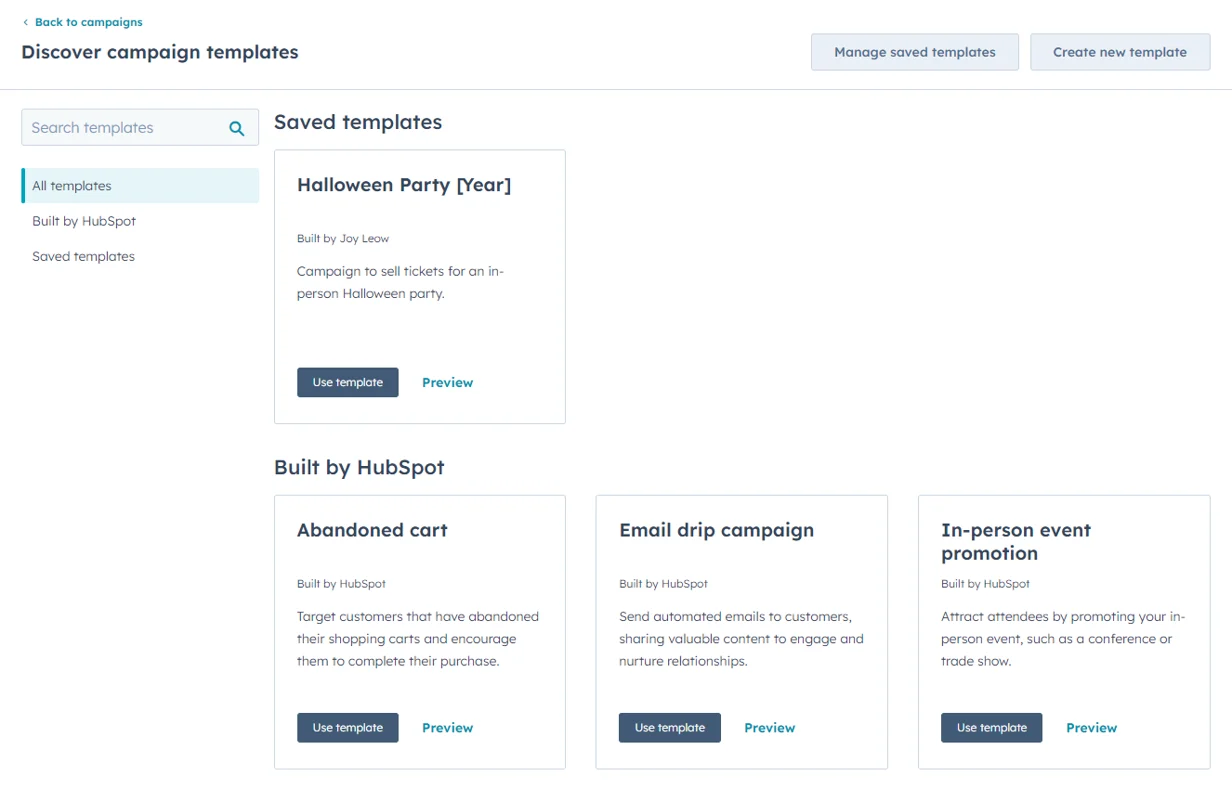
Export email templates: Save HTML copies of your HubSpot email templates.
Import or recreate in CrocoClick:
In CrocoClick, go to Marketing > Emails > Templates.
Recreate or import your email templates and configure them to match existing designs.
Step 2: Recreate landing pages and forms
Export landing pages: Download the HTML of your HubSpot landing pages.
Recreate in CrocoClick:
Use the CrocoClick page builder via Sites > Funnel.
Ensure that all forms and CTA buttons are linked to your workflows in CrocoClick.
Step 3: Campaign settings
Set up campaigns: Create your campaigns in CrocoClick, making sure all elements (emails, landing pages, forms) are linked. Set specific goals, budgets, and tracking settings as needed.
Migrate communication tools
Step 1: Migrate calls and SMS
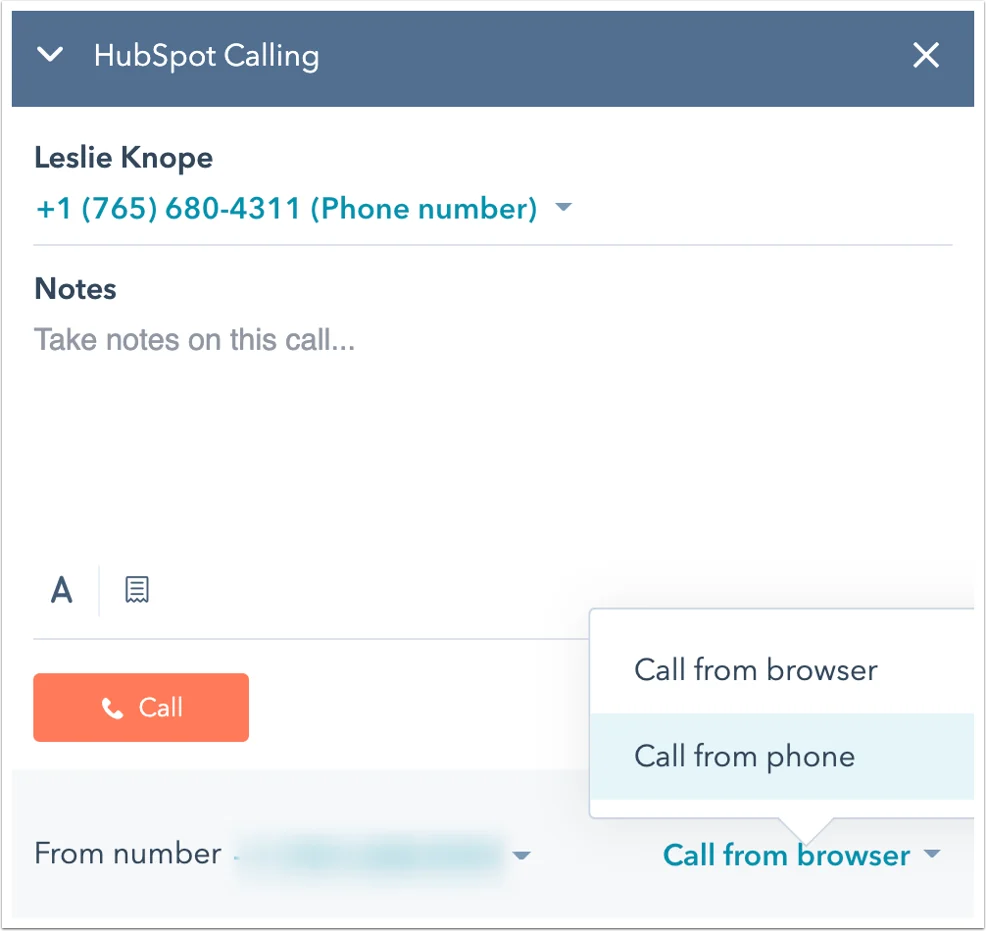
Twilio integration: If you use Twilio in HubSpot, integrate it with CrocoClick for calls and SMS. Go to Settings > Phone Numbers to configure your Twilio account.
Set up communication workflows: Set up automation workflows for SMS and calls in CrocoClick under Automation > Workflows, ensuring that all customer communications are recorded and tracked correctly.
Step 2: Set up the Conversations inbox
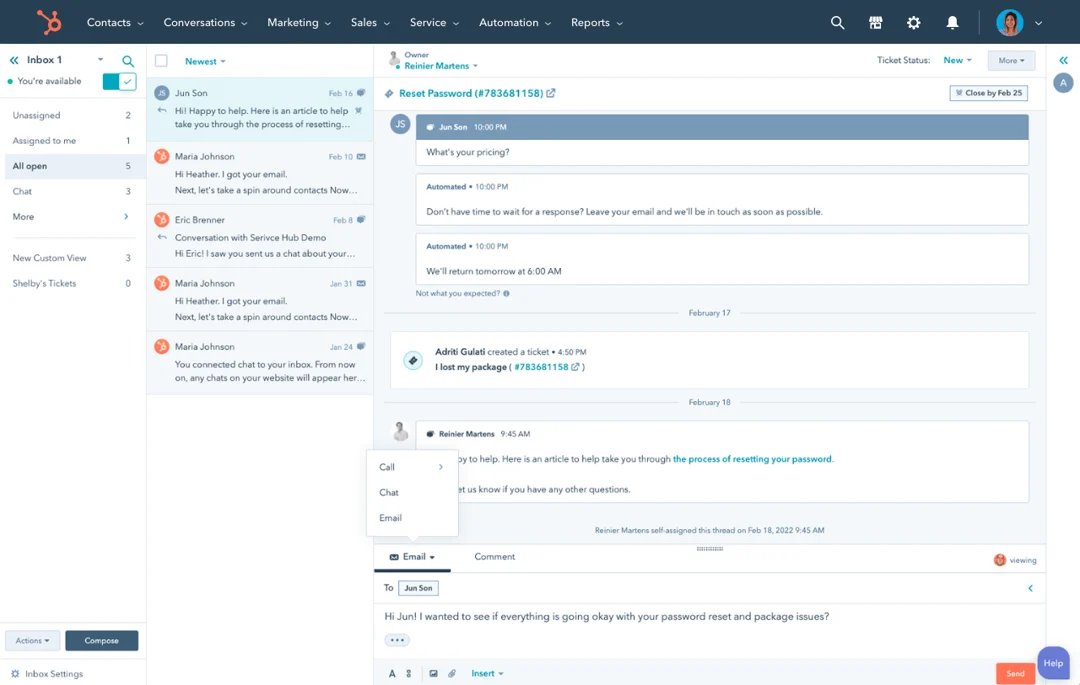
Set up the inbox: In CrocoClick, go to Conversations > Inbox. Set up your default inbox and connect communication channels such as email, SMS, and Messenger to it.
Test communication channels: Verify that all channels are working properly and that messages are being routed to the correct inbox.
Final checks and training
Step 1: Perform final data validation
Cross-check data: Ensure that all data has been successfully migrated and that there are no discrepancies between HubSpot and CrocoClick records.
Validate workflows and campaigns: Confirm that all workflows, automations, and campaigns are working correctly.
Step 2: Train team members
CrocoClick training: Provide training to your team so they can master CrocoClick, focusing on the differences with HubSpot.
Use CrocoClick support: Encourage team members to use CrocoClick's support resources and community forums for ongoing learning.
Step 3: Monitor and optimize
Track performance: Monitor the performance of your new setup in CrocoClick and make any necessary adjustments.
Continuous improvement: Regularly review and optimize workflows, automations, and campaigns to align them with your business goals.
Deactivating HubSpot
Step 1: Transition period
Parallel operation: Consider running HubSpot and CrocoClick in parallel during the transition period to avoid missing critical operations.
Phased withdrawal: Gradually reduce your use of HubSpot as CrocoClick becomes fully operational.
Step 2: Cancel HubSpot subscription
Final data backup: Before canceling your HubSpot subscription, ensure that all data is securely backed up.
Official cancellation: Follow HubSpot's procedure to cancel your subscription and terminate services.
Step 3: Post-migration review
Evaluate success: Assess the success of the migration process and document lessons learned.
Ongoing monitoring: Continue to monitor the system after migration to identify any potential issues.
Conclusion
Migrating from HubSpot to CrocoClick allows you to centralize and optimize your CRM and marketing processes. By following this step-by-step guide, you can ensure a smooth transition and take full advantage of CrocoClick's features to better manage your customers and campaigns.