Migrating from Calendly to CrocoClick
Migrate from Calendly to CrocoClick and improve your appointment management and automation with advanced features.
Written By CrocoTeam
Last updated 8 months ago
This comprehensive guide helps you migrate the scheduling and appointment components from Calendly to CrocoClick. The goal is to ensure a smooth transition while retaining scheduling and automation features and taking advantage of CrocoClick's extended functionality.
IMPORTANT: Be sure to migrate all of the following when switching from Calendly to CrocoClick:
Users
Calendar settings
Availability settings
Video conferencing
Payment collection
Event types (Calendars)
Workflows (Automations)
Migrate users
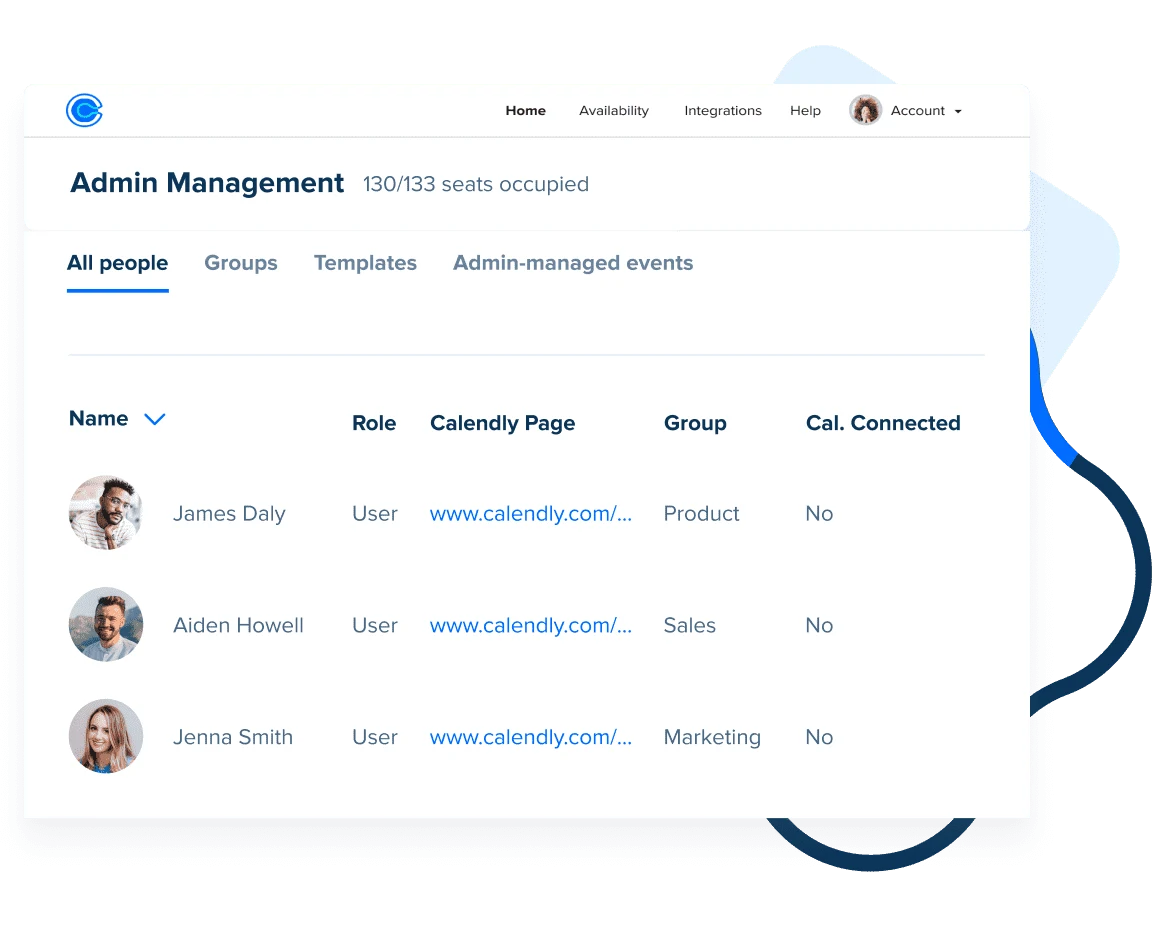
Calendly allows you to manage multiple users within a Calendly organization (equivalent to an Agency level). Each user has their own Calendly account and page, as well as event types assigned to them.
Step 1: Export the list of Calendly users
Log in to Calendly: In the upper right corner, select Account > Users, then click Export. A CSV file will be downloaded.
Step 2: Add and assign users in the CrocoClick sub-account
Log in to CrocoClick: Go to Agency Settings > Team. Make sure that Calendly users are added and assigned to the CrocoClick sub-account.
Use the + Add Employee button to add any missing users, referring to the exported file to determine their role.
Migrate calendar settings
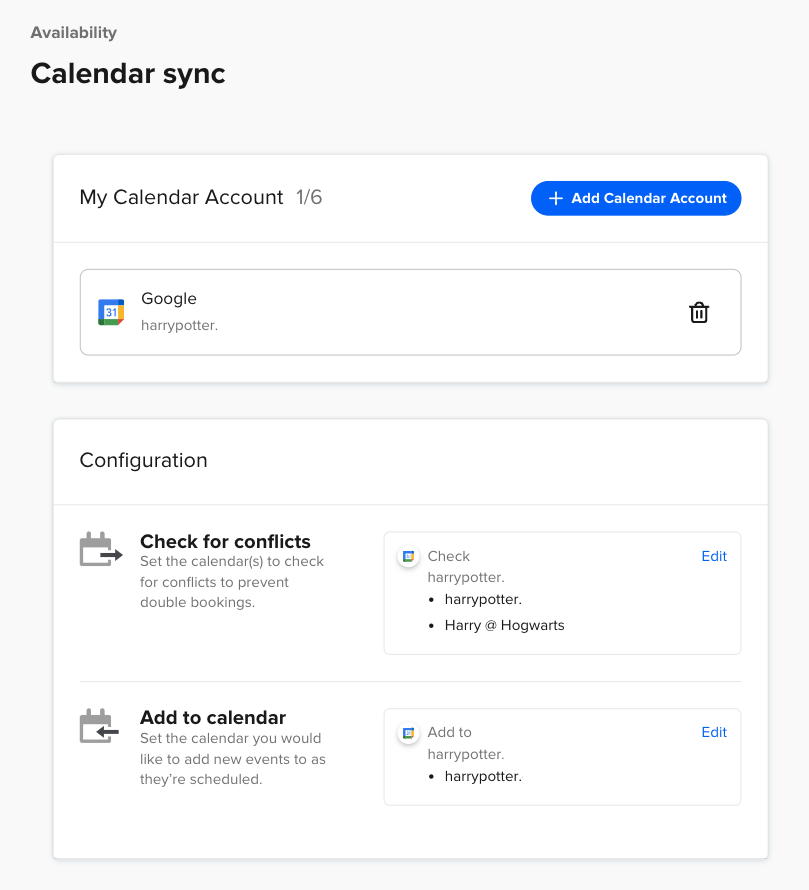
Calendly synchronizes user availability with Google Calendar, Outlook, and iCloud to avoid double bookings. CrocoClick offers a similar feature.
💡 TIP: Repeat the following steps for each user you want to migrate.
Step 1: Disconnect Google Calendar from Calendly
Access calendar synchronization settings: In Calendly, go to Account > Calendar Synchronization.
Disconnect the calendar: Disconnect your Google/Outlook calendar from Calendly.
Step 2: Connect Google Calendar to CrocoClick
Go to Integrations: In CrocoClick, go to Settings > Integrations.
Connect Google Calendar and Outlook: Select Google and follow the instructions to connect. CrocoClick will check for calendar conflicts based on your availability in Google Calendar.
Configure synchronization preferences: Go to Calendars > Calendar Settings > Connections to set synchronization preferences (cancellations, etc.) as in Calendly.
Step 3: Verify after migration
Test calendar synchronization: Schedule a test event in Google and verify that it appears as busy in CrocoClick calendars.
Migrate availability settings
Calendly offers several scheduling settings, such as time slots, time zone management, etc., which must be replicated in CrocoClick to ensure consistency.
Step 1: Document scheduling settings
Check existing settings: In Calendly, note the current settings such as available hours, buffer times, notice periods, etc.
Step 2: Configure scheduling in CrocoClick
Availability settings: In CrocoClick, configure your available hours, buffer times, and daily limits according to the Calendly settings.
Time zone settings: Ensure that the time zone is correctly configured in CrocoClick, matching those in Calendly.
Step 3: Verification after migration
Check availability: Confirm that the available hours in CrocoClick match those in Calendly.
Set up video conferencing
Calendly integrates with Zoom to automatically generate meeting links. This feature can be configured in CrocoClick.
Step 1: Disconnect Zoom from Calendly
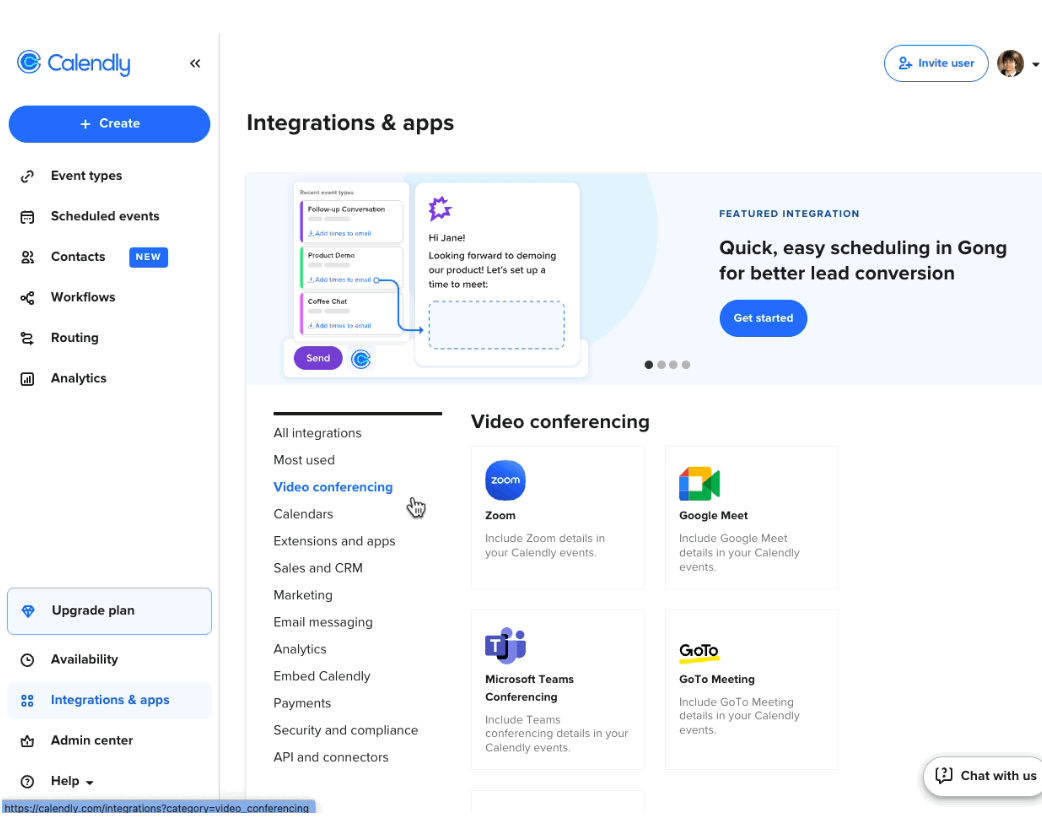
Access Integrations: In Calendly, go to Integrations > Zoom.
Disconnect Zoom: Follow the steps to disconnect Zoom from Calendly.
Step 2: Connect Zoom to CrocoClick
Go to Integrations: In CrocoClick, go to Settings > Calendar > Connections.
Connect Zoom: Select Zoom and log in to your account. Authorize CrocoClick to access Zoom.
Set Zoom as default location: In CrocoClick's calendar settings, select Zoom as the default location for your appointments.
Set up payment collection
Calendly supports payments via Stripe for event types. In CrocoClick, you will need to create additional locations to connect multiple Stripe accounts.
Step 1: Disconnect Stripe from Calendly
Connection to Calendly: On the Integrations page, select the Stripe option and click Disconnect.
💡 TIP: Any event type using payments in Calendly will become FREE once Stripe is disconnected.
Step 2: Connect Stripe to CrocoClick
Connect to your CrocoClick sub-account: Go to the Payments > Integration tab and connect Stripe.
Step 3: Enable payment collection in calendars
Go to Settings > Calendar to set up payment collection.
Migrate event types (Calendars)
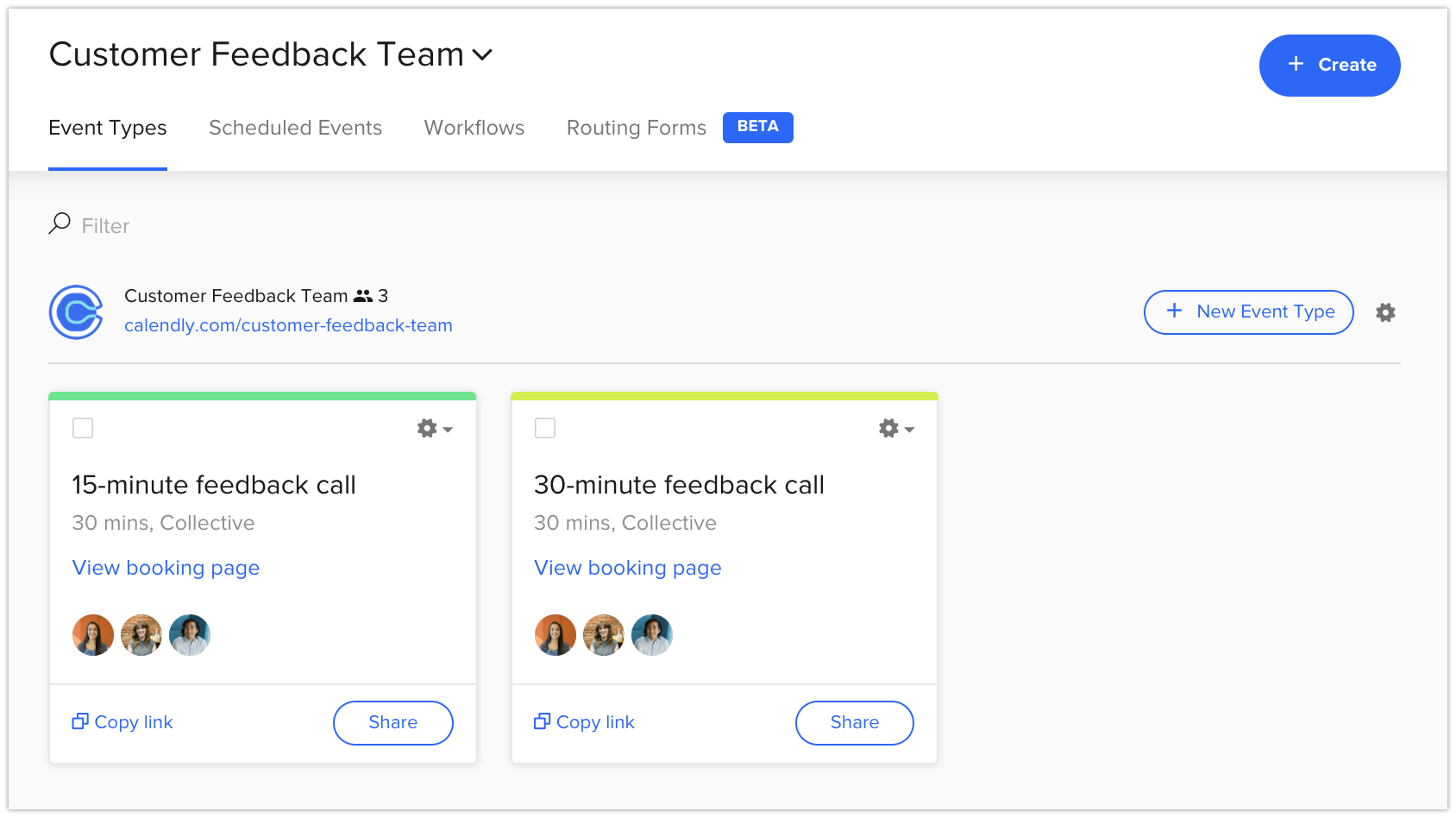
In Calendly, calendars are called Event Types. They allow you to schedule meetings, collect payments, and gather additional information from contacts. In CrocoClick, this is managed through the appointment scheduling system.
Step 1: Collect event types
List event types: In Calendly, identify and document each event type, including its name, duration, location, and associated settings.
Specify details: Include buffer times, minimum notice periods, daily limits, etc.
Step 2: Recreate event types in CrocoClick
Access calendars in CrocoClick: Go to Calendars > Calendar Settings.
Create a new event type: Click Create New Calendar and configure details such as name, duration, and buffer settings.
Custom fields: If your Calendly event types collected additional information, you can recreate custom fields in CrocoClick.
Step 3: Share scheduling links
Generate and share the link: After configuration, generate the scheduling link in CrocoClick and share it with your team or embed it in your websites and emails to replace the old Calendly links.
Step 4: Verify after migration
Test the booking process: Make a test booking to ensure that all features (e.g., buffer time, form questions, notifications, Zoom link) are working correctly.
Migrate Workflows (Automations)
Calendly workflows automate tasks such as sending reminder emails or follow-up messages. CrocoClick offers similar features through its workflow system.
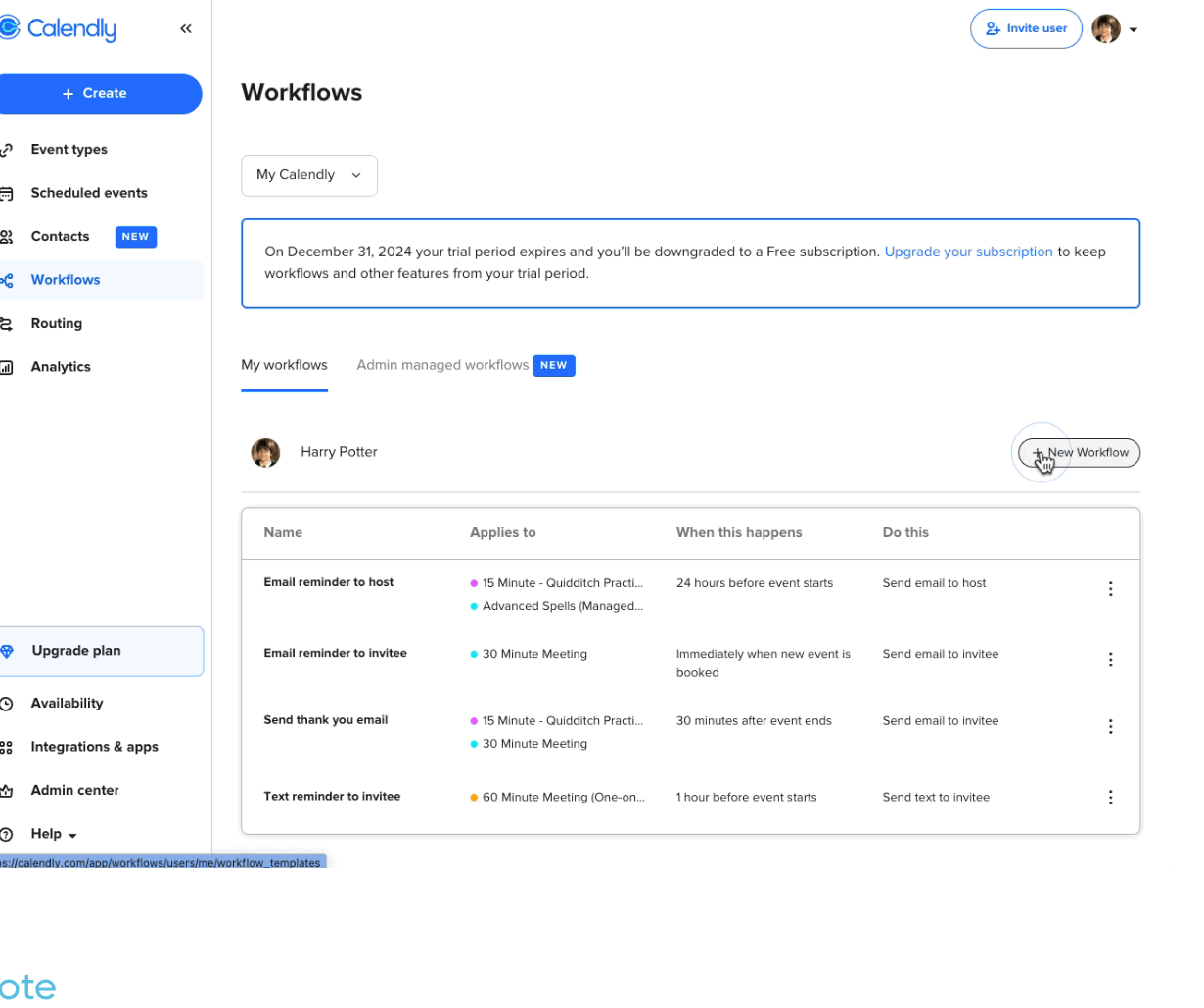
Step 1: Collect existing workflows
Review Workflows in Calendly: From your Calendly home page, select Workflows in the left navigation panel. List the workflows configured in Calendly, including triggers (e.g., event creation, event cancellation) and actions (e.g., send an email, send an SMS).
Step 2: Recreate workflows in CrocoClick
Access workflows: In CrocoClick, go to Automation > Create Workflow.
Create a New Workflow: Select Create New Workflow and configure the conditions and actions based on what has been documented in Calendly. Use CrocoClick's trigger options to start the workflow based on similar events (e.g., appointment booked, canceled, absence).
Customize Messages: Customize the email or SMS messages integrated into the workflow, using CrocoClick variables for optimal personalization.
Step 3: Verification after migration
Test Workflow Execution: Create a test appointment and verify that workflows trigger as expected. Ensure that messages are sent at the right times with the correct content.
Migrate Contacts
Before finalizing the transition, it is essential to export Calendly appointment data, which contains contact information, to avoid any data loss.
Step 1: Export Event Details
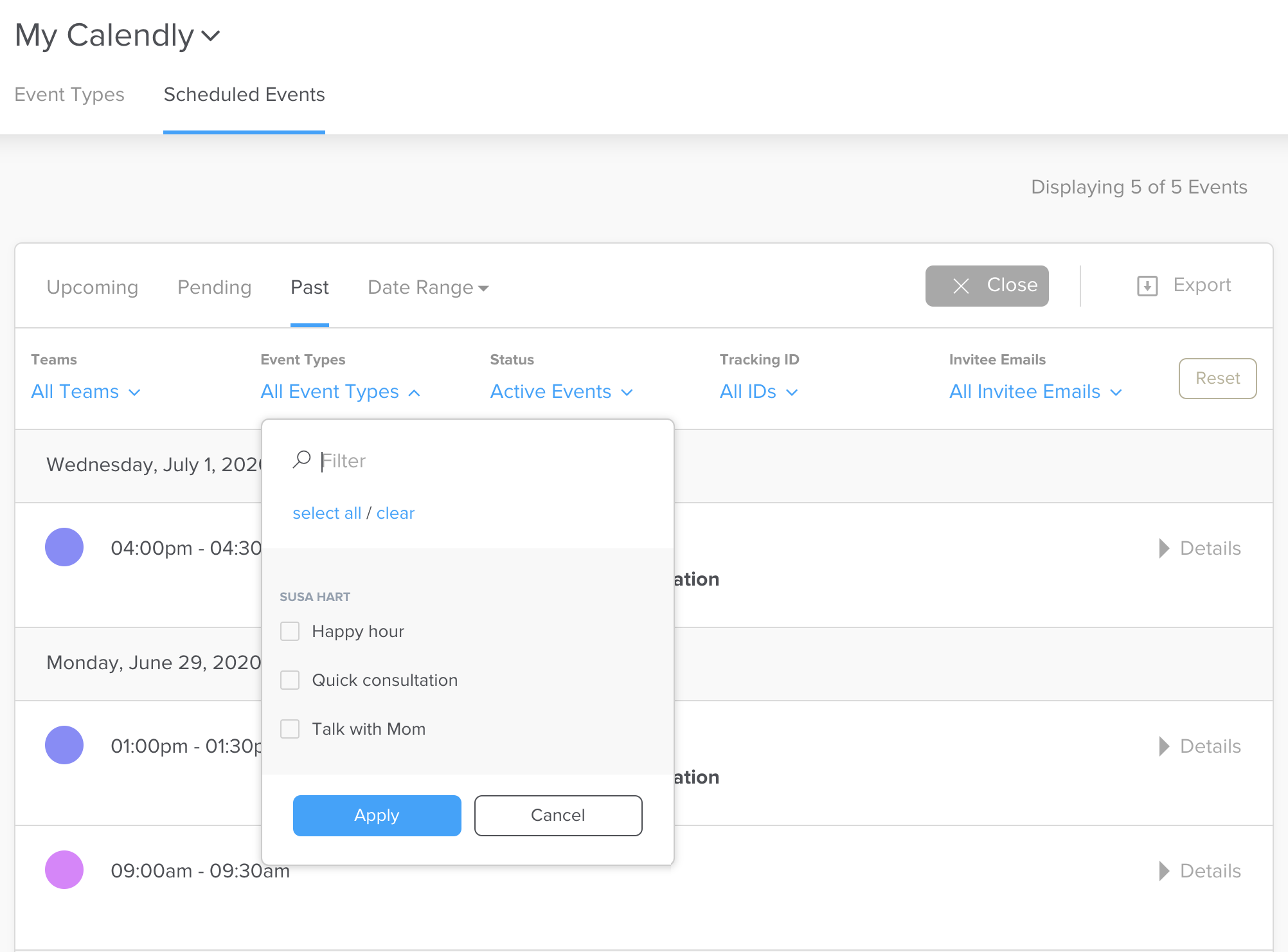
Filter Events in Calendly: In Calendly, filter events to display the ones you want to export (e.g., last 30 days, specific event types). On your home page, select Meetings.
Export to CSV: At the top right of the scheduled events page, select Export to download the event details in CSV format. This file will include guest contact information, event types, dates, locations, etc.
Step 2: Prepare CSV Data and Import Contacts into CrocoClick
Resolving bulk import issues via CSV.
Additional Considerations for Migration
Training and Support
Internal Training: Organize training sessions for team members on how to use CrocoClick, focusing on features that differ from Calendly.
Access Support: Ensure the client's team knows how to access CrocoClick support resources for any scheduling-related questions.
Migrating Other Applications
Calendly is a unique feature: Are there other tools in the client's technology stack? Use our software guides to help the client migrate other applications.
Conclusion
Migrating from Calendly to CrocoClick optimizes your scheduling operations with unified management and advanced features. By following this step-by-step guide, you can ensure a smooth transition and maintain a consistent user experience for your teams and customers.