Modify the DNS records of a domain purchased from CrocoClick
Learn how to easily modify the DNS records (A, CNAME, MX, TXT) of a domain purchased from CrocoClick in just a few clicks - directly from your dashboard, without any external service.
Written By CrocoTeam
Last updated 6 months ago
When you purchase a domain directly through CrocoClick, you can manage your DNS records without using an external service.
Everything is done from your CrocoClick account: adding, modifying, or deleting A, CNAME, MX, TXT, and other records.
Where to find the domain settings
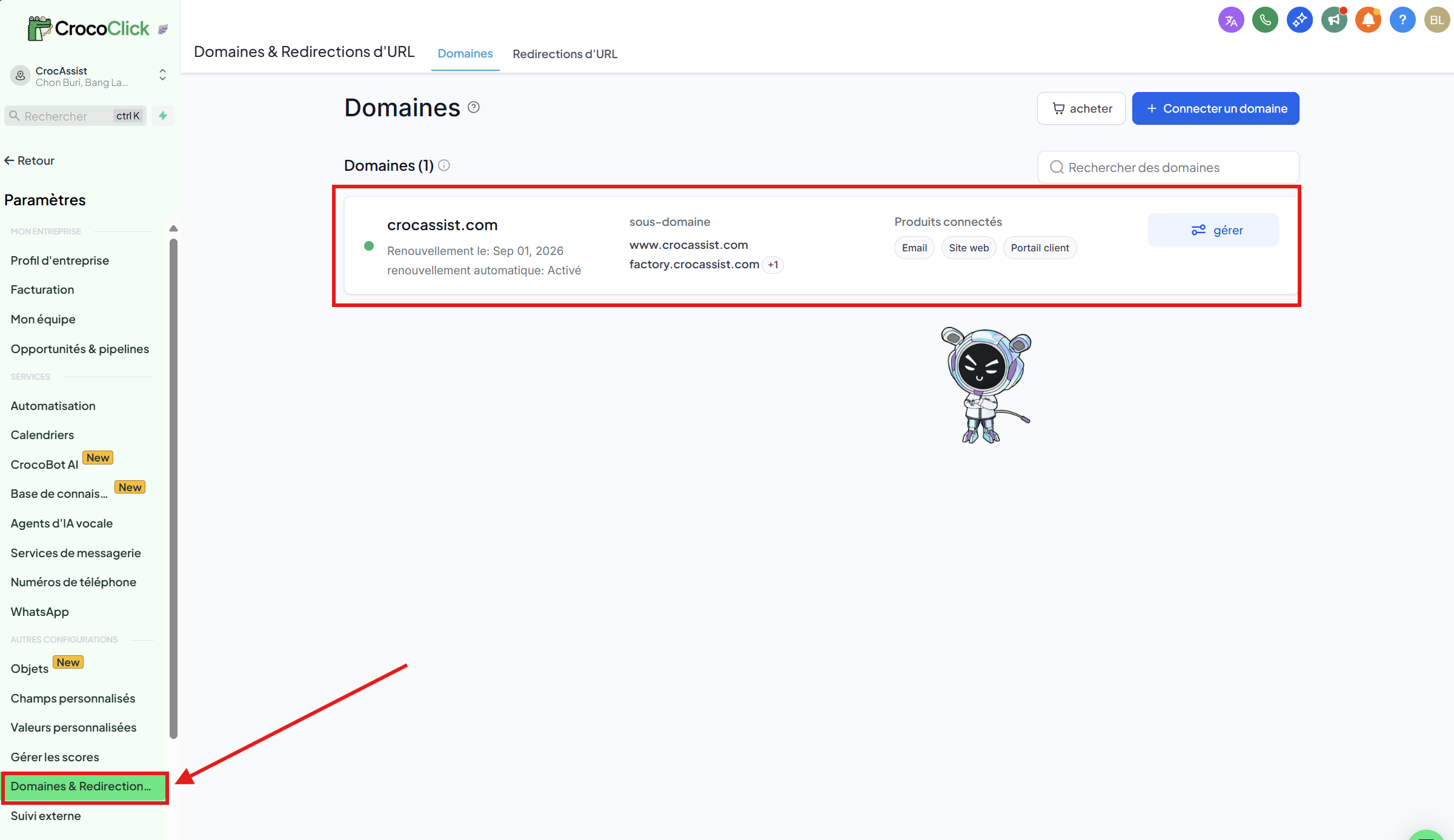
Go to your account's "Settings".
Click on "Domains & Redirects".
Go to the "Domains" tab.
Next to the relevant domain, click "Manage."
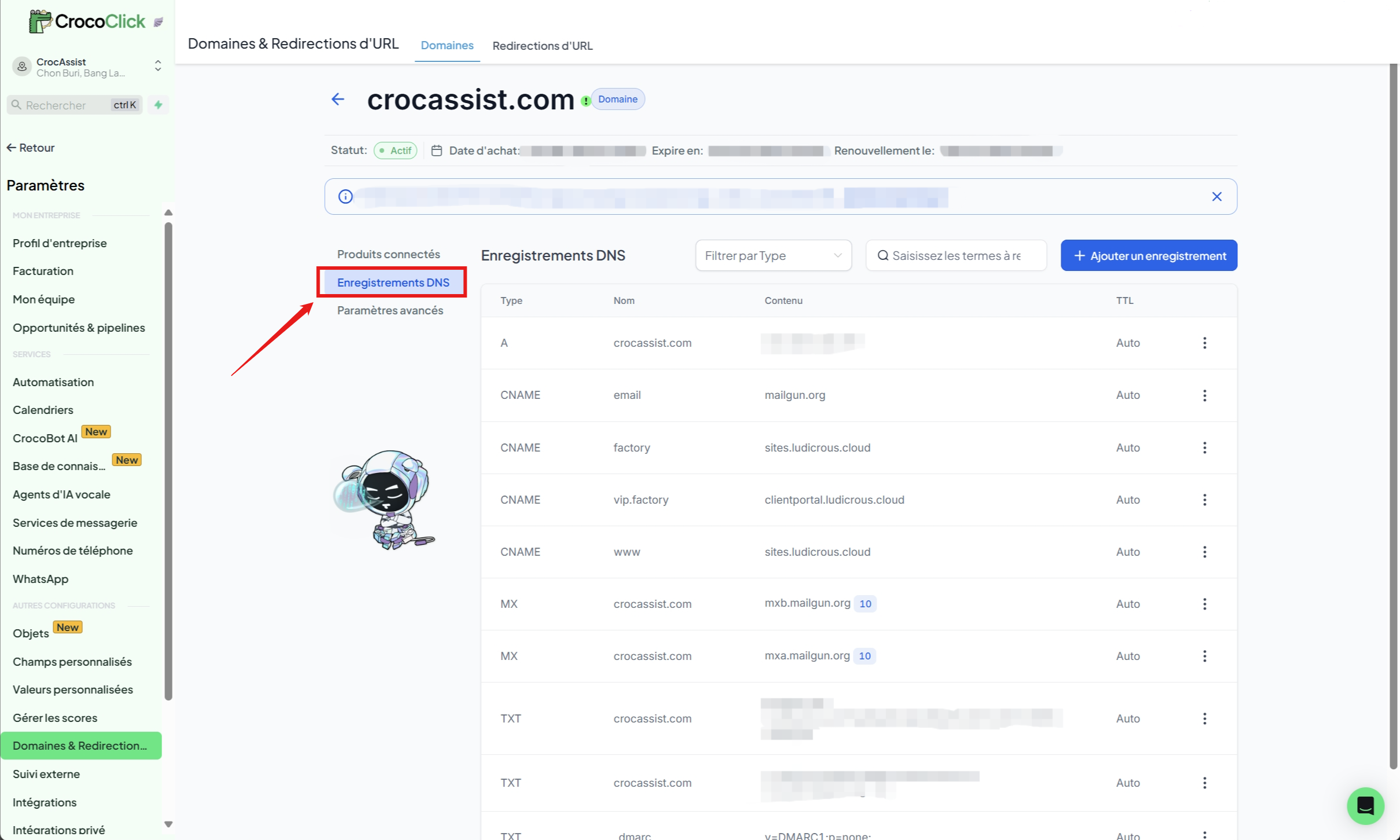
Then click "DNS Records" to access your settings
Edit DNS records
In the domain configuration section, you can:
Add a record
Edit an existing record
Delete an unnecessary record
Available record types
You can manage the following types:
A
CNAME
AAAA
MX
TXT
💡 Tip:
Only one A record should be defined for a root domain (e.g., yourdomain.com).
Multiple A records for the same domain can cause DNS resolution conflicts.
Connect your domain to a CrocoClick site
To link your domain to an item created in CrocoClick (website, tunnel, store, blog, etc.):
Go to the Connected Products section.
Select what you want to connect (website, funnel, store, etc.).
Click Continue.
Click Add Records.
Select the correct site type and confirm by clicking Proceed.
Complete the setup → your domain is connected ✅
FAQ
Which DNS records can I edit on CrocoClick?
You can manage all of the following records directly from CrocoClick:
A
CNAME
AAAA
MX
TXT
No need to use another external DNS manager.
Do I need to verify my domain after purchase?
No.
Domains purchased through CrocoClick are automatically verified.
You can immediately begin setup and connect your domain to your pages.