Troubleshooting web domain connection problems
Resolve common CrocoClick domain connection errors: A, AAAA, CAA, DNS and product record conflicts.
Written By Baptiste Lorreyte
Last updated 4 months ago
Connecting your own domain name to CrocoClick gives your tunnels, websites, and member areas a custom address (for example, www.votreentreprise.com) instead of a generic URL. The connection is set up through your DNS records, and that’s exactly where most issues arise.
Good news: almost all connection errors stem from a small number of known causes. This guide walks through them one by one, with the solution for each.
💡 TIP: Before you begin, make sure you have access to your domain registrar (where you purchased your domain: OVH, GoDaddy, Namecheap, Cloudflare, etc.). This is where you modify your DNS records.
1. Conflict of Multiple A Records
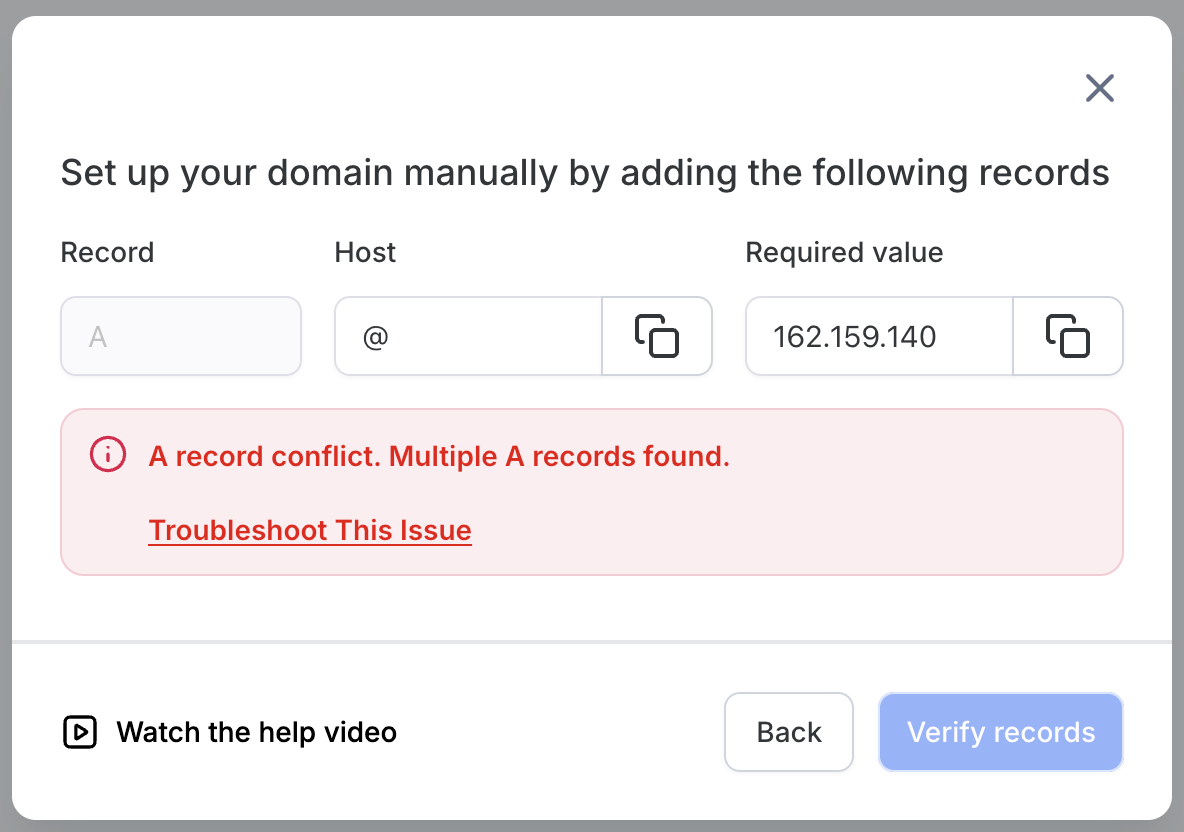
What is an A record?
An A record links your domain name to an IP address. It directs your visitors to the correct server—the one where your site is hosted.
When the problem occurs
If your domain has multiple A records, the system no longer knows which IP address to use. As a result, your site may not load properly.
Solution
Log in to your registrar’s DNS settings (OVH, GoDaddy, Namecheap, Cloudflare, etc.).
Open your domain’s DNS zone.
Locate the A records of the type
@orvotredomaine.comthat point to an IP address (@corresponds to your root domain, for examplevotredomaine.com).Delete all A records that point your domain or subdomains (for example,
www.votredomaine.com) to an IP address.Save, then wait 1 to 2 minutes.
Reconnect your domain in CrocoClick.
2. AAAA record conflict
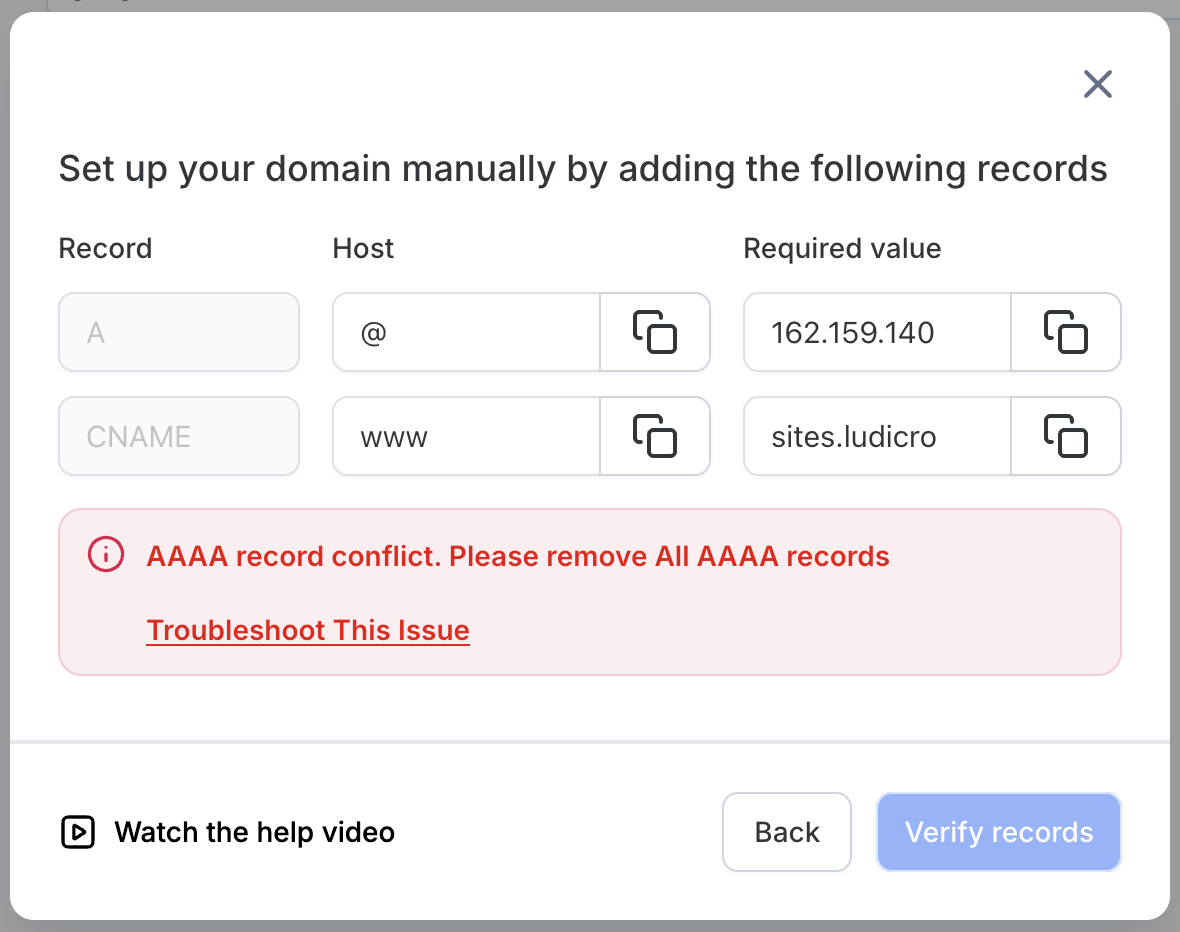
What is an AAAA record?
An AAAA record works like an A record, but for IPv6 addresses (the new generation of IP addresses).
When the problem occurs
CrocoClick works only with IPv4 records. If an AAAA (IPv6) record is present, it conflicts with the expected configuration and prevents the domain from connecting.
Solution
Log in to your registrar’s DNS management panel.
Locate the AAAA record (often labeled
AAAAorIPv6).Delete the AAAA record.
Save, then wait 1 to 2 minutes.
Reconnect your domain in CrocoClick.
⚠️ Note (GoDaddy users): If your domain is hosted by GoDaddy, make sure the DNS proxy (also known as DNSSEC or DNS protection) is disabled. GoDaddy’s proxy may automatically regenerate AAAA records or block your changes. Disabling it ensures your DNS changes actually take effect.
3. CAA record conflict
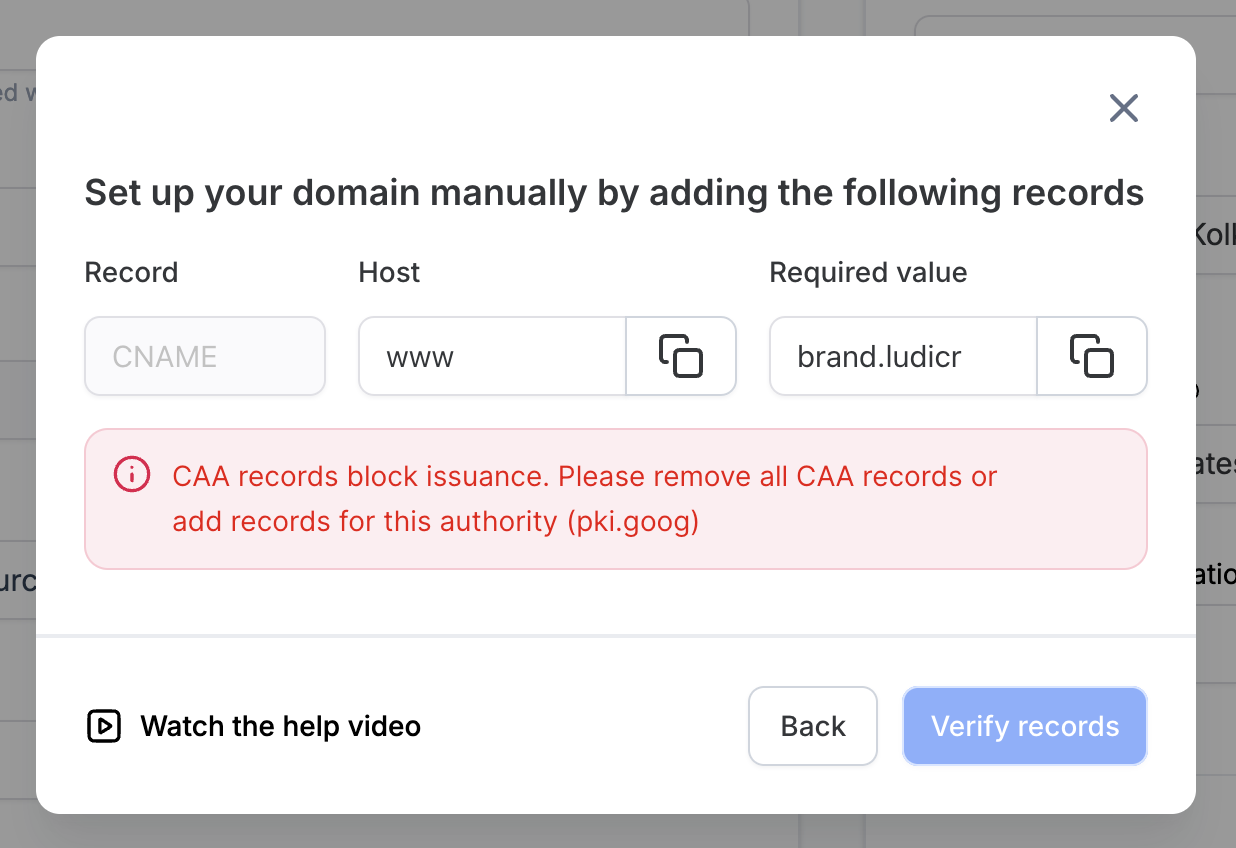
What is a CAA record?
A CAA (Certificate Authority Authorization) record specifies which certificate authorities are authorized to issue SSL certificates for your domain. It is a security layer that restricts certificate issuance to authorized providers.
When the problem occurs
If a CAA record exists but does not contain the required value (pki.goog), CrocoClick cannot generate an SSL certificate for your domain.
Solution
Recommended method (for most users)
Log in to your registrar’s DNS management panel.
Locate the CAA record (often labeled
CAA).Delete the CAA record.
Save, then wait 1 to 2 minutes.
Reconnect your domain in CrocoClick.
Advanced method (modify instead of deleting)
If you want to keep your CAA record while authorizing CrocoClick, add the following value to your existing CAA record:
pki.goog
This will allow CrocoClick to issue SSL certificates for your domain without affecting your other security rules.
💡TIP: To publish a new CAA record, you’ll often need to select “CAA” as the type, “@” as the host, and “pki.goog” as the value
4. The DNS records do not match
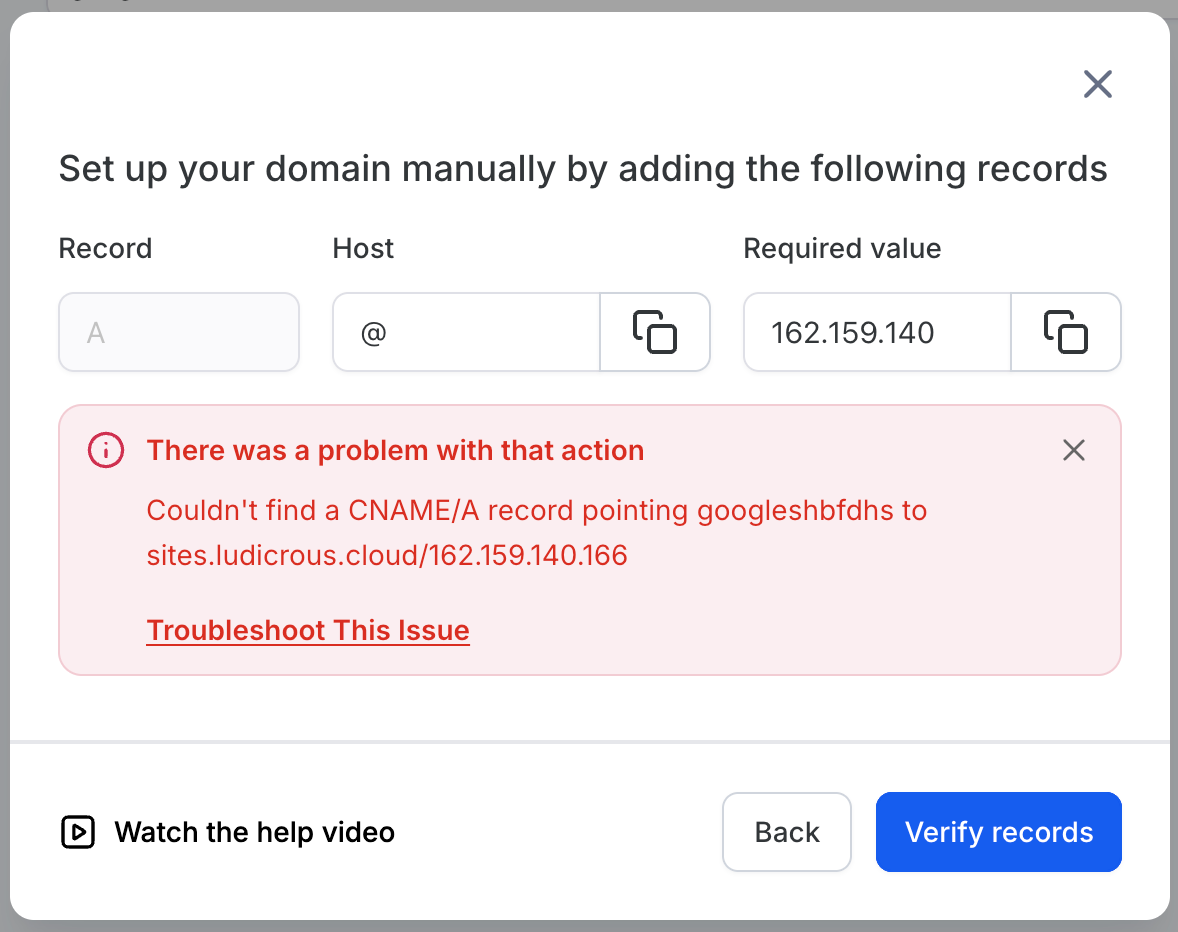
What this means
This error appears when your domain’s DNS configuration does not match what CrocoClick expects. Possible causes: conflicting records, incorrect configuration, or a domain still linked to another service.
When the problem occurs
Either the DNS records are not configured correctly, or they are but propagation is not complete (DNS changes sometimes take a few minutes to take effect).
Solution
1. Check your DNS records
Use a DNS checker (such as DNS Checker) to verify propagation, then compare your records with those required by CrocoClick. In most cases, CrocoClick provides specific values (an IP address for an A record, or a CNAME record).
2. Check for conflicts
If your records match: wait a few minutes for propagation to complete (up to 48 hours in extreme cases).
If your records conflict: correct or delete the incorrect entries. Be sure not to leave any unnecessary A records if an A record is required. If a CNAME is required, delete the conflicting A or AAAA records.
3. Reconnect your domain
Save your changes, then wait 1 to 2 minutes.
Reconnect and verify your domain in CrocoClick.
⚠️ Note (GoDaddy users): If your domain is with GoDaddy, make sure it isn’t “parked.” Log in to your GoDaddy account, go to My Products, then Domains, and click Manage DNS next to your domain. If the domain is parked, GoDaddy is holding it and preventing any connection to an external service: unpark it by following GoDaddy’s instructions.
5. Product conflict: domain already connected to another product
What is a product conflict?
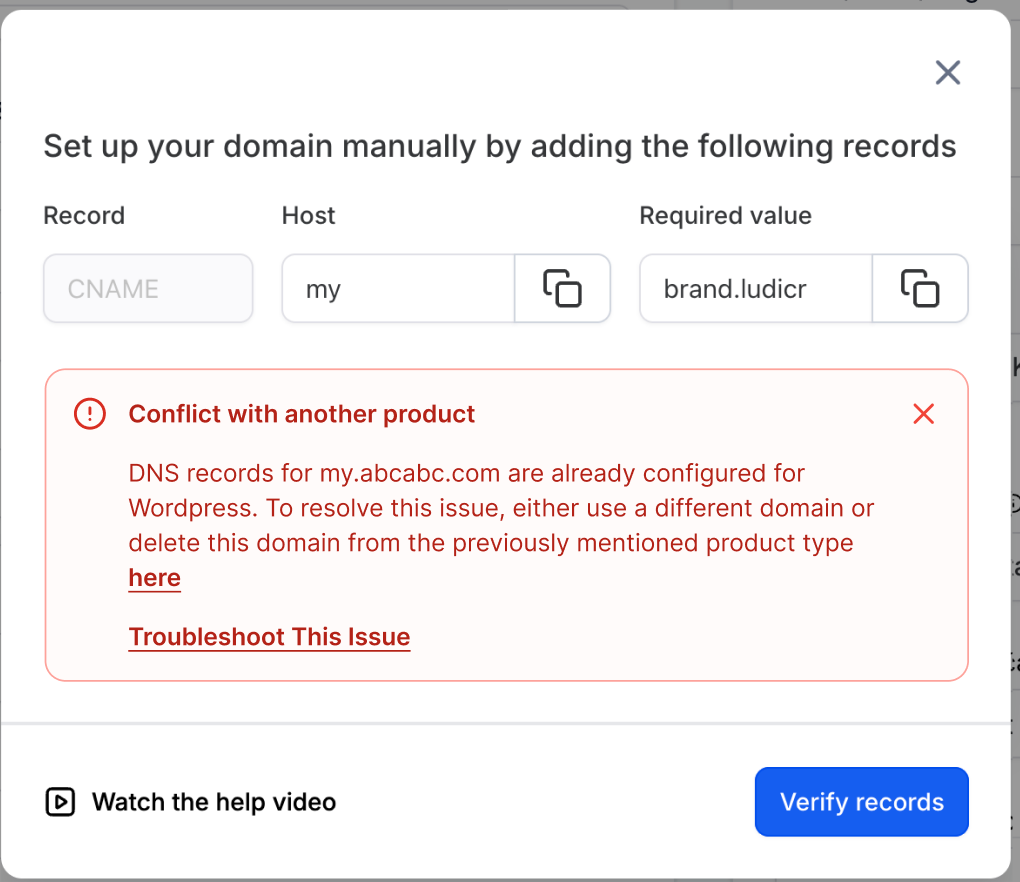
A product conflict occurs when a domain or subdomain is already associated with another type of product in CrocoClick (WordPress, Tunnel, Client Portal, etc.). Each product type requires exclusive control over the domain to function properly.
When the problem occurs
You are trying to connect a domain (e.g., mon.entreprise.com) to a product such as Webinar or Client Portal, but that domain is already linked to another product (e.g., WordPress).
Solution
You have two options:
Use a different domain for the product you want to connect.
Or remove the domain from the product it is currently linked to: go to the agency or sub-account settings, navigate to Domains, then Manage Domain, then Connected Products, and remove the domain’s association with the existing product (WordPress, Tunnel, etc.).
🟢 Important: If the conflicting product is in the same sub-account, the error message displays a "here" link that takes you directly to the domain settings to resolve the conflict.
6. Domain connected elsewhere
When the problem occurs
Your domain is already connected to another agency or sub-account.
Solution
Contact support to have the domain released if necessary.
Best practices to keep in mind
Propagation time: DNS changes can take 24 to 48 hours to propagate worldwide, even though they often take effect within minutes. If the issue persists, wait a while and check again.
Double-check your records: Use a DNS checker to confirm that your changes have propagated before reconnecting your domain.
Clear your cache: Clear your browser cache or use an incognito window to avoid seeing outdated DNS information.