Automatic Backups and Version History for Funnels, Sites, etc.
Don't lose any more progress in the CrocoClick page builder: Auto-Save saves your changes in real time, and Version History lets you restore old pages with a single click
Written By CrocoTeam
Last updated 6 months ago
We’ve introduced two new features to make editing smoother and more reliable:
Auto-Save: Your changes are saved in real time.
Version History: You can view and restore previous versions of your content.
These features are available in: Funnels, Websites, Blogs, Webinars, and E-Commerce.
1. Auto-Save
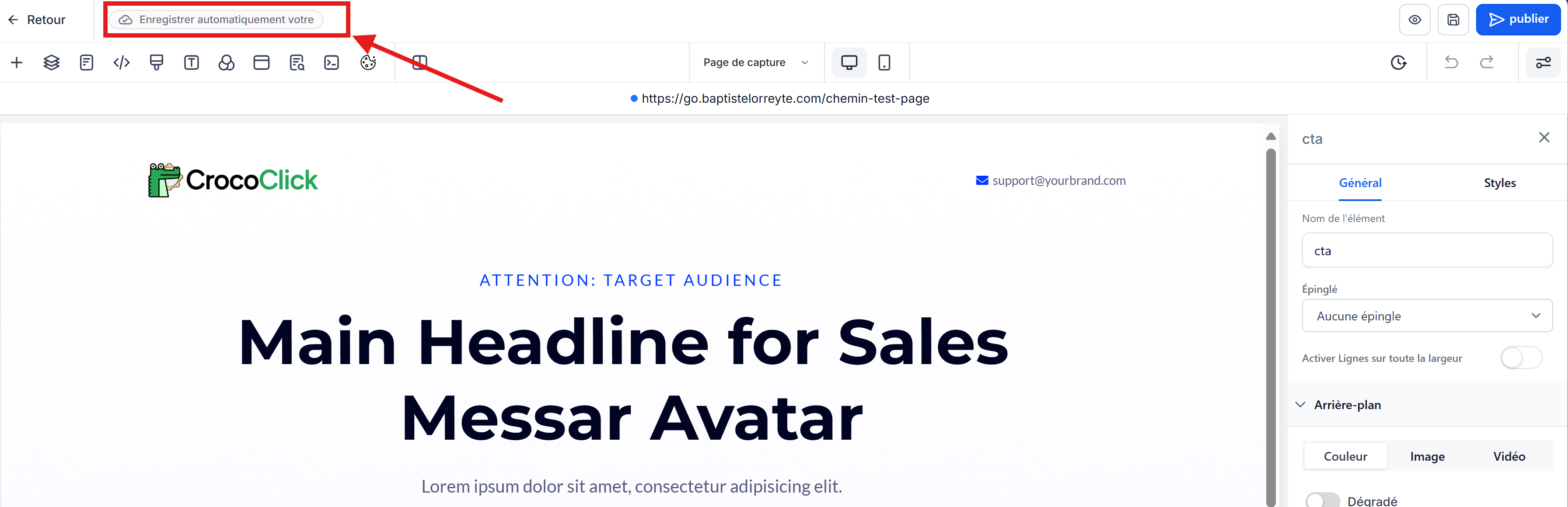
Real-Time Saving
Every change is saved automatically, without you needing to click “Save.”
Visual indicators
You’ll see statuses like “Saving…” or “Auto Saved” to confirm that your changes have been saved.
Manual saving is always available
The “Save” button remains available if you prefer to save manually.
Additional information:
Triggered by changes: Auto-Save activates as soon as a change is detected.
Crash protection: reduces the risk of data loss in case of an unexpected browser crash.
Optimized performance: even on heavy or complex pages, saving remains smooth.
2. Version History
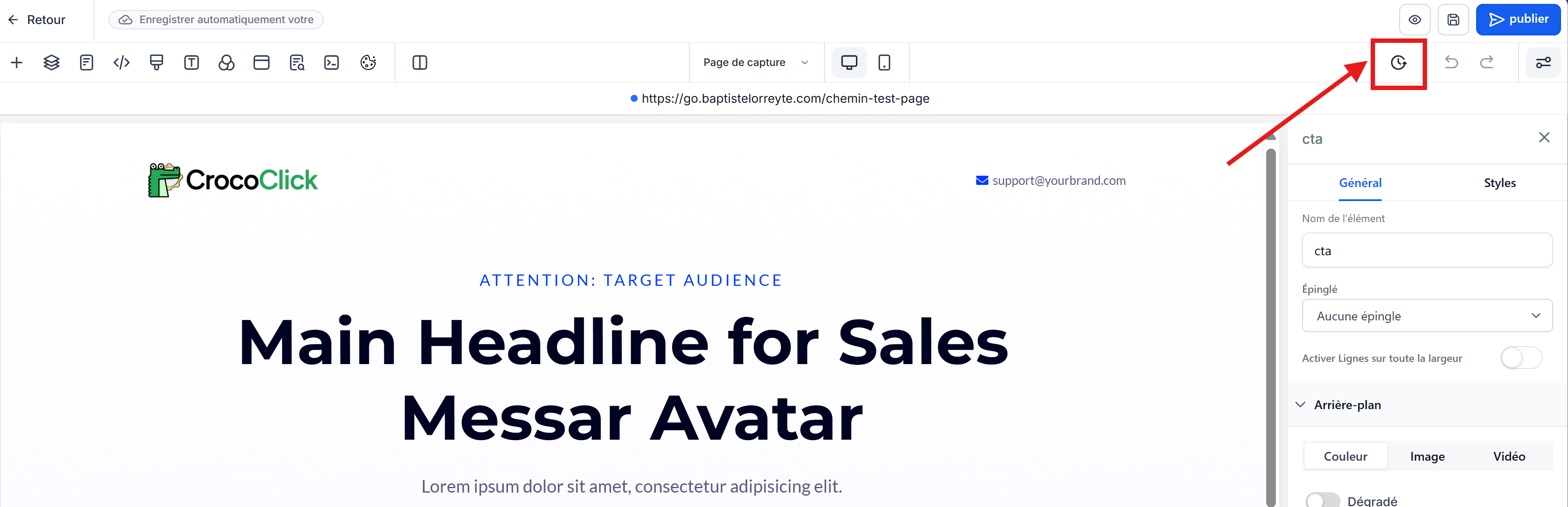
Version history allows you to:
Revert to a previous version
Undo unwanted changes
Track changes to your content
Important Information:
Timestamped versions: Each version displays the date and time it was saved.
Frequency: A new version is created every 10 minutes (if changes have been made).
Limit: Up to 50 versions per item are retained (both manual and automatic). The oldest versions are deleted first.
Global sections: If you edit a global section, a pop-up will notify you that these changes will apply wherever the section is used.
Available in:
Funnels → all stages, elements, and sections
Websites → all pages and components
Blogs
Webinars
E-Commerce