How to add an order form to create a sales funnel
Add an order form to CrocoClick: customization, integrated payment gateways, and payment options.
Written By CrocoTeam
Last updated 6 months ago
This guide provides step-by-step instructions on how to add an order form to a sales funnel or website using CrocoClick. You’ll learn how to set up your products and customize your form to provide a seamless experience for your customers.
What You’ll Need
Before you begin, make sure you have:
A funnel or website with a page where you can add the form.
An integrated payment gateway (e.g., Stripe)
Your products created in CrocoClick.
Step 1: Create a page to host your order form (or edit an existing page)
Go to Sites and select the funnel or website where you want to add the order form.
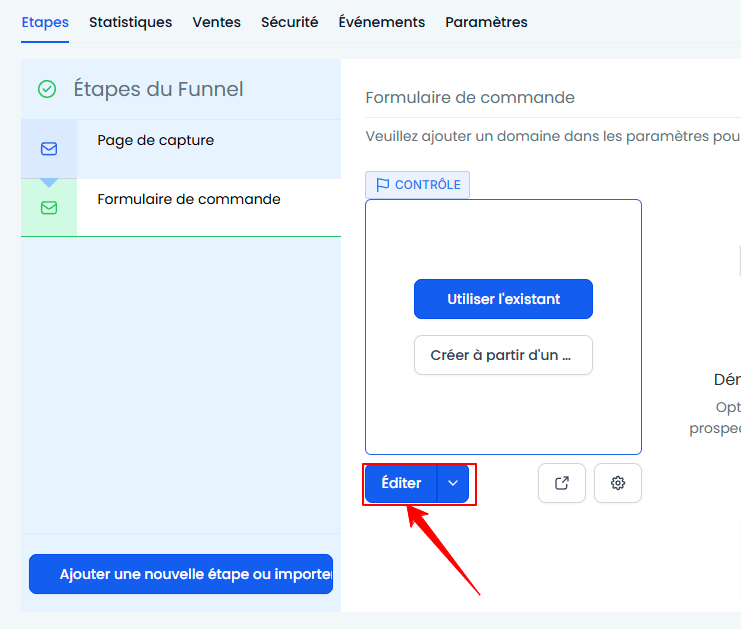
Create or go to the page you’ve already created and click Edit to access the editing menu.
Step 2: Add the order form
In the page editor, click Add a Section > Add a Row, then choose the number of columns you need.
Click Add Element and scroll through the right-hand menu to the Order Elements section.
Choose a two-step order form. (or a one-step form, depending on your preference)
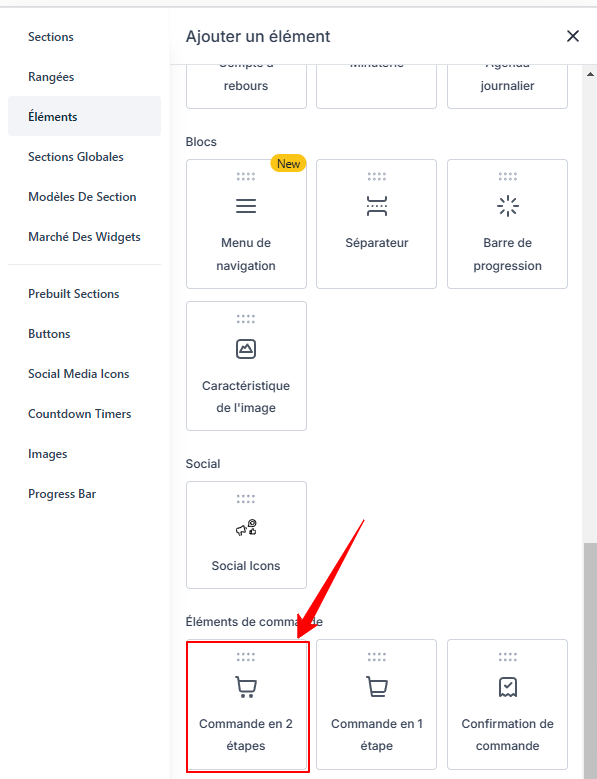
💡TIP: A two-step form allows you to request contact information (name, email, phone number, etc.) BEFORE asking for payment details.
The advantage is that if a customer doesn’t complete their order, you can then trigger “abandoned cart” automations since you’ve already captured their contact information.
Step 3: Customize your form
Once the element is added, click on it to open the customization menu on the left. Here’s what you can modify:
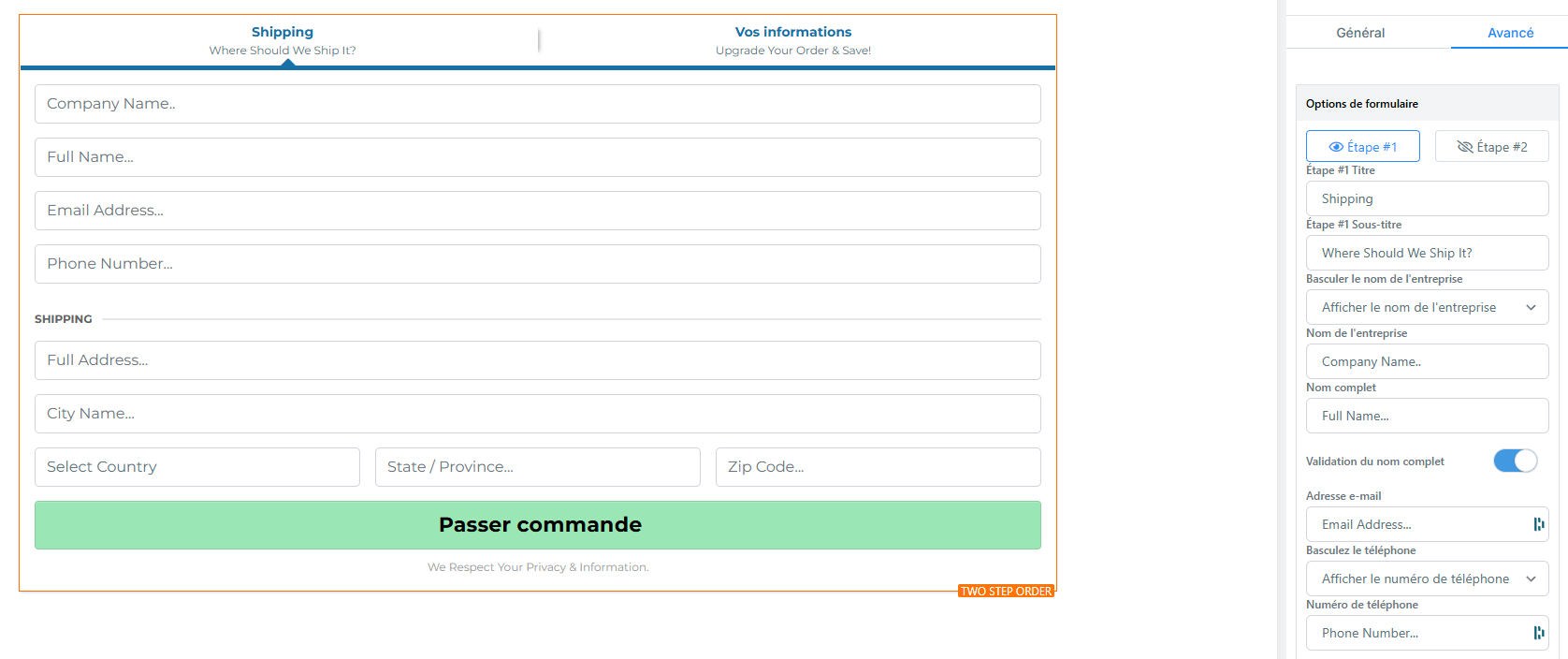
General settings:
Title and text alignment.
Button style, size, and color.
Button action after clicking.
Typography and rounded corners.
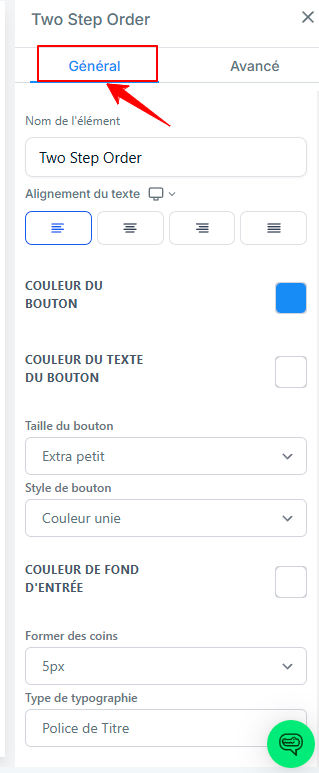
Advanced settings:
Form options
Step 1: Personal Information
Here, you can change the title of the first step that appears on the form, such as:
Company Name
First and last name
Email address
Phone number
Mailing address
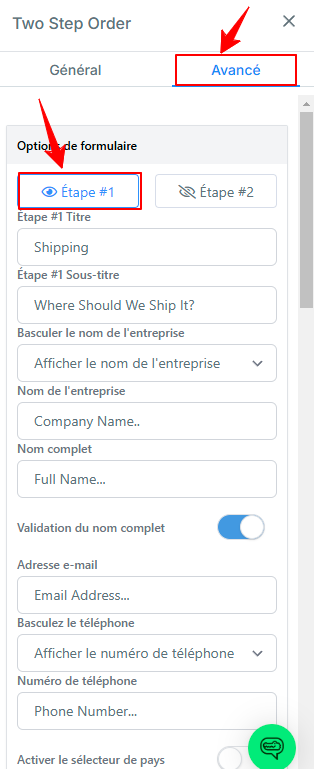
Step 2: Payment details
Here, you can customize the second part of the form, including payment information, prices, and discount codes.
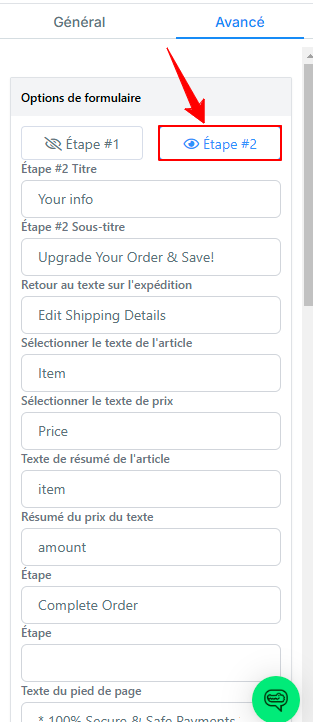
💡TIP: You can customize the field labels to suit your needs (and your language)
Other options
You can also modify additional options such as:
Enable/disable shopping cart mode
Shopping cart mode allows the user to select multiple products in your order form
Display the product description
Display price information
Enable coupon codes
Add terms and conditions
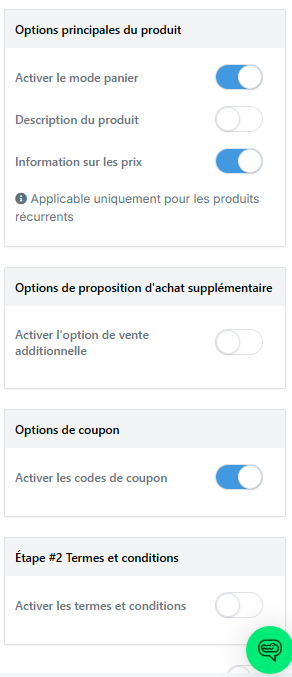
💡TIP: You cannot add or remove fields beyond the available options. The forms comply with payment processor standards.
Step 4: Save your changes
Click Save once you’ve finished making adjustments. Your order form is now ready to use.
Step 5: Link a product to your Funnel
In the funnel step, go to the Products section and add the product you created by clicking + Add Product.
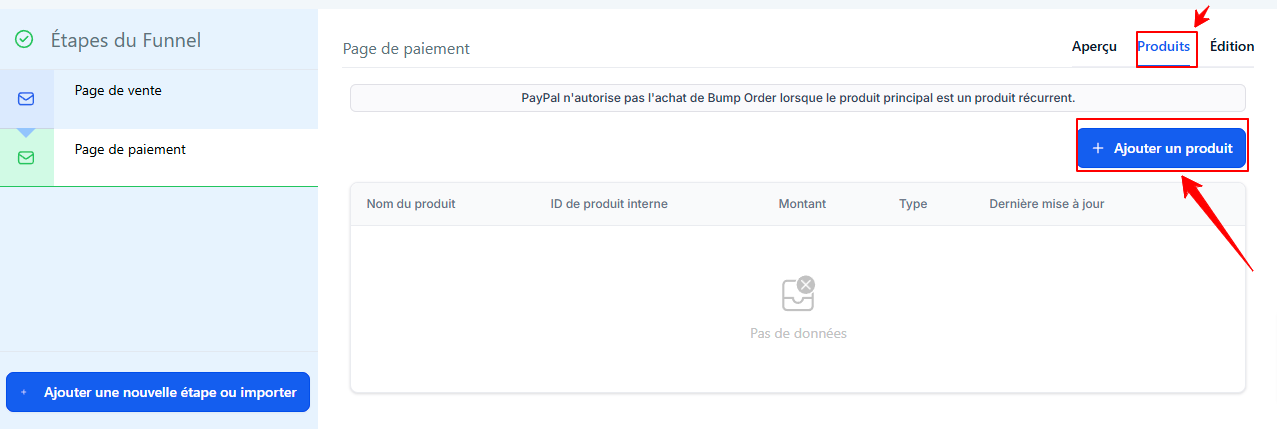
Select the Product and price to add to your form, and click Save to save.
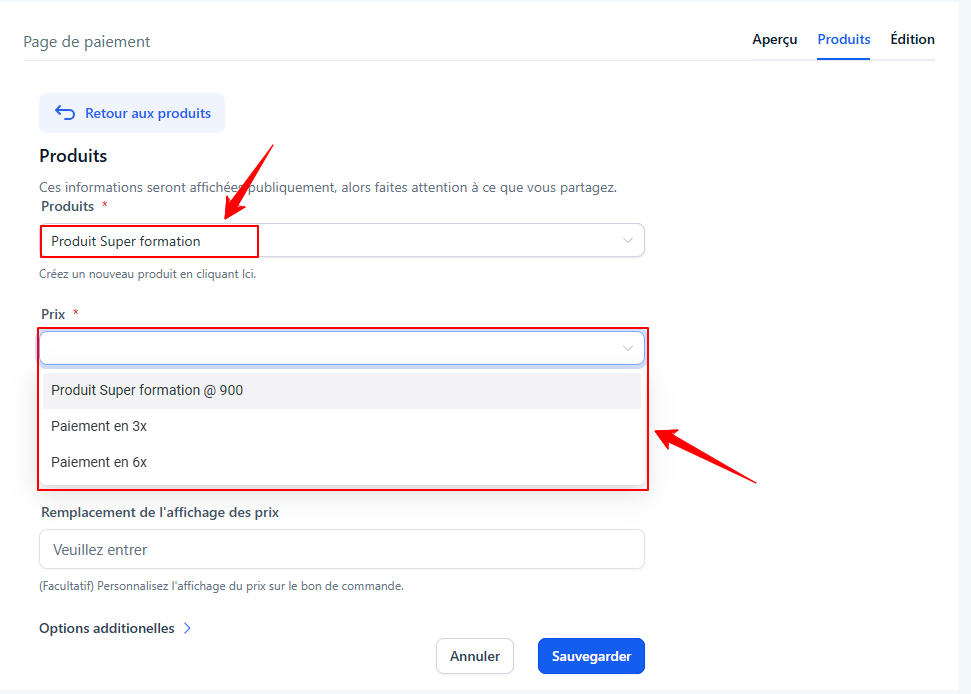
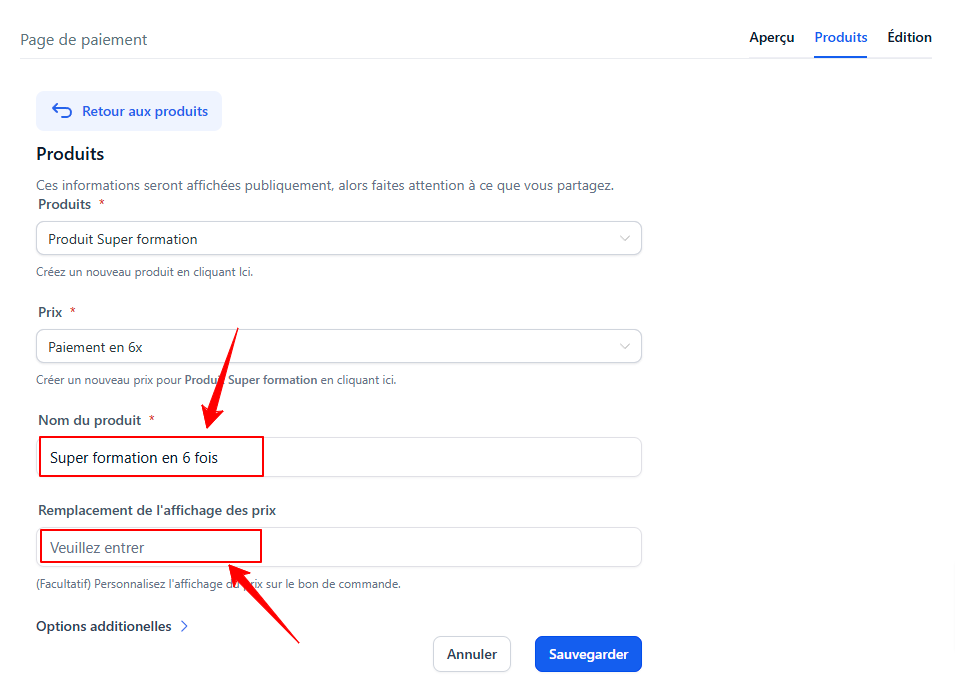
If you want to add multiple pricing options (for example: 1-payment, 2-payment, and 3-payment plans), add the product three times and select each pricing option you previously configured.
💡 TIP: You can customize the product name and price display so that each payment option is easily identifiable on the checkout page. This helps customers better understand which payment option to choose.
4. Preview and test the checkout page
Preview the page to test how it works. Make sure each payment option is displayed correctly and that the page is clear and user-friendly for future customers.
You can make adjustments to the layout or the information displayed according to your preferences.
FAQ
1. Can I use multiple payment gateways on the same form?
Yes, CrocoClick allows you to integrate multiple gateways, such as Stripe, PayPal, and others. Configure them in Payments > Integrations.
2. Can I offer free products without asking for a credit card?
Yes, this feature is available for products priced at €0. Enable it in the Funnel Builder settings.
3. Which fields can I customize in the form?
You can edit titles, text, button styles, and enable or disable options such as coupon codes or product descriptions.
4. Is it possible to add or remove fields?
No, the fields are predefined to comply with payment processor standards. You can only customize the available options.
5. How can I test the form before publishing it?
Use the Preview mode in the editor to test the appearance and functionality of your form, or test the form link in incognito mode.