Create your First Email / Newsletter Campaign
Launch your first email campaign step by step: choose a template, define recipients, track statistics.
Written By CrocoTeam
Last updated 8 months ago
Sending an email campaign is one of the most effective ways to engage your contacts and promote your offers. Whether you want to sell, inform, or stay visible, it all starts with a good template and a few clicks. Here's how to create your first campaign step by step in CrocoClick.
1. Create an email template
Go to Marketing > Marketing emails
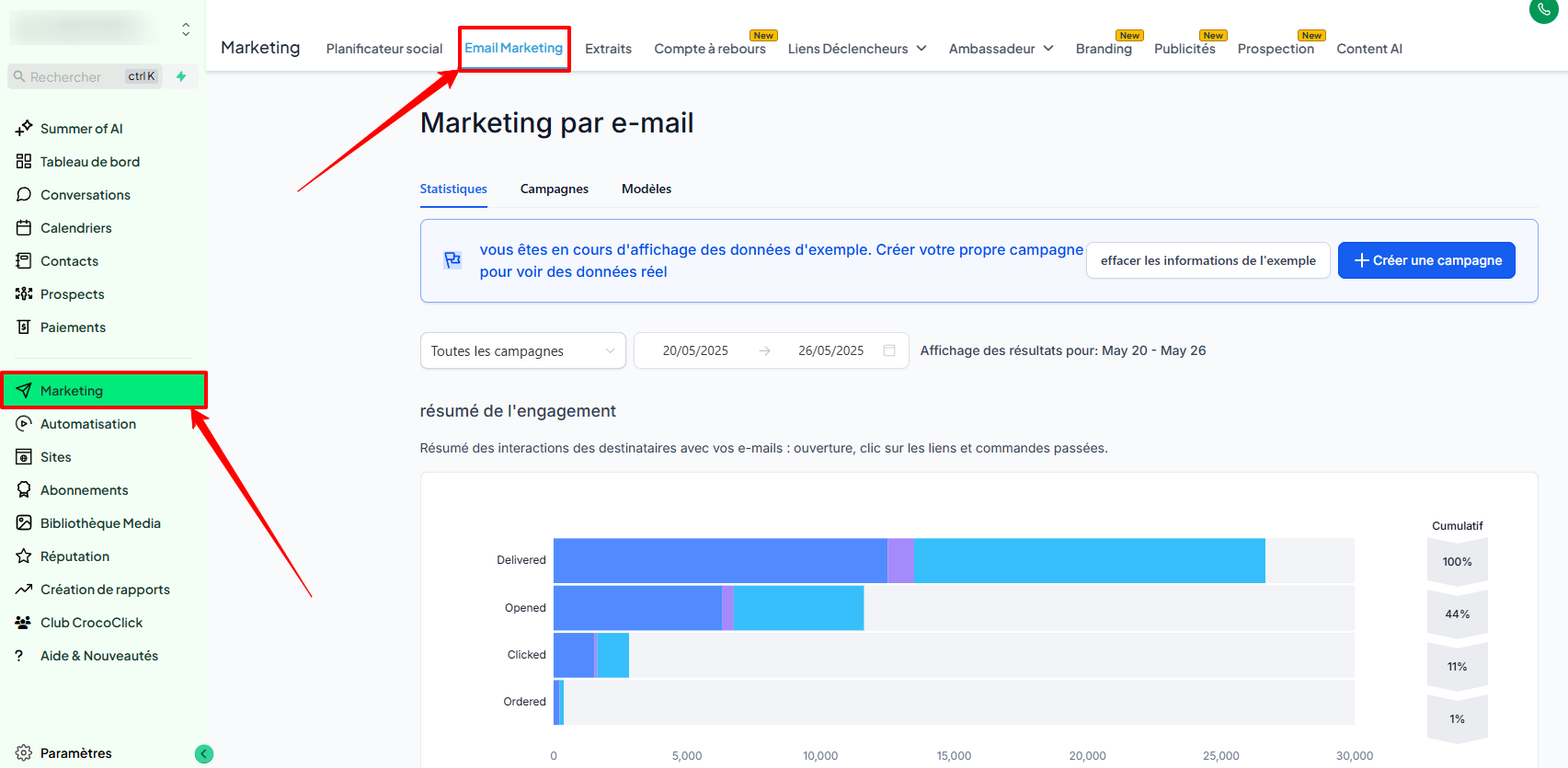
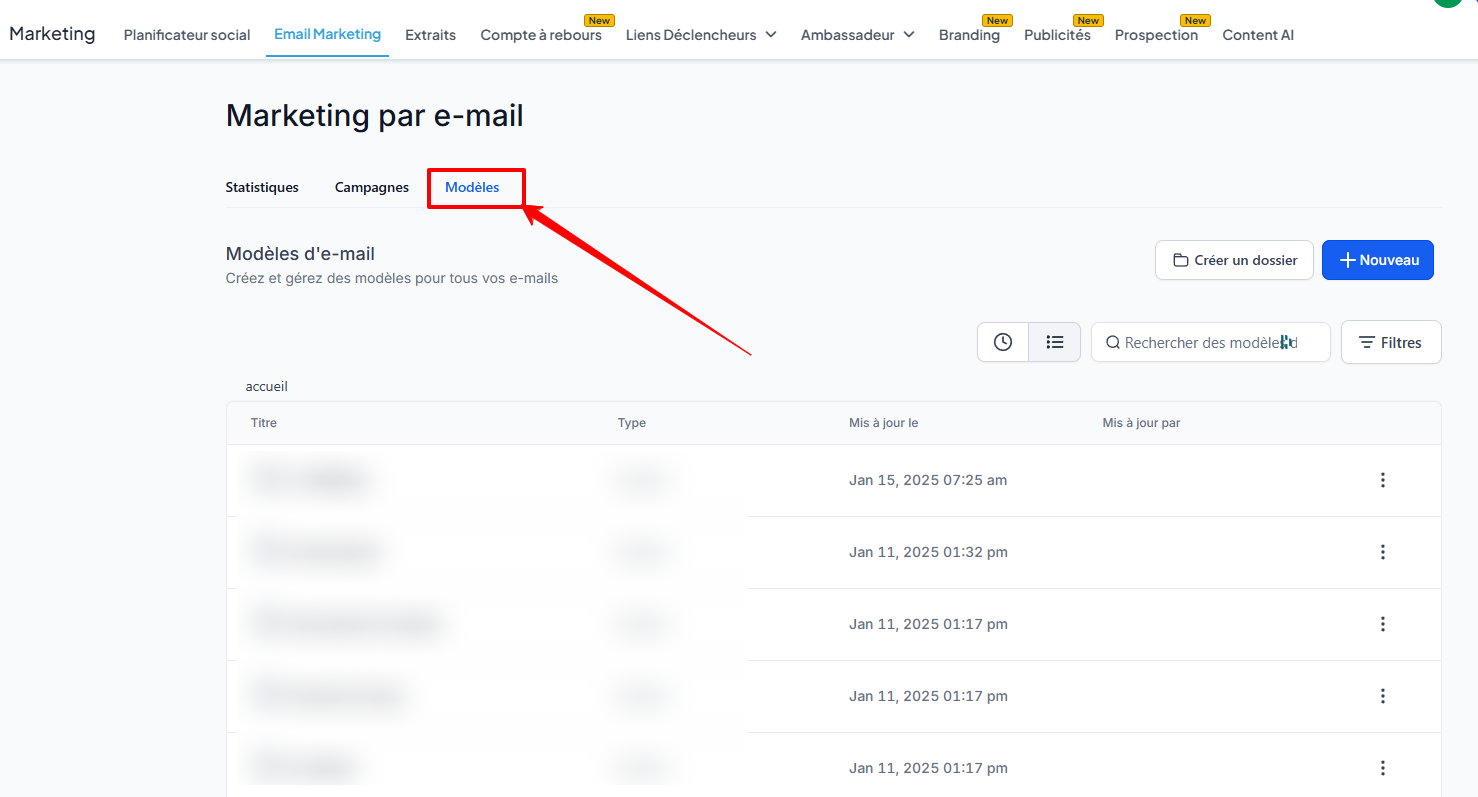
Click on the Templates tab
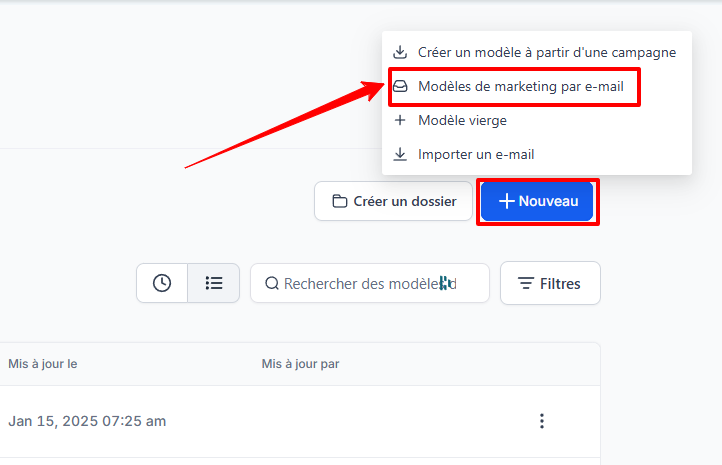
Click on New, then choose Email Marketing Templates to start from a template
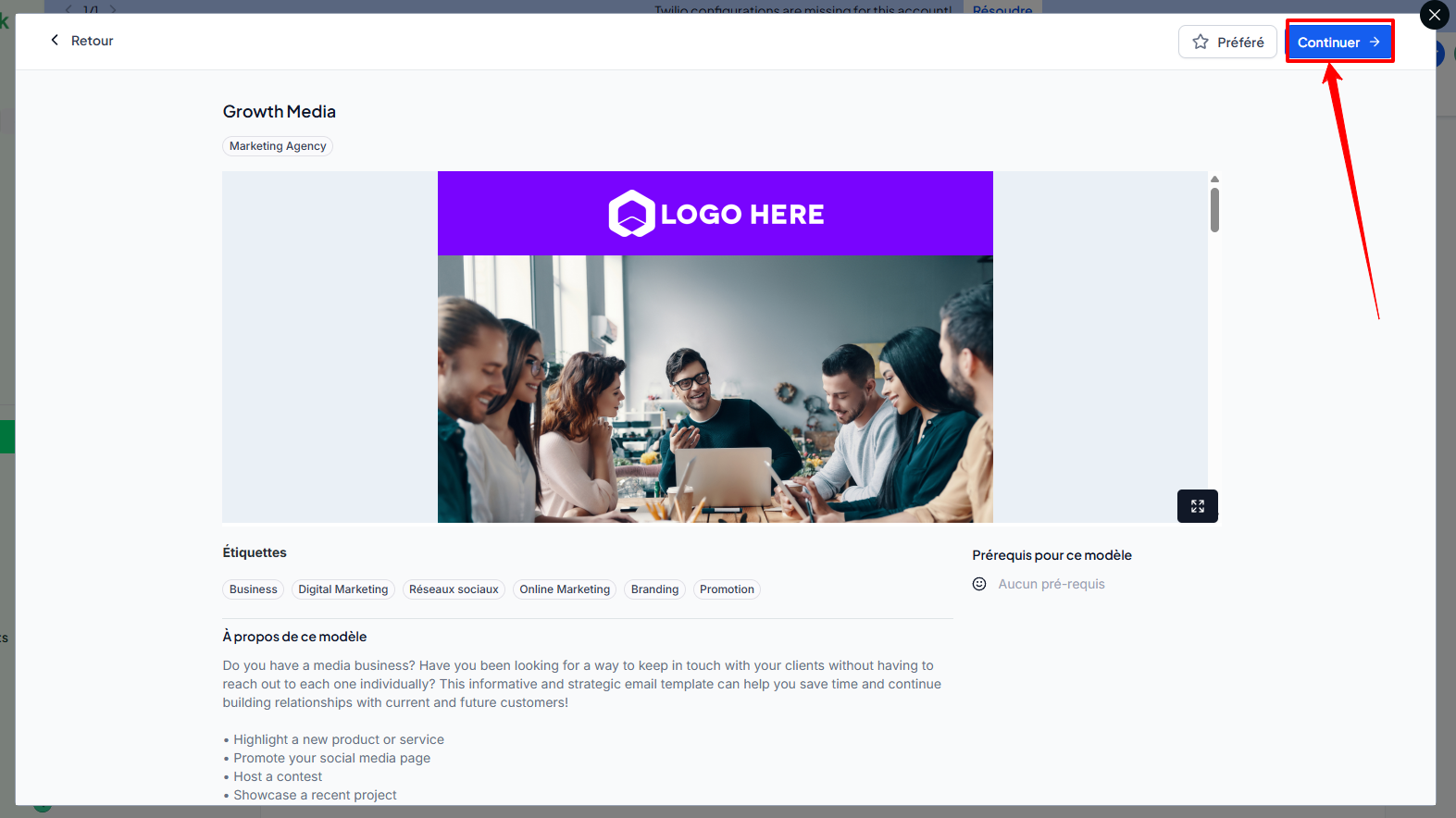
Browse the library, filter the templates, and preview the one you like
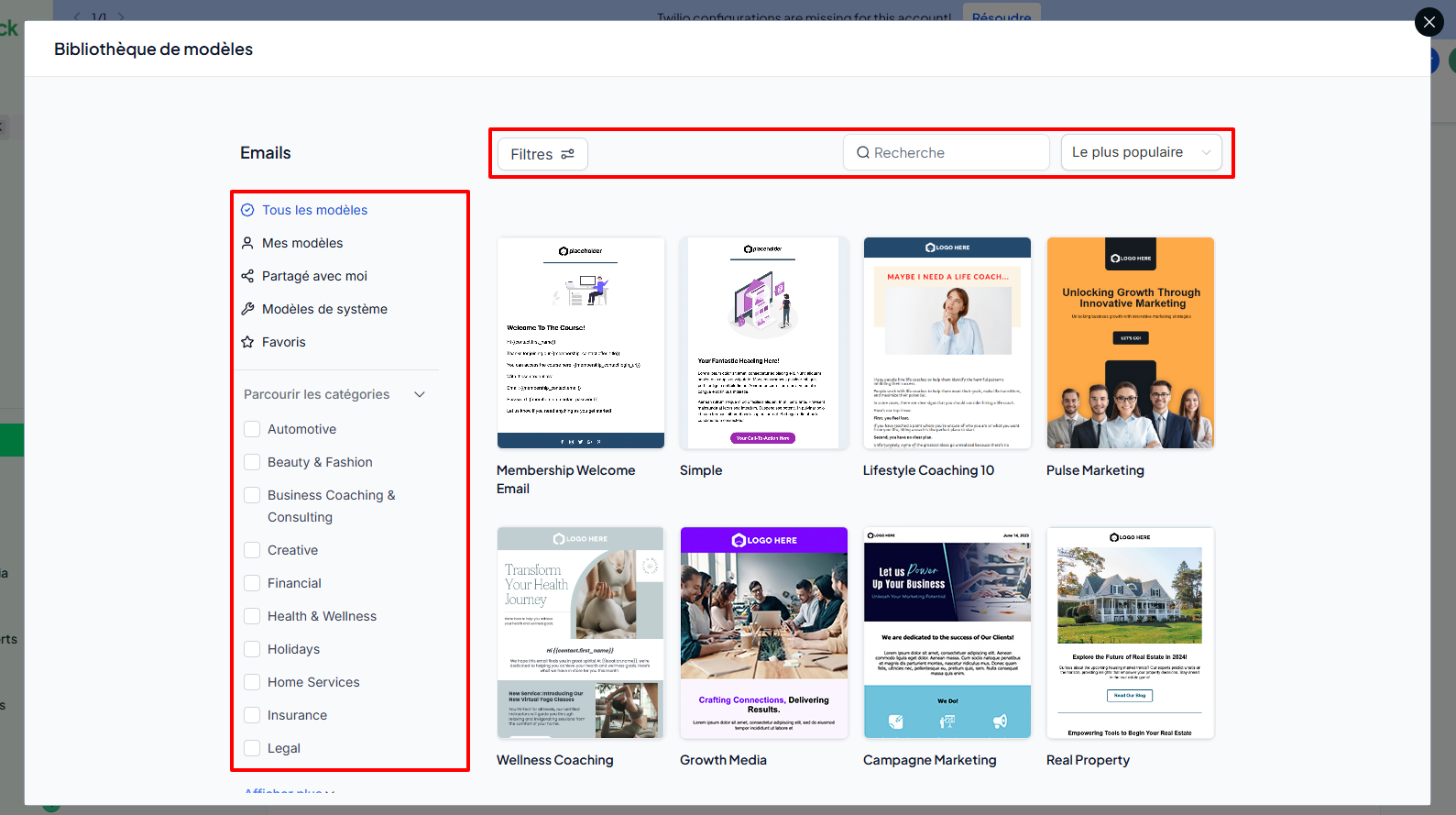
Click Continue to open it in the editor
Customize the text, images, colors, and links to suit your brand
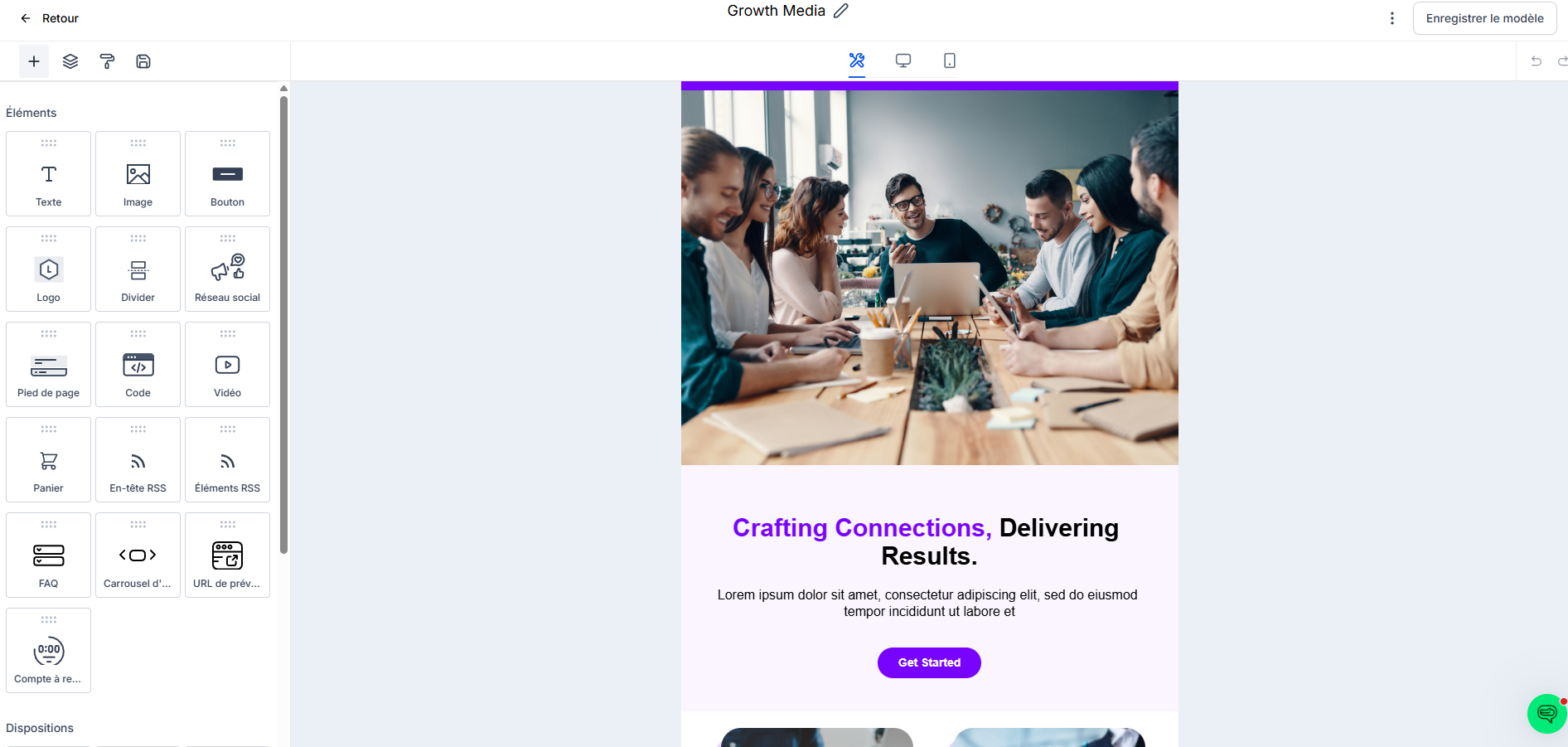
Click Save Template
💡 TIP: Send yourself a test email (3-dot menu > Send a test) to check the display before launching.
2. How to edit an email template
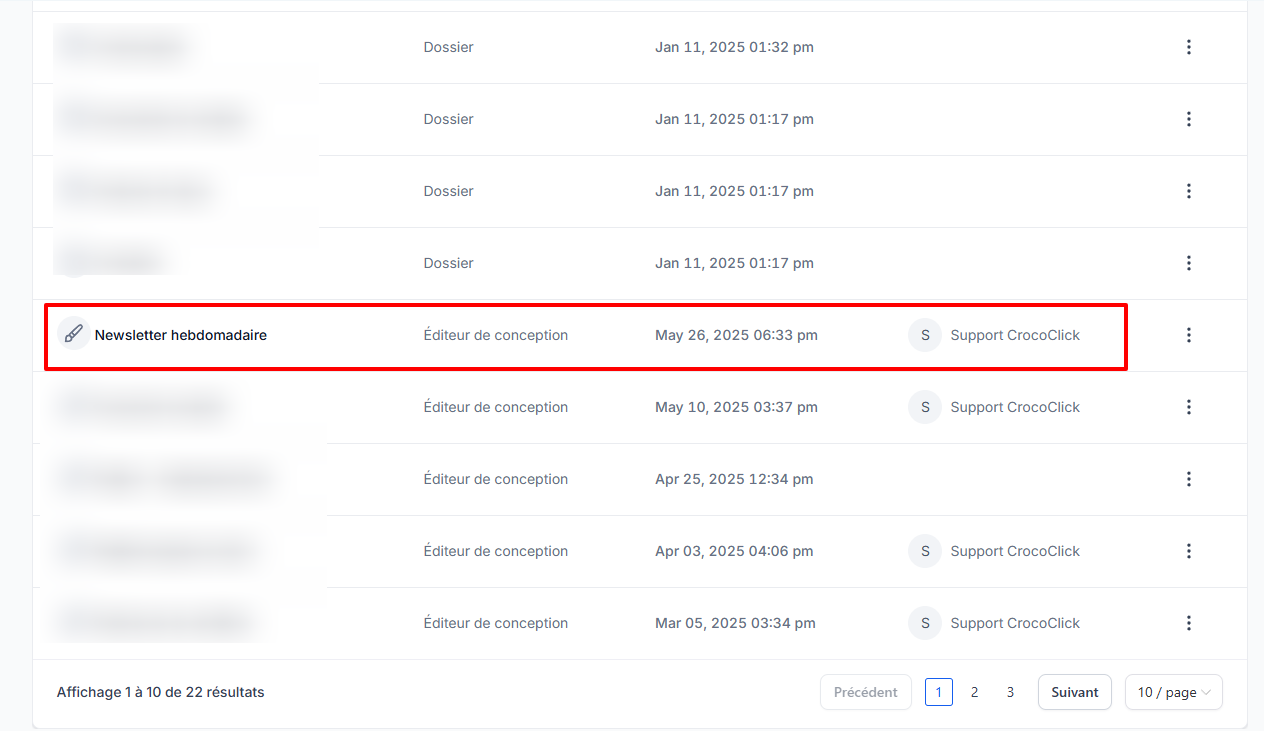
If necessary, go back to Marketing > Emails > Templates
Click on the template you want to edit to open it in the editor
Adjust the elements (text, visuals, layout, colors, etc.)
Click Save template to save your changes
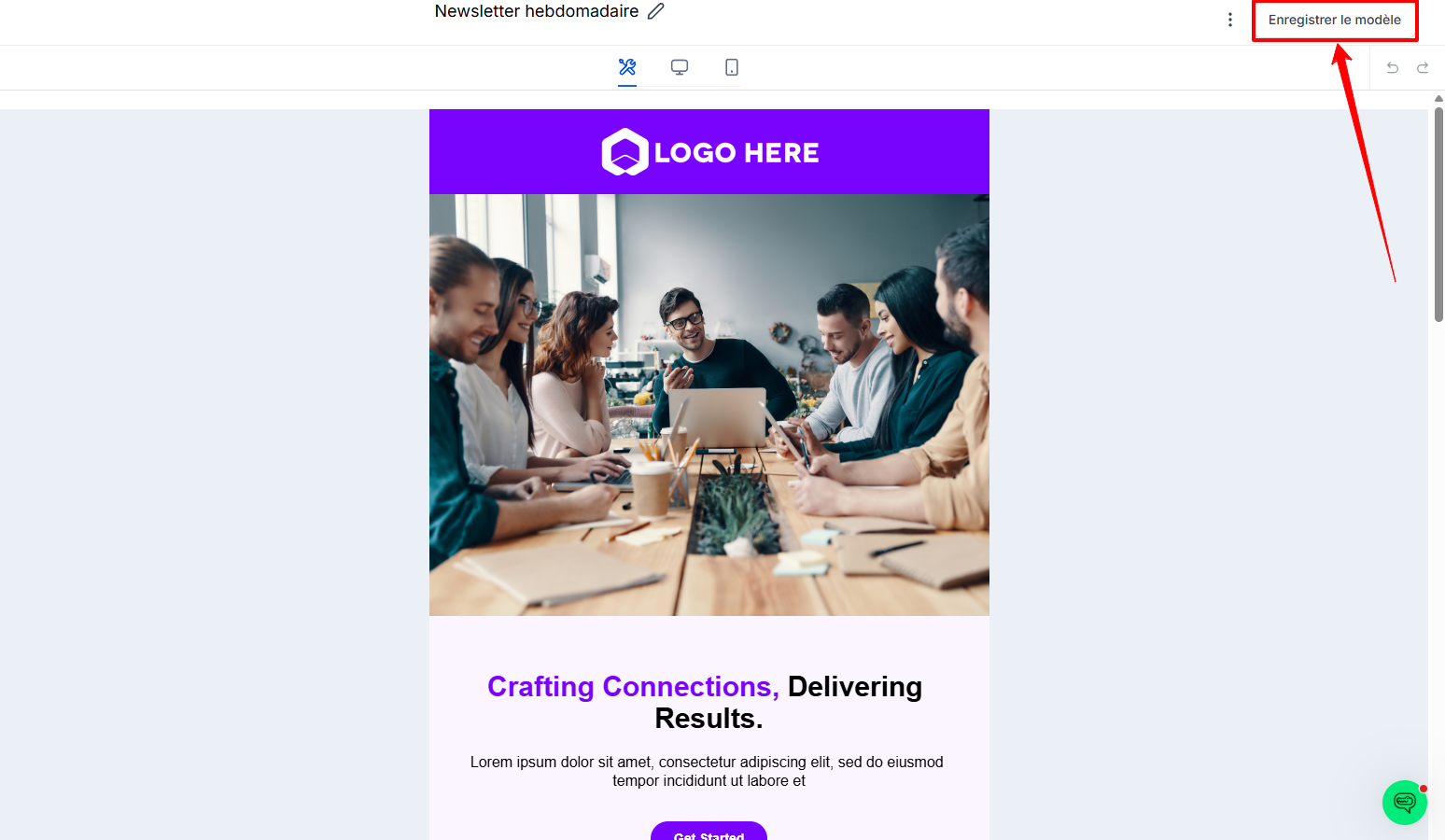
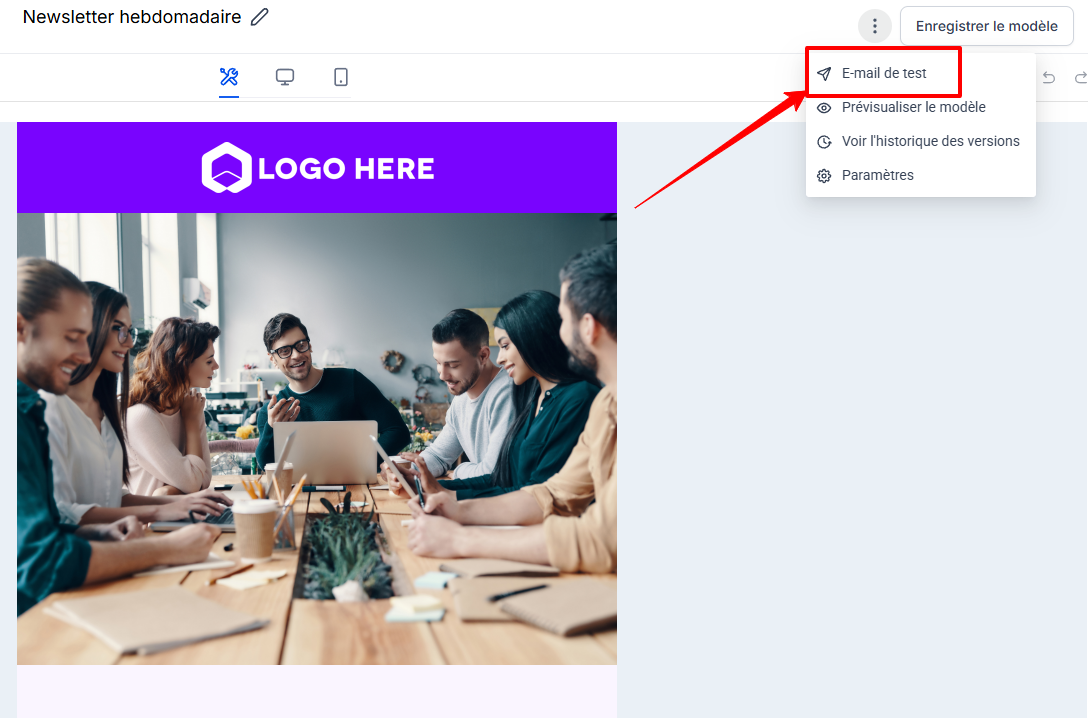
Click on the 3-dot menu > Send a test email to check the final result
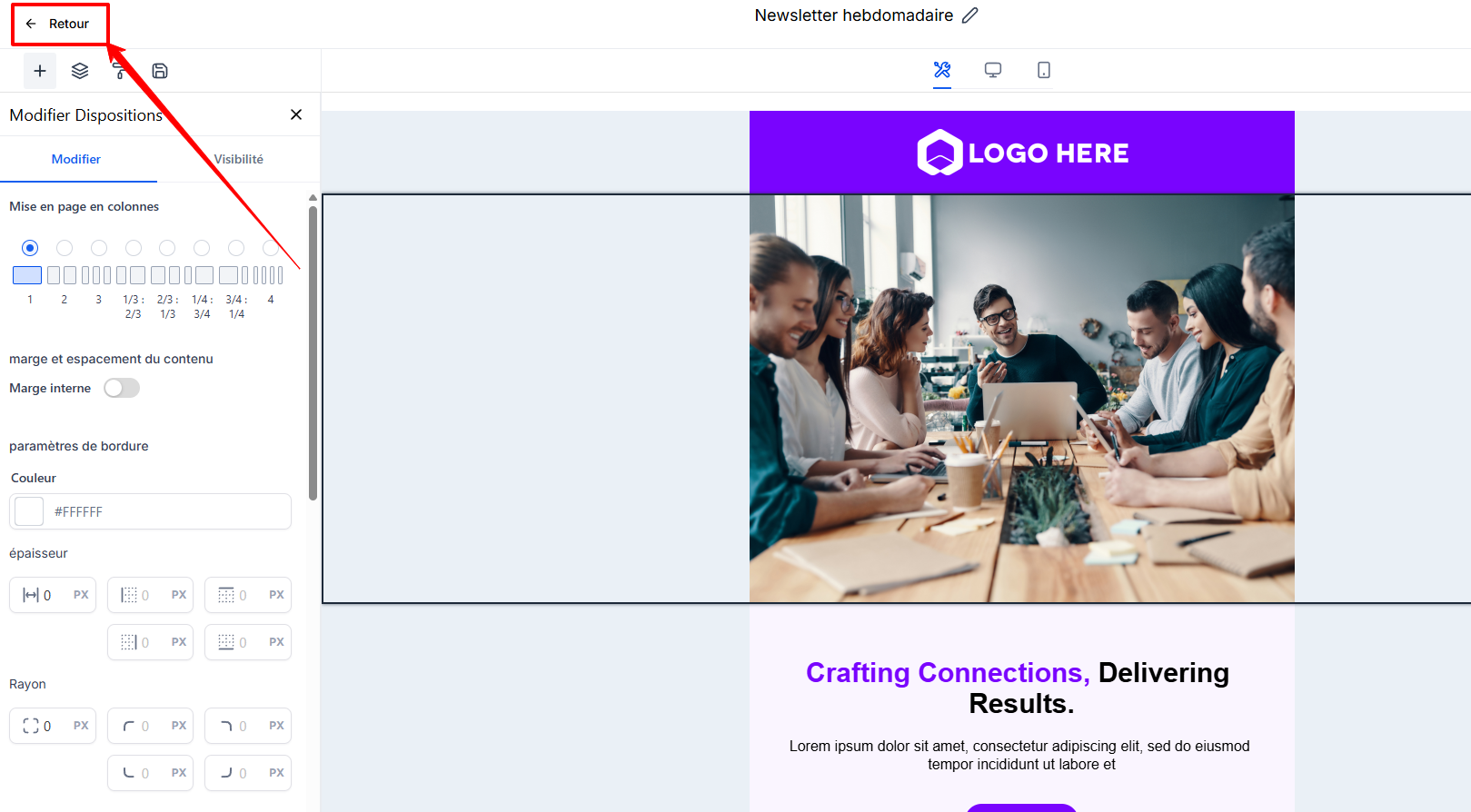
Once you are satisfied, return to the main screen
3. Create a campaign from a template
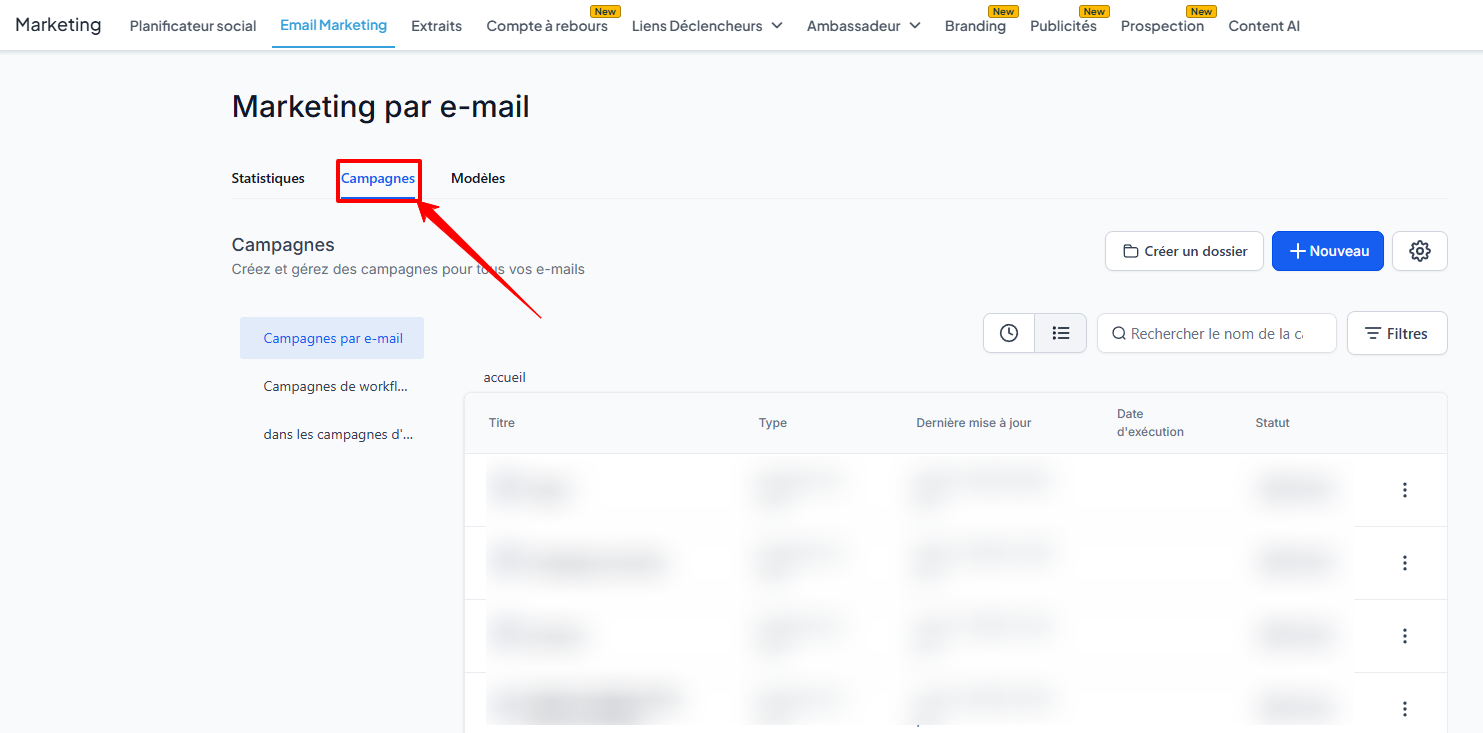
Go to Marketing > Emails > Campaigns
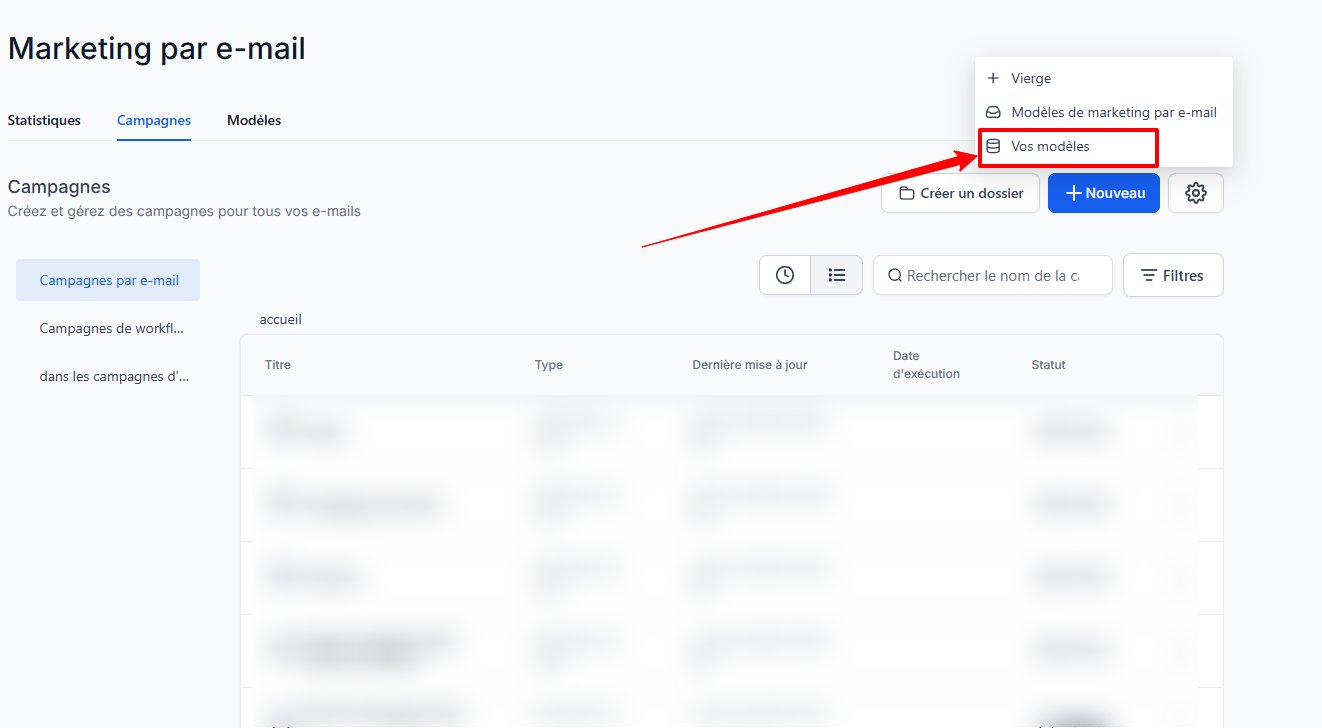
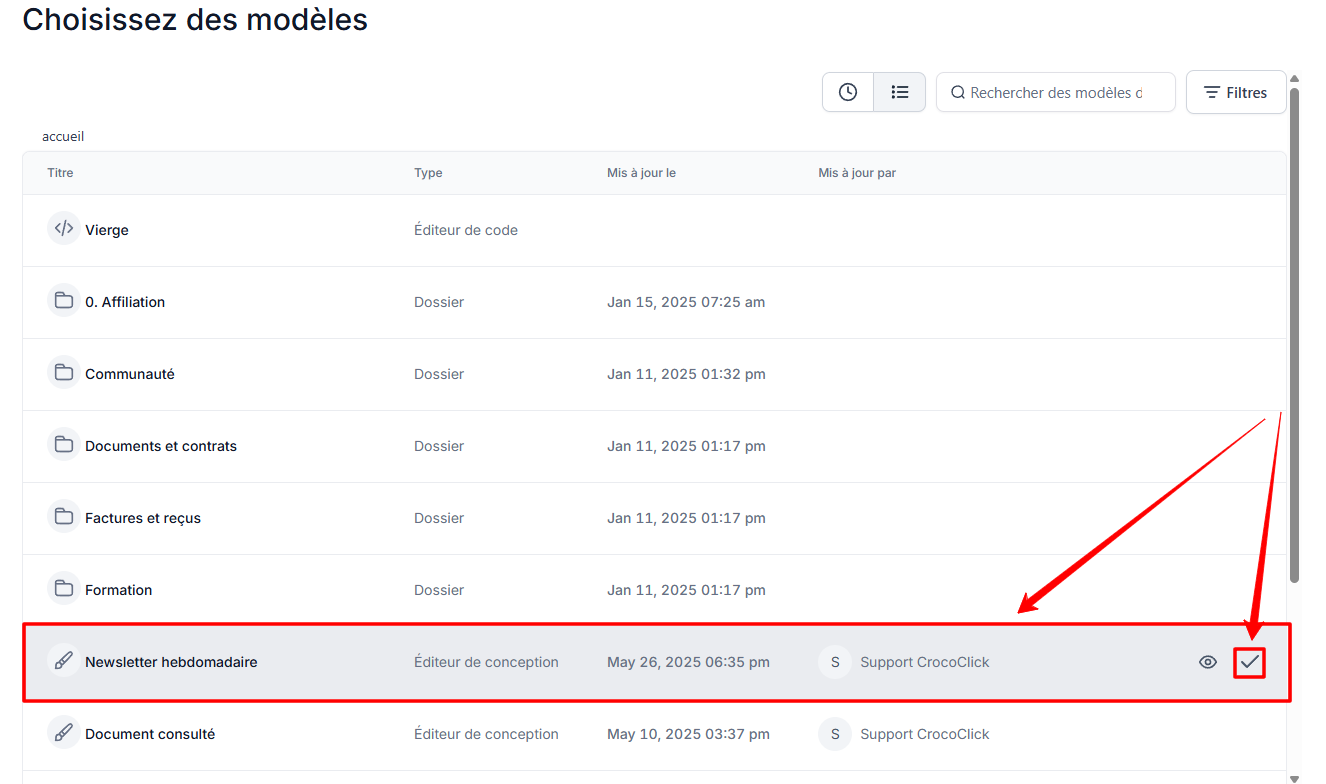
Click New > Your Templates (you can also choose a template from the template library)
Choose the desired template and click ✔️
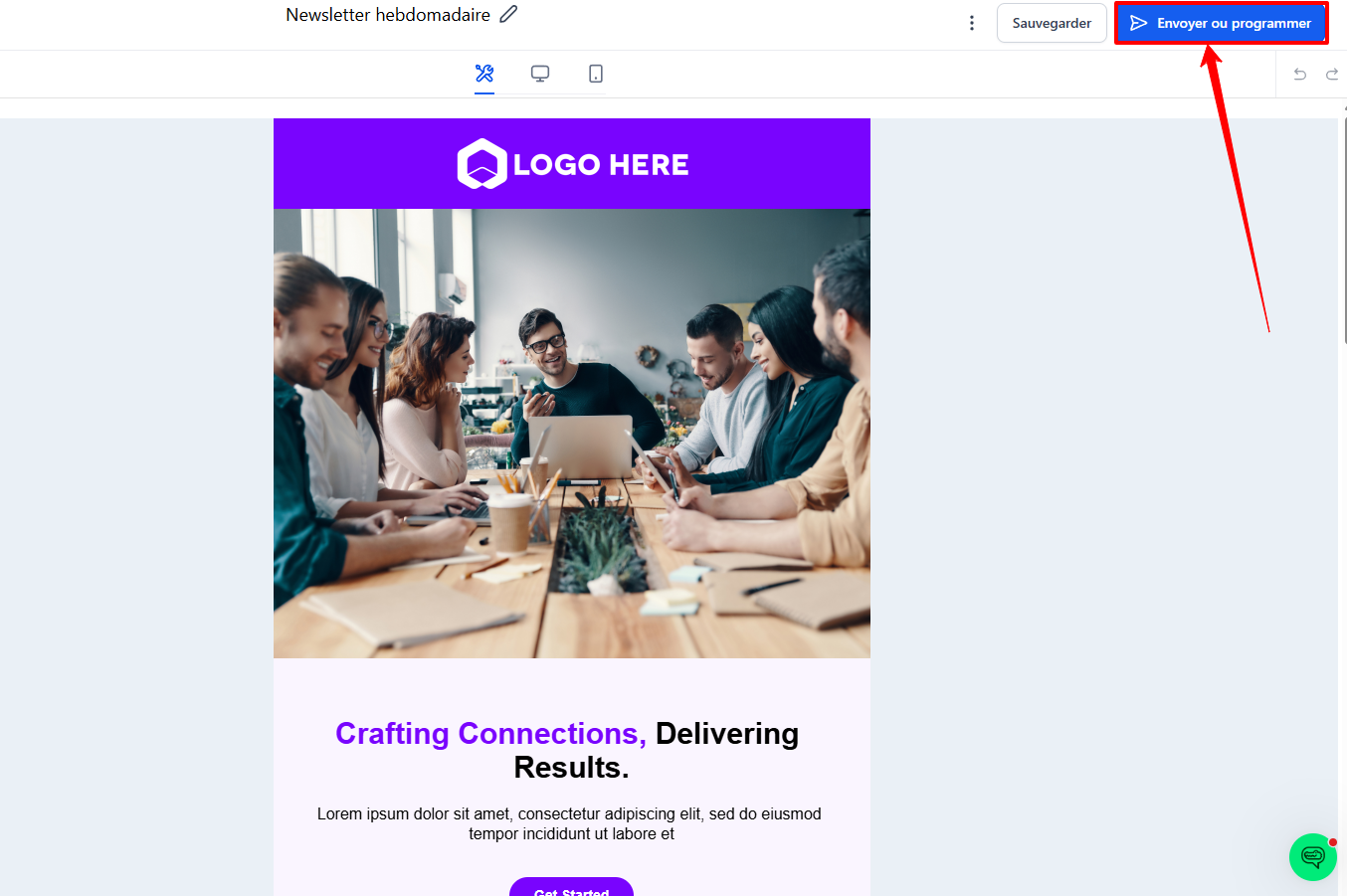
Customize the text, images, colors, and links, and change the name of the campaign (only visible to you)
Click Send or Schedule
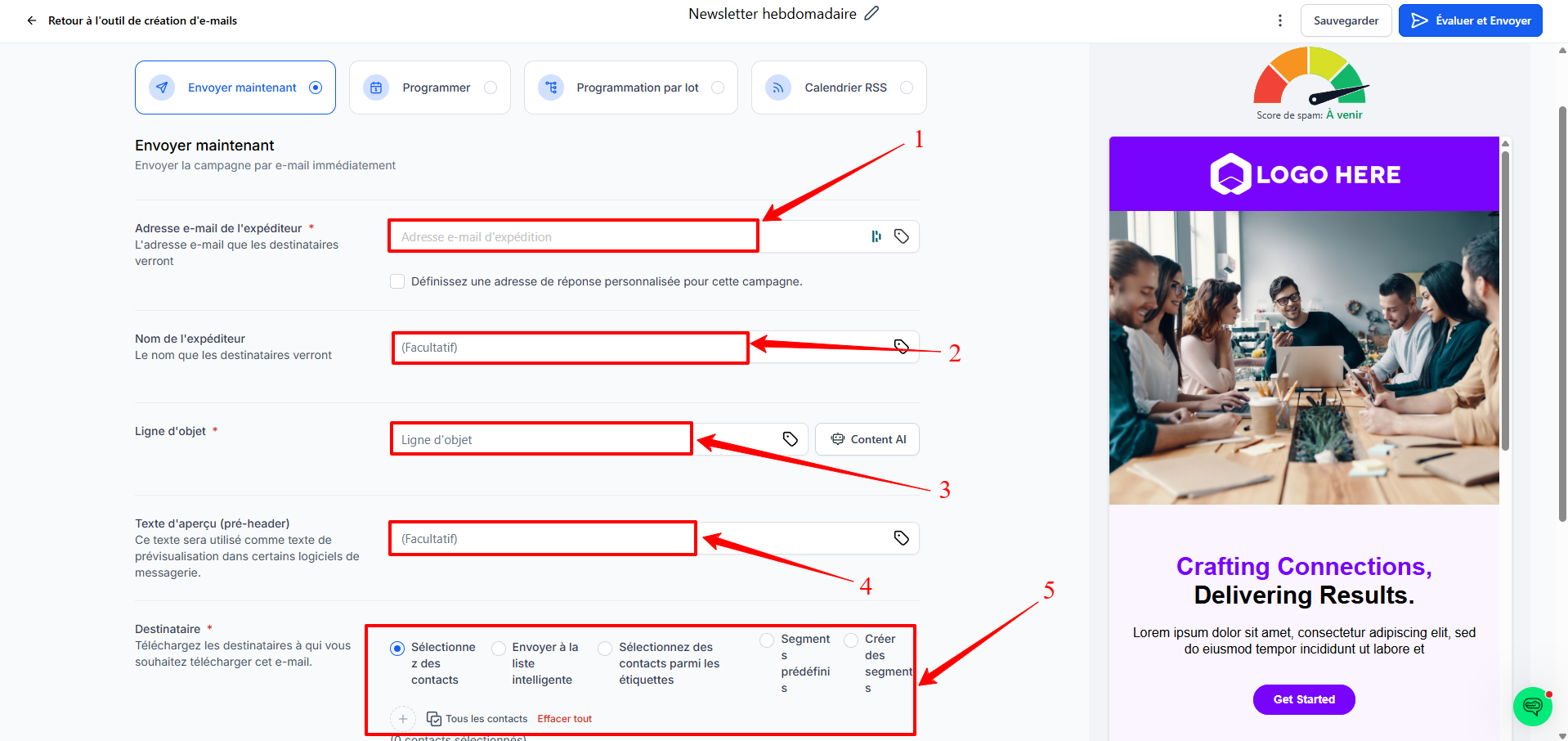
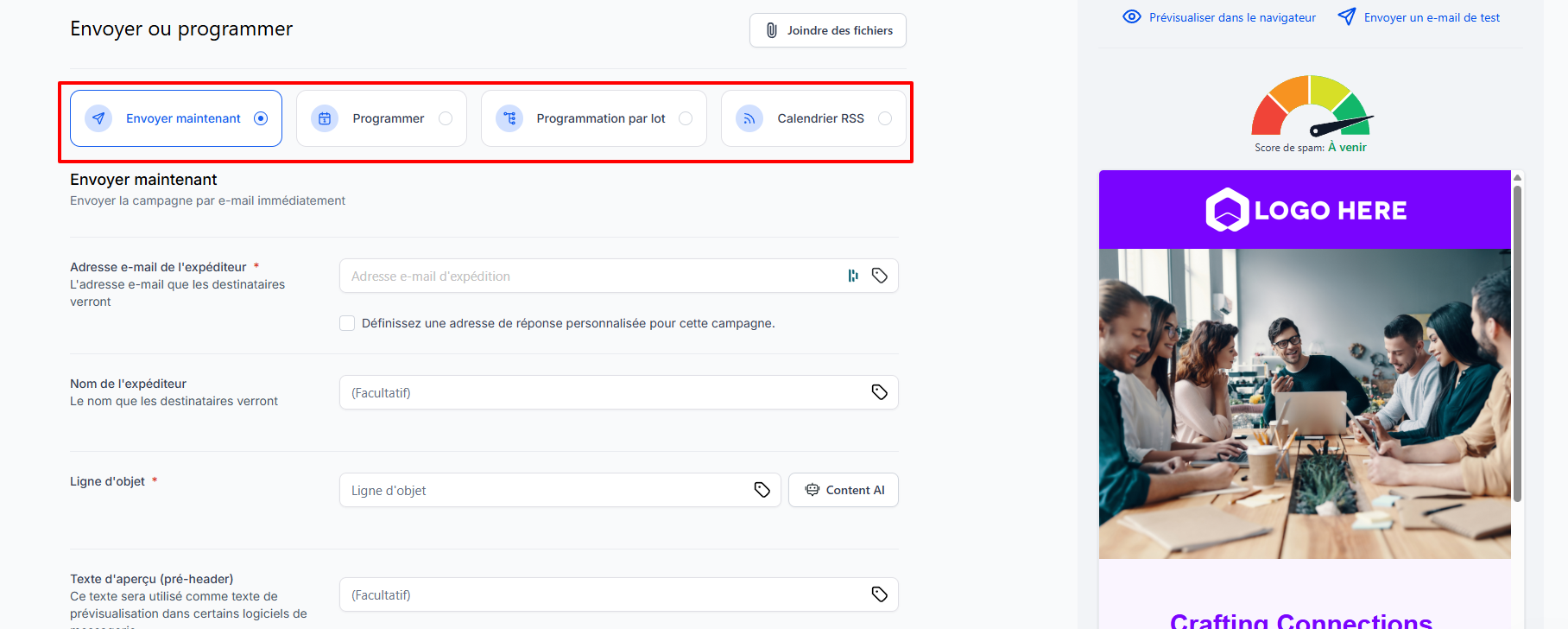
Fill in the key elements of the campaign:
a. Sender's email address
b. Sender's name
c. Email subject
d. Pre-header (optional)
e. Recipients: choose specific segments, tags, or smart lists
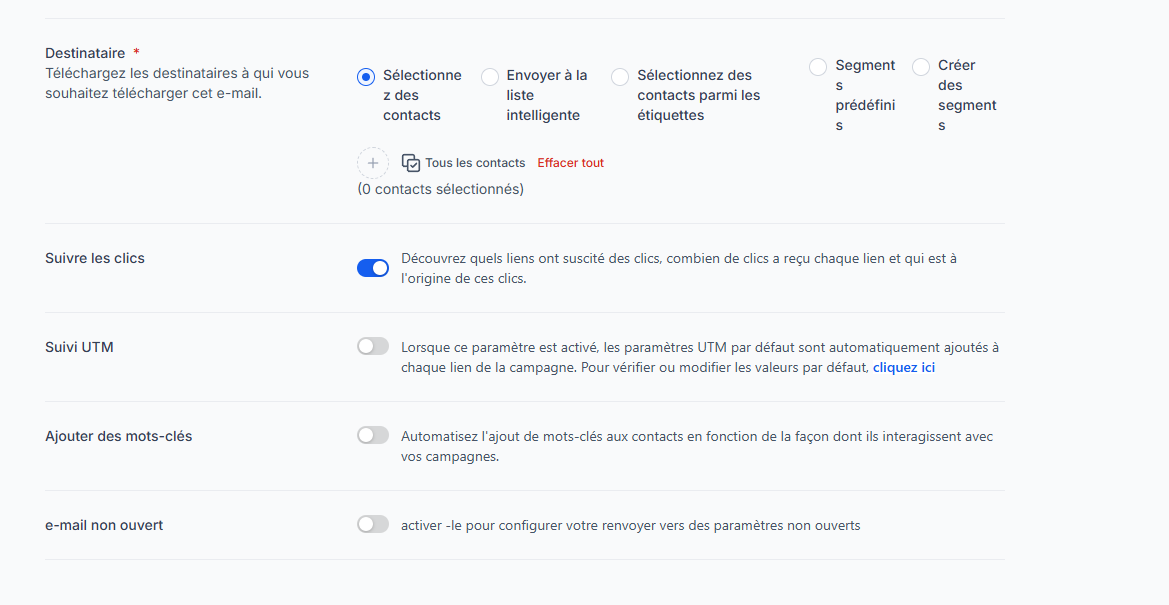
Additional options:
Enable click tracking
UTM tracking
Add keywords
Unopened email
Click Send Now or Schedule Send
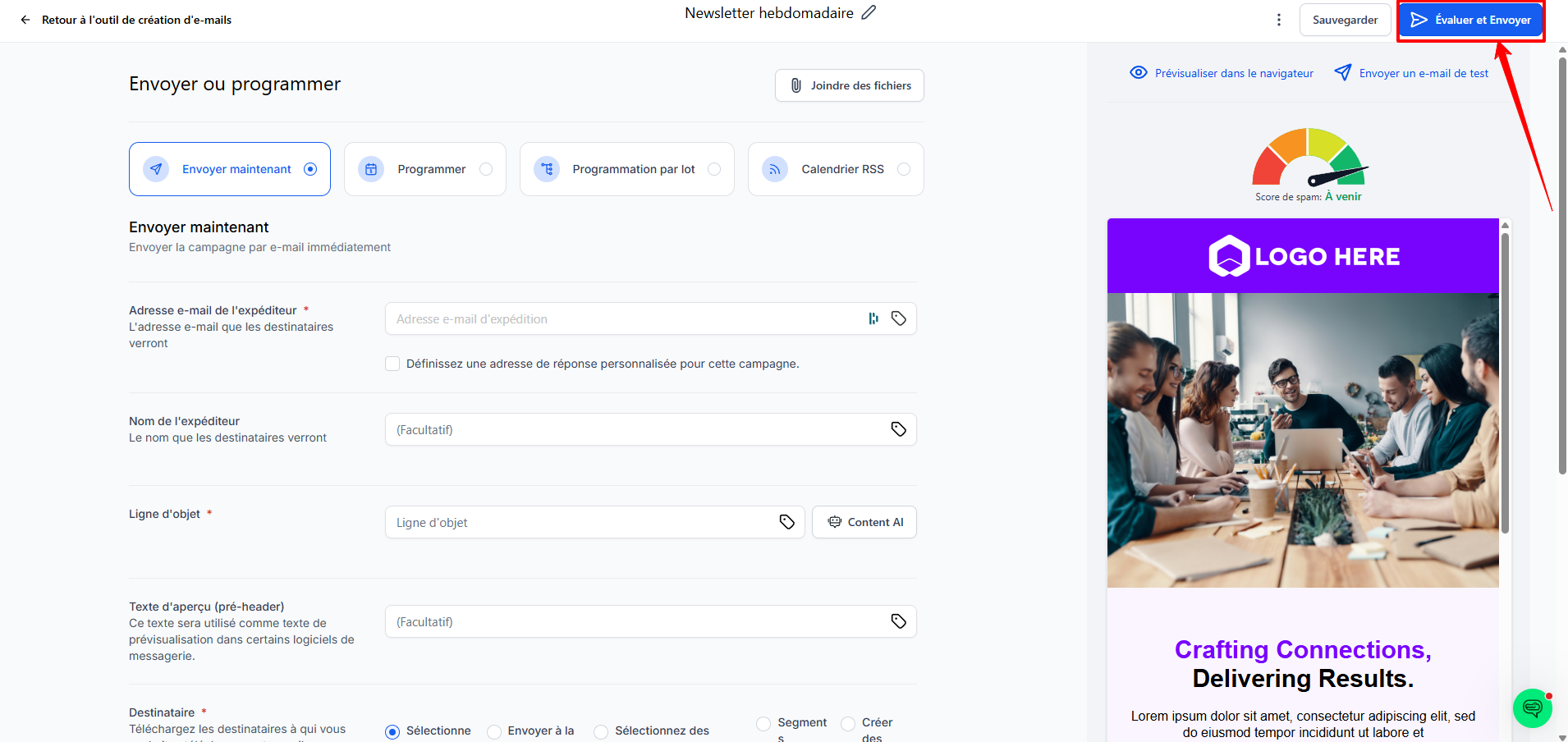
Review all information, then click Review and Send
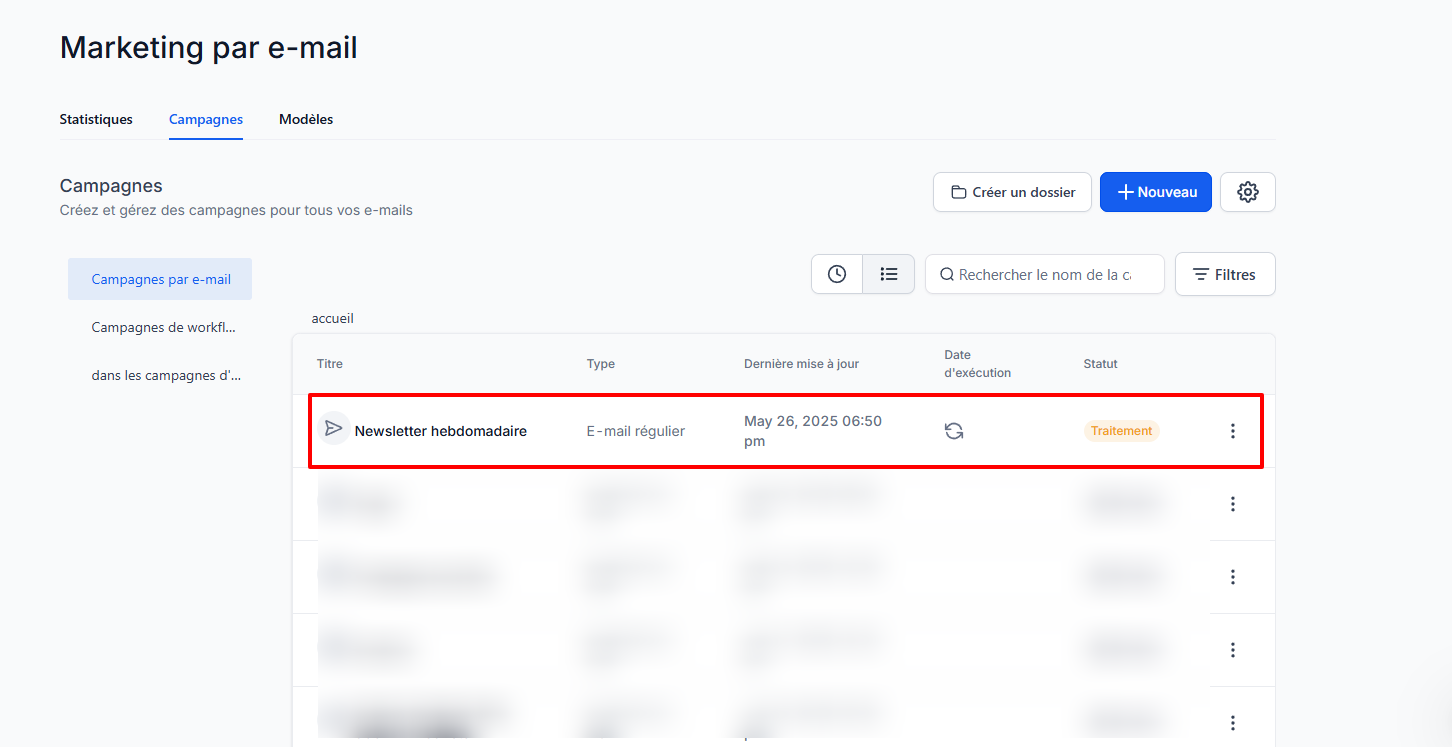
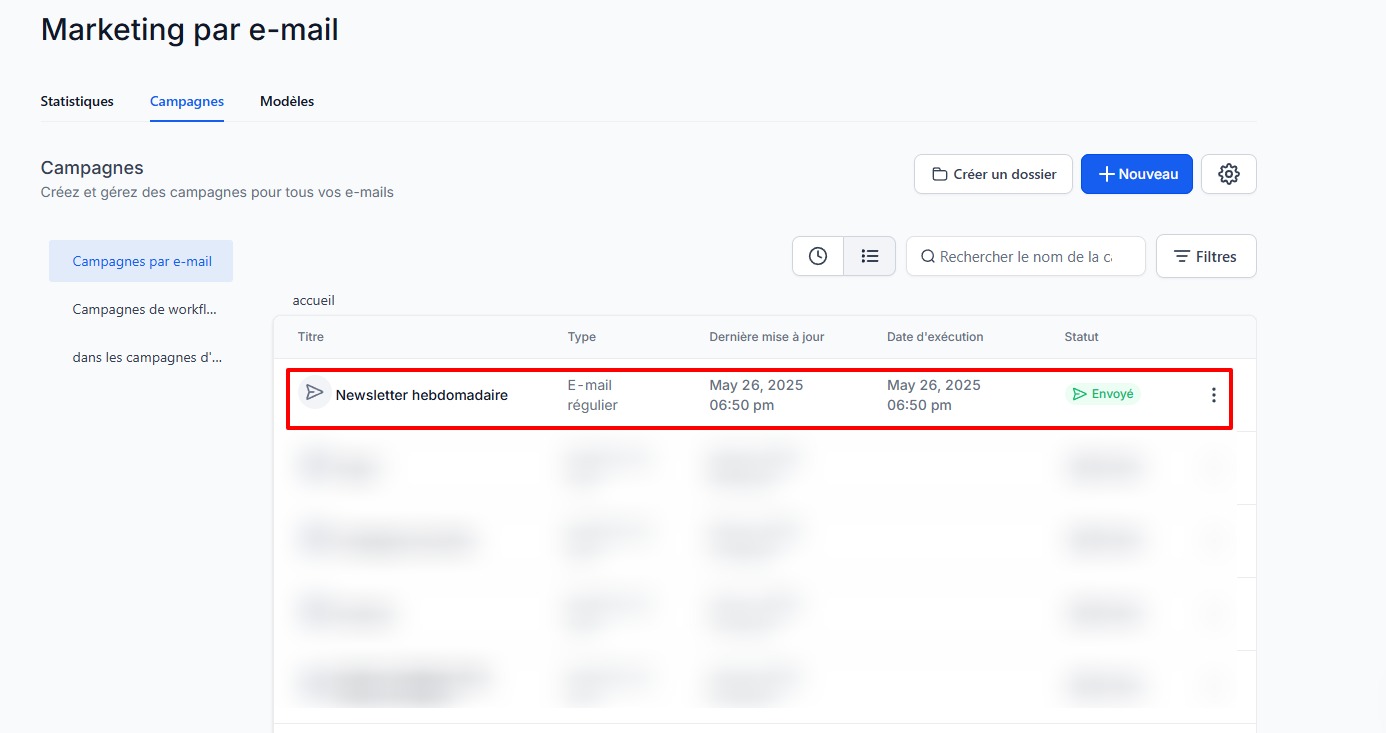
Congratulations, your campaign has been sent!
4. Track campaign results
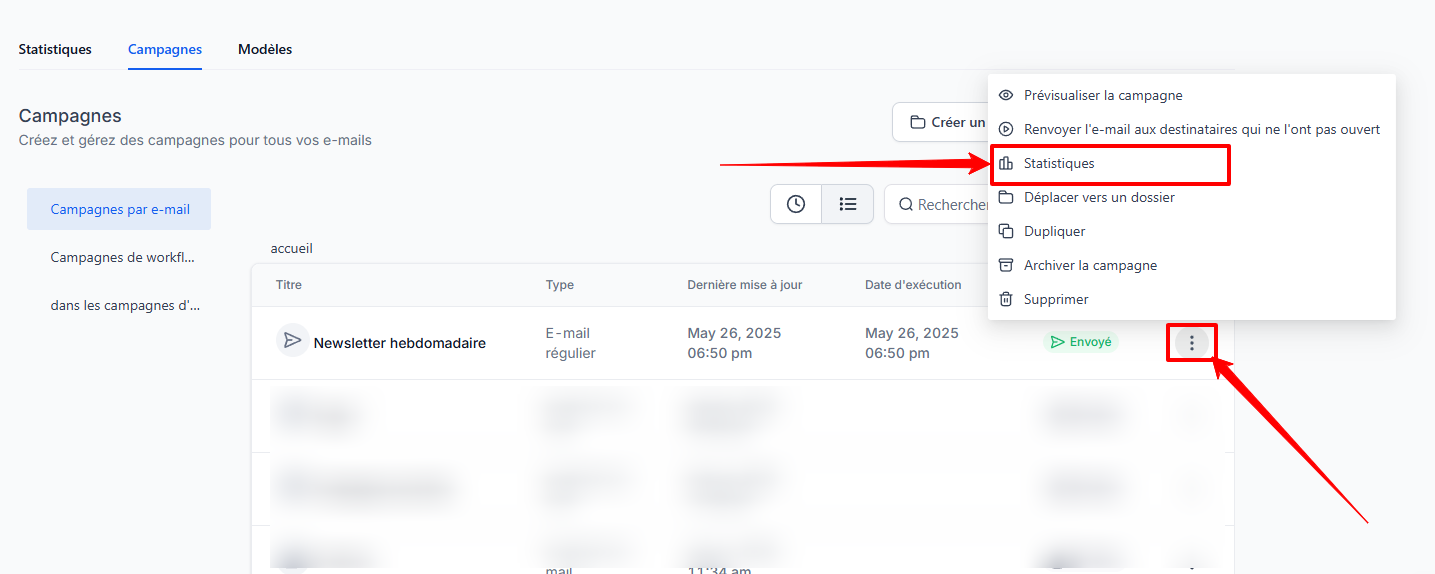
After sending, click on the three dots to the right of the campaign, then select Statistics
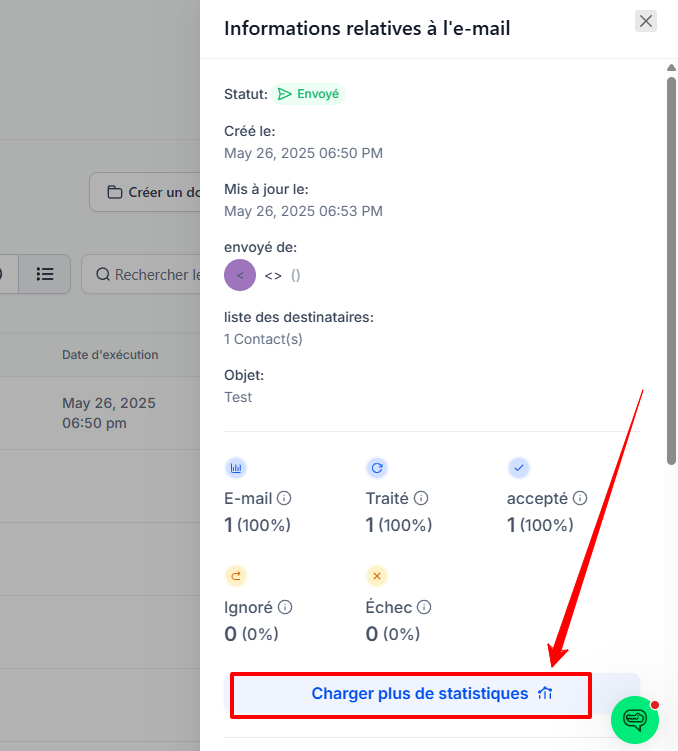
Click Load More Statistics to view the details:
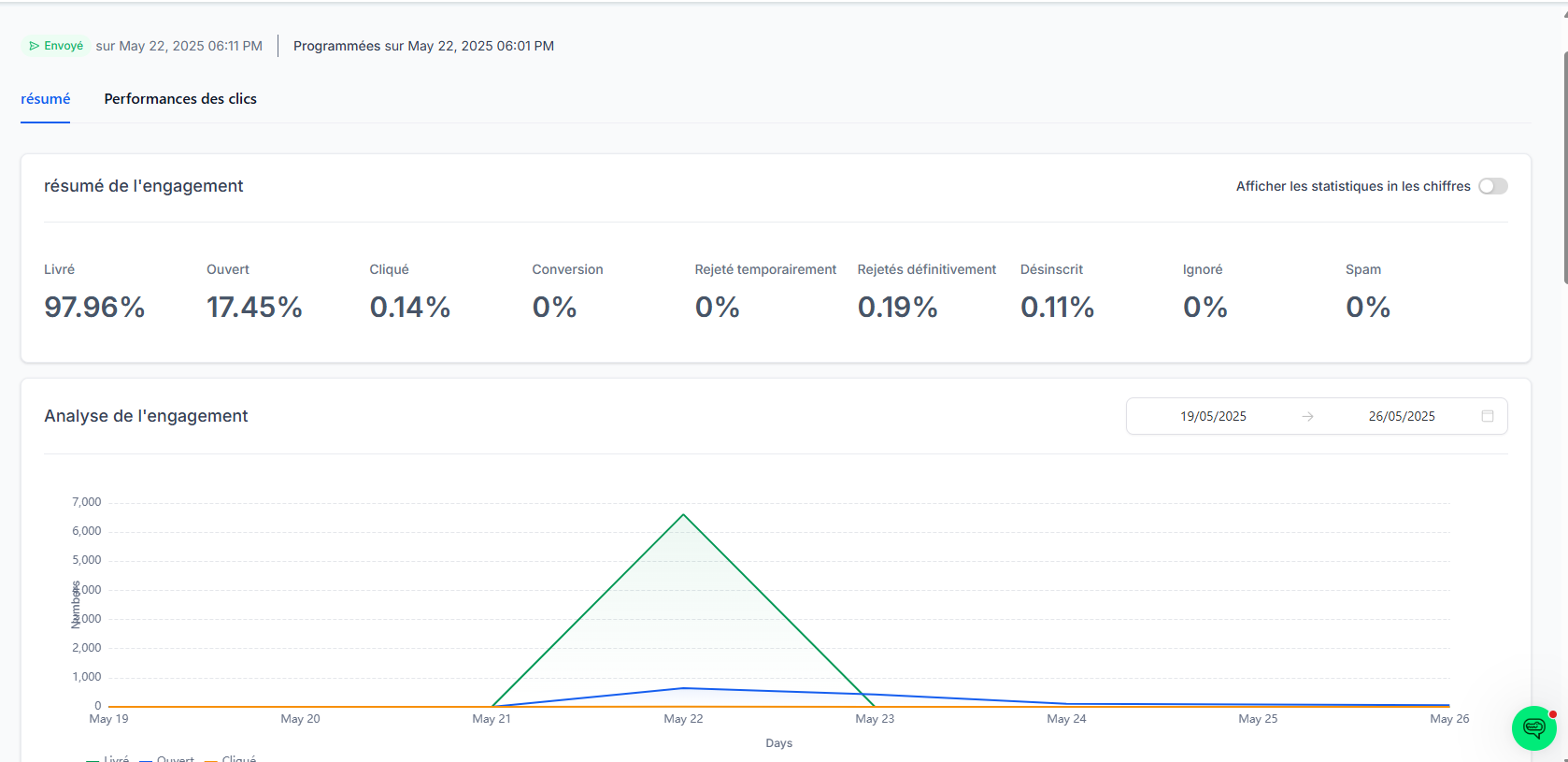
Open rate (who opened the email?)
Click-through rate (how many interacted?)
Any responses
Unsubscribes
Conclusion
Congratulations! You have just created, customized, and sent your first email campaign in CrocoClick. By combining good design, a well-targeted list, and relevant messages, you are on your way to more engaging and profitable communication.