Create your first email automation
Create a sequence of automatic e-mails after form submission in CrocoClick.
Written By CrocoTeam
Last updated 7 months ago
Do you have a form on your website or landing page? Great. Now, the real secret to turning a visitor into a customer is follow-up.
And you don't have to do it manually: CrocoClick allows you to create automatic follow-ups by email (and also by text message!).
You save time and increase your conversions.
Here's how to create your first automatic email workflow:
Create an email automation following a form submission
Step 1 — Use an automation recipe
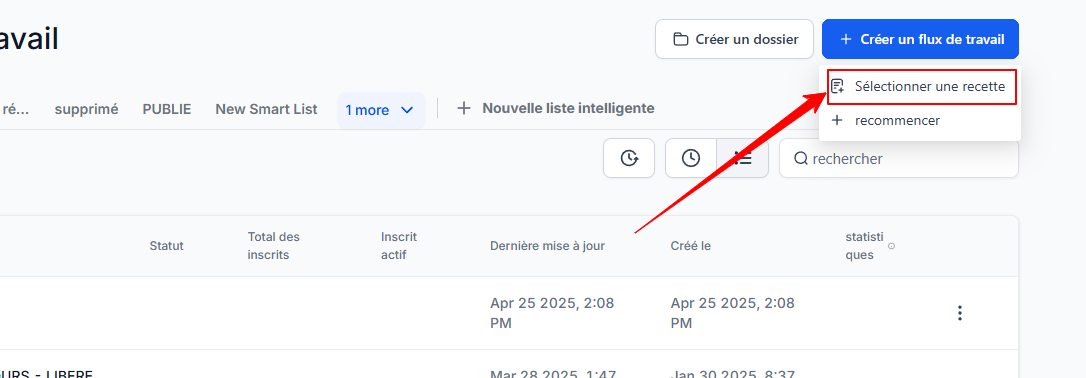
Go to Automations
Click on + Create a workflow > Select a recipe (= automation template)
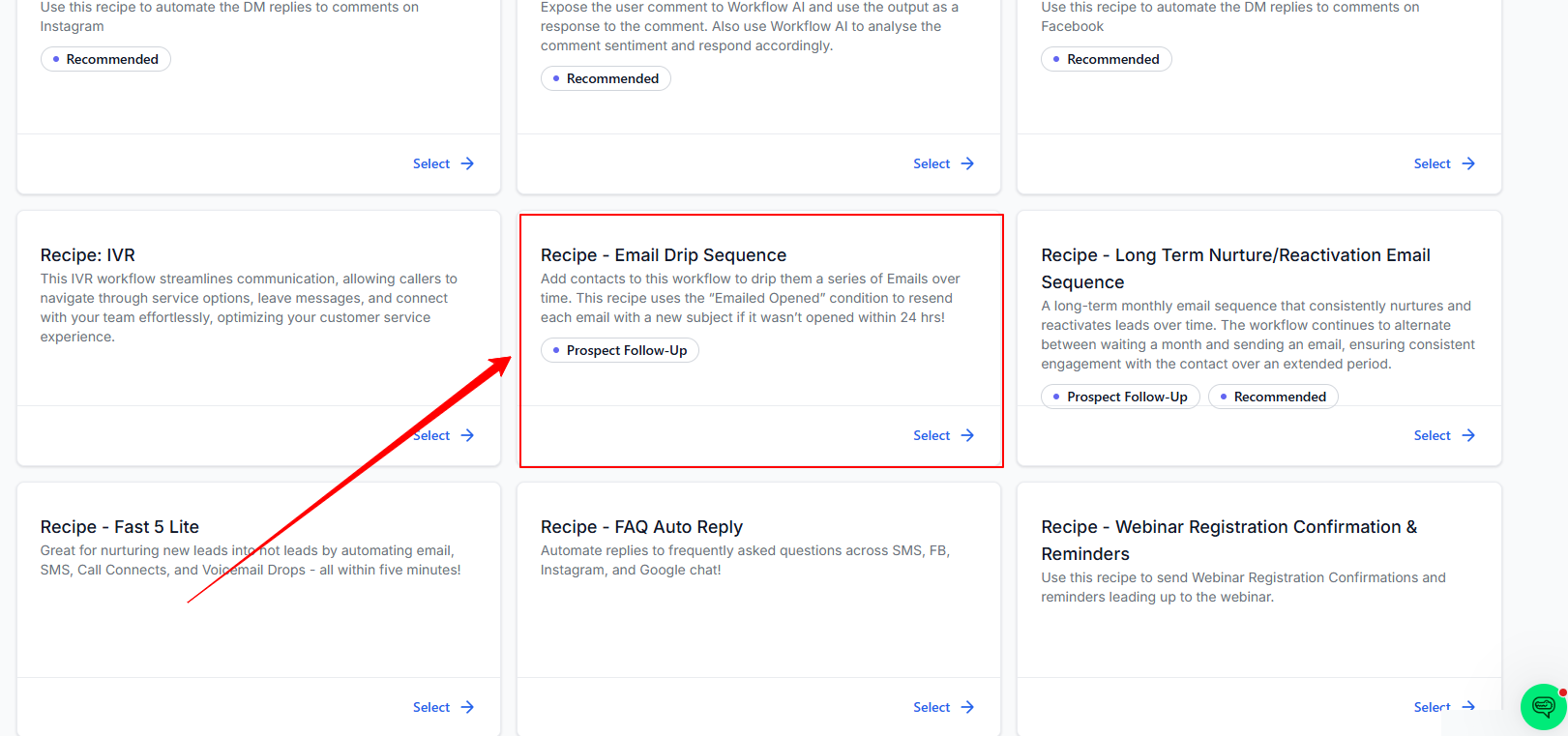
Choose the Recipe - Email Drip Sequence template
Step 2 — Set the trigger
Select the trigger of your choice (e.g., "Form Submitted")
If you selected form submission, add a Form is filter and select the relevant form
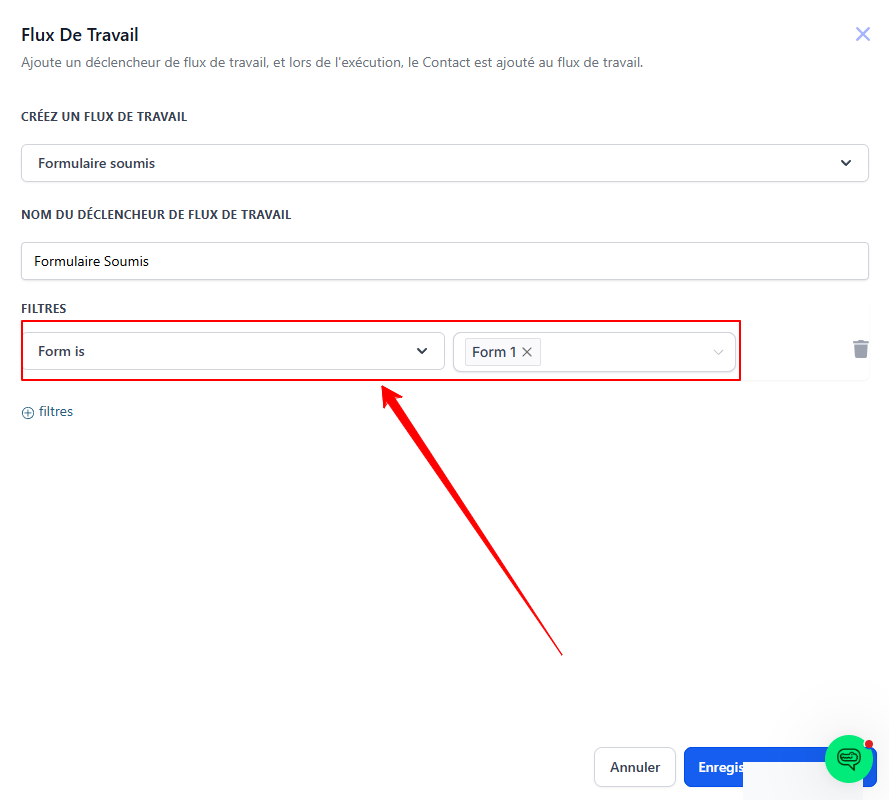
Click Save.
Step 3 — Write and customize emails
Click on the email sending action
Add an email template or modify the subject line, content, design, links, etc.
Add dynamic values if necessary (e.g., first name, date, calendar link, etc.).
Click Save action
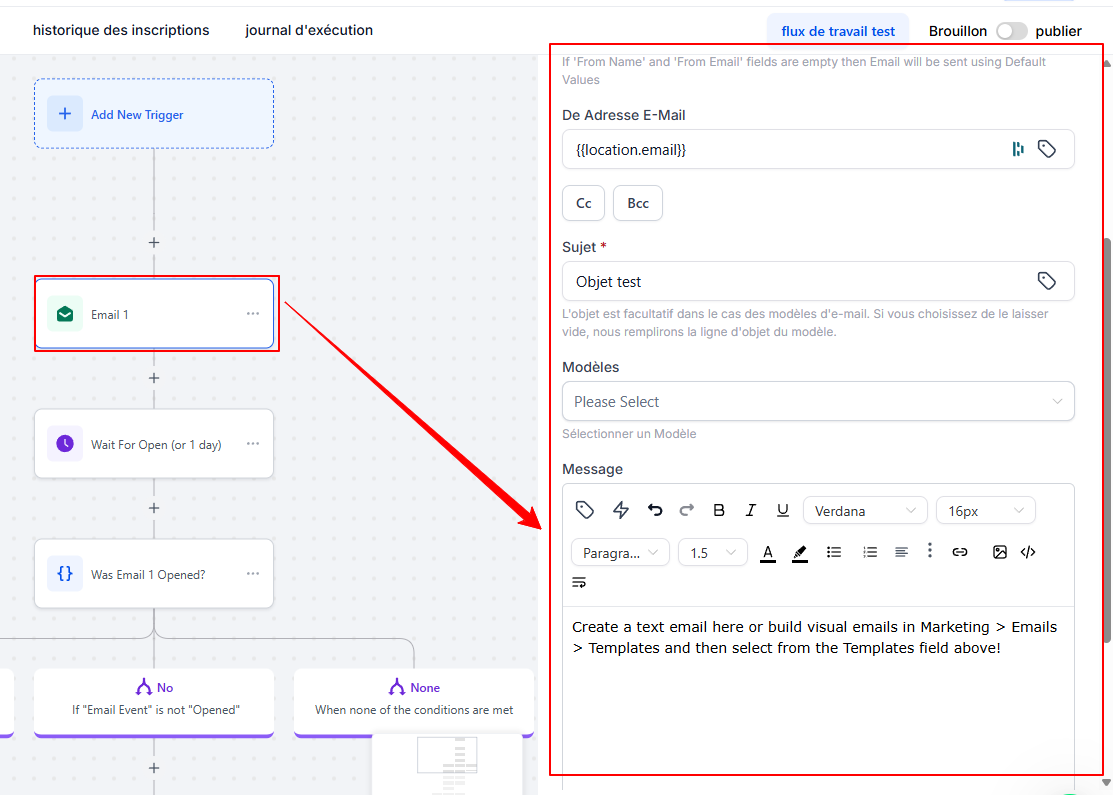
You can, of course, chain several emails together and add text messages to the sequence.
💡 TIP: You can delete any actions you don't need
💡TIP: If you want to customize the visual style of your emails, you must first create an email template.
To learn more, check out this article on the difference between email templates and email campaigns.
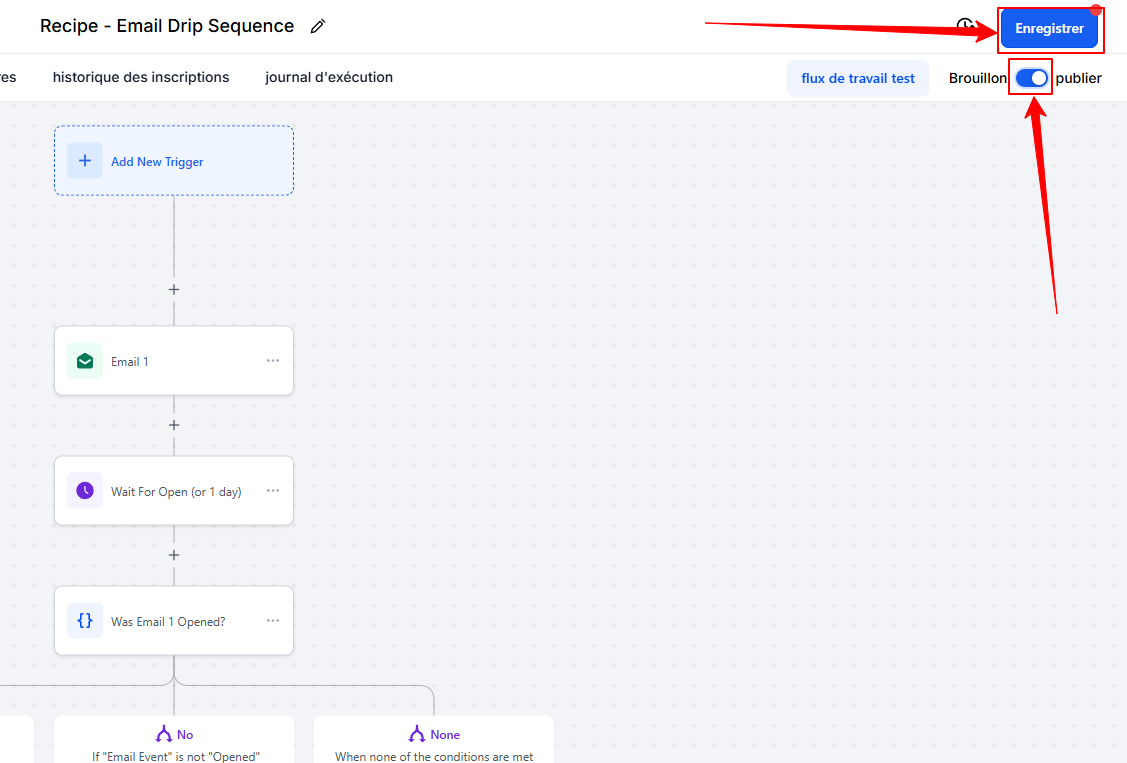
Step 4 — Publish the automation
Click Publish
Click Save
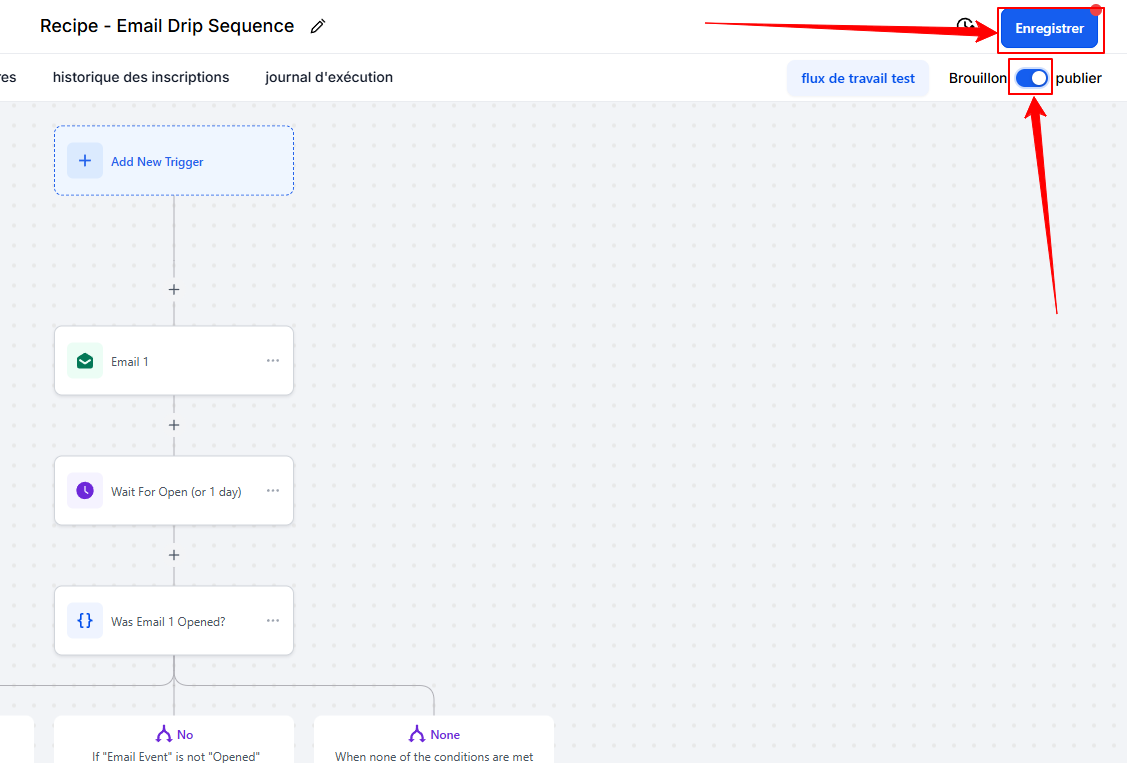
💡 TIP: Add "wait" actions between your emails to create a nurturing sequence over several days or weeks.
BONUS: Post-form re-registration automation
When a contact unsubscribes, the DND ("Do Not Disturb") status is automatically activated for that contact.
This status prevents you from sending emails to contacts, while keeping them in your CRM (the contact is "inactive").
That's why we recommend creating an automation that removes this DND status when a contact fills out a form (any form).
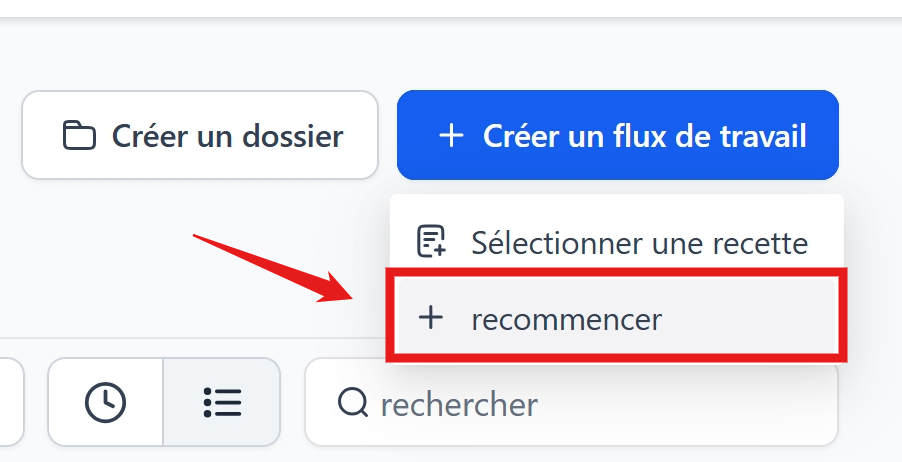
Step 1 — Create a blank automation
Go to Automations.
Click on + Create a workflow > start over
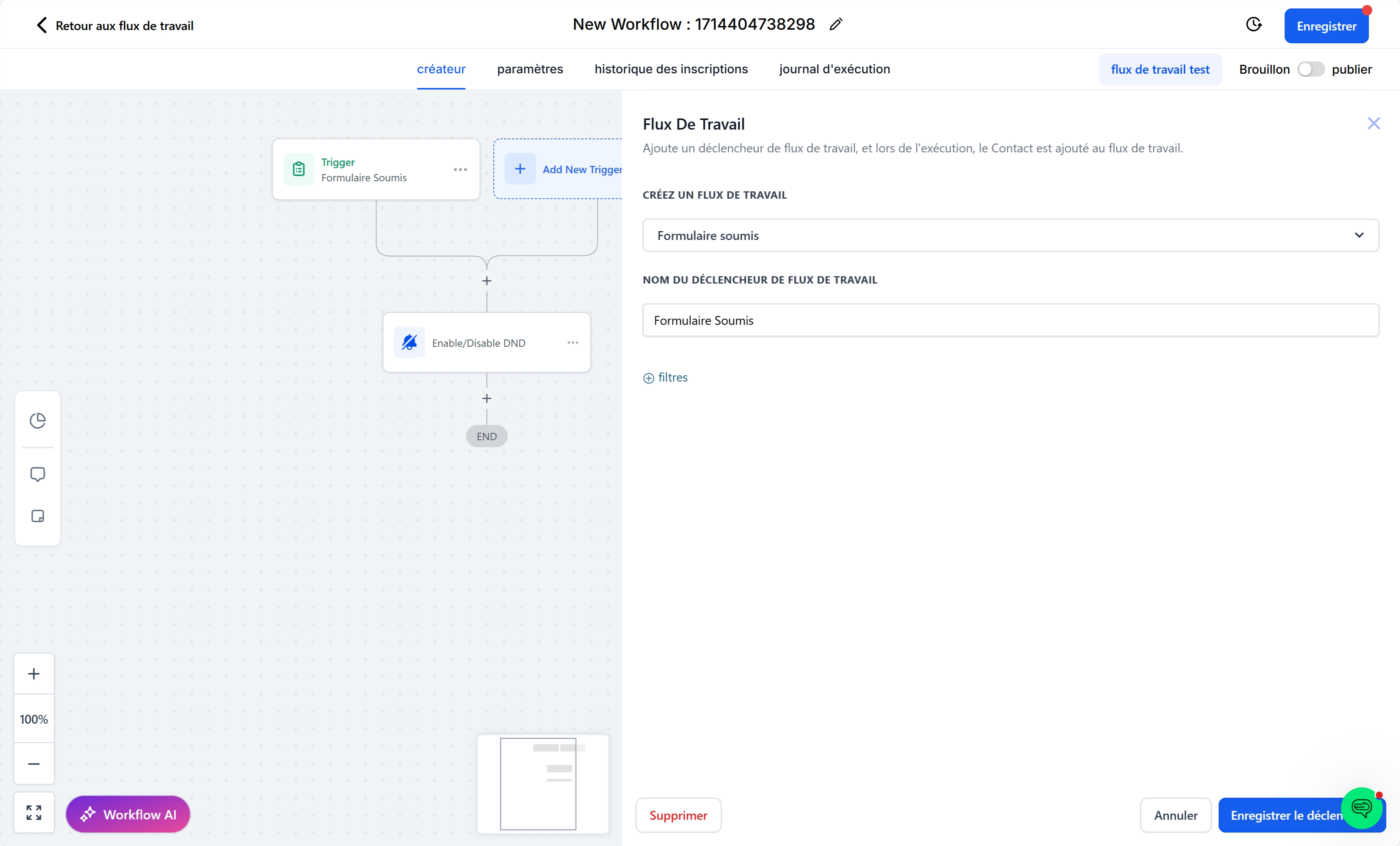
Step 2 — Set the trigger
Select the "Form Submitted" trigger
(no need to add a filter, as you want the automation to work for all forms).Click Save.
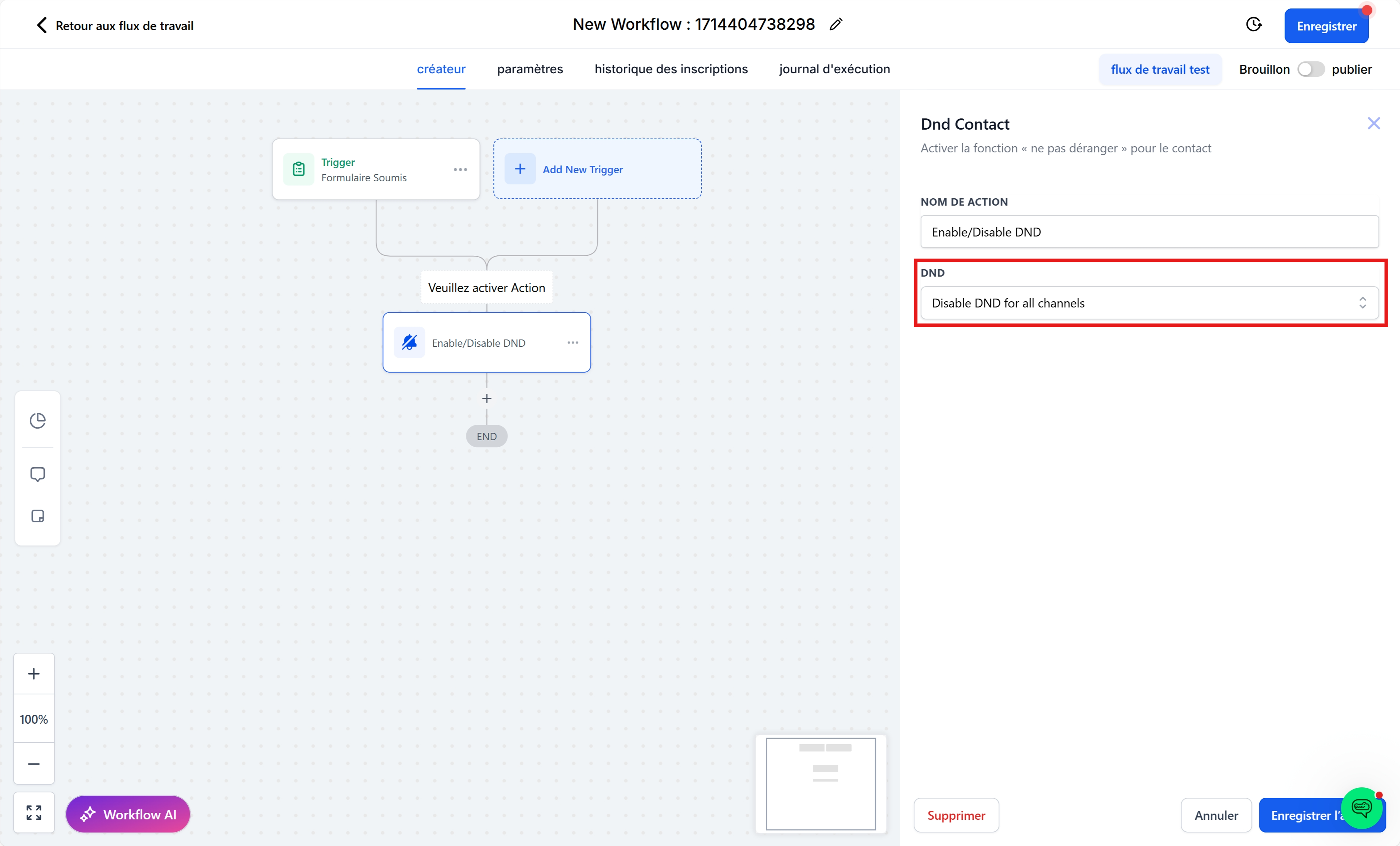
Step 3 — Add the "Enable/Disable DND" action
Add an action by clicking on the "+"
Search for DND to find the "Enable/Disable DND" action
Choose to disable DND for all channels, or only for emails.
Step 4 — Publish the automation
Enable the "Publish" option
Click Save
Conclusion
Congratulations! You have just set up your first automatic post-form sequence. This type of automation is one of the pillars of an effective sales funnel.