Create and manage your first contact
Add, modify and personalize a contact record in CrocoClick to launch automations or email campaigns.
Written By CrocoTeam
Last updated 8 months ago
Before sending emails, building automations, or managing appointments, you need a contact. This is the foundation of everything in CrocoClick.
In this article, we'll show you how to create a contact manually, edit their information, and even add custom fields to track the right data.
1. Create a new contact
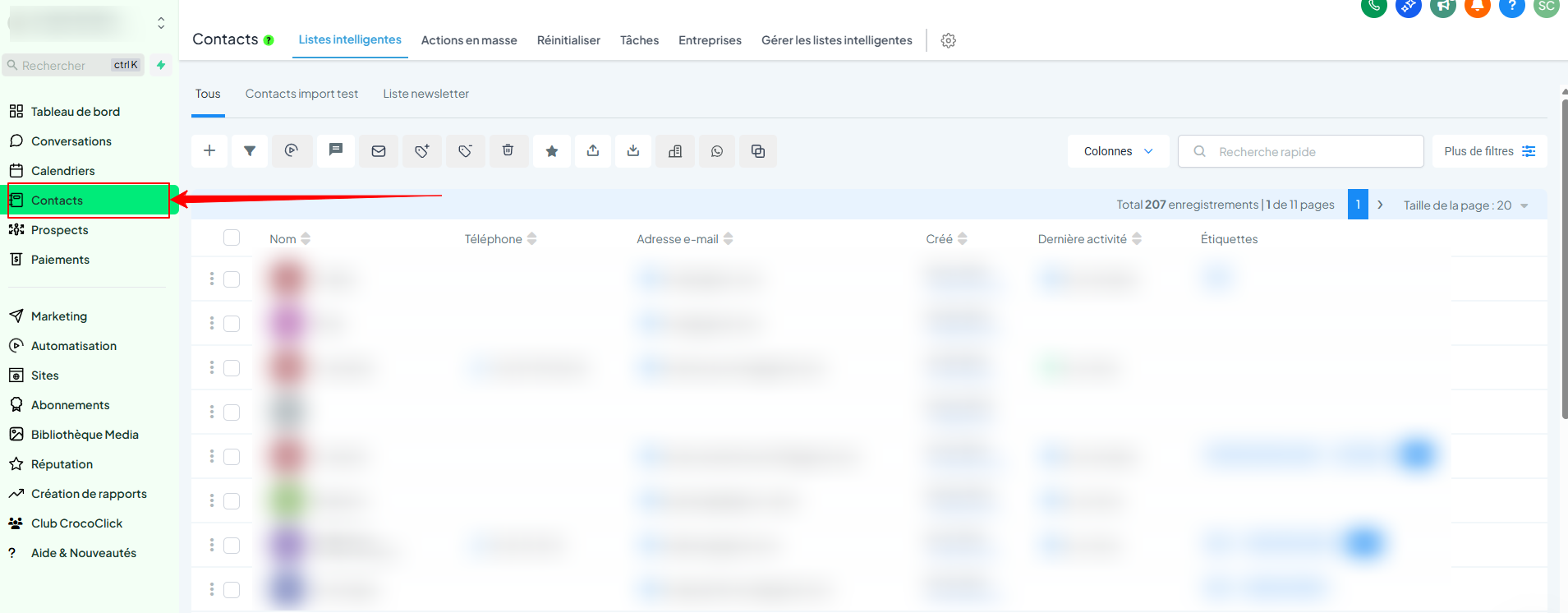
Go to Contacts (main menu)
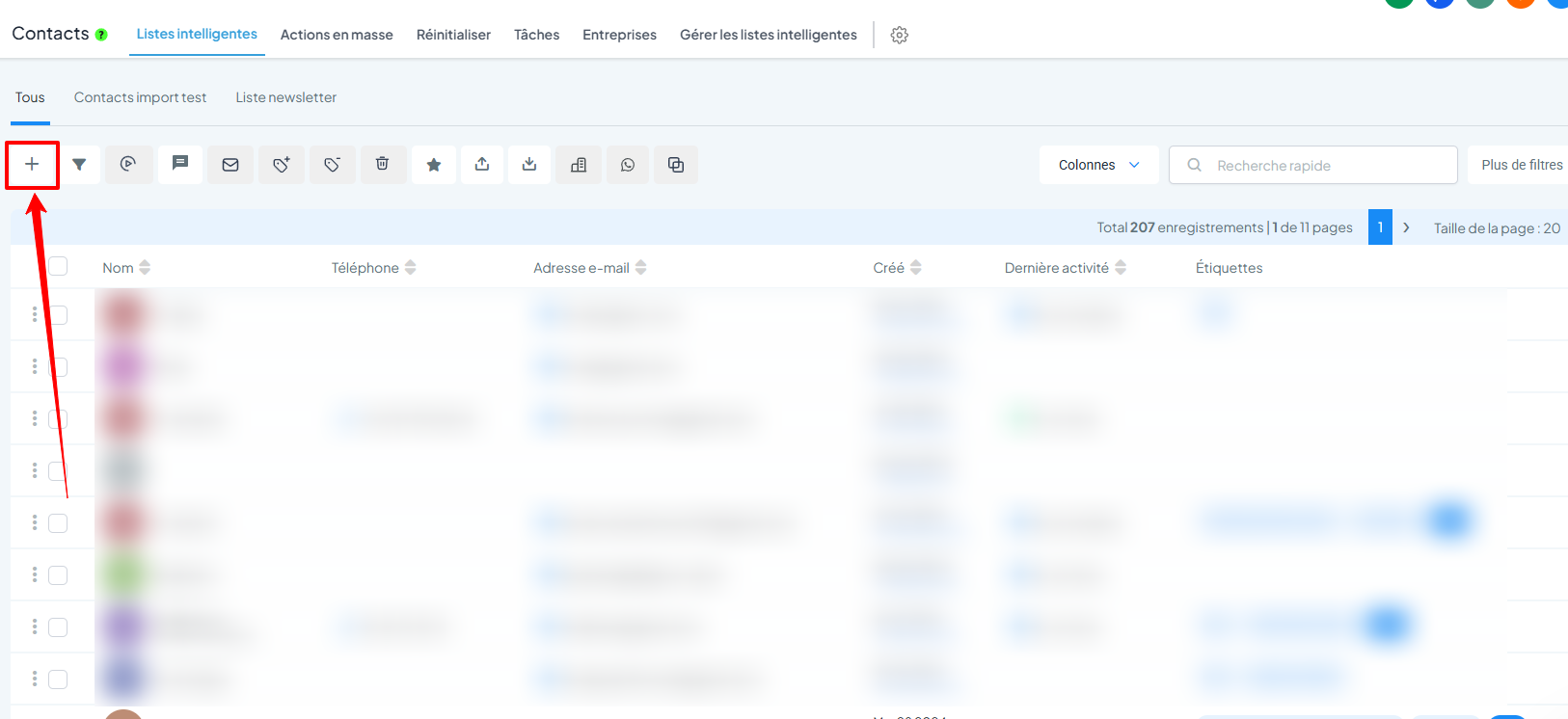
Click on + to add a contact
Fill in the information: name, email, phone number, etc.
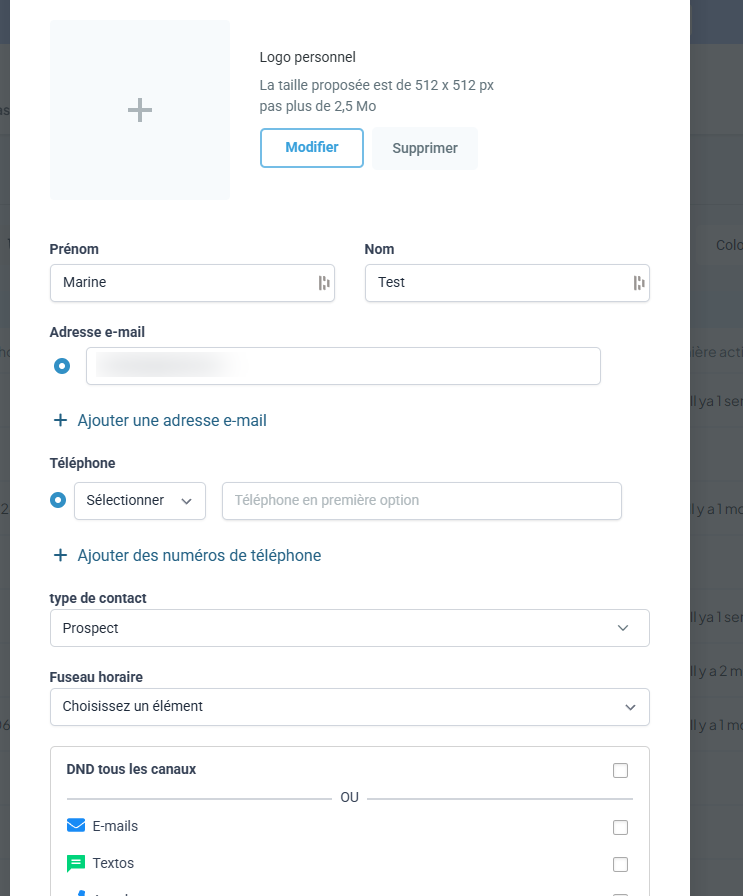
If a field is missing, don't panic: you can create one (see section 3)
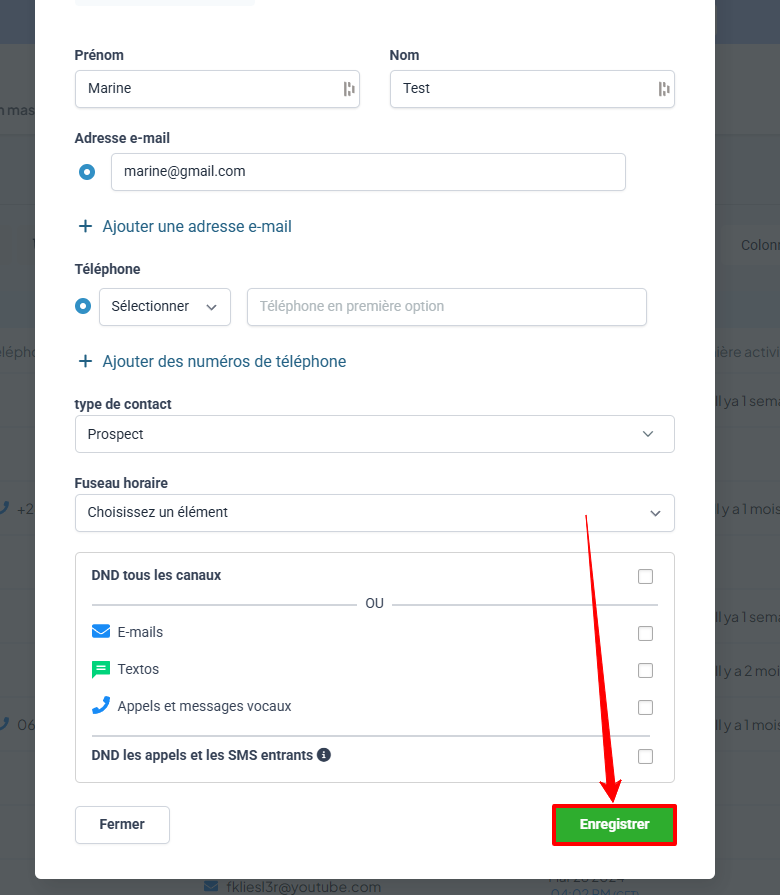
Click Save
2. Edit an existing contact
Still in Contacts, click on a contact in the list
You will be taken to their contact page.
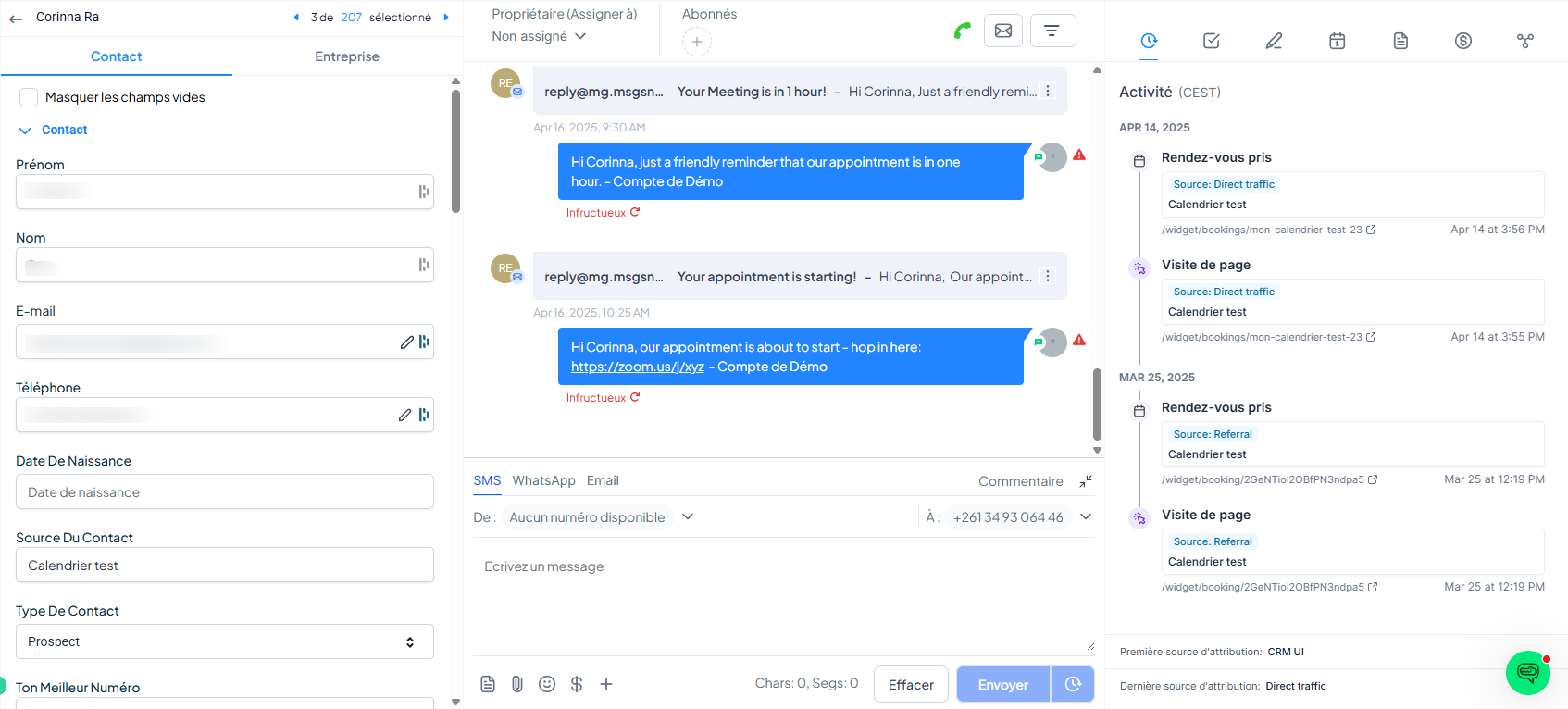
Edit the information in the left panel
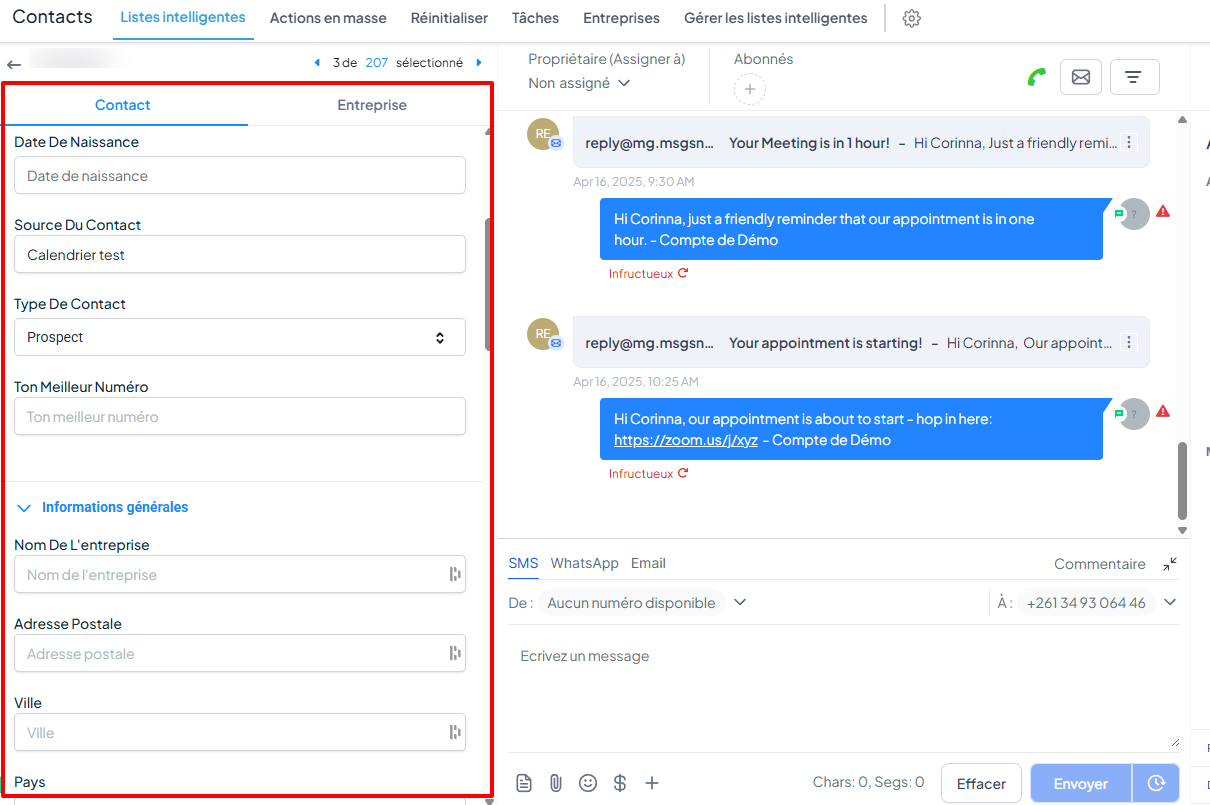
Click Save

3. Create a custom field
Want to track specific information (e.g., "Occupation," "Registration date," "Payment link," etc.)? Create a custom field:
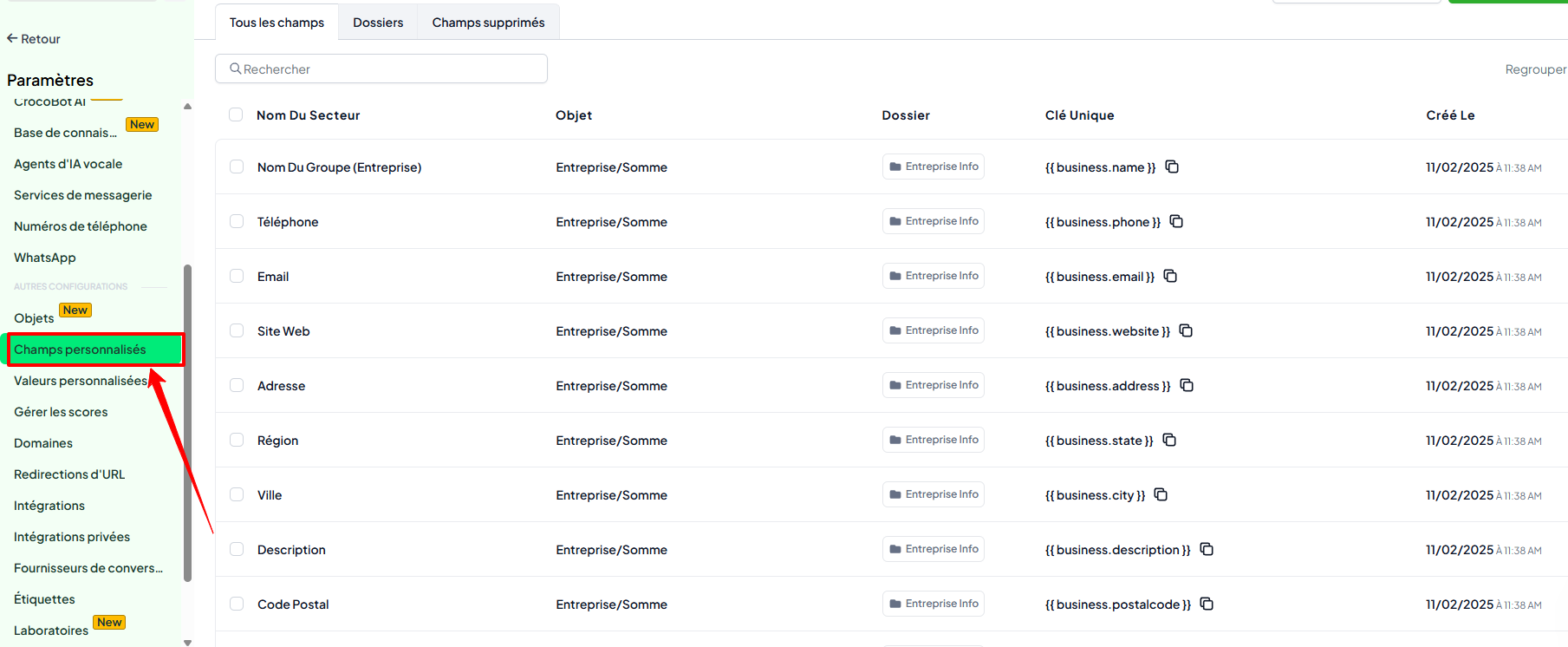
Go to Settings > Custom Fields
Click Add Field
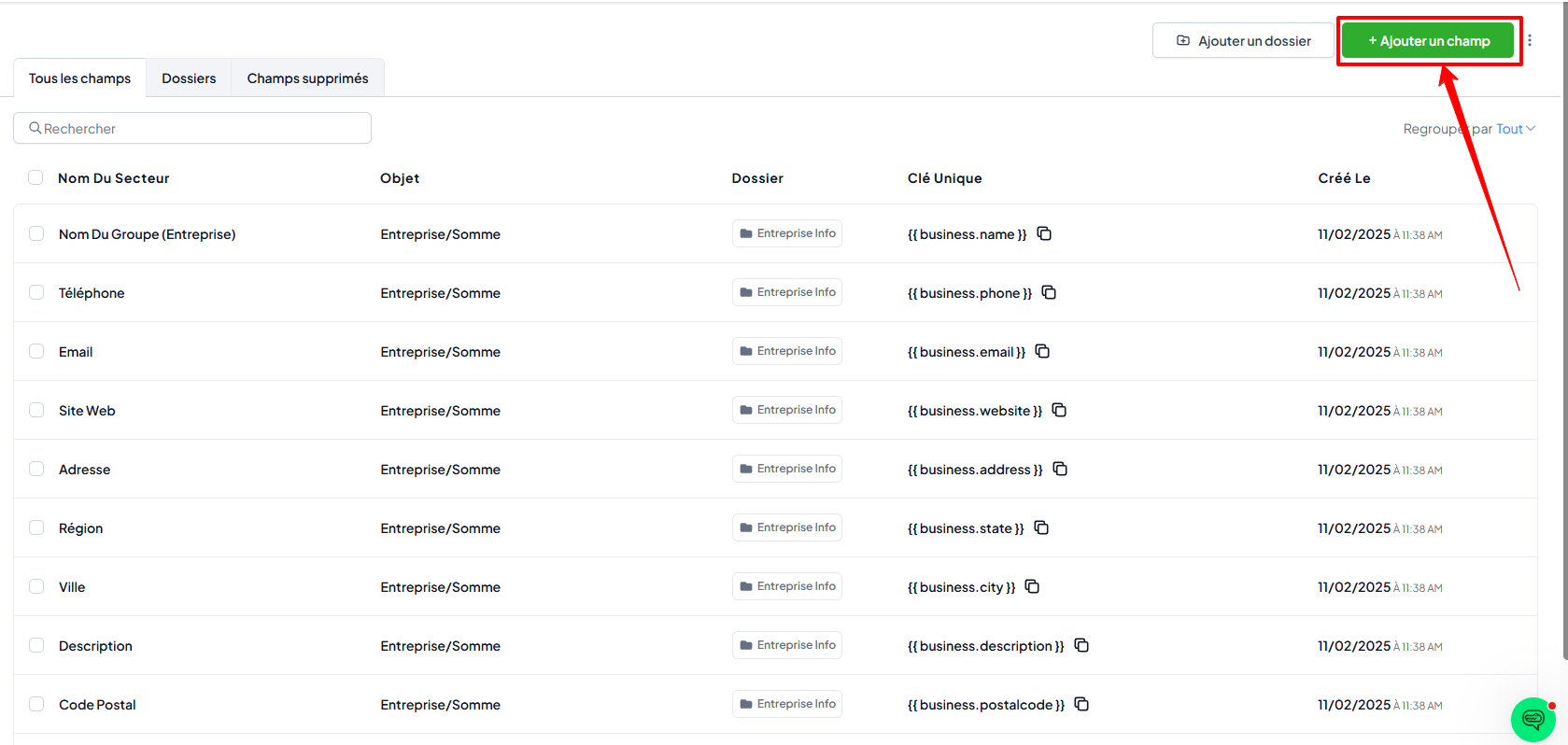
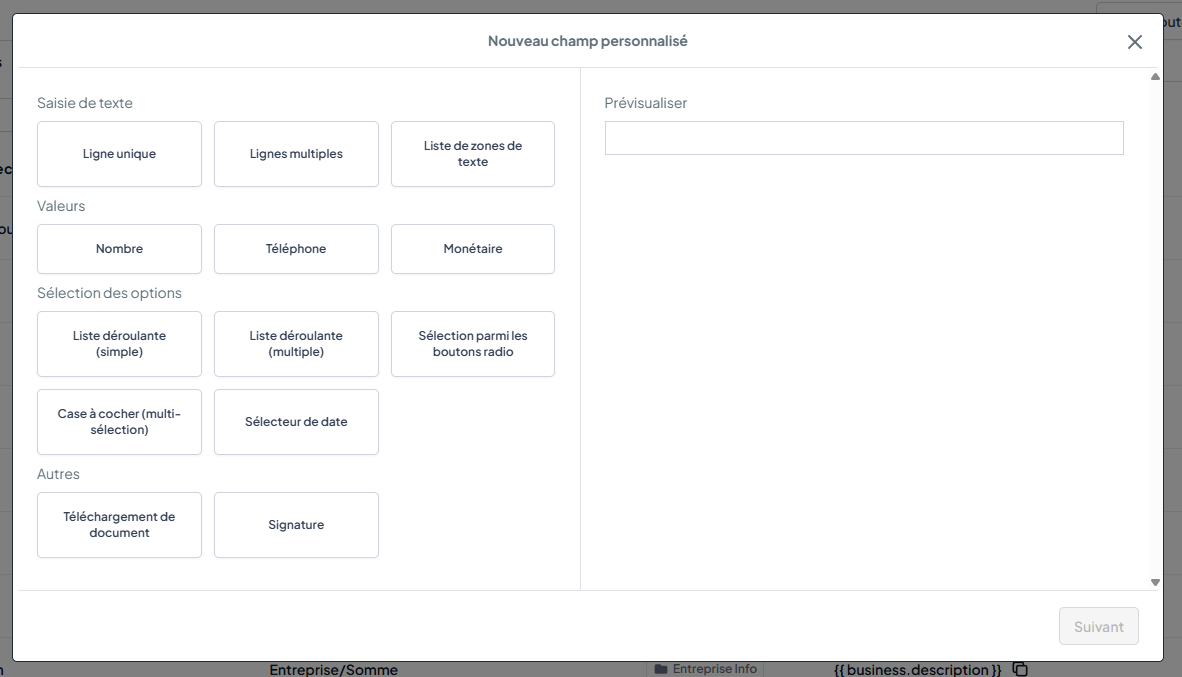
Choose the type (text, drop-down list, date, etc.)
Give it a name and a group
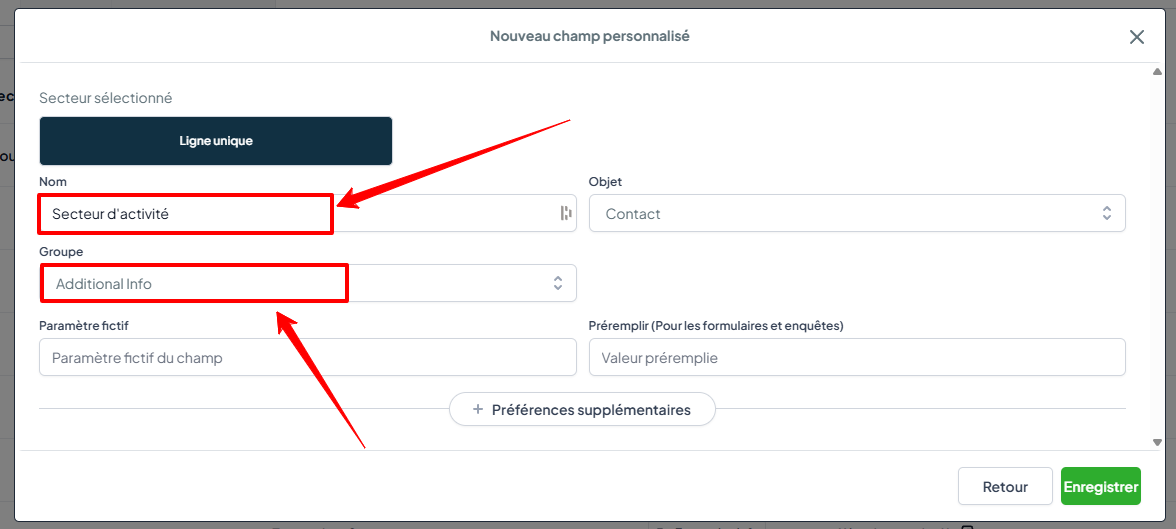
Click Save
You can now use this field in contact records, forms, and automations.
💡 TIP: To master custom fields, check out our articleCreate, Organize and Manage Custom Fields
Conclusion
Creating and managing your contacts in CrocoClick is quick and essential for everything else. With well-filled and customized records, you can automate, segment, and engage your prospects like a pro 💡