Activate / deactivate certain Stripe payment methods
Manage Stripe payment methods in CrocoClick: activate or deactivate credit card, SEPA and other methods according to modules, subscriptions and Test/Live environments.
Written By Baptiste Lorreyte
Last updated 8 months ago
CrocoClick allows you to fully manage your payment methods directly from the CrocoClick interface, without having to navigate between multiple dashboards.
You can:
enable or disable certain payment methods (credit cards, SEPA, wallets, etc.)
choose which payment methods are available depending on the modules
manage specific rules for subscriptions
differentiate settings between Test mode and Live mode
Objective:
👉 more control, more clarity, less friction during payment.
Prerequisites
Your CrocoClick account must be connected to Stripe
Stripe must be configured as a payment provider
Native payment method management is only available with Stripe
General principle: how payment management works in CrocoClick
Stripe payment method management in CrocoClick is based on a simple principle:
👉 You choose which payment methods are visible for each type of checkout, directly from CrocoClick.
This means that:
only activated methods appear for your customers
each module strictly adheres to your settings
there are no more surprises at checkout
CrocoClick acts as the conductor, with Stripe remaining the payment engine in the background.
Key advantages of native management in CrocoClick
Total centralization
All settings are made in one place, without going through the Stripe dashboard.
Control by module
You can offer different payment methods depending on:
invoices
forms
funnels
subscriptions
shops
communities, etc.
Test/Live separation
The Test and Live environments have their own settings.
Perfect for testing without impacting production.
Specific configuration for subscriptions
Subscriptions have dedicated rules, independent of other payments.
Clearer customer experience
Your customers only see the relevant options, tailored to their context.
Reduced costs
Some payment methods are more expensive than others. For example, credit card payments often incur higher fees than SEPA direct debits. You can therefore choose to disable credit cards for certain modules and only allow SEPA payments.
Where to manage payment methods in CrocoClick
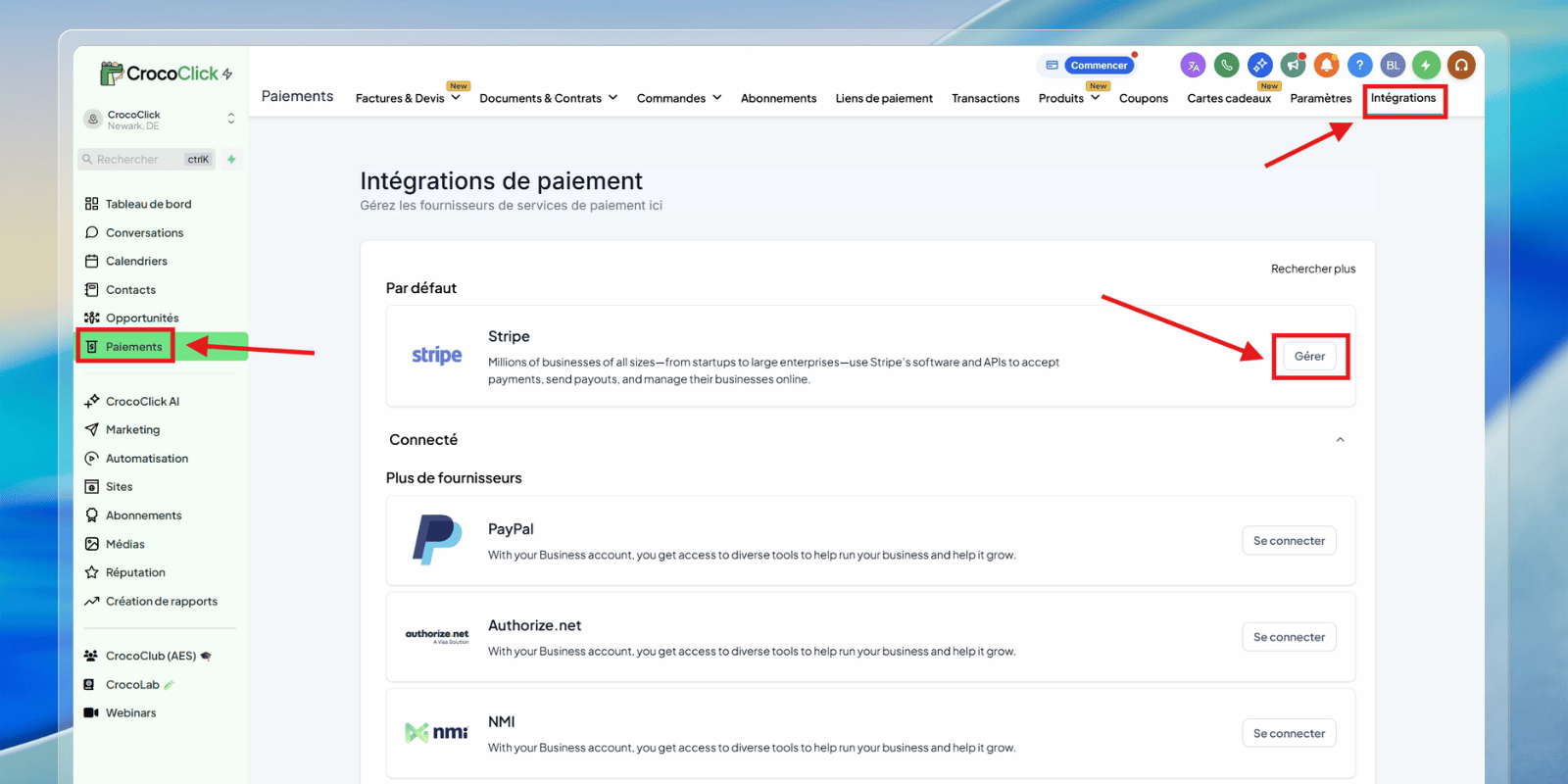
Step 1: Access payment settings
Go to your CrocoClick account
Click on Payments
Open the Integrations tab
Click Manage next to your connected Stripe account
Step 2: Manage payment methods
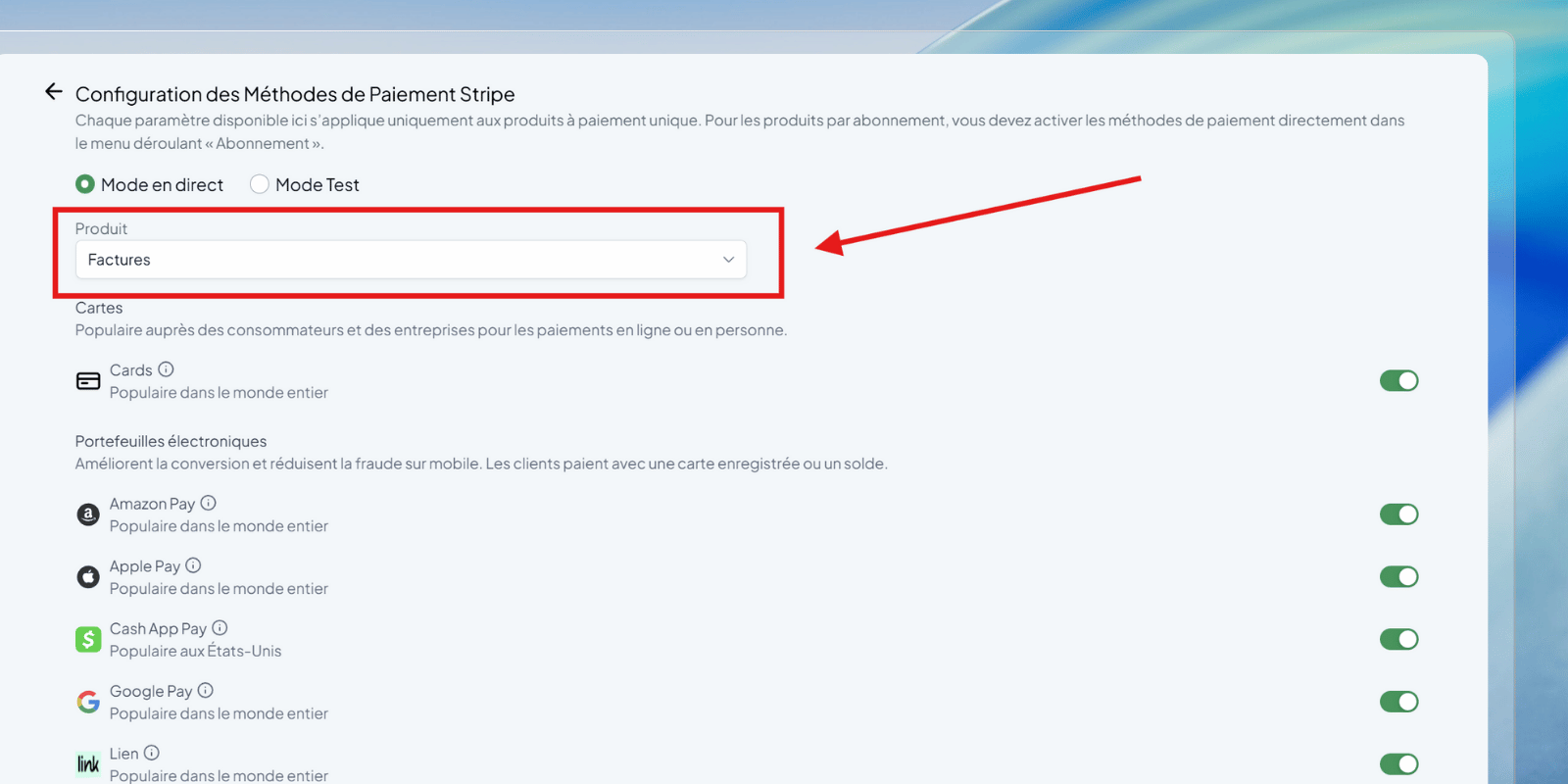
Click Manage payment methods
You will see a list of available payment methods
Enable or disable options for each product area
💡 Each change is immediately reflected in the relevant checkouts.
CrocoClick modules affected by the settings
The settings you define are automatically applied to the following modules:
Invoices
Invoices with automatic payment
Payment links
Tunnels – 1-step form
Tunnels – 2-step form
Forms
E-commerce stores
Calendars
Courses
Communities
Subscriptions
👉 Each checkout strictly adheres to the defined settings.
Special case: subscription management
When you offer subscriptions, a dedicated section appears in the settings:
a specific Subscriptions menu
payment methods that can only be configured for recurring payments
⚠️ This section only appears if at least one subscription exists in Live mode in the CrocoClick account (Stripe rule).
Available payment methods
The payment methods offered depend on:
your country
your Stripe account
current Stripe authorizations
Among the most common:
Credit card
Apple Pay
Google Pay
SEPA
iDEAL
Bancontact
Klarna
AfterPay
Amazon Pay
Revolut Pay
and other local methods
⚠️ Some methods may appear unavailable depending on your Stripe configuration.