Configure automatic taxes on your invoices and order forms
Configure CrocoClick's automatic tax billing to charge VAT, GST or Sales Tax according to the customer's country and remain compliant.
Written By CrocoTeam
Last updated 8 months ago
Set up automatic taxation in CrocoClick
Save time, avoid manual errors, and stay compliant: CrocoClick now automatically calculates taxes on your tunnels, payment links, invoices/credit notes, and e-commerce store in over 40 countries (United States, Canada, EU, UK, Australia, etc.).
Summary
Overview
Prerequisites
Enable automatic taxation step by step
Access settings
Add your Nexus addresses
Enter your tax IDs (optional)
Associate a tax code with the product
Check the display at checkout
Set up tax on invoices and quotes
Best practices and compliance reminders
Complete FAQ
1. Overview
Automatic tax:
Determines the correct tax (VAT, GST, sales tax, etc.) based on the customer's billing or delivery address.
Takes into account your collection areas ("Nexus") and, if you provide them, your tax identification numbers.
Works for all payment processors connected to CrocoClick.
📚 Glossary
2. Prerequisites
Be the administrator of the CrocoClick account.
Have a payment processor (Stripe, PayPal, etc.) connected beforehand.
Know your collection obligations: countries + states/provinces (US/CA) where you have a tax nexus.
(Recommended) Have your VAT/GST/Tax ID numbers, if required.
3. Enable automatic tax step by step
3.1 Access the settings
Payments menu › Settings › Taxes › Automatic tax.
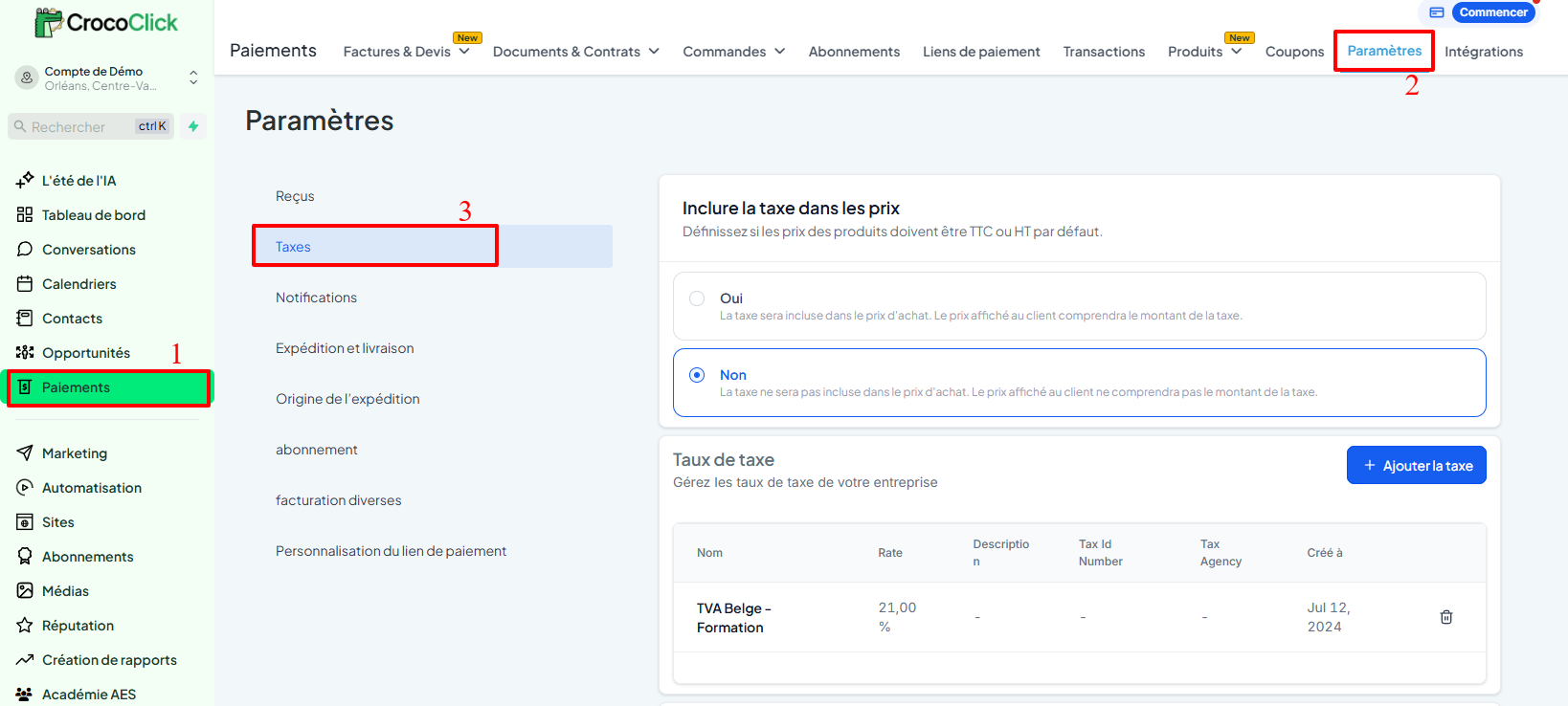
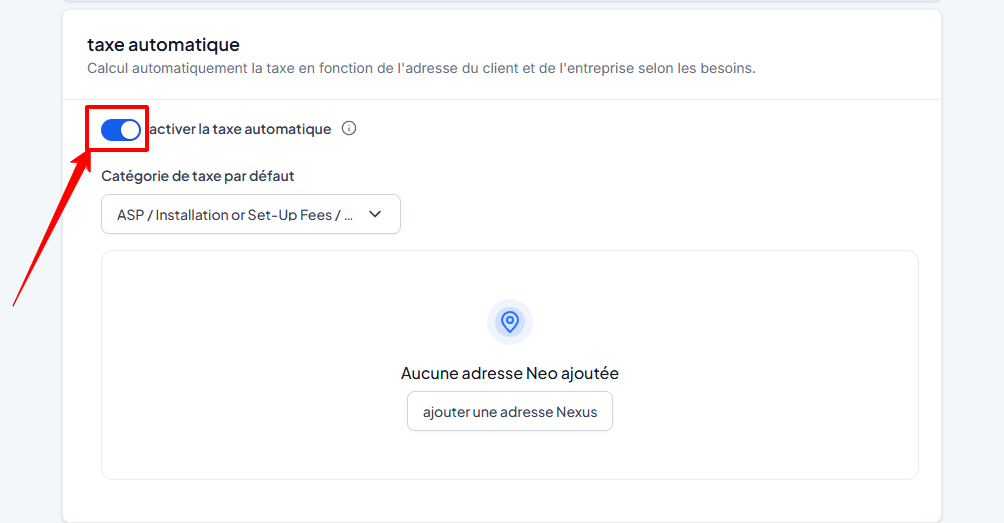
Activate the "Automatic tax" switch.
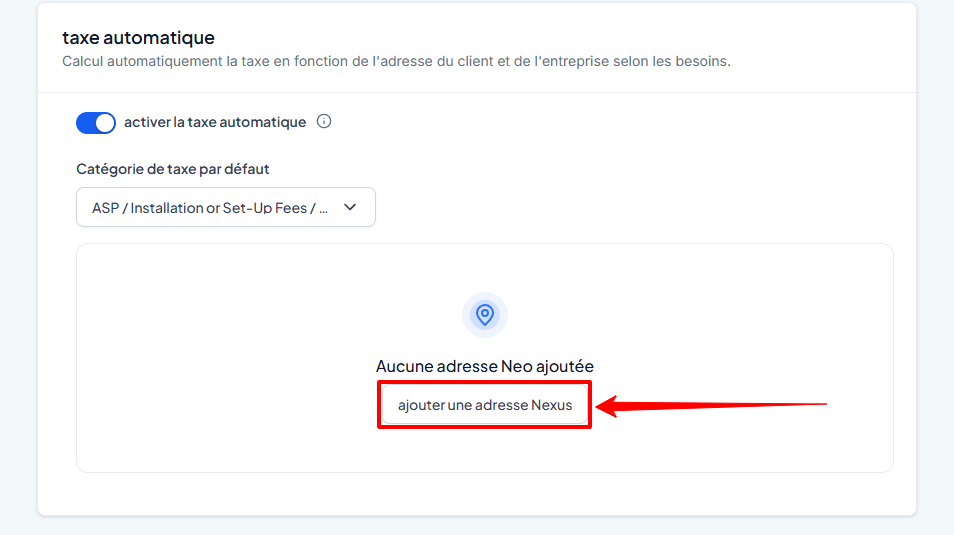
3.2 Add your Nexus addresses
Click Add Nexus.
Select:
Country (all available)
States or provinces if USA/Canada
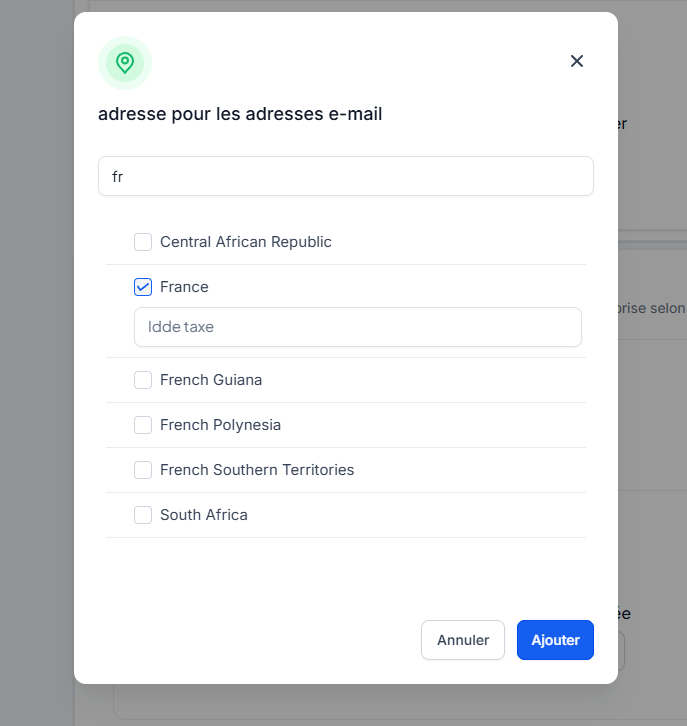
(Optional) Enter the corresponding Tax ID (VAT FR, VAT GB, GST AU, etc.).
Finish by clicking Add.
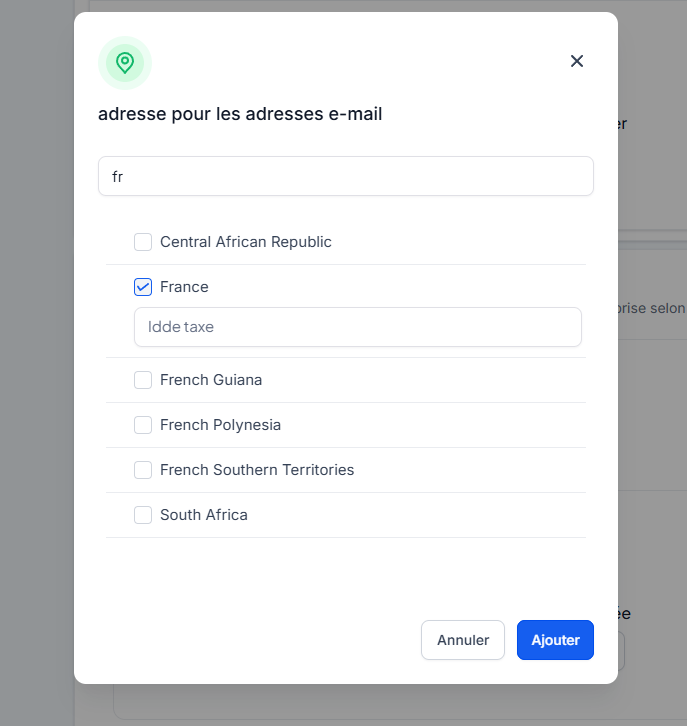
💡 TIP: You can add several countries/states at once. Deletion is done country by country.
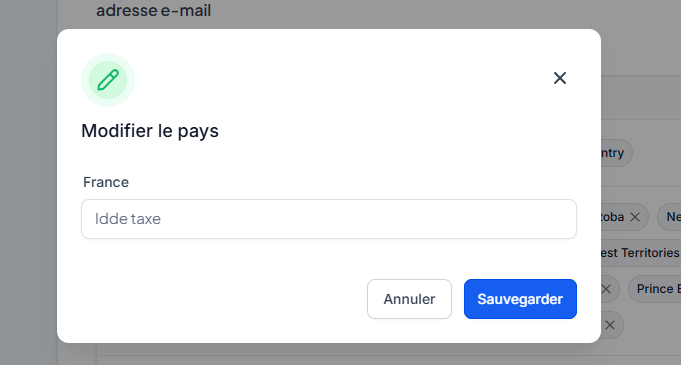
3.3 Enter your tax IDs (optional but recommended)
CrocoClick will automatically apply exemption or reduced rate rules according to local legislation.
Add or modify a Tax ID at any time in the same window: Payments › Settings › Taxes.
3.4 Associate a tax code with the product
Certain categories (books, food, software, training) have specific tax rates or exemptions.
Payments › Products.
Create or Edit a product.
Tax section: "Product code" field.
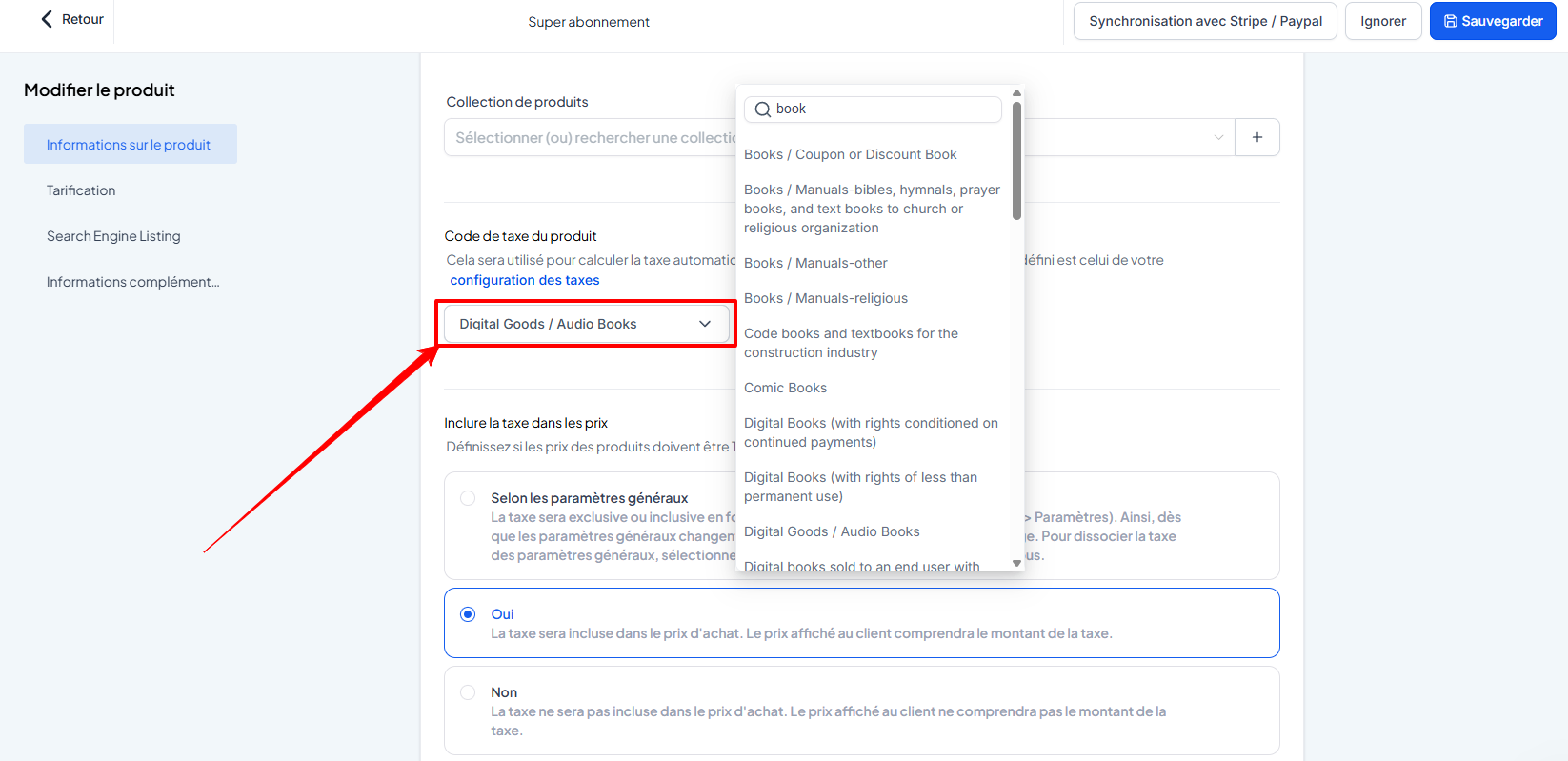
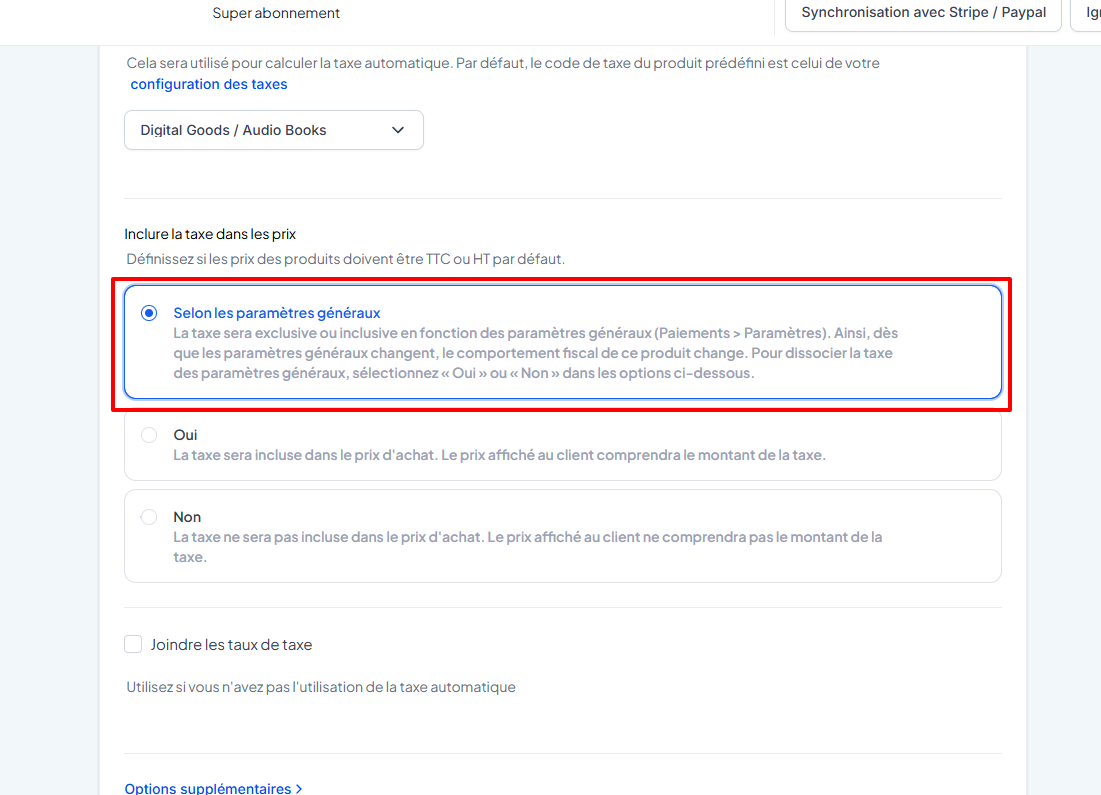
Enter the appropriate tax code (you can copy and paste from the list of codes provided in the interface).
Save.
If no code is entered, CrocoClick will apply the global default code defined just above your Nexus.
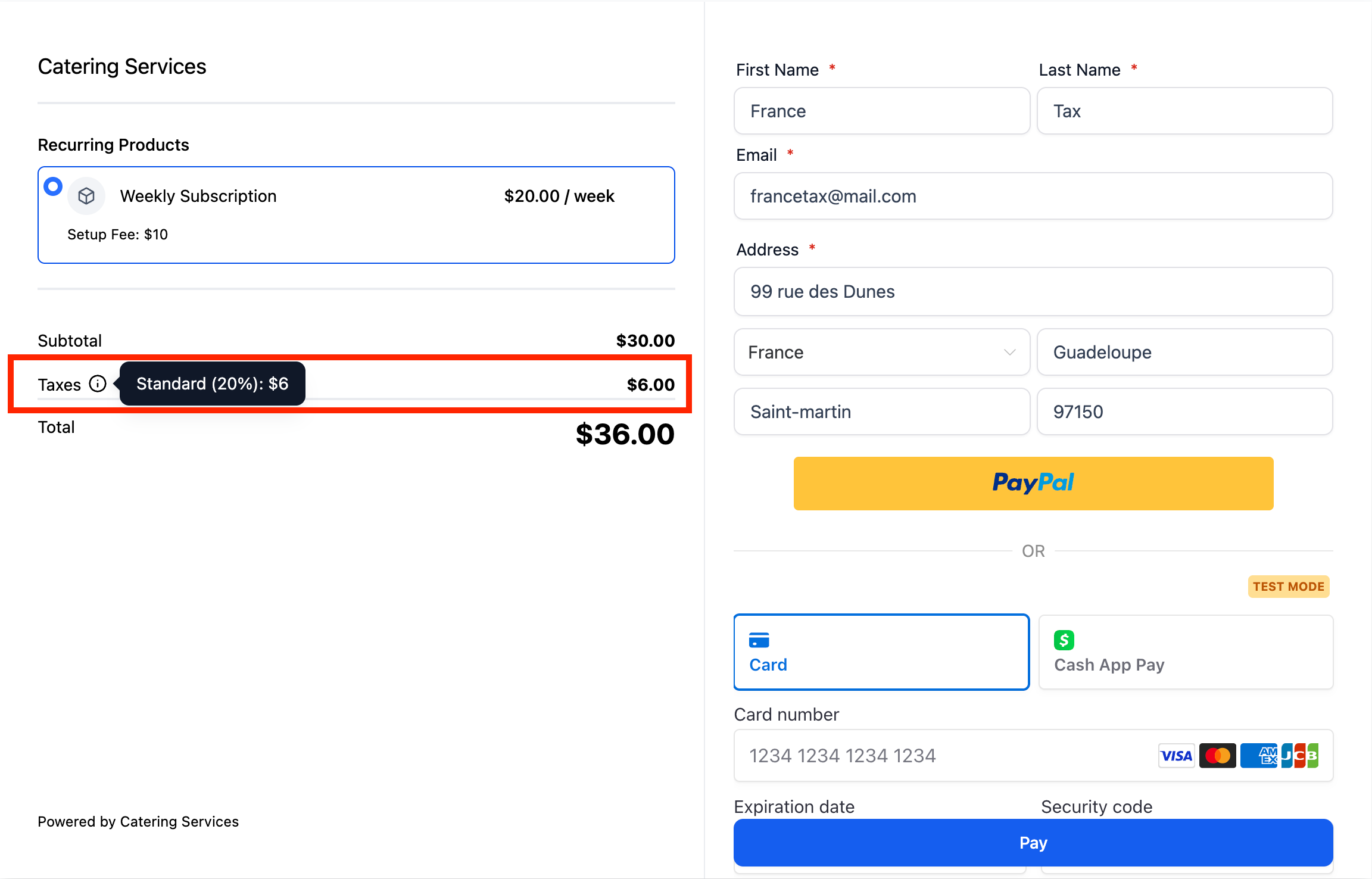
3.5 Check the display at checkout
Open your order page in incognito mode.
Enter a billing/shipping address in an area where you have a Nexus.
In the summary:
A "Tax" line will automatically appear with the correct rate.
Your company's Tax ID is displayed (if applicable).
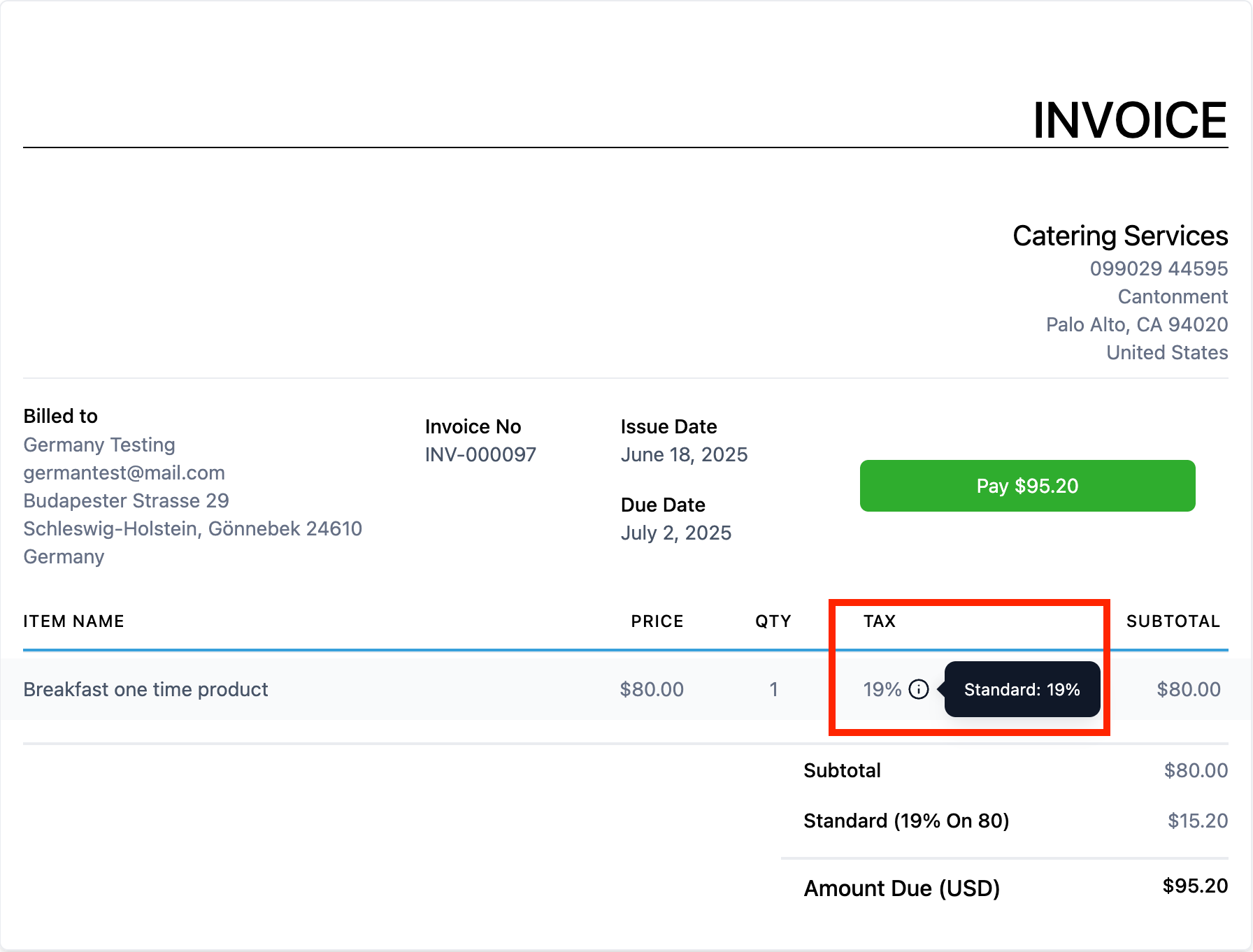
4. Enable/disable automatic tax on an invoice
Invoices › Create (or Edit a draft).
Tax section: toggle "Automatic tax" ON/OFF.
If ON, the calculation will follow: Nexus addresses + Tax ID + product codes.
If OFF, add your taxes manually in an additional line.
5. Best practices & compliance reminders
6. FAQ
1️⃣ What is a Nexus?
A territory (country, state, province) where you are legally required to collect tax. CrocoClick only calculates tax for addresses located within your Nexus.
2️⃣ Do I need to add a Tax ID everywhere?
Recommended. Some countries (EU) apply different rules if the seller has a local number. CrocoClick handles these automatically.
3️⃣ Can I delete multiple Nexus at once?
Deletion is individual. If you delete "Canada," all added provinces will be removed in a cascade.
4️⃣ What types of checkout are compatible?
Sales funnels
Payment links
Invoices & quotes
E-commerce stores
5️⃣ Which countries are supported?
The complete list appears in + Add a Nexus (search by name or ISO code). India is not supported—configure your rates manually.
6️⃣ Where can I find the list of product codes?
In the "Product Code" interface: link See the list of codes (alphabet + category).
7️⃣ Do I need to do anything to switch from VAT to GST?
No: simply enter the corresponding Tax ID and CrocoClick will apply local legislation.
⚠️ Responsibility: CrocoClick simplifies collection, but it is up to you to verify your tax obligations in each jurisdiction.
Ready? Go to Payments › Settings › Taxes and activate automatic tax collection to sell with peace of mind!