Connect Paypal as a payment processor
Connect PayPal to CrocoClick to accept online payments. Follow our integration guide.
Written By CrocoTeam
Last updated 8 months ago
This article guides you through setting up PayPal as a payment processor in CrocoClick. Follow these simple steps to integrate your PayPal credentials into your account.
Step 1: Access PayPal Integration in CrocoClick
Log in to your CrocoClick account.
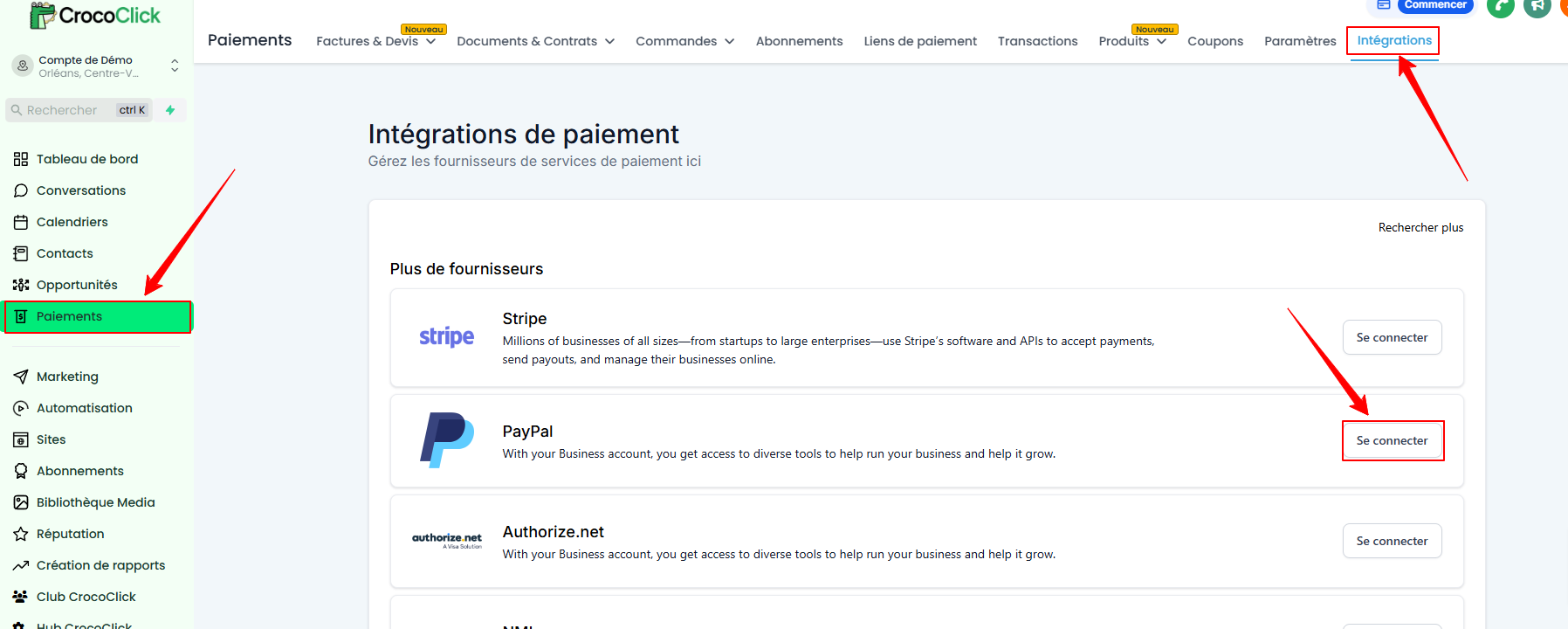
Go to Settings > Integrations > PayPal and click Connect.
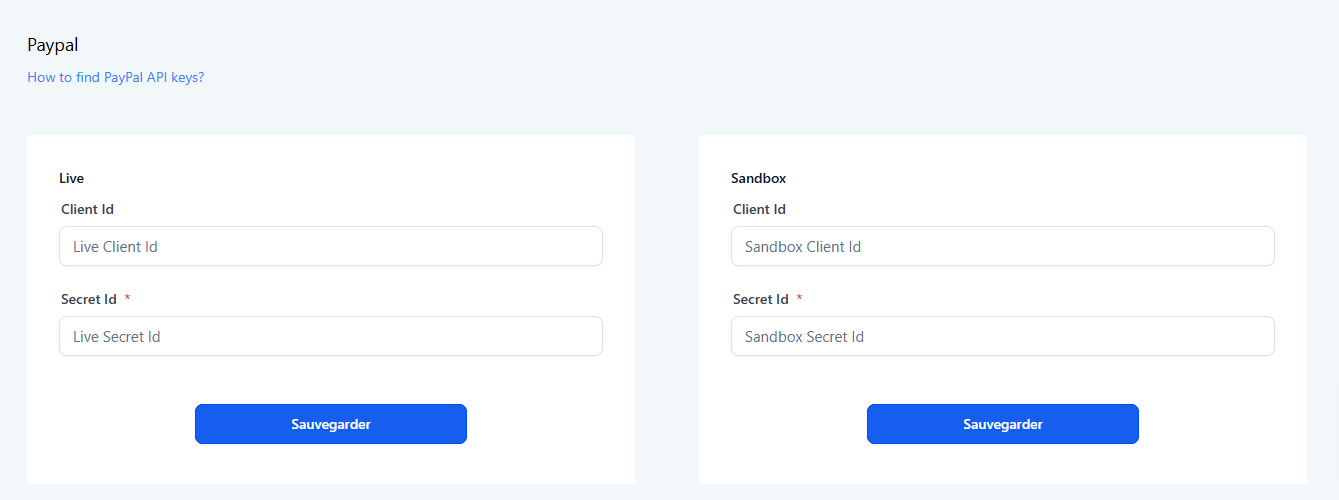
You will need to fill in the Client ID and Secret ID for Sandbox and Live. This information can be found directly on the PayPal website (which we will see in step 2).
Step 2: Log in to PayPal Developer
Log in with your PayPal credentials.
Step 3: Go to "Apps & Credentials"
In the PayPal Developer menu, click on Apps & Credentials.
Here you will find your existing applications or, if necessary, you can create a new one.
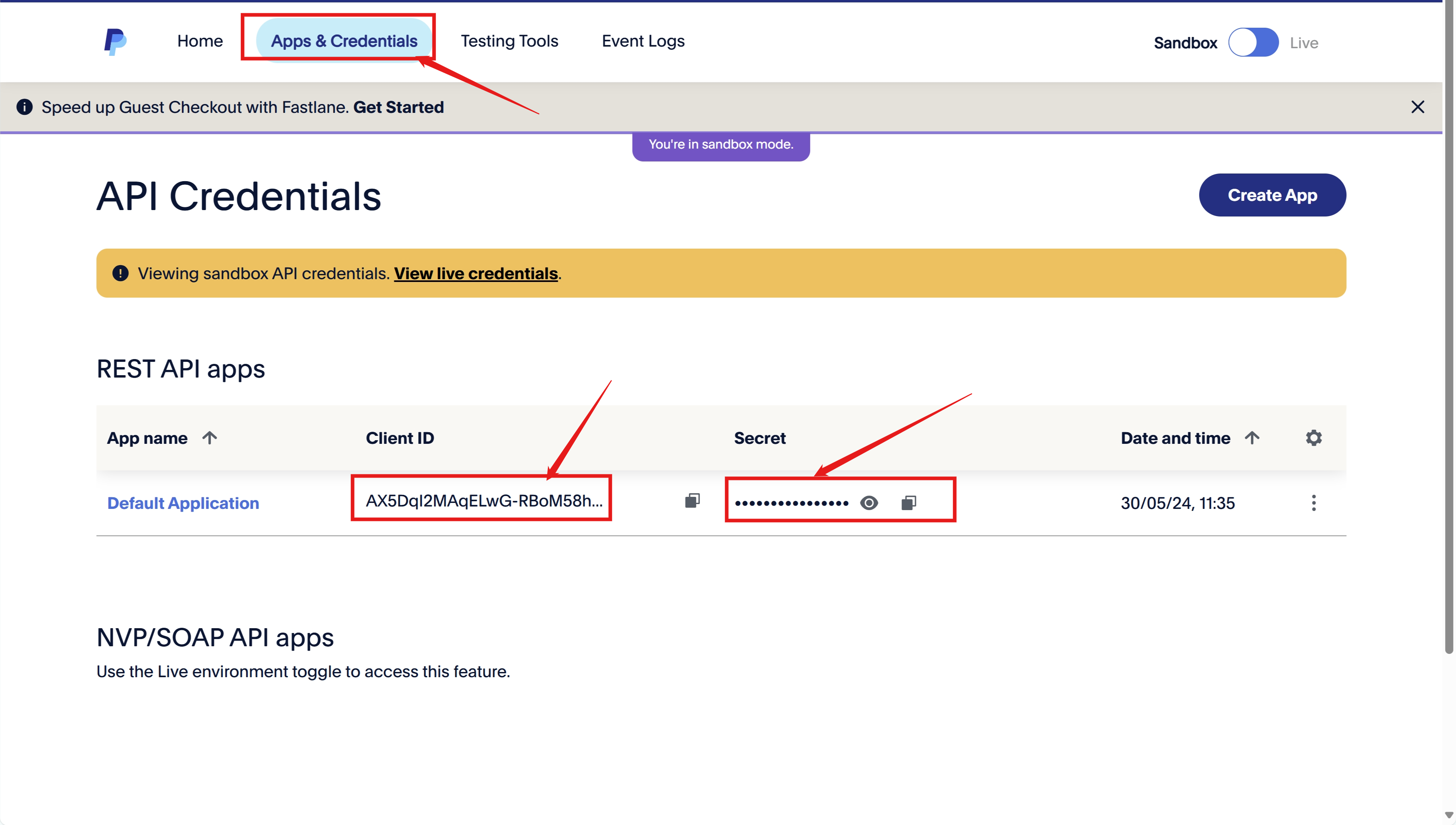
💡TIP: If you don't have an application yet, go to step 3b to create your application and obtain your API keys.
Step 3a: Create an "App" (if you don't have PayPal API keys)
If you don't see the API keys in your account, you will need to create an application:
In PayPal Developer, click Create App.
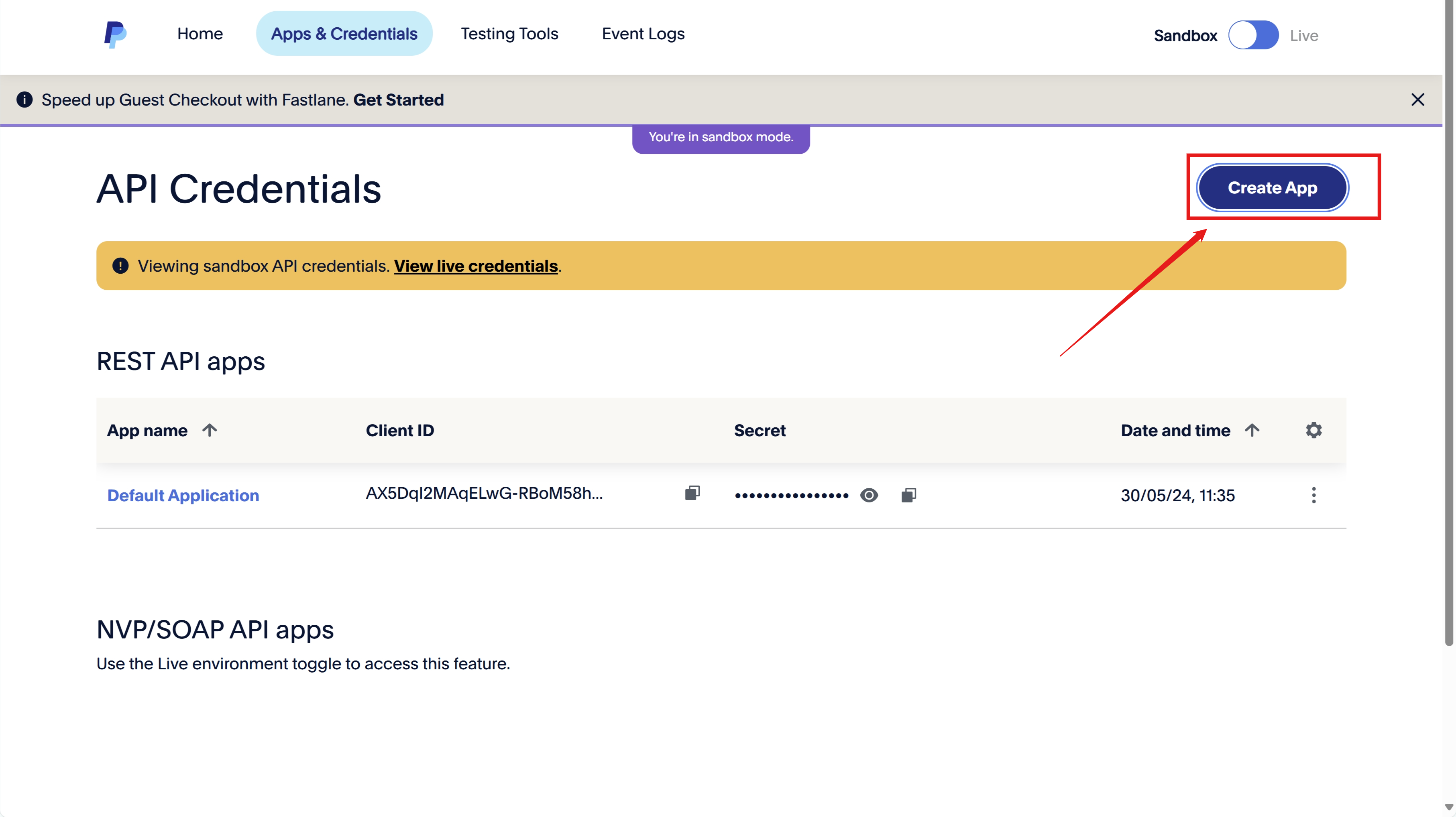
Give your application a name and configure the required settings.
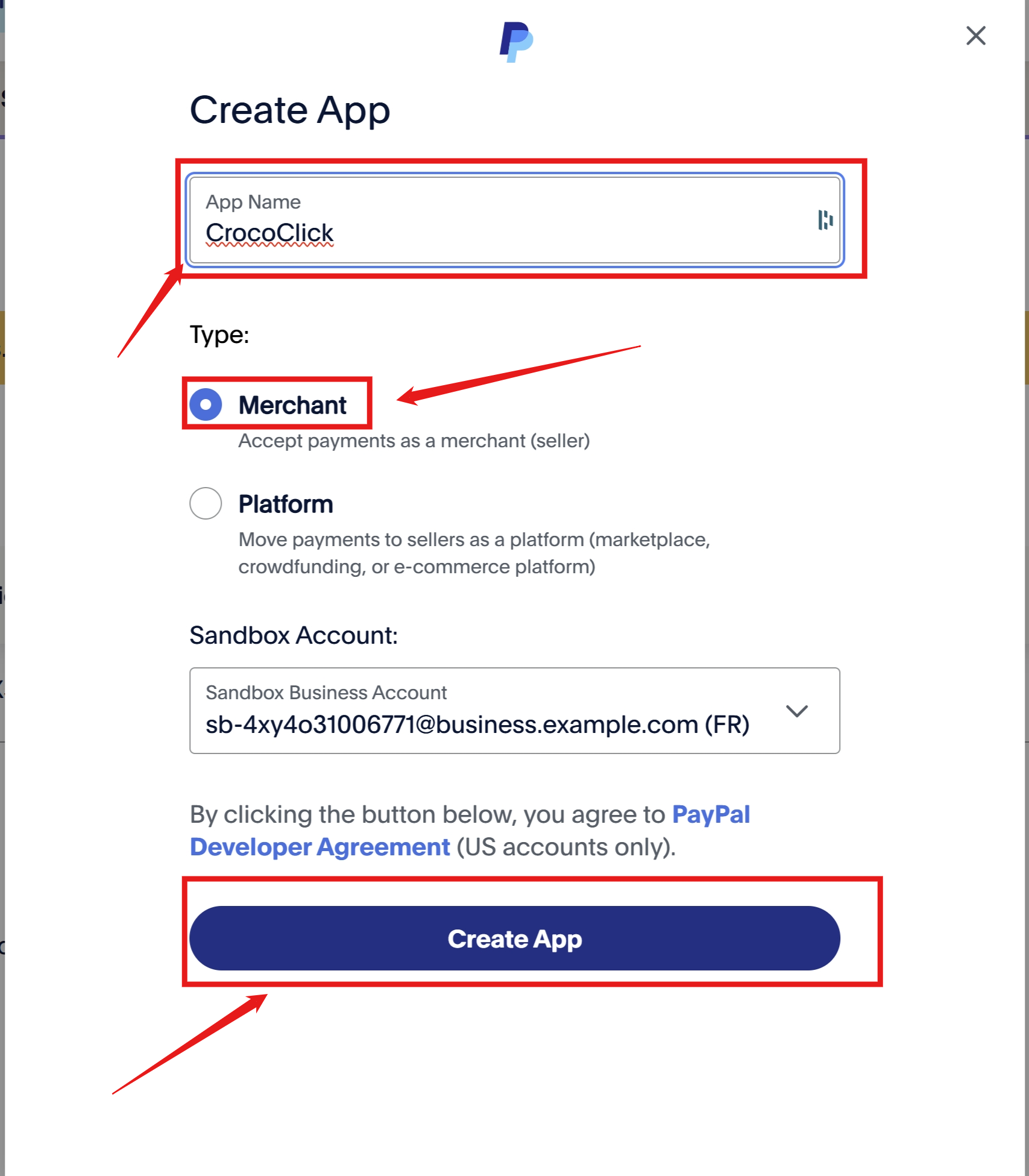
Once the application has been created, your Client ID and Secret ID will be generated.
Proceed to steps 4 and 5 to copy these values into CrocoClick.
Step 4: Retrieve the API Keys in Sandbox Mode
Copy the Client ID and Secret ID displayed for Sandbox mode.
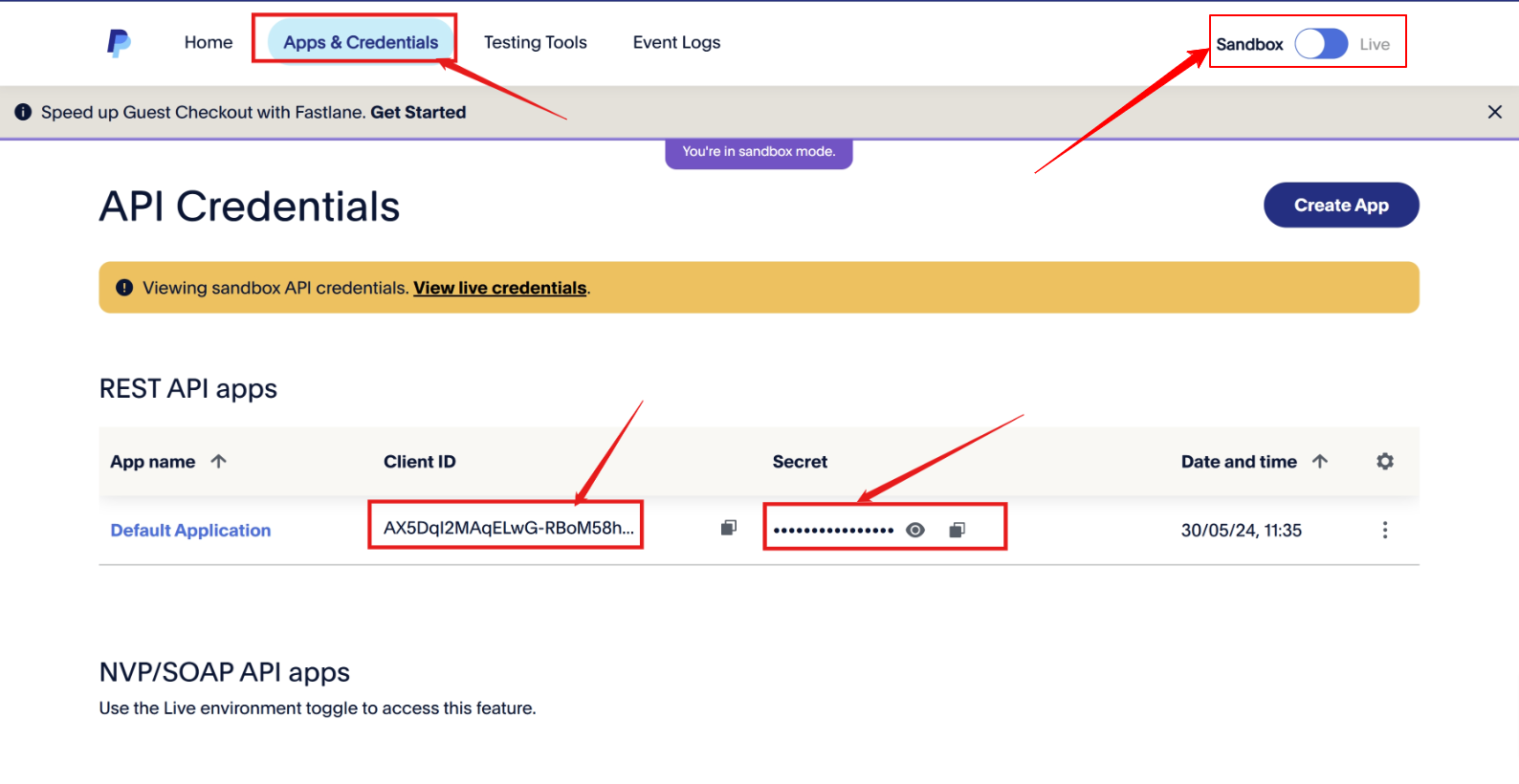
Return to CrocoClick, go to Payments > Integrations > PayPal, and paste these values.
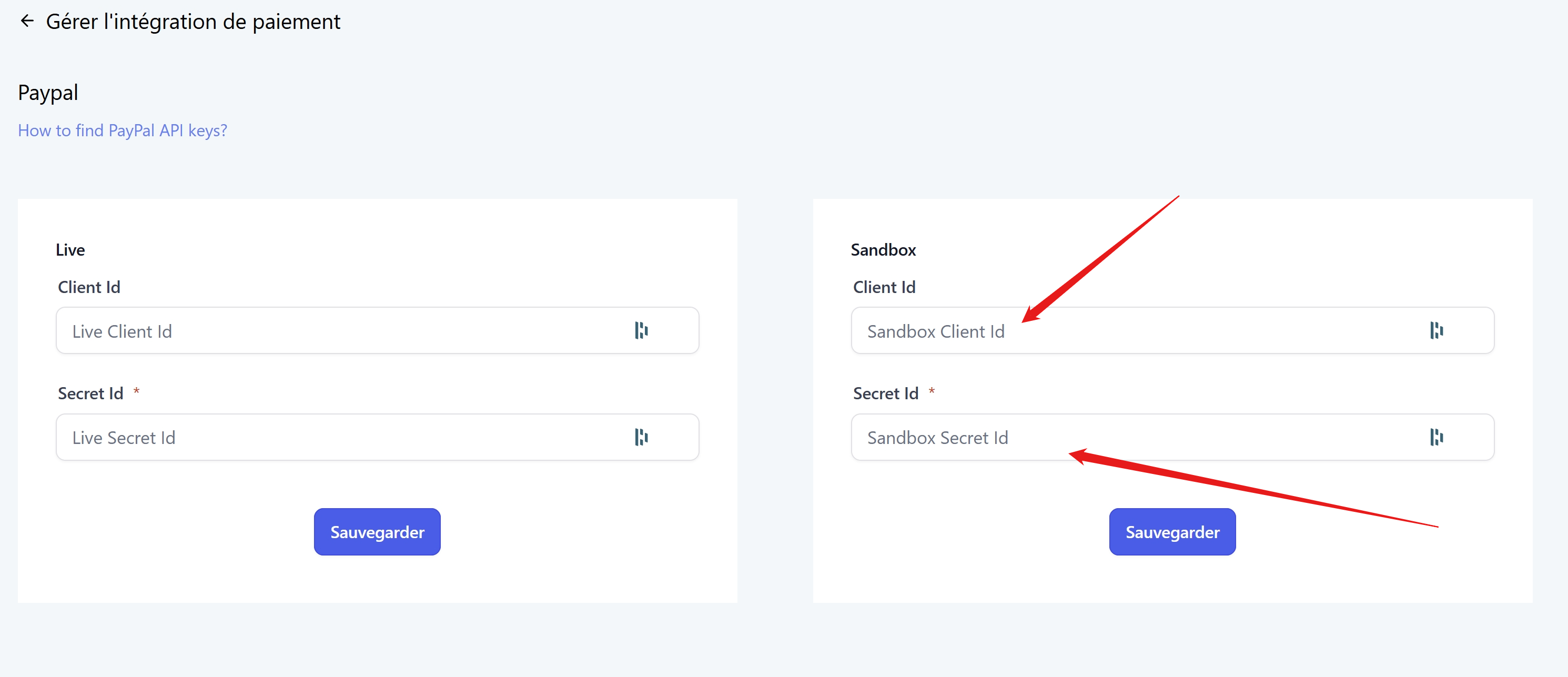
Step 5: Configure Live Mode
Do the same as in step 4, but this time select "Live" mode instead of "Sandbox" on PayPal.
Copy the Client ID and Secret ID in Live Mode.
Paste these values into the corresponding section in CrocoClick.
Click Save to save your changes.
Conclusion
By following these steps, you will connect PayPal to CrocoClick and be able to accept payments via this processor. If you have any further questions, please consult our help articles or contact our support team.