Why is the Paypal button grayed out on my order form?
Resolve the grayed-out PayPal button on your CrocoClick form by clarifying or removing the consent box to unlock the payment.
Written By CrocoTeam
Last updated 8 months ago
If your PayPal button appears grayed out in your order form, it is usually because the consent box ("Terms and Conditions") has not been checked.
💡TIP: Until a user has checked this consent box, PayPal blocks the payment button to ensure the required legal consent is given.
Solutions for "unblocking" the PayPal button
Option 1: Make the consent box clearer
Open your payment page containing the order form.
Click on Advanced in the settings and locate the Enable Terms and Conditions button.
Change the text to explicitly state:
"Please check this box to accept our terms and conditions and finalize your payment."
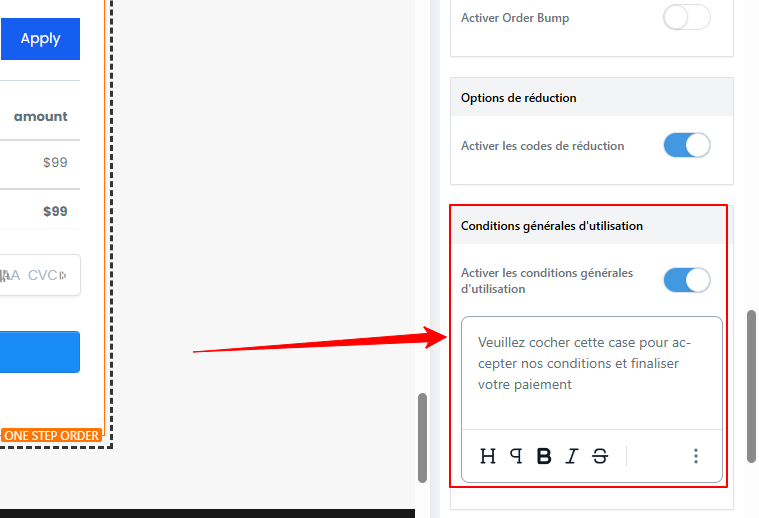
Save and preview the form: the PayPal button will no longer be grayed out after checking the box.
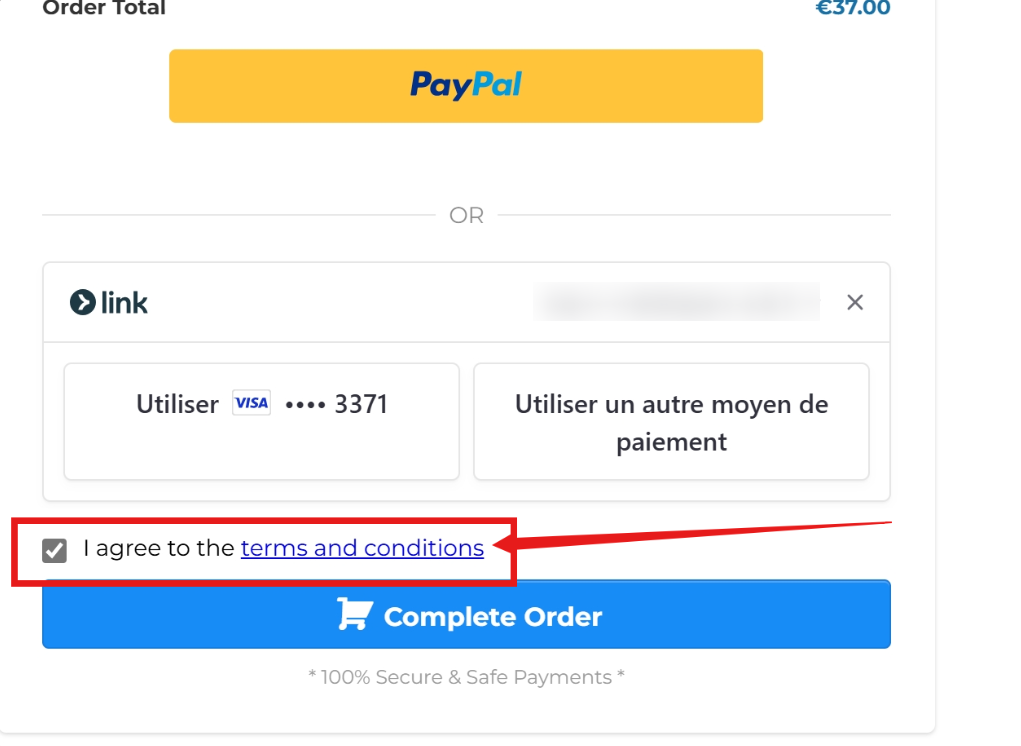
Option 2: Remove the consent box (if not necessary)
In the page builder, select the order form element.
Click Advanced in the settings and disable the Enable Terms and Conditions button.
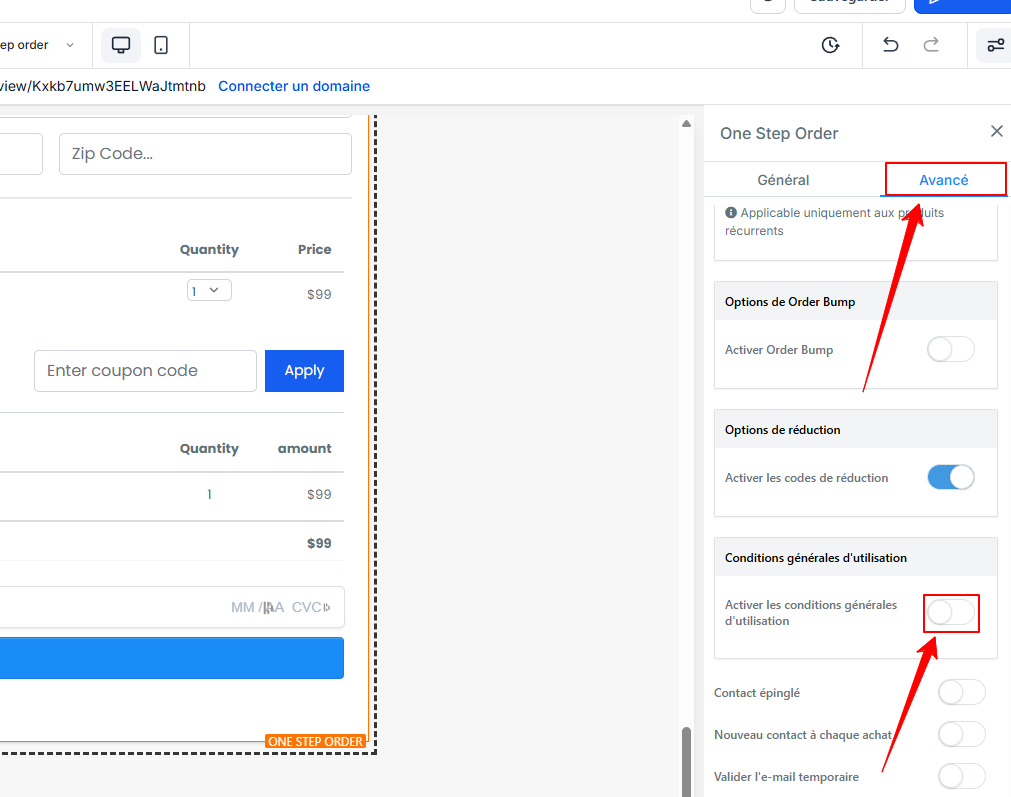
Save your form: the PayPal button will be active immediately.
Conclusion
The grayed-out PayPal button indicates that consent has not been validated. To unblock payment, simply adjust the text in the consent box or remove it if it is not necessary. This ensures a smooth shopping experience while complying with your legal obligations.