How to cancel your CrocoClick WhatsApp subscription
A quick guide to cancelling your WhatsApp subscription, the consequences and how to reactivate it.
Written By CrocoTeam
Last updated 7 months ago
1. Prerequisites
Only account administrators can cancel the option.
The subscription must be active (even if the integration is not finalized).
2. Step-by-step instructions
Open Settings (⚙️ icon).
Select WhatsApp, then click ⋮ (three dots) and choose Cancel Subscription.
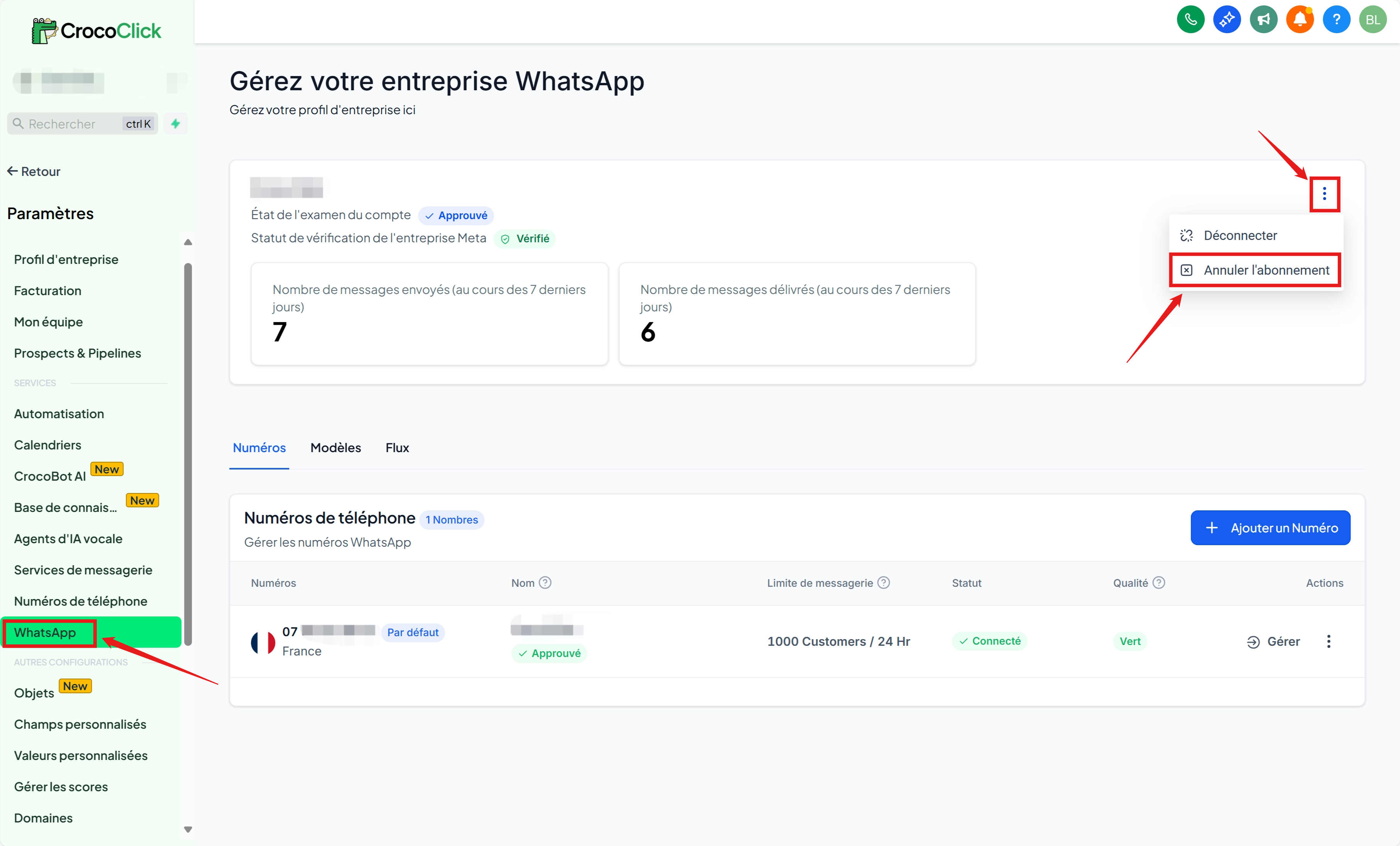
Click Proceed with cancellation.
Select a reason from the list, then confirm by clicking Cancel Subscription.
3. Quick FAQ
Where is the cancel option?
Settings > WhatsApp > ⋮ > Unsubscribe
Will I receive a confirmation?
Yes. A success message will appear and a summary email will be sent to you.
What happens after cancellation?
No further charges will be made.
WhatsApp Business features will be disabled.
Templates, WABA, and history will be retained.
Can I reactivate later?
Yes. Go back to Settings > WhatsApp and choose a new plan.
Do I need to provide a reason?
Yes. Selecting a reason is mandatory when canceling.
Will I lose my templates?
No. Everything remains stored; sending is simply blocked while the subscription is inactive.
Still have a question?
Open the chat bubble and ask "WhatsApp cancellation": CrocoBot or our support team will respond within minutes.