Connect your existing WhatsApp Business to CrocoClick with Coexistence
Find out how to use your current whatsapp number in CrocoClick and create advanced automations
Written By CrocoTeam
Last updated 7 months ago
WhatsApp Coexistence allows you to connect your WhatsApp Business app to CrocoClick while continuing to use your usual mobile app with the same number.
In other words: you keep your WhatsApp Business as before, but at the same time you unlock the full power of CrocoClick in WhatsApp: automations, Unified Inbox, AI, mass messaging to your contacts, and much more.
It's the perfect solution for businesses that want to switch to a professional, automated system without changing their habits.
What you can do with Coexistence
🔗 Connect your WhatsApp Business number to CrocoClick without deactivating your app.
💬 Send and receive messages from your phone and CrocoClick simultaneously.
👀 See messages sent from your mobile app directly in CrocoClick (echo).
⚙️ Activate automations, pipelines, AI triggers, and team responses.
🧠 Centralize your customer history in the CRM for smooth and transparent tracking.
It's the perfect bridge between your current WhatsApp and your future automated system. You get the best of both worlds:
→ the simplicity of your mobile app,
→ the power of CrocoClick.
The result: your processes become faster, more aligned, and your customers are better served.
Requirements for enabling WhatsApp coexistence
To use this feature, make sure you meet the following requirements:
Eligible countries: The company must be registered in one of the following countries: India, Mexico, Brazil, Indonesia, United States, Hong Kong, or Singapore.
App version: Your WhatsApp Business app must be updated to version 2.24.17 or later.
Link to a Facebook page: Your WhatsApp Business account must be linked to a Facebook page (instructions below).
LeadConnector account status: If you have already integrated LeadConnector, you must delete your WABA (WhatsApp Business API) account and reinstall the WhatsApp Business app before continuing.
How to link your WhatsApp Business account to a Facebook page?
Open the WhatsApp Business app.
On Android, tap More options. On iPhone, tap Settings.
Tap Business Tools > Facebook & Instagram.
Tap Facebook > Continue. This will open the Facebook login page.
Enter your Facebook account login information, then tap Log In.
Select the Facebook Page you want to link to your WhatsApp Business account, then tap Connect WhatsApp.
If you don't have a Facebook page, the app will prompt you to create one.
You will now see a WhatsApp button on your Facebook page.
Once you return to the WhatsApp Business app, you will see your linked Facebook page at the top of the Facebook & Instagram screen.
💡TIP: Linking your WhatsApp Business account allows customers visiting your Facebook page to send you a message directly on WhatsApp with a single click.
How to register with your WhatsApp Business account in CrocoClick?
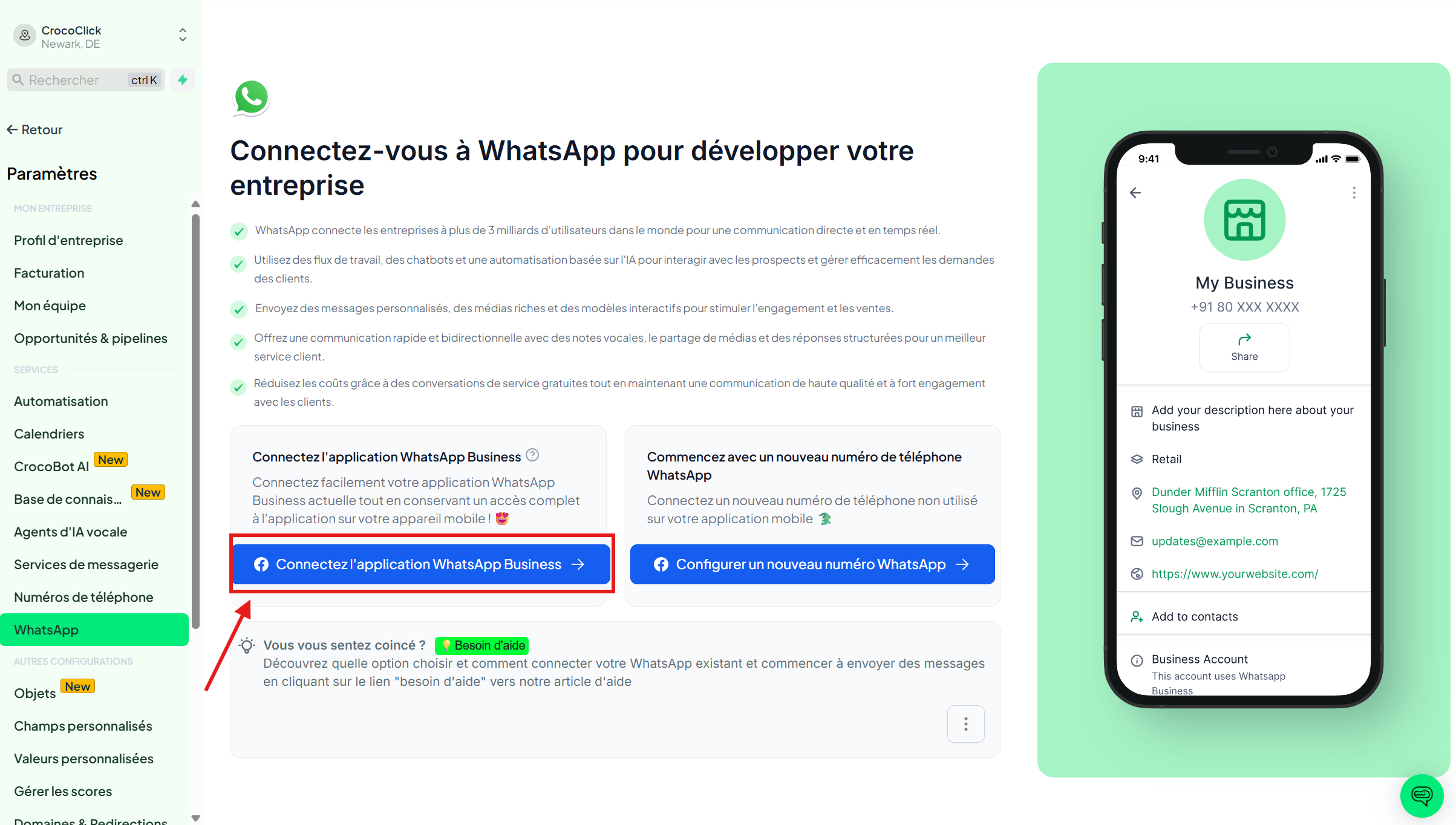
Go to Settings > WhatsApp
Click on "Connect WhatsApp Business app" to link your account to Crococlick
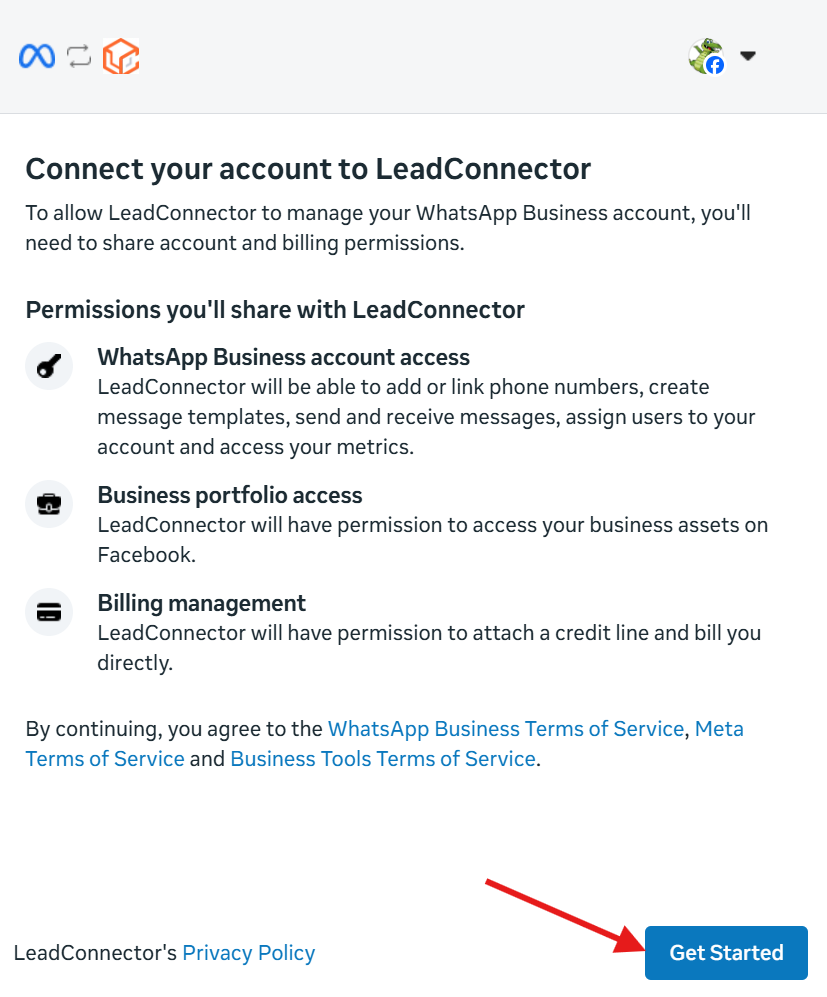
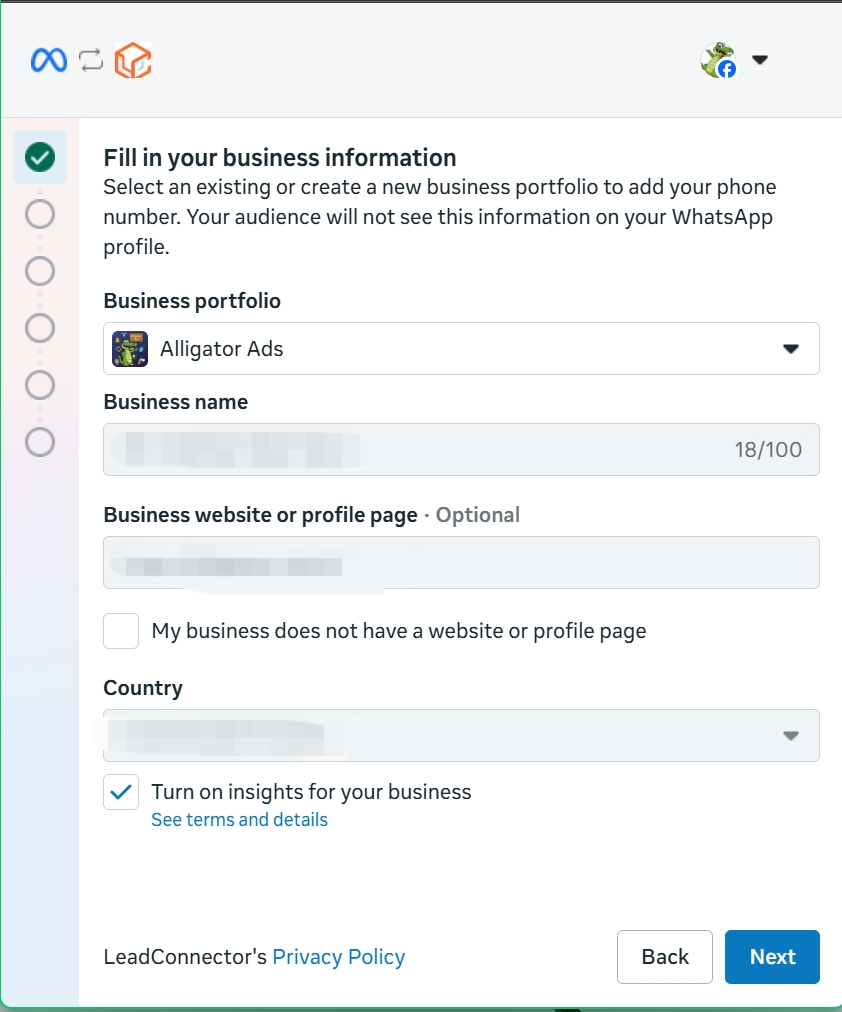
Click on "Get Started" and fill in your business information
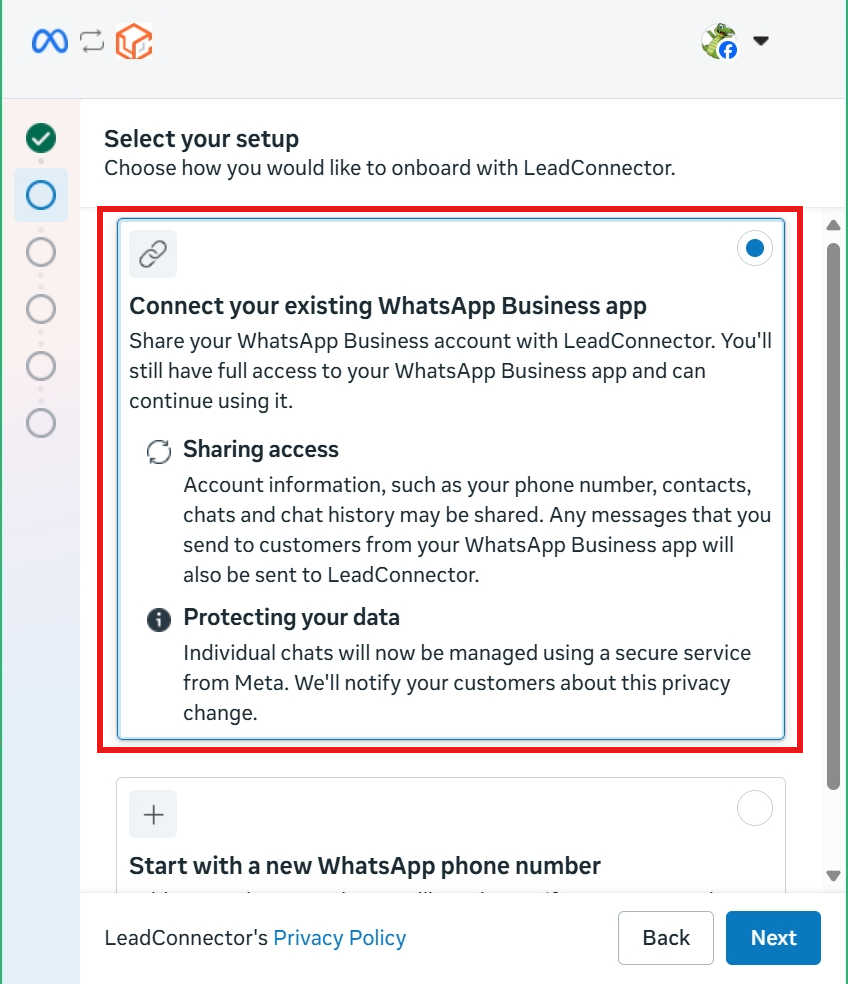
Choose Connect your existing WhatsApp Business app as the integration method.
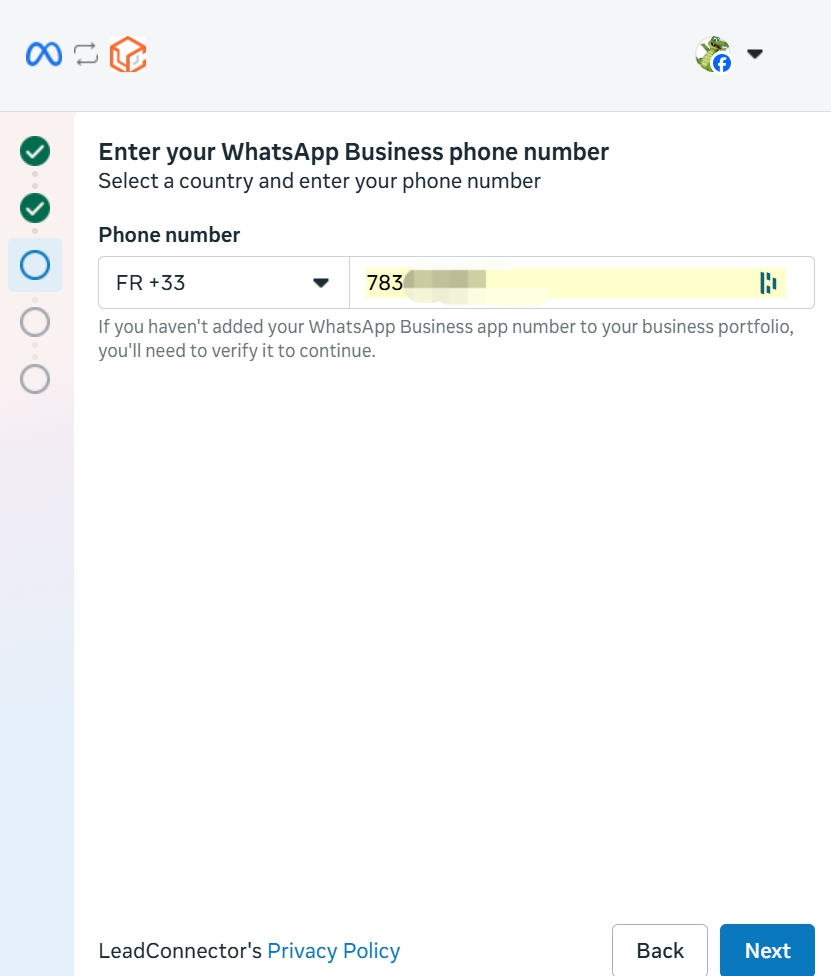
Add a phone number for WhatsApp and confirm or edit your WhatsApp Business account information.
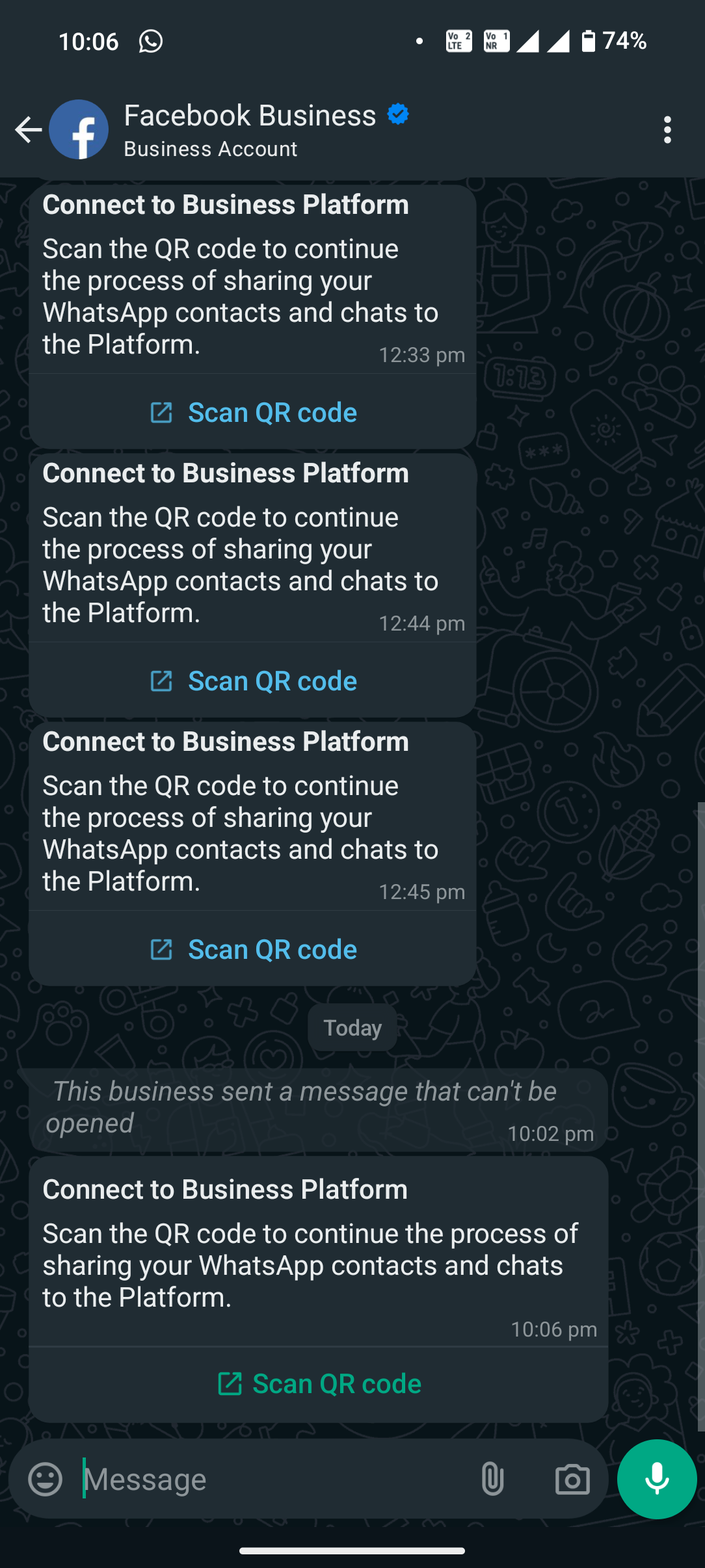
You will receive a message from Facebook on your WhatsApp number. Click "Connect"
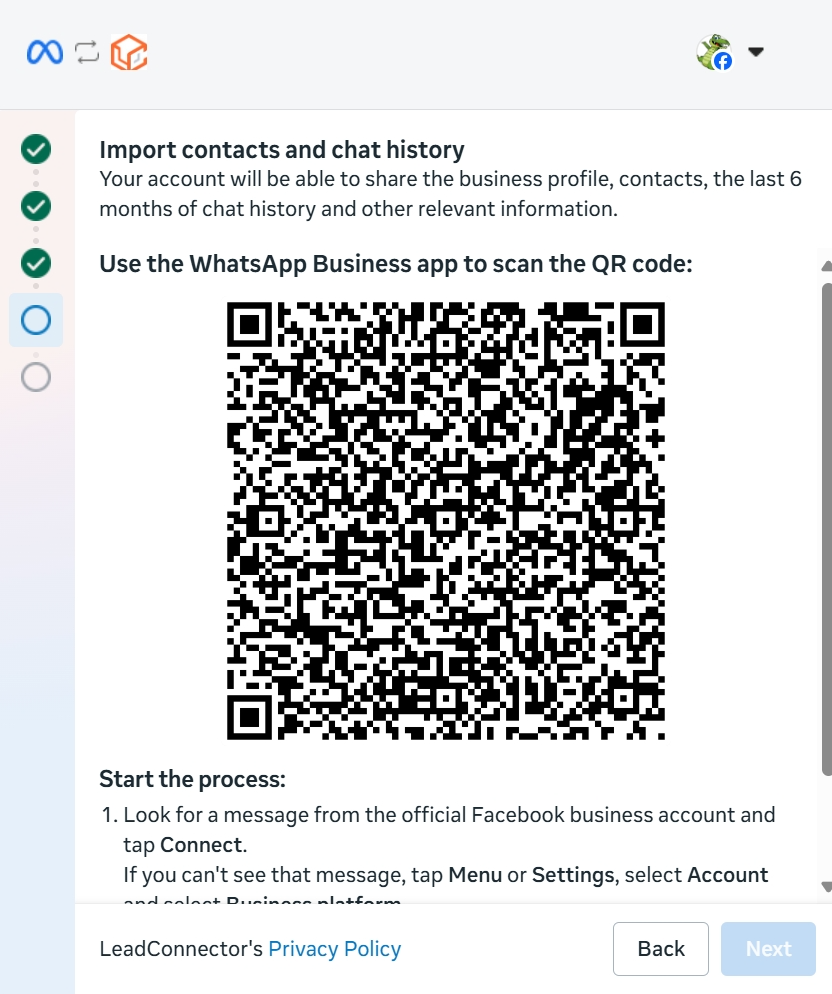
Scan the QR code to finalize the connection between your WhatsApp Business app and CrocoClick. Once connected, you can use CrocoClick for advanced features while continuing to use your WhatsApp Business app.
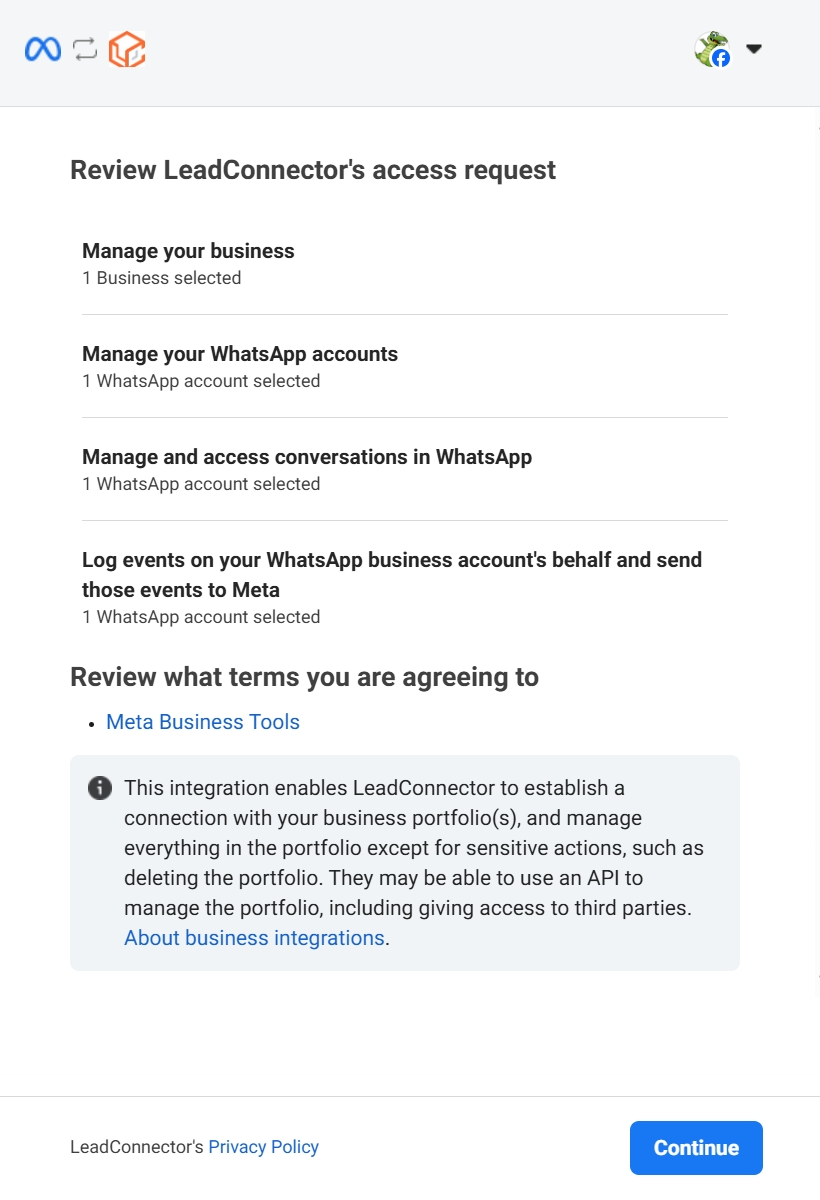
Once all steps are complete, the setup is finalized and your account is connected.
💡 TIP:
Sending template messages is only possible in the CrocoClick CRM, not in the WhatsApp Business app.
WhatsApp profile management is only possible in the WhatsApp Business app.
Only one phone number can be configured in coexistence mode.
Synchronization of contacts and conversations
Duration: The synchronization process usually takes between 4 and 6 hours.
Result:
Conversations will be available in the Conversations tab in CrocoClick.
Contacts will be listed in the Contacts tab.
How do WhatsApp conversation fees work?
Messages sent from the WhatsApp Business app:
Free and not subject to Cloud API limits.
Messages sent via CrocoClick's Cloud API (automations):
Billed according to WhatsApp's existing pricing model.
Frequently asked questions (FAQ)
Q: What is WhatsApp coexistence?
A: It is the ability to use the WhatsApp Business app and the Cloud API simultaneously to manage conversations and campaigns on a large scale.
Q: Can I send template messages from the WhatsApp Business app?
A: No, sending template messages is only supported through CrocoClick.
Q: How many numbers can I connect with coexistence?
A: Only one phone number is supported by this feature.
Q: Is this feature right for my business?
A: Yes, if you primarily use the WhatsApp Business app and want advanced tools to manage conversations, payments, or leads.