Creating and using WhatsApp templates
Create, customize and submit WhatsApp templates in CrocoClick to launch your proactive Meta-compliant messages.
Written By CrocoTeam
Last updated 8 months ago
Creating and managing WhatsApp templates is essential for improving communication and engagement with your customers.
This guide provides a comprehensive step-by-step process for setting up standard and interactive WhatsApp templates, including adding media and customizable call-to-action buttons.
By following these steps, you can ensure that your templates are created correctly, approved by Meta, and used effectively for marketing or utility purposes.
WhatsApp Template and Free Message: What's the Difference?
Template
Standardized message pre-approved by Meta. It is mandatory to initiate a conversation or to respond outside the 24-hour window. Each modification requires a new validation.Free message Free
text sent only if the customer has written to you within the last 24 hours. No Meta validation is required.
💡 TIP: For more details on this subject, see the article"Understanding how WhatsApp works and pricing"
Creating a WhatsApp template
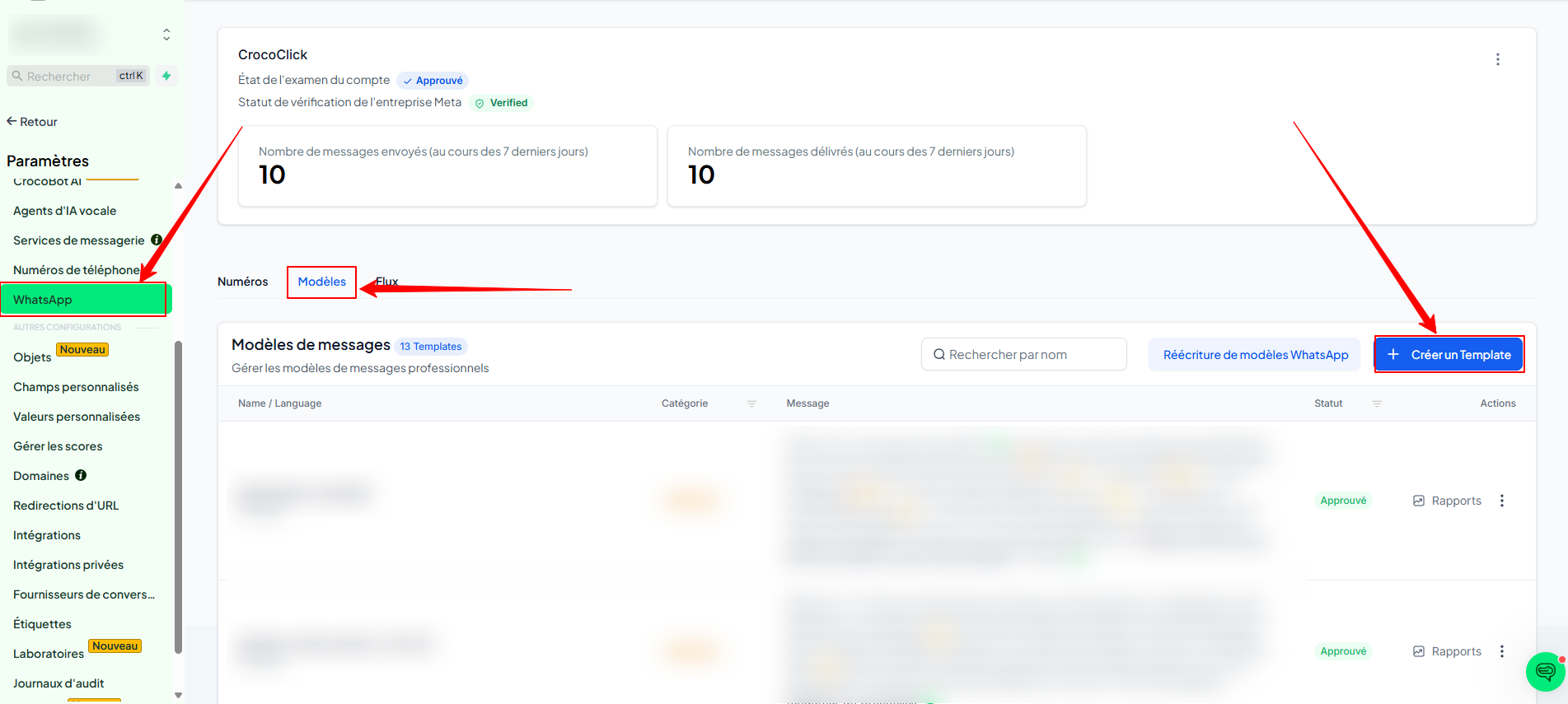
1. Access template creation
Open Settings > WhatsApp > Templates.
Click Create Template.
2. Enter the template details
Template name: lowercase letters or underscores only.
Category: Marketing or Utilities (most are Marketing).
Language: choose from the list.
Display header: static or variable (only one variable possible).
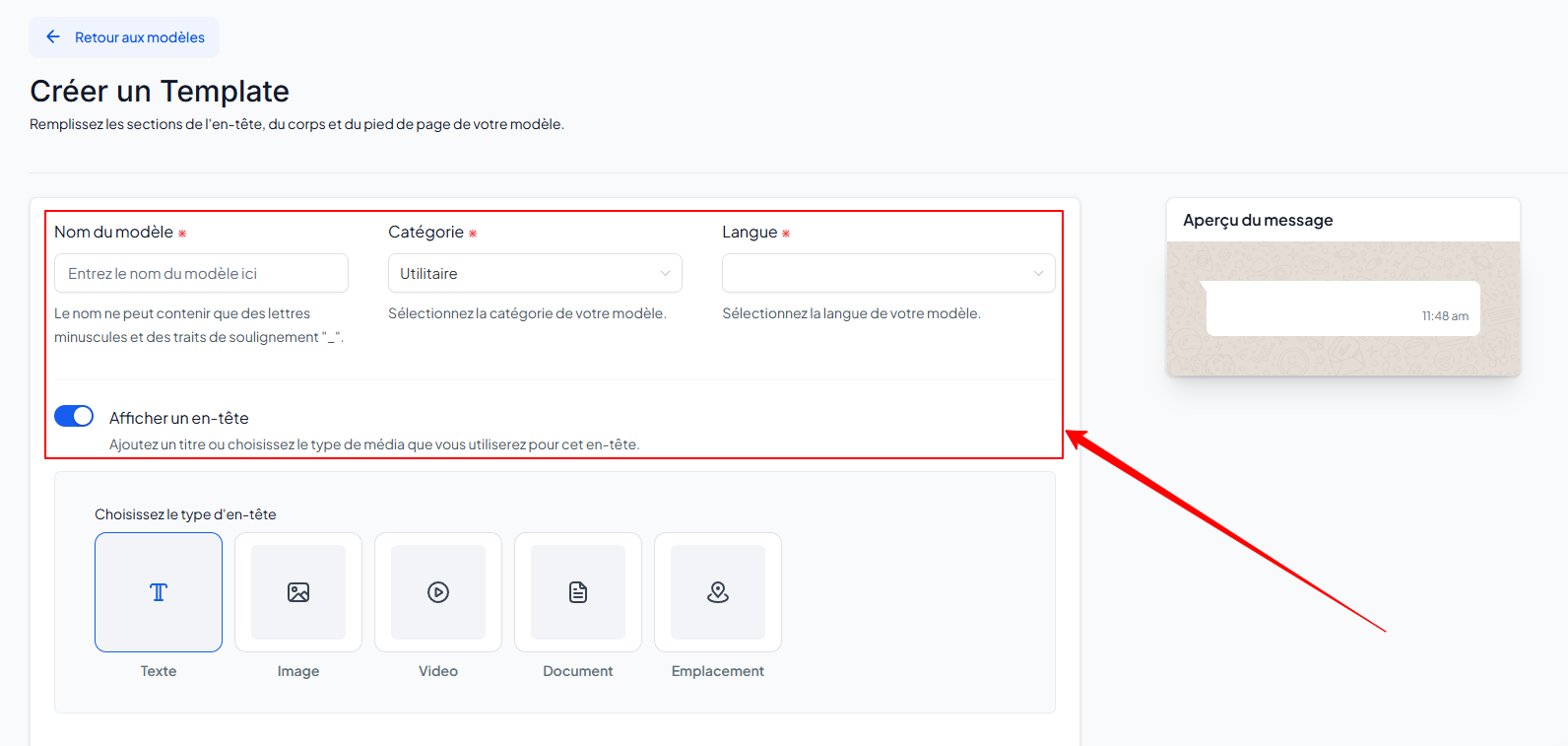
💡 TIP: Only choose Utility if the message is triggered by the contact and contains transactional information (e.g., order number).
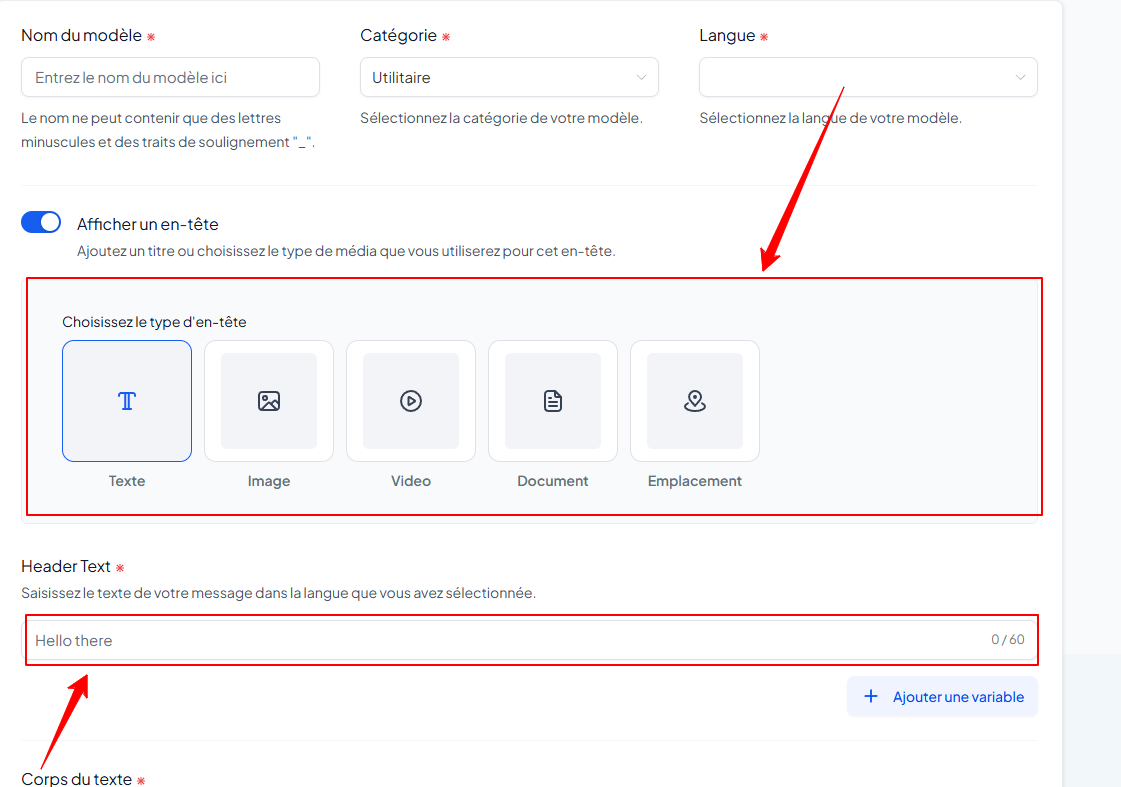
3. Add media (optional) and a header
WhatsApp accepts Media Templates: image, video, document, or location.
Write your header whether you choose to display it or not.
4. Complete the body text and footer
Body: write the message; click Add a variable to insert
{{1}},{{2}}, etc.Footer (optional): add static text if needed.
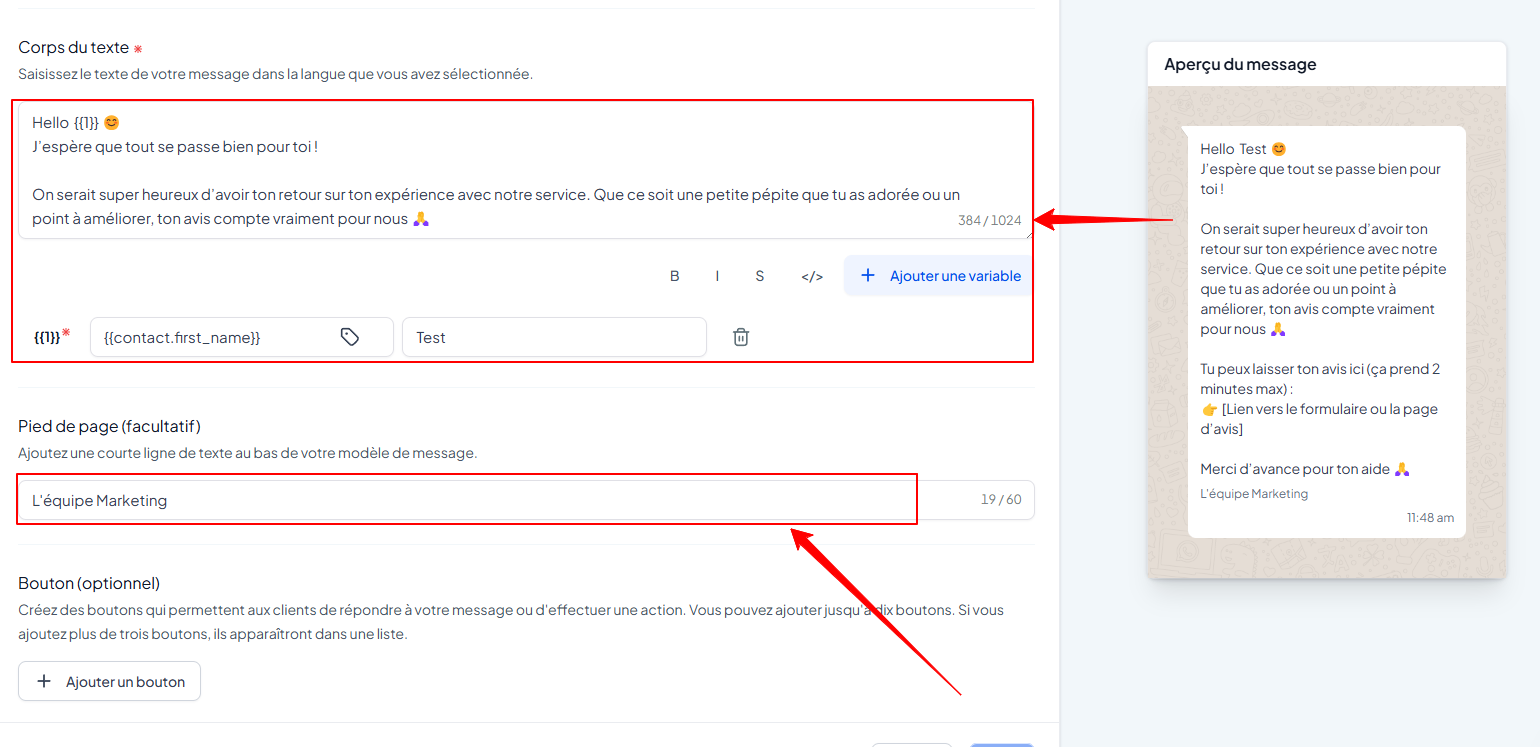
💡TIP: In the body of the text, you can add a trigger link using the corresponding dynamic variable.
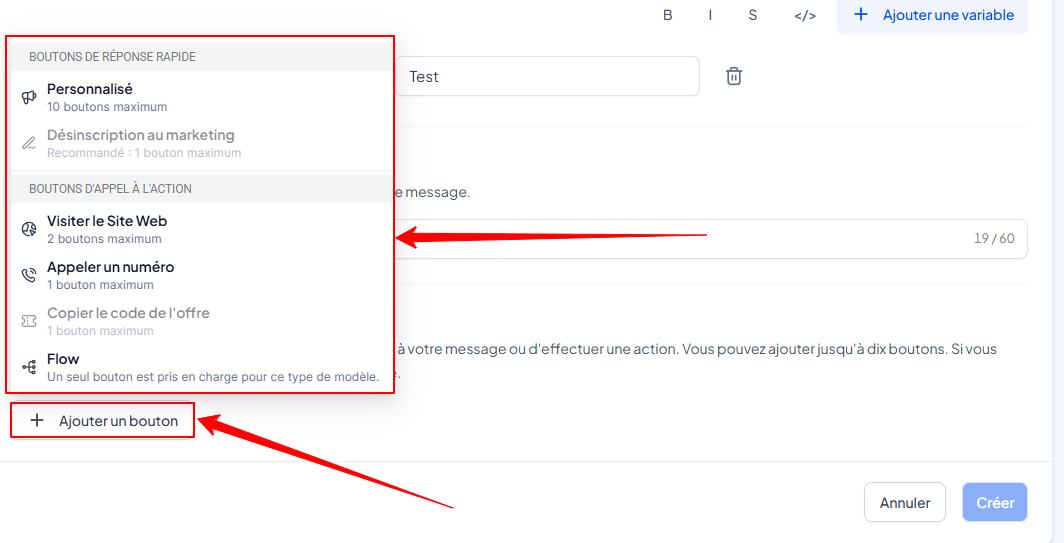
5. Add a button (optional)
When creating, add up to two CTA buttons:
Quick response — predefined quick responses.
Marketing Opt-Out — unsubscribe button.
Visit Website — fixed URL.
Custom link — dynamic URL (1 variable max.).
Call a number — direct call.
Copy discount code — promo code copy.
6. Check and create
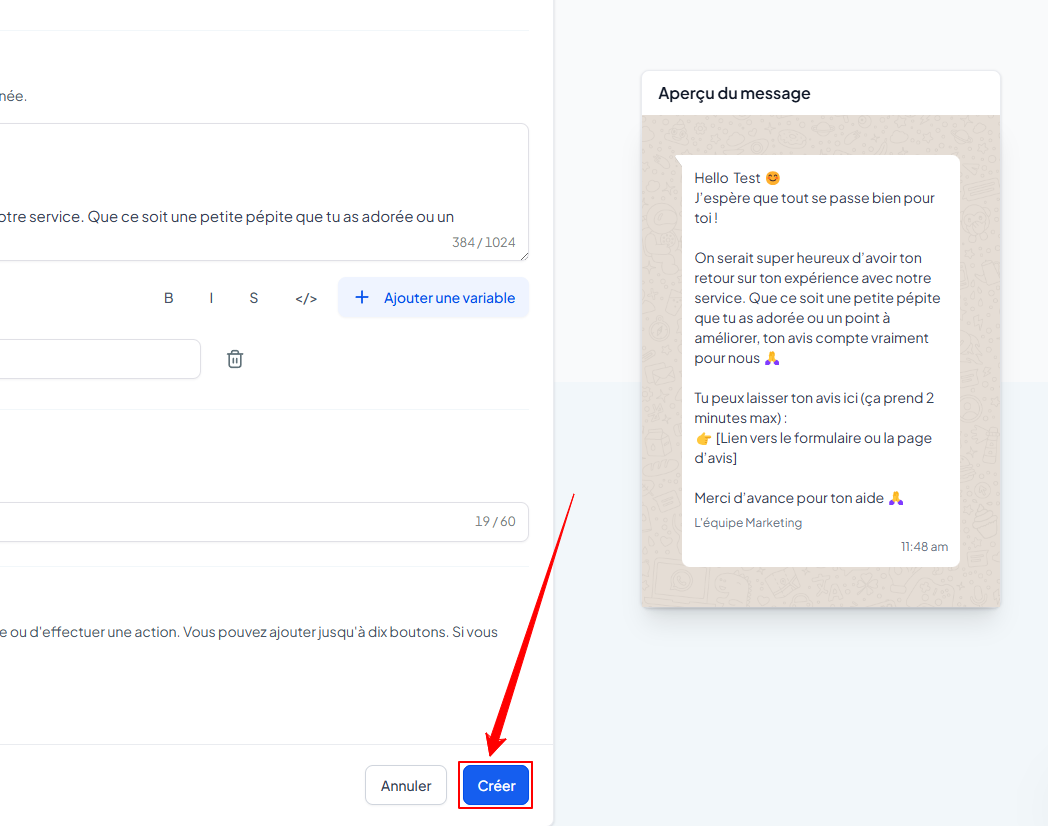
Check the preview and click Create.
7. Submit to Meta
Track the status of the template:
Pending approval — awaiting review.
Approved – approved.
Rejected – rejected (edit and resubmit).
Recommendations:
Prepare your templates Utilities for critical messages.
Take advantage of the 24-hour service window to engage in real time.
FAQ
What should I include in the body text and footer?
Body text: your message + variables if necessary.
Footer: fixed text (optional).
What are Quick Replies used for?
They allow users to respond using predefined options, without typing.
How can I customize the experience with a CTA button?
Select Custom Link and add a variable at the end of the URL for a unique link per customer.
Why add a Marketing Opt-Out button?
To make it easier to unsubscribe, remain compliant, and build user trust.