Magic links in the customer portal
Find out how to create, send and use CrocoClick magic links to provide secure access to training courses and the customer portal without a login or password, via email, workflows or personalized menus.
Written By Baptiste Lorreyte
Last updated 7 months ago
You've seen this scene before:
A user wants to access their training...
They've forgotten their password...
Or doesn't understand how to log in.
Magic Links exist to avoid this kind of wasted time.
One click. Immediate access. No password required.
What is a Magic Link in a customer portal?
A Magic Link allows a user to access their training courses/communities without a username or password.
Once logged in via this link, the user only sees the products, offers, or training courses to which they actually have access (i.e., they see THEIR space).
Objective:
eliminate login friction
speed up access to content
reduce support requests
Why use magic links?
1. Ultra-simplified connection
No passwords to remember. Just one click to access the training.
2. Security + convenience
Links valid for a limited time
Access only to authorized content
Works on all devices (mobile, tablet, computer)
Recommended use cases
Magic links are particularly useful for:
🔑 Forgotten password
👋 Inviting new members
📧 Transactional or marketing emails
💸 Promotions and private sales
📱 Quick access across multiple devices
METHOD #1: Manually generate a magic link
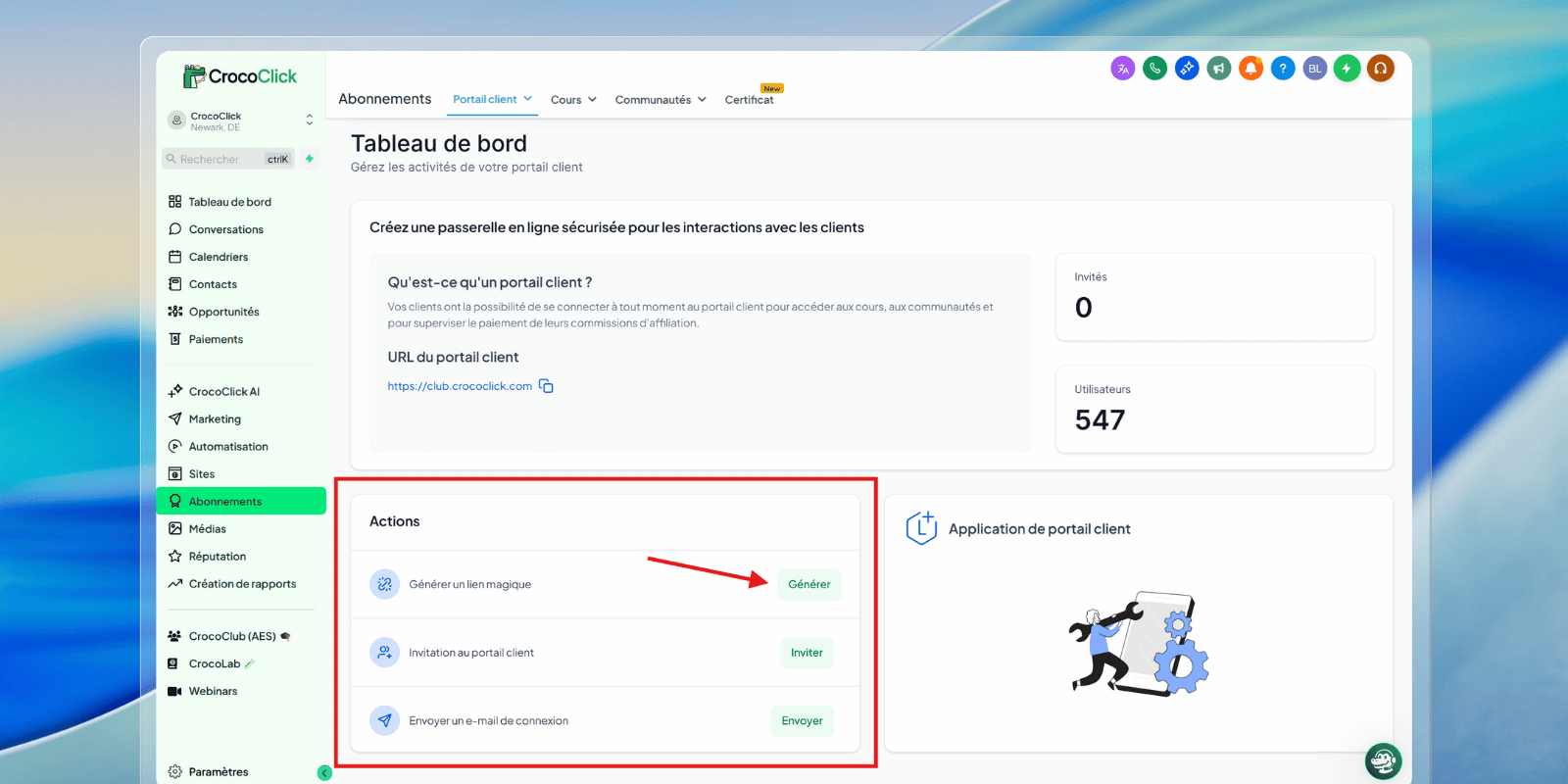
Magic links can be generated from the Customer Portal Dashboard.
They provide direct and secure access to a specific contact without a username or password.
1. Open the Customer Portal section
In the Subscriptions menu, use the drop-down menu at the top of the screen and select Customer Portal > Dashboard.
This section gives you access to:
Magic link generation
The settings for the customer portal modules
2. Generate a magic link
In the Actions panel, locate the Generate Magic Link option.
Click Generate to start creating a secure one-click login link.
3. Select the target contact
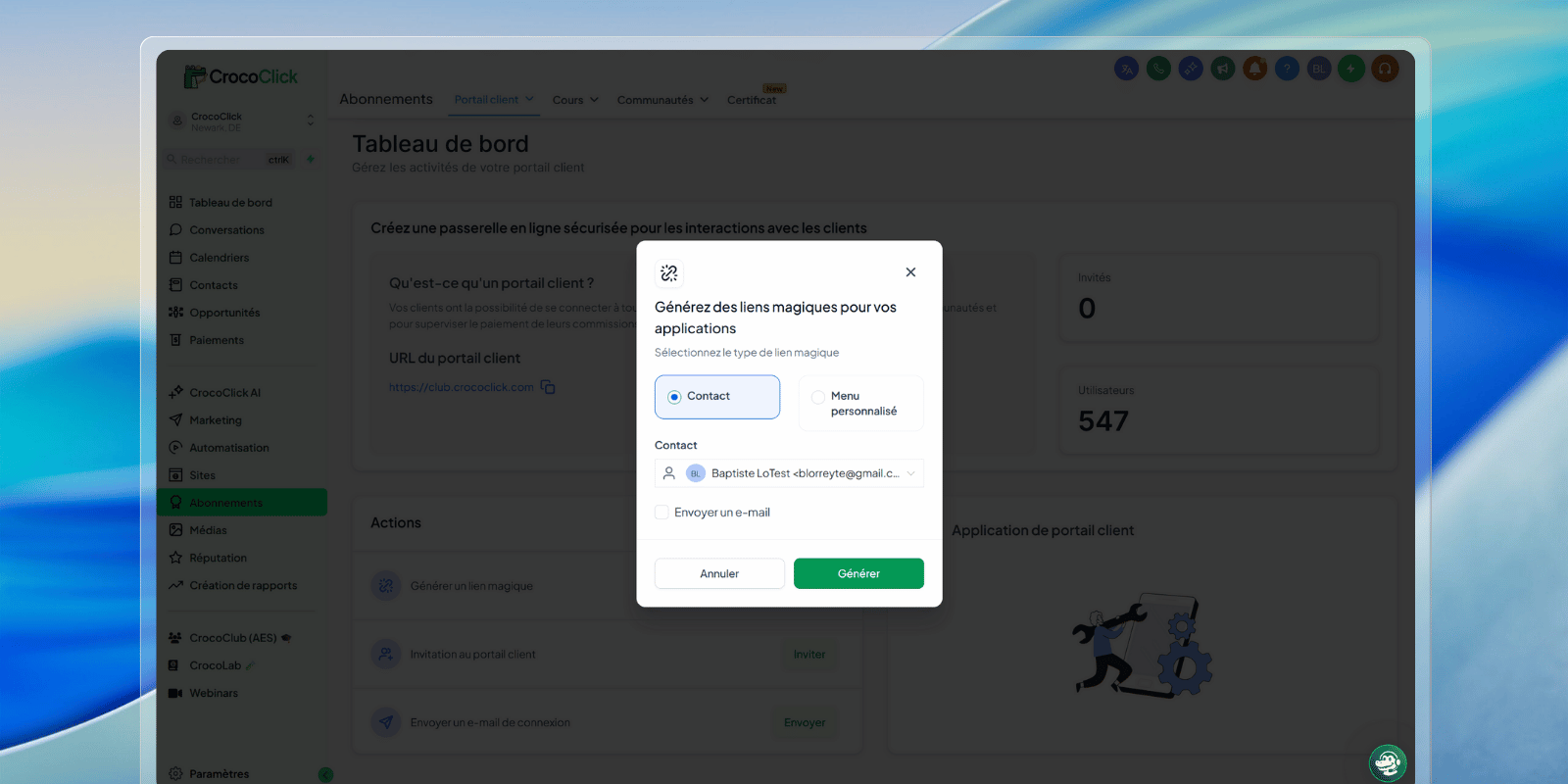
Select the contact in question and click on "Generate."
4. Copy (or send) the magic link
Once you have selected the contact, click Generate. CrocoClick instantly generates a secure single sign-on (SSO) URL.
Click on the Copy icon to save the link to your clipboard.
You can now use this link:
in private browsing mode (to see what your customer sees)
in an email
or in any access point requiring a simplified login for a specific contact
METHOD #2: Send a magic link via automations or emails
Recommended cases
Assigning training to a new user
Assigning an offer to an existing contact
Registering for training
Sending via Automations
Step 1: Trigger linked to a training course
Create a workflow with a trigger linked to training courses.
Magic links work with all training triggers, including:
Registration
Access to an offer
Start/end of product
Start/end of lesson or category
Step 2: Email or SMS action
Add an Email or SMS action and insert the variable: URL de connexion (Lien magique) / Login URL (Magic Link)
➡️ The learner's magic link will be automatically generated for the contact.
Security and best practices
⚠️ A magic link gives access to content. Only share it with the user's explicit consent.
Troubleshooting (FAQ)
Do magic links expire?
Yes. If you regenerate a link, the old ones become invalid.
Does a contact need to have an active offer?
Yes. A magic link does not work if the contact does not have access to an offer or training course.
During testing, I can see all the training courses, even though I shouldn't be able to.
This is normal if you are an Admin. As an admin, you are logged in with full rights.
👉 To test correctly: open the link in private browsing mode (incognito).
Quick summary
Magic links remove connection friction
Limited access to only authorized content
Ideal for emails, workflows, and quick onboarding
If you want less support, less friction, and users who can easily access your training courses... Magic links are your friend.