How to customize your customer portal URL and use your own domain name
Customize the URL of your CrocoClick customer portal using your own domain name in just a few simple steps.
Written By CrocoTeam
Last updated 8 months ago
Would you like to customize the URL of your customer portal and use your own domain name in CrocoClick?
This can be done in a few simple steps. In this article, we will explain how to do this.
💡TIP: Your customer portal domain/subdomain (for training, community, affiliation, etc.) uses a different URL from your web domain (funnels, website, etc.).
For example, you may have:
go.mydomain.com for your funnels and websites
club.mydomain.com for your customer portal
Please note that if you use exactly the same domain or subdomain for both, this will create a conflict (because the URL will redirect to two sites at the same time, which is not possible).
Step 1: Go to the "Domain Configuration" section of your Customer Portal
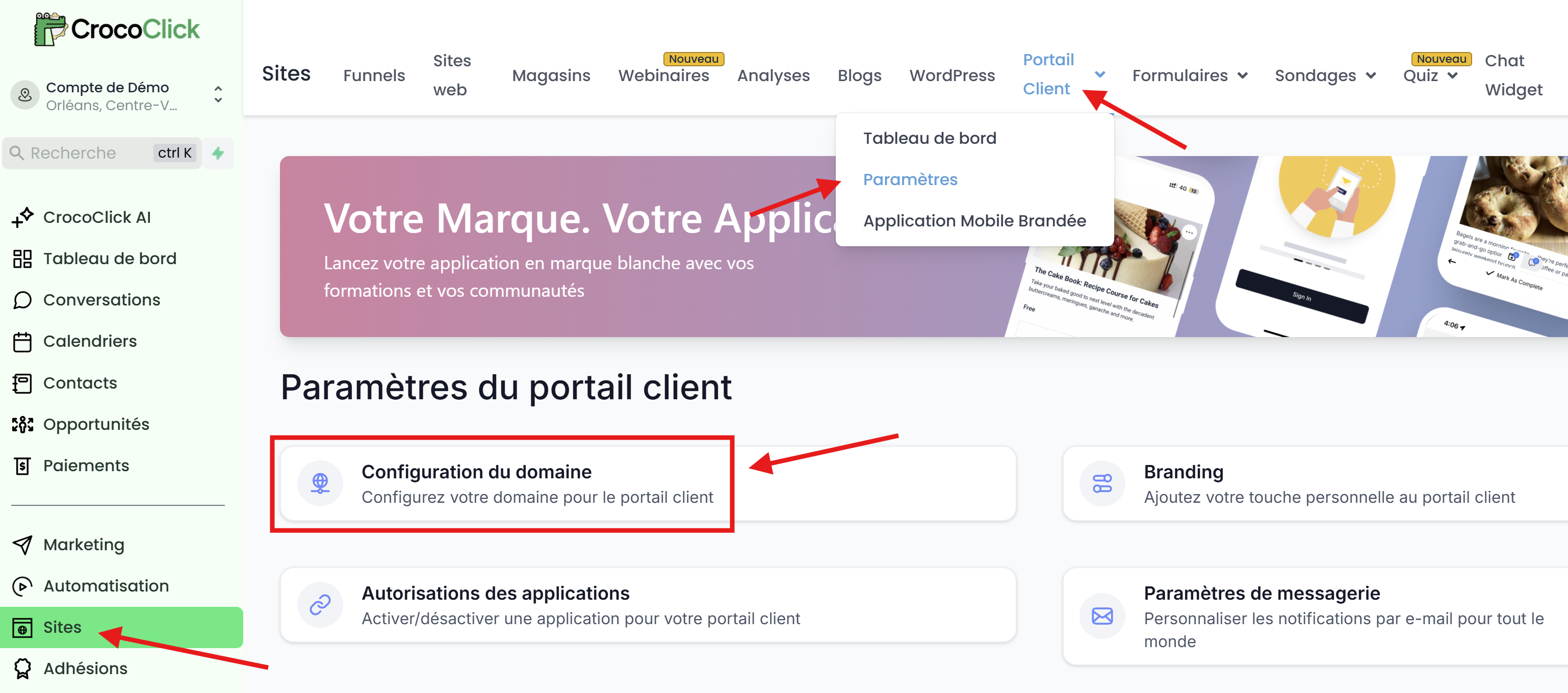
Go to the CrocoClick platform
Click on "Sites" in the left-hand menu
Go to "Customer Portal > Settings."
Click on "Domain Configuration."
Step 2: Add your domain
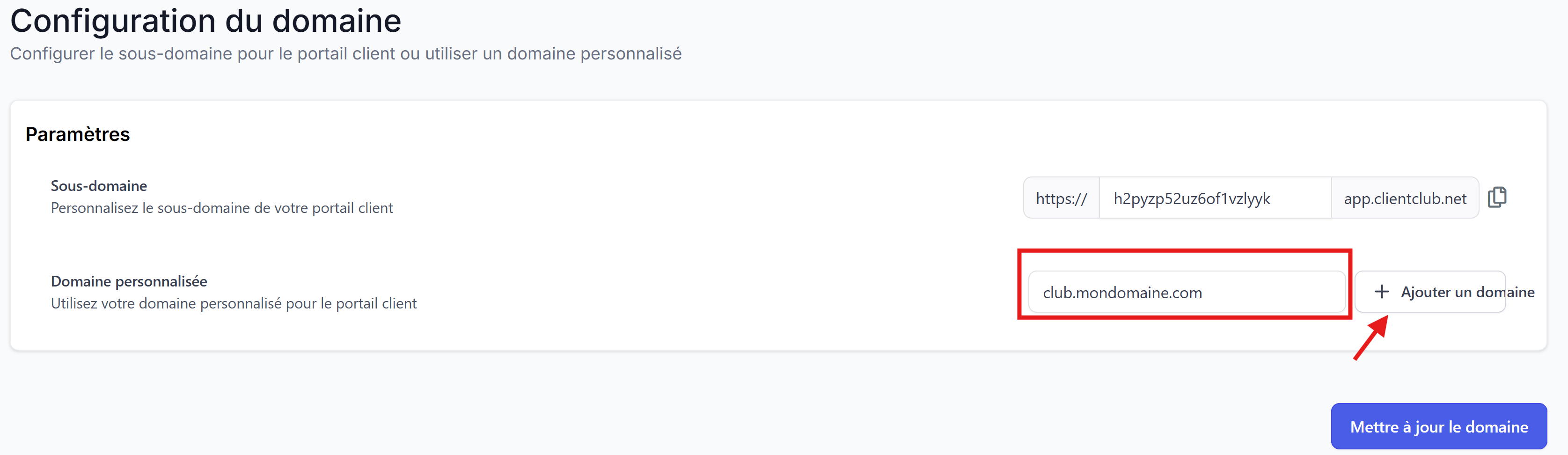
Enter your domain or subdomain
Click on "Add Domain"
Step 3: Follow the instructions (manual or automatic)
Once you have chosen your domain name, you must configure it to point to your CrocoClick customer portal.
To do this, you will need to change the DNS settings for your domain name. Here's how:
Click on "Continue."
If your provider is supported, then the connection can be made automatically by logging in to your registrar
Otherwise, you will be taken to the manual addition screen.
Simply add the requested records to your domain's DNS zone (on your registrar).
If everything is configured correctly, your domain name will be validated and your customer portal will be accessible via this URL.
Congratulations, you have now customized the URL of your customer portal and can use your own domain name to access it.
Your customers will also be able to access your portal via this URL, which will enhance your brand image and professionalism.
We hope this article has been helpful in customizing your customer portal URL in CrocoClick.
If you have any further questions, please don't hesitate to contact our support team, who will be happy to help.