How to add a Favicon to your site or funnel in CrocoClick
Learn how to add a custom favicon to your sites and funnels in CrocoClick for consistent branding
Written By CrocoTeam
Last updated 5 months ago
What is a favicon?
A favicon (short for favorite icon) is the small icon that appears in your browser tab, next to the website title.
👉 Example: the red YouTube logo, or the small colored "G" for Google.
A favicon:
Strengthens your brand's visual identity.
Helps your visitors quickly recognize your site among several open tabs.
Improves your site's visibility in Google search results.
How to add a favicon to your site
Step 1 – Prepare your image
The recommended format is square (e.g., 512x512 px).
Accepted formats: .png or .ico (.png works very well).
Choose a simple image that is recognizable even in small format.
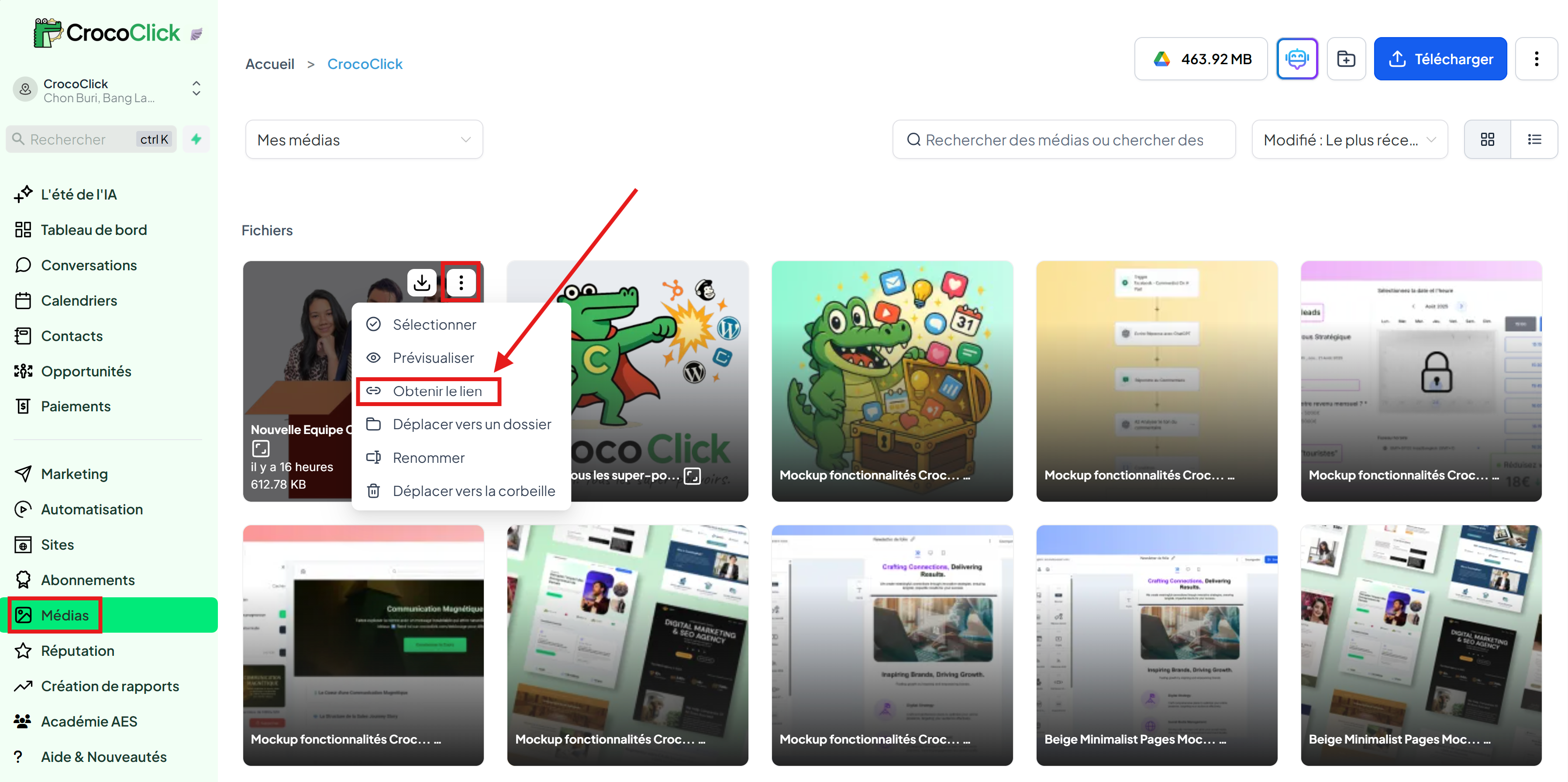
Step 2 – Upload the image to the CrocoClick Media library and retrieve the link
Go to the left sidebar of CrocoClick and click on "Media."
Drag and drop your image, or click on Upload in the top right corner.
Once imported, hover over the image, click on "..." then on "Get link" to copy the link to your clipboard.
Step 3 – Add the favicon to your website or funnel
Go to your Funnel or Site.
Click on Settings.
Scroll down to the Favicon section.
Paste the URL of your image (copied from the media library).
Save.

Step 4 – Check the result
Open your site/funnel in a new tab.
Refresh the page (Ctrl + F5 / Cmd + Shift + R if necessary).
The favicon should appear next to your site's title.
💡TIP: Sometimes, the browser caches the old favicon. If you don't see the change right away, try browsing in private mode.
And there you have it! Your website/funnel now displays a custom favicon, which reinforces your branding and professionalism.