Bump Order: Explanations, operation and settings on CrocoClick
Set up an order bump on CrocoClick to maximize your sales. Add complementary offers easily on your order page
Written By CrocoTeam
Last updated 8 months ago
What is an order bump?
An order bump on CrocoClick is an additional offer displayed directly on the order page at the time of the initial purchase. This offer aims to encourage buyers to add a product or service to their cart with a single click, without leaving the page.
For example, if a customer purchases a training program, an order bump could be a workbook or bonus module, offered at an attractive price, to complement their purchase.
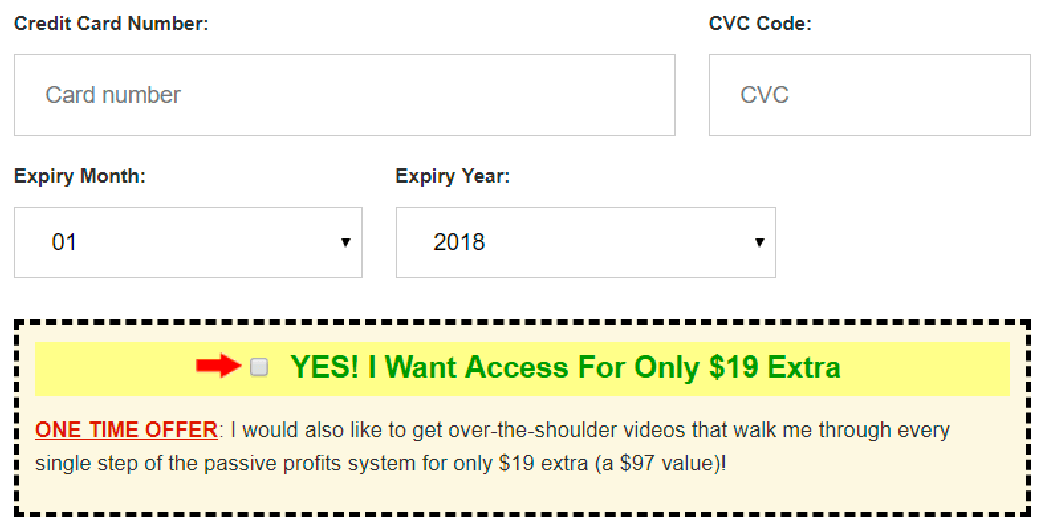
An example of an order bump
What is the difference between an order bump and an upsell?
The main difference lies in when these offers are made:
Order bump: offered on the order page before the initial purchase is finalized. It is a simple, often low-priced complementary offer that the buyer can add with a single click without leaving the page.
Upsell: offered after the initial purchase has been finalized. Often, this is a more elaborate or expensive offer (such as a subscription or premium package) presented on a separate page, encouraging the buyer to upgrade or supplement their purchase.
💡 TIP: On CrocoClick, you can easily configure both of these strategies to maximize your revenue using the built-in sales funnel management tools.
How do you set up an order bump in CrocoClick?
First, make sure you have:
Create the product you want to add as an order bump in "Payments > Products."
Create a page containing an order form and a main product.
Once these prerequisites are met, here's how to add an order bump to your form:
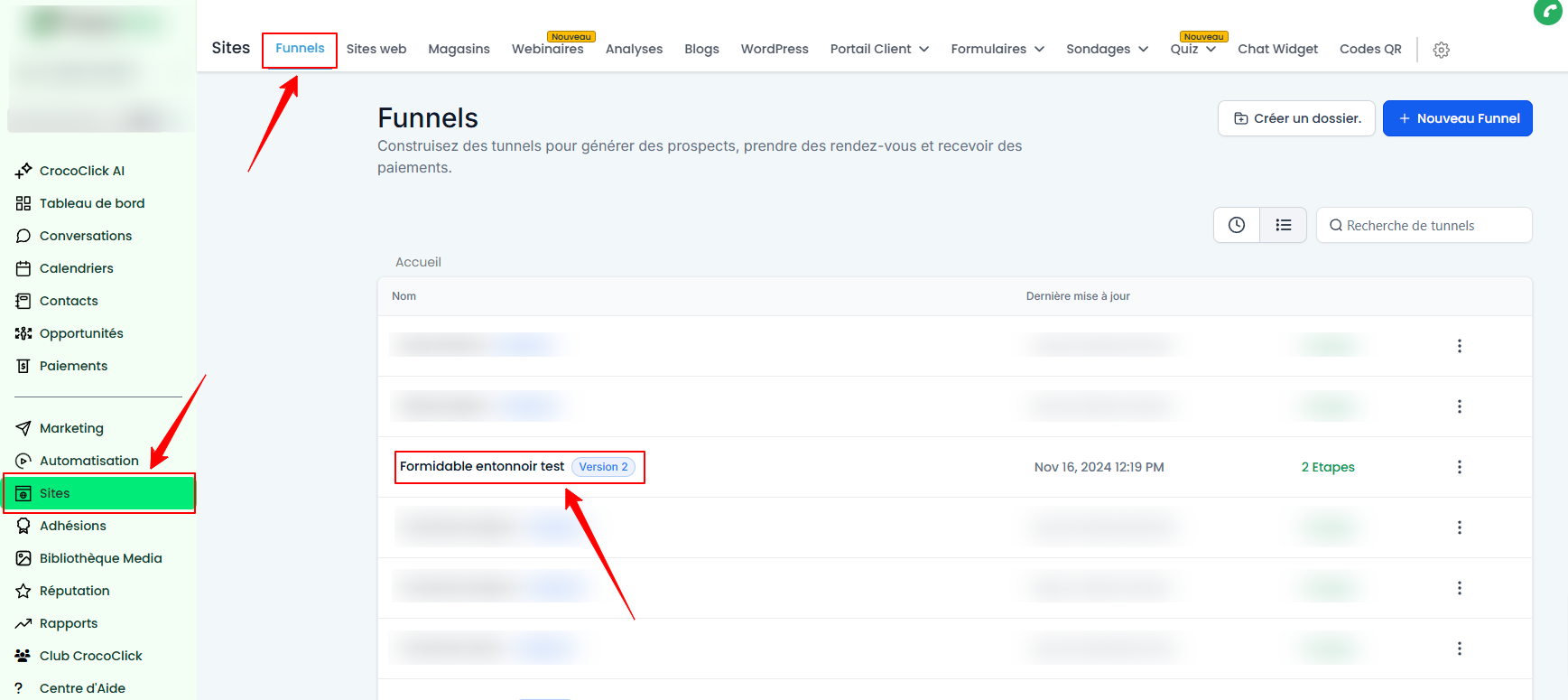
In Sites, then Funnel, access your funnel's Settings by clicking on it.
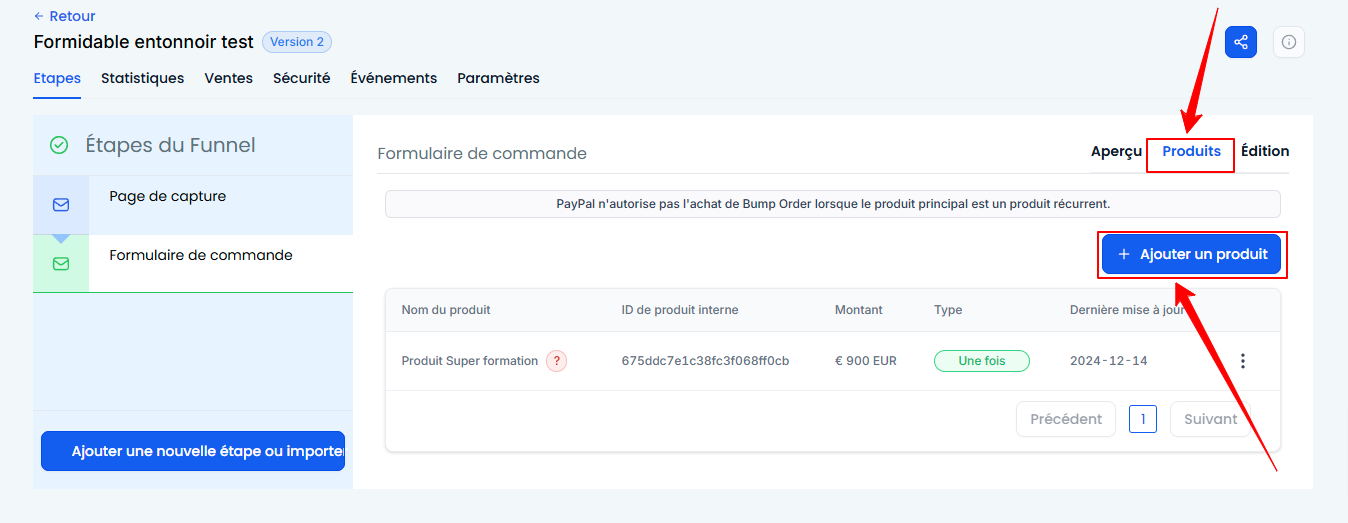
Select the page where the order form is located, and click Products on the right. Then click + Add Product.
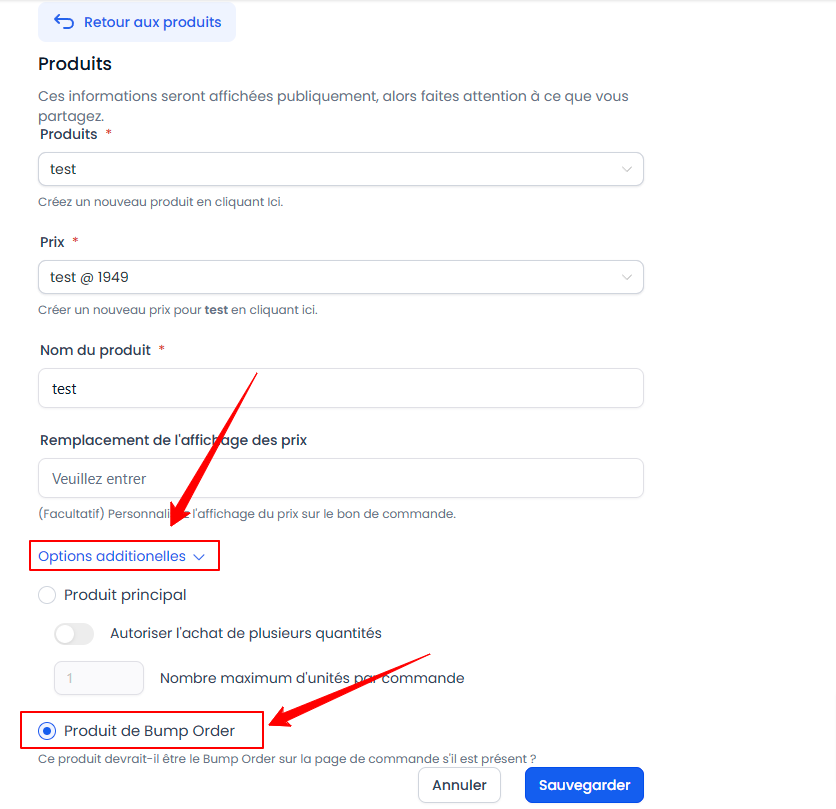
Configure the bump order product of your choice, and in additional options, select Bump Order Product. Then click Save to save.
To activate the Bump Order option, go to the payment page editor and select your payment form.
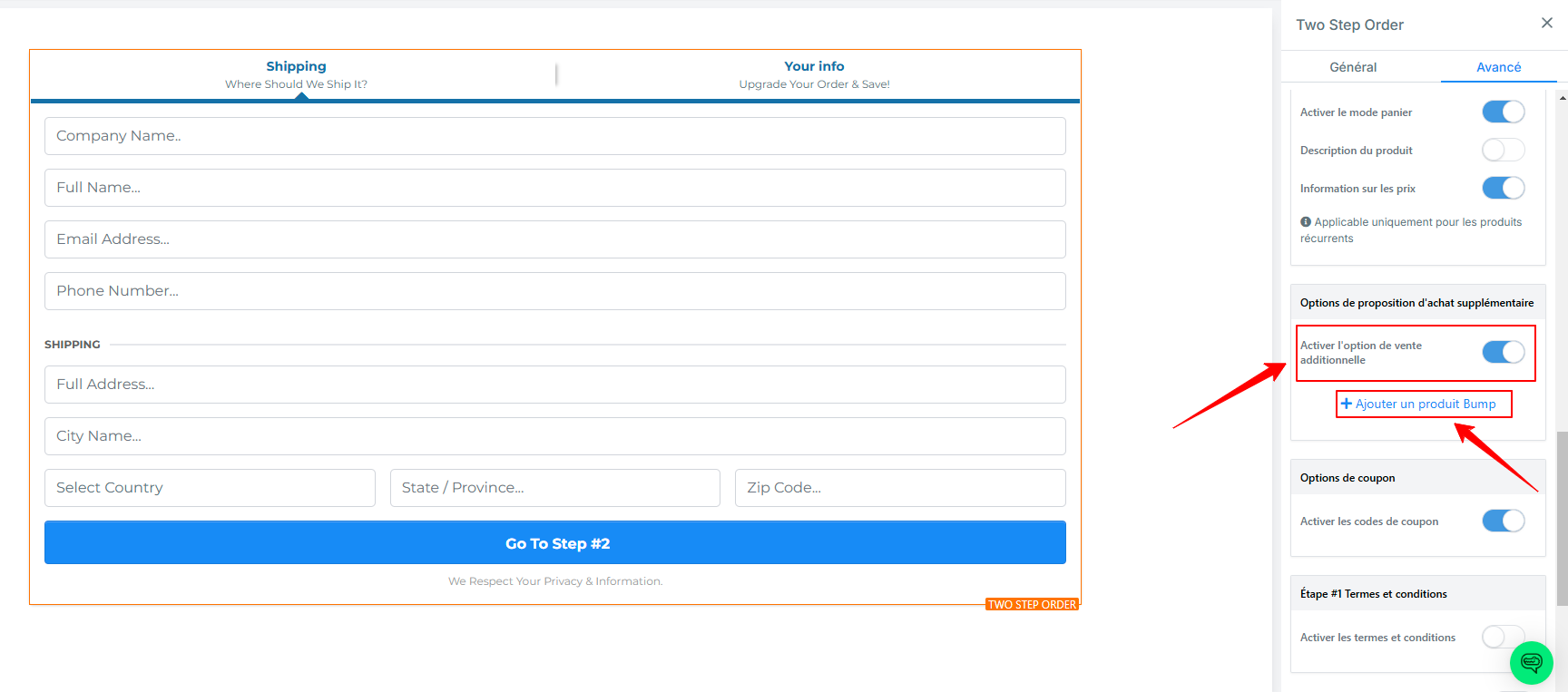
Go to the advanced settings for the form and activate the additional sales option. Then click on + Add a Bump Product.
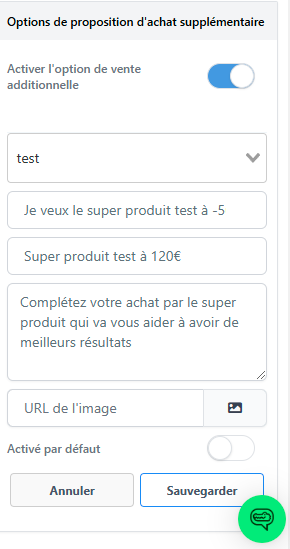
Set up the bump order product by adding the elements you want (title, OTO "One Time Offer" title, description, image), then click Save.
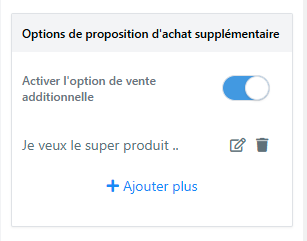
Save your changes and test the page to see how the Bump order is displayed.
Conclusion
The order bump is a powerful tool for increasing your revenue while improving the customer experience. Easy to configure on CrocoClick, it allows you to offer relevant, complementary, and attractive offers directly at the time of purchase. Used in combination with upsells, it can transform your sales funnels into real growth drivers.