Create and personalize your QR Code for requesting advice
Generate a QR Code in CrocoClick to invite your customers to leave a review in one scan
Written By CrocoTeam
Last updated 8 months ago
QR Codes are a simple and powerful tool to boost your reputation management strategy.
They allow your customers to instantly access your review page, a feedback form, or any other useful resource. The result: more reviews, less friction.
This article provides step-by-step instructions for creating, customizing, and using a review request QR Code in CrocoClick.
💡TIP: If you "just" want to create a simple QR Code that links to the page where customers can leave a review, read this article on "how to create a QR Code in CrocoClick."
Why use a QR Code to collect reviews?
Before diving into the steps, here's what you can get out of it:
Simplify the customer journey: by scanning the code, your customers are taken directly to the right page.
Get more reviews: by simplifying the process, you increase your chances
Build online trust: more reviews = more credibility
Multiply touchpoints: QR codes can be used on physical or digital media
Track results: each scan is traceable in CrocoClick
Create a review QR Code in CrocoClick
Go to the Reputation menu in your CrocoClick interface
Click on the Settings tab, then go to the QR Reviews section
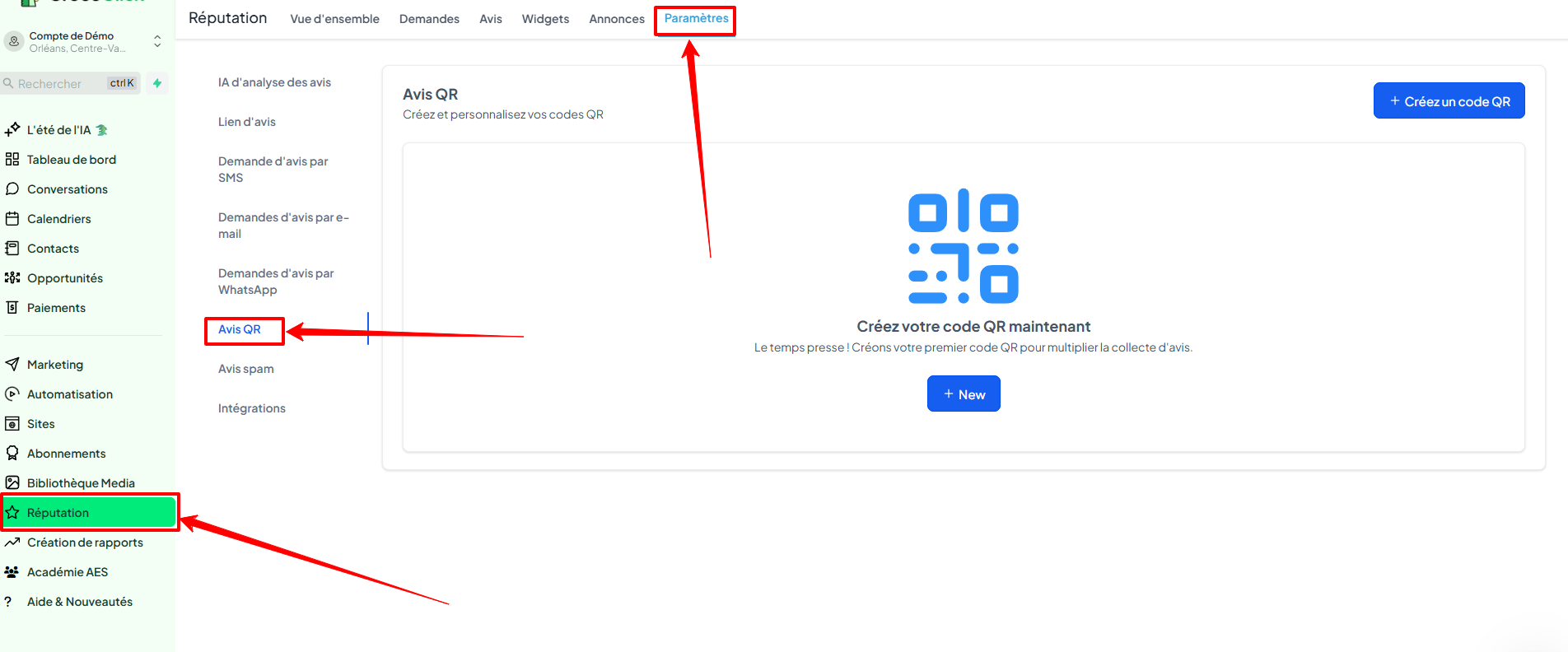
Select the page you want to redirect to (Google, Facebook, custom form, etc.)
Click on Create QR Code
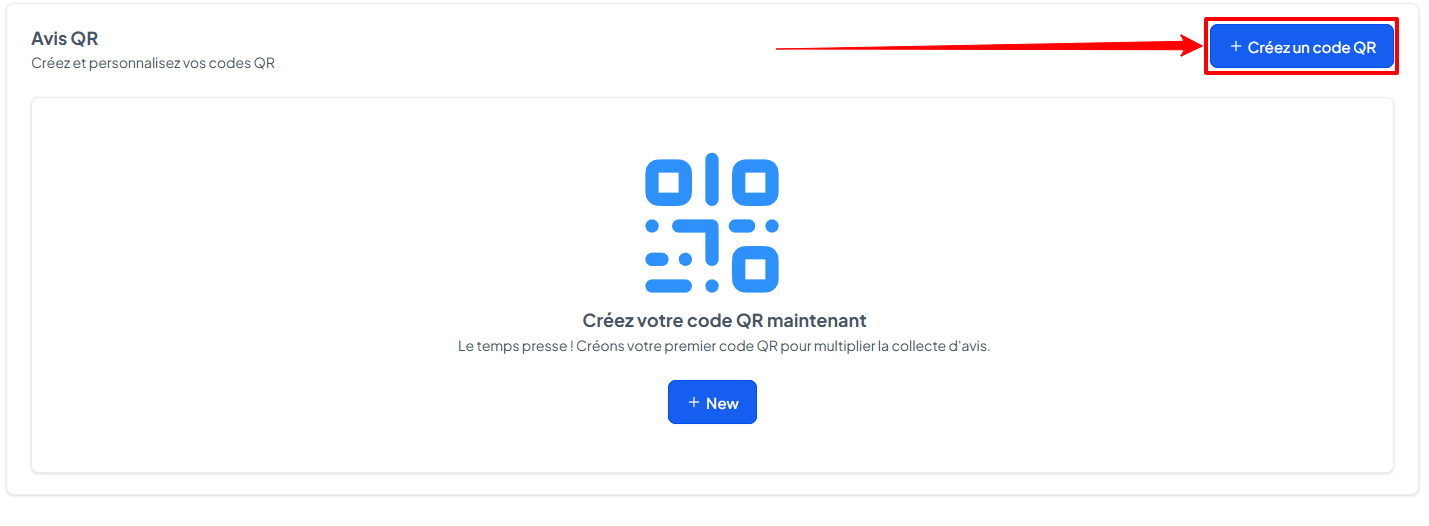
A unique QR Code is generated automatically. You can download it in PDF format.
💡 TIP: You can create multiple QR Codes, each pointing to a different page or channel depending on your strategy.
Customize your QR Code
To make your QR Code reflect your brand:
Add a logo or representative image
Customize the text that accompanies the QR Code
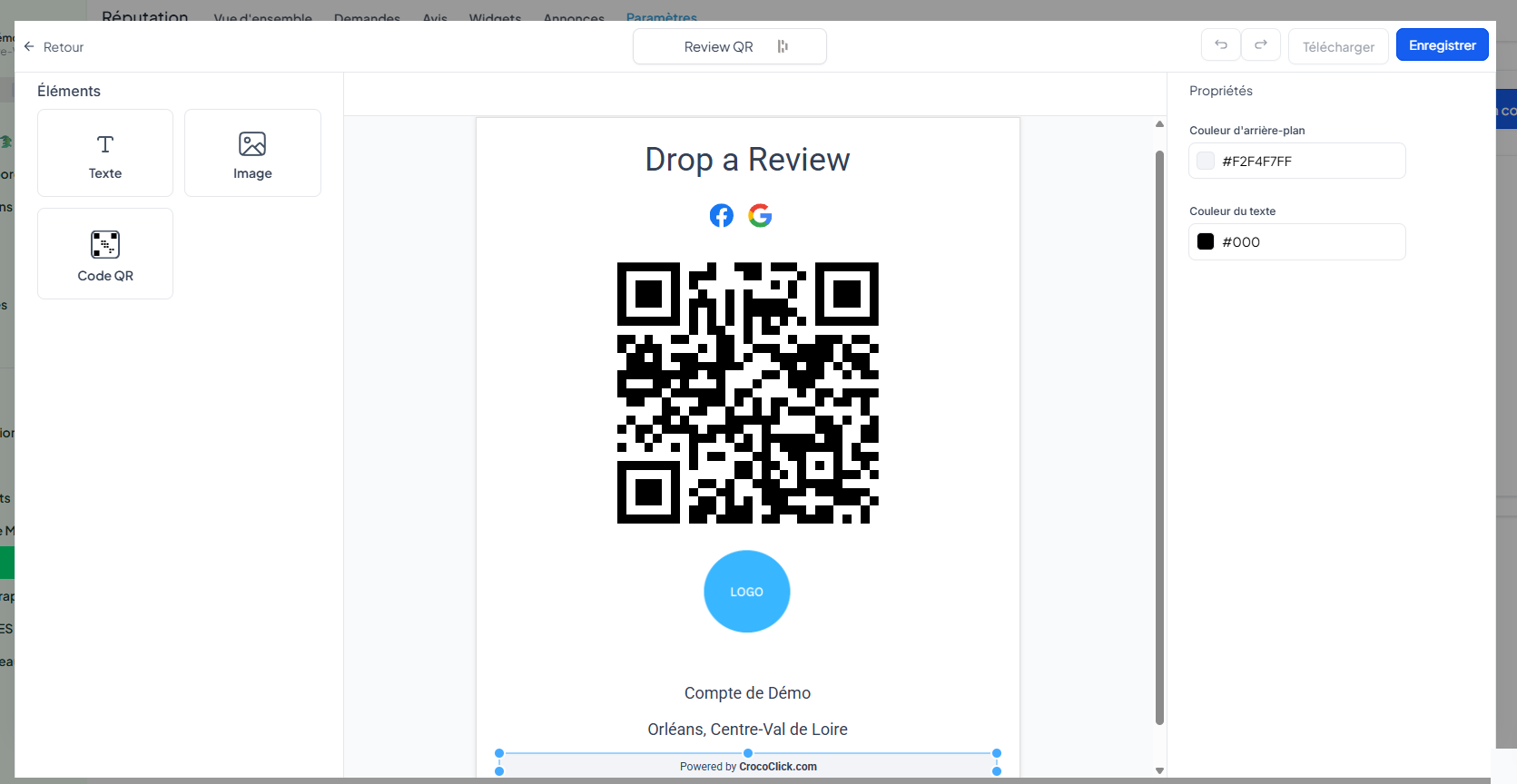
Display and distribute your QR Code
Once it's ready, all that's left to do is bring it to life!
Print it on your physical media: thank you cards, flyers, storefronts, packaging, etc.
Integrate it into your digital media: email signature, confirmation page, social networks
Place it strategically: where the customer still has the experience fresh in their mind (after a purchase, an appointment, etc.)
Track the performance of your QR Code
Go to the Tracking section of the Reputation area
View the number of scans for each QR Code
Analyze the data: which QR Code works best? Where is it placed?
Adjust your strategy: change the location, test a new tagline, create a new version, etc.
Conclusion
The review request QR Code is a small tool... but a powerful lever. In just a few steps, you can enable your customers to leave you feedback quickly, while enhancing your professional image.