How to integrate external content on a CrocoClick Dashboard
Easily integrate videos, web pages and external content into your CrocoClick dashboards with the Embed widget. Complete guide, examples and tutorials.
Written By Baptiste Lorreyte
Last updated 8 months ago
You can embed web pages, videos, documents, or content from other platforms directly into your dashboard.
What is embedding?
Embedding consists of displaying content from another platform in your Dashboard.
If the external site allows embedding, you can display, for example:
Web pages
Google Data Studio / Google Looker Studio
Google Docs / Google Sheets
Presentations
Calendars
Loom
YouTube
Instagram posts
External feeds and widgets
And much more
⚠️ Note: Some platforms deliberately block integration. In this case, the display will not work in your Dashboard.
Embedding content on a Dashboard
Step 1: Open the Dashboard in Edit mode
Go to:
Subaccount → Dashboard → Pencil icon (Edit mode)
Step 2: Open the "Add a widget" panel
Click on the blue + Add Widget button.
This panel also allows you to add elements such as: titles, images, text, and Embed.
Step 3: Go to the "Components" tab
Select Elements to display the different types of content available.
Step 4: Click on "Embed"
Click Embed to add a new embed element to your Dashboard.
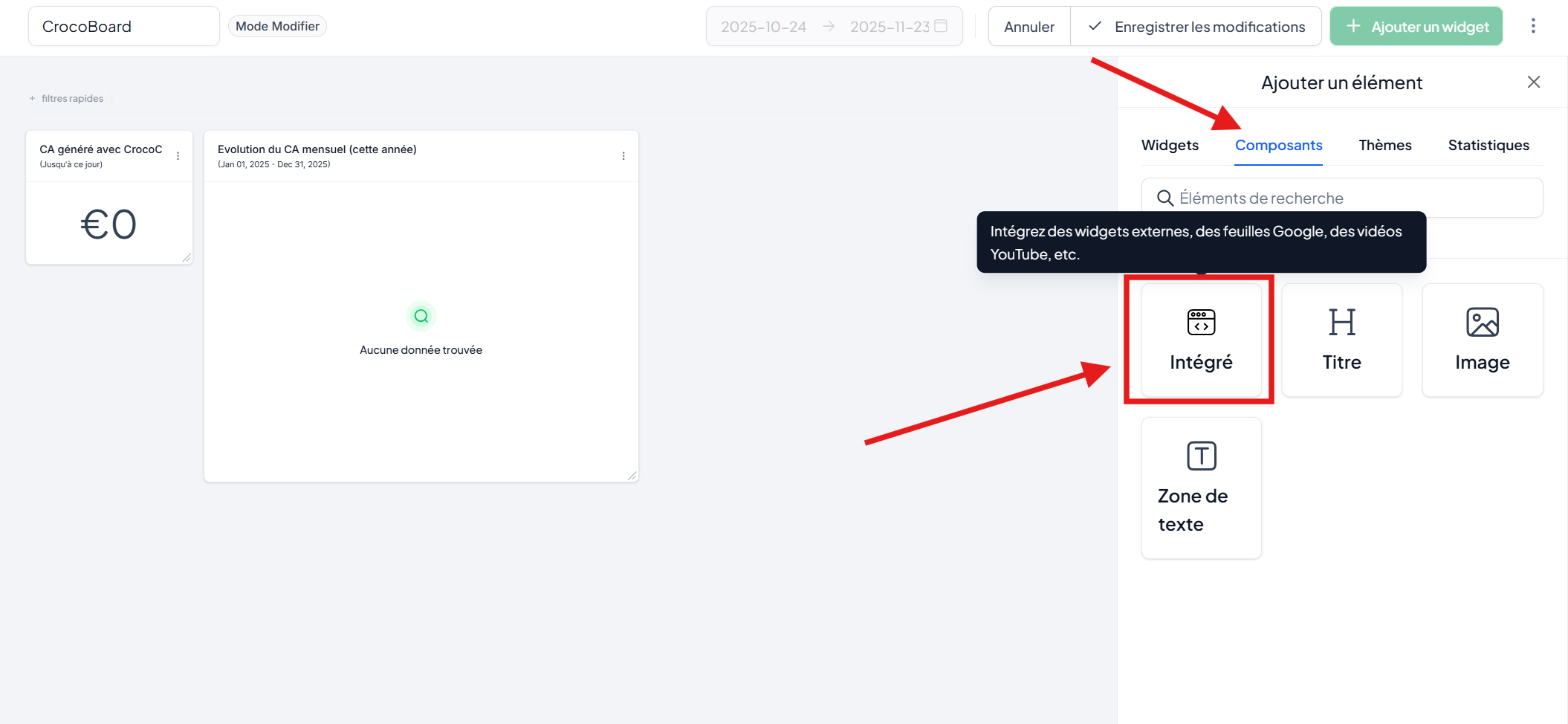
Step 5: Configure the Embedded element
You can now define:
1. The title (optional)
Change the title according to the content you want to display.
2. The integration type
You have two options:
URL → Simply enter a valid URL.
Example:https://www.instagram.com/p/C04TE0DsEkW/embed/IFRAME → Paste a complete iframe snippet.
Example:<iframe src="https://www.openstreetmap.org/export/embed.html?bbox=-0.004017949104309083%2C51.47612752641776%2C0.00030577182769775396%2C51.478569861898606&layer=mapnik"></iframe>
3. Advanced settings (optional)
You can choose to show or hide the title of the element.
Step 6: Save changes
Click the blue Save button to confirm and display your element in the Dashboard.
Types of content that can be embedded using the "URL" option
YouTube
Add an Embed item.
Retrieve the video ID (after
v=in the URL).
Example:
URL:https://www.youtube.com/watch?v=bFTIQDCvIrcID:
bFTIQDCvIrcAdd this ID to:
https://www.youtube.com/embed/IDResult:
https://www.youtube.com/embed/bFTIQDCvIrc
TikTok
Add an Embed element.
Retrieve the video ID after
/video/.Add it to:
https://www.tiktok.com/embed/ID
Copy the shareable link from the post (example):
https://www.instagram.com/p/C04TE0DsEkW/?utm_source=ig_web_copy_linkReplace everything after the ID with /embed/
. Result:https://www.instagram.com/p/C04TE0DsEkW/embed/Paste this link into the Embed element.