Understanding and using Trigger Links
Find out how to use trigger links in CrocoClick for your automations, track clicks and boost your campaigns.
Written By CrocoTeam
Last updated 8 months ago
Trigger links allow you to redirect a user to a specific page when they click on them in a text message, email, or platforms such as Google My Business, Facebook/Instagram Messenger, and WhatsApp. Each click is recorded in the contact's activity timeline and can trigger a predefined action in an automation.
💡 TIP: Trigger links are only supported in emails, SMS messages, Google My Business (GMB), and direct messages on Facebook, Instagram, and WhatsApp. You cannot use them in a sales funnel.
What is a trigger link?
A trigger link is a hyperlink that you can embed in your emails, SMS, or marketing campaigns. This link has two advantages:
Tracking (the "click" action is recorded in CrocoClick)
Redirection (if you change the destination URL of the trigger link, this allows you to change it wherever you have inserted this link)
In practical terms, when a contact clicks on it, CrocoClick records the action in the contact's timeline and can trigger one or more automations following the click.
This is how trigger links allow you to accurately track clicks and analyze which links generate the most engagement.
This allows you to better understand your users and adapt your actions accordingly.
How do you create a trigger link in CrocoClick?
Access the trigger links section:
Go to Marketing > Trigger Links > Links.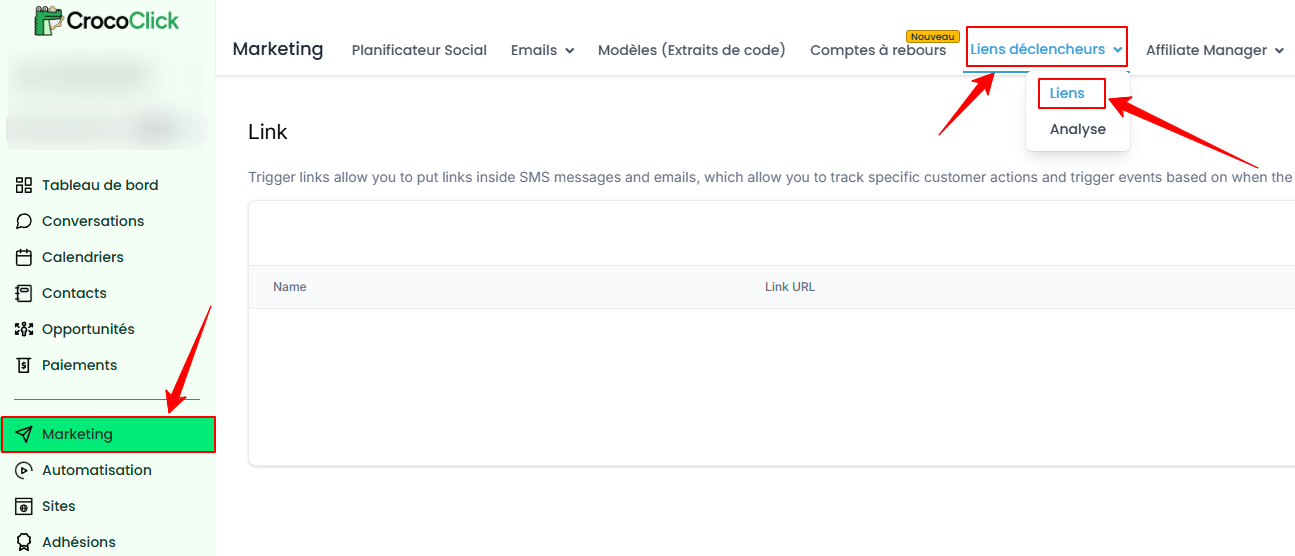
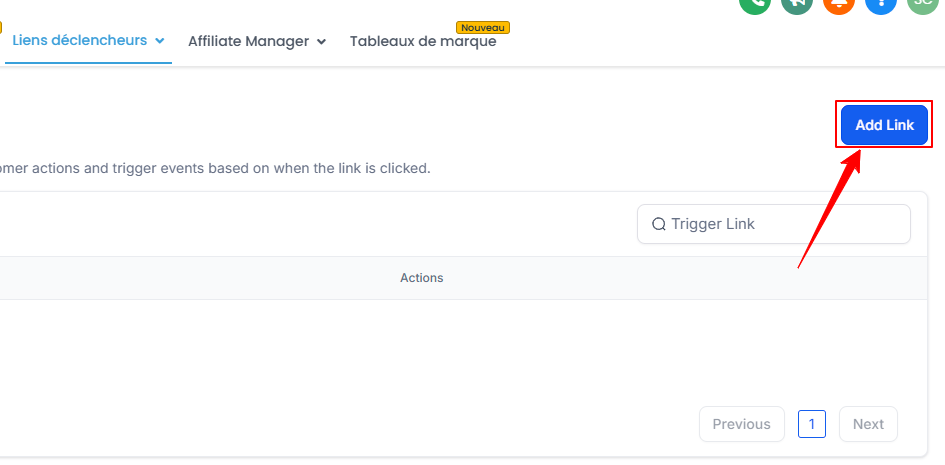
Create a new link:
Click Add link.
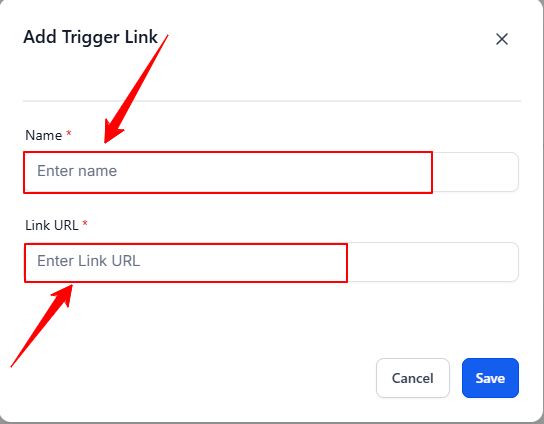
Choose the redirection:
With a fixed URL: Add the target URL
With a custom value: Use custom values to create links tailored to each contact or campaign. For example, you can set up a generic link for monthly promotions that automatically points to the correct URL.
How to use trigger links in CrocoClick?
You can use a trigger link in two different cases:
In a campaign
In an automation
Add a trigger link as a hyperlink in your email campaigns to redirect your contacts to a specific page (e.g., "Discover our new offer").
Case 1: Use in campaigns
Go to Marketing > Emails > Campaign (or templates) > + New and open the email editor.
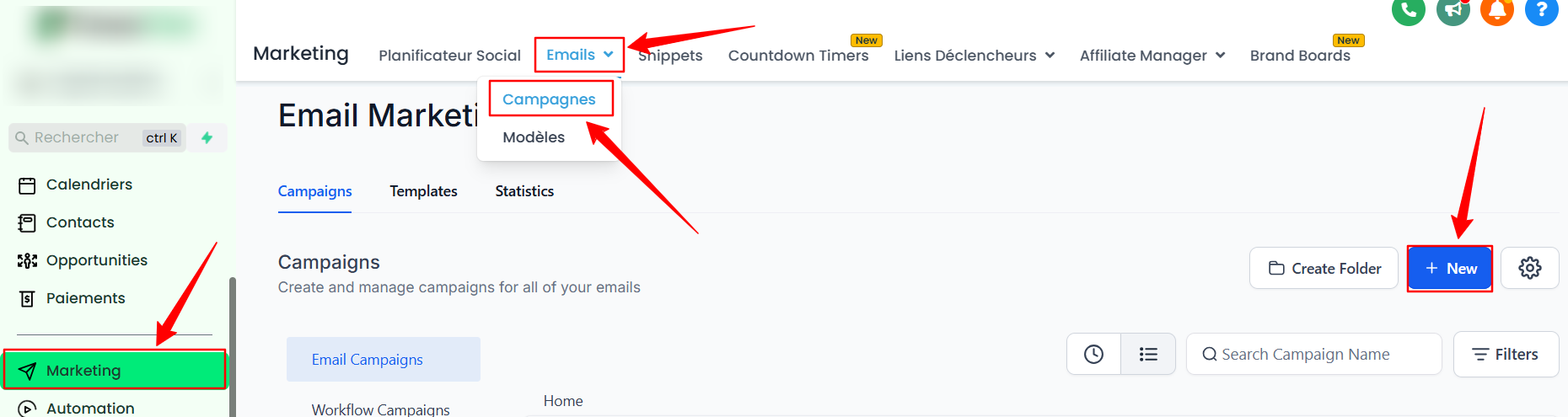
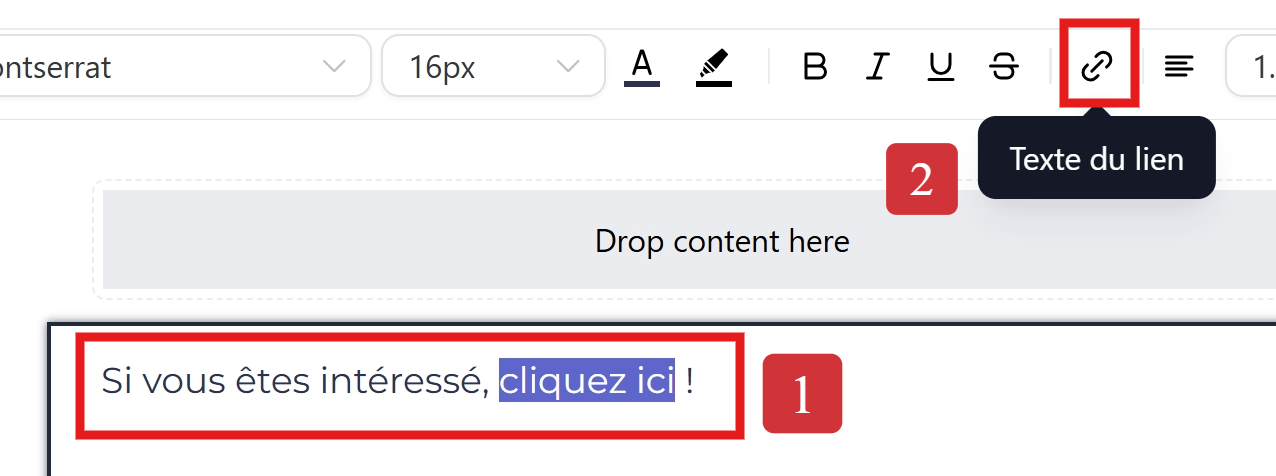
Enter the text in which you will insert the link.
Select this text and click on the add link icon
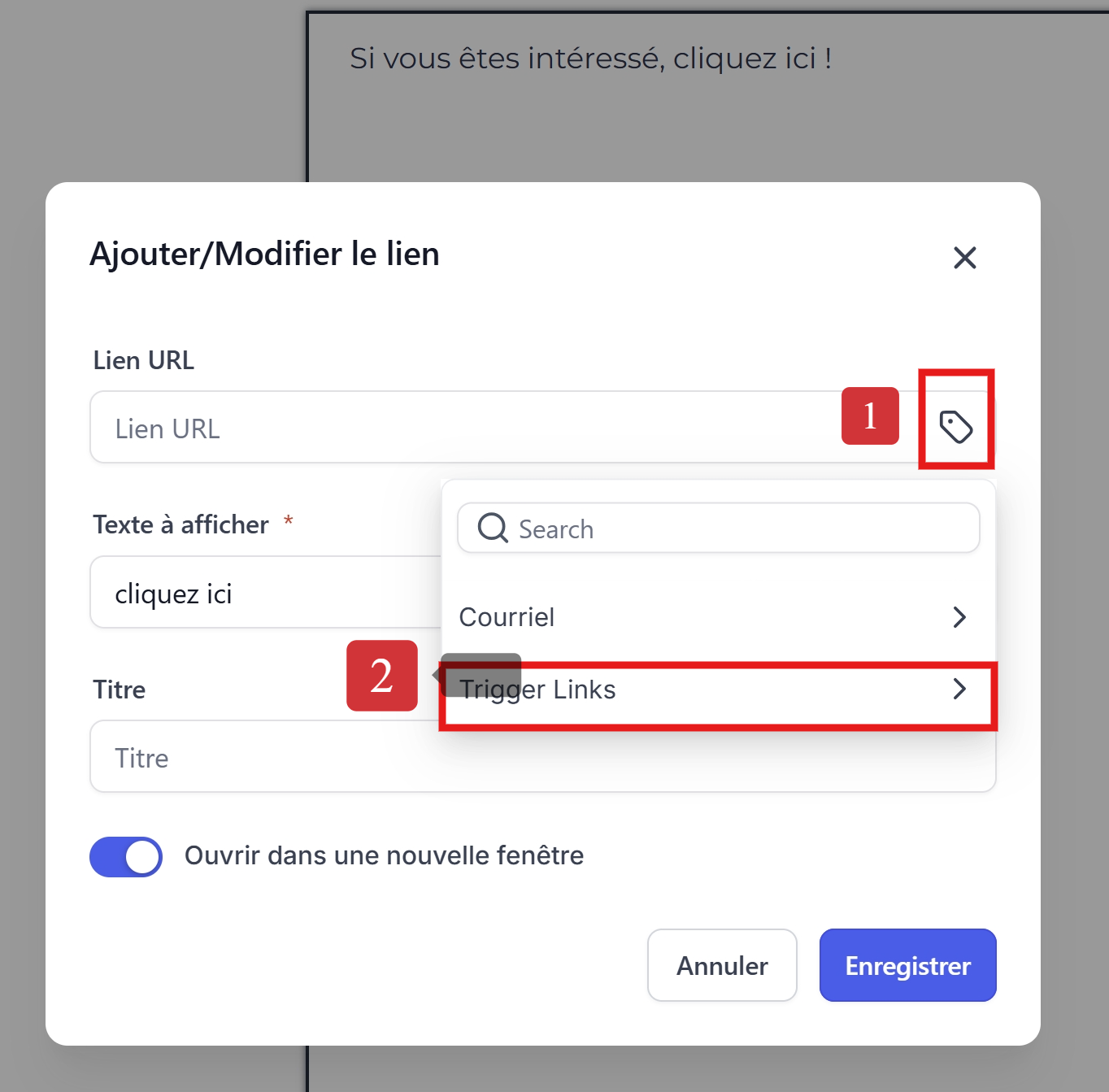
Click on the dynamic variable icon and choose the trigger link from the drop-down list, then click on save
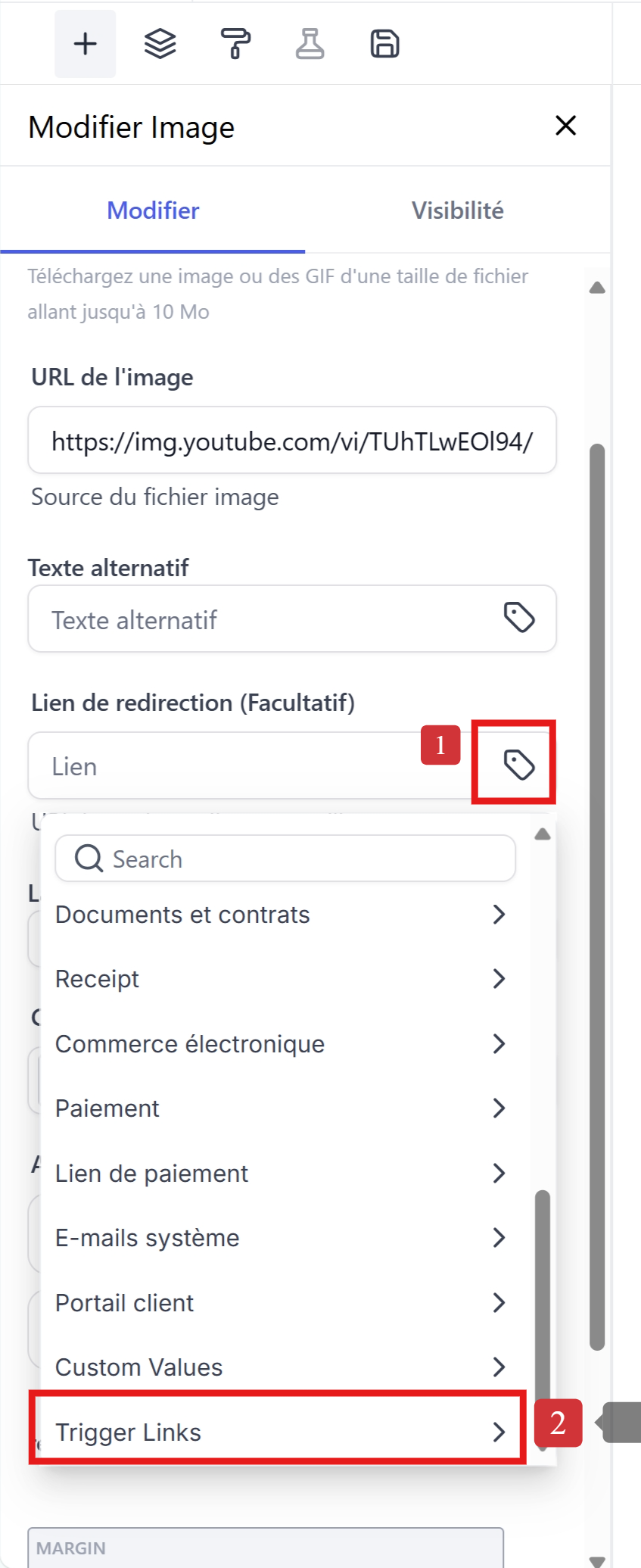
💡TIP: Trigger links are available in other locations, as long as a link can be added. Below is an example of adding a trigger link to an image within the image block of the email editor
Examples of use cases:
Dynamic URL updates in email campaigns:
Configure trigger links with custom values to redirect your contacts to the latest promotion or update. This allows you to reuse the same email template without manually changing the links for each campaign.Tracking contact activity: Trigger
links automatically record contact clicks in their activity timeline. This data can be used to evaluate their engagement and the effectiveness of your SMS or email campaigns.Educational resources in campaigns:
Include links to helpful tutorials, videos, or articles in your emails. These clicks can trigger automated actions or track contacts' interest in certain topics.
Case 2: Use in automations
Go to Automation > Automations > + Create Workflow.
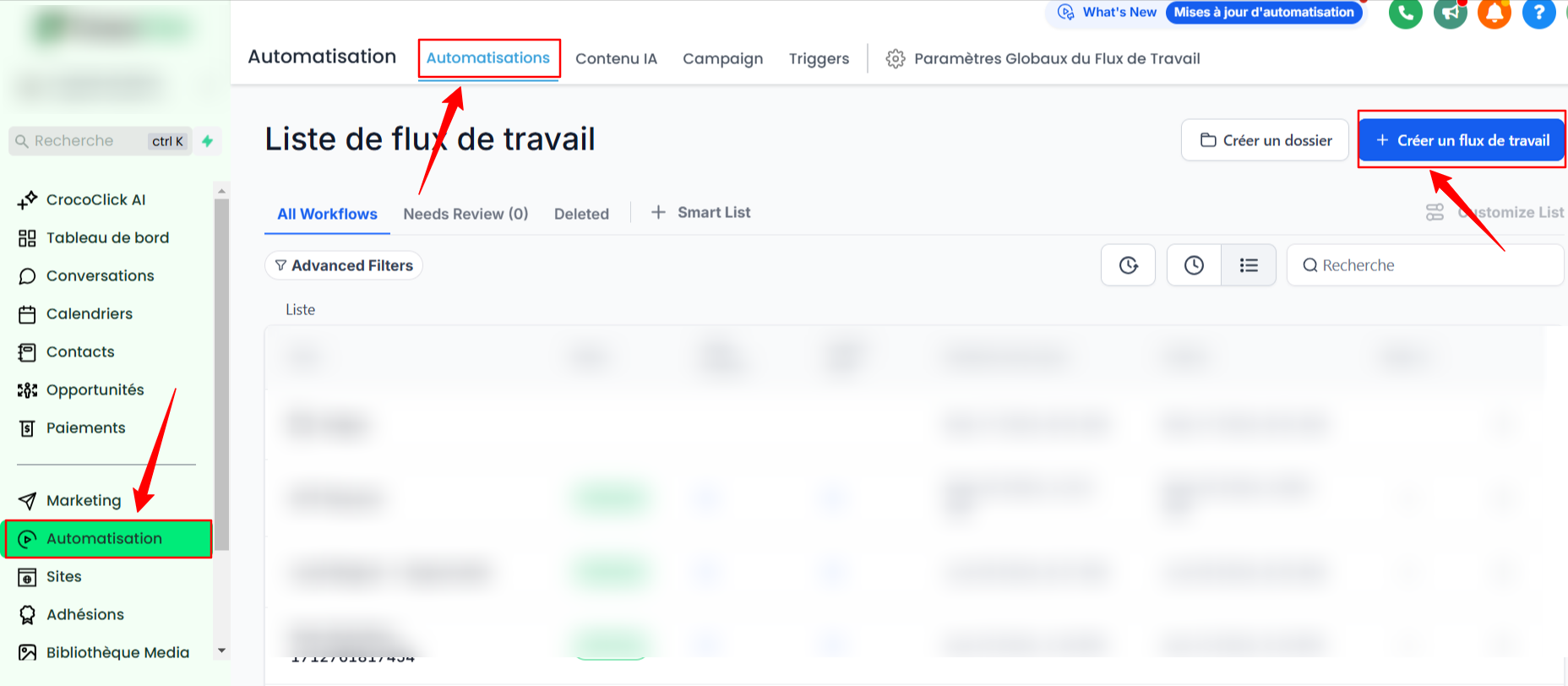
In the automation, select Trigger Link Clicked as the trigger.
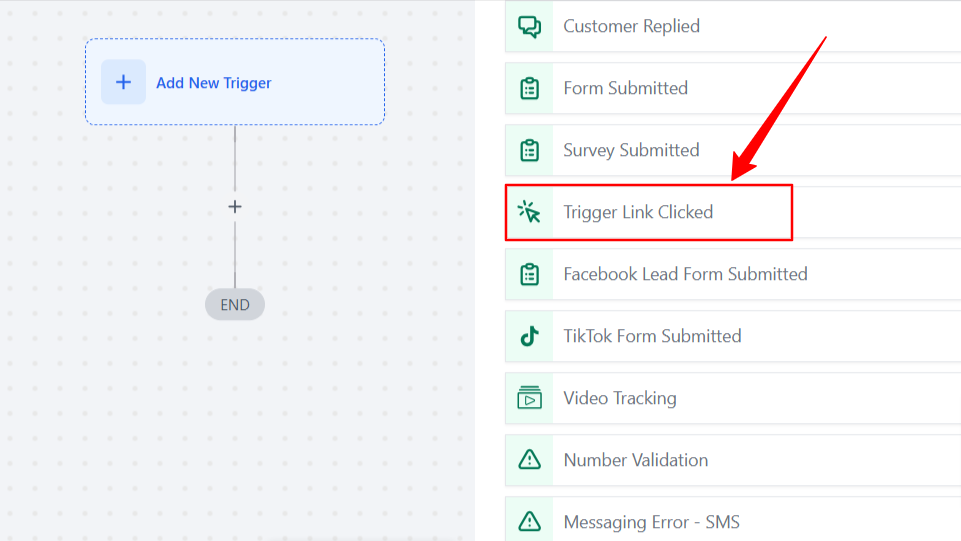
Define the following actions according to your needs and click Save to save.
Examples of use cases:
Appointment confirmation and reminder: When the contact clicks on a trigger link in an appointment reminder email, the system records the click and triggers the next step, such as sending a survey or a review request.
Opt-out links specific to different communication channels: Implement opt-out links for various communication channels, including SMS, email, Google My Business (GMB), Facebook, and Instagram. When a contact clicks on these links, they are unsubscribed from the relevant channel, ensuring compliance with opt-out regulations and facilitating the management of communication preferences.
Event registration and updates: If you host events, use trigger links in your email invitations. When a recipient clicks on the link to RSVP or get updates about the event, you can automate confirming their attendance, sending event details, or collecting additional information.
Conclusion
CrocoClick trigger links offer a powerful solution for automating your marketing actions, accurately tracking your contacts' engagement, and personalizing their journeys. Whether in email campaigns or workflows, they save you time and optimize your results.