How do you make a section/row/column/block visible on the computer but not on mobile (or vice versa)?
Optimize your CrocoClick site by displaying images suitable for computers and mobiles without slowing down.
Written By CrocoTeam
Last updated 6 months ago
Problem
You want to display two versions of an image (one for desktop, the other for mobile), but in an optimized way so that each image is displayed only on the corresponding device.
Solution with CrocoClick
Adding the two "Image" blocks:
In your CrocoClick site editor, add two "Image" blocks to your section, one below the other.
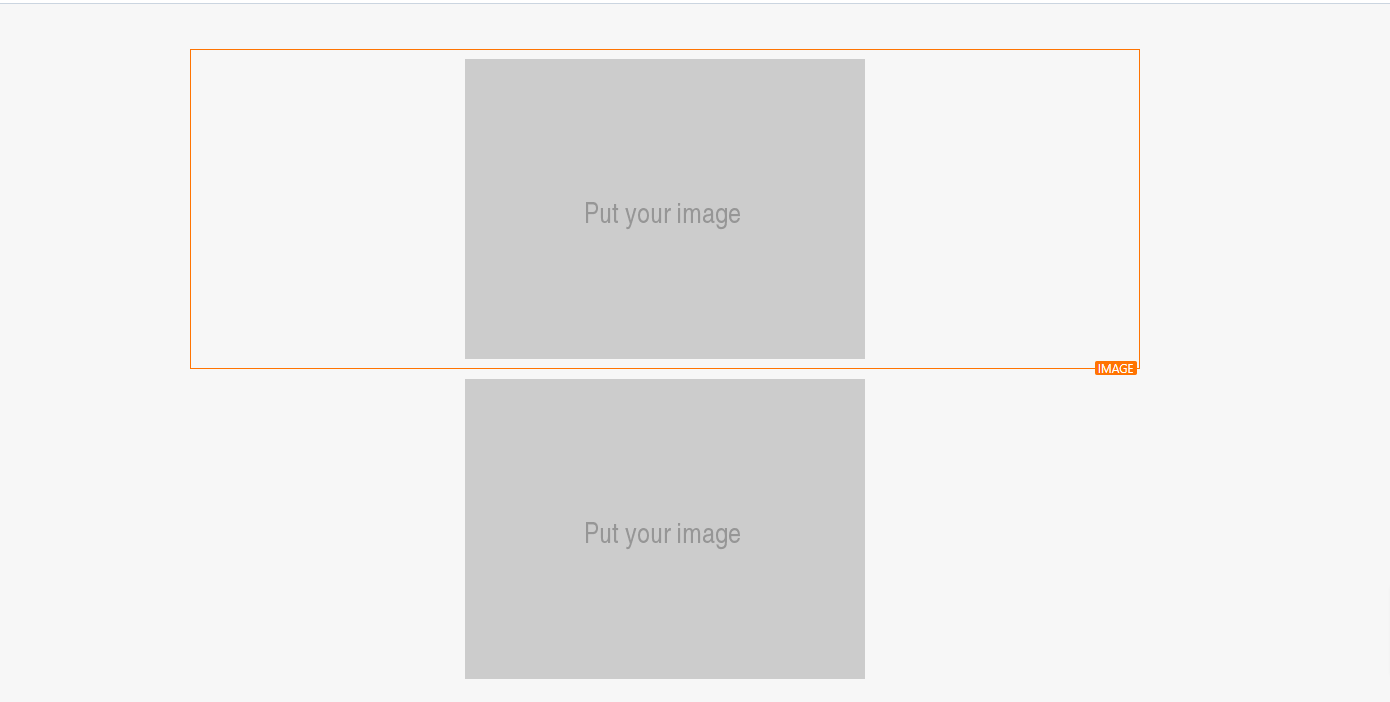
Example:
Block 1: Image of a cat for desktop (wider, resolution optimized for desktop).
Block 2: Image of a dog for mobile (smaller, resolution optimized for mobile).
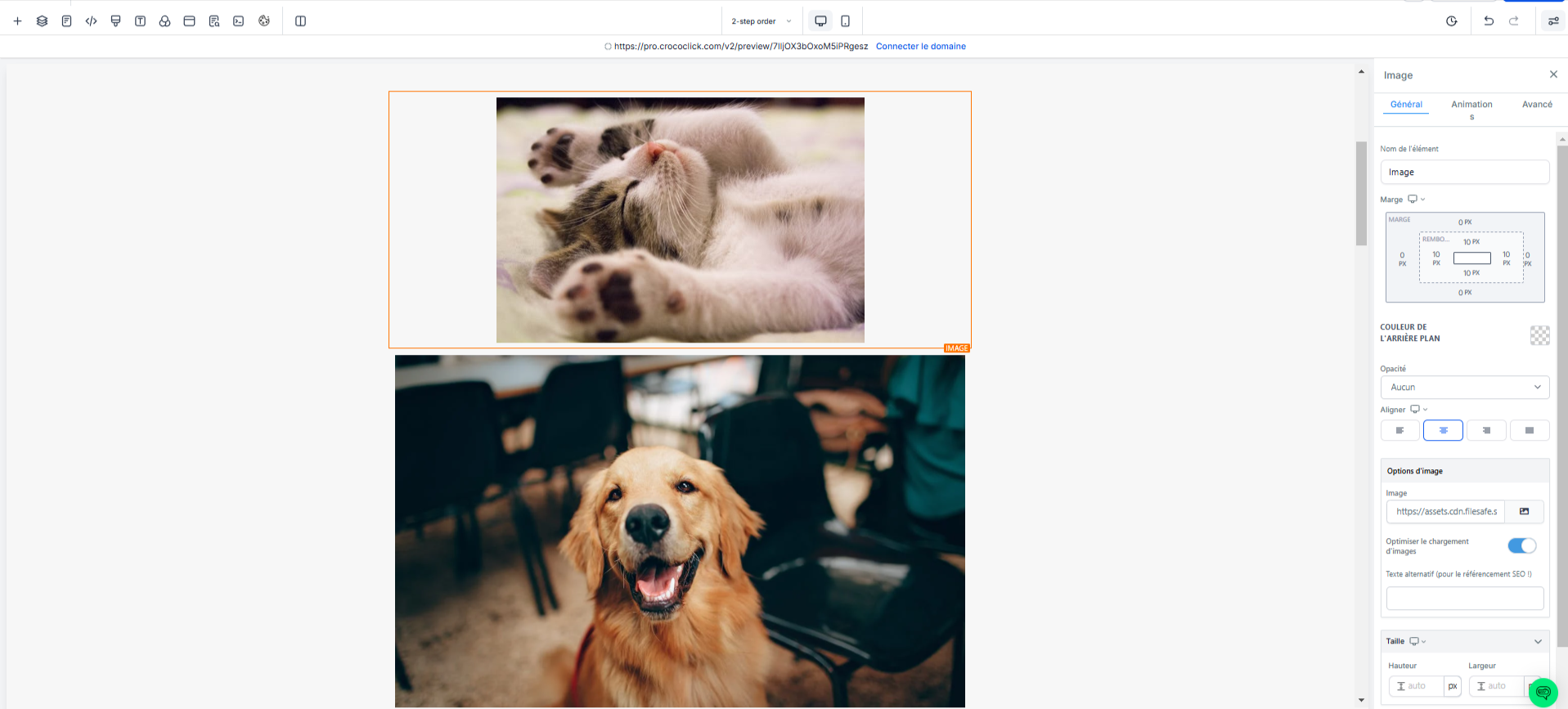
Configure visibility in the advanced settings:
Image for desktop:
Click on the first image block in your editor.
Go to the advanced settings.
In the Visibility section, uncheck the "Mobile" icon. This ensures that this image will only be visible on desktop devices.
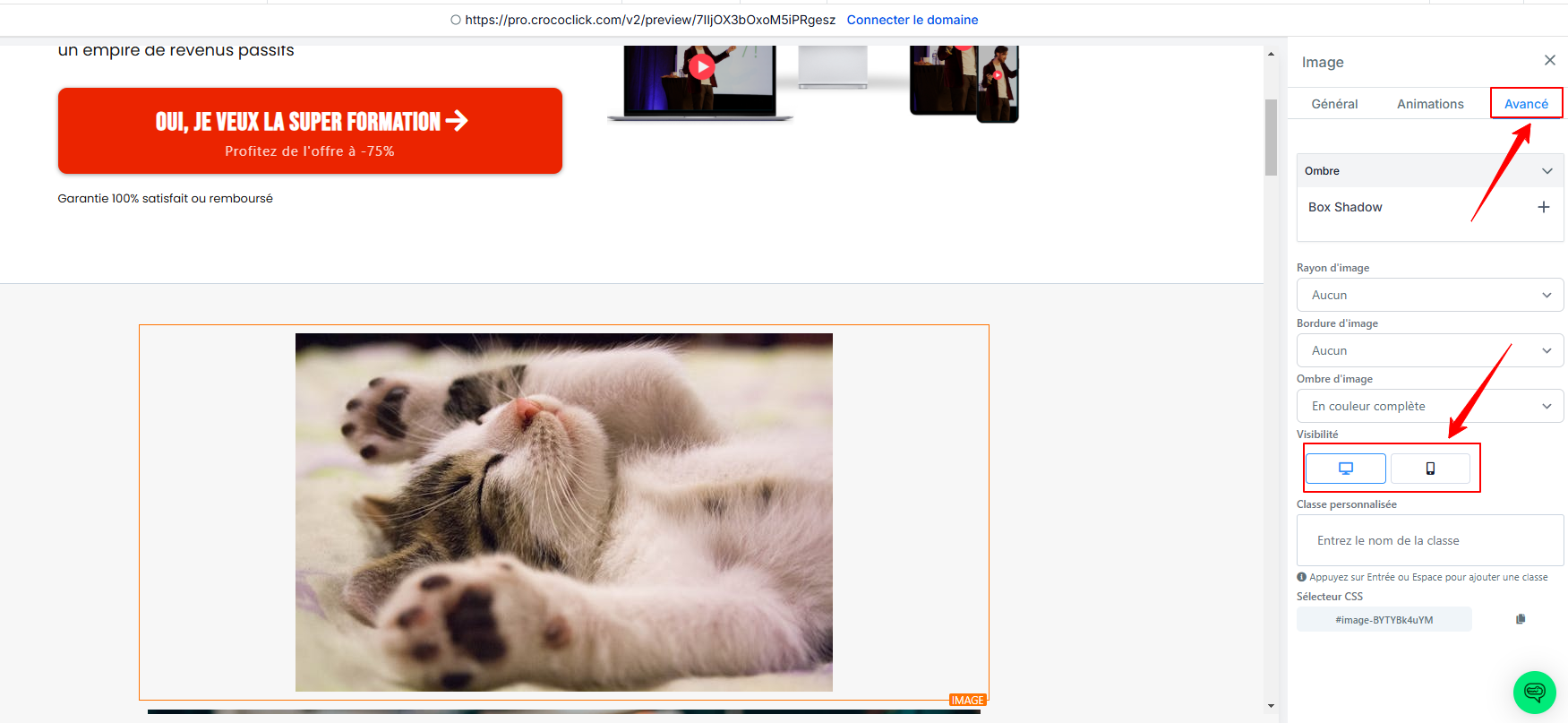
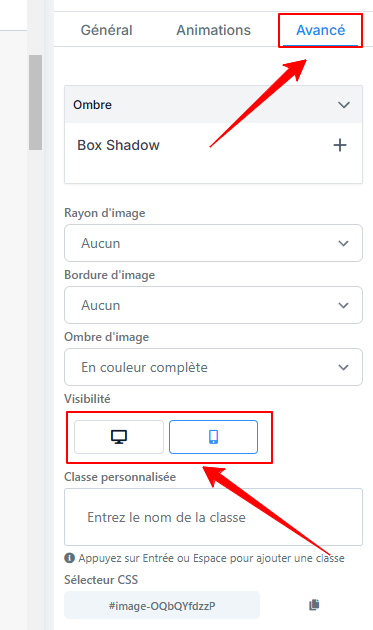
Image for mobile:
Click on the second image block.
Go to the advanced settings.
In the Visibility section, uncheck the "Computer" icon. This ensures that this image will only be visible on mobile devices.
Test your layout:
Use the Preview tool in CrocoClick to see how it looks on different devices (computer, tablet, smartphone).
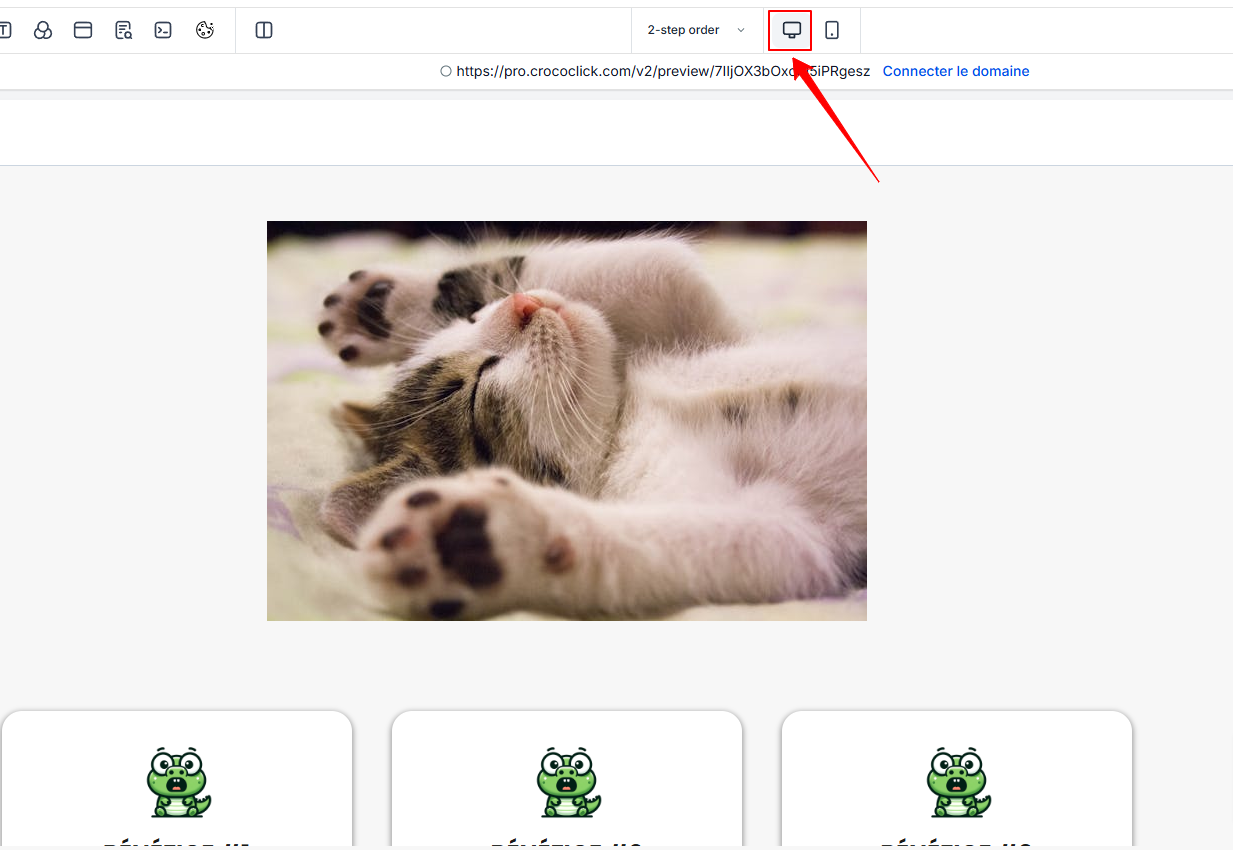
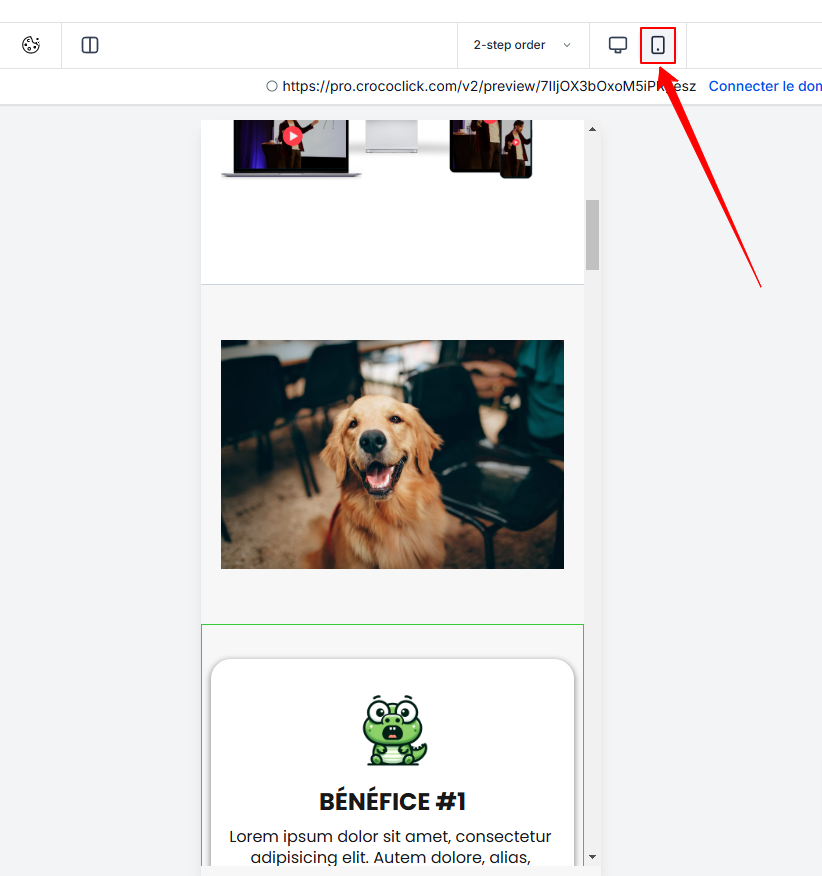
Make sure that:
The image intended for computers appears only on desktops.
The image intended for mobile devices appears only on smartphones.
Why use this method in CrocoClick?
Visual optimization: You provide an experience tailored to each device.
Ease of implementation: CrocoClick makes this option intuitive with visibility settings.
Improved performance: Devices don’t unnecessarily load images that aren’t intended for them.