How to hide a section on a page and display it after a certain time (or when a button is clicked)
Learn how to hide a section of your page and display it automatically when a trigger (timer, button, etc.) is activated
Written By CrocoTeam
Last updated 6 months ago
To display a section after a certain amount of time has passed, follow these steps in your page editor:
Step 1: Add your hidden section
Create a new section in your page builder.
Add the content you want to display after a delay (for example, a buy button, text, an image, etc.).
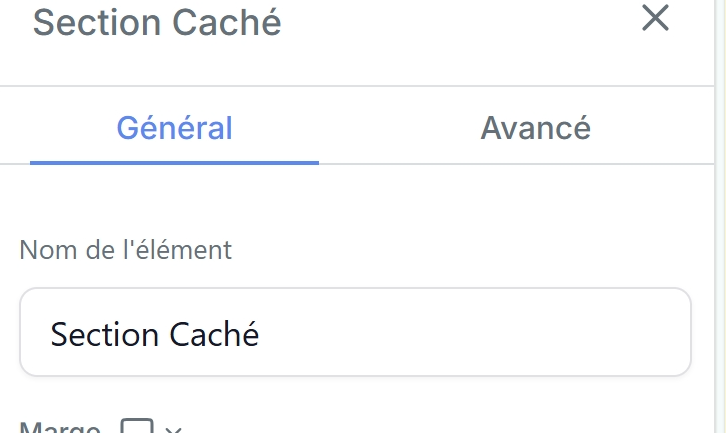
Rename the section in the settings so you can easily find it later (for example: "Hidden Section").
Step 2: Hide the section
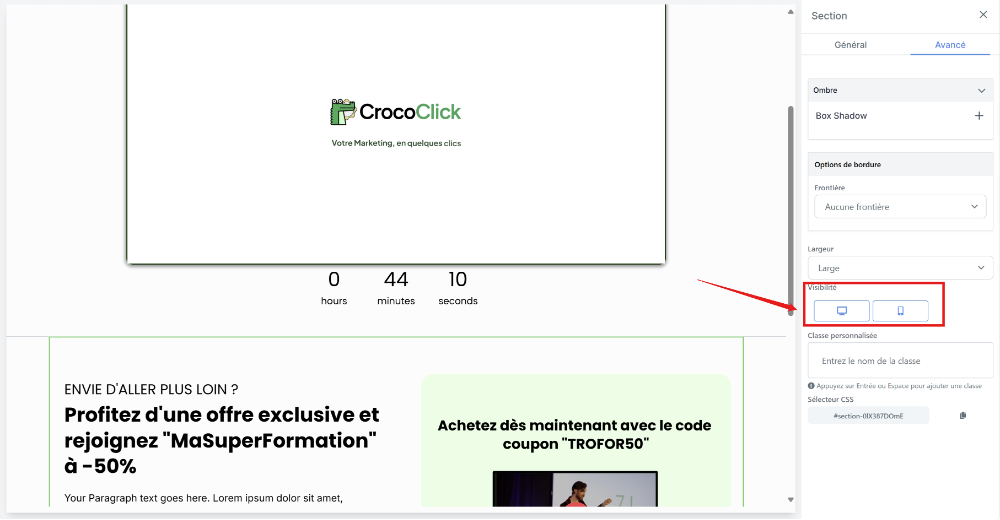
In the section’s advanced settings, disable its visibility on mobile and desktop.
This will ensure that the section remains invisible until it is triggered.
Step 3: Add a trigger (timer or button)
Add a "timer" block or any other trigger element to a visible section of your page.
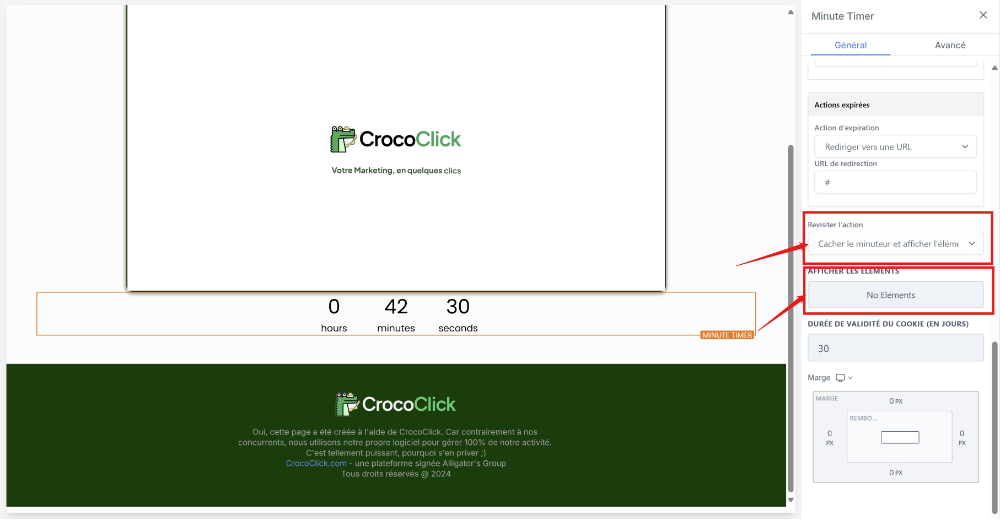
Configure the trigger to display the hidden section at the right time. For a "timer" block:
Select the "Show an element after the timer" option
Below that, select the section you named "Hidden Section"
Step 4: Test the setup
Preview your page to verify that the section remains hidden at first.
Make sure it appears at the right time once the timer has elapsed.
With this method, you can create interactive pages where content is displayed progressively, which captures visitors’ attention and effectively guides them toward your call to action.