How to customize your blog and post design in CrocoClick
Easily customize your blog's design and the template for your CrocoClick articles with our visual editor
Written By CrocoTeam
Last updated 6 months ago
With CrocoClick, you can easily customize the design of your blog and posts to match your visual identity.
This includes the layout, the style of post cards, the display of information (title, author, date, etc.), and editing the main pages (Blog Home & Blog Post).
Step 1 – Access the blog editor
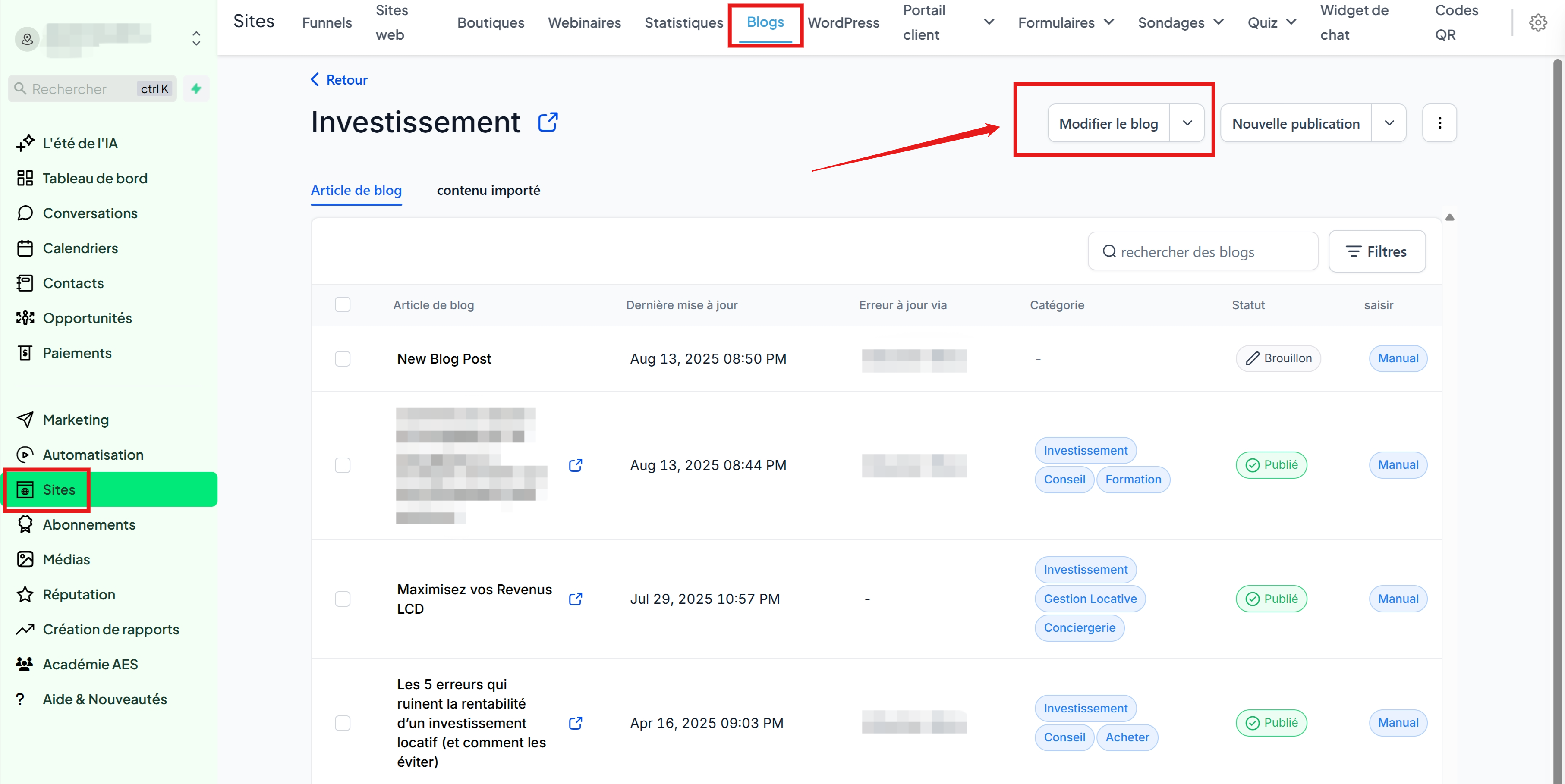
Go to Sites → Blogs.
In the list of Blogs, click on the Blog you want to edit.
Once in the blog, click the Edit Blog button (next to “New Post”).
The blog editor opens with all available sections and elements.
Step 2 – Customize the blog homepage layout
In the editor, you can:
Change the layout.
Choose what appears in the post grid (image, title, description, tags, author, date, etc.).
Customize the style of the Blog Home (blog homepage) and Blog Post (individual post page).
Customizable elements:
Post image
Title & Subtitle
Description / excerpt
Tags
Author
Publication date
💡 TIP: Alternatively, you can create a homepage for your blog on a website or funnel. Simply add the "blog posts" block in the page builder to display your posts.
Step 3 – Customize the layout of your blog posts
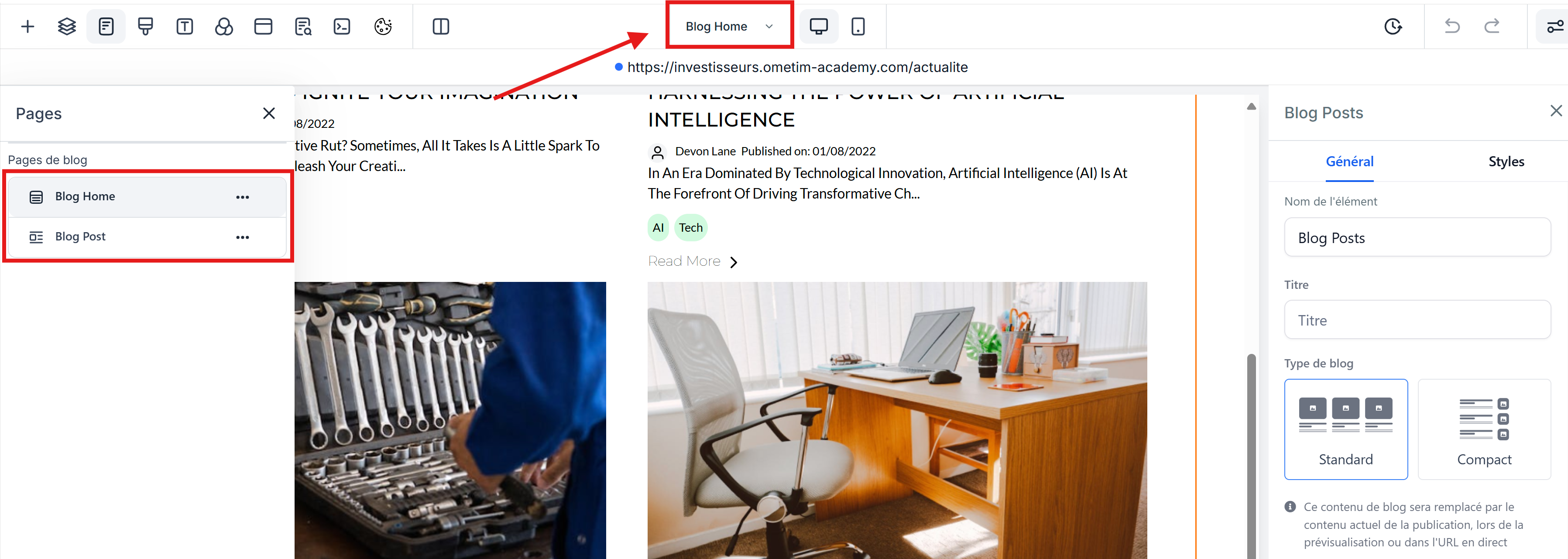
To access the post template, click "Blog Home" at the top of the page. This will open the left-hand sidebar, and you can click "Blog Post" to access the post template.
💡 TIP: Personally, we really like the "2-column" layout, with the "blog content" in a wide column on the left, and calls to action or opt-ins in a smaller column on the right (you can see an example at https://crococlick.com/blog)
Step 4 – Use sections and elements to customize the blog page and posts
Your blog has the same tools as CrocoClick websites and funnels:
Section Templates (reusable section templates)
Universal Sections (shared across Sites, Funnels, and Blogs)
Visual elements: buttons, social media icons, images, progress bars, etc.
FAQ – Frequently Asked Questions
Q: Can I edit the “Next” and “Previous” buttons on the Blog Home page?
👉 No, these buttons are automatically generated for pagination. However, you can hide or style them using custom CSS (Advanced tab), but their text and structure cannot be modified directly from the editor.
Conclusion
In just a few clicks, you can customize your blog to perfectly reflect your branding and provide a better experience for your readers.