[GUIDE] Create an E-Commerce store with CrocoClick
Activate an e-commerce store, add products and collect payments with CrocoClick.
Written By CrocoTeam
Last updated 6 months ago
A CrocoClick e-commerce store lets you sell your products directly from your website, without any external plugins or coding.
In just a few clicks, you can display your products, process payments, and manage your orders—all within a 100% integrated ecosystem.
🔎 Why create a store on CrocoClick?
On CrocoClick, you can already sell in many ways:
👉 Payment links, order forms, direct checkout for your courses…
But the "E-commerce Store" feature goes even further.
It doesn’t just process payments.
It transforms your CrocoClick site into a true online store, featuring:
A structured catalog of your products
A shopping cart to add multiple items
A seamless and comprehensive checkout process, from the product page to payment
Automated order and shipping tracking
It’s a whole new experience for your visitors, who can browse your offerings just like in a professional store: compare, select, combine, and buy.
The store is ideal if you want to:
Sell multiple products at the same time
Showcase variations (size, color, etc.)
Offer a premium and intuitive shopping experience
Manage orders, shipping, and payments in one centralized place
💡TIP: The store isn’t a replacement for funnels, which are great for selling a single product or offering upsells.
The store is a complementary sales channel, designed for browsing and multi-product purchases.
🧱 Step 1: Create your products
Go to Payments > Products to add your first items.
Here are the elements you can configure:
Name and description: Use clear, structured text, with lists if needed.
Images/videos: You can add multiple images or videos per product.
Price: a single price or different prices depending on the variants.
Variants: size, color, format, etc. Each variant can have its own price.
🟢 Important: Enable the “Display in the store” button for each product you want to sell through the store.
💡 TIP: To sell a subscription or recurring product, use a checkout flow with an order form (not the store).
🖥️ Step 2: Enable the store feature on your site
Your store is not managed from a funnel, but from a CrocoClick website.
Here’s how to enable it:
Go to Sites > Websites.
Create a new site or open an existing one.
Click the + icon, as if to add a block to the page, then go to Store to enable the “Store” feature.
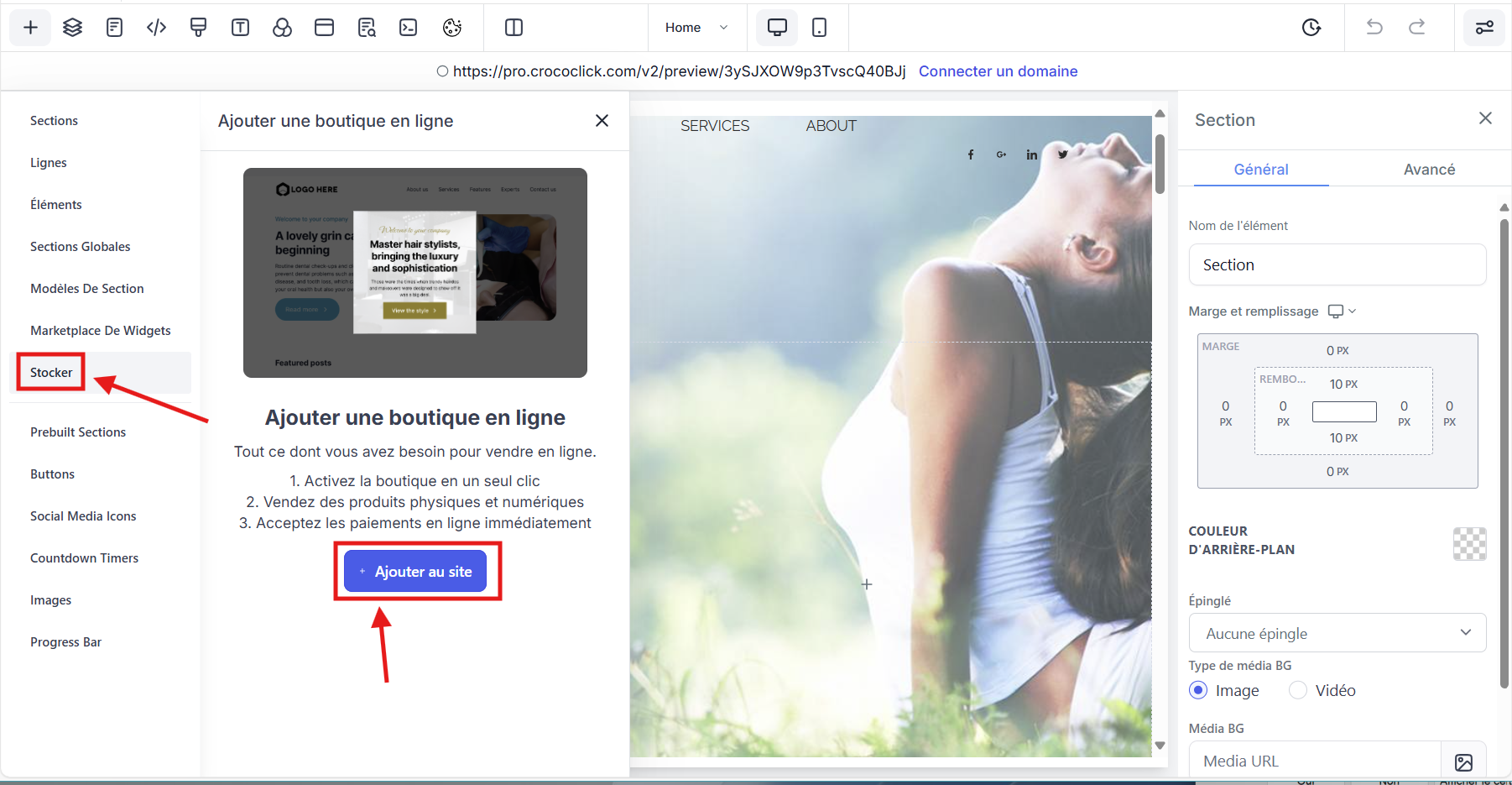
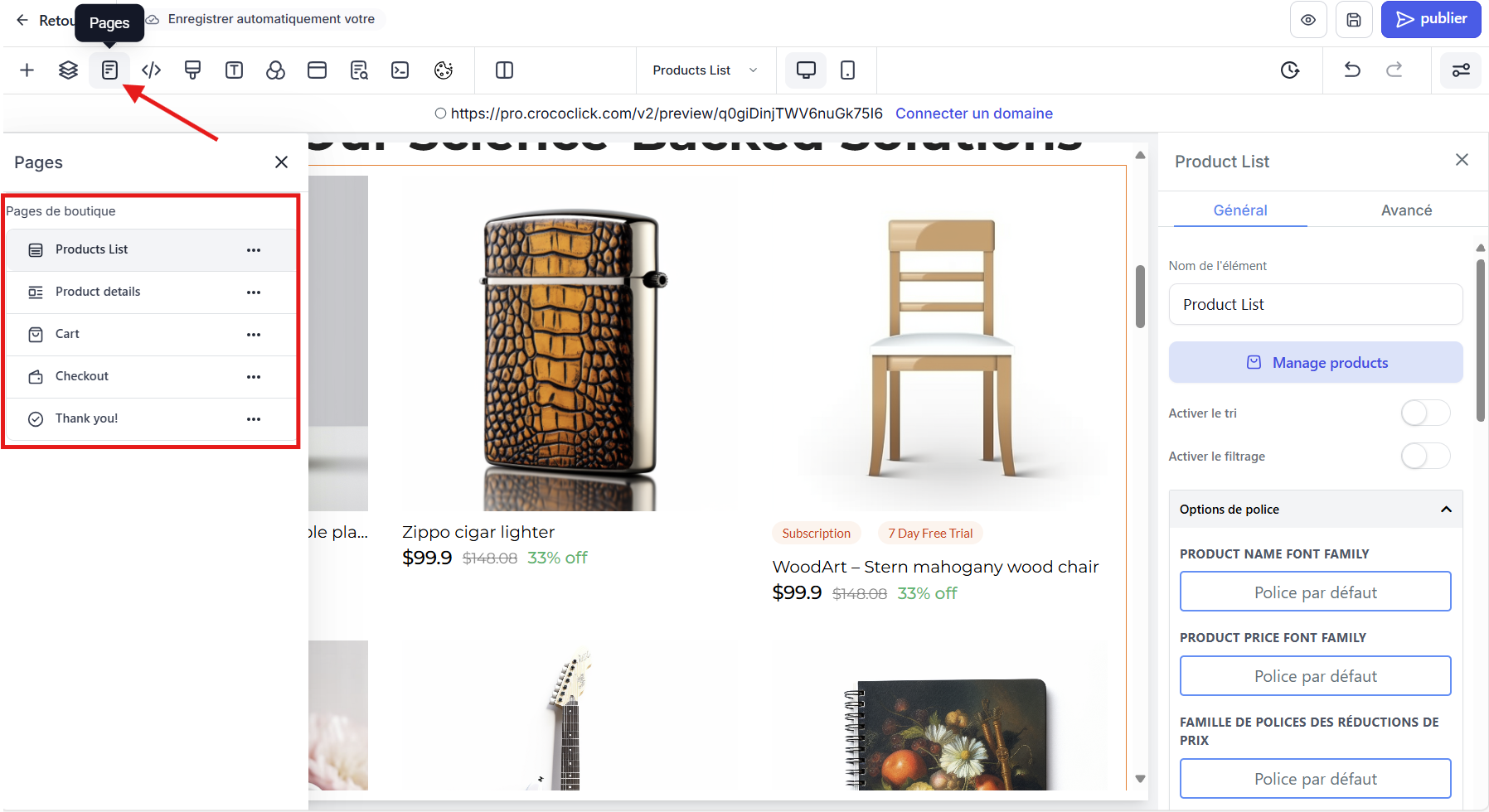
Once activated, CrocoClick automatically creates 5 essential pages:
Products page: the main showcase for your items.
Product page: details, variants, images, description.
Cart: summary before purchase, with the option to make changes.
Payment page: payment via credit card, Apple Pay, Google Pay.
Confirmation page: your customer sees their order confirmed.
✍️ Every page is fully customizable (colors, fonts, layouts, etc.).
📦 Step 3: Track your orders, payments, and deliveries
All your orders are available under Payments > Orders. There
you will find:
Amount paid
Products purchased
Order status
Customer contact information
You can also:
Mark an order as “shipped”
Add a tracking number (carrier, tracking link)
Issue a refund, if necessary
💡 Tips & limits to know
✅ You can create multiple stores within the same CrocoClick account.
❌ The store only accepts “one-time” products (no subscriptions).
❌ You cannot display a store in a funnel; it can only be displayed on a website.
🛒 Receipts, reminders, coupons, and automations work automatically with the store.
⚠️ Products are not added to the store by default: remember to click the “Display in Store” button.
❓ Frequently Asked Questions (FAQ)
Can I sell subscription products in my store?
No. To do this, use an order form in a funnel.
Can I set a different image for each variant?
Not yet. The image displayed is the same regardless of the variant selected.
How do I delete a test store?
Delete one of the automatically generated pages, and the entire store will be deleted.
Can I set a different price for each variant?
Yes, each variant can have its own price.
How do I mark an order as shipped?
In the order details, click “Mark as shipped” and add the tracking information.
Can a store appear on both a website and a tunnel?
No. Only websites support stores. Tunnels are intended for specific offers.