Create your First Online Calendar
Set up an appointment calendar and activate automatic reminders in CrocoClick.
Written By CrocoTeam
Last updated 8 months ago
Your CrocoClick calendar is like an assistant who works for you 24 hours a day. It makes your appointments, sends confirmations and reminders... while you sleep (or work elsewhere).
Once configured, you can receive your first appointments within the first week and avoid oversights or double bookings.
Here's how to create your very first calendar:
1. Create an appointment calendar
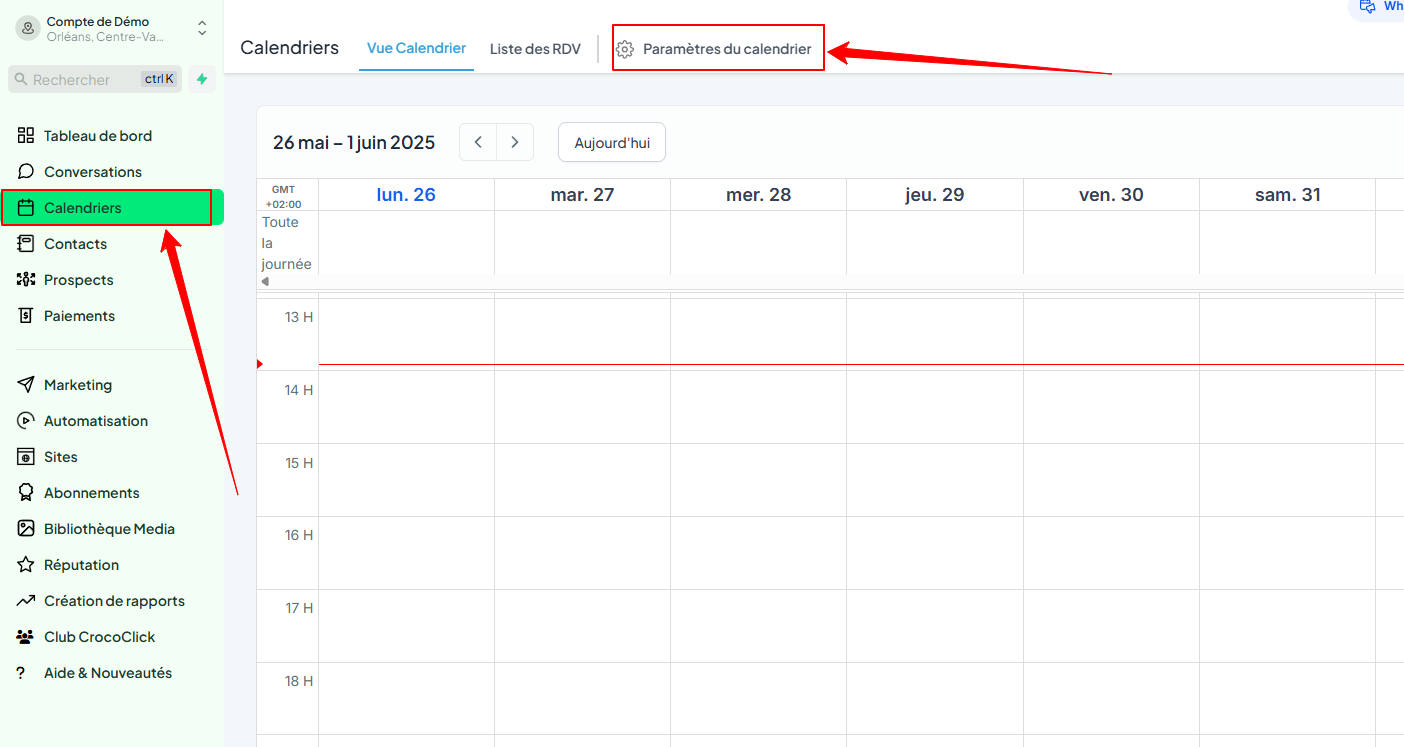
Go to Calendar > Calendar Settings
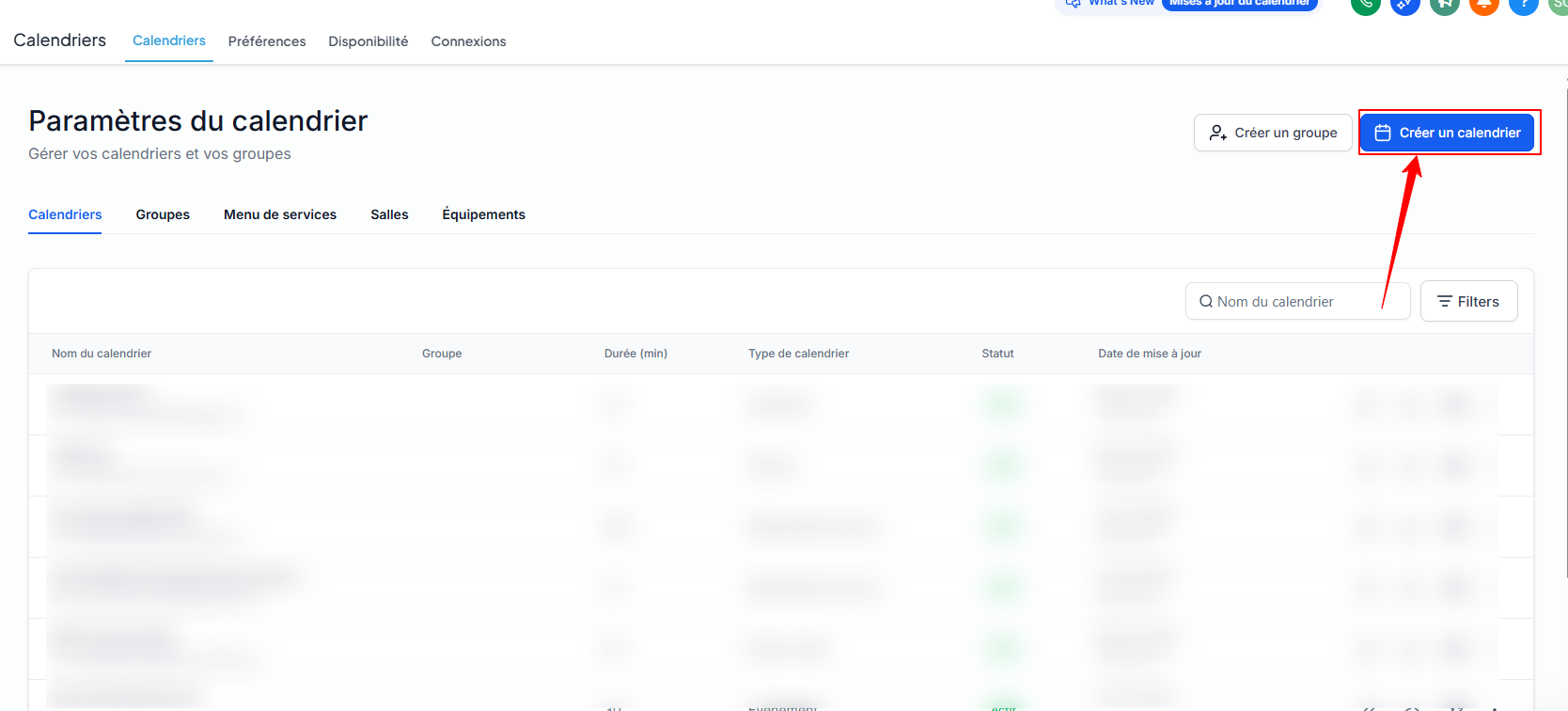
Click Create Calendar
Choose the type of calendar: Personal Booking, Round-Robin, Class Booking, etc.
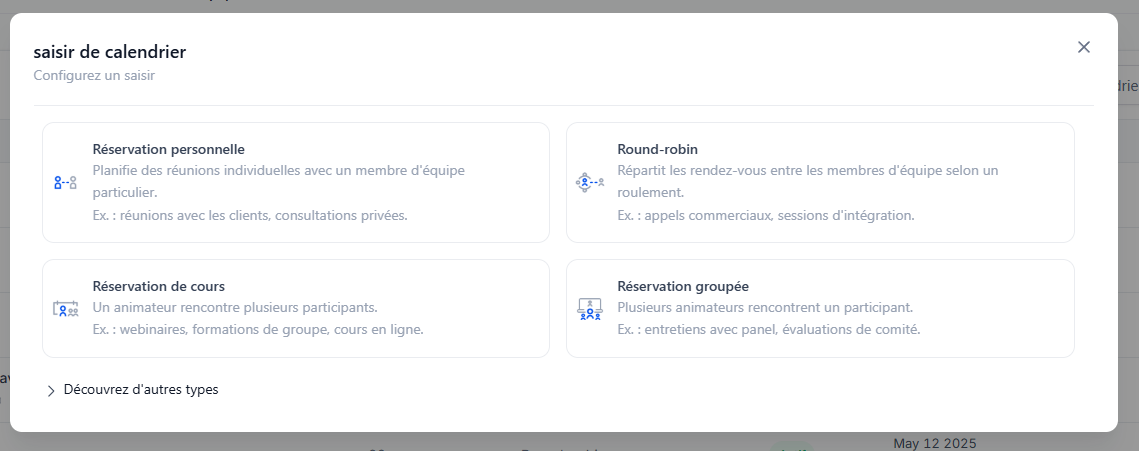
👉 Click here to find out more about the differences between calendar types
Fill in the fields:
Calendar name
Calendar host (you)
Custom URL (e.g., yourwebsite.com/discovery-call)
Appointment duration
Availability times
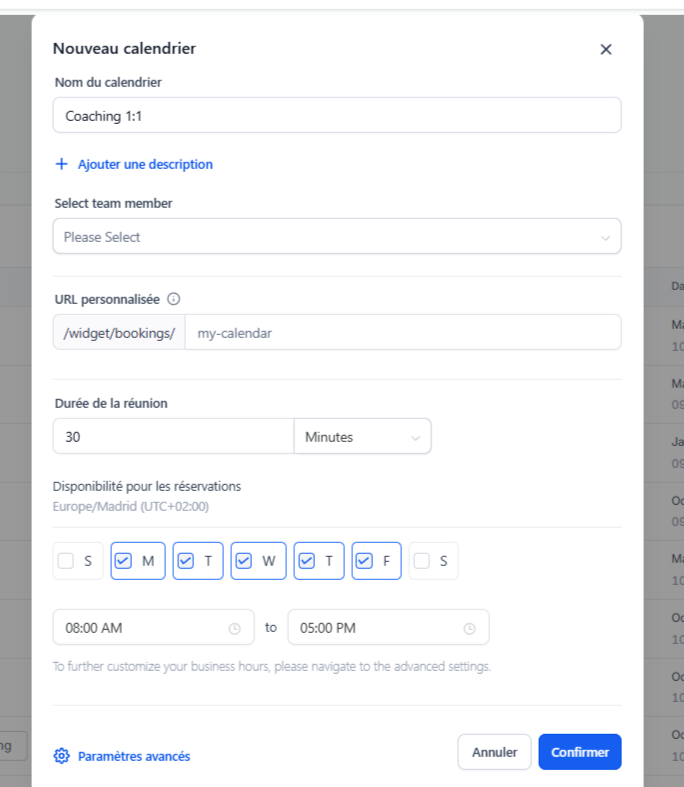
Click Confirm
Copy the calendar link or embed code

Share the link to start receiving your first appointments
💡 TIP: You can also customize the colors, profile image, or add custom fields to the appointment booking form.
2. Add yourself as a team member
Even if you work alone, you must add yourself as an assigned user:
Go to Settings > My Team
Click on Add User
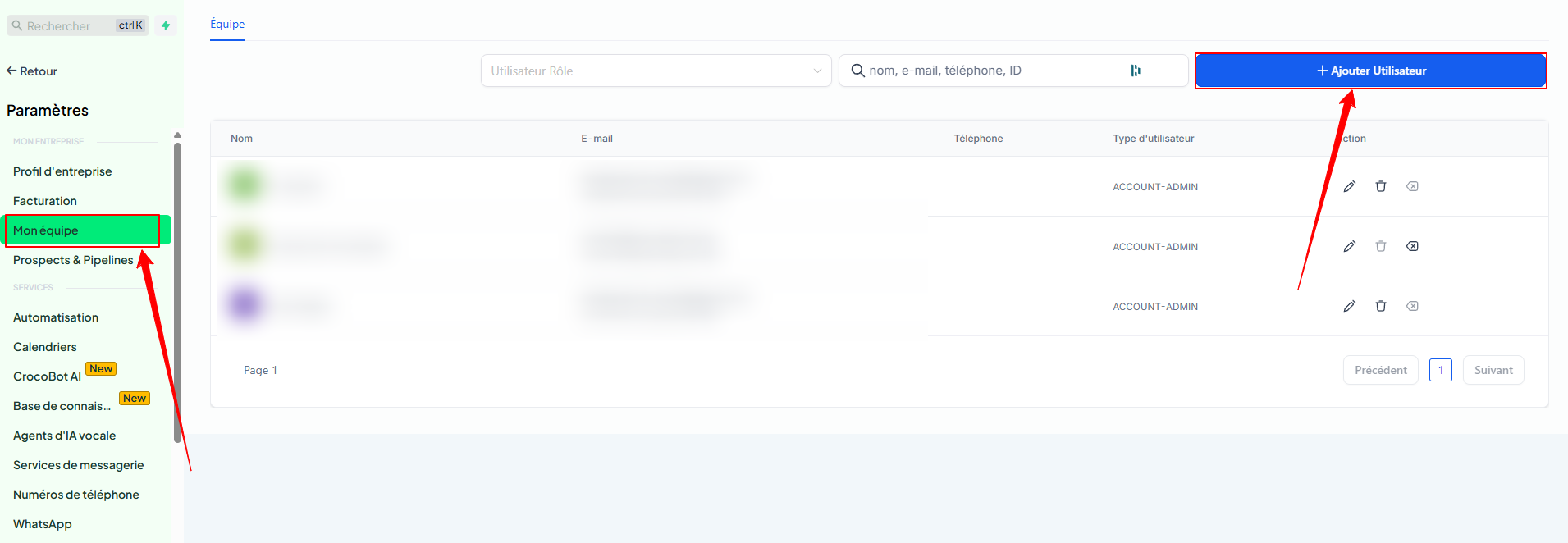
Fill in your information (name, email, role, etc.) and save
💡 TIP: By default, your user is normally created. However, it's always a good idea to double-check this step :)
3. Create universal automatic reminders (recommended)
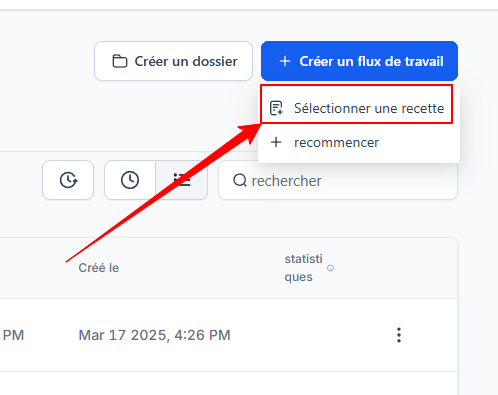
Go to Automations > + New workflow
Click Select a recipe.
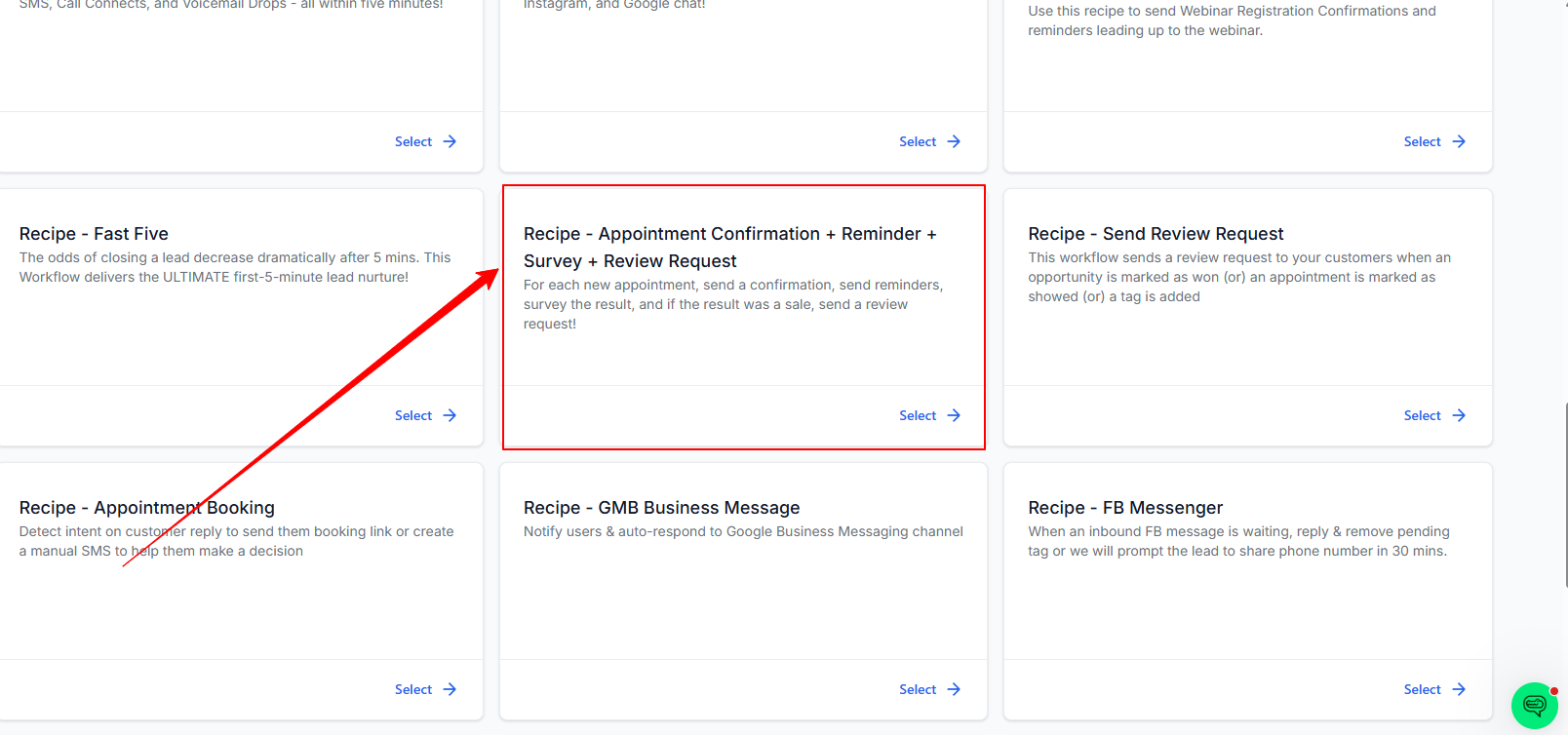
Choose the template: Recipe - Appointment Confirmation + Reminder + Survey + Review Request
Customize the actions:
Confirmation email with your video call details (Zoom, Google Meet, etc.)
Reminder text message 24 hours before
SMS or email 1 hour before the appointment
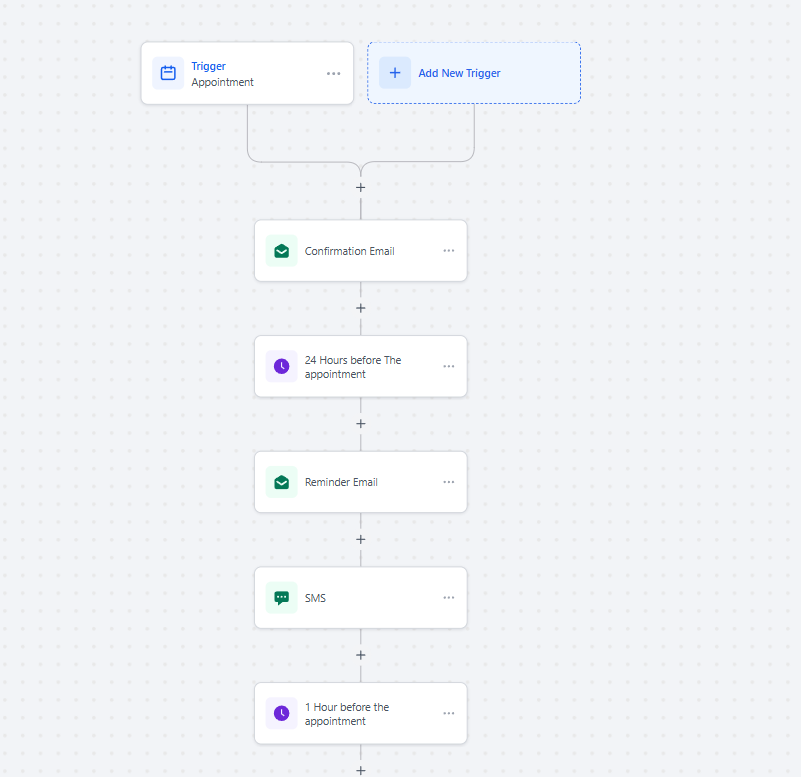
Click Publish, then Save
💡 TIP: "Reminder automations" can work for all your calendars, while "notifications" that you create within a calendar are only valid for that specific calendar
4. Connect your personal calendar and video conferencing tool
Go to Calendar > Settings > Connections
Click Add connection to sync your Google Calendar, Outlook, etc.
Then, in the Video Conferencing tab, click Add to link Zoom or Google Meet
Conclusion
Creating a calendar in CrocoClick is a key step in organizing your business and increasing your booking rate.
In just a few minutes, you can schedule your first appointments, avoid oversights, and save a ton of time thanks to automation.