How to modify an existing subscription from CrocoClick
Update your current subscriptions: add, delete or modify products, quantities and dates without cancelling or recreating the subscription.
Written By CrocoTeam
Last updated 8 months ago
It is now possible to update a current subscription to reflect changes in products, quantities, or start/end dates.
This feature allows you to meet your customers' needs without having to cancel and recreate the subscription, while keeping billing dates consistent.
What does this feature do?
With the Edit Subscription option, you can:
➕ Add products (if the billing frequency and currency are the same).
➖ Remove products so that they are no longer billed in the future.
🔢 Change the quantity of a product (between 1 and 1000).
📅 Change the dates:
Start date if the subscription is scheduled but not yet active.
End date for an active subscription.
👀 Preview all changes before saving.
⚠️ Pro-rata calculations are not yet available. The new amounts only apply to the next billing cycle (pro-rata feature coming soon).
How to modify a subscription
Step 1: Access the subscription
Go to Payments → Subscriptions.
Select the subscription you want to change.
Click Update from the menu.
👉 You can also open the Subscription Details page and use the update option in Actions.
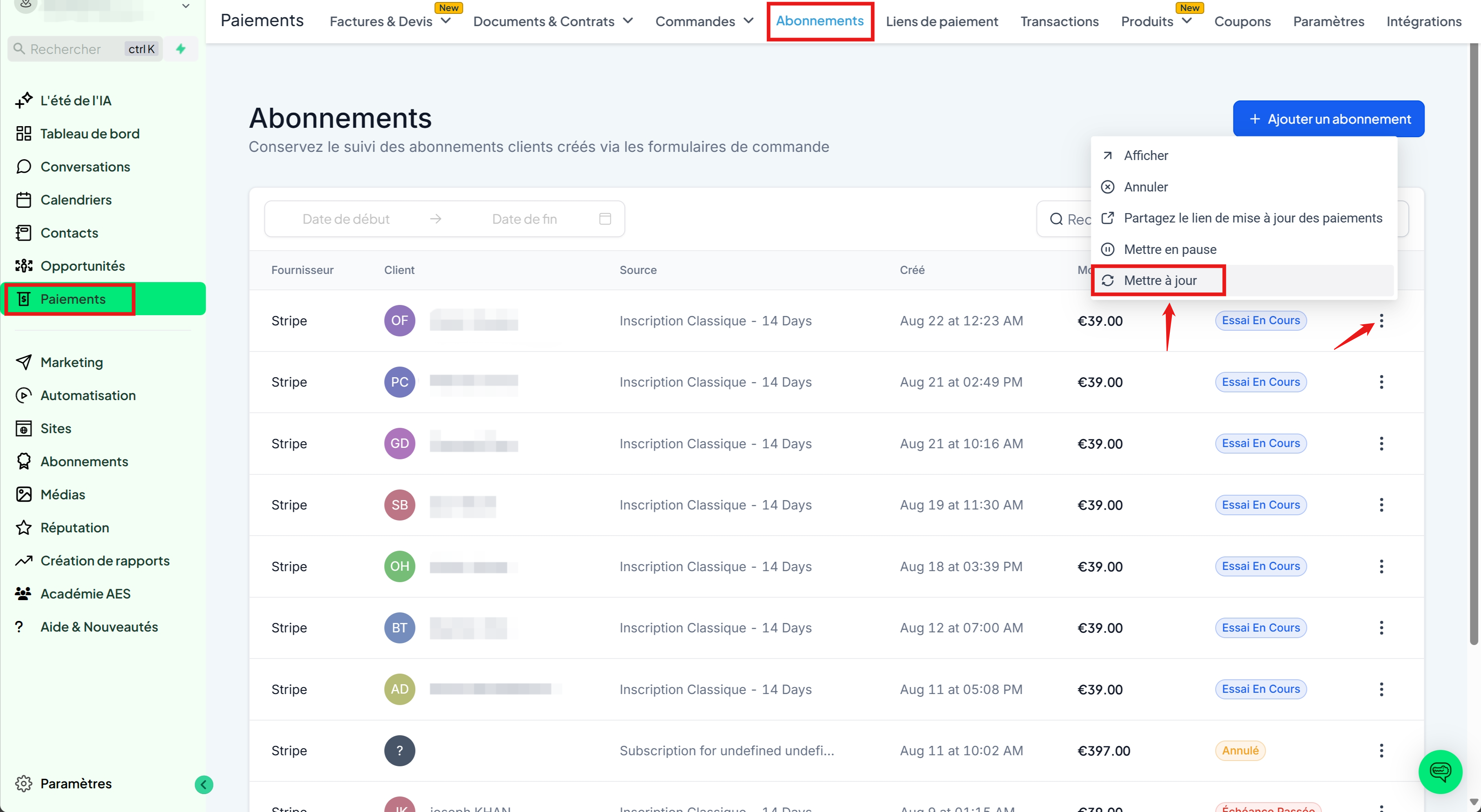
Step 2: Make the changes
Add a product: click on the ➕ button (the products offered comply with the billing frequency of the subscription).
Remove a product: click on the 🗑️ icon next to the product.
Change the quantity: modify the Quantity field.
Change the dates:
Start Date (for scheduled subscriptions).
End Date (for active subscriptions).
Step 3: Check and save
Before validation, a preview displays:
the products
quantities
dates
the new total
Click Confirm to apply the changes.
⚠️ Changes take effect at the next billing cycle (no prorating at this time).
FAQ
👉 Are past transactions modified?
No, only future invoices are updated.
👉 Will the payment date change?
No, the dates remain the same.
👉 Can I add multiple products at once?
Yes, if they all have the same billing frequency.
👉 Where can I view the history of changes?
On the Subscription Details page (all changes are recorded).
👉 What happens if a product with a trial period is added?
If the subscription is already active: the trial is ignored.
If the subscription is in a trial period: the product follows the same trial end date as the subscription.
👉 What happens if the product has setup fees?
It will be billed during the next cycle (or at the end of the trial if the subscription is in Trial).
If you increase the quantities, the fees apply to the additional quantities.
👉 What happens if a coupon is active?
If the coupon applies to the new product, it will be taken into account starting with the next cycle.
(Upcoming option: modify coupons for a current subscription).
👉 Can I modify a canceled or unpaid subscription?
No, only the Planned, Active, and Trial in Progress statuses can be modified.
✅ That's it, your subscription is updated without interruption or re-creation!