Creating and setting up a payment product in CrocoClick
Create a payment product and configure options (payment in instalments, delivery, etc.) to facilitate sales.
Written By CrocoTeam
Last updated 14 days ago
This article explains how to configure a payment product in CrocoClick for sell your products or services.
Step 1: Create a Product in Payments
The first step is to create your product in CrocoClick and configure it according to your preferences.
1. Go to the Payments section
Go to Payments > Products and click New Product to start creating your payment product.
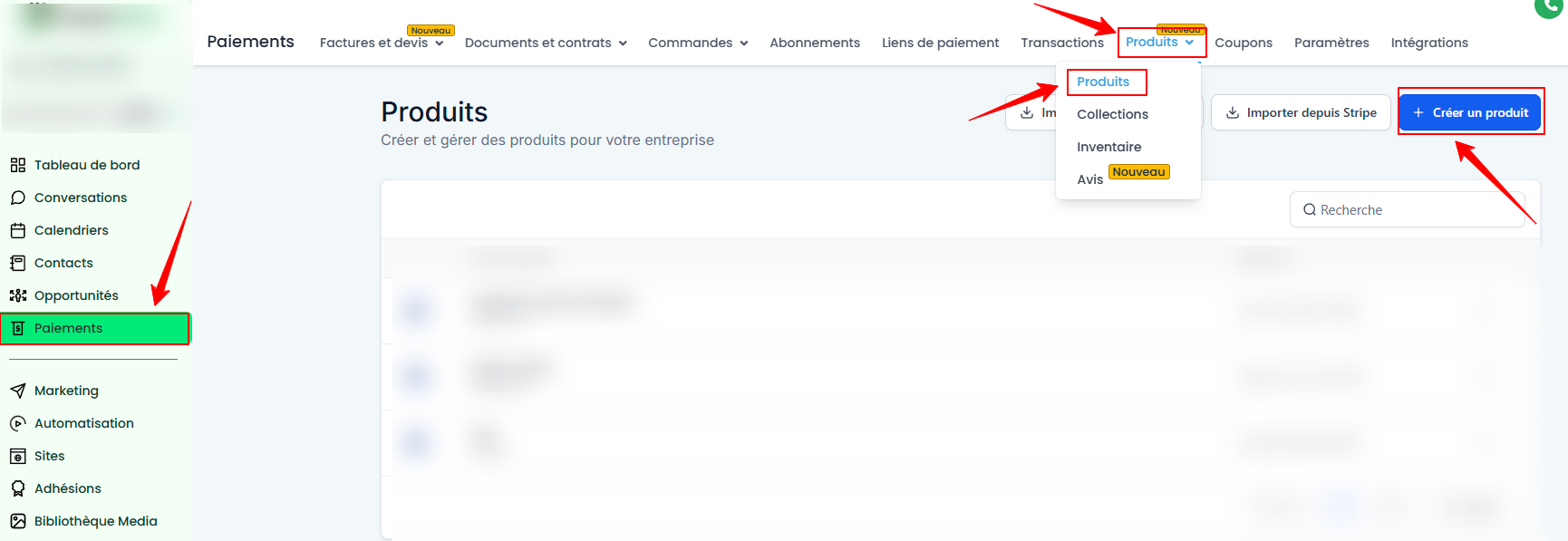
2. Name your product and configure its options
In the Title section, give your product a relevant title so that it is easily identifiable.
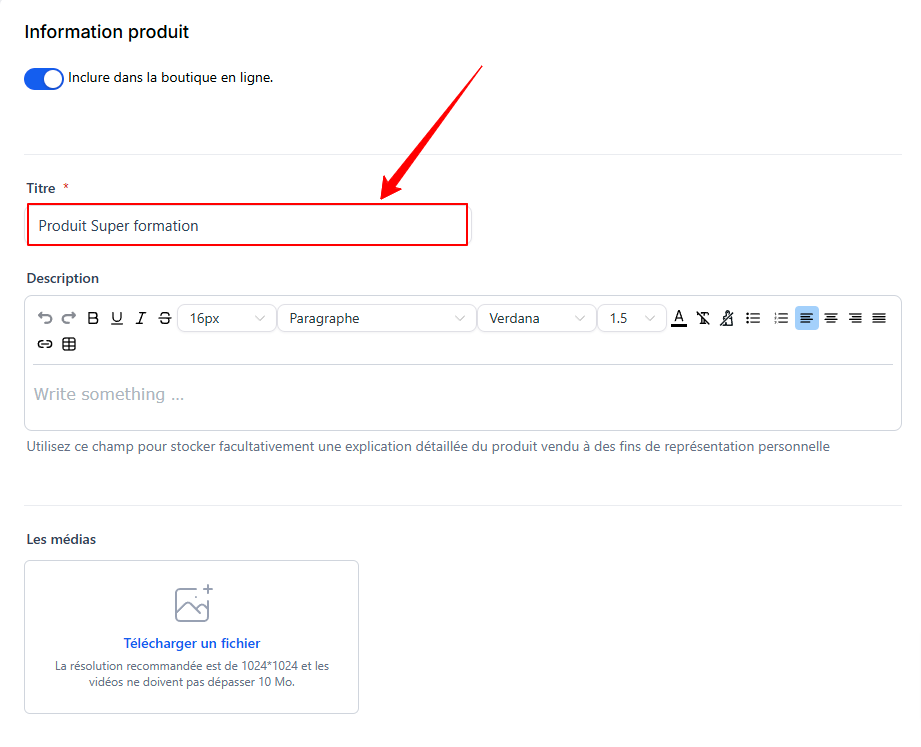
Then configure the product according to your preferences, adding descriptions, an image, and additional information if necessary.
3. Configure the prices
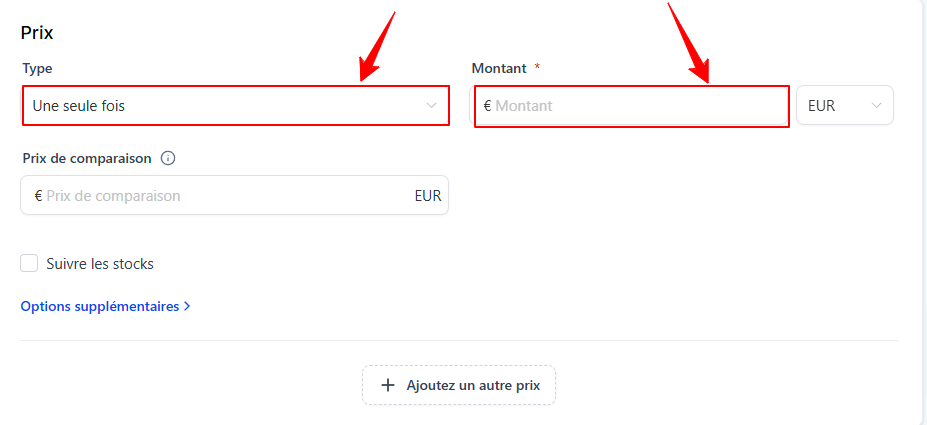
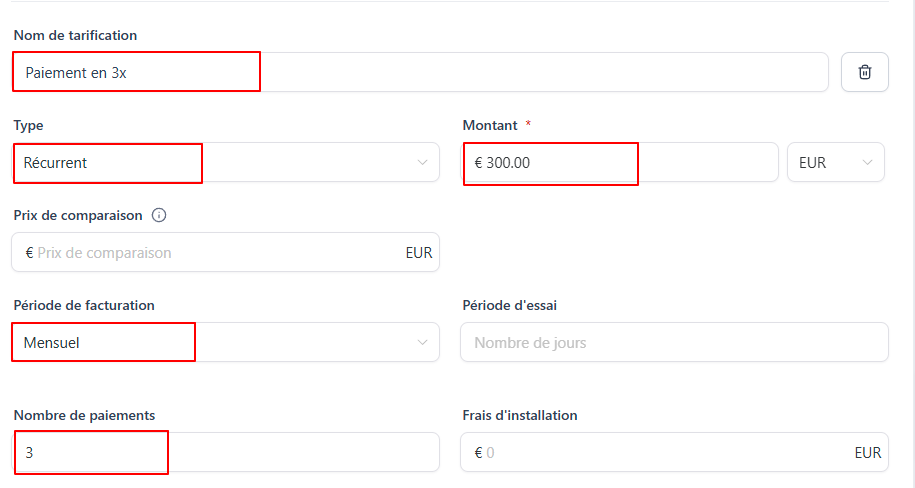
Go to Pricing and add the desired payment options: one-time payment, two installments, three installments, etc. Then add the price amount.
To add another price: Click on + Add a price to offer different payment options, such as the payment in instalments.
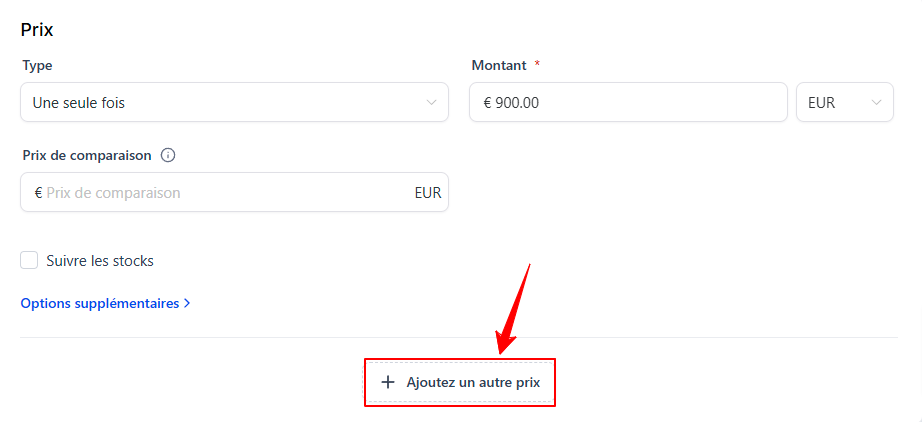
Price name: Give it a clear and easy-to-understand name (example: "[Name of training] in 3 installments").
Payment type: Select Recurring type to enable payment in installments, then specify the amount per payment.
Billing period: Select "monthly" for a monthly payment. In Number of payments, enter the number of times the payment will be made (e.g., 3 for a payment in 3 installments).
4. Link the membership offer (optional)
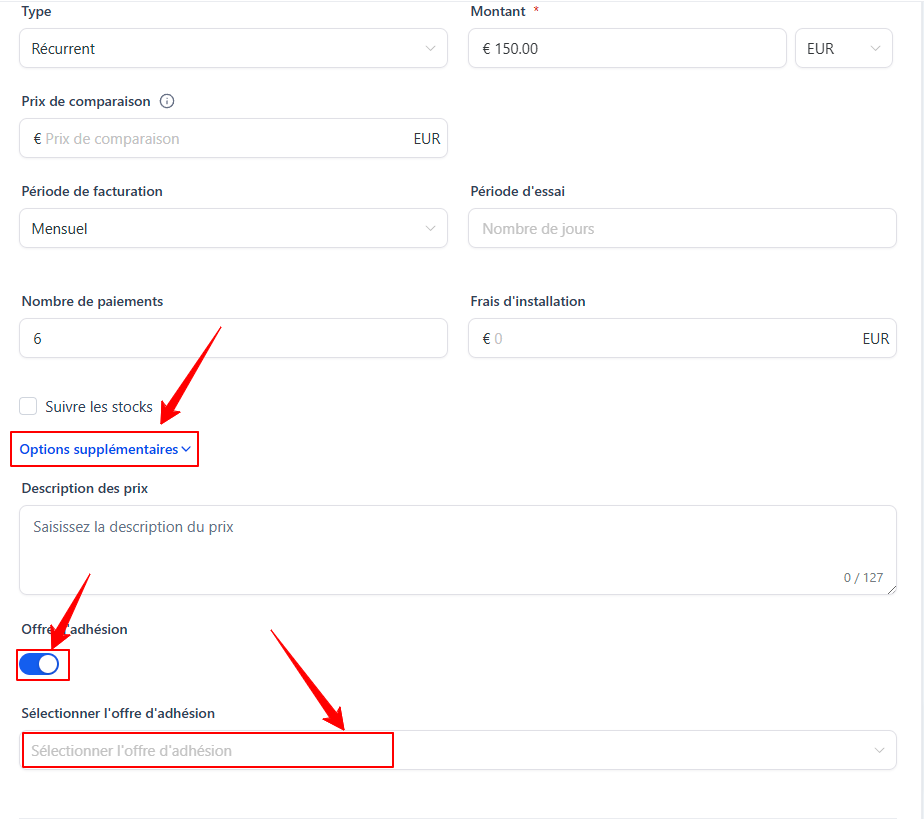
If you want the purchase of your product at a certain price to unlock access to an Offer, then you can link this product to your Offer.
To do this:
Click Additional Options and enable Membership.
Link the membership offer associated with the product so that access is automatically granted after purchase. This is essential for your customers to access the content or benefits included in the offer.
5. Configure additional options (optional)
Change the final settings (delivery, taxes, etc.).
6. Save your changes
Click Save to save your payment product configuration.
Step 2: Put your product on sale
Once the product has been created, you must put it up for sale.
To do this, you can:
Create and send an Invoice (automatically contains a payment link)
Etc.
Conclusion
By following these steps, you can easily create and configure a payment product on CrocoClick.
This process allows you to optimize your customer experience while centralizing sales management in CrocoClick.