Automate appointment scheduling via WhatsApp with "Streams"
Guide to setting up automated appointment booking via WhatsApp in CrocoClick, with a feed.
Written By CrocoTeam
Last updated 7 months ago
Simplify the lives of your prospects and increase your booking rates by integrating appointment scheduling directly into WhatsApp, without external links or complex forms to fill out.
This method allows you to guide the conversation step by step through an interactive WhatsApp flow, while collecting the information needed for the booking in a smooth, pre-filled format.
💡TIP: Read this article to find out how to Connect a new WhatsApp number to CrocoClick
How to set up booking via WhatsApp?
1. Create your WhatsApp flow
Go to Settings > WhatsApp, then open the Flow tab
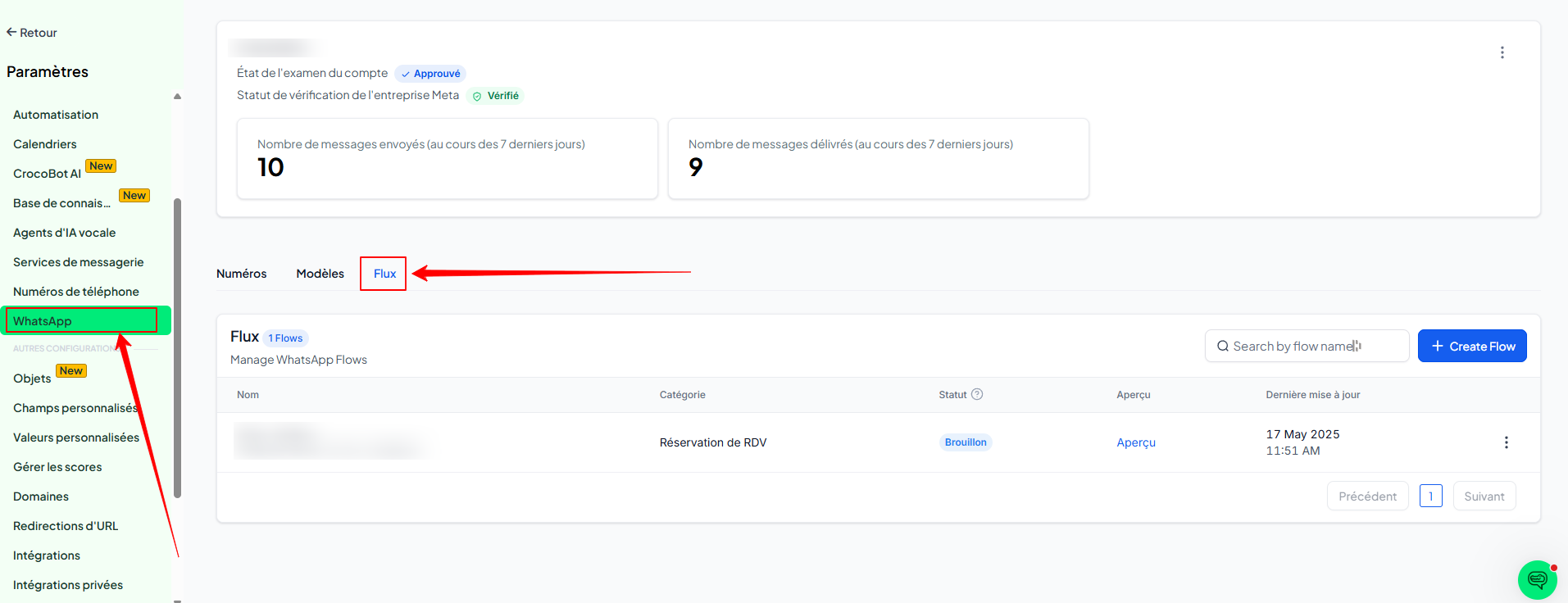
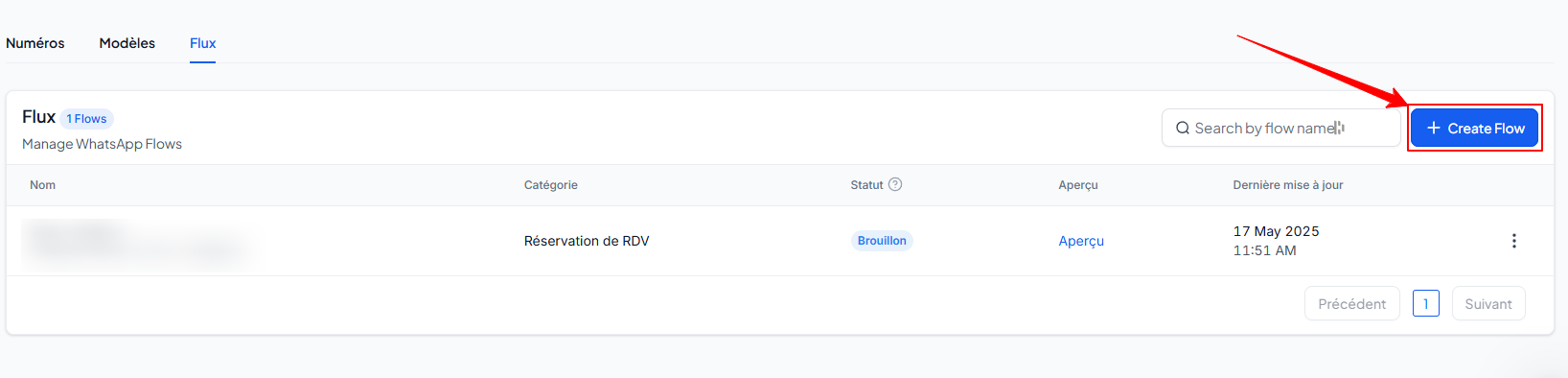
Click Create Flow or select an existing flow
In the Flow Builder:
Select the calendar in which appointments will be saved
Click Next
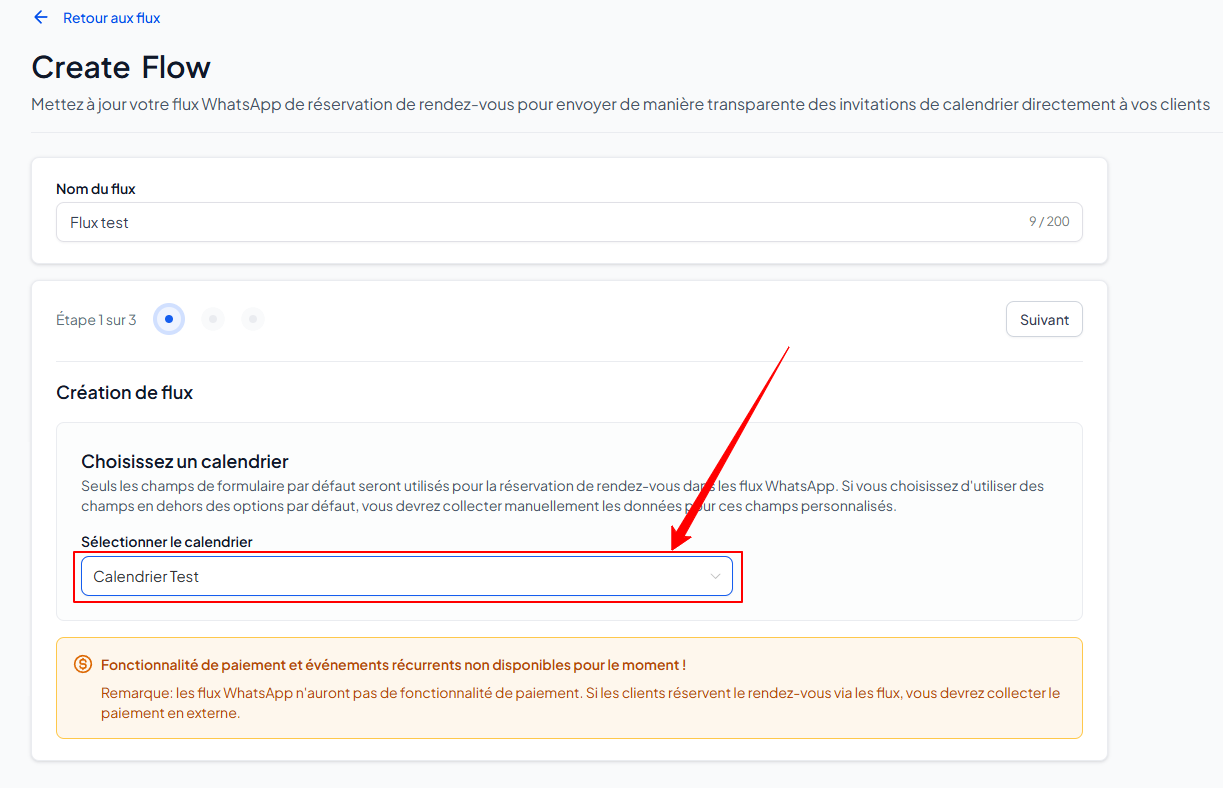
💡 TIP: Only default fields (name, email, phone number, etc.) can be used for booking.
4. Organize the form fields according to your logic, then confirm
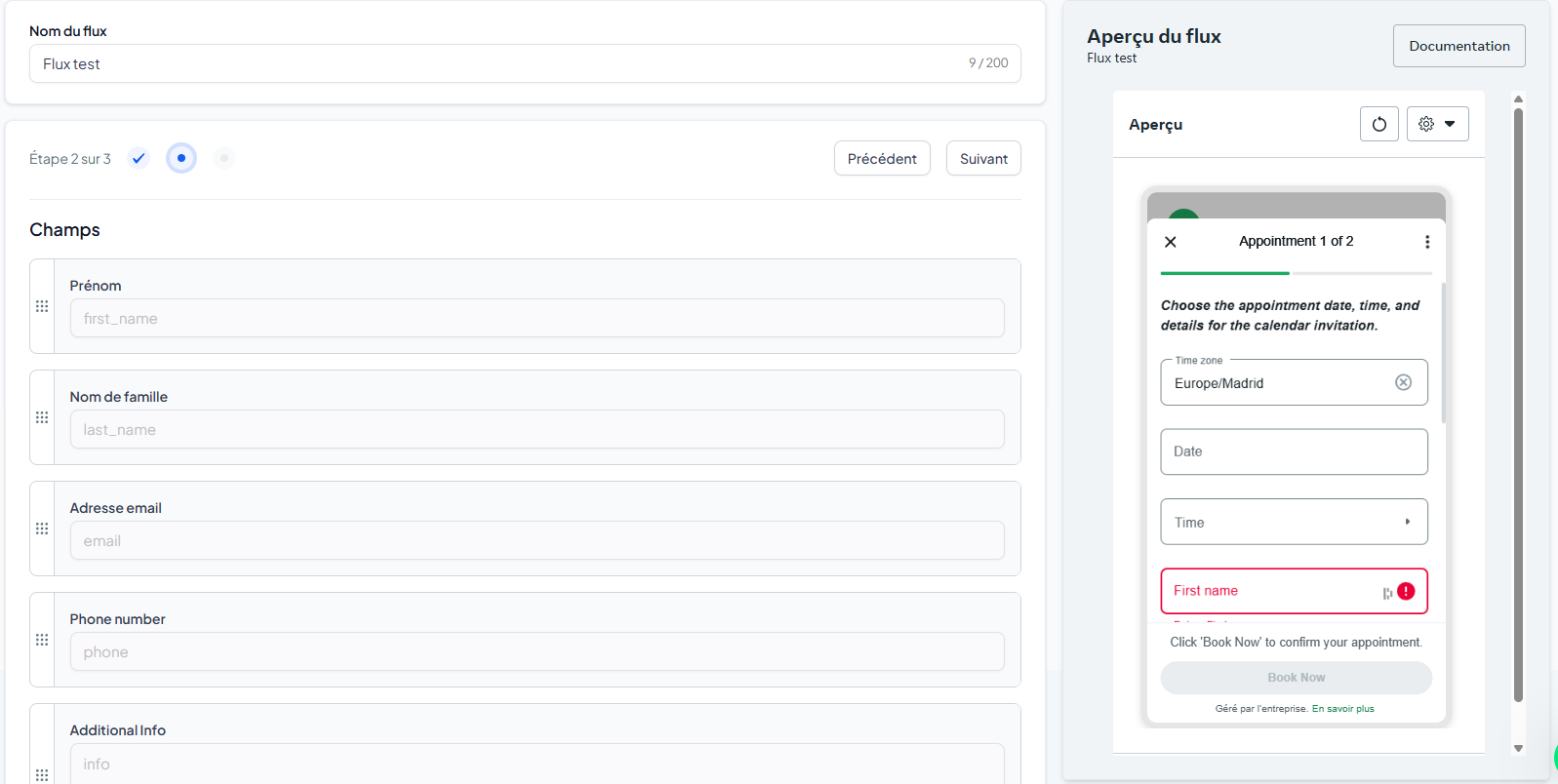
2. Customize the WhatsApp message
Add the following content to your Flow:
Header
Message body
Footer
Button text
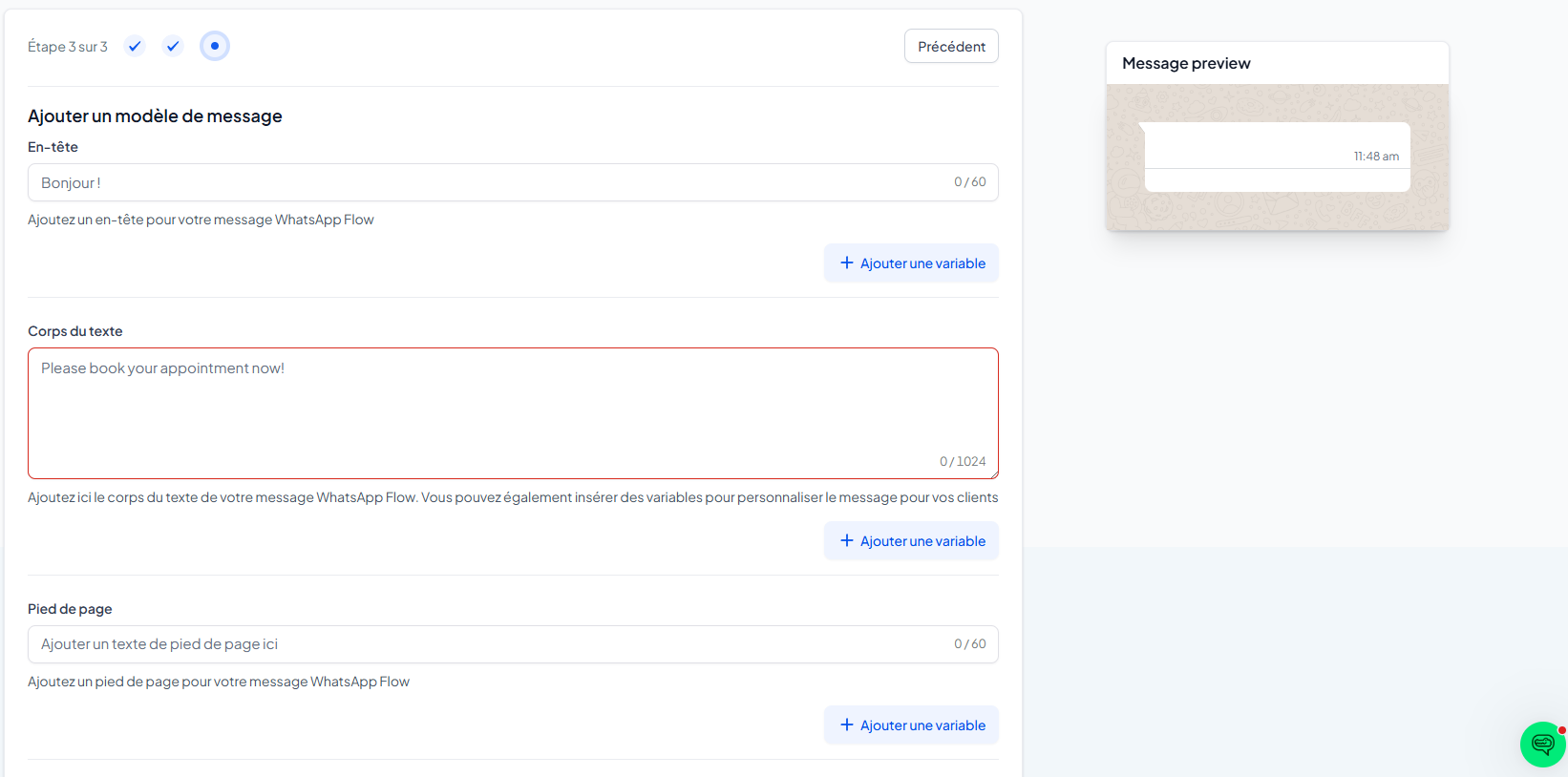
Click Publish
3. Send your feed in a WhatsApp message
Open the Templates tab in the WhatsApp section
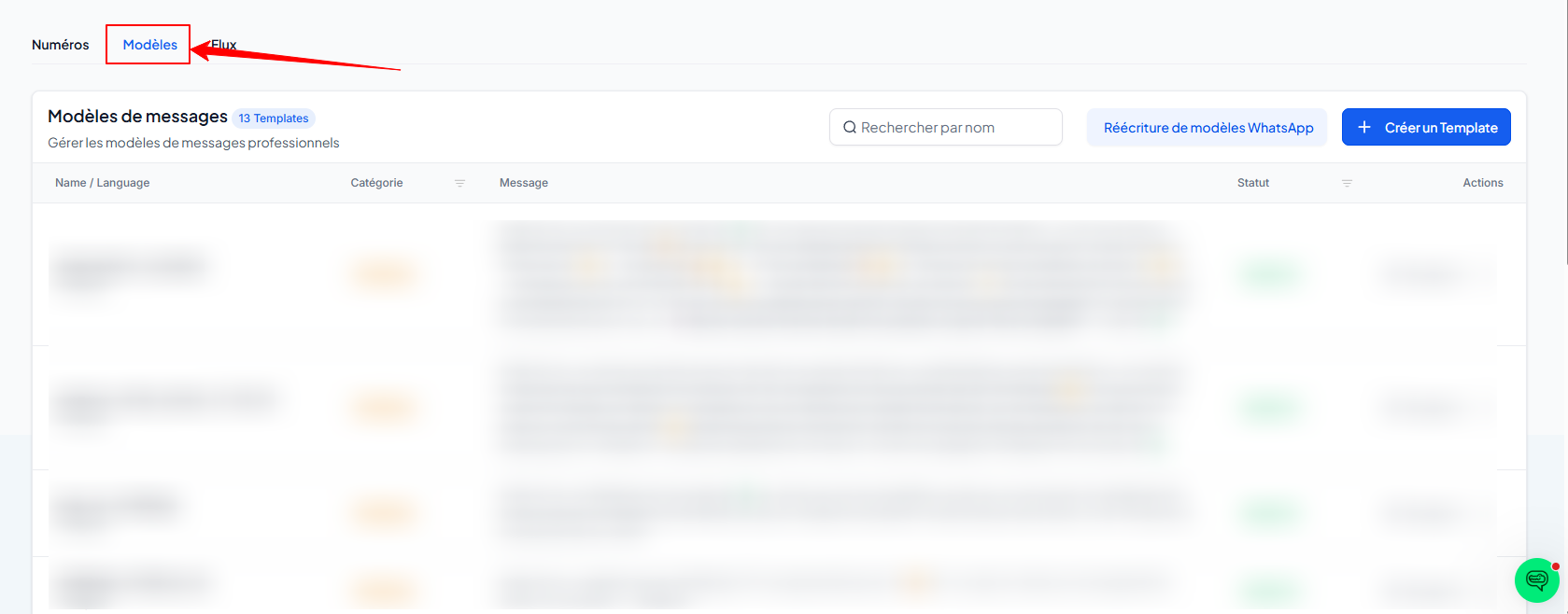
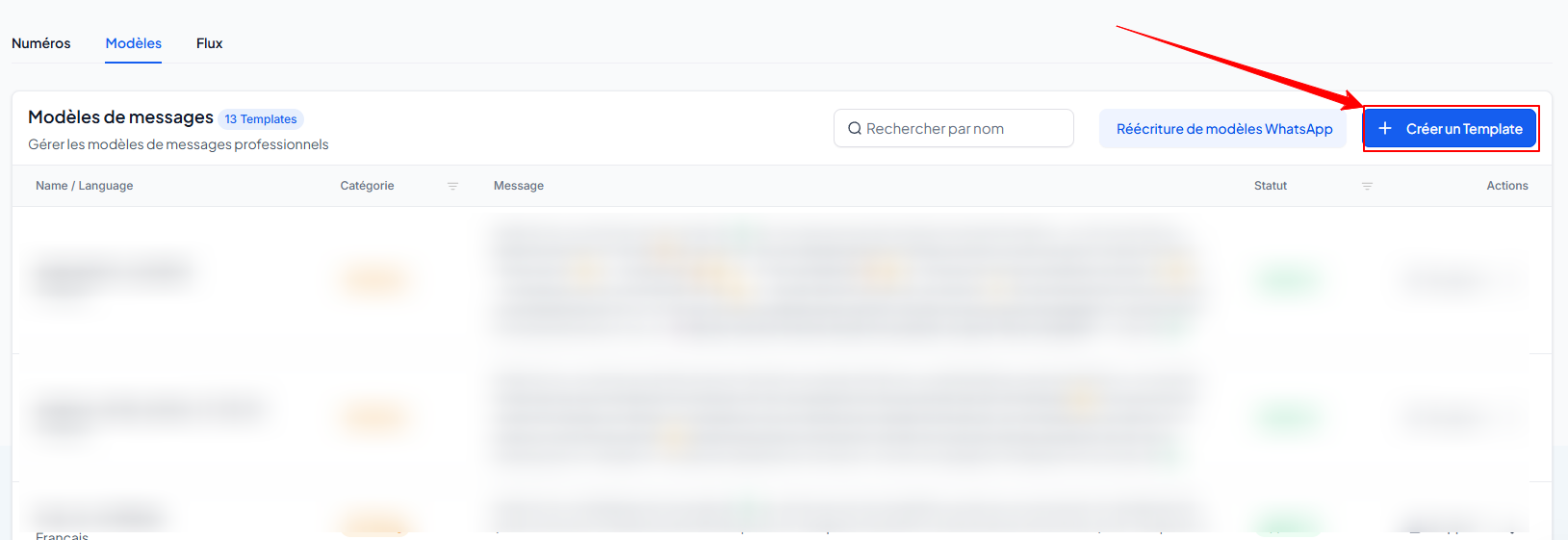
Create a new model by clicking on + Create Template
In the Button area, click on + Add button and then choose the "Feed" type
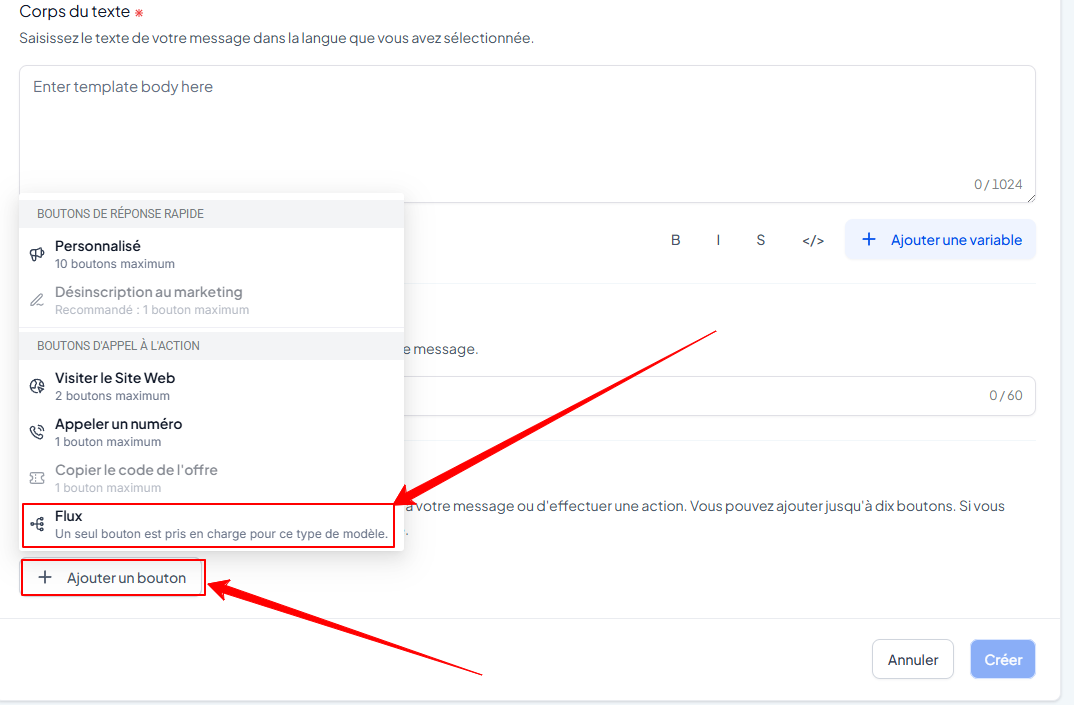
Enter the button text and select the Feed you created earlier
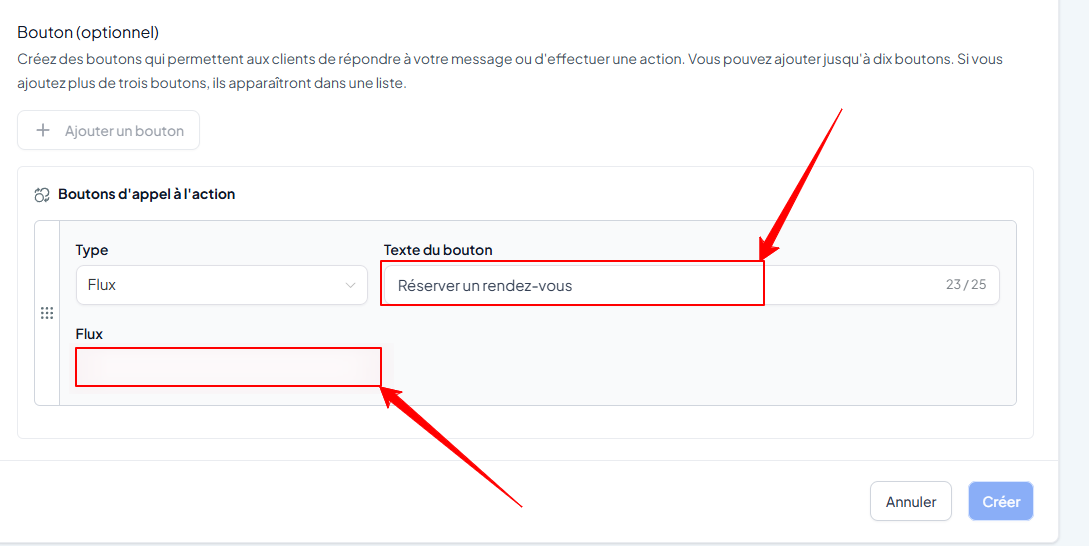
Click Create to save
💡 TIP: You can then use this template in your automations, WhatsApp campaigns, or manually from your conversations.
❗️Limitations to be aware of
Payment is not available in this booking process via WhatsApp.
Recurring events are not supported
Guests (additional people) cannot be added to this type of reservation
Conclusion
Thanks to this automation, your prospects can book in two clicks without leaving WhatsApp. It's a great way to turn a conversation into an appointment, without any friction.