How to export contacts in CrocoClick
Written By CrocoTeam
Last updated 8 months ago
The Bulk Actions feature in your Contacts/Smart listssection is designed to be efficient, allowing you to manage multiple actions for selected contacts or even your entire contact list. Here is a step-by-step description:
Step 1: Select your contacts
Go to your contacts section.
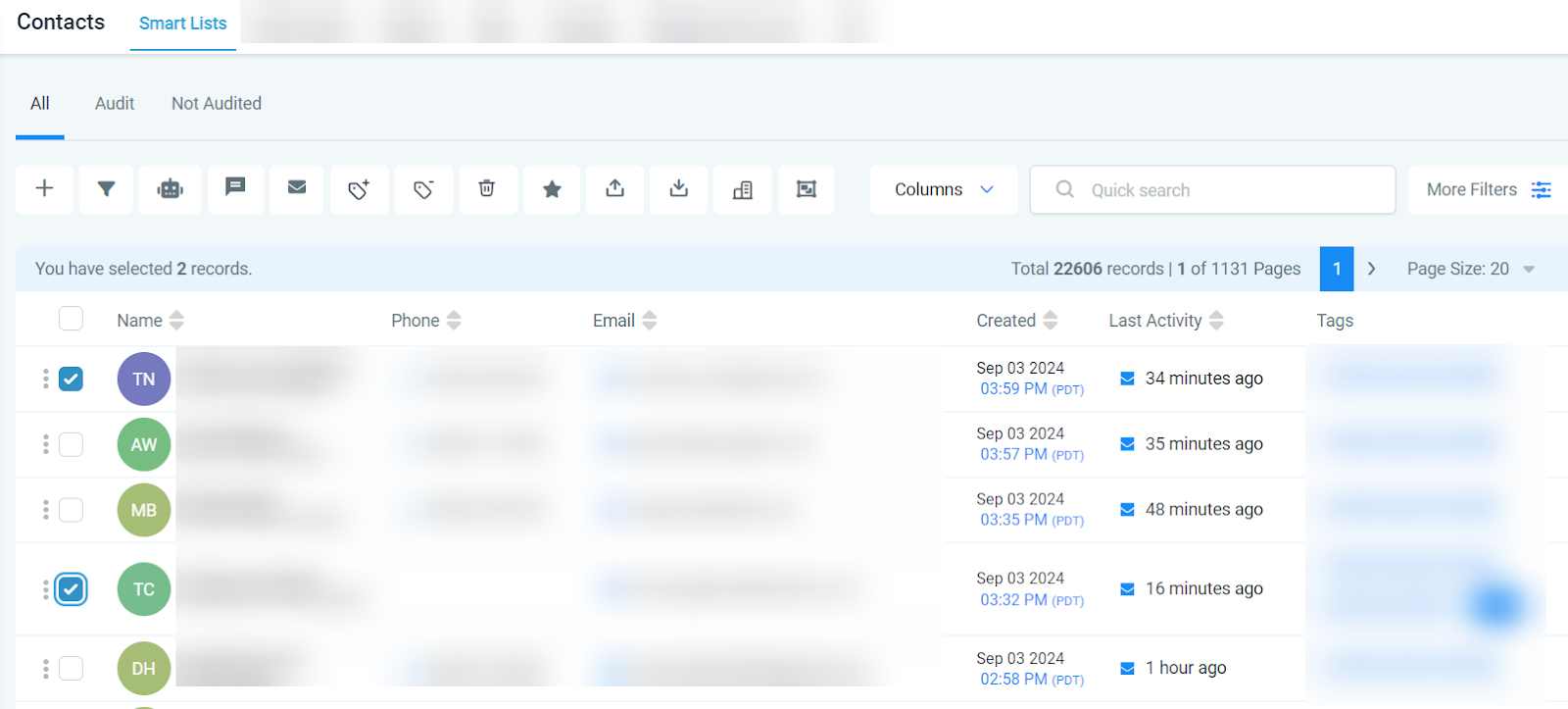
To select specific contact records, check the appropriate box.
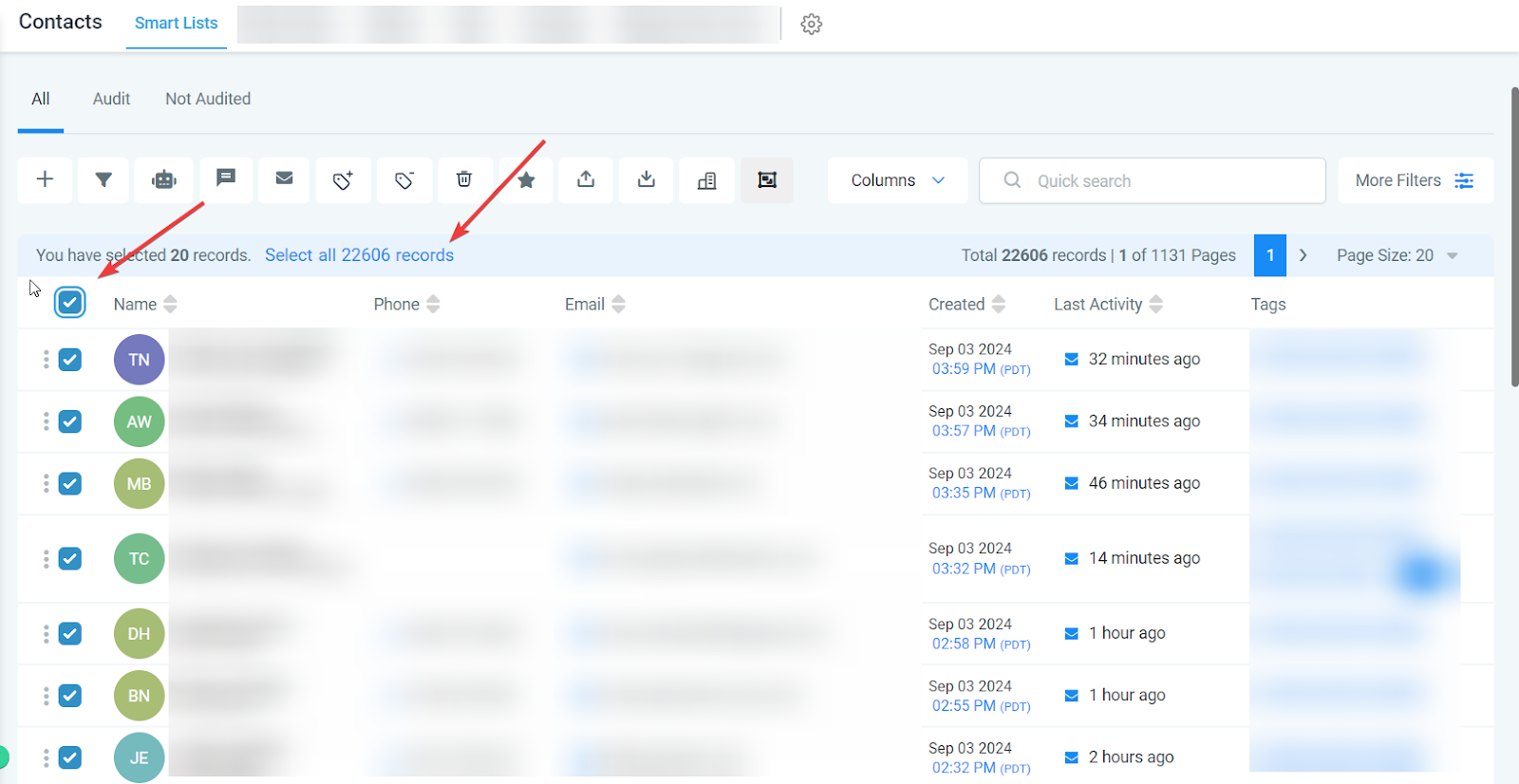
For a broader selection, check the box at the top to select all contacts displayed on this page. To further expand your selection to all contacts, click on the hyperlink that represents all contacts in CrocoClick.
Step 2: Select the column for export
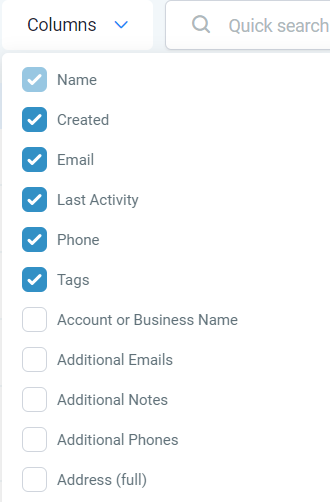
Go to the drop-down menu.
Determine and select the columns you want to include in your export.
When managing phone data, it is essential to check the "Phone" and "Additional Phones" options. This ensures complete management of all associated numbers.
Step 3: Choose your action
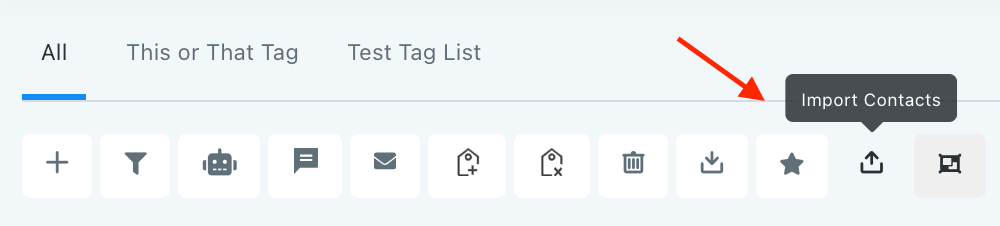
Depending on your objective, click on the "Export contacts" icon or the "Import contacts " icon.
If you choose to export, the system will quickly create a .csv file of your selected contact records from CrocoClick, which will be automatically downloaded.
Those interested in importing can start this process using the bulk action icon.

Additional notes:
If the import and export options are not visible, it may be a permissions issue. Please contact your account administrator for more information.
Each contact record intended for import must have at least one phone number or email address for a successful download.
Why export contacts?
1. Migration to a new CRM or account
Benefits: Seamless transition, contact information retention, no manual data entry.
2. Create targeted marketing campaigns
Benefits: Improved marketing efficiency, higher conversion rates, personalized communication.
3. Collaborate with team members
Benefits: Improved teamwork, consistent information, centralized data management.
4. Generate reports and analytics
Benefits: Data-driven decisions, identification of trends, understanding of customer needs.
5. Data backup and security
Benefits: Protection against data loss, easy data restoration, and increased peace of mind.
FAQs about exporting contacts
Q1: Can I export specific data fields?
Answer: Yes, you can customize the data fields in the exported .csv file.
Q2: What about notes longer than 255 characters?
Answer: Only the most recent note, up to 255 characters, is included. Longer notes are truncated.
Q3: Can I export from multiple accounts simultaneously?
Answer: Exports are performed separately for each account, but you can combine the .csv files later.
Q4: Is automatic export possible?
Answer: Currently, this feature is not available.
Q5: How do I import the .csv file to another platform?
Answer: Follow the import instructions for the new platform, which usually involve mapping columns.