How to merge contacts in CrocoClick CRM
Merge duplicate contacts in CRM to avoid duplication, centralize data and clean up your customer base.
Written By CrocoTeam
Last updated 8 months ago
Merging duplicate contacts allows you to keep your CRM clean, avoid communication errors, and centralize important data. This feature helps you consolidate information from multiple records into a single consolidated contact.
1. What is contact merging?
Merging allows you to group multiple records related to the same contact or company. This avoids duplicates from CSV imports, form submissions, or tools such as Zapier.
The system identifies duplicates by comparing fields such as name, email, or phone number.
2. Benefits of merging contacts
Centralize conversations, notes, tasks, and workflows
Avoid duplicate emails
Improve campaign accuracy
Clarify sales follow-up or customer support
Optimize automations and contact distributions
3. Steps to merge contacts
Step 1: Search for duplicate contacts
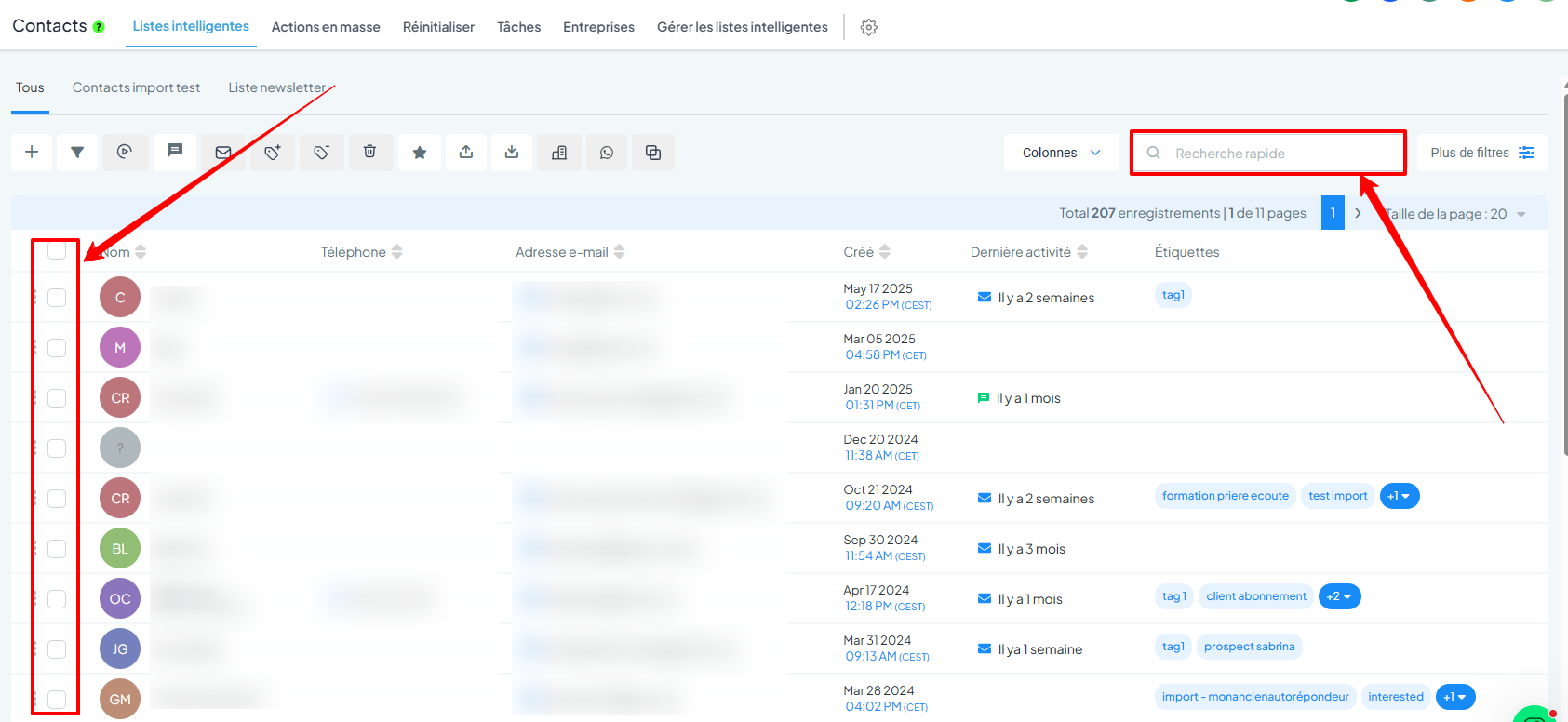
Go to Contacts in your CrocoClick space
Use the search bar to find duplicates (name, email, etc.)
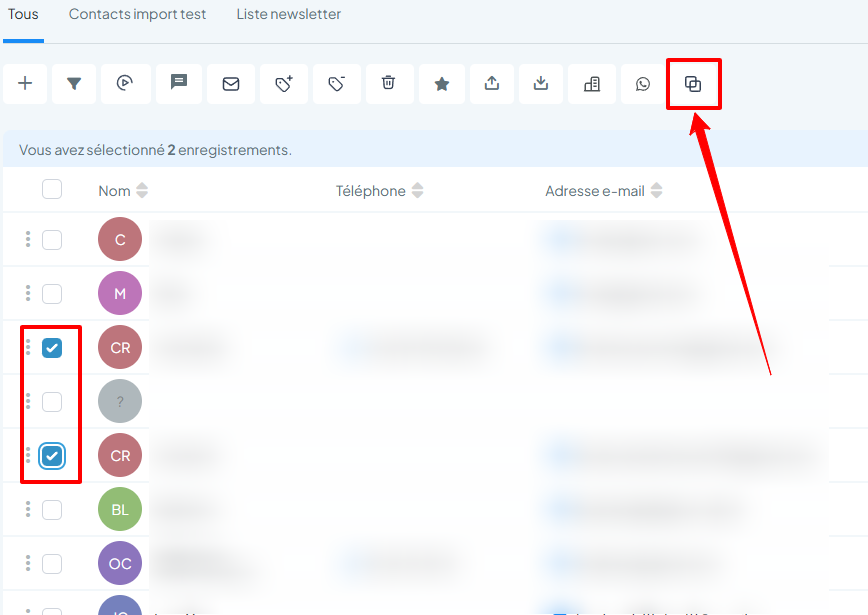
Select up to 10 contacts to merge
Step 2: Start the merge
Click on the Merge contacts button
Step 3: Choose the main contact
The primary contact is the one whose main data will be retained. Other data will be added if the field is empty.
Check the details of the selected contacts
Select the primary contact
Choose the primary email or phone number if necessary
Click on Merge contacts

💡TIP: The secondary contact's data will be permanently deleted. Check before confirming.
Step 4: Confirm the merge
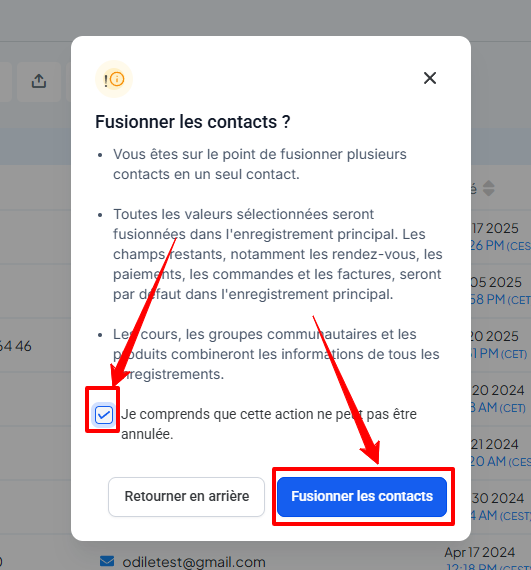
Check the box "I understand that this action is irreversible"
Click Merge Contacts
4. Duplicate detection preferences
To avoid duplicates at the source:
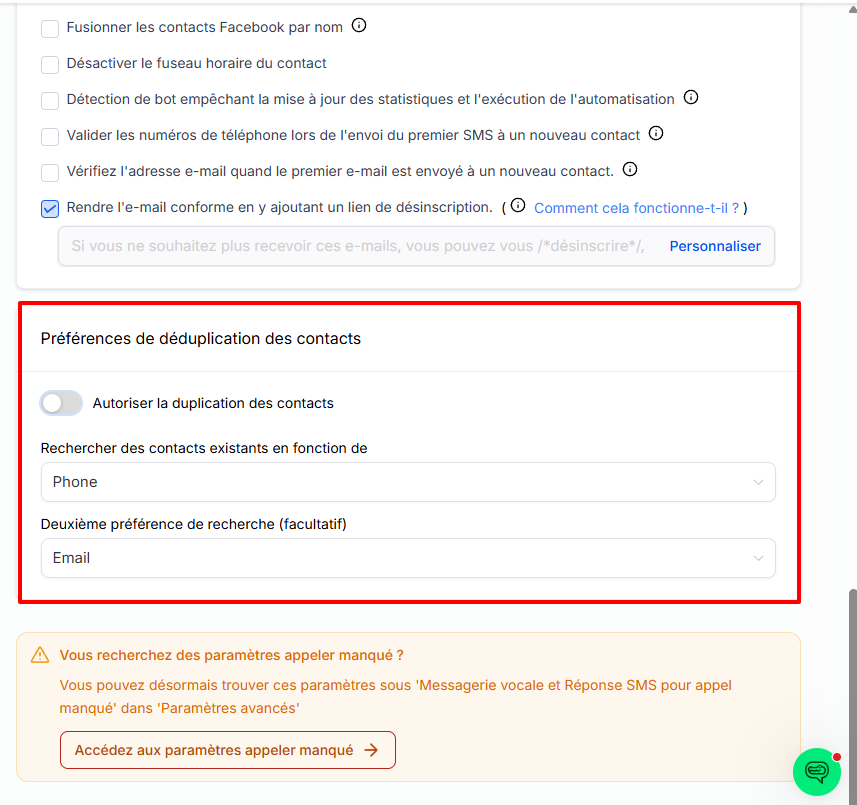
Go to Settings > Company Profile > Contact Preferences
Disable the Allow duplicate contacts option
Choose the detection fields (email or phone)
5. Frequently asked questions
Q: Can I merge contacts from the mobile app?
A: No, this feature is only available on a computer.
Q: What happens to the information from the other records?
A: The main contact's data is retained. Empty fields can be filled in with data from other records.
Q: Why can't I see the merge button?
A: Make sure you have selected at least two valid contacts and that you have the necessary permissions. Also check that the contacts are in the same space and visible.
Q: Can I merge more than 10 contacts?
A: No, the limit is set at 10 contacts at a time.
Q: How can I avoid duplicates from forms or calendars?
A: Disable the "Allow duplicate contacts" option in the settings.
Q: Does CrocoClick automatically detect duplicates?
A: Not at this time. You must search manually by name, email, or phone number.