Create and Manage Calendars Online
Discover how to create, customize and manage your calendar in just a few clicks, so you can dominate your schedule and impress your customers.
Written By CrocoTeam
Last updated 7 months ago
Effectively managing your time and appointments can greatly influence your success, whether personal or professional.
With CrocoClick's advanced calendar features, you have versatile tools to configure, customize, and manage your schedules. This guide covers all aspects of calendar management, ensuring you don't miss a thing.
Steps to Create Your Online Calendar
1. Create your calendar:
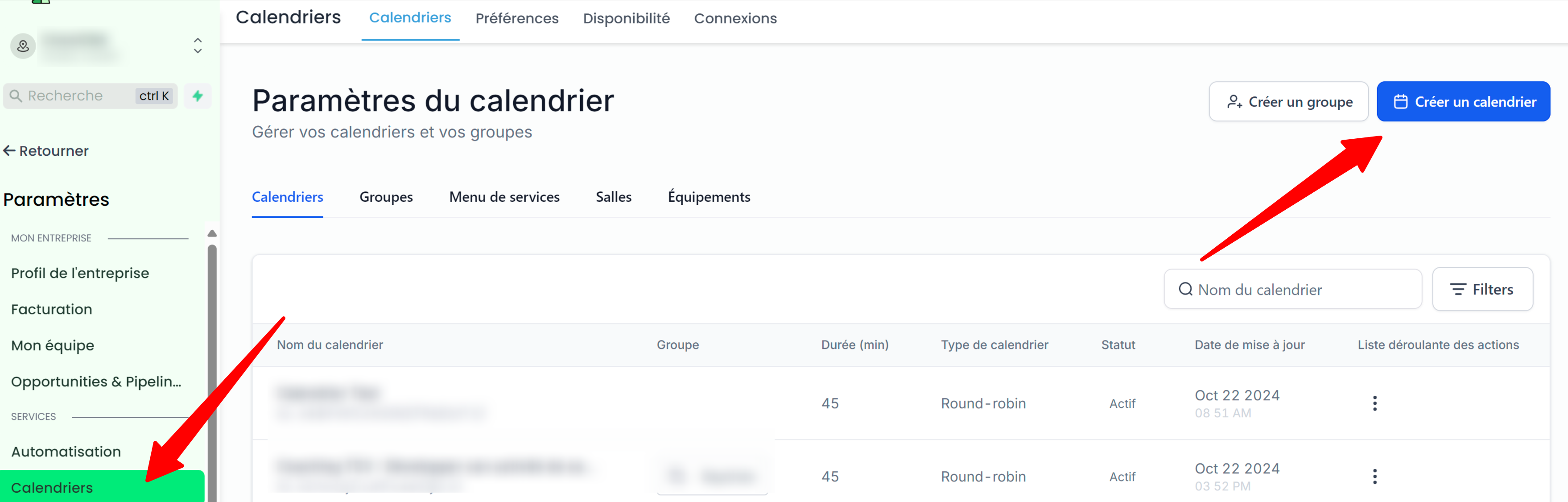
Go to the Calendars tab in the Settings menu.
Click on Create a Calendar.
2. Choose the type of calendar
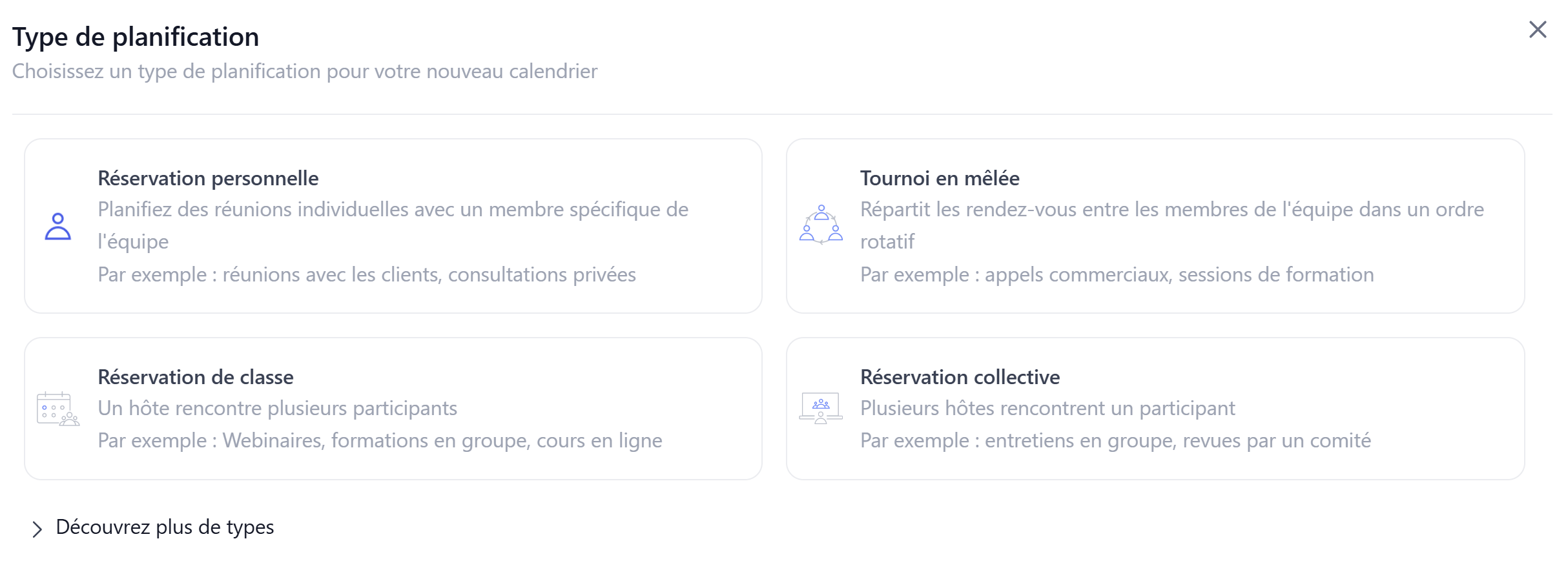
Personal Booking (1:1 - solo): Ideal for creating a personal calendar.
Round Robin (1:1 - team): Ideal for creating a calendar with multiple members of the same team. The settings then allow you to manage the distribution of appointments among team members, ensuring a balanced workload and availability.
Class Booking (1:many): Ideal for creating a calendar with multiple participants in the same event.
Group Booking (many:many): Ideal for having several team members present at the same appointment with a single client.
3. Set up the basic information for your calendar
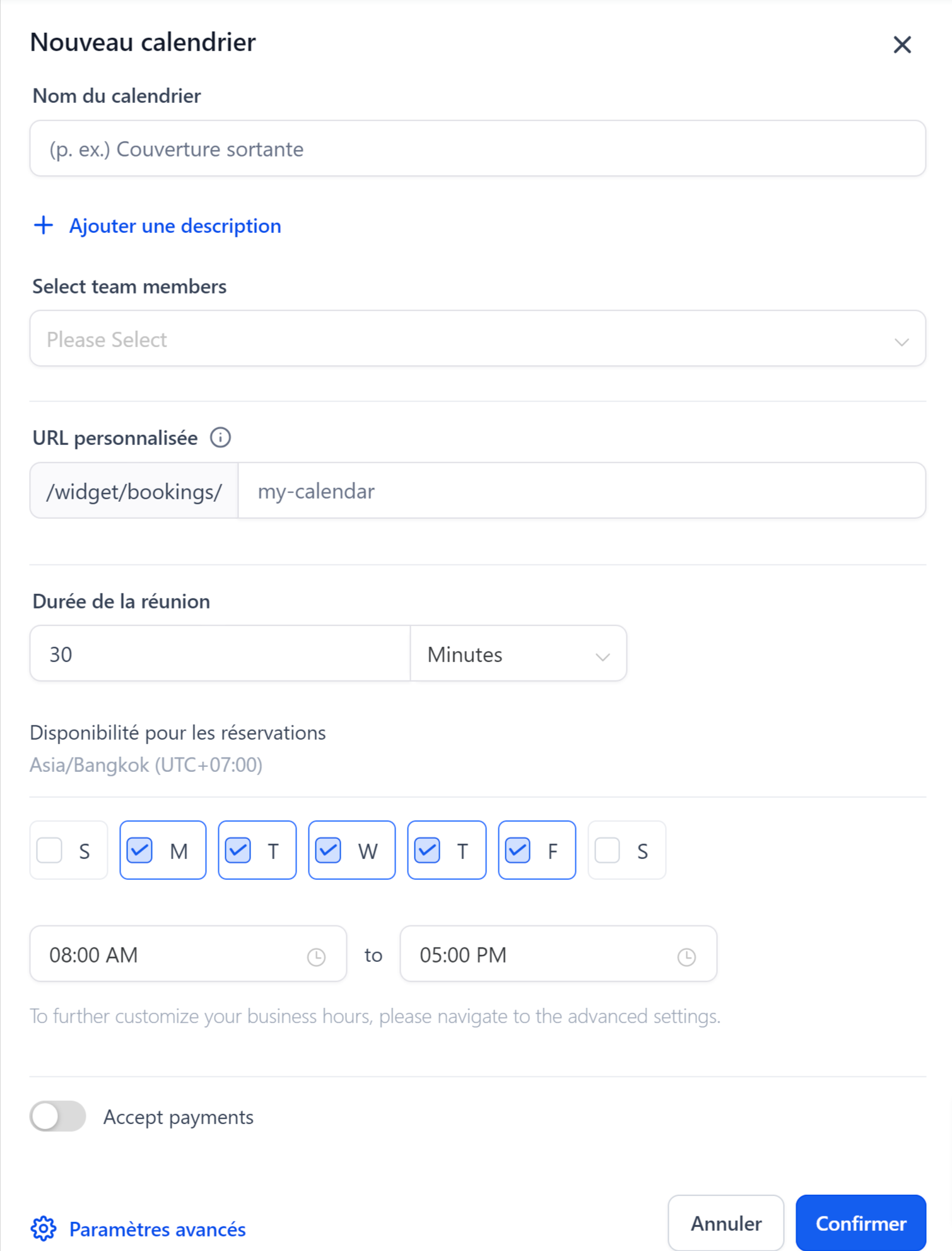
Enter the basic information for your calendar
Click Confirm
💡TIP: You can customize your calendar in more detail in the following steps
4. Access the advanced settings
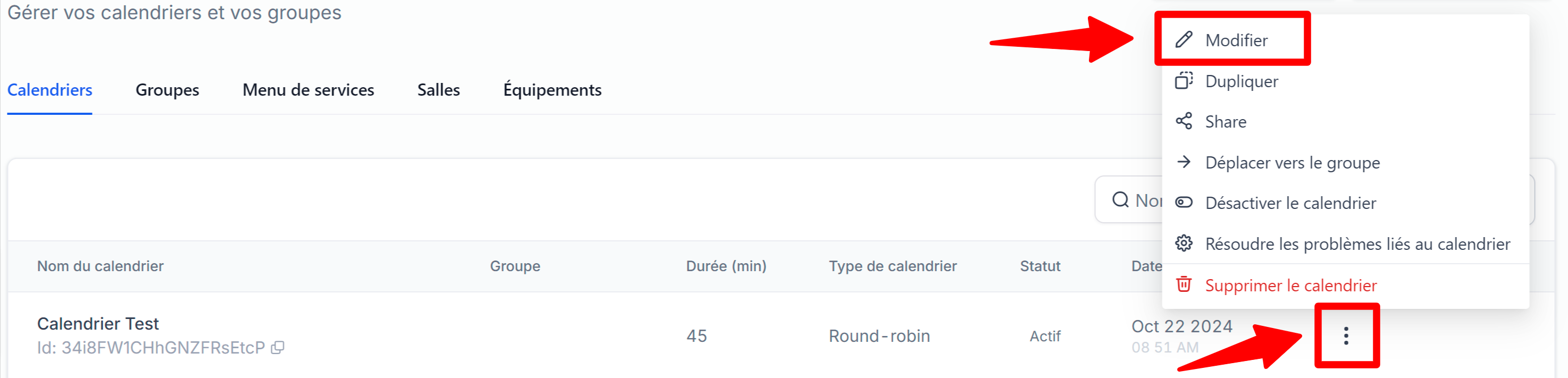
Click on the three dots next to your calendar
Click on "Edit"
5. Enter the meeting information
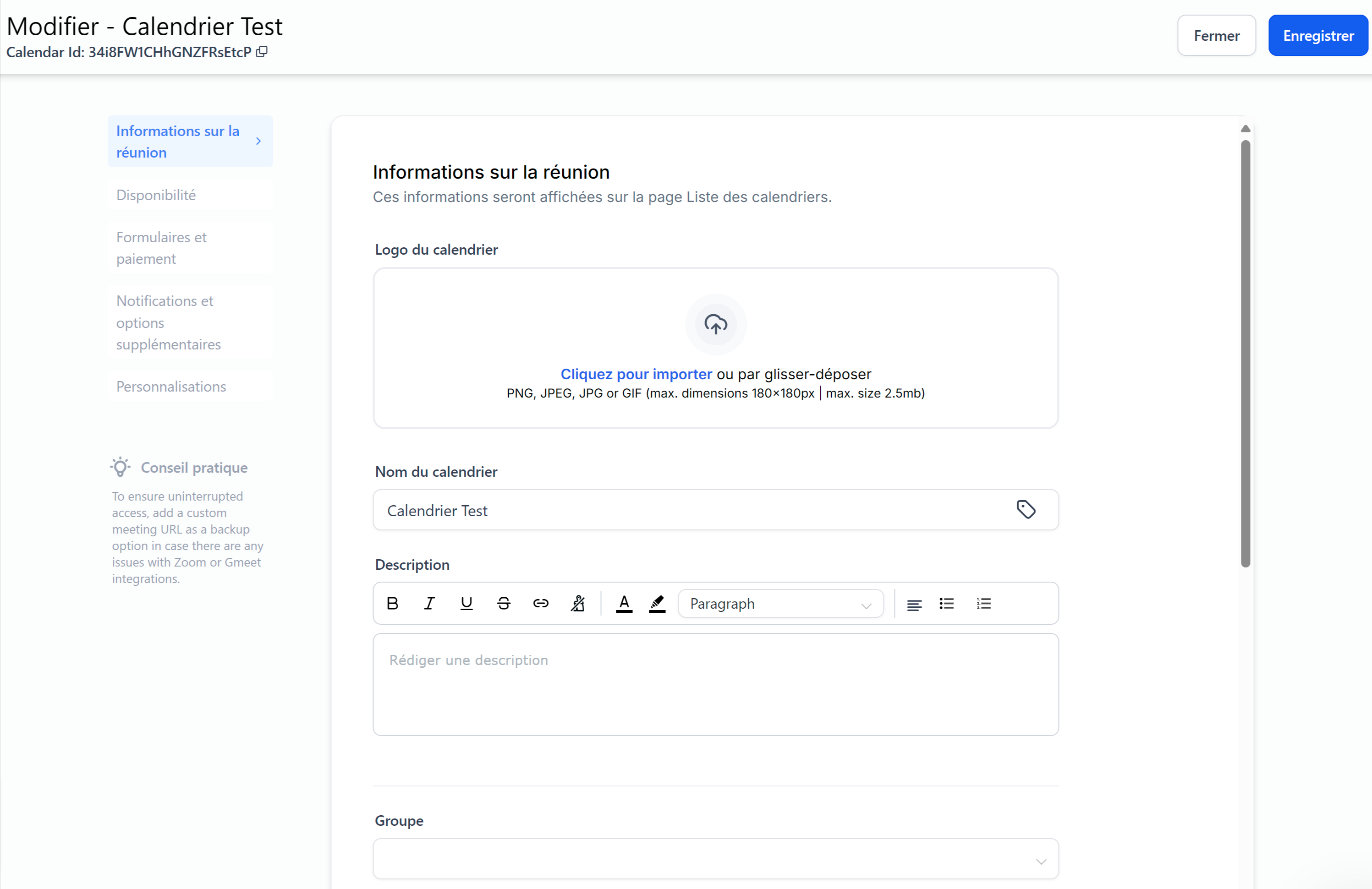
Logo: Improve your brand visibility by uploading an appropriate logo.
Name: Provide an appropriate name.
Description: Provide a concise overview.
URL: Customize your calendar link for easy sharing.
Appointment title: Set a meaningful title. Use {{contact.name}} for personalized touches.
Meeting location: Allows users to specify where a meeting will take place when setting up appointments via a calendar system.
Event color: Designate a color for quick identification.
6. Set up your availability
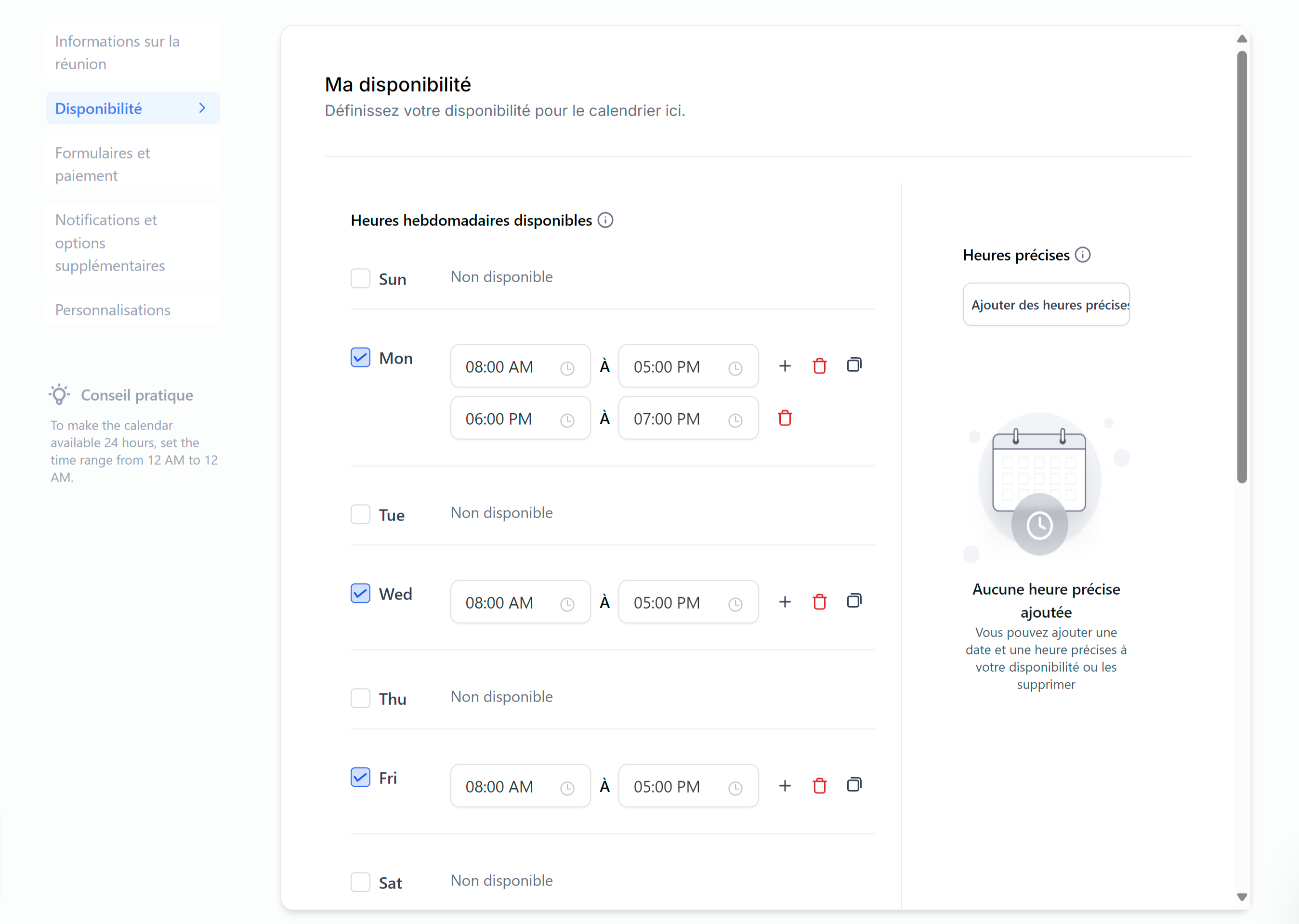
Weekly available hours: Set your usual weekly working hours. This feature is useful for setting up your default schedule that repeats week after week.
💡TIP: If the time zone in your profile differs from that of the company, the slots available in the calendar will be based on the company's time zone. This means that even if you set your working hours from 8 a.m. to 5 p.m. (Paris time), these hours will be converted to the company's time zone (e.g., Bangkok). As a result, some slots may fall outside your active hours and not be available for bookings.
For example, if you are active from 8 a.m. to 5 p.m. in Paris and the company operates in the Bangkok time zone (5 hours ahead in summer time), a slot from 8 a.m. to 1 p.m. in Bangkok corresponds to 3 a.m. to 8 a.m. in Paris, which is outside your defined hours. These slots will therefore not be available for booking.
Specific hours: adjust your schedule for certain specific dates and replace your usual weekly schedule on those dates
💡TIP: If you only want to have a few specific dates in your calendar (for example, if you are organizing a one-off event or webinar), uncheck all days in the Available Weekly Hours section and then add your event dates and times in the Specific Hours section.
Make sure that no weekly hours are configured for this feature to work properly.
Look Busy: The "Look Busy" feature is designed to create a sense of urgency by hiding a percentage of your available booking slots, making you appear more in demand. By limiting the visible time slots, potential customers may feel a greater need to book quickly, which can lead to an increase in bookings.
Recurring appointments: Turn this event into a recurring appointment. Set how often appointments repeat (e.g., weekly, monthly), the number of appointments, and decide what happens when time slots become unavailable.
Meeting interval: Specify the time interval for choosing a slot. This time does not necessarily need to be the same as the duration of the meeting (for example, if a 5-minute interval is set, then the user can select the 1:00 p.m., 1:05 p.m., or 1:10 p.m. slot, etc., even if the appointment is 30 minutes long).
Meeting duration: Set the duration of your appointments (e.g., 30 minutes, 1 hour).
Minimum planning notice: Specify the notice requirements before booking.
Period: Set the time frame for which appointments can be scheduled (e.g., only display slots for the next 10 days).
Maximum number of bookings per day: Set daily appointment limits.
Maximum number of bookings per slot (per user): Set the appointment limit for each time slot. In cases where the defined threshold is exceeded, the system moves on to the next user in the round robin or marks the slot as unavailable (useful if, for example, you are organizing a training session that can accommodate up to 5 participants at the same time).
Buffer time: Allow for a period of reflection between appointments.
Pre-buffer: Additional time added before an appointment.
Post-buffer: Additional time added after an appointment.
💡TIP: If a 30-minute appointment has a 30-minute post-buffer and a slot is reserved from 12:00 p.m. to 12:30 p.m., the next available slot will be at 1:00 p.m.
7. Configure the form and payments
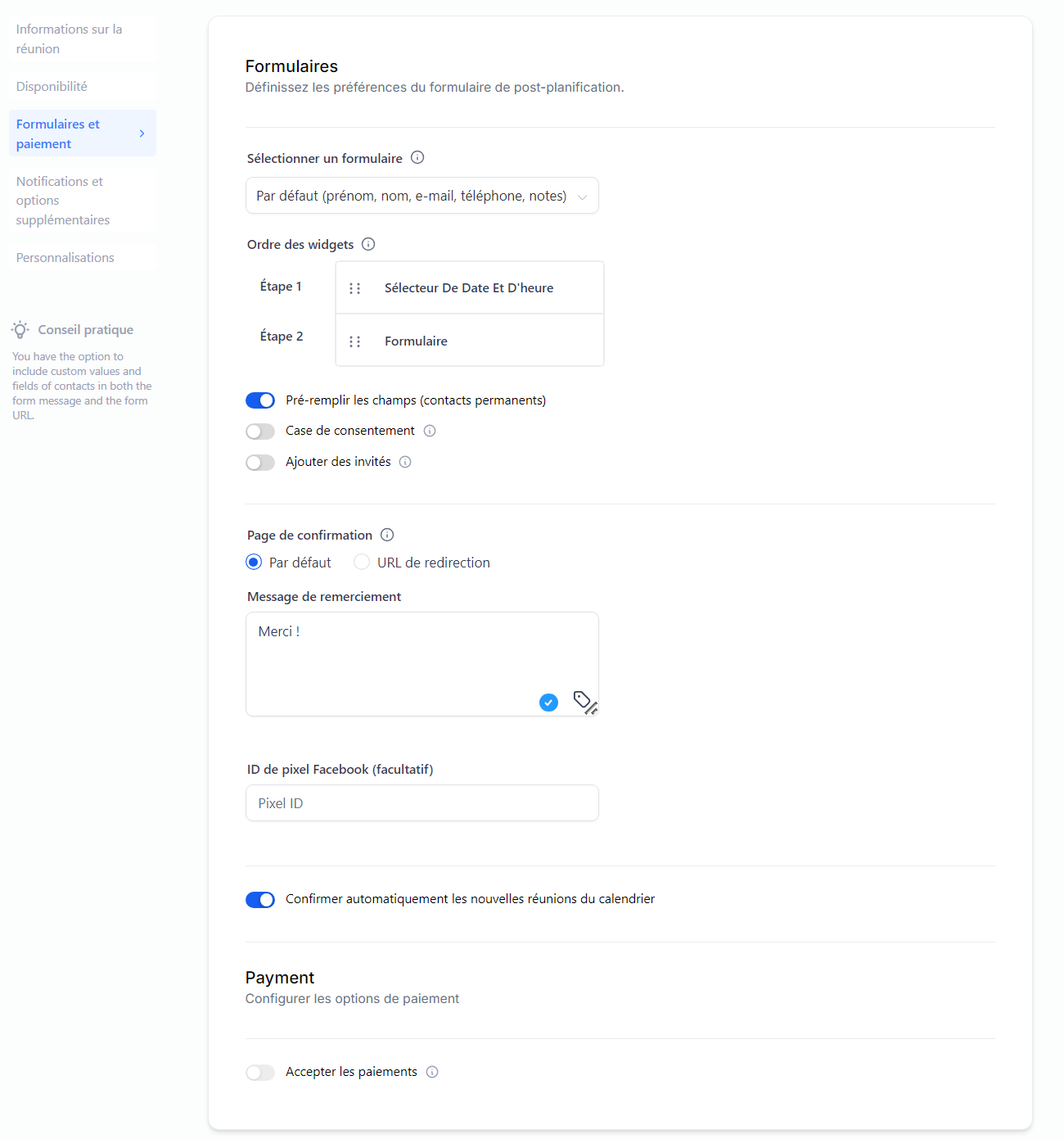
Select a form: choose the default form or use a form you have created previously
Widget order: choose whether you want to display the form before or after the available slots
Pre-fill fields: allows you to automatically fill in the form with the prospect's information if they are in the CRM
Consent box: enable this option to obtain consent from contacts by adding a checkbox, accompanied by a message that you can customize
Add guests: allow the main participants to invite additional guests who will also receive an invitation to this appointment
Confirmation page: when someone makes a booking, you can choose to display a message with the appointment details on the same page (default) or redirect them to a page of your choice (redirection).
Automatic confirmation of new meetings: enable this feature to instantly confirm new appointments in available time slots on the calendar, ensuring that users receive immediate booking confirmations. If you disable this option, all appointments will be put on hold and you will need to confirm them manually
Facebook pixel ID: track appointments with your Facebook Ads ID.
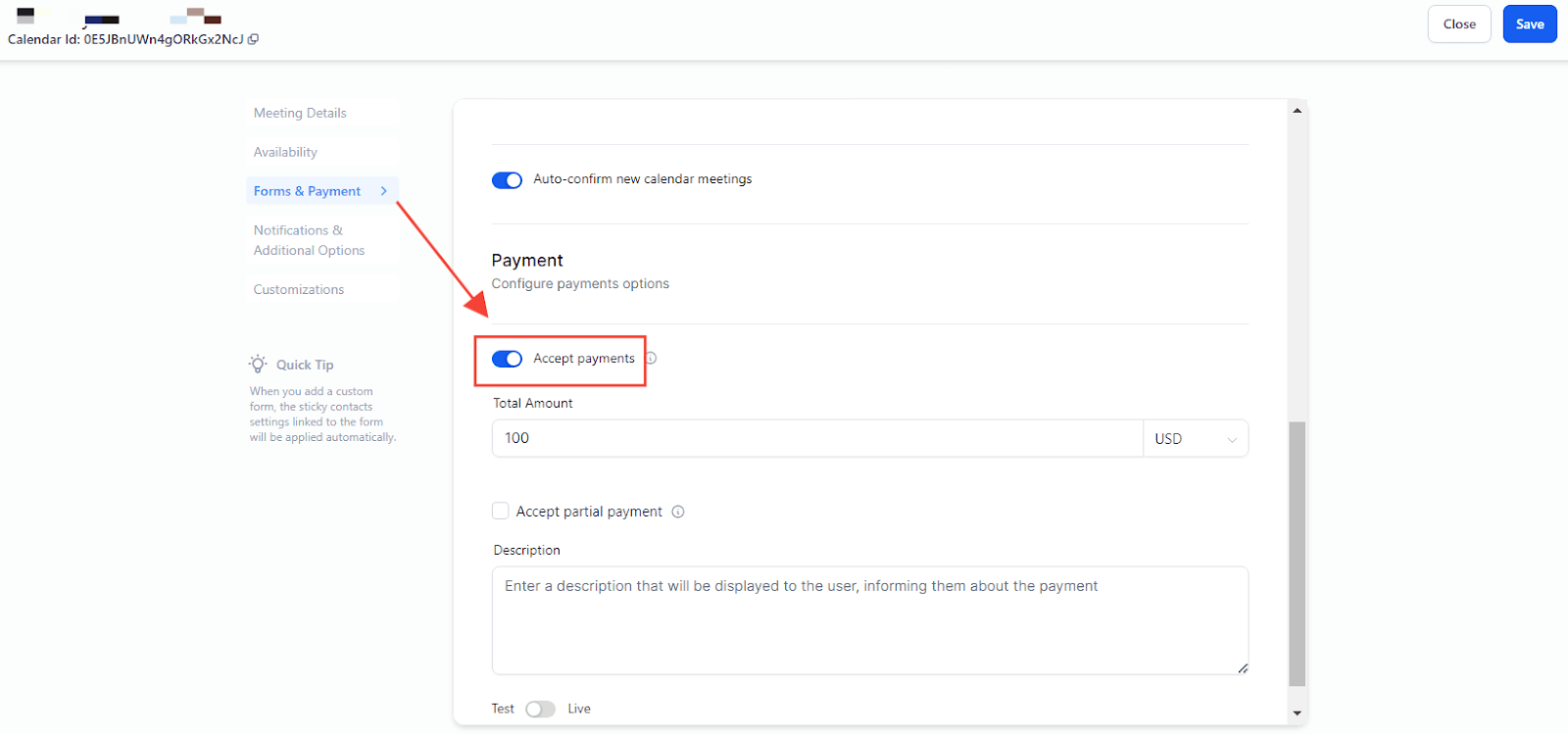
Payment: if you have already connected a payment gateway such as Stripe to your CrocoClick account, you can enable the payment acceptance feature.
The main configurations include setting the amount, choosing the currency, selecting between test/live environments, customizing descriptions, and the option to pay a deposit.
8. Manage notifications following appointment booking
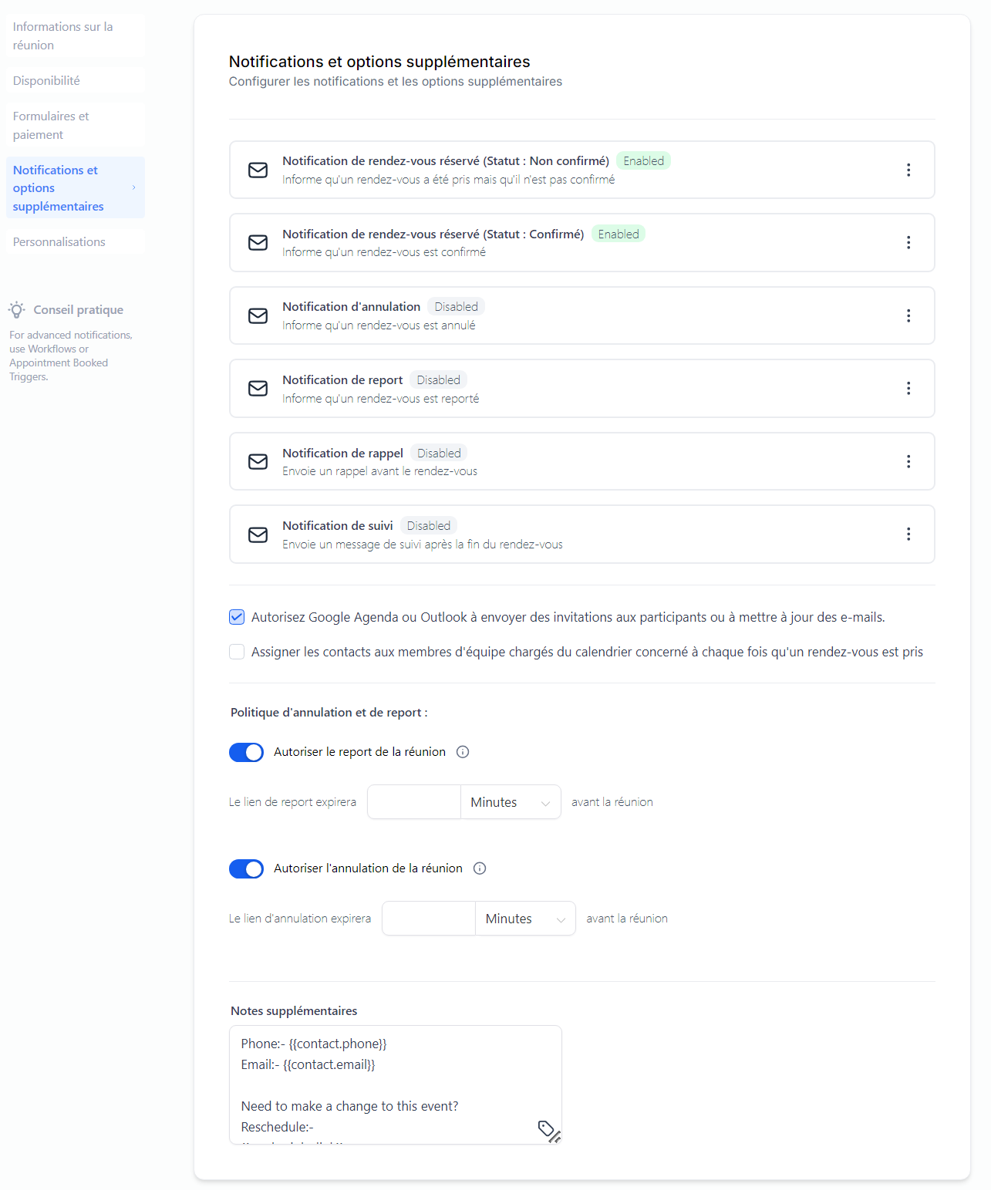
Notifications and additional options: In this tab, you will find numerous email templates to send to users (the person attending the appointment) or to the contact (the person who booked the appointment).
Google Calendar: Allow Google Calendar to send appointment invitations or emails to participants when the event is updated.
Assignment: Assign contacts who have made appointments to the user who will perform the appointment (important if you create a calendar with multiple users).
Cancellation and rescheduling: Encourage flexibility with options that allow customers to reschedule or cancel. You can also set time limits during which appointments can be rescheduled or canceled, helping to minimize last-minute changes that disrupt schedules and waste valuable time.
💡TIP: It's important to communicate these policies to your customers, for example by including them in the meeting details or in booking confirmation messages, to ensure transparency and avoid misunderstandings.
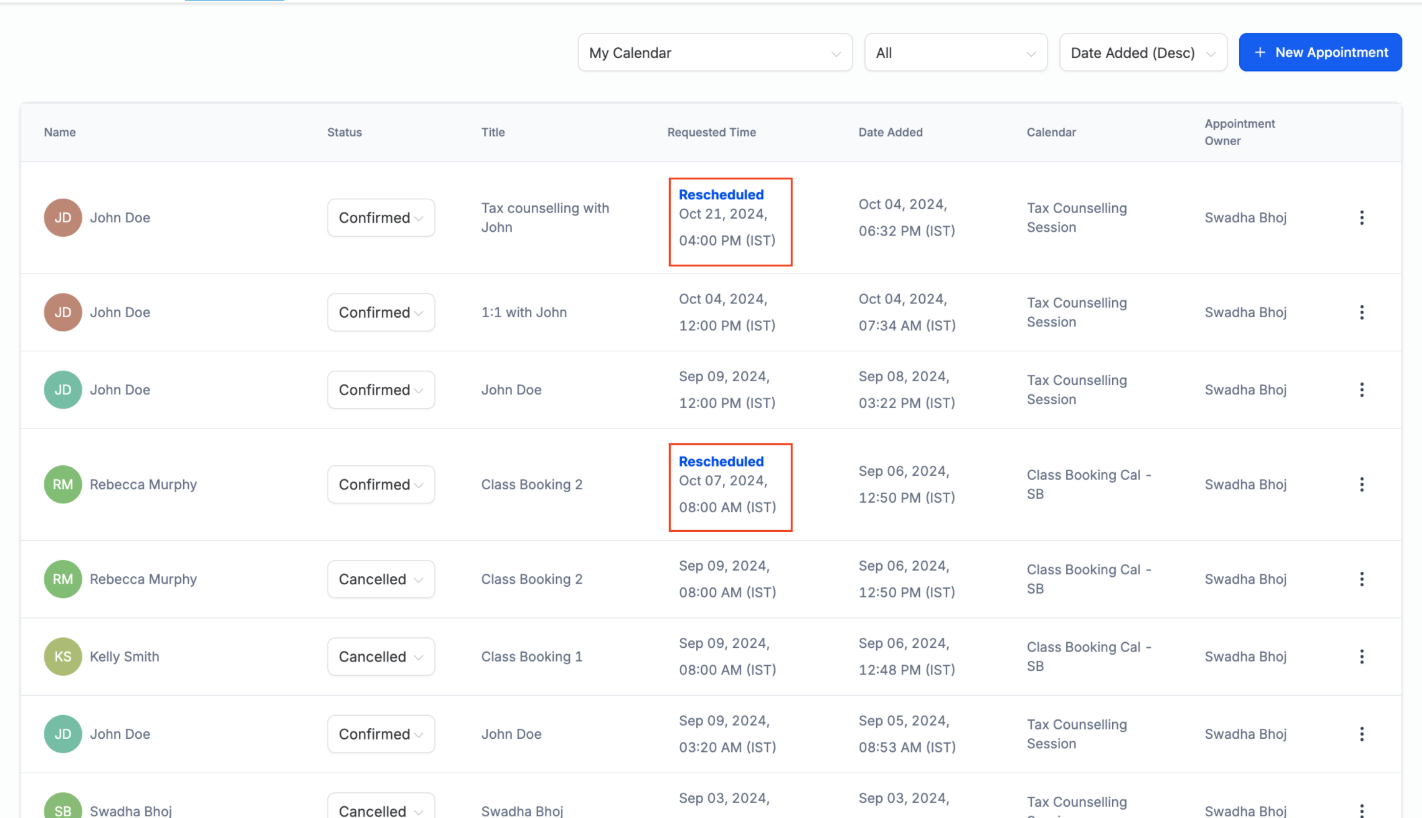
💡TIP: Once the appointment has been rescheduled, a "Rescheduled" tag will appear in the appointment list and in the modal window. It will also display the previous date and time for easy reference. To use it, simply check your appointment list or details to see rescheduled appointments marked.
Additional Notes: Include additional notes that provide links to reschedule, cancel, and any other relevant information such as the client's phone number and email address.

9. Customize the Appearance of Your Calendar
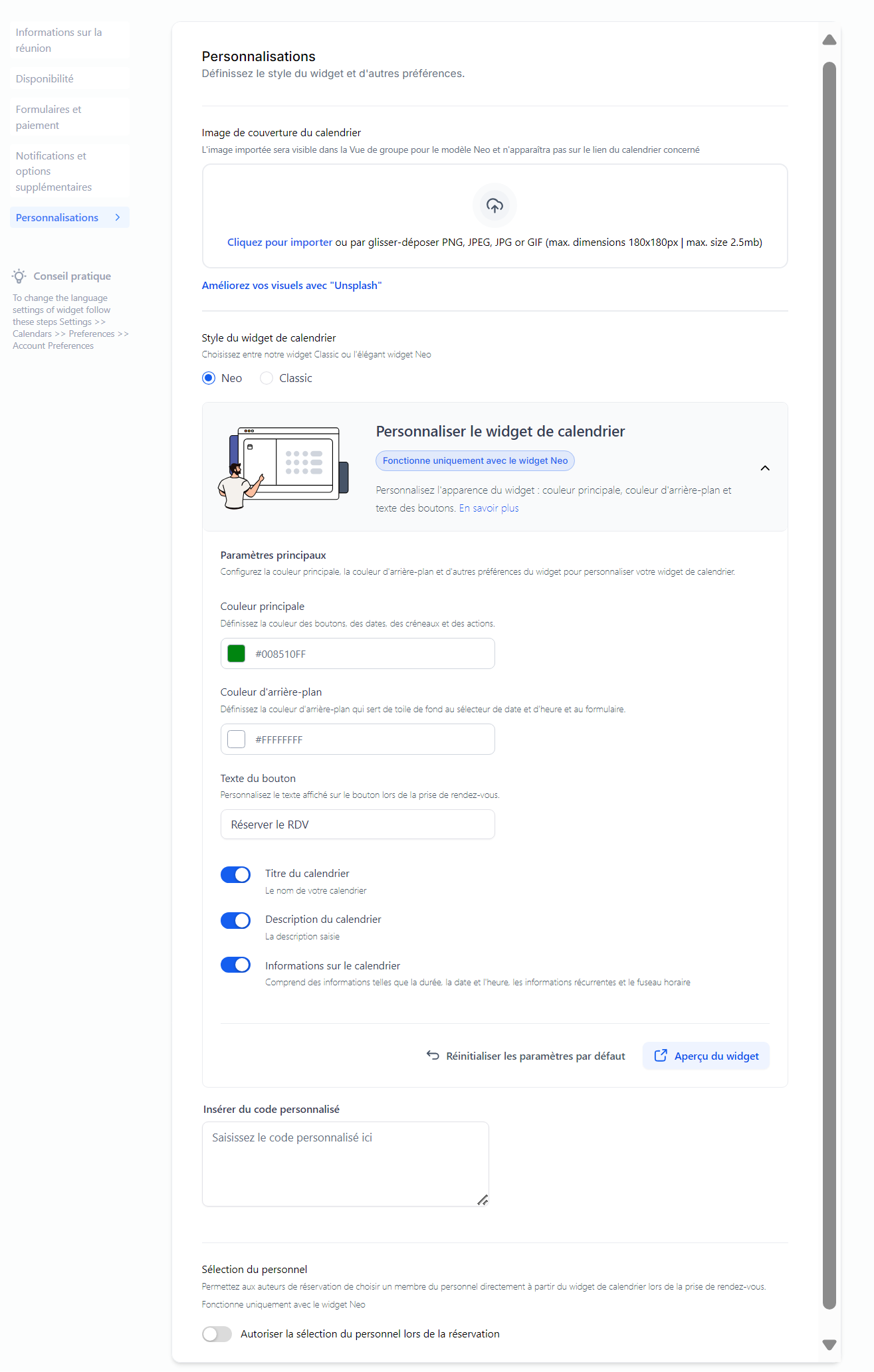
Style Selection: Choose between the modern Neo design (recommended) or the classic design for your widget.
Primary Color: Select the color of the buttons, dates, time slots, and actions.
Background color: Set the background color for the date and time slots and the form.
Button text: Add the text you want to display on the scheduling button.
Calendar title: enable the calendar title to display the calendar name.
Calendar description: Enable the calendar description to display the calendar description.
Calendar information: Includes information such as duration, date and time, recurring details, and time zone
Insert custom code: You can insert custom CSS code to customize the calendar as desired.
Staff selection: Allow staff selection during bookings, enabling contacts to choose which user or staff member they wish to schedule with.
Manage your calendars online
View and edit your existing calendars
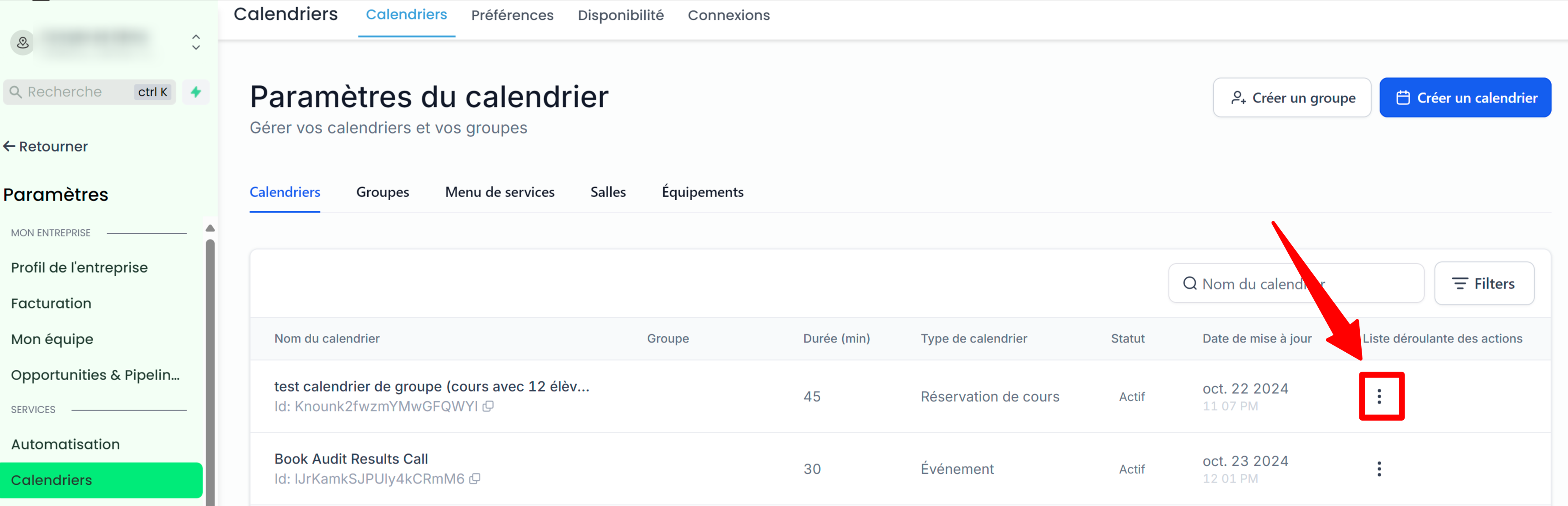
Access all calendars saved in your account settings.
Use the "..." option to: duplicate, retrieve the embed code, share scheduling or permanent links, edit calendar settings, enable/disable, or even delete from your account. You can also move calendars to specific groups if necessary.
Managing your appointments
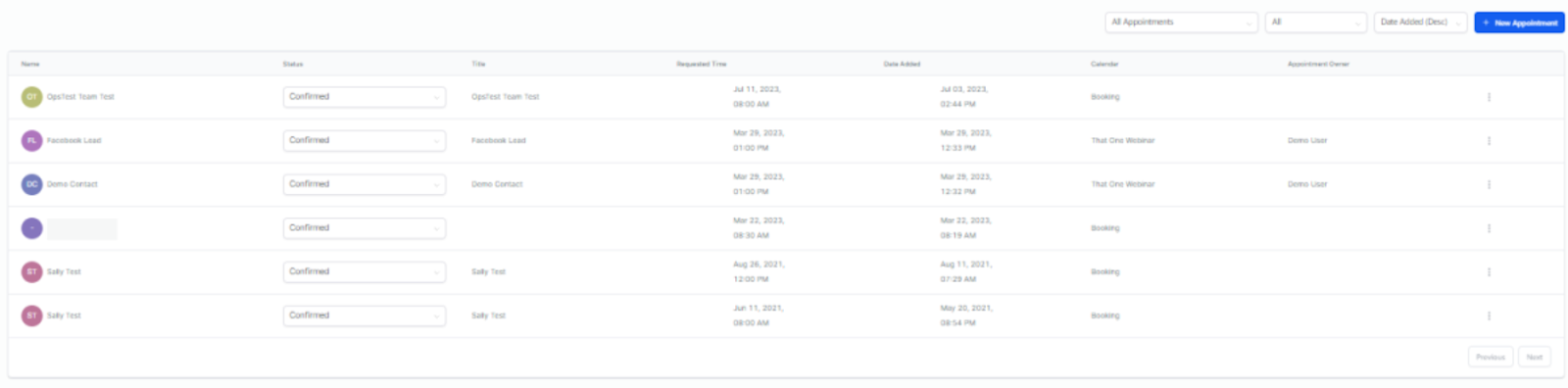
Go to Calendars > Appointments to browse appointments by calendar, status, and date.
Make the most of manual appointment scheduling when necessary.
Conclusion
With the right tools and knowledge, calendar management can be more than just a routine task—it can be truly transformative for your business.
Let CrocoClick's features guide you through effortless planning, ensuring you stay on top of every appointment, class, or meeting. Enhance your calendar management experience with these comprehensive steps and watch your productivity soar!
FAQ
Q1: How do I create a new calendar in CrocoClick? To create a new calendar, go to the "Calendars" section in the Settings menu, click "Create Calendar," and select the desired calendar type. You can then customize it with options such as name, URL, and meeting location.
Q2: How can I keep the meeting location private when booking appointments? Use the "Show label for custom location" feature in the meeting details section. This allows you to display a placeholder, such as "Paris Office" or "One of our coaches will call you when the time comes," which keeps the meeting location private until the booking is confirmed.
Q3: What is the "Look Busy" feature and how does it work?: The "Look Busy" feature hides a percentage of your available booking slots to create a sense of urgency. It randomizes the hidden slots across different days to make your calendar appear busier, encouraging customers to book quickly.
Q4: How do before and after buffers work in appointment scheduling? Before and after buffers add extra time before and after an appointment to prevent overlap. For example, if you set a 30-minute buffer, the time of the next available appointment will be adjusted to account for this buffer, ensuring adequate downtime.
Q5: Can I add multiple guests to a single appointment?: Yes, with the "Add Guests" feature, you can allow the primary attendee to invite additional guests to an appointment. You can set the maximum number of guests and notify them as the primary attendee.
Q6: How do I integrate payments for appointments? A: You can integrate payments using a gateway such as Stripe. Go to the billing section in your calendar settings and set the rates. You can also enable partial payments and set the amount or percentage to be charged in advance.
Q7: Can customers reschedule or cancel their appointments? A: Yes, customers can reschedule or cancel their appointments. You can configure rescheduling and cancellation options in your calendar settings, including setting limits on how far in advance of the appointment these actions can be taken.
Q8: How do I sync my CrocoClick calendar with external calendars like Google? A: You can link your CrocoClick calendar to external calendars, such as Google Calendar, to sync appointments and ensure seamless scheduling across all platforms. Enable this option in the calendar integration settings.
Q9: How can I customize the appearance of my booking widget? : You can customize the widget design by choosing between Neo and Classic styles, setting button and background colors, and changing the scheduling button text. These options can be configured in the widget customization settings.
Q10: How can I limit the number of appointments per day or time slot? : You can set a maximum number of appointments per time slot and per day in your availability settings. If the limit is reached, the system will automatically move to the next available time or mark the slot as unavailable.